
Step-by-step guide
Use Test Builder
Test Builder is a four-part teacher workflow: maintain the Item Bank, Build Test, Preview & Export, then use Results & Follow-up. Generated tests, answer files, packets, and analysis stay local and require teacher review.
Teacher goal
Where do I start when I need to build, export, check, and follow up on a local test?
Use this guide when this is the task in front of you. Stop if the selected class, learner, role, school year, file, or output does not match.
In-app path
- Test Builder
Get ready
Check the starting point
These are the minimum conditions for the workflow to make sense.
Before you start
Estimated time: About 10–20 minutes
- A saved class, subject, and term when the test is class-linked
- The item types, component, and AI-use choice
- A teacher review step for generated content and manual-check items
You should see
Test Builder shows the intended class, subject, term, item bank, build readiness, preview, and results stages without skipping locked steps.
Detailed workflows
Choose the Test Builder workflow you need
Build, reuse, export, check, analyze, or prepare alternate local packets with the right review safeguards.
Use Test Builder Guided Build
How do I build a test while preserving my question-type order and answer safety?
Open workflow guideUse Test Builder Item Bank
How do I keep reusable test items organized without making tests automatic?
Open workflow guideReview generated test history
How do I reopen previous generated tests and exported bundles safely?
Open workflow guideAnalyze Test Builder results and prepare follow-up
How do I move from checked learner answers to item insights, remediation, and a short check quiz?
Open workflow guideImport and review Test Builder answer sheets
How do I import scanned answer sheets without turning uncertain marks into saved answers?
Open workflow guidePrepare Test Builder alternate forms and local packets
How do I create multiple versions and packet files without overstating that every form is equivalent?
Open workflow guideSteps
Complete the task in order
Review choice points, save or preview behavior, and any stop condition before continuing.
 View full size
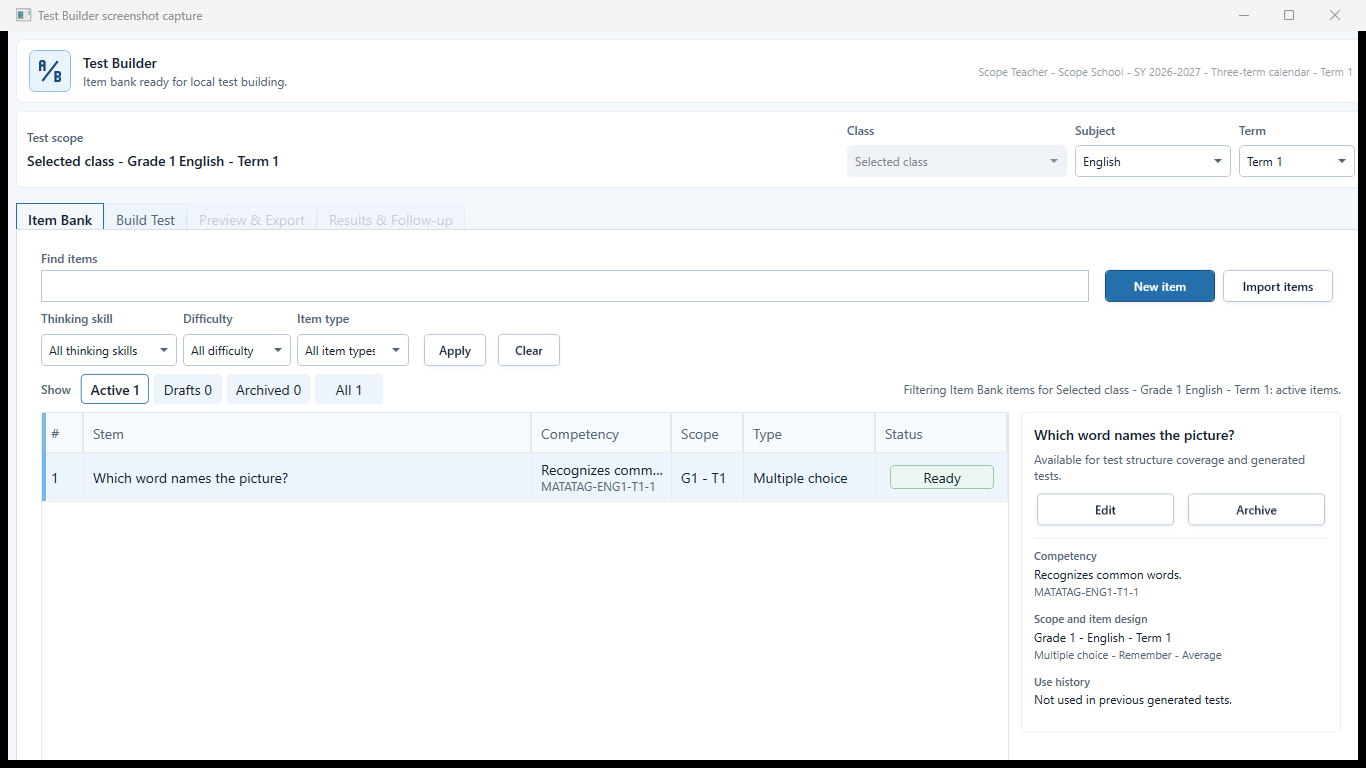
Sample data only. The item bank context controls which questions are available to the test. Captured July 12, 2026. Step 1
Open the item bank in the correct context
Choose Test Builder and confirm the class, subject, and term. Review the item bank filters before creating, importing, selecting, or editing any item.
Expected result: The item bank context controls which questions are available to the test.
 View full size
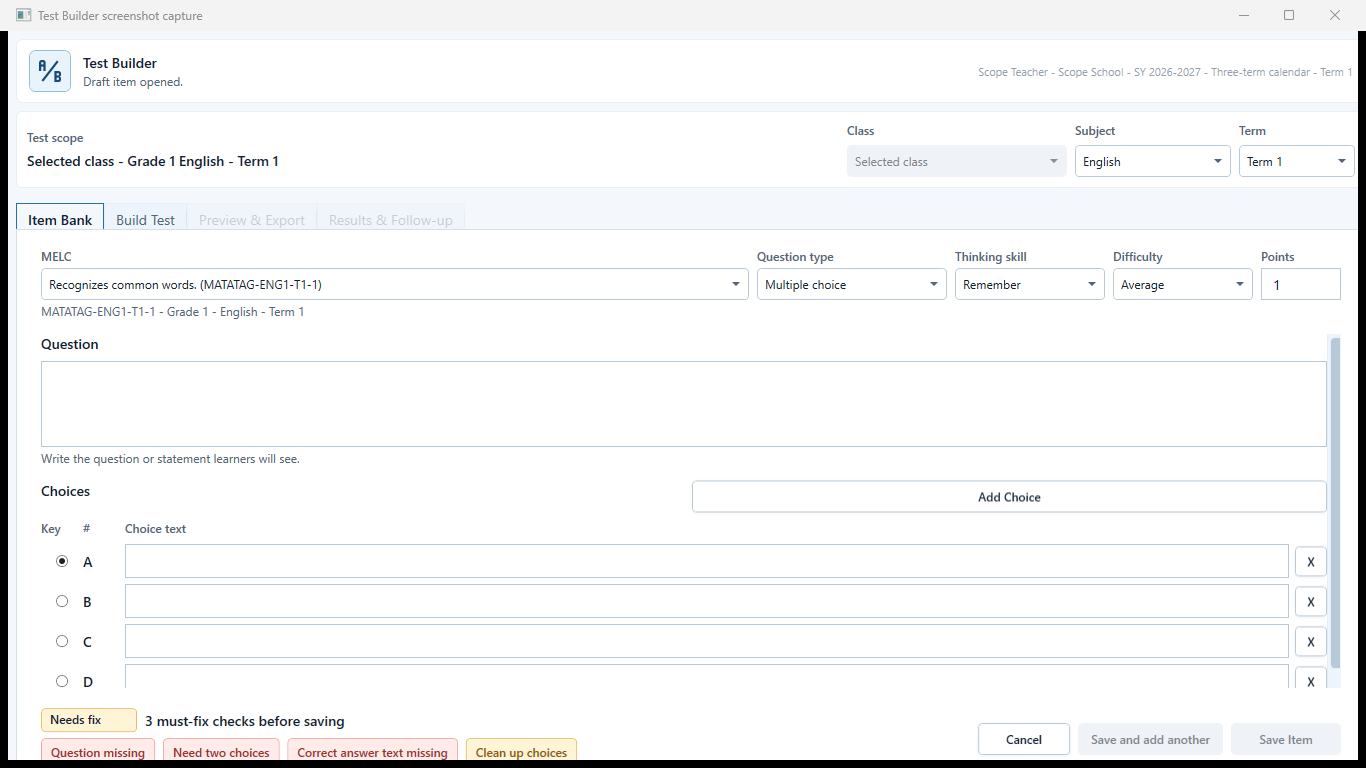
Sample data only. The item editor is the review point for question and answer correctness. Captured July 12, 2026. Step 2
Author and review each item
Enter the prompt, item type, choices or expected answer, points, competency or tags, and any explanation required by the editor. Save only after checking language, answer correctness, accessibility, and learner appropriateness.
Expected result: The item editor is the review point for question and answer correctness.
 View full size
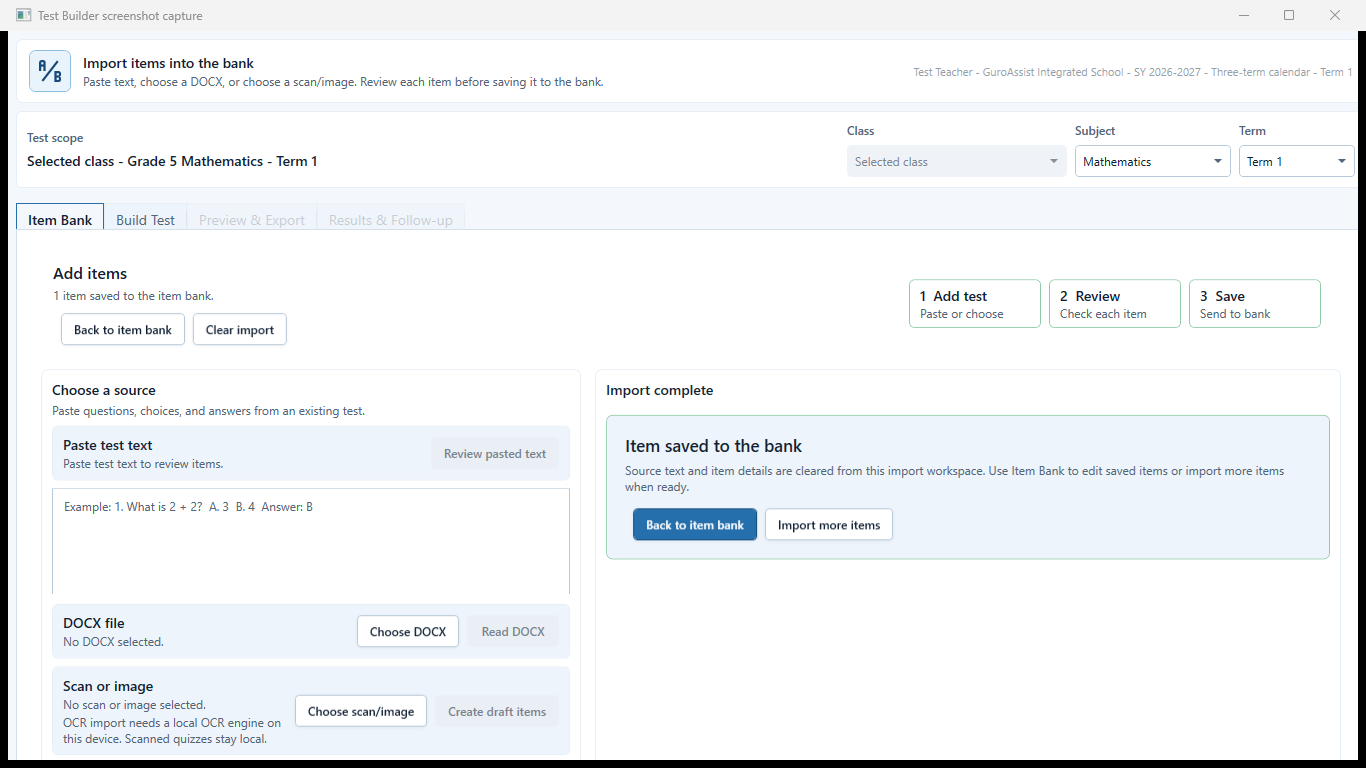
Sample data only. Imported items remain a teacher-review draft until warnings and answers are checked. Captured July 12, 2026. Step 3
Import items and resolve every warning
Use Import items for a supported local source, then review extracted questions, warnings, duplicates, and answer choices. OCR or imported text requires teacher verification; do not save a question merely because extraction completed.
Expected result: Imported items remain a teacher-review draft until warnings and answers are checked.
 View full size
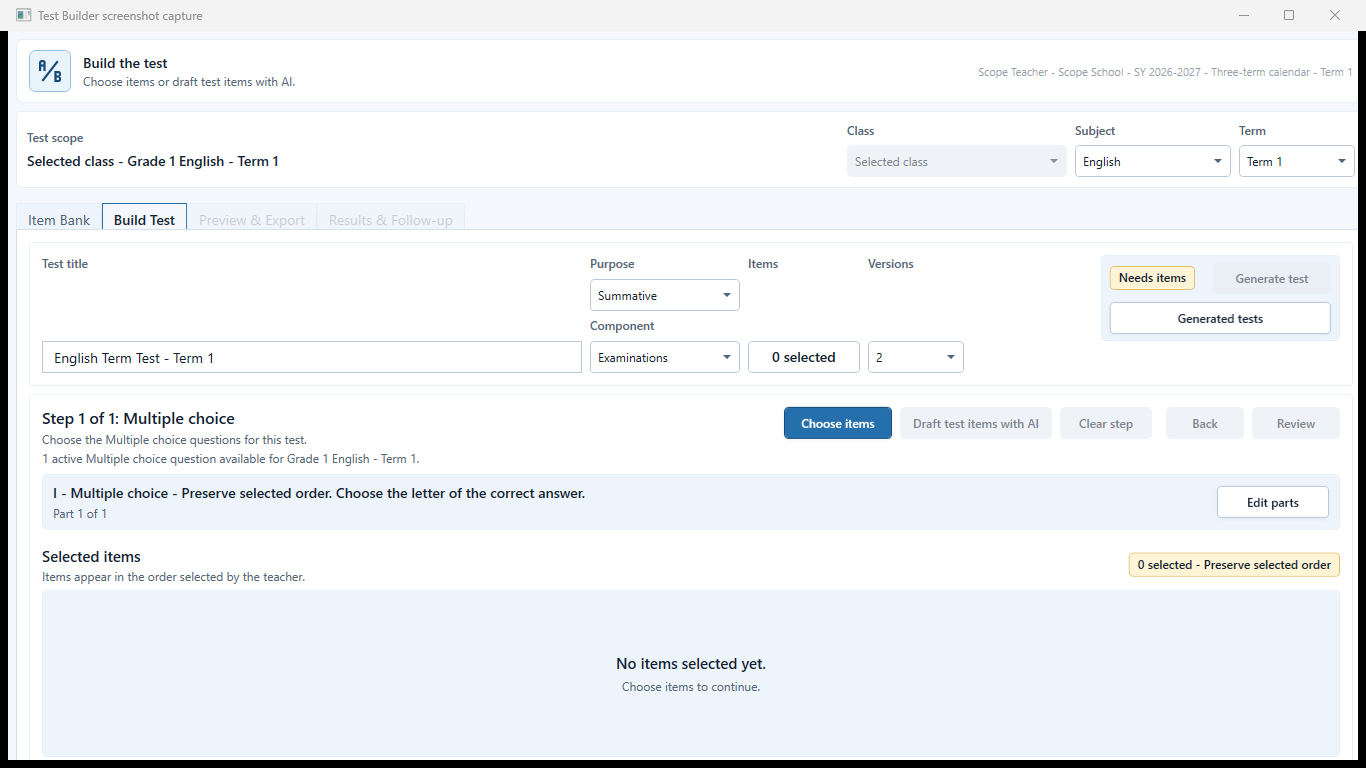
Sample data only. The readiness panel prevents an incomplete test from being exported. Captured July 12, 2026. Step 4
Select items and read build readiness
Choose only the intended active items, then open Build test. If the screen says the test is not ready, resolve the listed missing title, structure, item, answer, or settings requirement before continuing.
Expected result: The readiness panel prevents an incomplete test from being exported.
 View full size
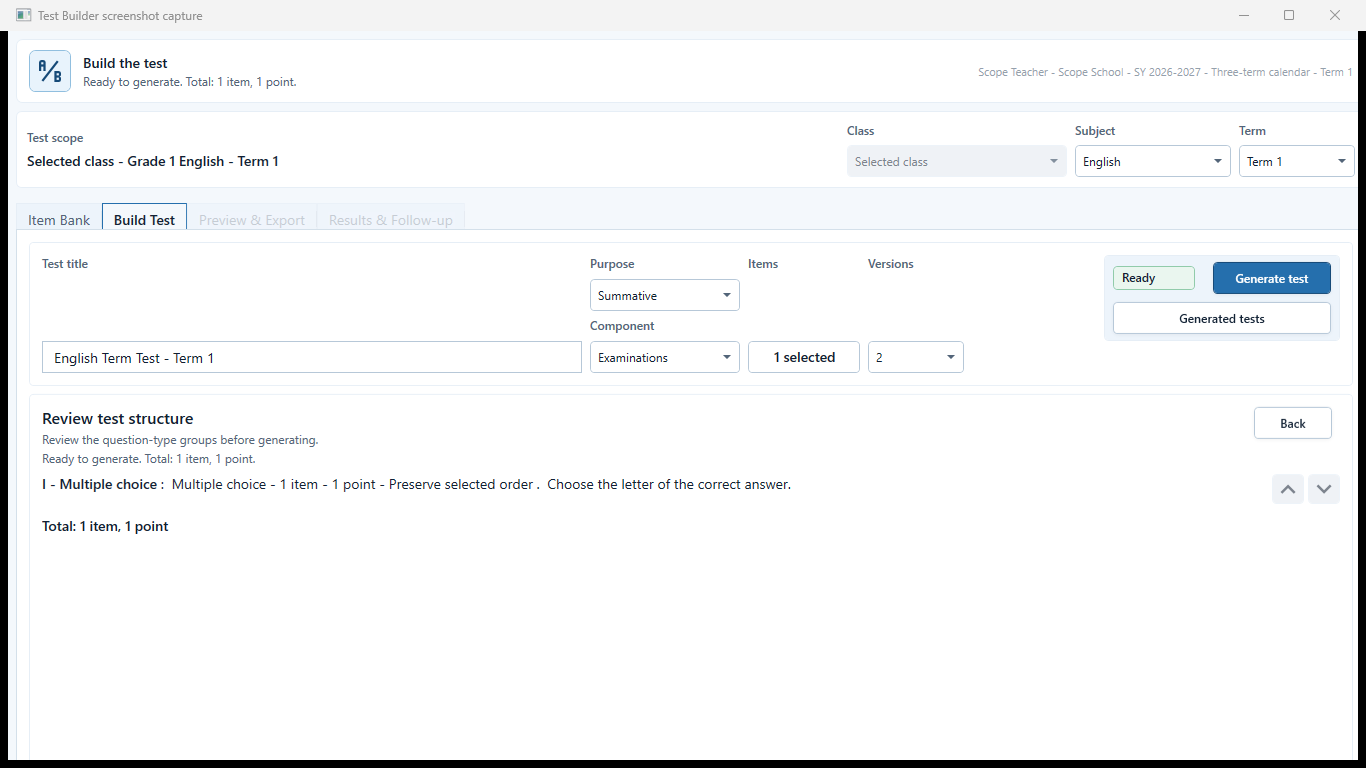
Sample data only. A ready build has a reviewed structure and complete selected items. Captured July 12, 2026. Step 5
Configure a ready test
Set the test title, instructions, item order, points, and supported paper or formative settings. Confirm total items and points match the intended assessment before previewing.
Expected result: A ready build has a reviewed structure and complete selected items.
 View full size
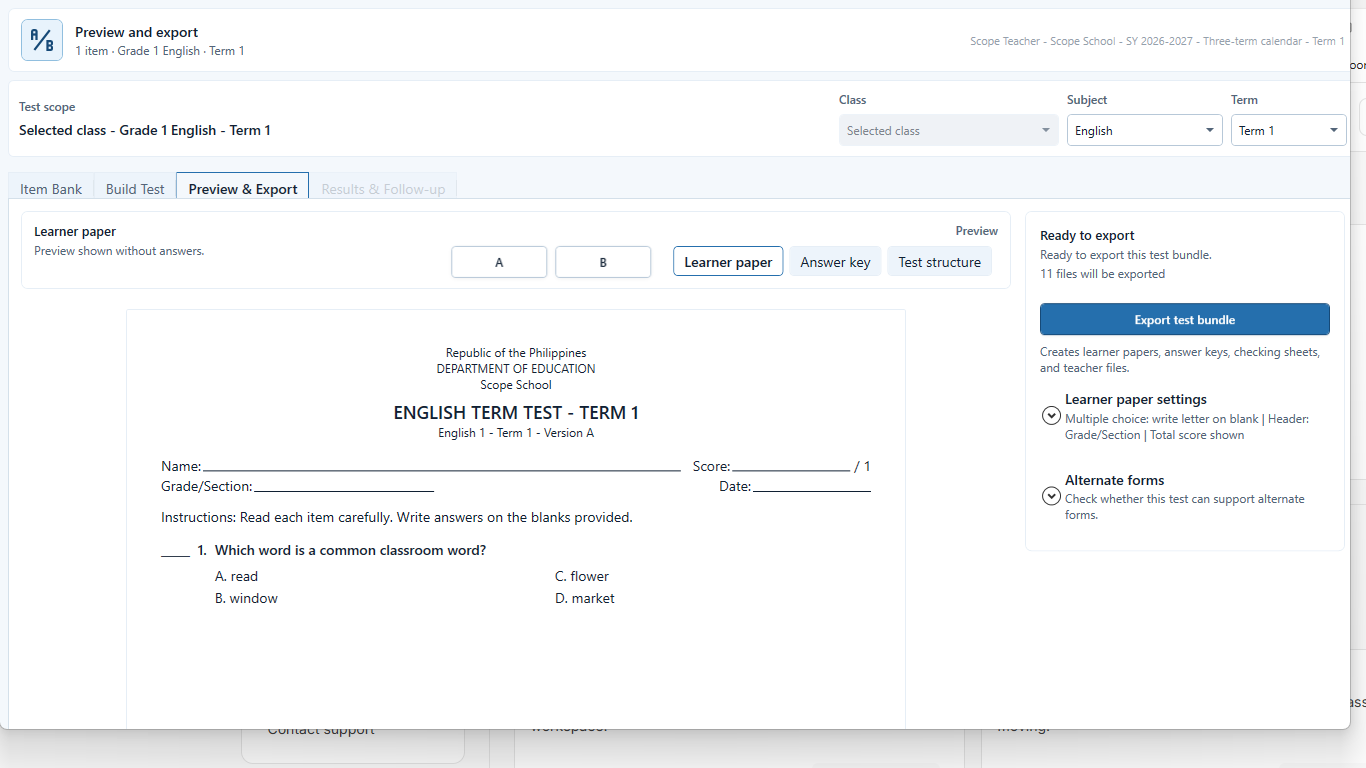
Sample data only. Separate previews protect learners from answer leakage. Captured July 12, 2026. Step 6
Preview learner paper and answer key separately
Open Preview and export, then inspect the learner paper and answer key as separate outputs. Confirm the learner paper does not expose answers and that the answer key matches item numbering and alternate-form order.
Expected result: Separate previews protect learners from answer leakage.
 View full size
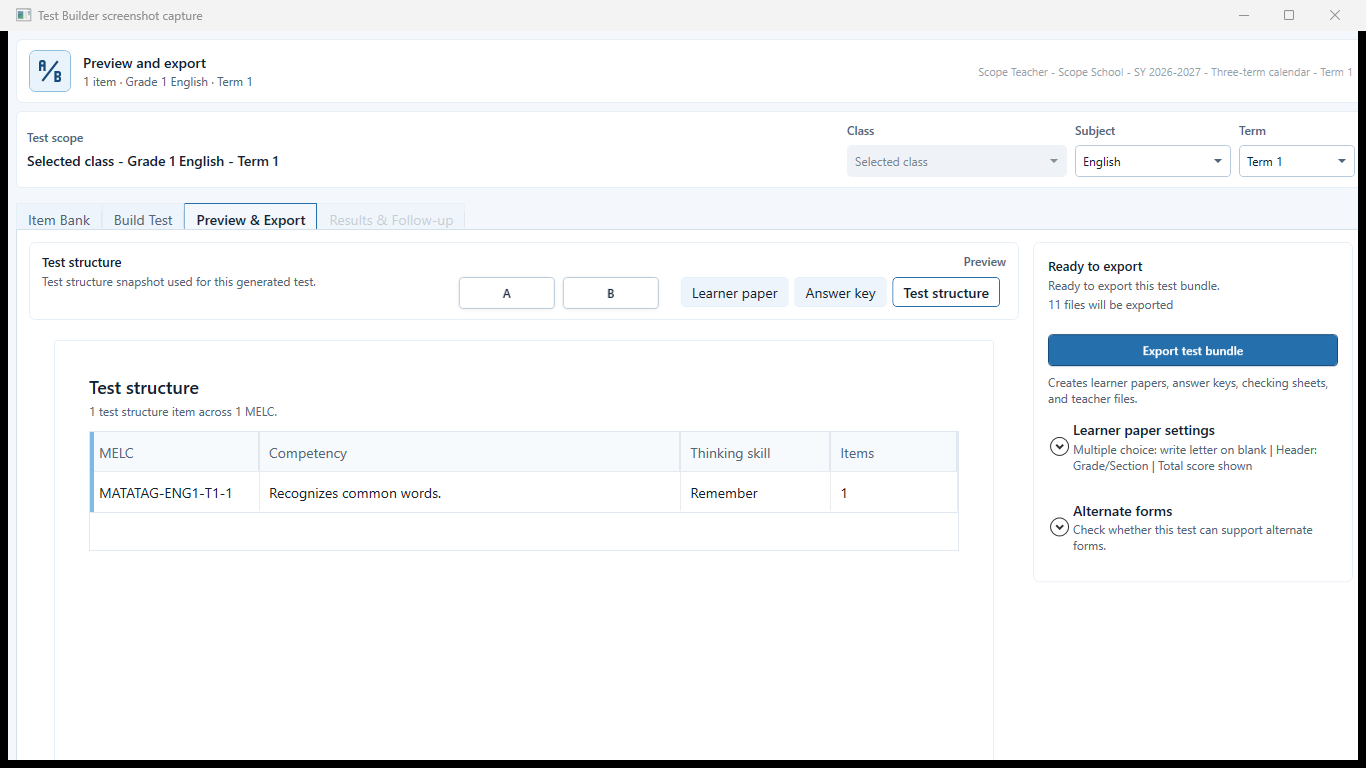
Sample data only. The structure preview is the last content check before versioned output. Captured July 12, 2026. Step 7
Review test structure and manual-check items
Check section order, item numbering, points, page flow, directions, and any item that needs manual teacher review. Resolve flagged items before creating versions or packets.
Expected result: The structure preview is the last content check before versioned output.
 View full size
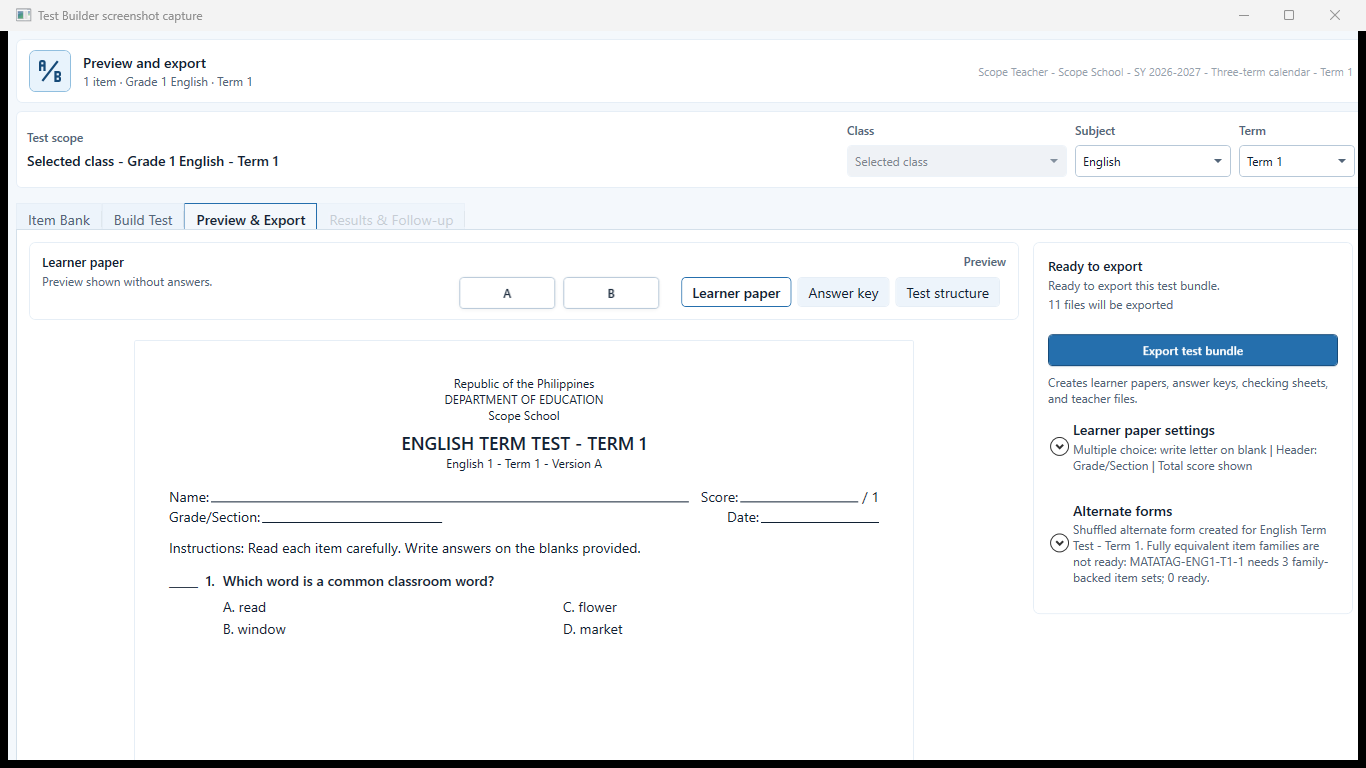
Sample data only. Every alternate form needs its own order and answer-key check. Captured July 12, 2026. Step 8
Create and verify alternate forms
Create an alternate form only from the reviewed base test. Record the version label and verify item order, answer-key mapping, and learner/version matching before use.
Expected result: Every alternate form needs its own order and answer-key check.
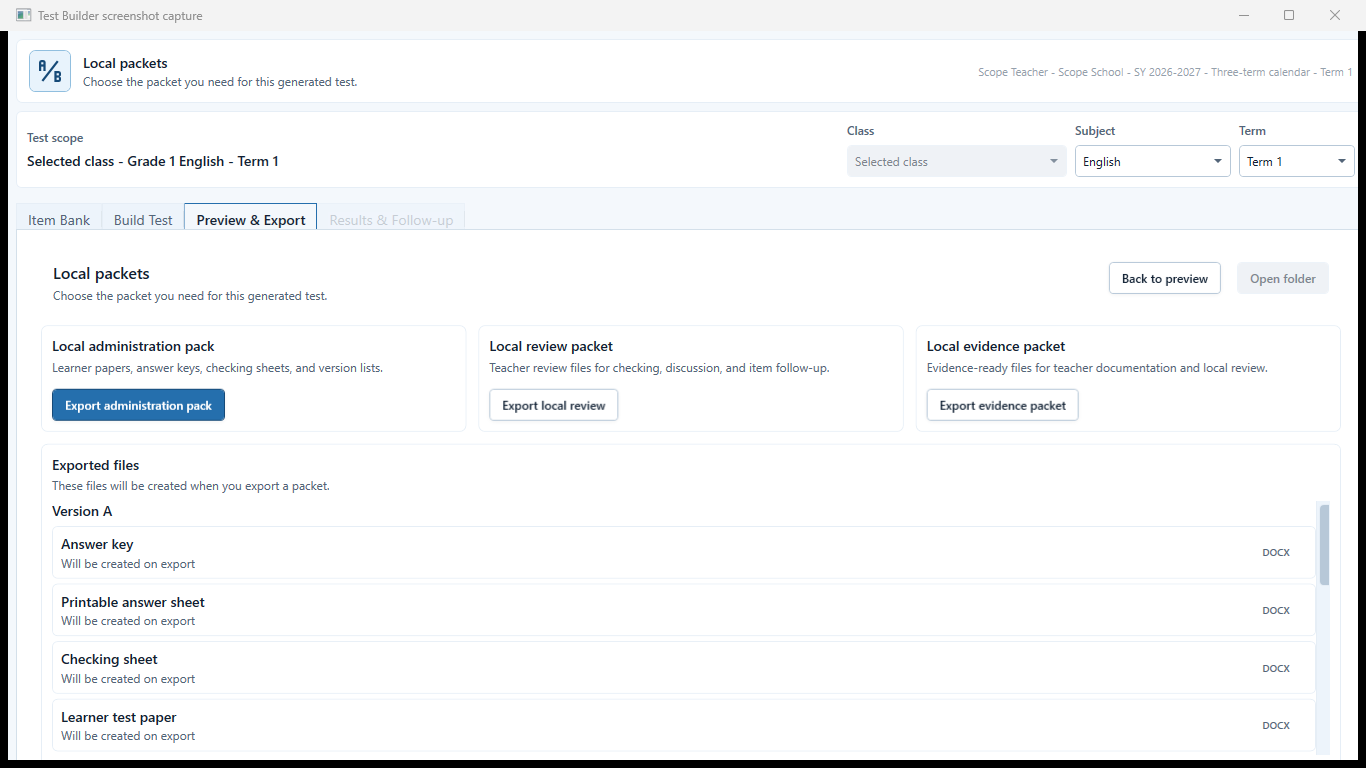 View full size
Sample data only. Packets are local assessment files and still require teacher inspection. Captured July 12, 2026. Step 9
Create local review packets
Generate local packets only after the test and answer key are reviewed. Open the learner paper, answer key, and packet documents and check that local teacher-copy labeling is honest.
Expected result: Packets are local assessment files and still require teacher inspection.
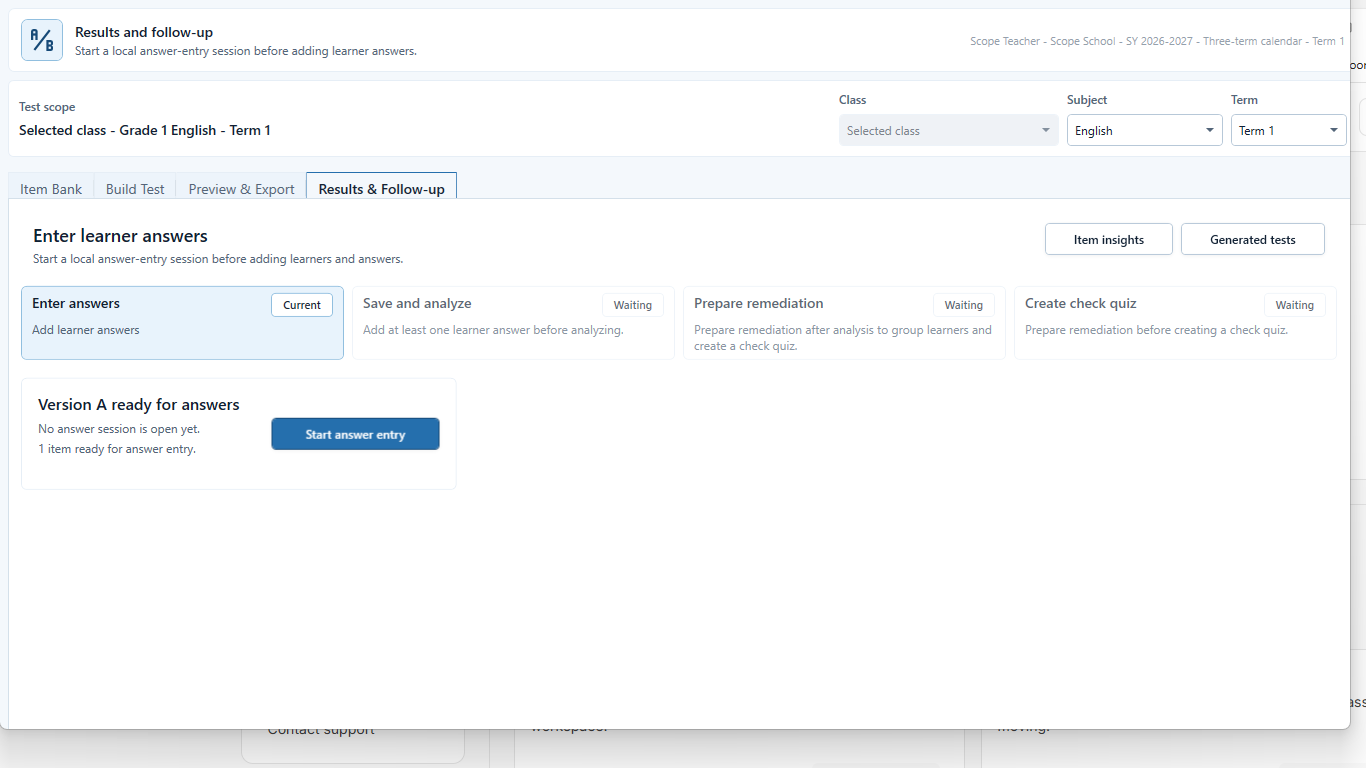 View full size
Sample data only. Results must be tied to the intended test version and class before answer entry. Captured July 12, 2026. Step 10
Open Results in the intended test version
Choose Results, select the intended generated test and version, then confirm the learner coverage and follow-up state before recording answers. Stop when the class has no learners or the version is not the one issued.
Expected result: Results must be tied to the intended test version and class before answer entry.
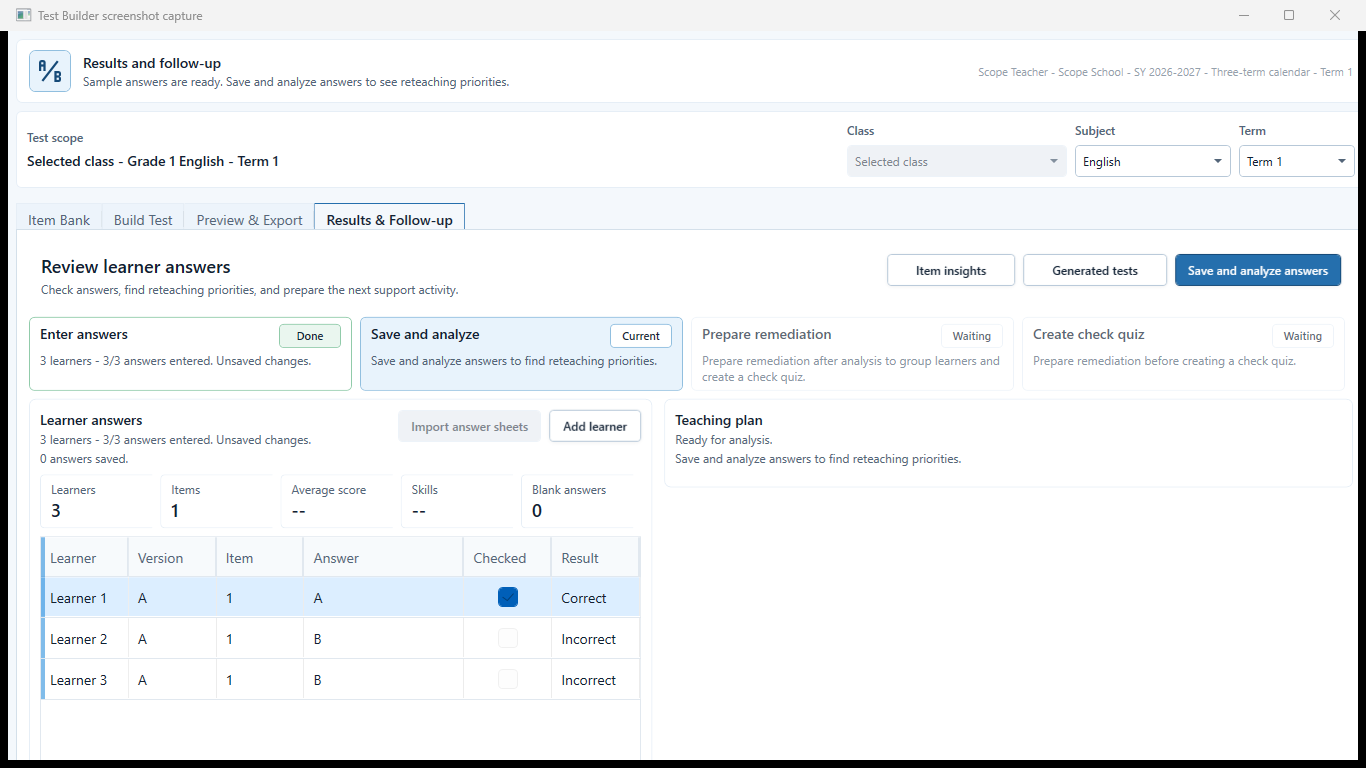 View full size
Sample data only. Learner and version matching protects scoring accuracy. Captured July 12, 2026. Step 11
Record or import learner answers
Open Results and choose the correct test version before entering answers. Confirm learner identity and version for every row; save only the answers you reviewed.
Expected result: Learner and version matching protects scoring accuracy.
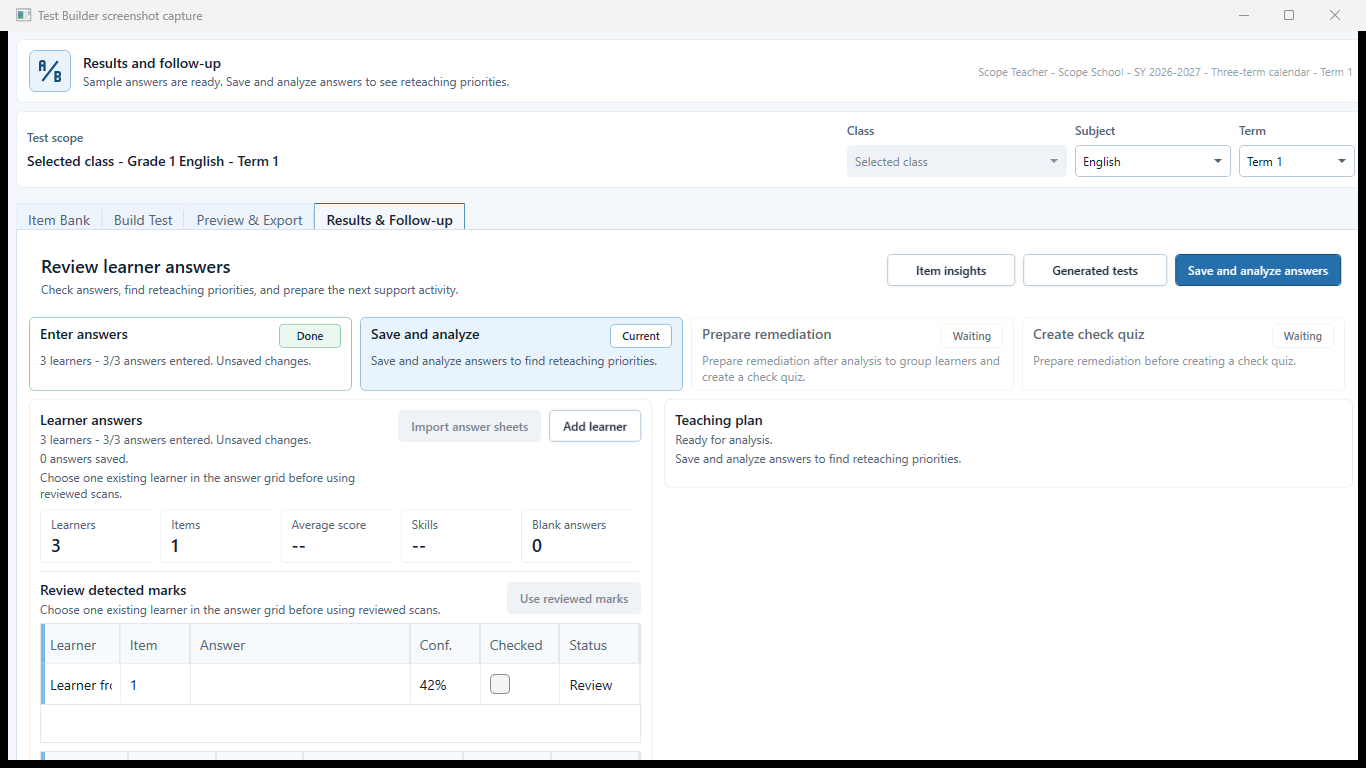 View full size
Sample data only. No uncertain scan result should be silently accepted. Captured July 12, 2026. Step 12
Review uncertain scan marks
For scanned answer sheets, open the scan-review queue and inspect every uncertain or conflicting mark. Correct only from visible evidence and keep manual-review items for teacher scoring.
Expected result: No uncertain scan result should be silently accepted.
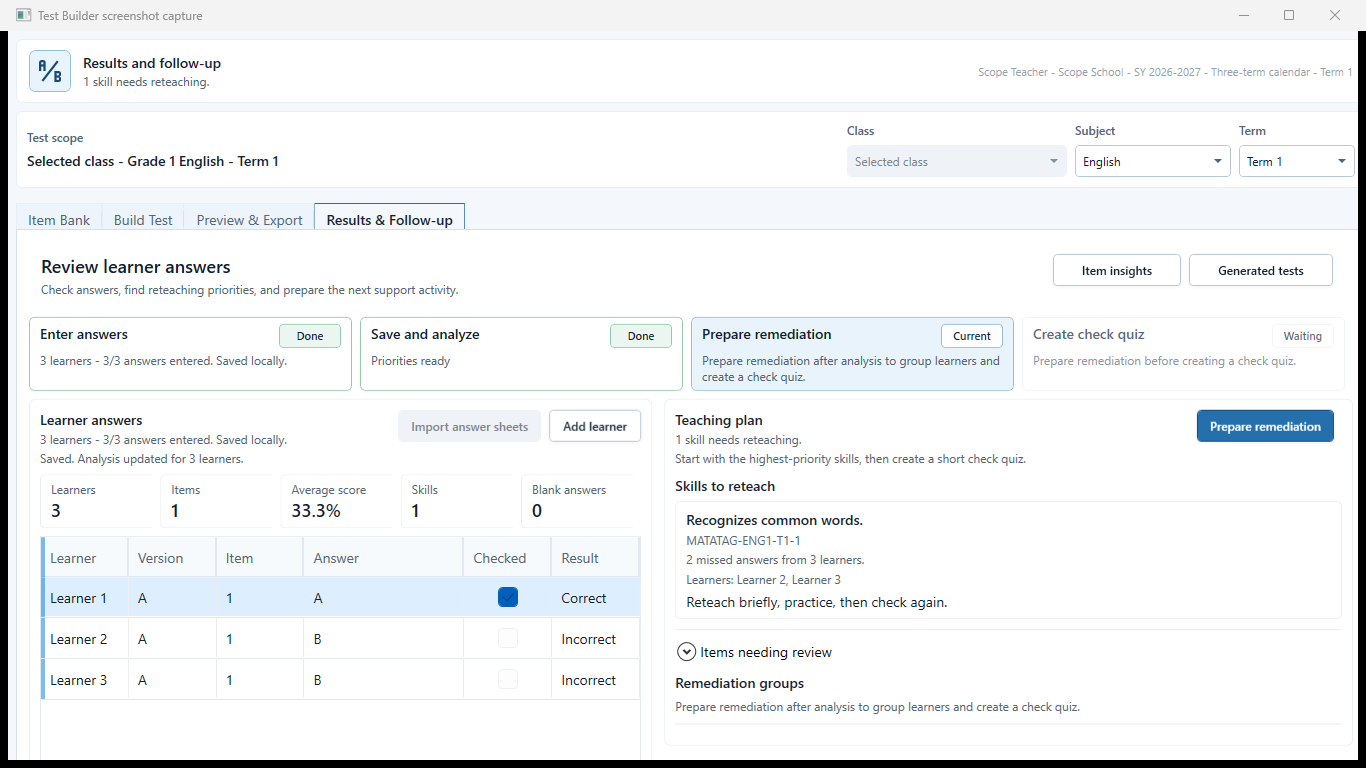 View full size
Sample data only. Analysis is useful only after answer and learner coverage are trustworthy. Captured July 12, 2026. Step 13
Read results and analysis as decision support
After answers are verified, review class results, item performance, and follow-up suggestions. Treat incomplete learner coverage and manually scored items as analysis limits.
Expected result: Analysis is useful only after answer and learner coverage are trustworthy.
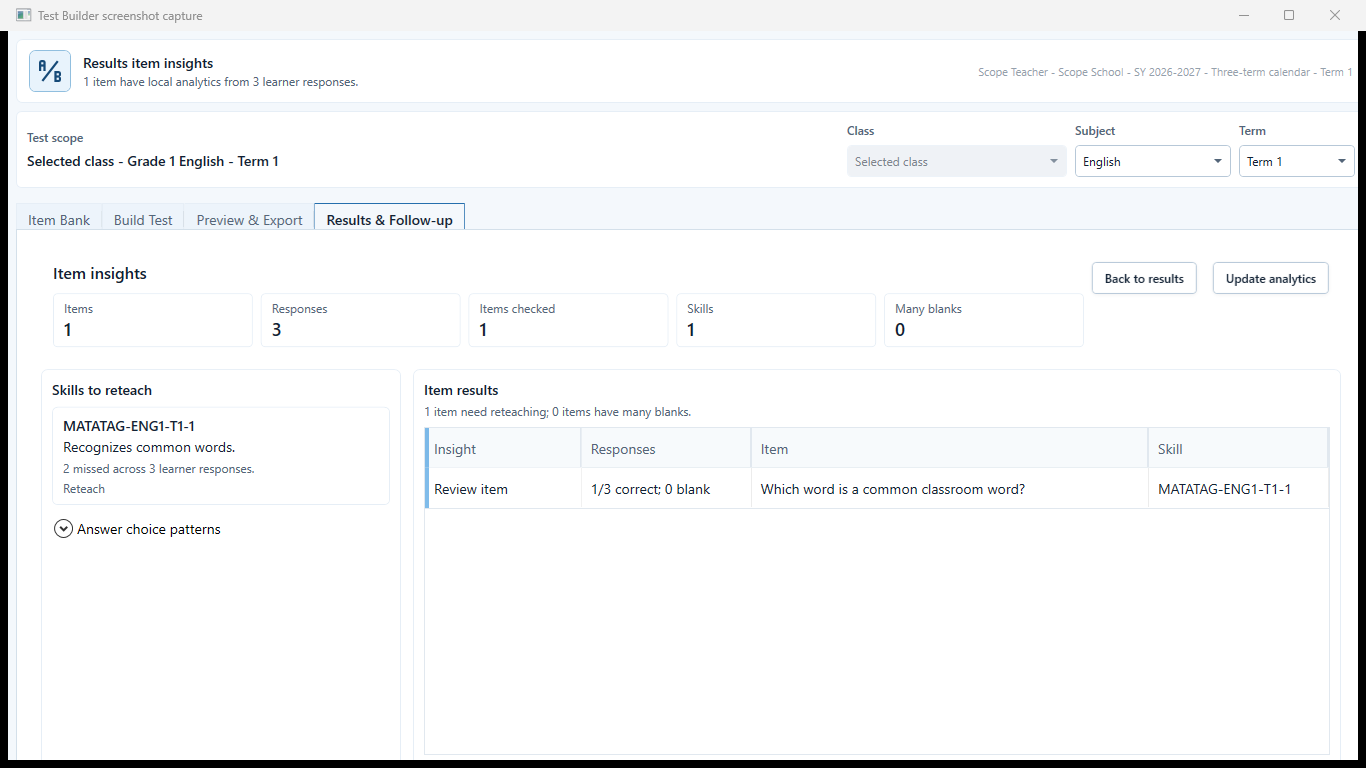 View full size
Sample data only. Statistics guide teacher review; they do not replace content judgment. Captured July 12, 2026. Step 14
Inspect item insights before reusing questions
Use Item insights to identify unusually easy, difficult, or weakly discriminating items. Review the actual prompt and teaching context before editing or retiring an item.
Expected result: Statistics guide teacher review; they do not replace content judgment.
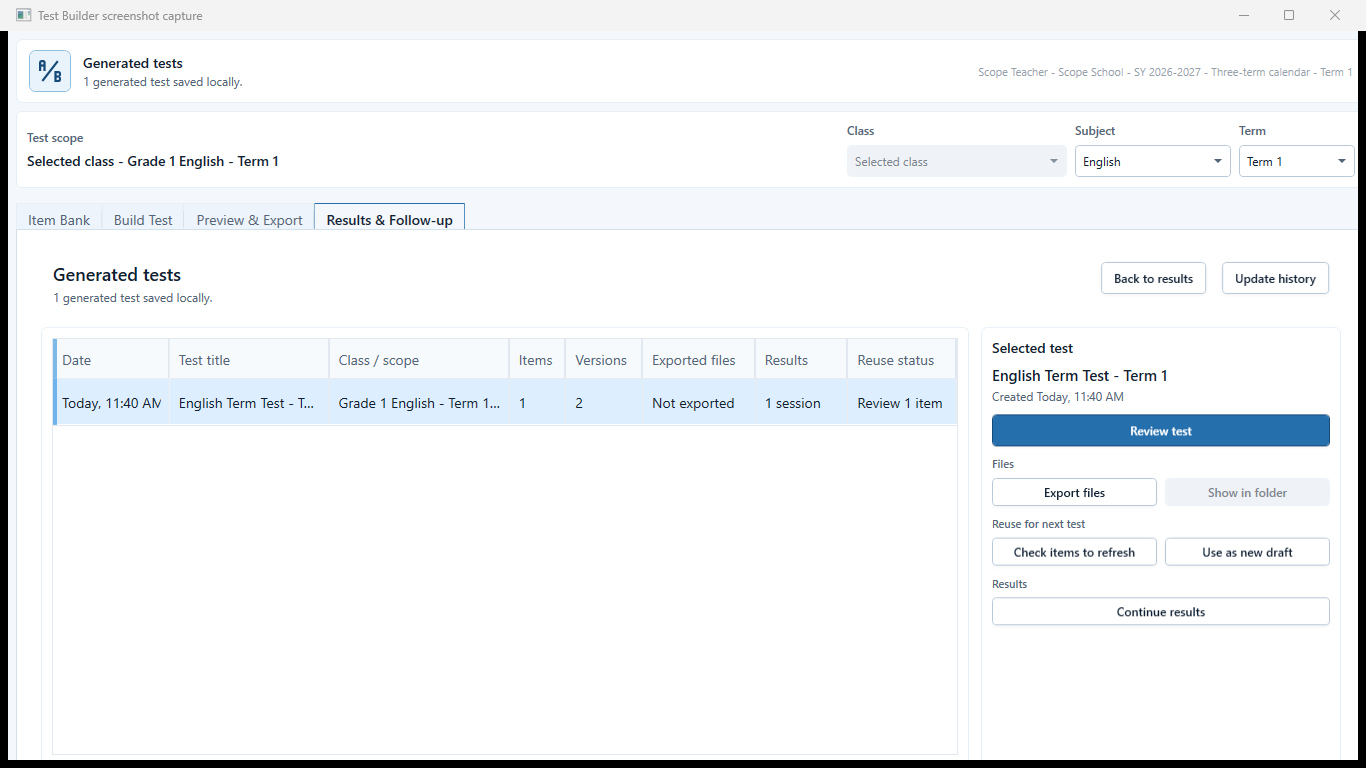 View full size
Sample data only. The selected history row must agree with the active class, subject, and term before files are opened or reused. Captured July 12, 2026. Step 15
Open generated history and inspect the files
Use Generated tests to locate the intended test and verify its class scope, item count, versions, exported-file count, results, and reuse status. Choose Export files only from the selected matching row.
Expected result: The selected history row must agree with the active class, subject, and term before files are opened or reused.
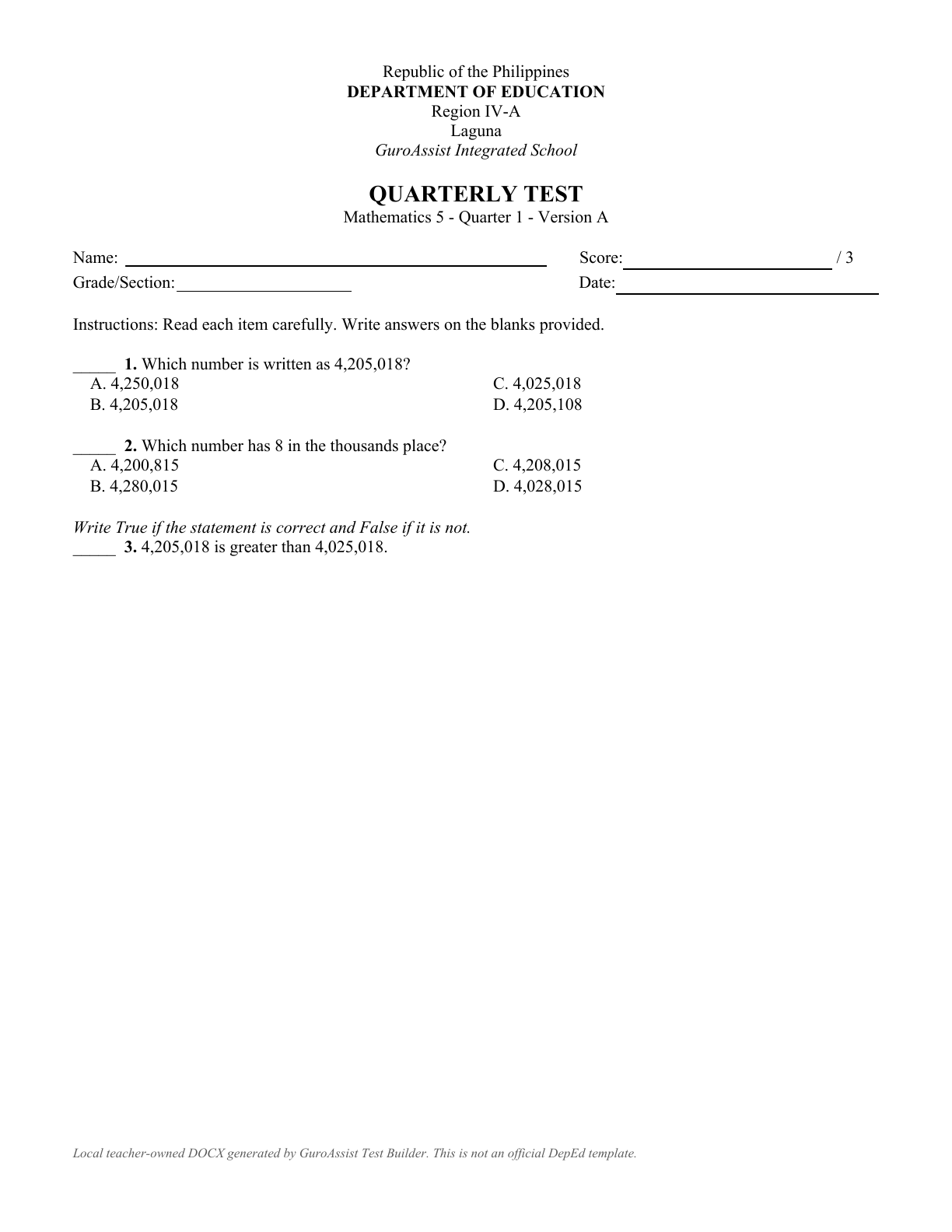 View full size
Sample data only. The learner paper contains no answer key and visibly identifies itself as a local teacher-owned document. Captured July 12, 2026. Step 16
Open the actual learner paper and keep answers separate
Open every exported learner paper, answer key, checking sheet, structure summary, and packet that will be used. On the learner paper, verify the test identity, version, item numbering, page layout, absence of answers, and the footer stating that it is a local teacher-owned DOCX and not an official DepEd template.
Expected result: The learner paper contains no answer key and visibly identifies itself as a local teacher-owned document.


Review
Check these before relying on the work
These checks cover saved, previewed, generated, and teacher-review states.
Scope and structure match
Class, subject, term, purpose, component, item order, versions, and total points match the teacher's assessment plan.
Ready items are reviewed
Every selected item has a clear stem, answer or manual-check path, competency, difficulty, and supported scope.
No answer leakage
Learner papers contain no answer key, checking mark, or teacher-only analysis.
Manual-check work stays manual
Enumeration, Matching type, Essay / written response, and any unresolved scan mark require teacher review.
Version claims are accurate
A shuffled form is not described as fully equivalent when item-family readiness has warnings.
Actual DOCX files are inspected
Open the exported learner papers, answer files, and packet documents before printing or classroom use.
Blocked states and recovery
Fix the blocker before continuing
Use the direct recovery action when GuroAssist is waiting for setup, data, access, policy, or file readiness.
Scope or active items are missing
Choose the class, subject, term, and at least one ready active item before generating.
After recovery: The intended class appears in the workspace header and the task uses that class.
Review class setupItem needs review
Missing answers, invalid choices, unsupported scope, or unresolved import warnings keep an item from safe use.
After recovery: No unresolved scan or manual-check item remains, and the reviewed result is ready to save.
Troubleshoot this blockerPaid is required for generated files
Local item work is available as supported, but test and packet file generation requires Paid.
After recovery: Paid access and any required credits are shown as available for this action.
Open activation helpEquivalent alternate forms are not ready
Resolve every item-family warning or use the clearly labeled shuffled alternate form.
After recovery: The blocker is no longer shown, and the intended next action is available for teacher review.
Troubleshoot this blockerResults have unresolved answers
Blank answers, manual-check items, low-confidence marks, unknown learners, and version mismatches stay in review before analysis.
After recovery: The intended learner is selected and the learner-dependent action is available.
Review roster help
Safety note
Test Builder produces local teacher materials and analysis aids. The teacher remains responsible for item quality, version claims, checked answers, remediation decisions, and every file used in class.
Finish
Verify the result
Do not treat a saved screen or generated filename as proof that the work is ready.
You’re done when
Test Builder shows the intended class, subject, term, item bank, build readiness, preview, and results stages without skipping locked steps.
Glossary
Expand the terms used in this guide
Use the plain-language meaning here, then follow the exact label in GuroAssist.
- AI
- Artificial intelligence; optional draft help that still requires teacher review.
Guide details
Guide verification
Use these details to confirm that this guide matches the GuroAssist version and school year you are using.
- Verification
- Verified with GuroAssist 1.0.0.0
- Last reviewed
- July 11, 2026
- Screenshots
- Captured July 12, 2026
- Applies to
- 2026–2027
Was this helpful?
Choose an answer or report a guide that needs attention. No class, learner, or free-text data is sent by these buttons.
Related guides
Continue only where it helps
Use Test Builder Guided Build
How do I build a test while preserving my question-type order and answer safety?
Analyze Test Builder results and prepare follow-up
How do I move from checked learner answers to item insights, remediation, and a short check quiz?
Import and review Test Builder answer sheets
How do I import scanned answer sheets without turning uncertain marks into saved answers?