
Step-by-step guide
Create and manage classes and learners
Create a calm, reusable local class workspace with the correct grade, school year, teacher role, calendar rule, and Senior High School details when needed before adding learners.
Teacher goal
How do I create the right class before adding learners and daily work?
Use this guide when this is the task in front of you. Stop if the selected class, learner, role, school year, file, or output does not match.
In-app path
- Classes
Get ready
Check the starting point
These are the minimum conditions for the workflow to make sense.
Before you start
Estimated time: About 10–20 minutes
- The intended class name, grade, school year, and role
- The learners and subjects the teacher actually handles
- A current backup before adding or changing local records
You should see
Classes shows the intended local class, school year, role, active roster, and the tools that are ready or still blocked.
Detailed workflows
Browse Classes and learners tasks
Use the main guide for class setup, then open subject setup when the class role and taught subjects need attention.
Steps
Complete the task in order
Review choice points, save or preview behavior, and any stop condition before continuing.
 View full size
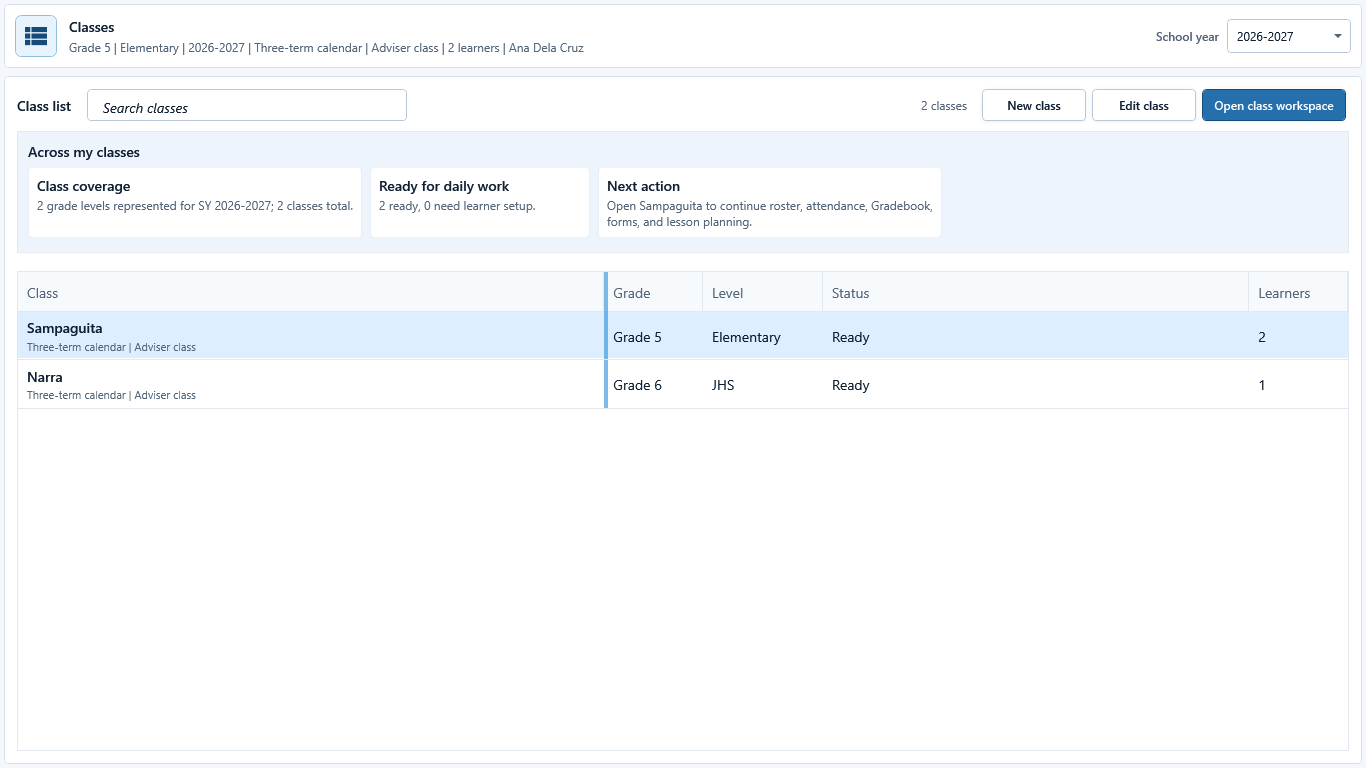
Sample data only. Select the class before using workspace or management actions. Captured July 11, 2026. Step 1
Search and choose the intended class
Open Classes. Use Search classes when the list is long, select the intended row, and review school year, grade, role, calendar, learner count, and next action before opening or editing it.
 View full size
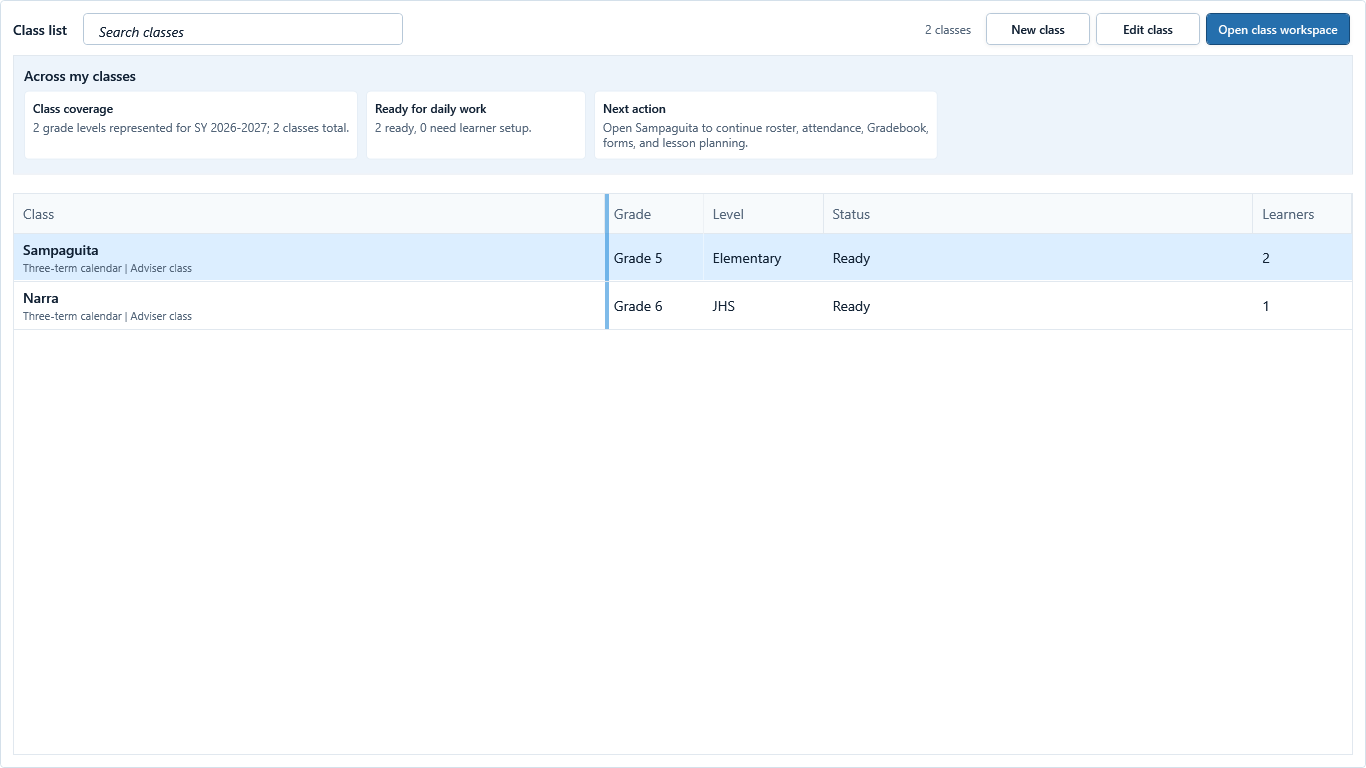
Sample data only. Use the selected row to distinguish creating a class from editing one. Captured July 11, 2026. Step 2
Create a class or edit only the selected class
Choose New class for a separate local class. To change an existing class, select it and choose Manage Class. Confirm the Class setup dialog shows the intended class name before editing; choose Close if the wrong class opened.
 View full size
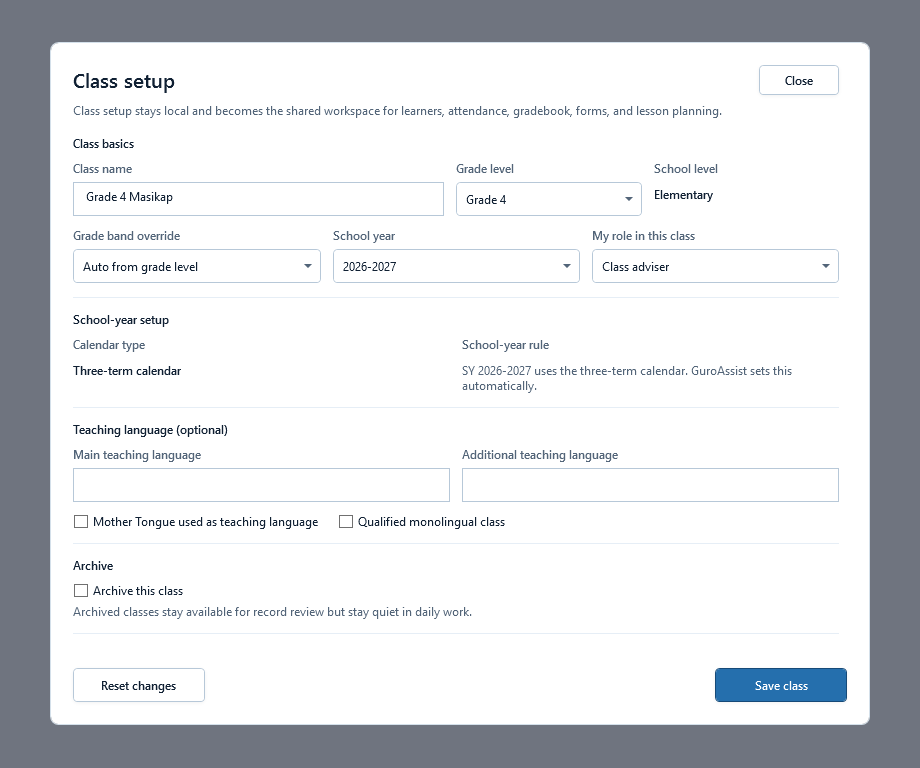
Sample data only. Class basics and role establish the safe workspace scope. Captured July 11, 2026. Step 3
Enter class basics and role
Enter Class name, choose Grade level, verify School level and Grade band override, choose School year, and set My role in this class accurately. In the lower fields, add teaching-language details only when known, review the whole dialog, choose Save class, then reopen it to confirm the values were written.
The role controls adviser-only and subject-dependent tools; do not choose a broader role just to unlock a screen.
 View full size
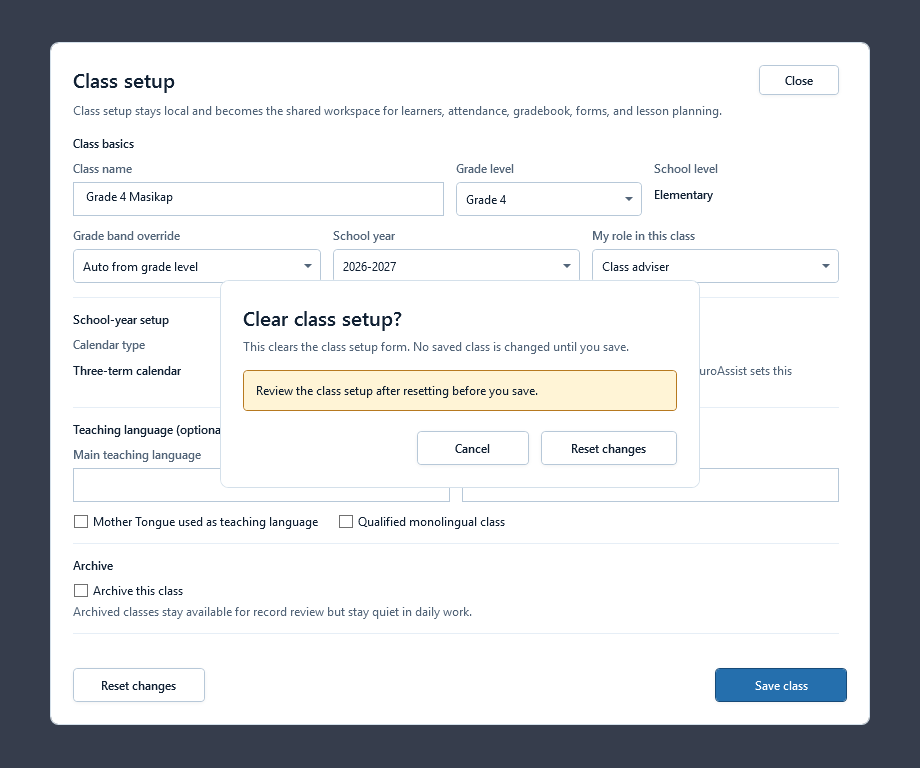
Sample data only. Cancel when the reset would affect the wrong class or saved school-year work. Captured July 11, 2026. Step 4
Read the school-year and calendar rule
Review Calendar type and School-year rule. SY 2026-2027 uses the three-term calendar where the current policy says so. If changing grade or school year triggers a reset confirmation, read the affected calendar and term data before confirming or cancel to keep the saved class unchanged.
 View full size
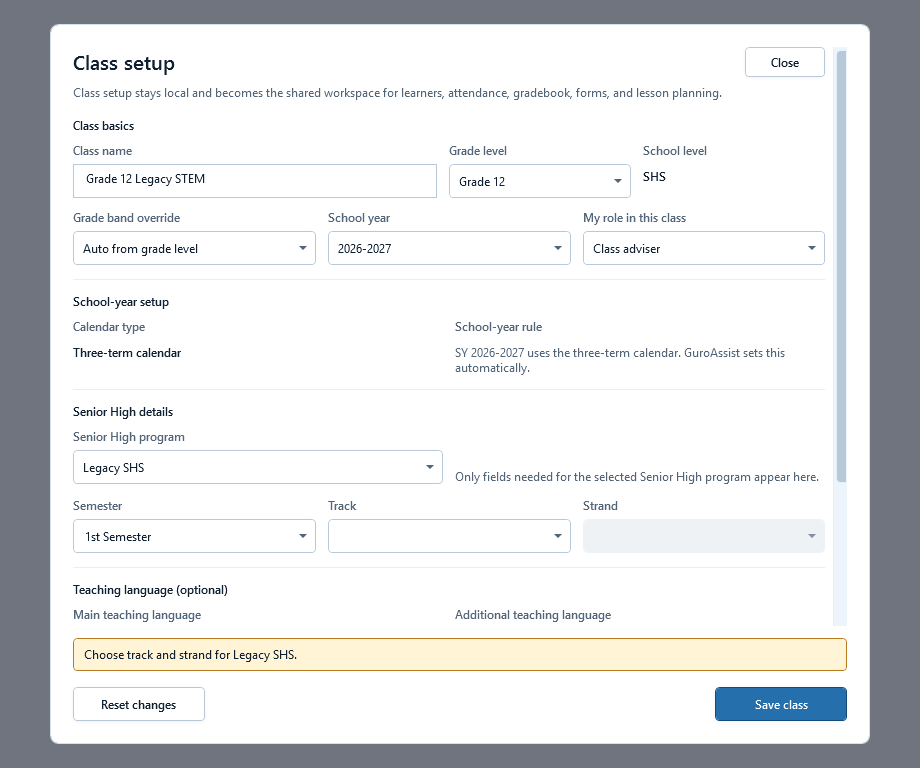
Sample data only. Legacy Grade 12 details apply only when that curriculum is actually used. Captured July 11, 2026. Step 5
Complete legacy SHS details when shown
For a Grade 12 Legacy SHS class, choose the supported Semester, Track, and Strand values shown by Class setup. Review the legacy curriculum and calendar labels before saving.
 View full size
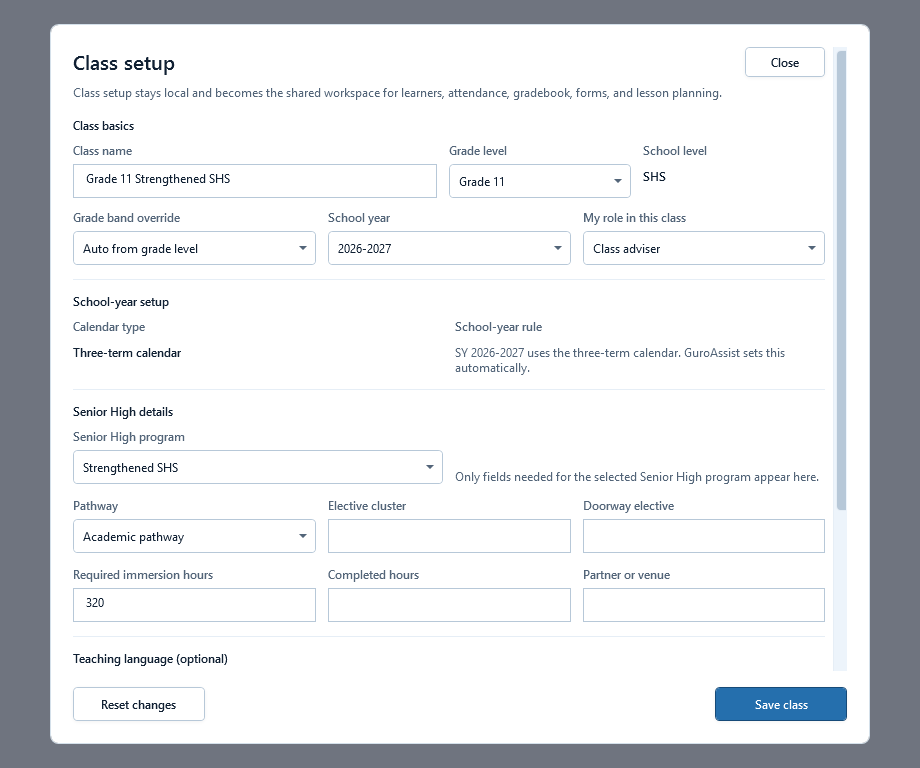
Sample data only. Use only the SHS fields displayed for the selected curriculum and grade. Captured July 11, 2026. Step 6
Complete strengthened SHS details when shown
For a Strengthened SHS class, choose the current semester, track, strand, and any other displayed curriculum details. Do not copy legacy choices into a strengthened class.
 View full size
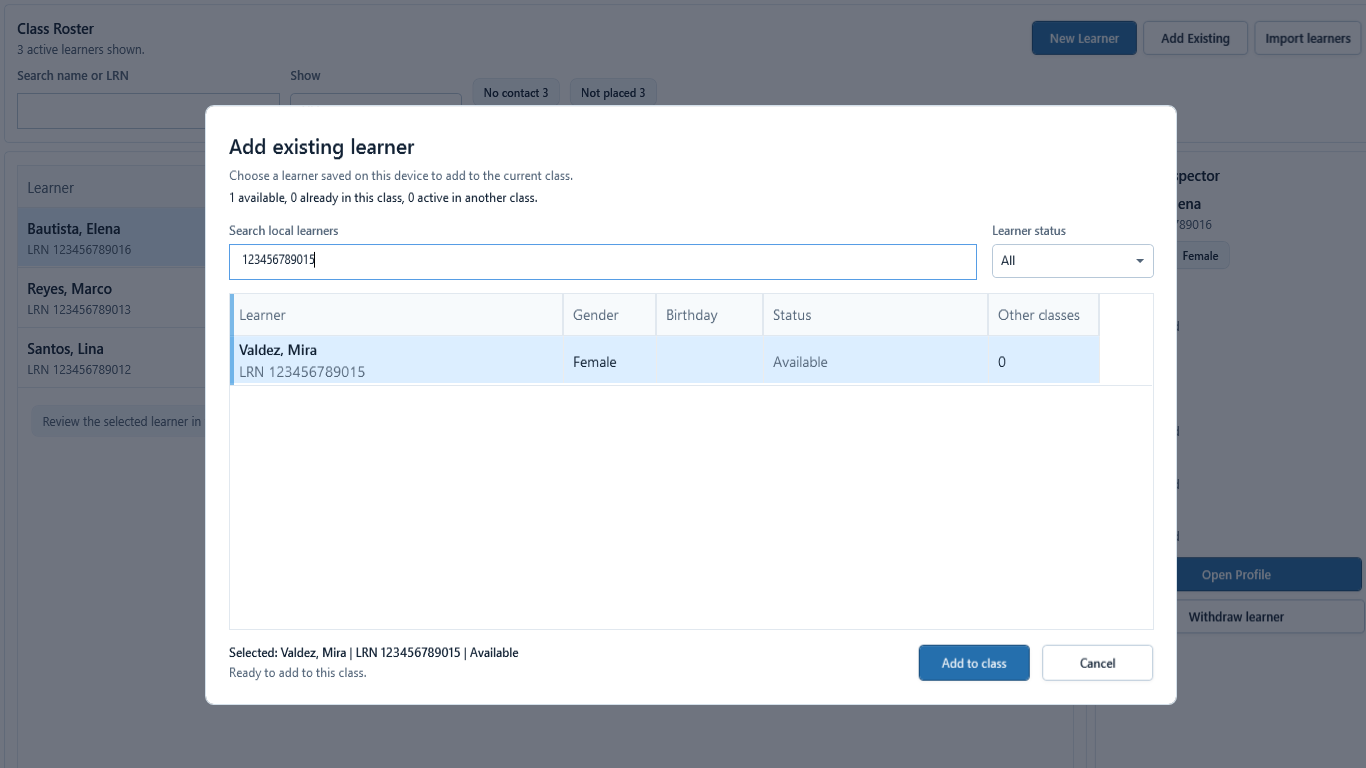
Sample data only. Verify the learner and receiving class before adding an existing local record. Captured July 11, 2026. Step 7
Add a verified existing learner
Open the saved class workspace and choose Roster, then choose Add Existing for a verified local learner. Search by name or LRN, verify the identity and placement shown, then choose Add to class. Already-active learners stay blocked from duplicate placement. Use New Learner or Import learners as separate roster workflows.
 View full size
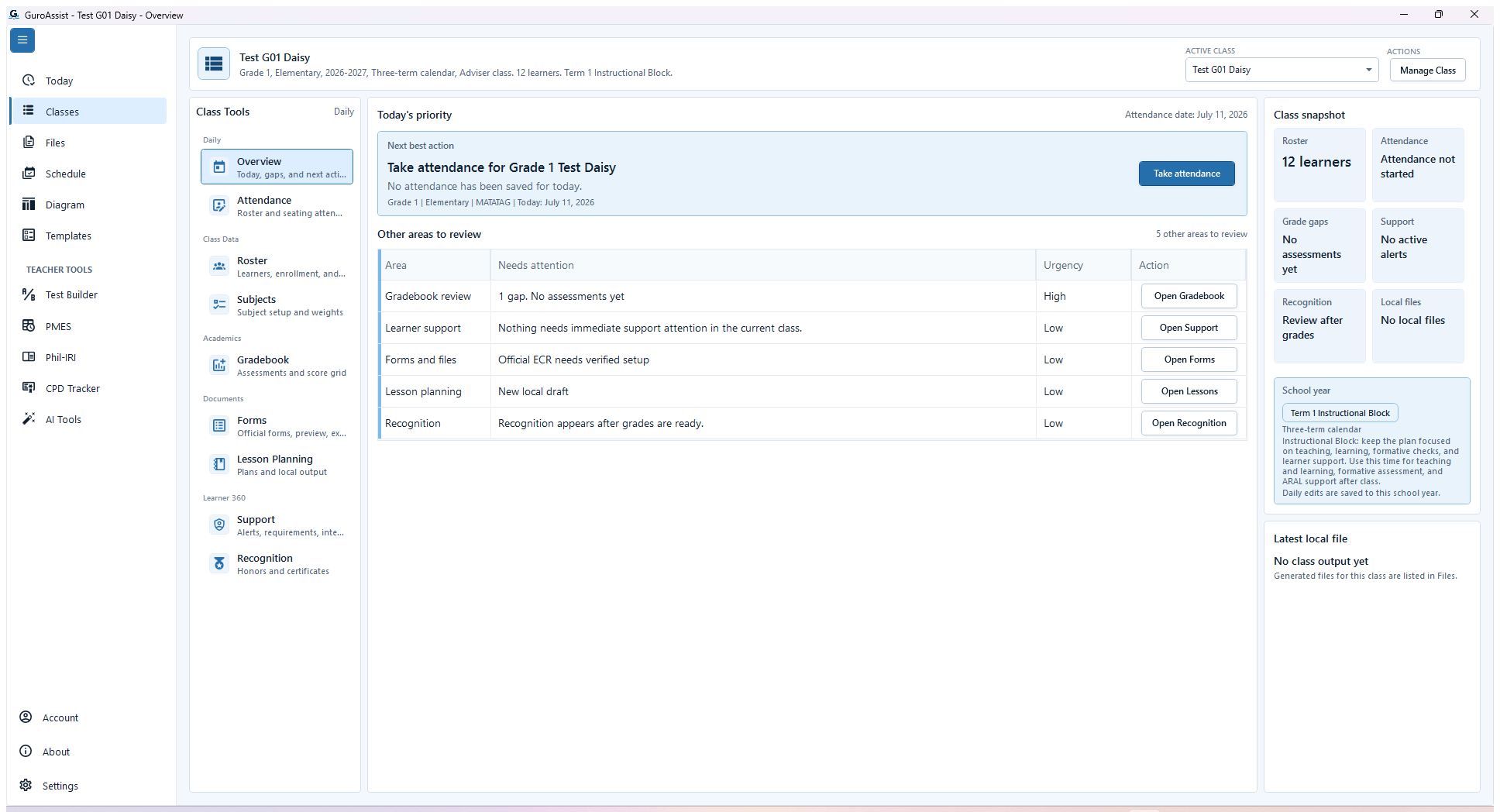
Sample data only. A saved class still needs each visible readiness signal reviewed before official-looking work. Captured July 11, 2026. Step 8
Review class readiness in Overview
Reopen the saved class and choose Overview. Read the visible roster, attendance, grade, support, recognition, and local-file signals. Use their linked actions to inspect Subjects, learner required details, seating, Gradebook, or Forms when a signal names a blocker.


Review
Check these before relying on the work
These checks cover saved, previewed, generated, and teacher-review states.
Correct class identity
Class name, grade, school year, and teacher role match the class the teacher actually handles.
Calendar rule is supported
The displayed Calendar type and School-year rule are understood before period-dependent work begins.
SHS setup is complete
Required SHS semester, track, and strand details are present when the selected class needs them.
Teacher profile is ready
Required teacher and school details are complete before official-looking outputs are prepared.
Learner records stay local
Class and learner details remain in the local GuroAssist workspace unless the teacher chooses to share a file.
Backup precedes large changes
Create a backup before a large import, school-year cleanup, archive pass, or device move.
Blocked states and recovery
Fix the blocker before continuing
Use the direct recovery action when GuroAssist is waiting for setup, data, access, policy, or file readiness.
Class basics are incomplete
Save stays blocked until class name, supported school year, grade level, and teacher role are valid.
After recovery: The required grade data is complete, current, and available for teacher review.
Review class setupTeacher profile is incomplete
Complete the required teacher profile details before saving setup that depends on them.
After recovery: The blocker is no longer shown, and the intended next action is available for teacher review.
Review generated-file helpSHS choices are missing
For an SHS class, complete the semester and required track or strand choices shown by the app.
After recovery: The intended class appears in the workspace header and the task uses that class.
Review class setupFuture policy is not ready
Official-looking outputs should remain blocked when the selected school year is outside the app's supported policy rules.
After recovery: The screen shows a supported school-year or policy readiness message for the selected task.
Review generated-file help
Safety note
Class setup is teacher-owned local configuration. It does not create an admin, school-head, approval, or official enrollment workflow.
Finish
Verify the result
Do not treat a saved screen or generated filename as proof that the work is ready.
You’re done when
Classes shows the intended local class, school year, role, active roster, and the tools that are ready or still blocked.
Privacy, policy, and official-looking outputs
Keep the work inside its safe boundary
These limits remain in force even when the main task appears complete.
Important boundary
Follow the policy and readiness message shown for the selected class and school year. Do not substitute remembered thresholds, quarter templates, or term rules.
Guide details
Guide verification
Use these details to confirm that this guide matches the GuroAssist version and school year you are using.
- Verification
- Verified with GuroAssist 1.0.0.0
- Last reviewed
- July 11, 2026
- Screenshots
- Captured July 11, 2026
- Applies to
- 2026–2027
Was this helpful?
Choose an answer or report a guide that needs attention. No class, learner, or free-text data is sent by these buttons.
Related guides
Continue only where it helps
Manage the class roster
How do I add, find, import, review, or withdraw a learner without changing the wrong class?
Import a class roster
How do I bring learner names in without breaking local records?
Set up class subjects
How do I set up subjects so class work opens with the right choices?
Withdraw a learner from a local class
How do I withdraw a learner from the local class roster safely?
Create your first class
Add a class and learners before daily tools depend on those local records.
Back up or restore local work
Protect local records before reinstalling, restoring, or moving laptops.