
Step-by-step guide
Import a class roster
Roster import should help teachers bring learner rows from a trusted local file, preview them, fix issues, and keep a backup before relying on the list.
Teacher goal
How do I bring learner names in without breaking local records?
Use this guide when this is the task in front of you. Stop if the selected class, learner, role, school year, file, or output does not match.
In-app path
- Classes
- Open class workspace
- Roster
- Import learners
Get ready
Check the starting point
These are the minimum conditions for the workflow to make sense.
Before you start
Estimated time: About 10–20 minutes
- The receiving class selected
- A trusted SF1 Excel, XLSX, XLS, CSV, TSV, or TXT file
- A backup before a large import
You should see
The preview separates Ready, matched, skipped, duplicate, blank, and invalid rows before Save learners is used.
Sample files and resources
Start from a known format
Open or download the resource, inspect it, and keep only privacy-safe sample data before use.
Steps
Complete the task in order
Review choice points, save or preview behavior, and any stop condition before continuing.
 View full size
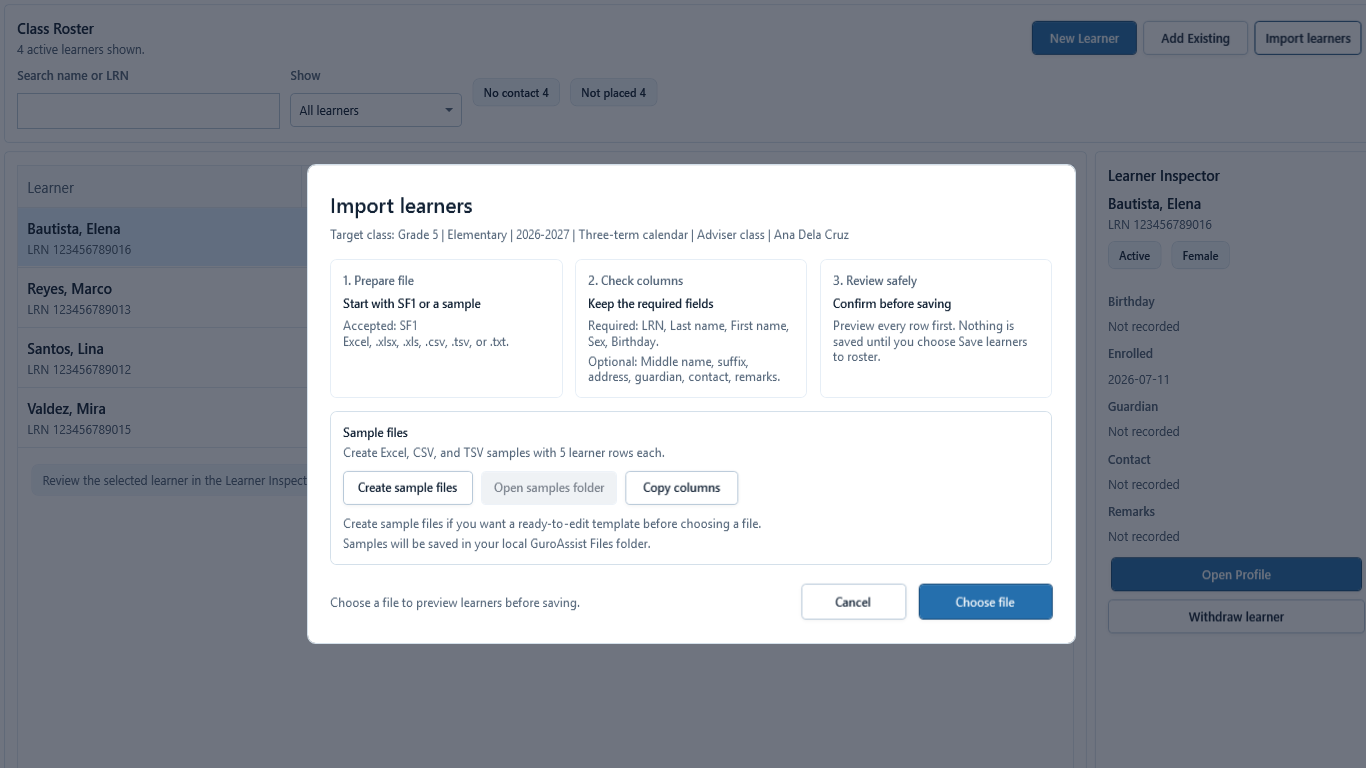
Sample data only. Prepare a privacy-safe file that follows the displayed columns. Captured July 11, 2026. Step 1
Open Import learners and prepare a supported file
From the intended class Roster, choose Import learners. Read the supported source list: SF1 Excel, .xlsx, .xls, .csv, .tsv, or .txt, plus the required LRN, Last name, First name, Sex, and Birthday columns. Choose Create sample files when starting from a known format.
 View full size
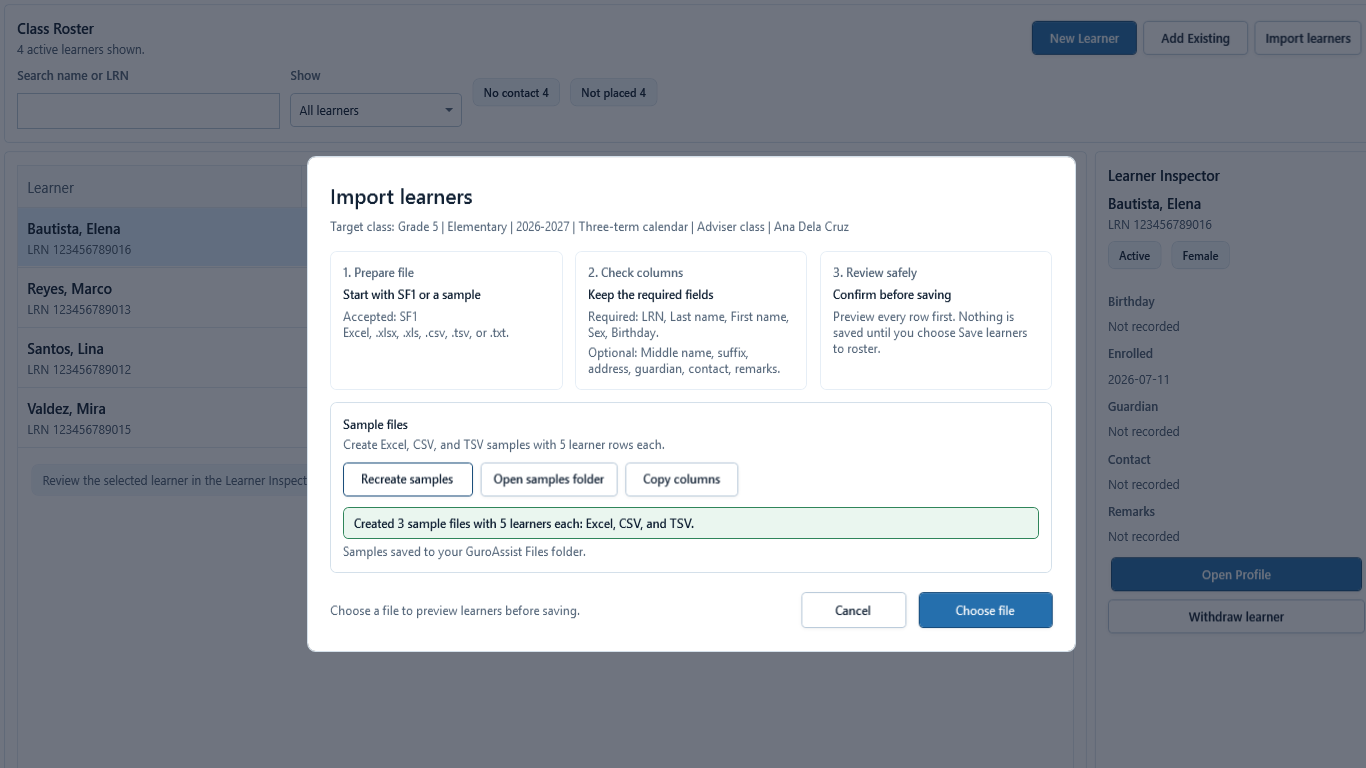
Sample data only. Use the generated sample headers exactly and keep the working file local. Captured July 11, 2026. Step 2
Create the sample files when needed
Choose Create sample files. Wait for Samples saved to your GuroAssist Files folder and note the shown location. The picture confirms the files were created; opening and preparing the Excel, CSV, or TSV sample happens in the local files application, where required headers must remain unchanged.
 View full size
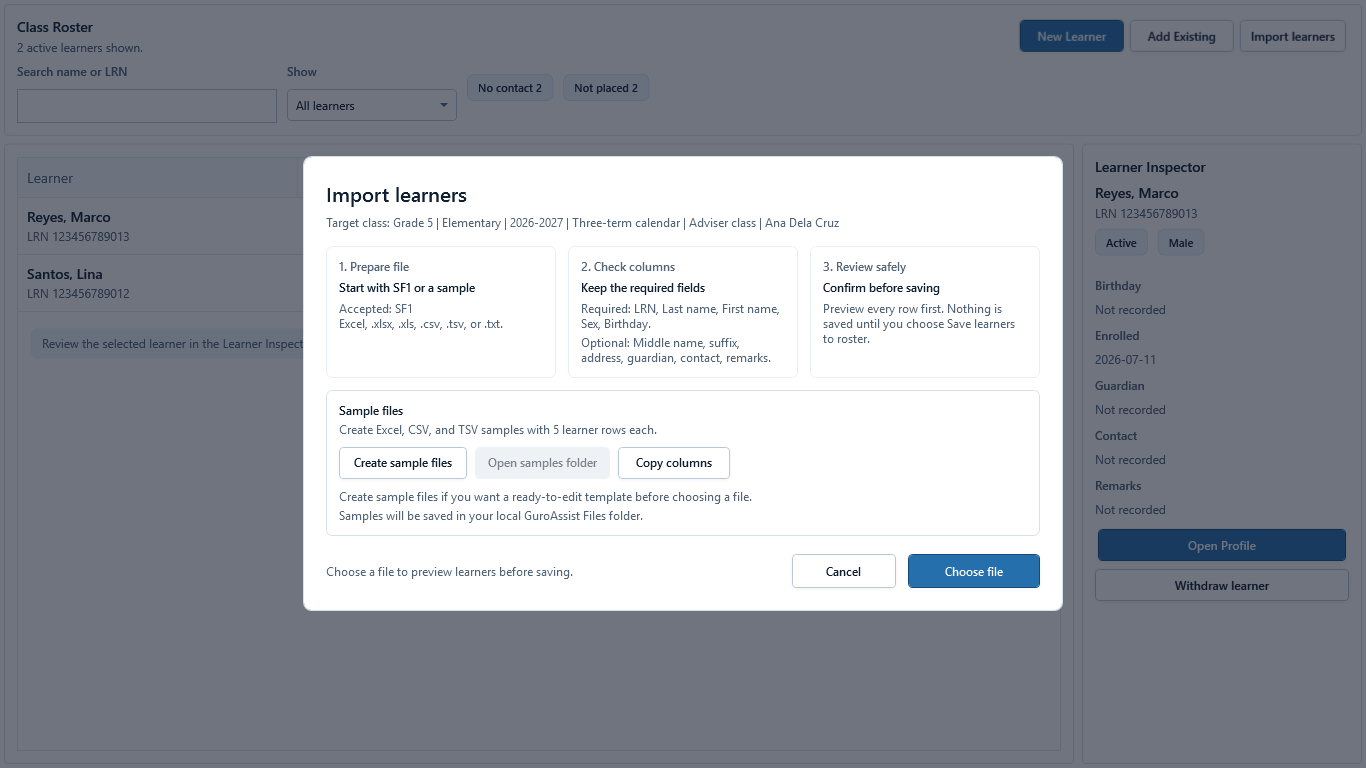
Sample data only. Confirm the class before opening this dialog; every saved import row goes to that active class. Captured July 11, 2026. Step 3
Confirm import guidance and choose the source file
Return to the intended class Roster and choose Import learners. Read the supported sources, required columns, and three review stages shown in the dialog, then choose Choose file. The active class remains the destination; cancel if the class or file is wrong.
 View full size
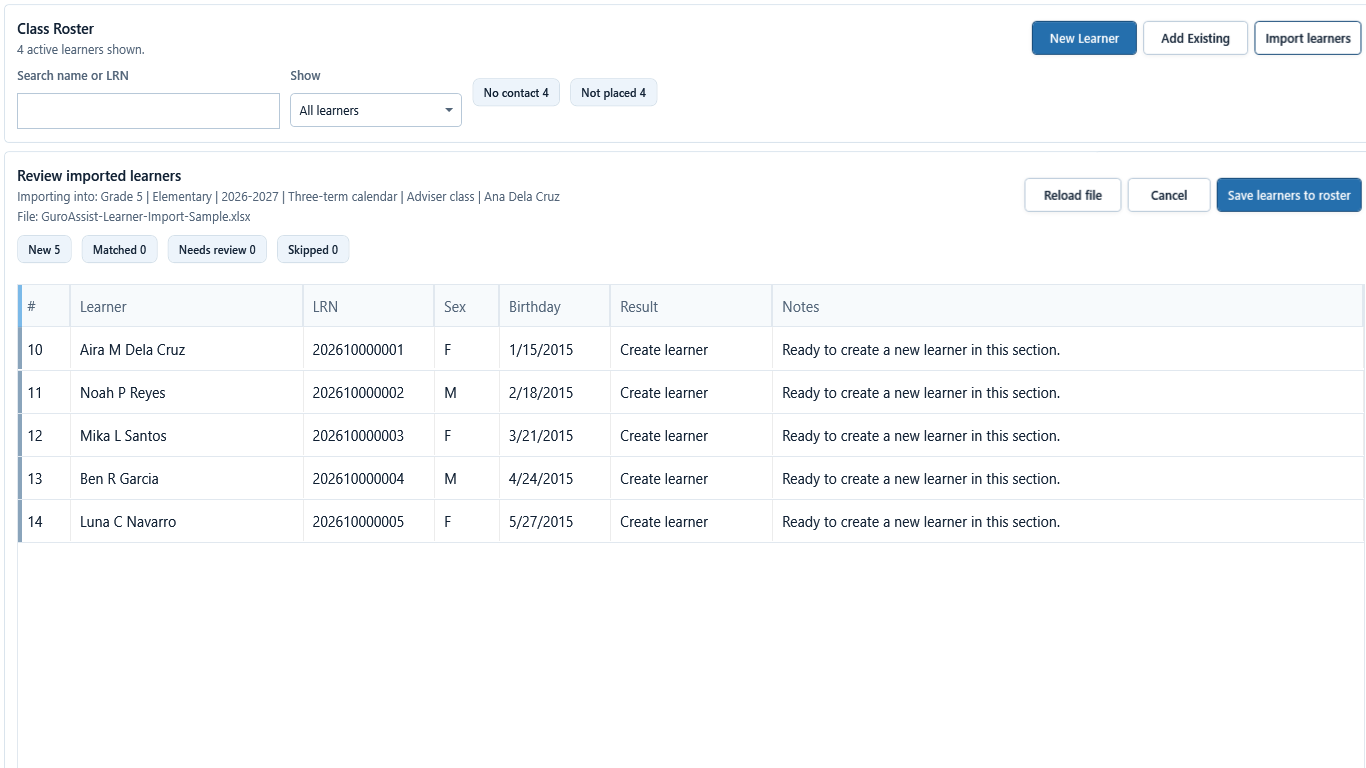
Sample data only. Use the row Result, Notes, and zero Needs review count as the final save decision. Captured July 11, 2026. Step 4
Preview row states and save only ready rows
In Review imported learners, confirm Importing into, the source File, mapped columns, and every row's Result and Notes. Read New, Matched, Needs review, and Skipped counts. Save learners to roster only when every intended row is New or verified Matched and Needs review is zero; stop if the result counts are unexpected.
 View full size
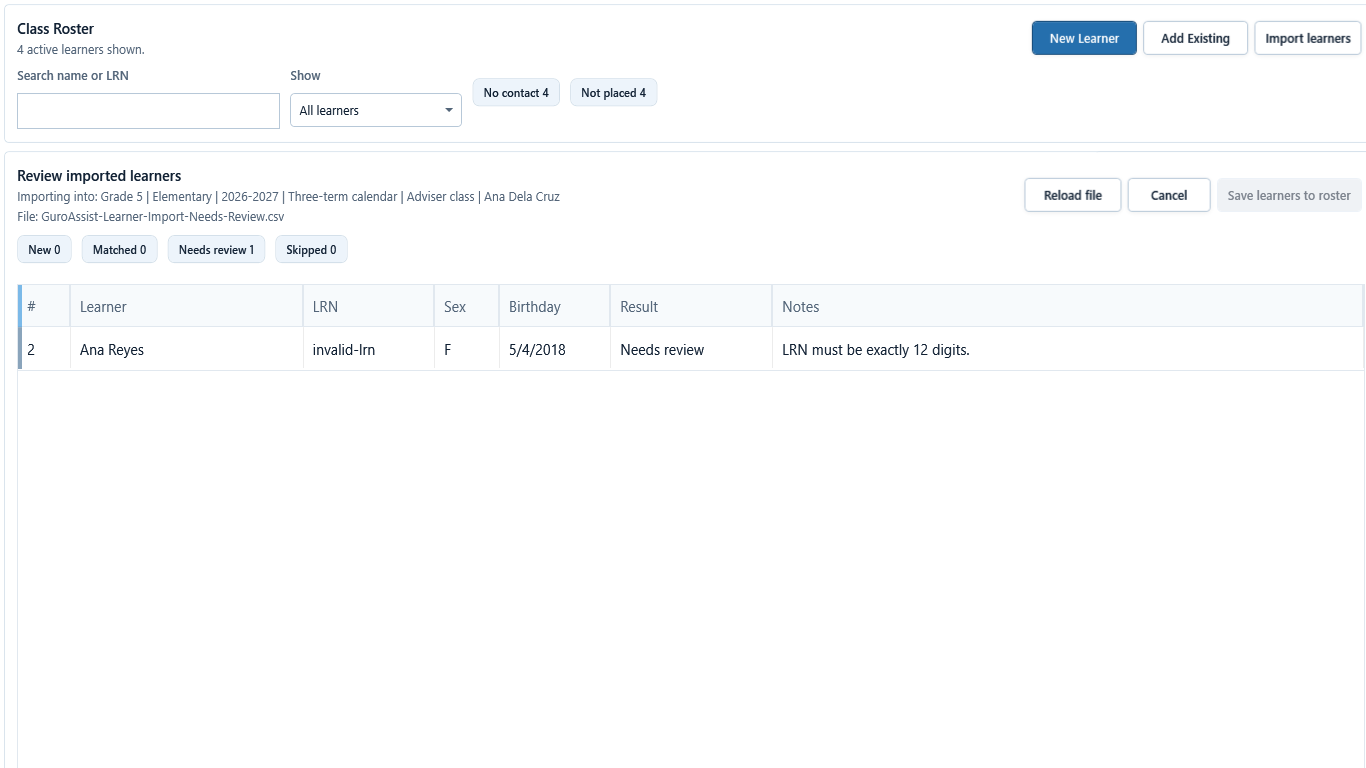
Sample data only. The exact row-level blocker must be corrected in the source file before Reload file and save. Captured July 11, 2026. Step 5
Correct a row that needs review before retrying
In Review imported learners, read the Needs review count, Result, and Notes. The pictured row has an invalid LRN, so Save learners to roster stays blocked. Correct missing columns, names, birthdays, sex values, duplicates, LRNs, or wrong-class data in the source file, then choose Reload file. Never create a duplicate to bypass a conflict.
 View full size
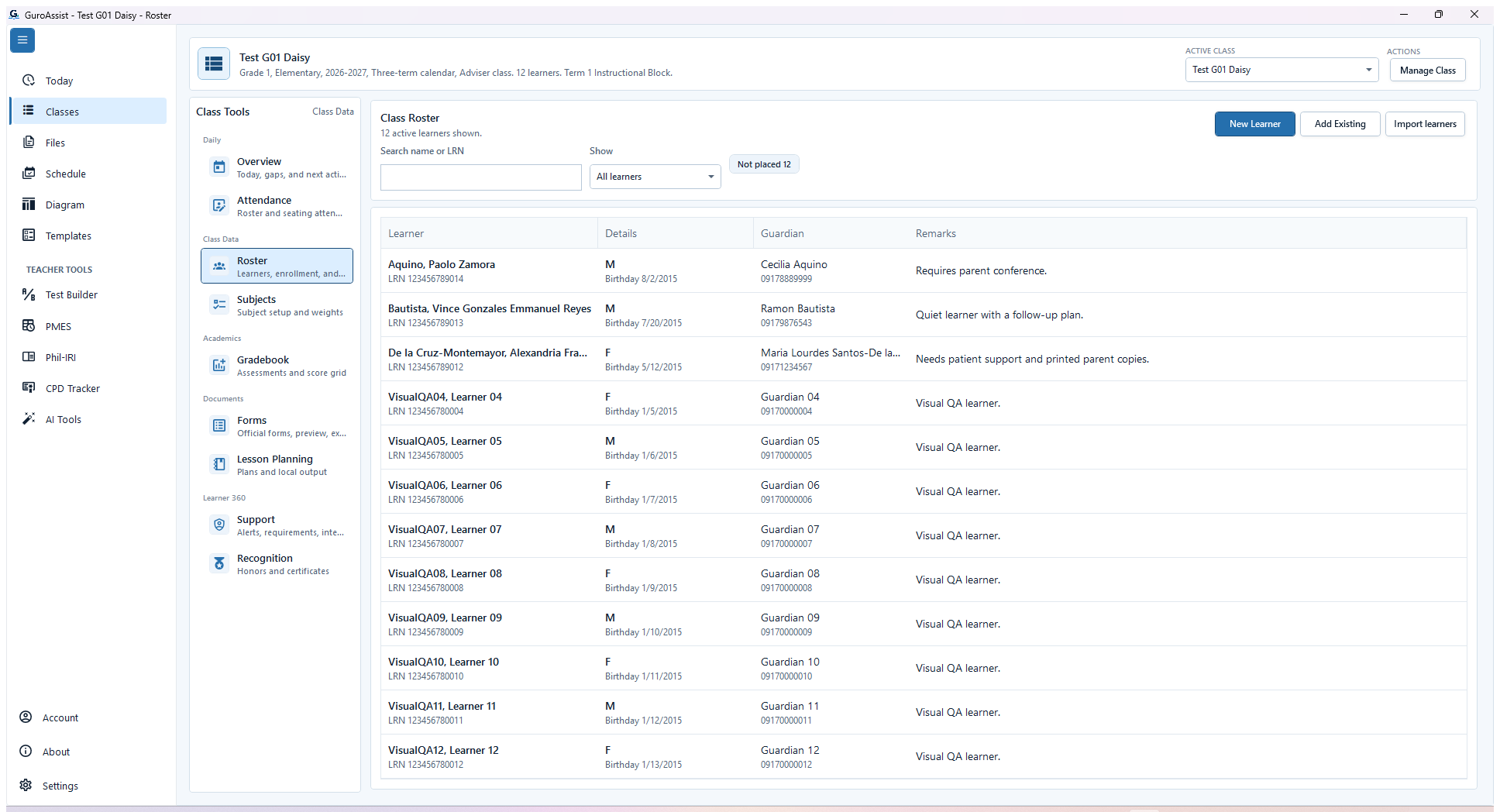
Sample data only. Verify the active roster before using the imported learners in attendance or files. Captured July 11, 2026. Step 6
Open and verify the final roster
Return to Roster, search for a sample of created and linked learners, and confirm no duplicate active rows were added. Review learner details, active count, and placement before using the imported learners in Attendance or generated files.
 View full size
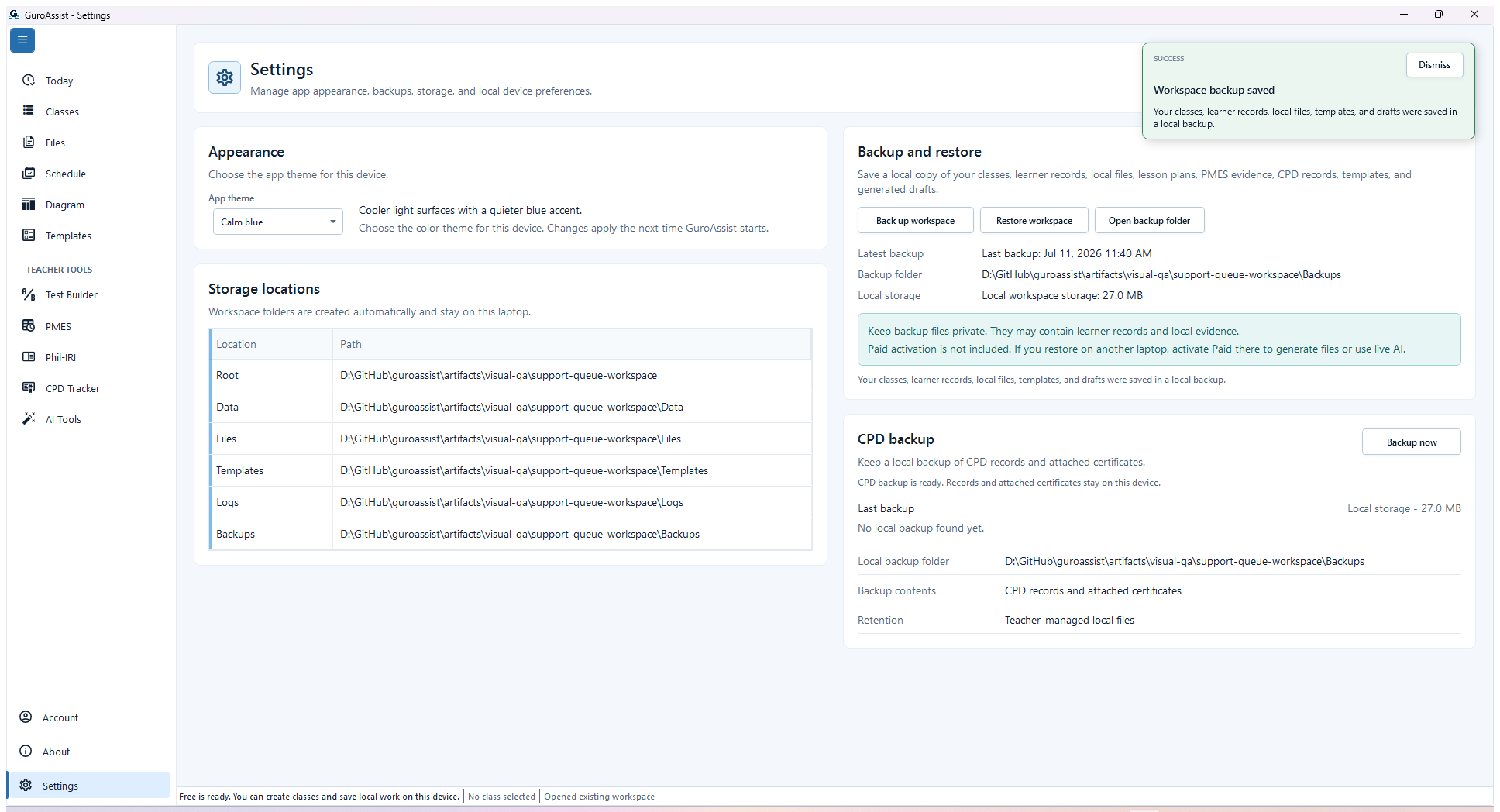
Sample data only. The saved confirmation and updated time are the evidence that the post-import backup completed. Captured July 11, 2026. Step 7
Back up after the batch import
Open Settings and choose Back up workspace. Wait for Workspace backup saved, then confirm the Last backup time and folder before closing Settings.


Review
Check these before relying on the work
These checks cover saved, previewed, generated, and teacher-review states.
File is local and trusted
Import only from a file the teacher controls and can open for review.
Class is correct
The receiving class should match the learners in the file before rows are added.
Preview is readable
Imported rows should show names and required details clearly before saving.
Duplicates are handled
Review possible duplicate learners instead of adding repeated rows silently.
Backup is current
Back up before or after large imports so roster changes can be recovered.
Blocked states and recovery
Fix the blocker before continuing
Use the direct recovery action when GuroAssist is waiting for setup, data, access, policy, or file readiness.
No receiving class
Create or choose the class before importing rows.
After recovery: The blocker is no longer shown, and the intended next action is available for teacher review.
Review class setupFile cannot be opened
Choose a readable local CSV or spreadsheet file and close it in other apps if needed.
After recovery: The blocker is no longer shown, and the intended next action is available for teacher review.
Review generated-file helpRequired columns are missing
Fix the file or field match before importing learner rows.
After recovery: The intended learner is selected and the learner-dependent action is available.
Review roster helpRows need review
Duplicate, blank, or unreadable rows should stay blocked until the teacher resolves them.
After recovery: The preview shows no unresolved duplicate or matching issue, and only reviewed rows can be saved.
Troubleshoot this blocker
Safety note
Roster import is a local setup helper. It should never skip teacher review, backup needs, or later readiness checks for generated files.
Finish
Verify the result
Do not treat a saved screen or generated filename as proof that the work is ready.
You’re done when
Only reviewed Ready rows were saved, while matched, skipped, duplicate, blank, or invalid rows remained understandable.
Glossary
Expand the terms used in this guide
Use the plain-language meaning here, then follow the exact label in GuroAssist.
- SF1
- School Register: class and learner details for review.
Guide details
Guide verification
Use these details to confirm that this guide matches the GuroAssist version and school year you are using.
- Verification
- Verified with GuroAssist 1.0.0.0
- Last reviewed
- July 11, 2026
- Screenshots
- Captured July 11, 2026
- Applies to
- 2026–2027
Was this helpful?
Choose an answer or report a guide that needs attention. No class, learner, or free-text data is sent by these buttons.
Related guides
Continue only where it helps
Manage the class roster
How do I add, find, import, review, or withdraw a learner without changing the wrong class?
Create your first class
Add a class and learners before daily tools depend on those local records.
Back up or restore local work
Protect local records before reinstalling, restoring, or moving laptops.