
Download
GuroAssist for Windows
Install the teacher-facing desktop app for local class records, lesson planning, outputs, and safe update checks.
Latest version: 2026.9.18
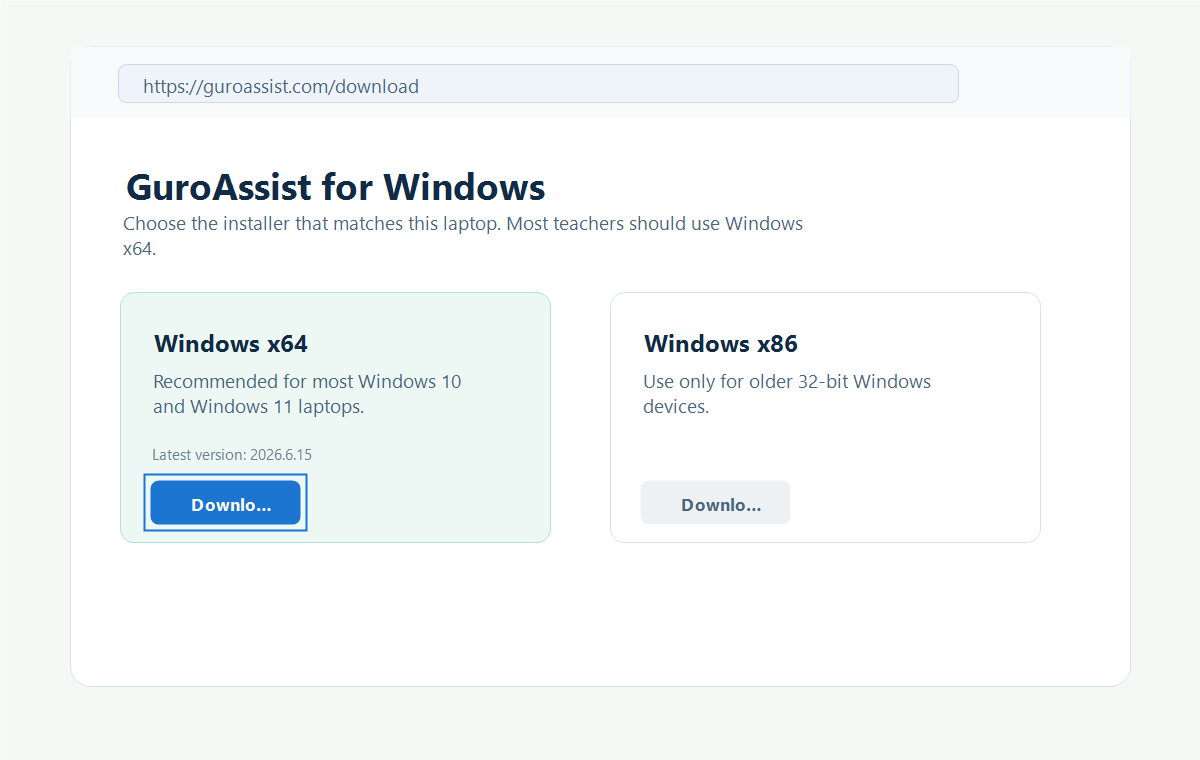
Download the installer that matches the teacher laptop, then run it. GuroAssist stores class and learner data in the local workspace, separate from app files.
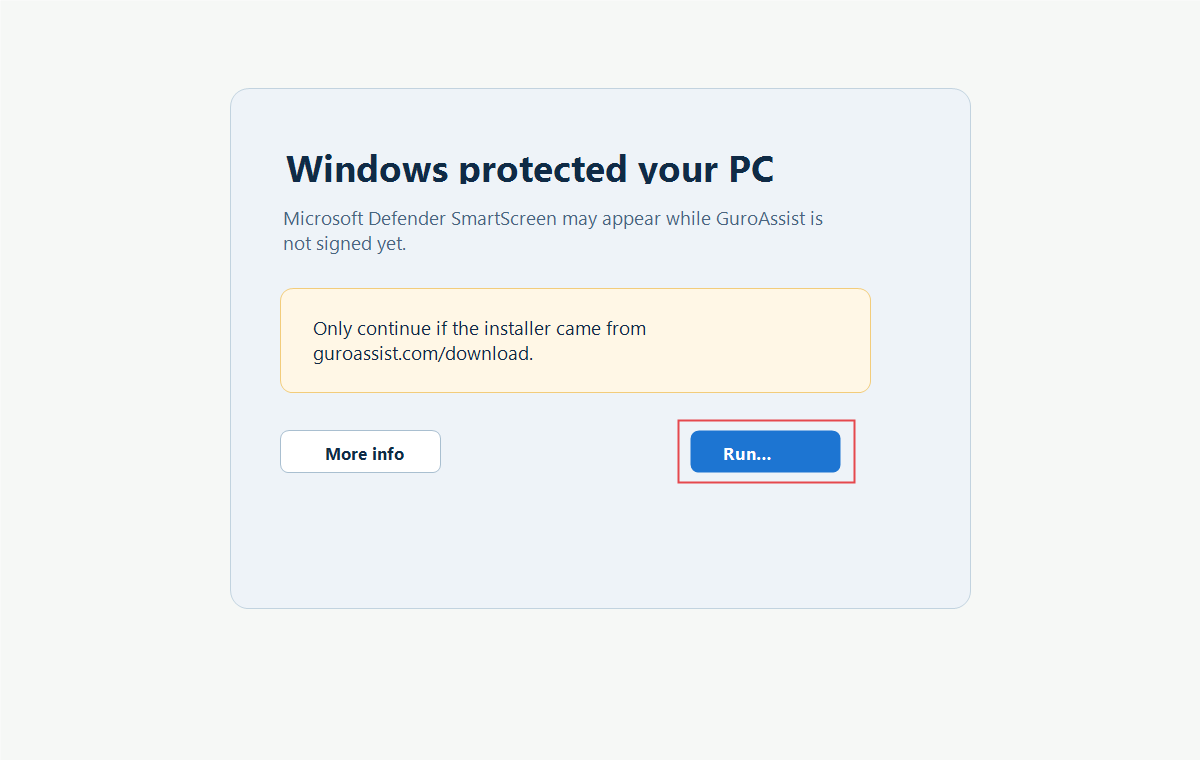
Only download GuroAssist from this page. If Windows shows a warning, verify the address, file name, and checksum before continuing.
Unsigned release: Windows may show Unknown publisher. Use the checksum in Advanced installer details to verify the downloaded file.
Windows x64
Recommended for most Windows 10 and Windows 11 laptops.
- Published
- 9/17/2026
- File size
- 286.8 MB
Advanced installer details
- File name
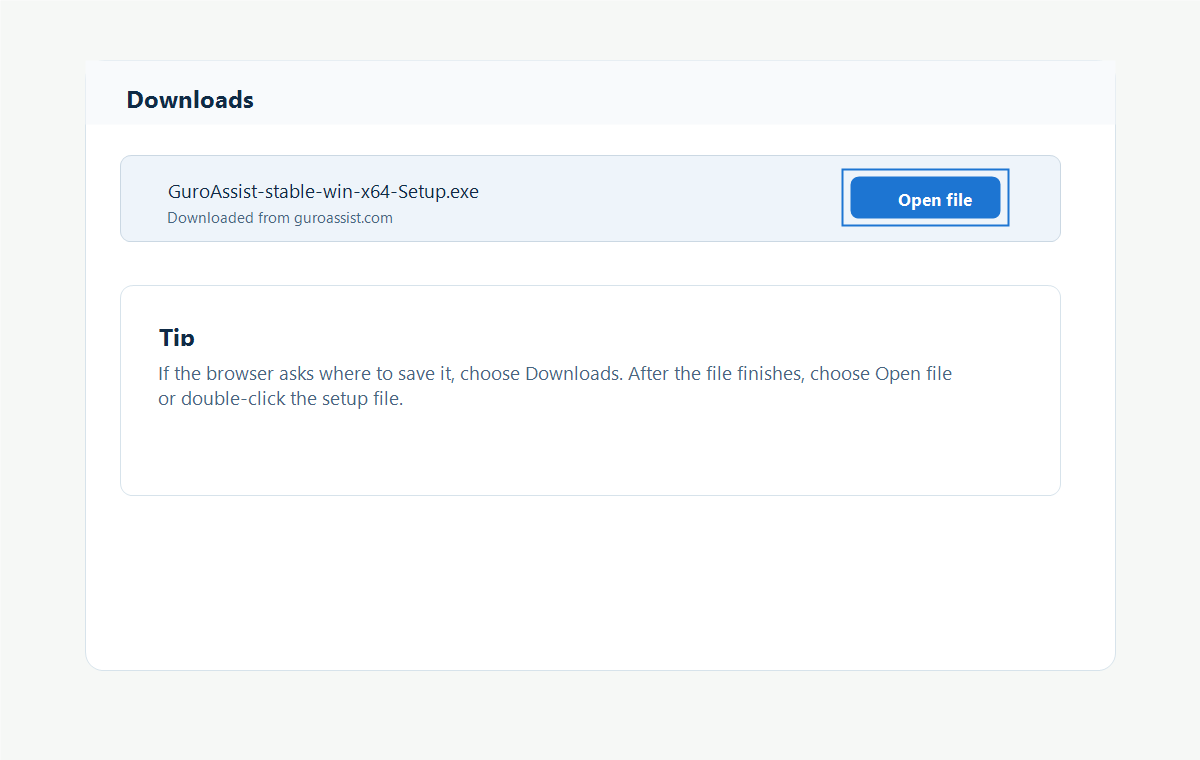
- GuroAssist-stable-win-x64-Setup.exe
- Channel
- stable-win-x64
- Architecture
- x64
- Checksum
- add57cd21d7470eec6a0b3dcf248a9e587f1effaf6ef21bca308cbff78770817
- Code signature included
- No — verify the checksum
- Minimum version
- 0.0.0
Windows x86
For older 32-bit Windows devices.
- Published
- 9/17/2026
- File size
- 275.5 MB
Advanced installer details
- File name
- GuroAssist-stable-win-x86-Setup.exe
- Channel
- stable-win-x86
- Architecture
- x86
- Checksum
- 5389d51fb5595adda084066b90f2c2a3a6eb70ade4427f8bea226f60bcb14a8e
- Code signature included
- No — verify the checksum
- Minimum version
- 0.0.0
System requirements
- Windows desktop or laptop
- Choose x64 for most laptops, x86 only for older 32-bit Windows devices
- Local storage for class files and generated outputs
- Internet only for license refresh, updates, and live AI in Paid
- Microsoft Office or compatible apps for opening exported files
Release notes
- Includes the validated Grades 1-12 three-term ECR integrations and generated-copy layout corrections.
- Fresh protected, self-contained Windows x64 and x86 Release builds.
- Retains the stable installer filenames and separate architecture update channels.
Step-by-step screenshots
How to install GuroAssist
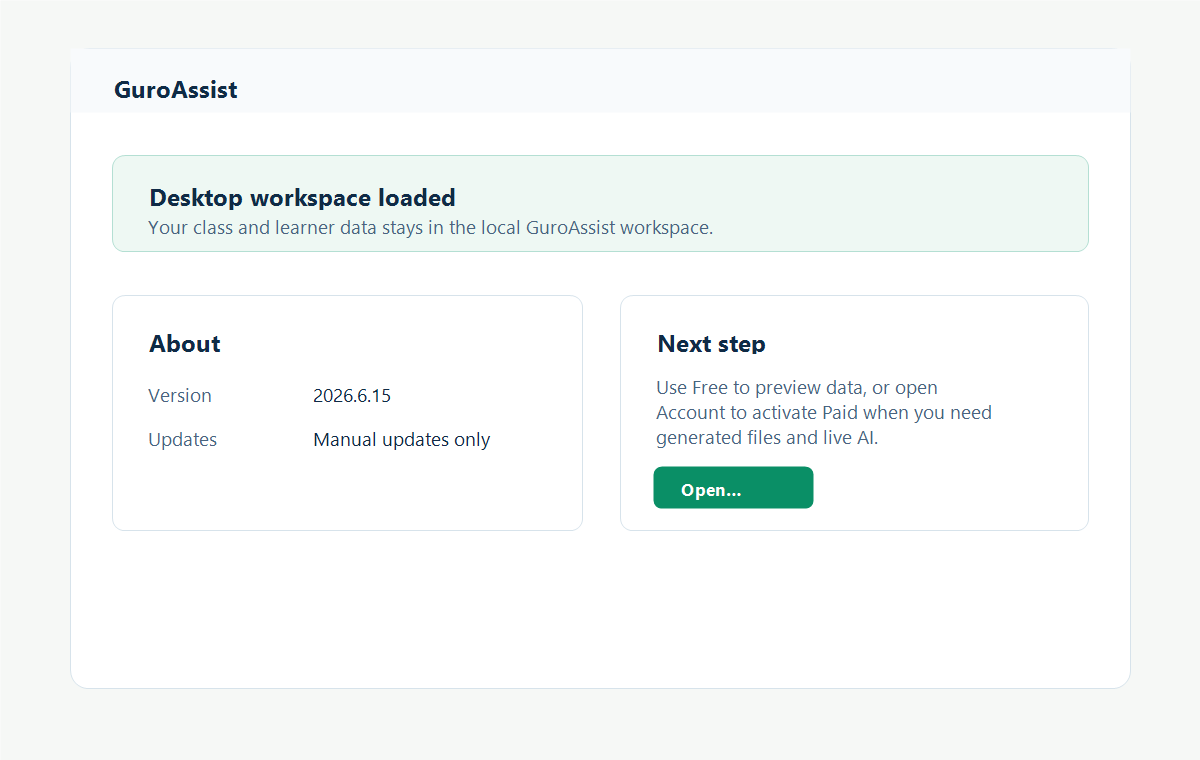
Follow these steps for a first install or a manual update. Close GuroAssist before running the installer, then reopen it when installation finishes.
This release is not code-signed, so Windows may show Unknown publisher. Download only from this page and compare the file name and SHA-256 checksum before running it.
Need help installing?
Review tutorials or contact support for activation, backup, and update help.