
Step-by-step guide
Set up class subjects
Class subject setup keeps Gradebook, Lesson Planning, Test Builder, Schedule, and generated subject work tied to the subjects the teacher actually teaches while adviser-only work stays protected.
Teacher goal
How do I set up subjects so class work opens with the right choices?
Use this guide when this is the task in front of you. Stop if the selected class, learner, role, school year, file, or output does not match.
In-app path
- Classes
- Open class workspace
- Subjects
Get ready
Check the starting point
These are the minimum conditions for the workflow to make sense.
Before you start
Estimated time: About 5 minutes
- A saved class with the correct school year and grade
- The correct class role
- The subjects the teacher actually handles
You should see
The Subjects list shows the intended learning areas, role choices, and grading settings for the selected class.
Steps
Complete the task in order
Review choice points, save or preview behavior, and any stop condition before continuing.
 View full size
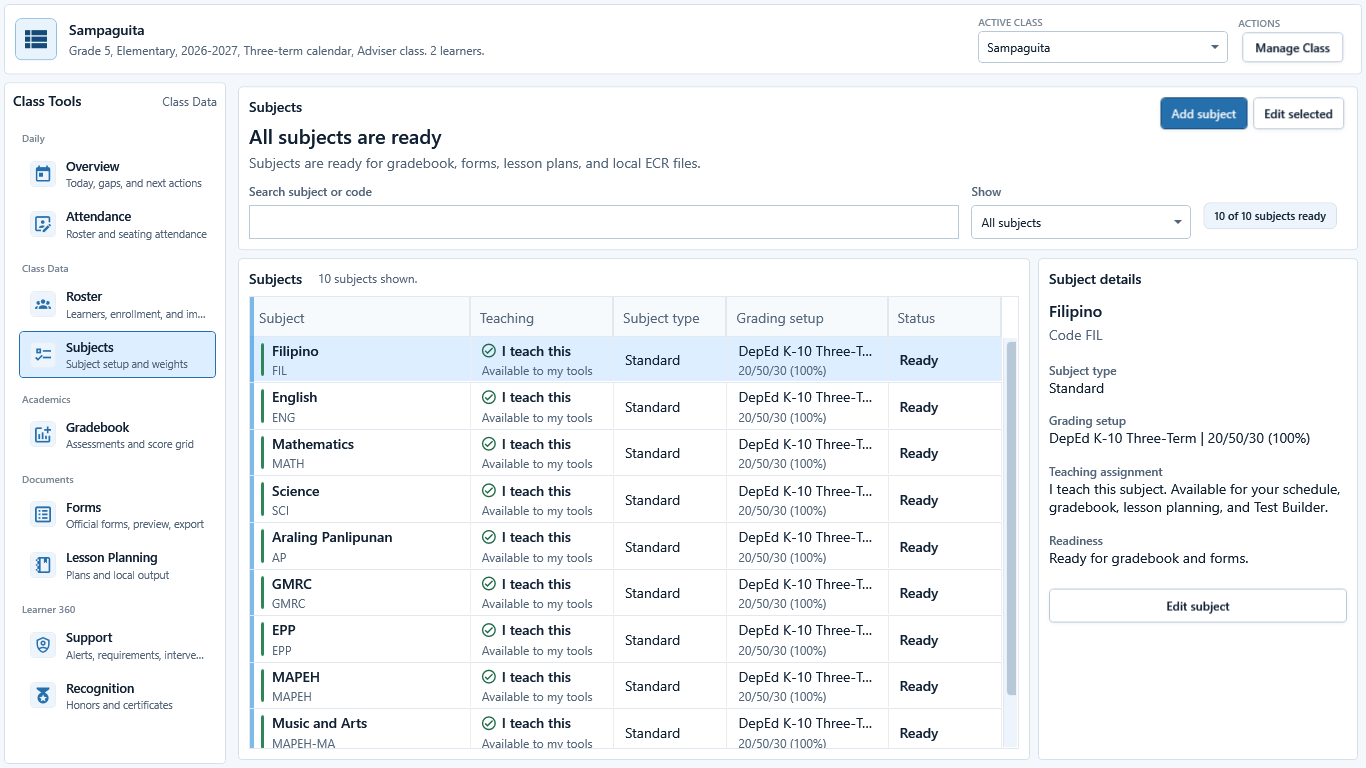
Sample data only. The class header and Subjects selection establish where the change will be saved. Captured July 11, 2026. Step 1
Open the correct class and Subjects
Choose Classes, select the intended class, choose Open class workspace, then choose Subjects. Confirm the header shows the correct class name, Grade, school year, calendar, role, and learner count before changing anything.
Stop if the header shows a different class or an unsupported school year.
 View full size
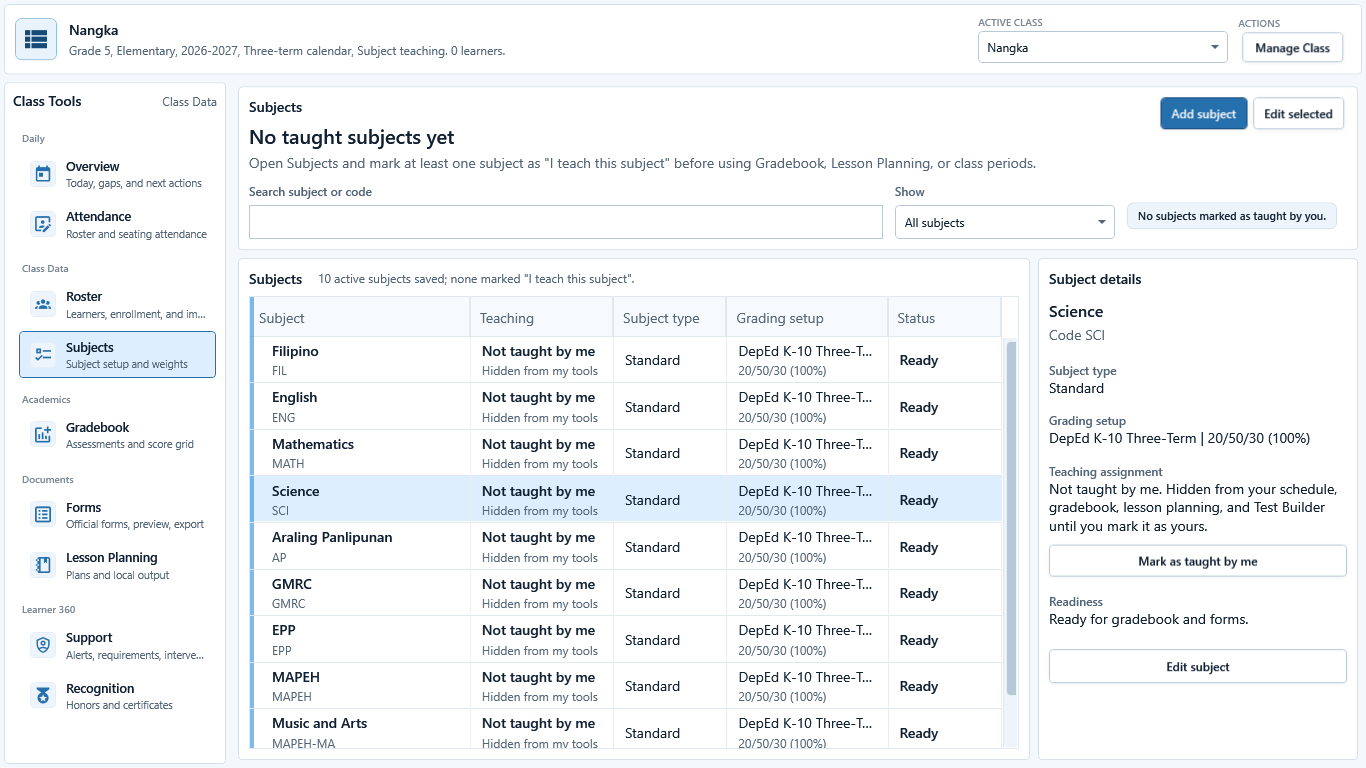
Sample data only. Use the selected-subject details to distinguish a class-role blocker from a subject-assignment blocker. Captured July 11, 2026. Step 2
Confirm the class role and teaching assignment
Read My role in this class. Class adviser enables adviser work; Subject teacher enables assigned subject work; Class adviser and subject teacher enables both. For a subject-teacher or combined role, select the subject and confirm whether the detail panel says I teach this subject or Not taught by me.
Adviser-only tools stay blocked for a subject-teacher class, and subject tools stay blocked until a subject is assigned to the workspace teacher.
 View full size
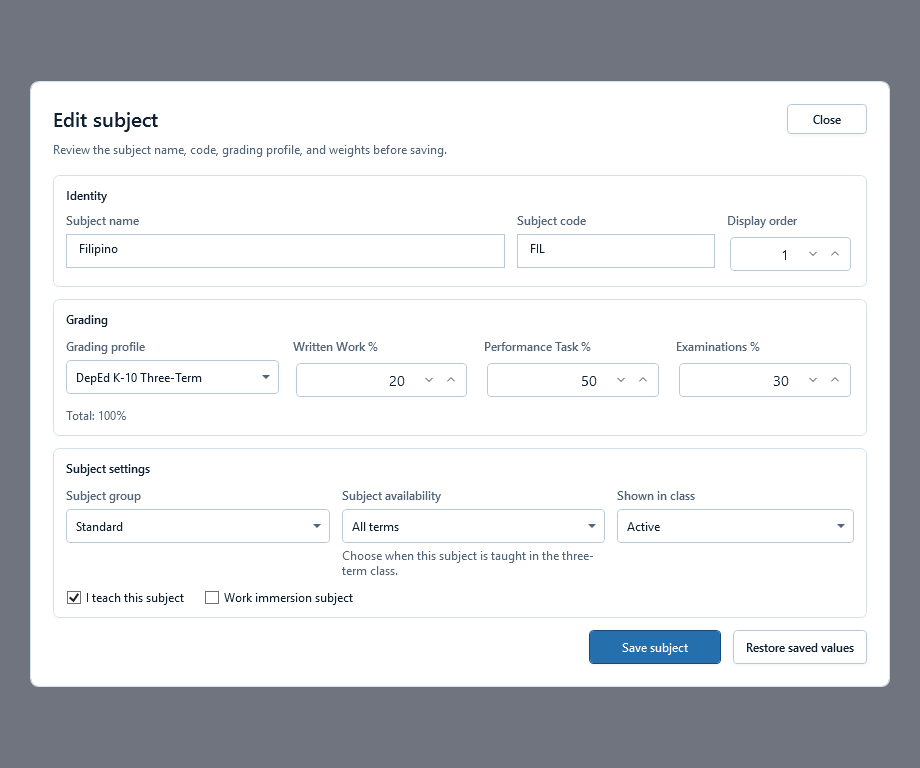
Sample data only. Review every field in the dialog before changing grading or availability. Captured July 11, 2026. Step 3
Add or edit the subject details
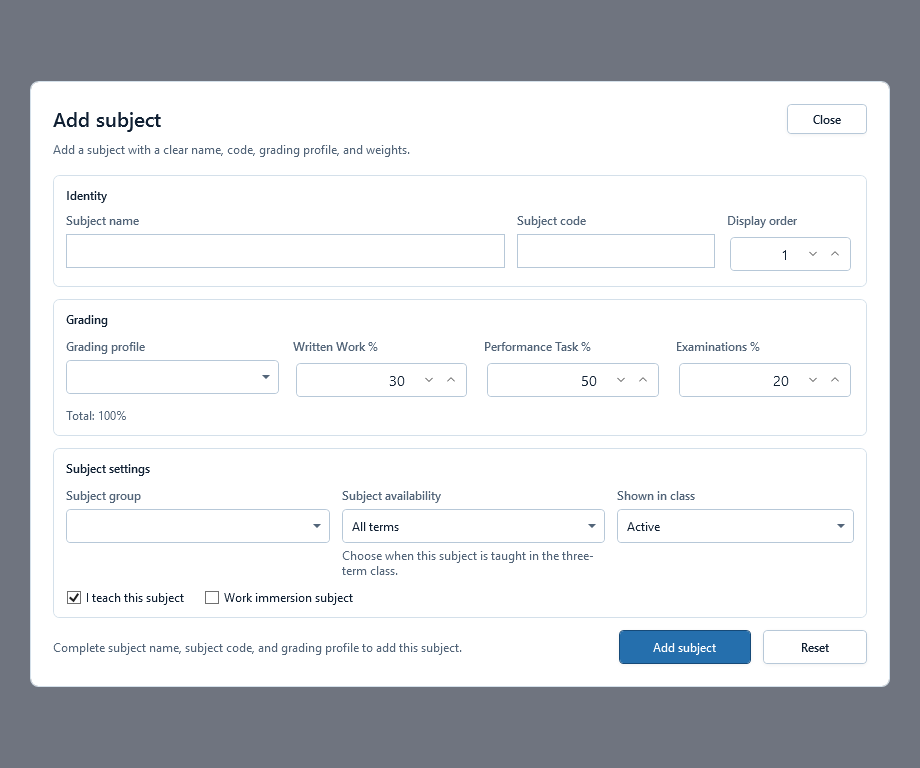
Choose Add subject or select one row and choose Edit selected. Enter the Subject name and Subject code, then review Display order, Grading profile, Written Work, Performance Task, Examinations, Subject group, Subject availability, and Show in class. Keep the total at 100% and use Active only for a subject currently used by the class.
 View full size
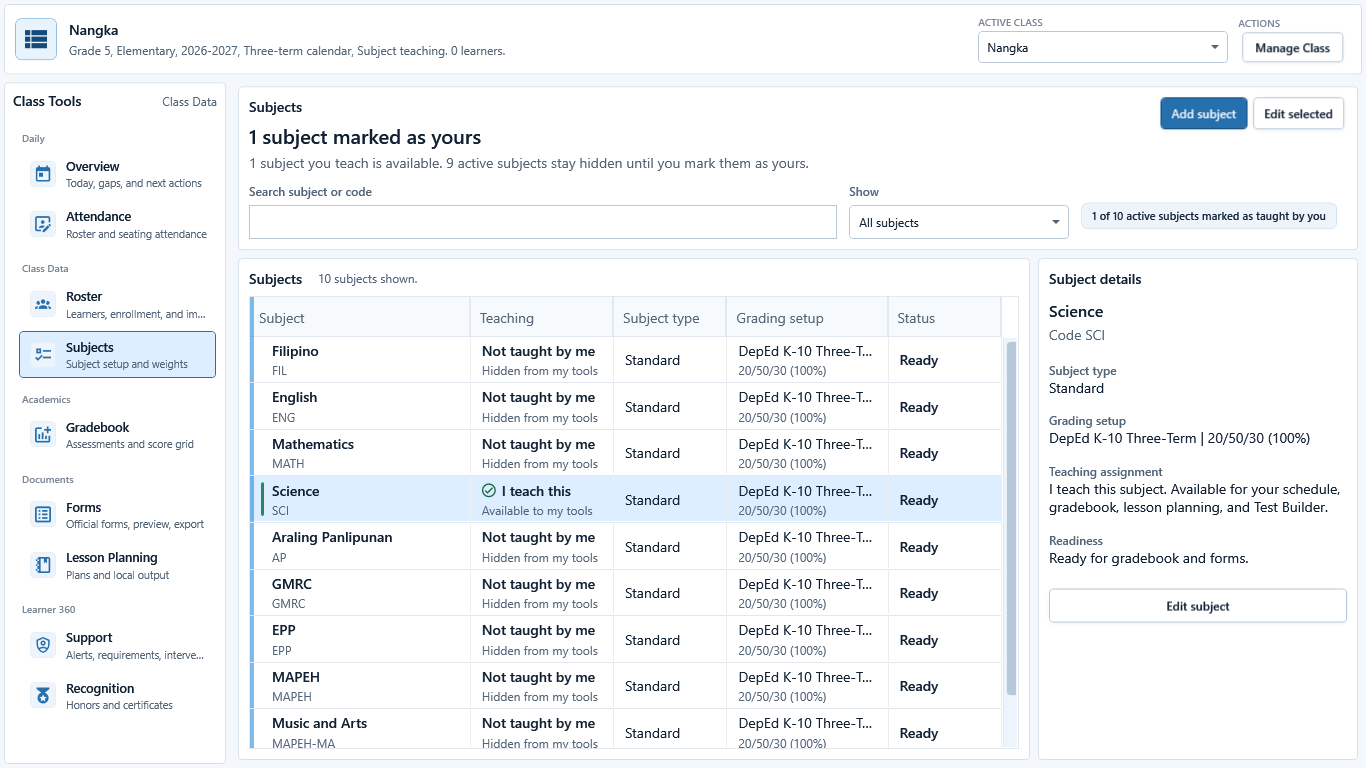
Sample data only. The detail panel confirms the teaching assignment and the tools that can use it. Captured July 11, 2026. Step 4
Mark I teach this subject when accurate
Select I teach this subject only for a learning area handled by the workspace teacher. For a subject-teacher or combined role, this assignment makes the subject available to Schedule, Gradebook, Lesson Planning, and Test Builder; clearing it removes that availability without deleting the subject.
 View full size
Sample data only. The Save subject action is the last step after the subject identity, grading total, status, availability, and assignment are correct. Captured July 11, 2026. Step 5
Save the reviewed subject
In the Add subject dialog, review the name, code, grading total, status, availability, and teaching assignment one last time. Choose Save subject only when those values are correct; use Restore saved values or Cancel when they are not.
After this pictured save action completes, reopen the row as a separate check before using it in another tool.


Review
Check these before relying on the work
These checks cover saved, previewed, generated, and teacher-review states.
Class setup is complete
Grade level, school year, and class details should be ready before subject-dependent tools unlock.
Teacher role is accurate
Choose Class adviser, Subject teacher, or Class adviser and subject teacher to match the teacher's real responsibility.
Taught subjects are marked
Subject teacher and combined roles require I teach this subject for subject workflows.
Subject names are clear
Use names the teacher can recognize quickly in Gradebook, Lesson Planning, Test Builder, Schedule, and files.
Adviser-only work stays protected
Forms, Recognition, adviser attendance Insights, and full-class ECR work remain blocked for subject-teaching classes.
Term or period matches the class
Three-term classes should use the supported term setup instead of quarter wording unless the app explicitly supports a legacy case.
Generated files still need readiness
Paid access and subject setup do not bypass missing templates, grades, or required details.
Blocked states and recovery
Fix the blocker before continuing
Use the direct recovery action when GuroAssist is waiting for setup, data, access, policy, or file readiness.
Class is not ready
Create or choose the class before adding subjects.
After recovery: The intended class appears in the workspace header and the task uses that class.
Review class setupNo taught subject is marked
For Subject teacher or combined roles, open the subject and select I teach this subject before Gradebook, Lesson Planning, Test Builder, or class periods can continue.
After recovery: The intended subject is selected and shows the teacher's taught-subject assignment.
Troubleshoot a blocked actionAdviser-only workflow
Full-class Forms, Recognition, adviser attendance Insights, and full-class ECR output stay blocked for a subject-teaching class.
After recovery: The intended subject is selected and shows the teacher's taught-subject assignment.
Review class rolesSchool-year update needed
Follow the readiness message for the selected class and school year. Official-looking output stays blocked until GuroAssist supports it.
After recovery: The intended class appears in the workspace header and the task uses that class.
Review readiness help
Safety note
Subject setup should guide teacher work locally. It should not imply that GuroAssist certifies curriculum rules or makes official-ready files without the required readiness checks.
Finish
Verify the result
Do not treat a saved screen or generated filename as proof that the work is ready.
You’re done when
Every subject needed for local work is active, and required subjects are marked I teach this subject.
Privacy, policy, and official-looking outputs
Keep the work inside its safe boundary
These limits remain in force even when the main task appears complete.
Important boundary
Follow the policy and readiness message shown for the selected class and school year. Do not substitute remembered thresholds, quarter templates, or term rules.
Glossary
Expand the terms used in this guide
Use the plain-language meaning here, then follow the exact label in GuroAssist.
- ECR
- Electronic Class Record; official-looking output remains blocked until the selected class is ready.
Guide details
Guide verification
Use these details to confirm that this guide matches the GuroAssist version and school year you are using.
- Verification
- Verified with GuroAssist 1.0.0.0
- Last reviewed
- July 11, 2026
- Screenshots
- Captured July 11, 2026
- Applies to
- 2026–2027
Was this helpful?
Choose an answer or report a guide that needs attention. No class, learner, or free-text data is sent by these buttons.
Related guides