
Step-by-step guide
Prepare lesson plans
Lesson Planning helps teachers prepare local plans, resources, and review notes before generating or sharing anything.
Teacher goal
Where do daily and weekly plans start?
Use this guide when this is the task in front of you. Stop if the selected class, learner, role, school year, file, or output does not match.
In-app path
- Classes
- Open class workspace
- Lesson Planning
Get ready
Check the starting point
These are the minimum conditions for the workflow to make sense.
Before you start
Estimated time: About 10–20 minutes
- A saved class and taught subject
- Daily or Weekly scope and the required ILAW fields
- An AI-use declaration or learning-continuity alternative when requested
You should see
Lesson Planning shows the intended class, subject, scope, saved lesson details, and an honest local draft or generated-file state.
Detailed workflows
Choose the Lesson Planning workflow you need
Compare Daily and Weekly planning and follow the exact draft-review workflow.
Steps
Complete the task in order
Review choice points, save or preview behavior, and any stop condition before continuing.
 View full size
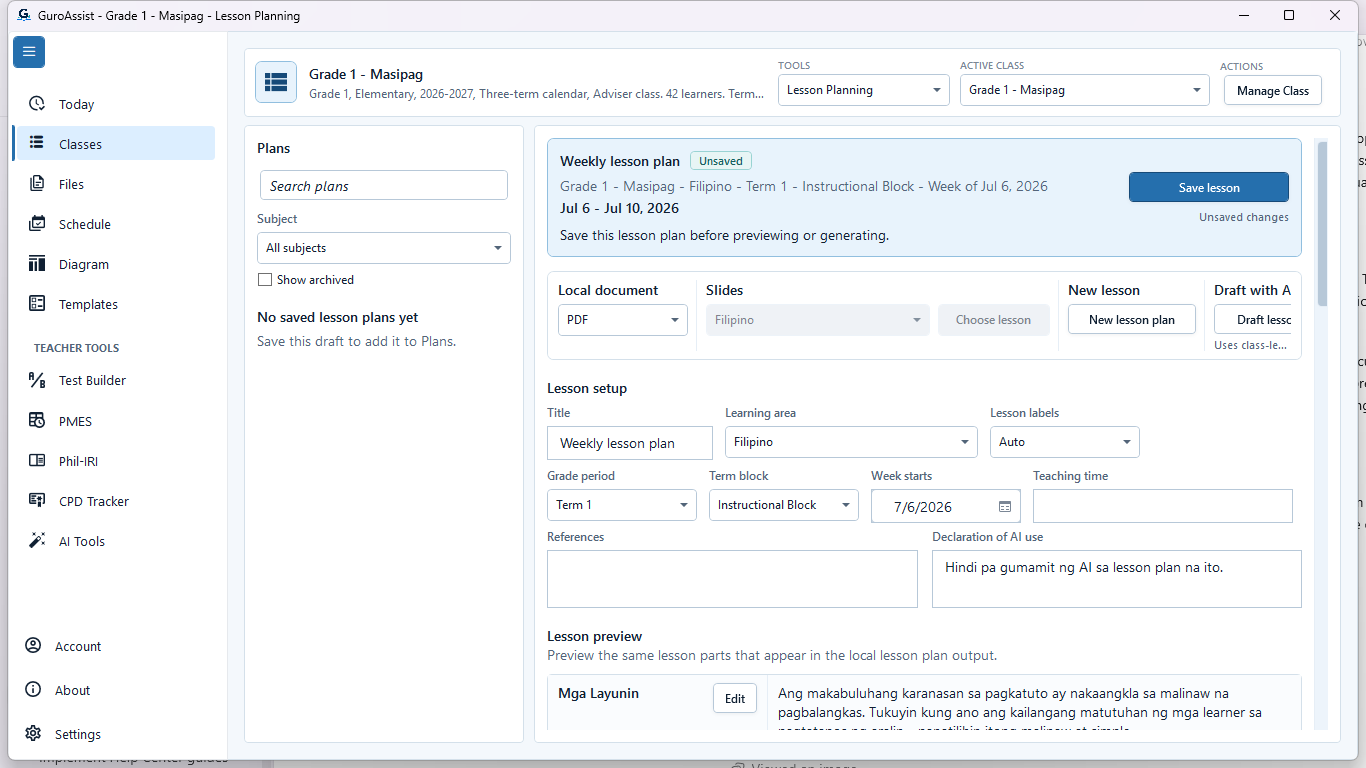
Sample data only. Confirm the context at the top of the new-plan editor before authoring. Captured July 11, 2026. Step 1
Choose the class, subject, and plan type
Open Lesson Planning, confirm the intended class and subject, then choose New daily plan or New weekly plan. Use the plan type that matches the teaching period; changing context later can create a draft under the wrong class or subject.
Expected result: Confirm the context at the top of the new-plan editor before authoring.
 View full size
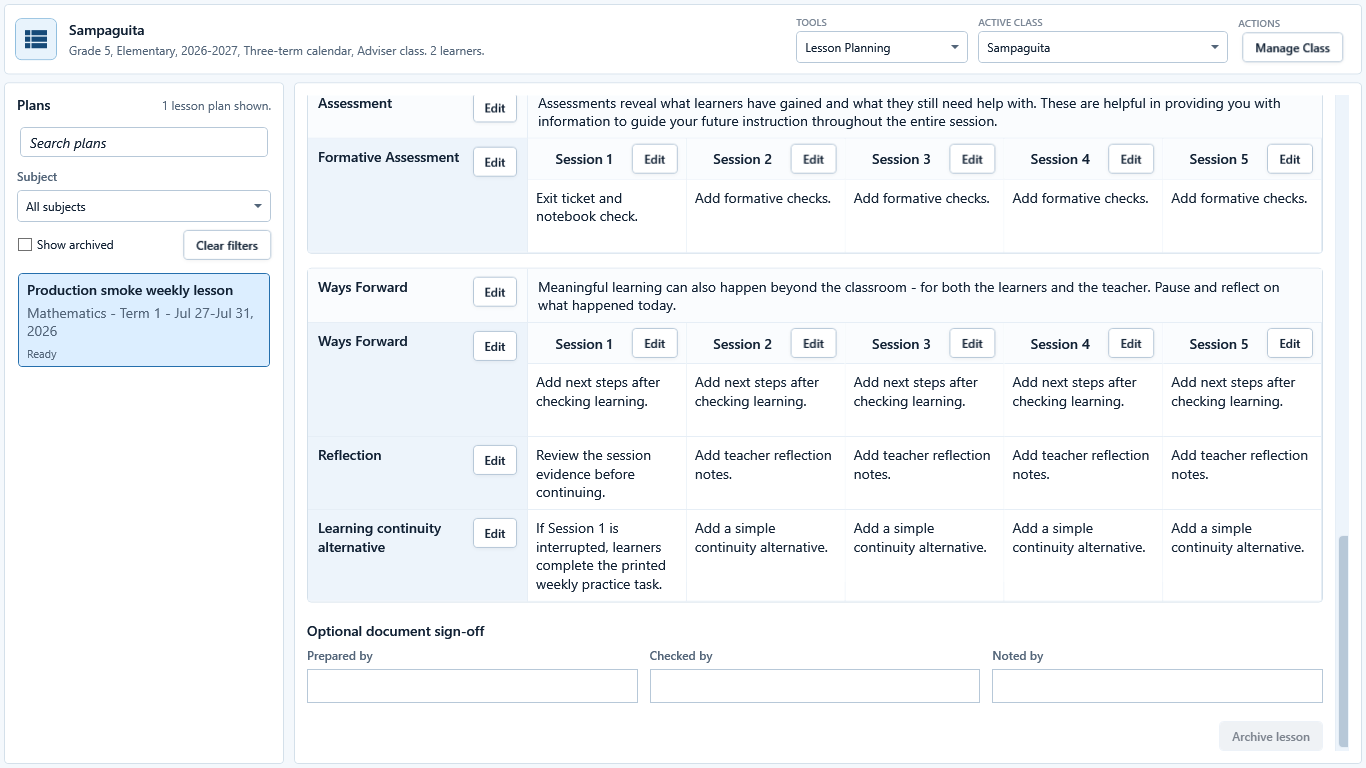
Sample data only. A weekly plan keeps the reviewed lesson content and readiness checks together. Captured July 12, 2026. Step 2
Author the lesson with teacher-reviewed references
Complete the required lesson content, objectives, learning flow, assessment, resources, references, and continuity details shown by the editor. Write for the actual class and verify every reference rather than accepting placeholder or generated wording.
Expected result: A weekly plan keeps the reviewed lesson content and readiness checks together.
 View full size
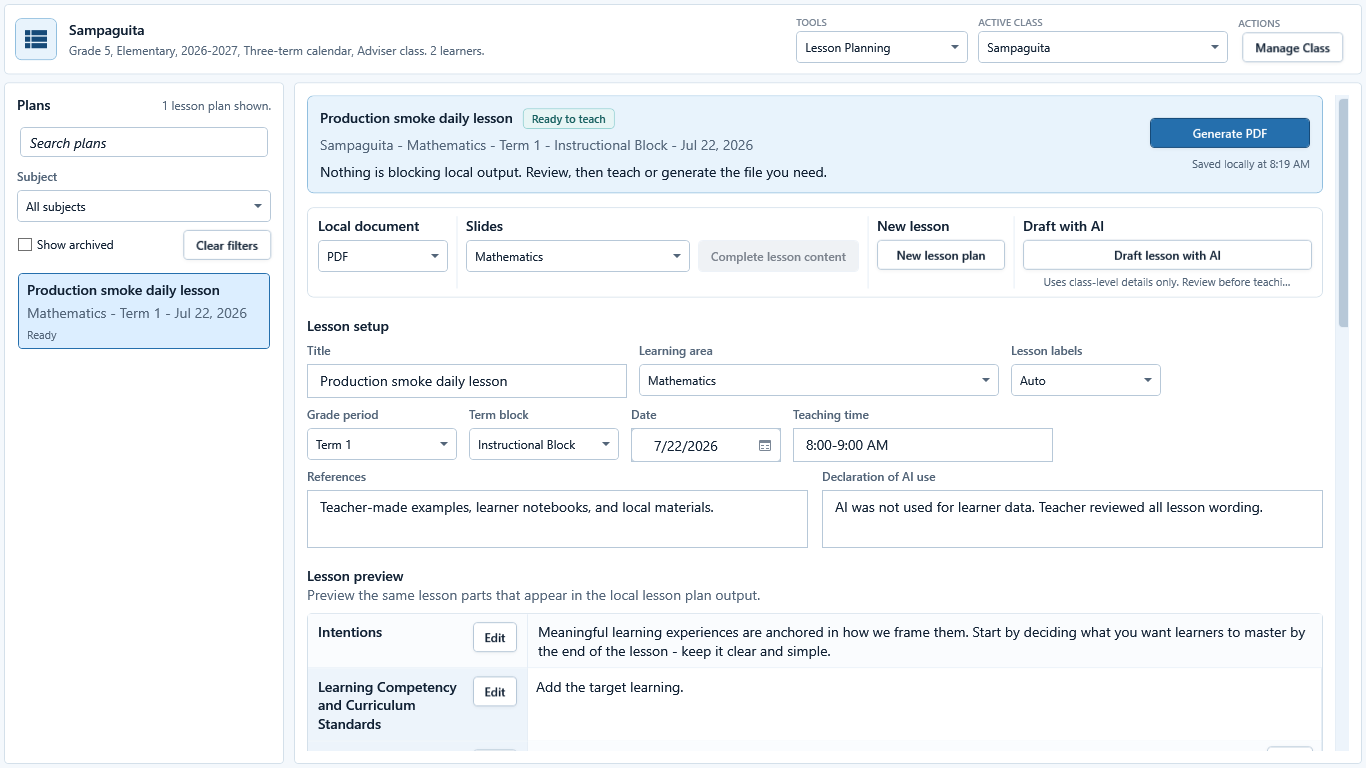
Sample data only. The daily editor is the source of truth for the single-session plan. Captured July 12, 2026. Step 3
Review a daily plan at session level
For a daily plan, confirm the date, subject, grade, objectives, learner context, learning flow, assessment, and resources for that session. Make corrections before treating the plan as ready.
Expected result: The daily editor is the source of truth for the single-session plan.
 View full size
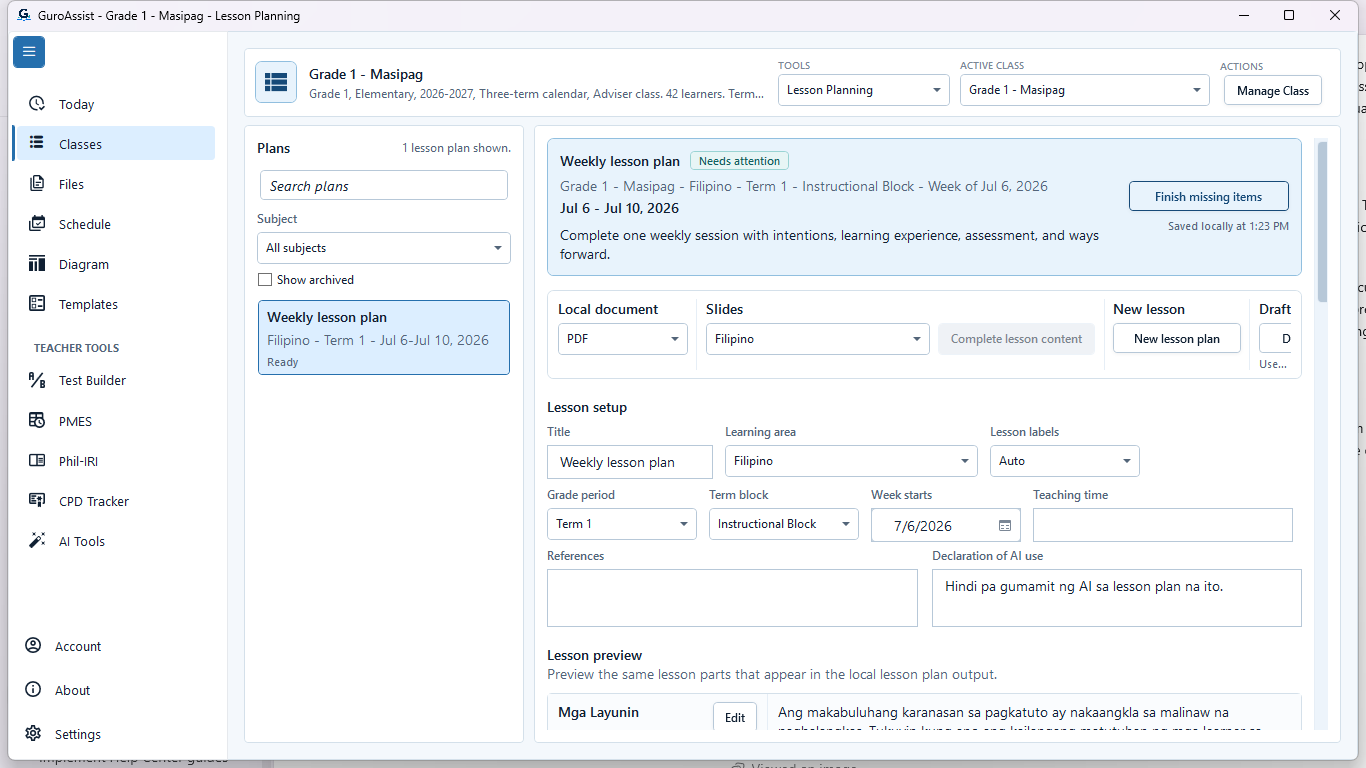
Sample data only. A saved draft can remain incomplete; the readiness state is the honest status. Captured July 11, 2026. Step 4
Save the draft and read its readiness state
Choose Save draft, then read the saved status and the action guidance. Needs attention means the draft exists locally but still has missing or unresolved content.
Expected result: A saved draft can remain incomplete; the readiness state is the honest status.
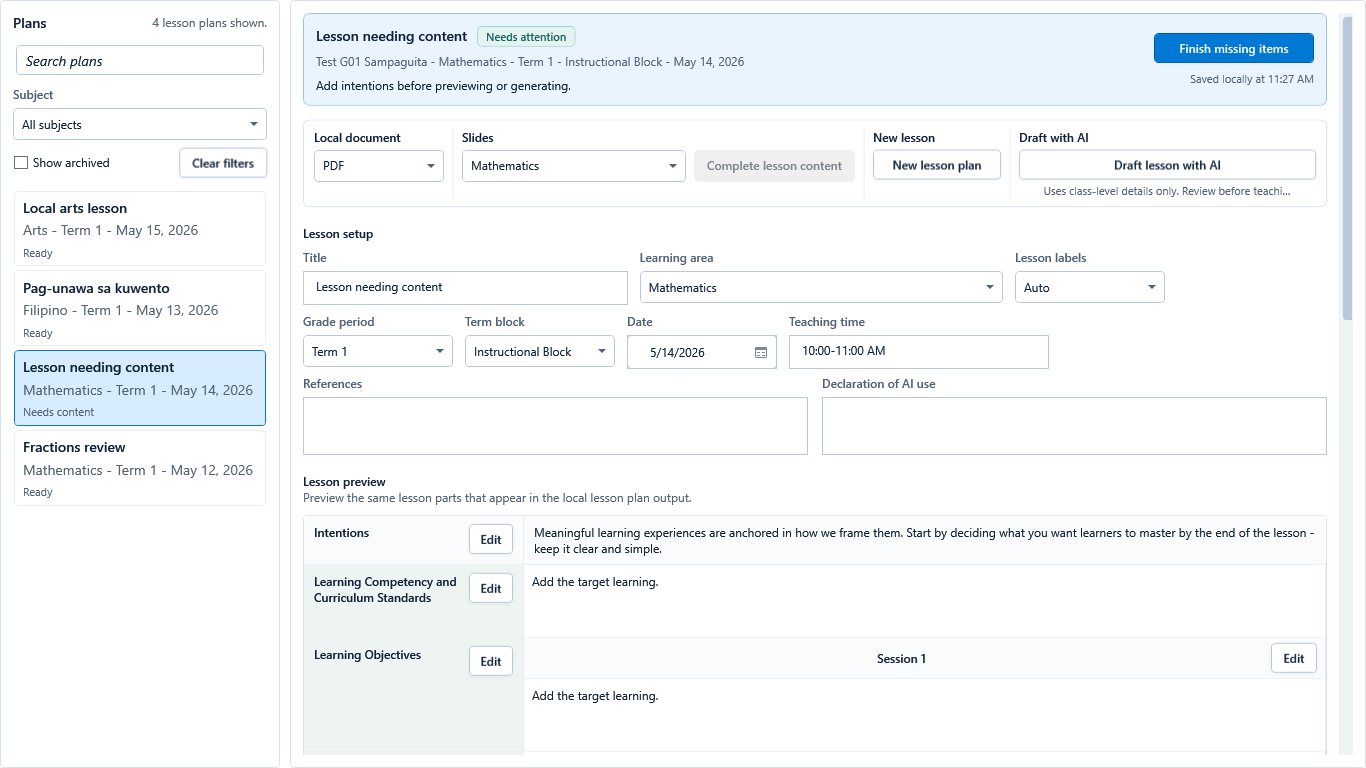 View full size
Sample data only. Use the blocker list as the correction checklist before generation. Captured July 11, 2026. Step 5
Resolve blockers before generating files
Choose Finish missing items and correct every listed readiness issue. Missing content, references, class setup, or review cannot be bypassed by selecting PDF, DOCX, or Slides.
Expected result: Use the blocker list as the correction checklist before generation.
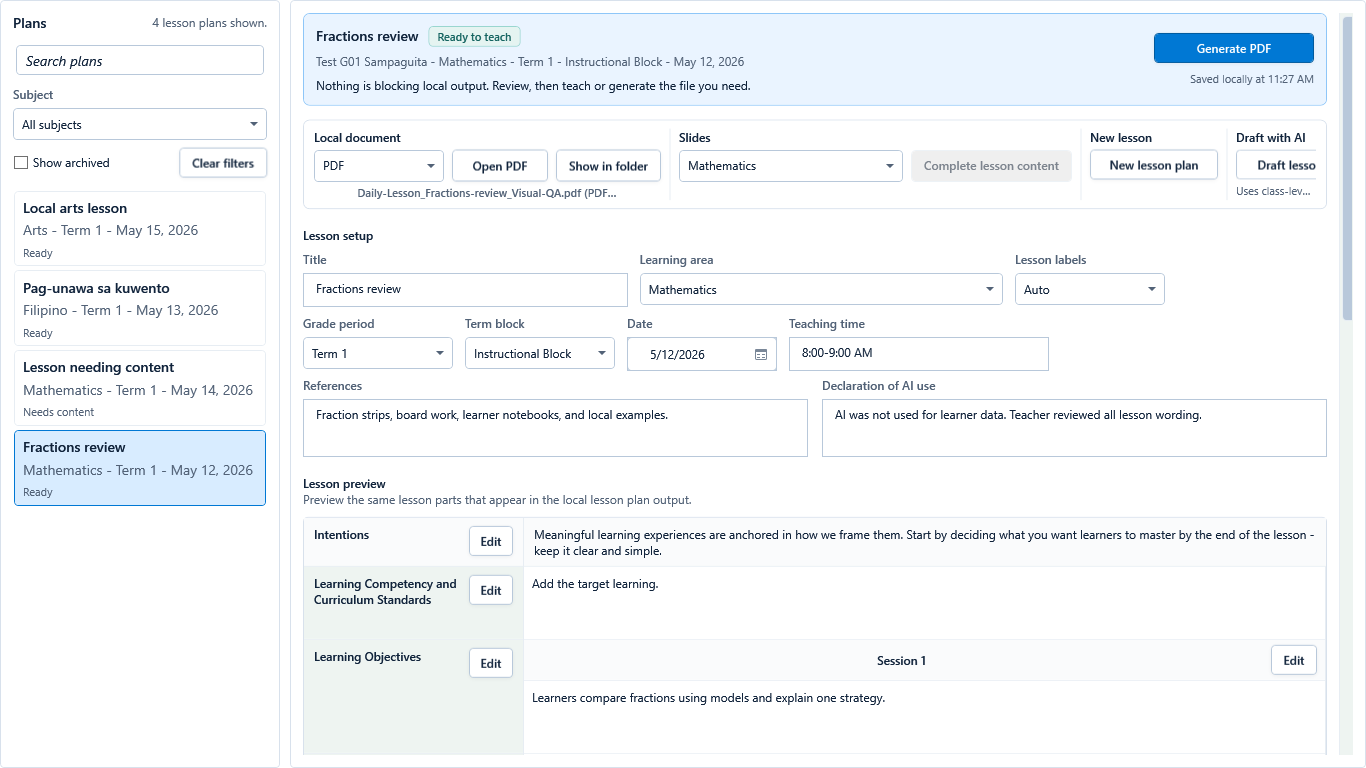 View full size
Sample data only. The available-output state confirms local generation, not final approval. Captured July 11, 2026. Step 6
Generate the supported local output
After readiness passes, choose PDF, DOCX, or Slides as needed and follow the confirmation. Label the generated file as a local teacher copy until the teacher has reviewed the actual output.
Expected result: The available-output state confirms local generation, not final approval.
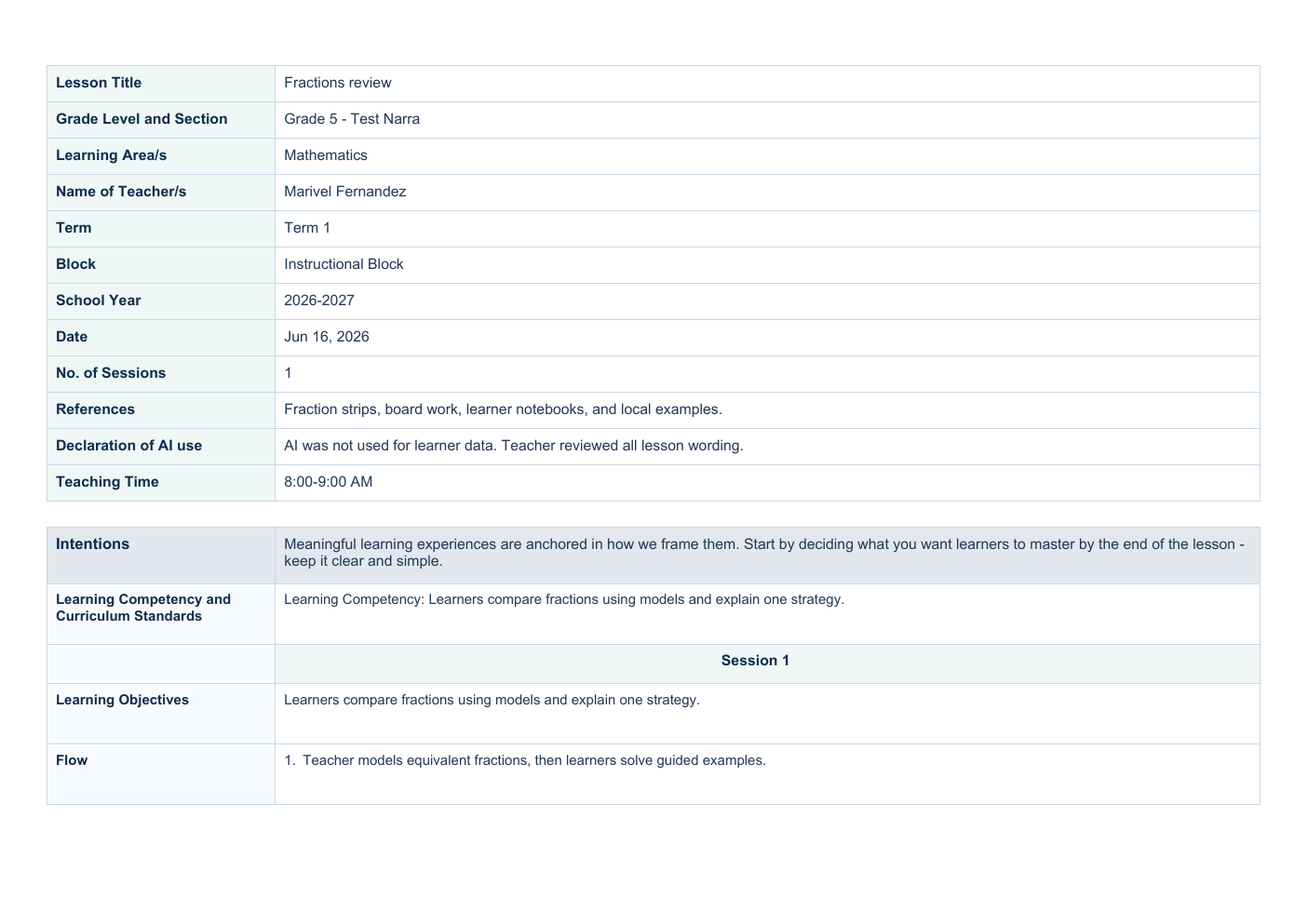 View full size
Sample data only. The actual page is the evidence for class context, lesson content, references, and readable layout. Captured July 11, 2026. Step 7
Open the actual PDF, DOCX, or PPTX
Open the generated file from Files or its saved folder. Inspect every page or slide for correct class and subject context, complete content, readable layout, references, page breaks, and honest draft or final labeling.
Return to the plan, correct the source, and generate again when the opened file is clipped, incomplete, or wrong. Expected result: The actual page is the evidence for class context, lesson content, references, and readable layout.


Review
Check these before relying on the work
These checks cover saved, previewed, generated, and teacher-review states.
Class and subject selected
The plan should match the real class and subject before output actions unlock.
Required fields complete
Missing learning details can keep preview or generate actions disabled.
AI use stays optional
Live AI help is Paid-gated and should not receive unnecessary personal learner data.
Local review before sharing
Open generated lesson files and check wording before using them outside GuroAssist.
Blocked states and recovery
Fix the blocker before continuing
Use the direct recovery action when GuroAssist is waiting for setup, data, access, policy, or file readiness.
Required details missing
Complete the plan fields shown by the app before previewing or generating.
After recovery: The blocker is no longer shown, and the intended next action is available for teacher review.
Troubleshoot this blockerPaid needed for generated files
Free supports local work, but generated files require Paid where supported.
After recovery: Paid access and any required credits are shown as available for this action.
Open activation help
Safety note
Lesson plans should remain teacher-owned drafts until the teacher reviews them.
Finish
Verify the result
Do not treat a saved screen or generated filename as proof that the work is ready.
You’re done when
Lesson Planning shows the intended class, subject, scope, saved lesson details, and an honest local draft or generated-file state.
Privacy, policy, and official-looking outputs
Keep the work inside its safe boundary
These limits remain in force even when the main task appears complete.
Important boundary
Follow the policy and readiness message shown for the selected class and school year. Do not substitute remembered thresholds, quarter templates, or term rules.
Glossary
Expand the terms used in this guide
Use the plain-language meaning here, then follow the exact label in GuroAssist.
- AI
- Artificial intelligence; optional draft help that still requires teacher review.
Guide details
Guide verification
Use these details to confirm that this guide matches the GuroAssist version and school year you are using.
- Verification
- Verified with GuroAssist 1.0.0.0
- Last reviewed
- July 11, 2026
- Screenshots
- Captured July 11, 2026
- Applies to
- 2026–2027
Was this helpful?
Choose an answer or report a guide that needs attention. No class, learner, or free-text data is sent by these buttons.