
Step-by-step guide
Review Gradebook work
Gradebook keeps assessment setup, score entry, completion checks, summaries, and final review together. Work inside the selected class, subject, period, and component, and treat blanks differently from real zero scores.
Teacher goal
How do I create assessments, enter scores, and know when grades are safe to use?
Use this guide when this is the task in front of you. Stop if the selected class, learner, role, school year, file, or output does not match.
In-app path
- Classes
- Open class workspace
- Gradebook
Get ready
Check the starting point
These are the minimum conditions for the workflow to make sense.
Before you start
Estimated time: About 10–20 minutes
- A saved class with the subject the teacher teaches
- The period or term and grade mode shown by the app
- Assessment details and saved learner records for the selected scope
You should see
Gradebook shows the intended class, subject, term, assessment columns, learner rows, and an honest saved or unsaved state.
Detailed workflows
Choose the Gradebook workflow you need
Use a focused workflow for score import, ECR export, or teacher-review summaries.
Import Gradebook scores
How do I bring scores into Gradebook without overwriting the wrong work?
Open workflow guideExport Gradebook ECR
How do I export ECR files safely from Gradebook?
Open workflow guideReview Gradebook summaries
How do I use MPS, promotion, remediation, and SHS summaries without making automatic decisions?
Open workflow guideSteps
Complete the task in order
Review choice points, save or preview behavior, and any stop condition before continuing.
 View full size
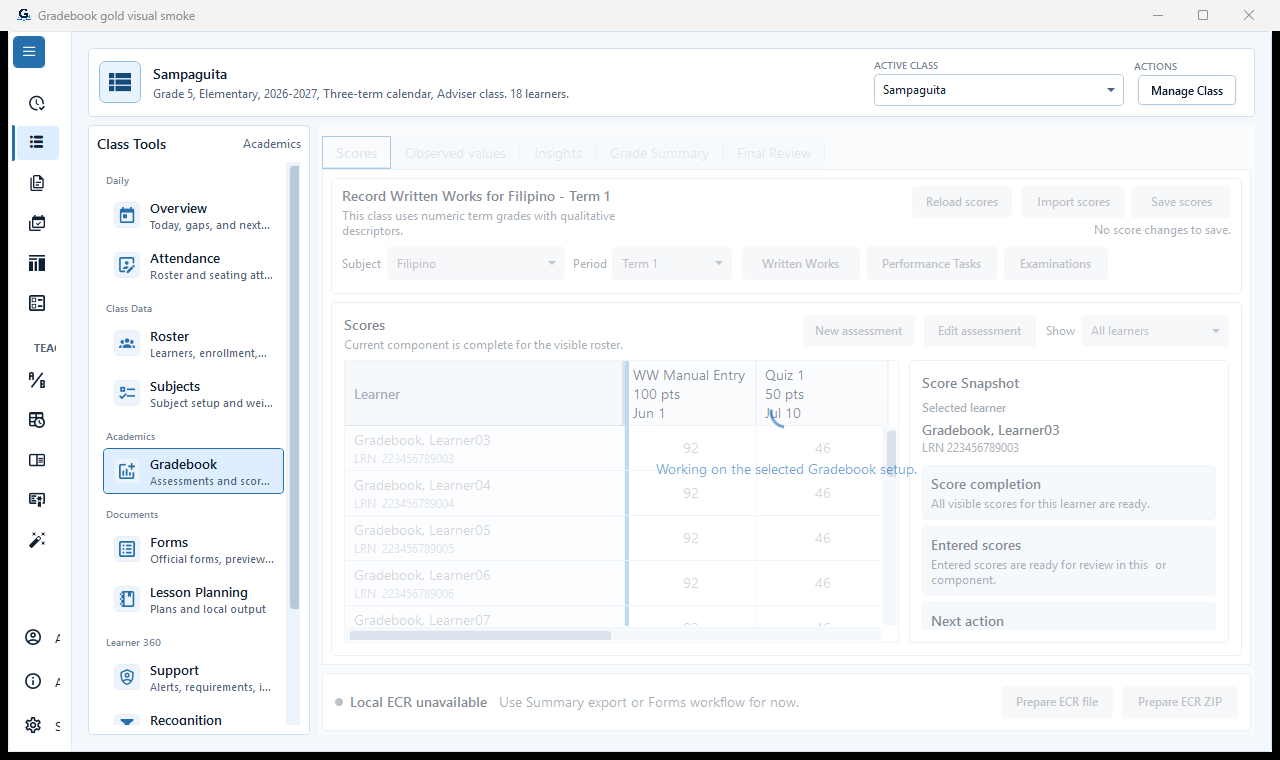
Sample data only. The numeric score context is visible before any score is changed. Captured July 12, 2026. Step 1
Open the correct class, subject, term, and score component
Choose Classes, open the intended class, then choose Gradebook. Confirm class, school year 2026-2027, subject, Term 1, and Written Works, Performance Tasks, or Examinations before entering or importing scores.
Expected result: The numeric score context is visible before any score is changed.
 View full size
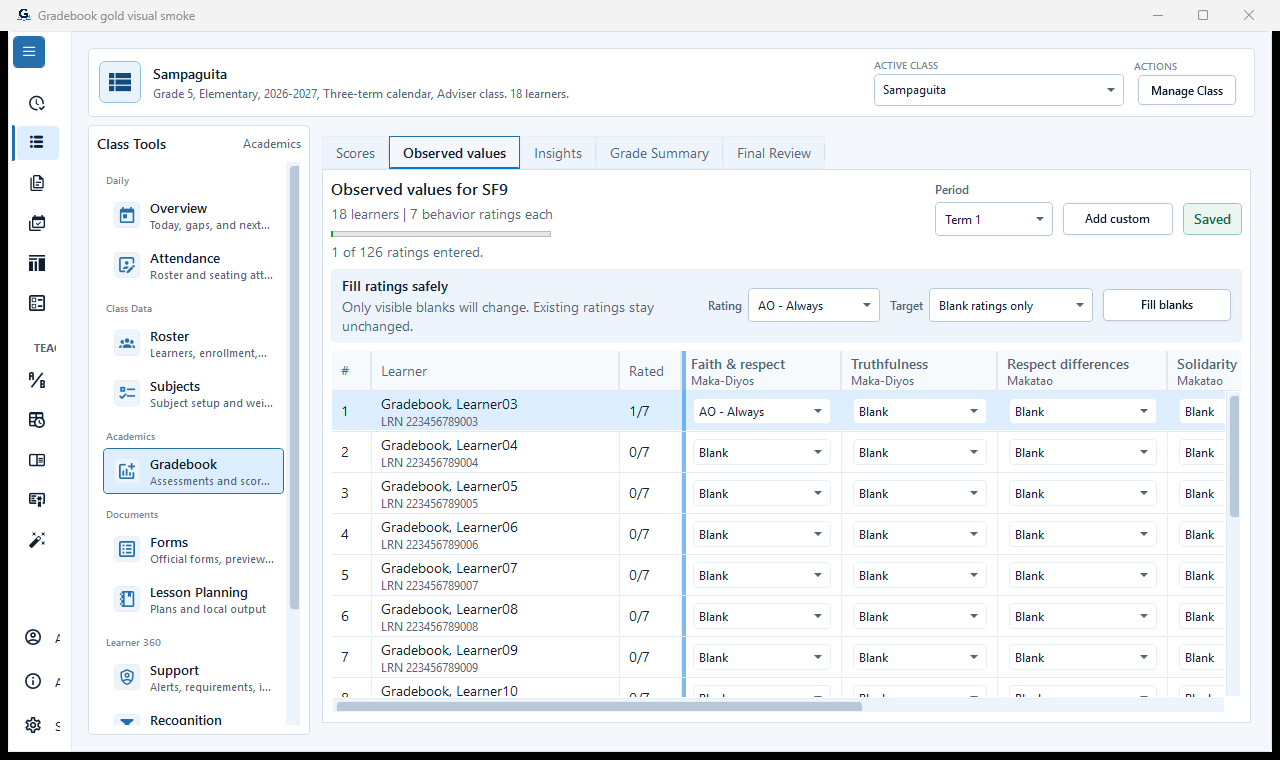
Sample data only. Observed values remain qualitative teacher evidence and are kept separate from numeric score entry. Captured July 12, 2026. Step 2
Use Observed values only for supported qualitative evidence
Open Observed values when the selected grade mode supports qualitative descriptors. Choose the period and value set, review the learner evidence, and save only teacher-observed values. Do not convert descriptive observations into invented numeric scores.
Expected result: Observed values remain qualitative teacher evidence and are kept separate from numeric score entry.
 View full size
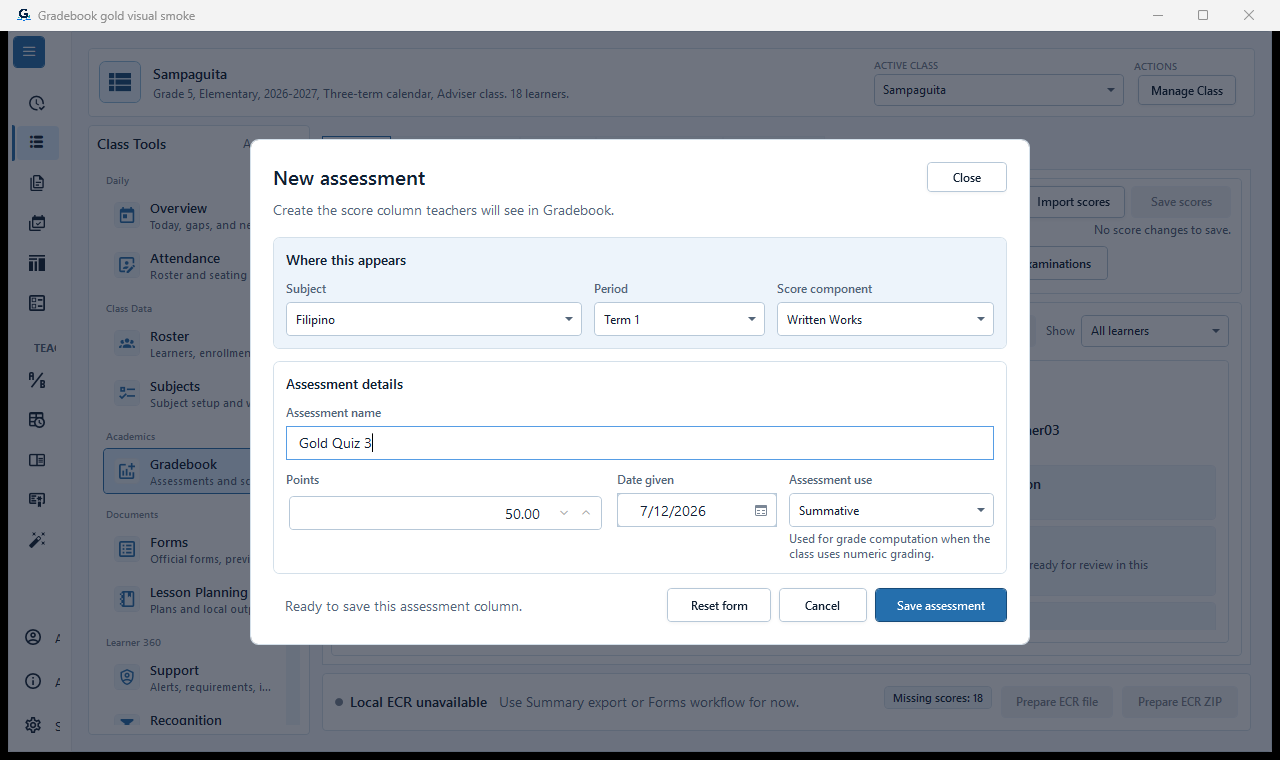
Sample data only. Assessment identity and maximum score must be correct before score entry. Captured July 12, 2026. Step 3
Create or choose the numeric assessment
For a numeric class, choose the correct assessment or create one under the intended component and term. Confirm the title, date, maximum score, and component before entering learner scores.
Expected result: Assessment identity and maximum score must be correct before score entry.
 View full size
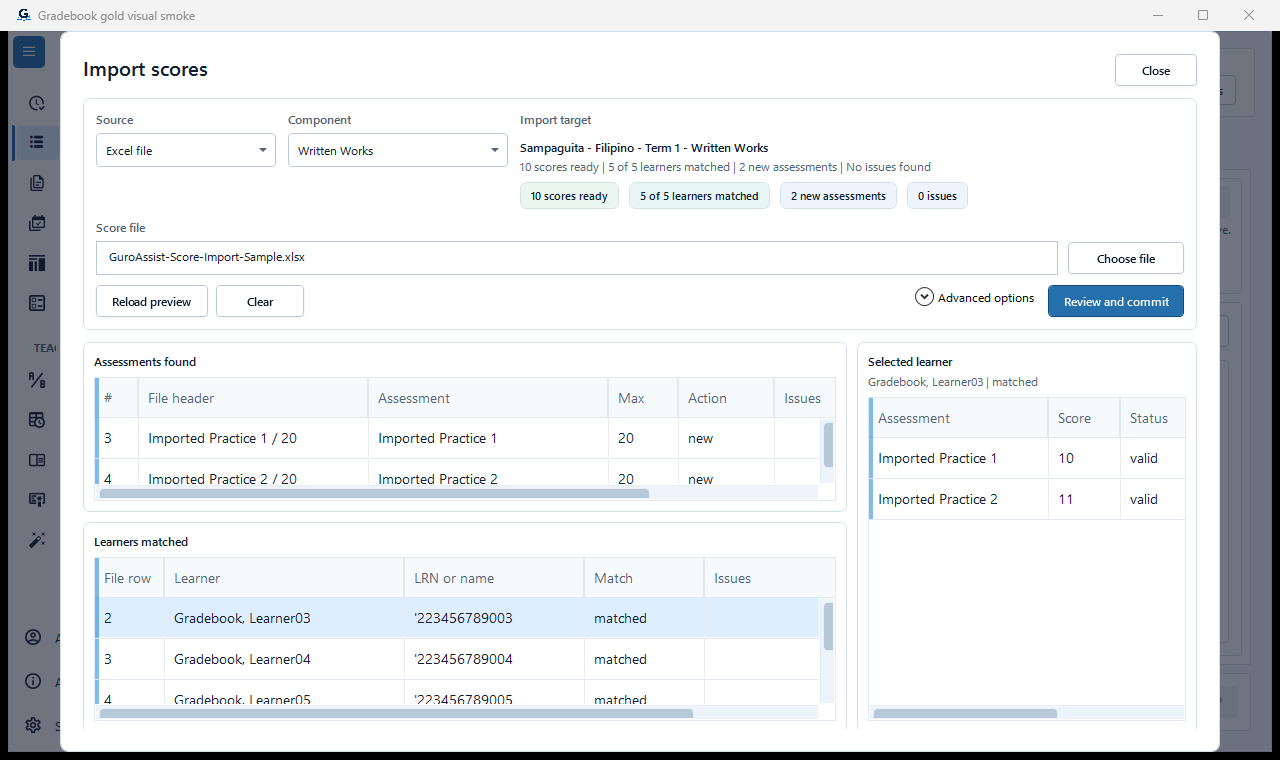
Sample data only. The import preview is the final review before scores are written. Captured July 12, 2026. Step 4
Enter or import scores and review the preview
Enter scores directly or use Import scores when available. In an import preview, match learners carefully, review blank, invalid, and out-of-range values, and commit only the rows that belong to this class and assessment.
Expected result: The import preview is the final review before scores are written.
 View full size
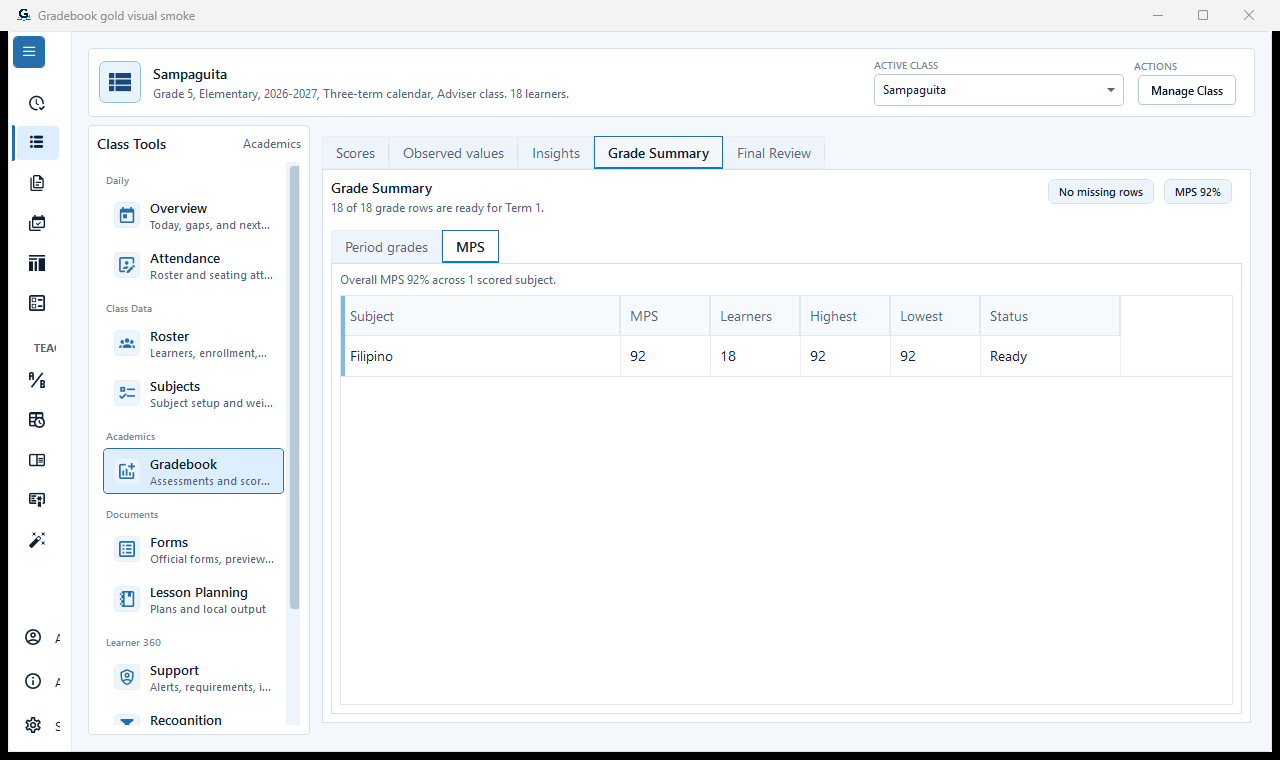
Sample data only. Analytics are decision support and depend on complete, correct score data. Captured July 12, 2026. Step 5
Review computed grades, analytics, and MPS honestly
Open the summary and analytics views after scores are saved. Treat incomplete components, missing assessments, and low learner coverage as readiness signals; do not interpret partial data as a final grade or official class result.
Expected result: Analytics are decision support and depend on complete, correct score data.
 View full size
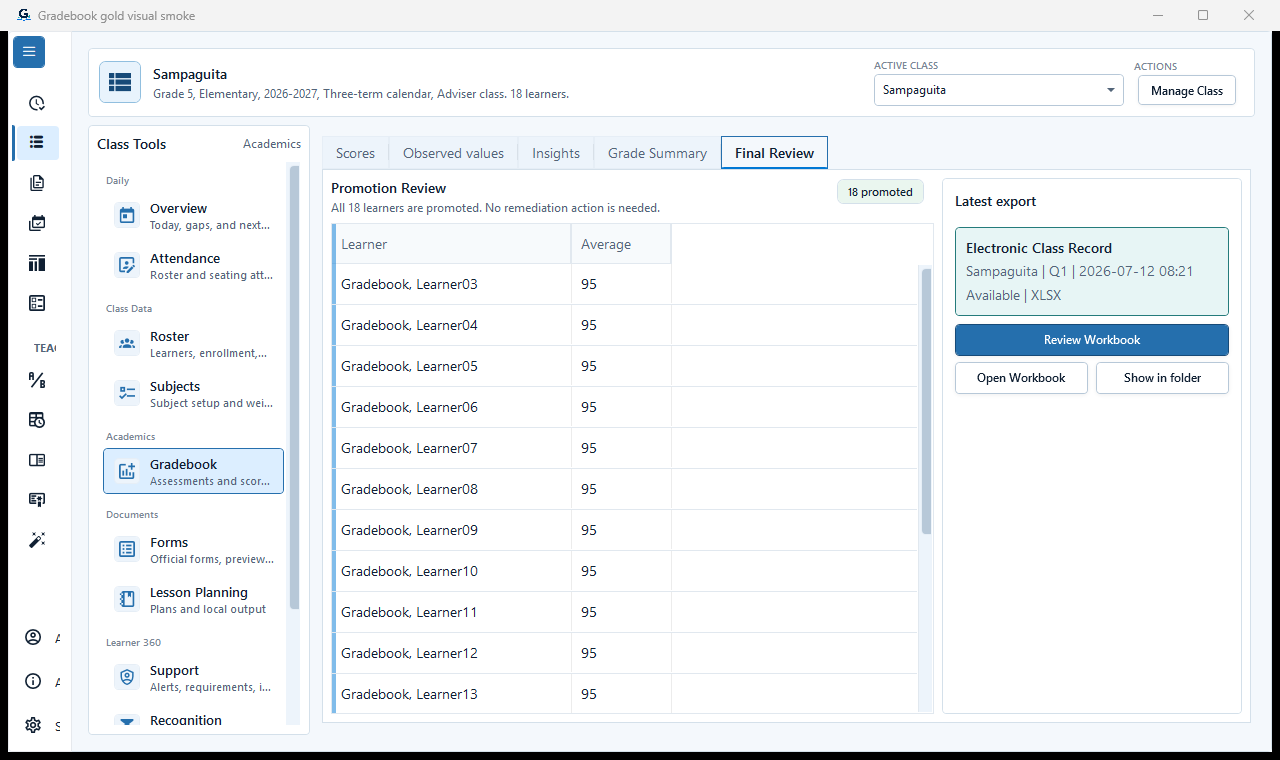
Sample data only. The summary is the review surface before any term-final action. Captured July 12, 2026. Step 6
Finalize only the intended term
Use the term finalization action only after checking every assessment, maximum score, learner entry, component weight, and exception. Finalization is a deliberate teacher action and should not be used merely to unlock an export.
Expected result: The summary is the review surface before any term-final action.
 View full size
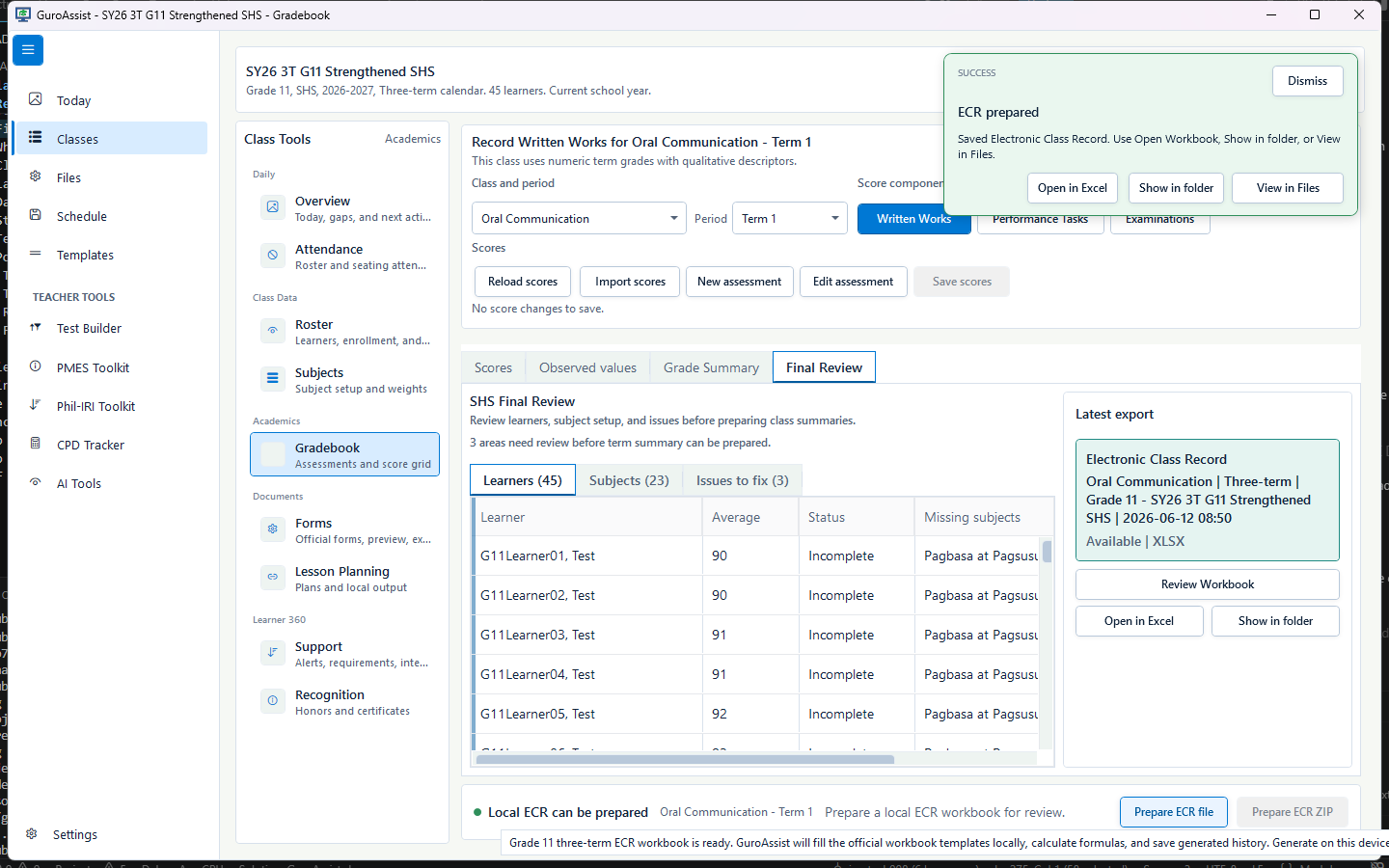
Sample data only. A prepared ECR remains a workbook to open and inspect; the success message does not replace review. Captured June 12, 2026. Step 7
Generate SF9, ECR, or a report only when ready
Choose the required output only after its readiness panel passes. Official-looking forms and ECR workbooks require the correct registered template, supported school year, complete class setup, grades, and any stated Paid access.
A Paid plan does not supply a missing template, incomplete grade, or unsupported policy year. Expected result: A prepared ECR remains a workbook to open and inspect; the success message does not replace review.
 View full size
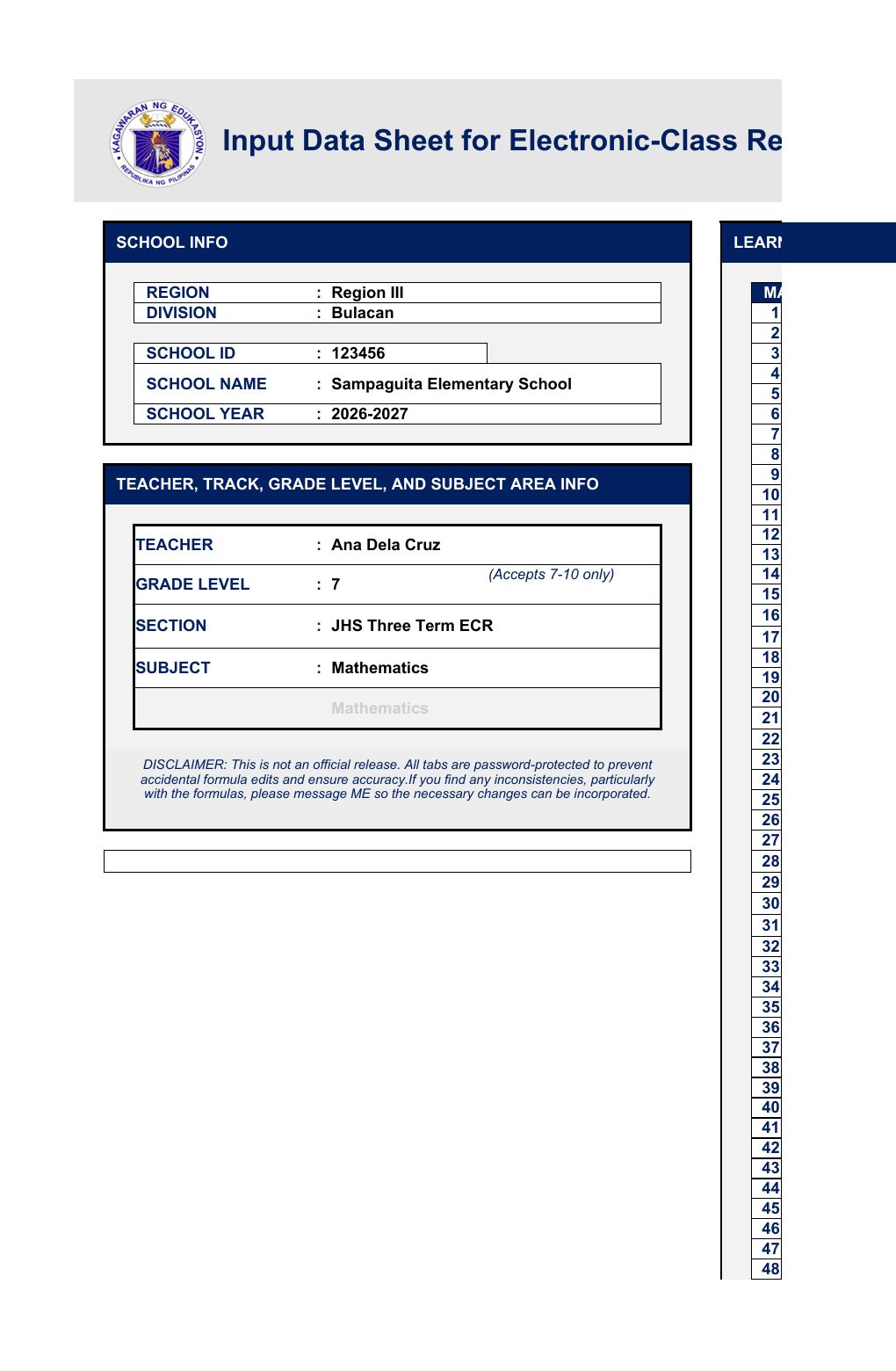
Sample data only. Inspect every visible sheet, formula result, learner row, and school-year label in the actual workbook. Captured July 12, 2026. Step 8
Open and inspect the actual generated file
Open the PDF or XLSX from Files or its local folder. Check learner order, names, term labels, grades, formulas, page setup, sheet tabs, and official-readiness labeling before signing, printing, or sharing.
Expected result: Inspect every visible sheet, formula result, learner row, and school-year label in the actual workbook.


Review
Check these before relying on the work
These checks cover saved, previewed, generated, and teacher-review states.
Scope matches the work
Class, subject, period, and component match the assessment records being edited.
Assessment definitions are real
Every column has a clear name, component, maximum score, and date.
Blank is not zero
Missing scores remain blank; an entered 0 represents an actual recorded zero.
All values are in range
Saved scores are between zero and the assessment maximum, with any manual-check state resolved.
Policy mode matches the grade
Descriptive, transition, or numeric behavior follows the app's supported policy version for the class.
Actual output is inspected
The generated ECR, summary, or grade file is opened and reviewed before use outside GuroAssist.
Blocked states and recovery
Fix the blocker before continuing
Use the direct recovery action when GuroAssist is waiting for setup, data, access, policy, or file readiness.
No class, subject, period, or component
Complete the Gradebook scope before assessment and score actions become available.
After recovery: The intended subject is selected and shows the teacher's taught-subject assignment.
Review class setupScore is invalid
Negative values, values above the maximum, or an invalid descriptive choice stay blocked.
After recovery: The required grade data is complete, current, and available for teacher review.
Troubleshoot this blockerAssessment columns changed
Reload scores when the saved assessment structure is newer than the grid being edited.
After recovery: The required grade data is complete, current, and available for teacher review.
Troubleshoot this blockerGrades are incomplete
Official-looking grade output stays blocked while required scores, observed values, periods, or learner details are missing.
After recovery: The intended learner is selected and the learner-dependent action is available.
Review roster helpSchool-year policy is not ready
Unknown future policy rules stop official-looking outputs until the app is updated.
After recovery: The screen shows a supported school-year or policy readiness message for the selected task.
Review generated-file help
Safety note
Gradebook calculations and signals support teacher review. They do not automatically approve grades, decide honors, rank learners, or replace the school's official process.
Finish
Verify the result
Do not treat a saved screen or generated filename as proof that the work is ready.
You’re done when
Gradebook shows the intended class, subject, term, assessment columns, learner rows, and an honest saved or unsaved state.
Privacy, policy, and official-looking outputs
Keep the work inside its safe boundary
These limits remain in force even when the main task appears complete.
Important boundary
Follow the policy and readiness message shown for the selected class and school year. Do not substitute remembered thresholds, quarter templates, or term rules.
Glossary
Expand the terms used in this guide
Use the plain-language meaning here, then follow the exact label in GuroAssist.
- ECR
- Electronic Class Record; official-looking output remains blocked until the selected class is ready.
- SF9
- Learner Progress Report Card.
Guide details
Guide verification
Use these details to confirm that this guide matches the GuroAssist version and school year you are using.
- Verification
- Verified with GuroAssist 1.0.0.0
- Last reviewed
- July 11, 2026
- Screenshots
- Captured July 12, 2026
- Applies to
- 2026–2027
Was this helpful?
Choose an answer or report a guide that needs attention. No class, learner, or free-text data is sent by these buttons.
Related guides
Continue only where it helps
Import Gradebook scores
How do I bring scores into Gradebook without overwriting the wrong work?
Export Gradebook ECR
How do I export ECR files safely from Gradebook?
Review Gradebook summaries
How do I use MPS, promotion, remediation, and SHS summaries without making automatic decisions?
Manage the class roster
How do I add, find, import, review, or withdraw a learner without changing the wrong class?
Use Learner Support
How do I keep learner notes, requirements, referrals, and history useful without oversharing?
Understand file status labels
Learn what Local, Draft, Final, Official-ready, Review-only, and Blocked mean.
Fix a disabled or blocked action
Check install, activation, disabled actions, generated files, and update issues.