
Detailed workflow guide
Import Gradebook scores
Score import should be a guarded review step: preview pasted, CSV, or XLSX scores, match learners, review blanks and zeros, then commit only when the teacher is confident.
Teacher goal
How do I bring scores into Gradebook without overwriting the wrong work?
Use this guide when this is the task in front of you. Stop if the selected class, learner, role, school year, file, or output does not match.
In-app path
- Classes
- Open class workspace
- Gradebook
- Import scores
Get ready
Check the starting point
These are the minimum conditions for the workflow to make sense.
Before you start
Estimated time: About 5–10 minutes
- The correct class, subject, term, and component
- A trusted score file with the supported columns
- A current backup before committing imported scores
You should see
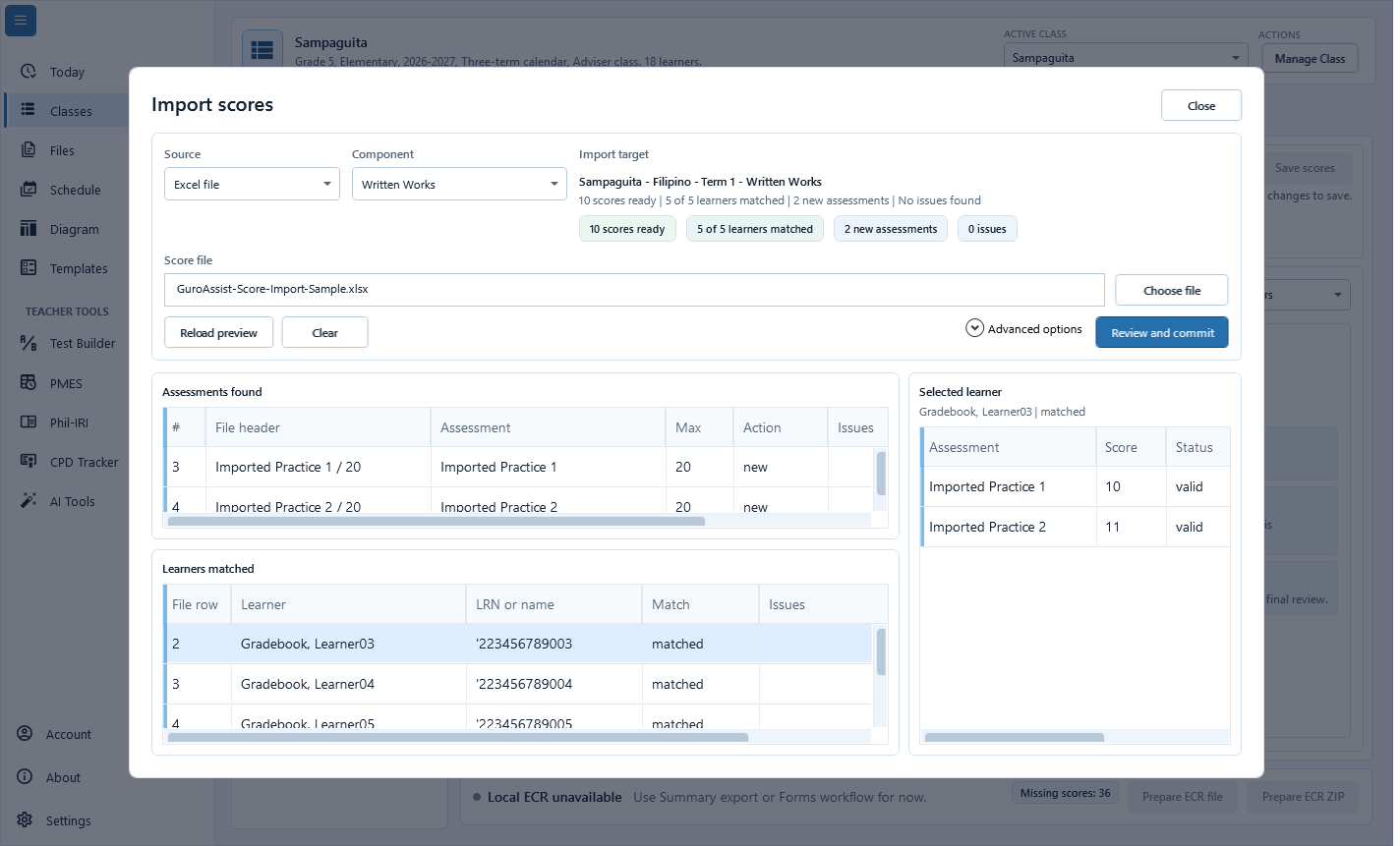
The preview shows the correct Import target, matched learners, assessment columns, ready scores, and zero unresolved issues before Review and commit.
Steps
Complete the task in order
Review choice points, save or preview behavior, and any stop condition before continuing.
 View full size
The preview keeps the import target, learner matches, assessment matches, and issues visible before anything is saved. Captured July 10, 2026. Step 1
Confirm the import target
Open Gradebook, choose the class, subject, and term, then open Import scores. Confirm the Import target line before loading any source data.
- 2
Step 2
Choose Source and Component
Choose Paste or a supported local score file under Source, then choose the correct Component. Use Choose file for CSV, TSV, XLSX, or other formats shown by the current dialog.
- 3
Step 3
Load or reload the preview
Paste scores or choose the local file, then use Reload preview. Check learner matches, assessment columns, ready scores, and issues before continuing.
- 4
Step 4
Review blanks, zeros, and overwrites
Treat blank cells as missing work unless the teacher explicitly enters zero. Keep Allow partial import and Allow overwrites off unless the preview and the teacher's intended change require them.
- 5
Step 5
Refresh the preview after changes
If the class, subject, term, component, Source, or file changes, use Reload preview before commit so stale matches cannot overwrite current scores.
- 6
Step 6
Review and commit, then confirm
Choose Review and commit only after errors, unmatched learners, score limits, partial-import choices, and overwrite warnings are resolved. Recheck the confirmation table, then choose Commit scores.

Review
Check these before relying on the work
These checks cover saved, previewed, generated, and teacher-review states.
Import target matches
The Import target line should name the intended class, subject, and term, and the preview should show the intended assessment columns.
Learner matches are reviewed
Unmatched or duplicate learner rows should be fixed before committing scores.
Blank is not zero
Blank cells should stay missing unless the teacher intentionally records an explicit zero.
Overwrite review is complete
Existing scores should change only after the teacher reviews the differences.
Preview is current
Use Reload preview after changing the class, subject, term, component, Source, or local file.
Backup is current
Back up Gradebook data before large imports or cleanup work.
Blocked states and recovery
Fix the blocker before continuing
Use the direct recovery action when GuroAssist is waiting for setup, data, access, policy, or file readiness.
Import target is wrong
Close the dialog and choose the correct class, subject, or term before importing scores.
After recovery: The intended class appears in the workspace header and the task uses that class.
Review class setupFile cannot be read
Use a local CSV or XLSX file that opens correctly on this device.
After recovery: The blocker is no longer shown, and the intended next action is available for teacher review.
Review generated-file helpLearner rows do not match
Fix names, LRN values, or row order before committing.
After recovery: The preview shows no unresolved duplicate or matching issue, and only reviewed rows can be saved.
Review roster helpScores exceed allowed values
Correct scores that are outside the assessment limit before saving.
After recovery: The required grade data is complete, current, and available for teacher review.
Troubleshoot this blockerPreview is old
Rerun preview before saving when the target assessment or source file changed after the last preview.
After recovery: The required grade data is complete, current, and available for teacher review.
Review generated-file help
Safety note
Score import is local Gradebook maintenance. Review Source, Component, Import target, partial-import and overwrite choices, and the confirmation table. Treat blanks differently from explicit zero scores, reload the preview after target or source changes, and choose Commit scores only after the final review.
Finish
Verify the result
Do not treat a saved screen or generated filename as proof that the work is ready.
You’re done when
The preview shows the correct Import target, matched learners, assessment columns, ready scores, and zero unresolved issues before Review and commit.
Privacy, policy, and official-looking outputs
Keep the work inside its safe boundary
These limits remain in force even when the main task appears complete.
Important boundary
Follow the policy and readiness message shown for the selected class and school year. Do not substitute remembered thresholds, quarter templates, or term rules.
Guide details
Guide verification
Use these details to confirm that this guide matches the GuroAssist version and school year you are using.
- Verification
- Verified with GuroAssist 1.0.0.0
- Last reviewed
- July 11, 2026
- Screenshots
- Captured July 10, 2026
- Applies to
- 2026–2027
Was this helpful?
Choose an answer or report a guide that needs attention. No class, learner, or free-text data is sent by these buttons.
Related guides
Continue only where it helps
Review Gradebook work
How do I create assessments, enter scores, and know when grades are safe to use?
Manage the class roster
How do I add, find, import, review, or withdraw a learner without changing the wrong class?
Review Gradebook summaries
How do I use MPS, promotion, remediation, and SHS summaries without making automatic decisions?