
Step-by-step guide
Use Learner Support
Learner Support keeps local notes, requirements, referrals, and recent history together so teachers can plan careful follow-up for a selected learner.
Teacher goal
How do I keep learner notes, requirements, referrals, and history useful without oversharing?
Use this guide when this is the task in front of you. Stop if the selected class, learner, role, school year, file, or output does not match.
In-app path
- Classes
- Open class workspace
- Learner Support
Get ready
Check the starting point
These are the minimum conditions for the workflow to make sense.
Before you start
Estimated time: About 5 minutes
- An adviser class with learners
- The intended learner selected
- Only the minimum factual details needed for follow-up
You should see
The selected learner support item shows a clear local status, next action, and saved history entry.
Steps
Complete the task in order
Review choice points, save or preview behavior, and any stop condition before continuing.
 View full size
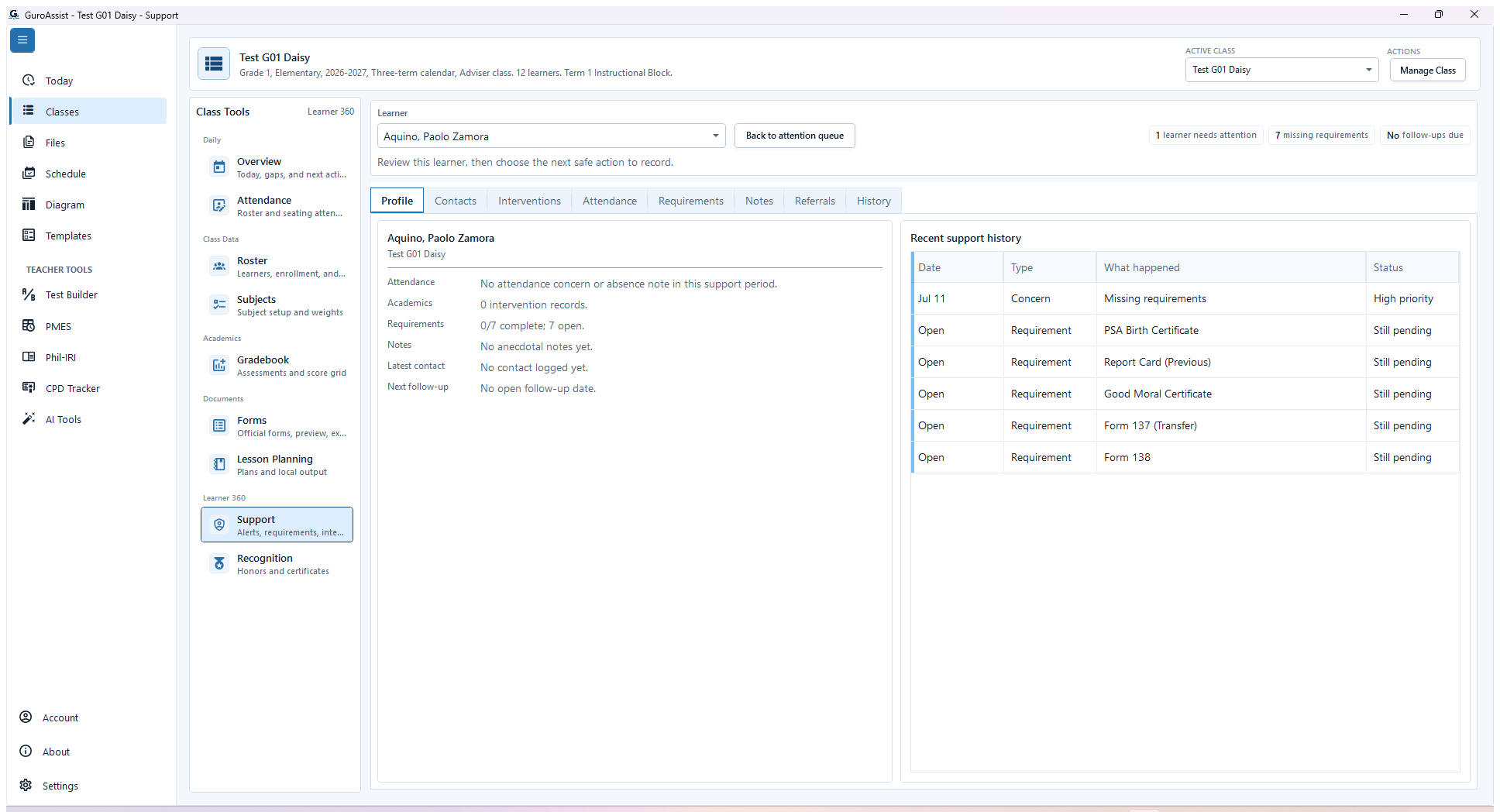
Sample data only. The visible class and learner establish exactly where a support action will be recorded. Captured July 11, 2026. Step 1
Choose the correct class and learner
Open the class workspace and choose Support. Confirm the active class in the full header and the selected learner in the Support workspace. Use Choose learner when needed, then read the selected learner profile and recent history before recording an action.
 View full size
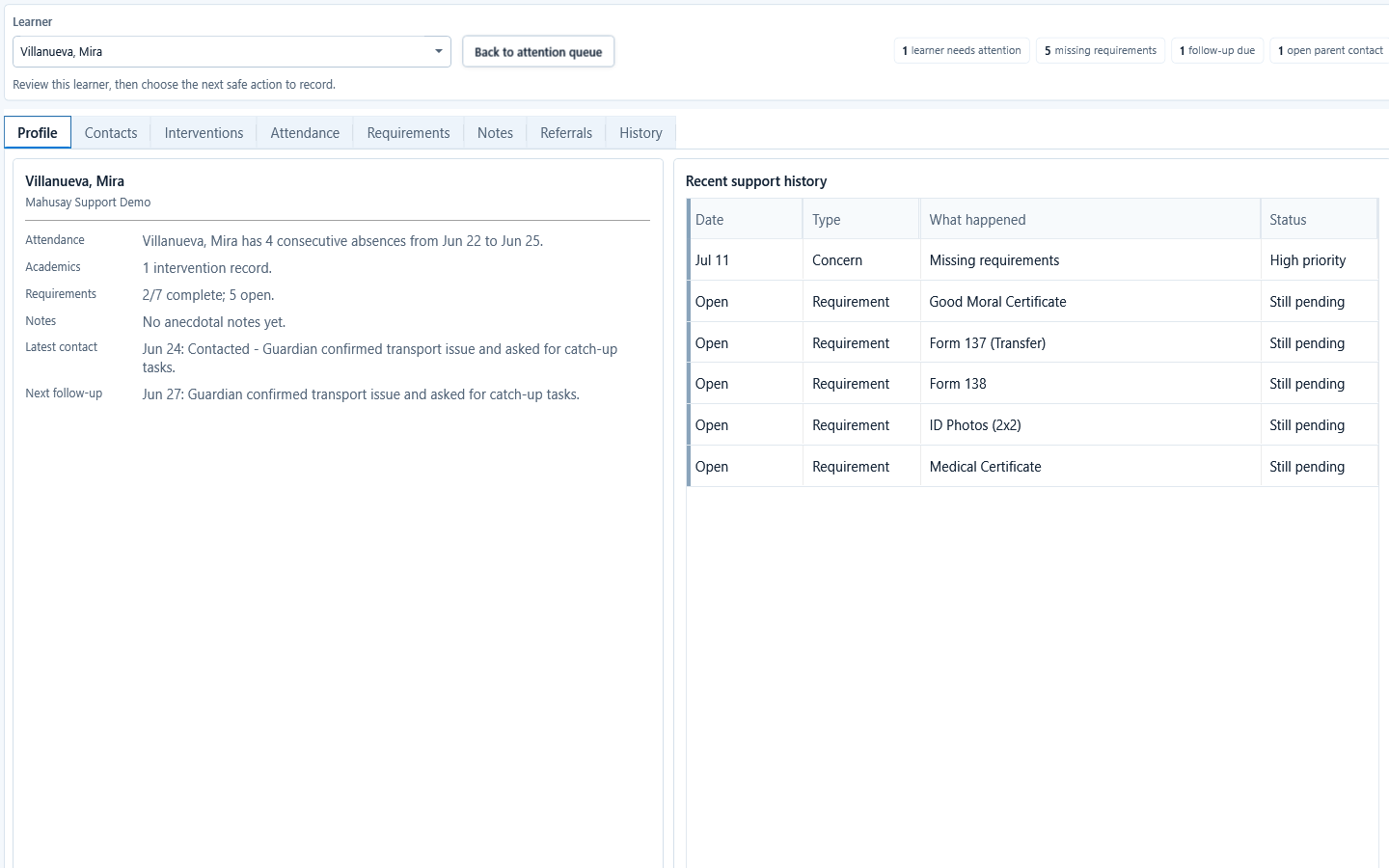
Sample data only. Profile keeps the selected learner visible while reviewing local signals. Captured July 11, 2026. Step 2
Review the learner profile and recent signals
Open Profile and confirm the selected learner. Review the local profile summary, attendance, reading or academic signals, recent actions, and the next safe action actually shown. Return to the attention queue if the wrong learner opened.
 View full size
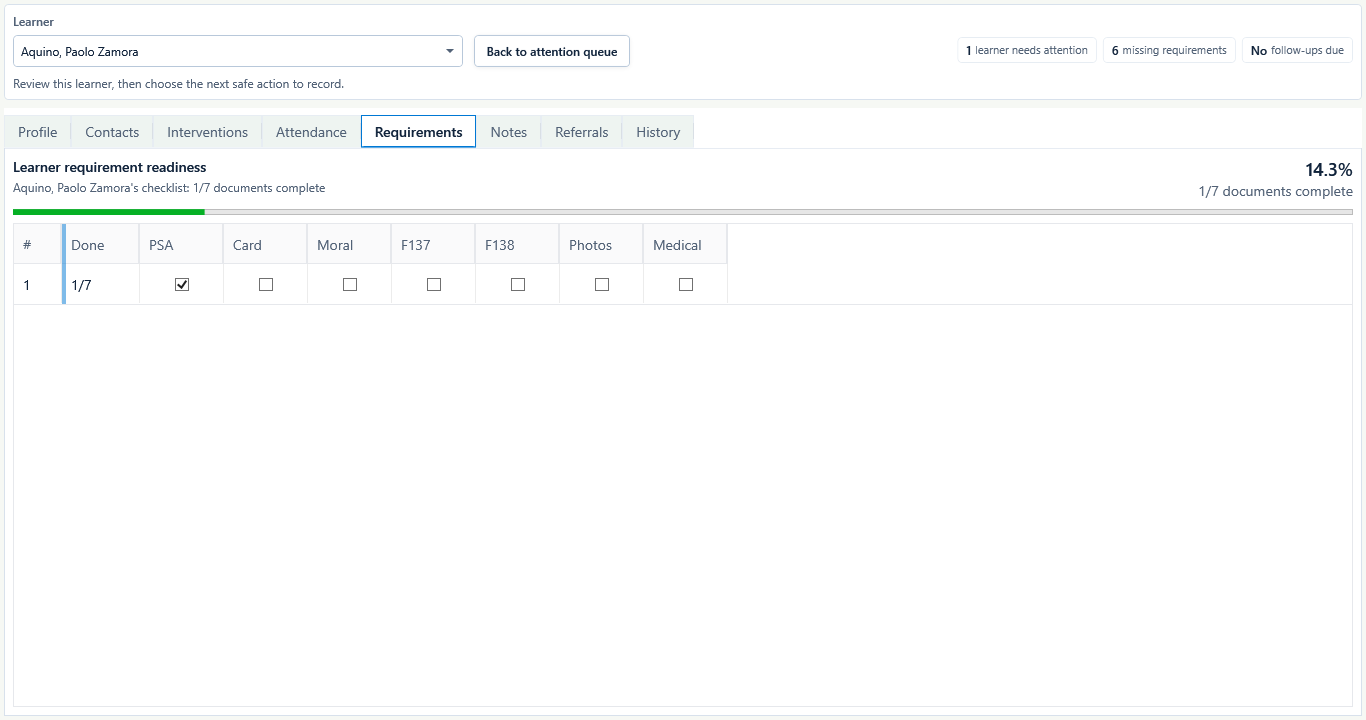
Sample data only. Each checkbox must reflect the teacher's reviewed local evidence. Captured July 11, 2026. Step 3
Review the requirement matrix only from evidence
Choose Requirements and confirm the selected learner. Read each listed requirement and its current checkbox state. Select a checkbox only after reviewing the local evidence, and clear an incorrect check rather than treating it as received.
 View full size
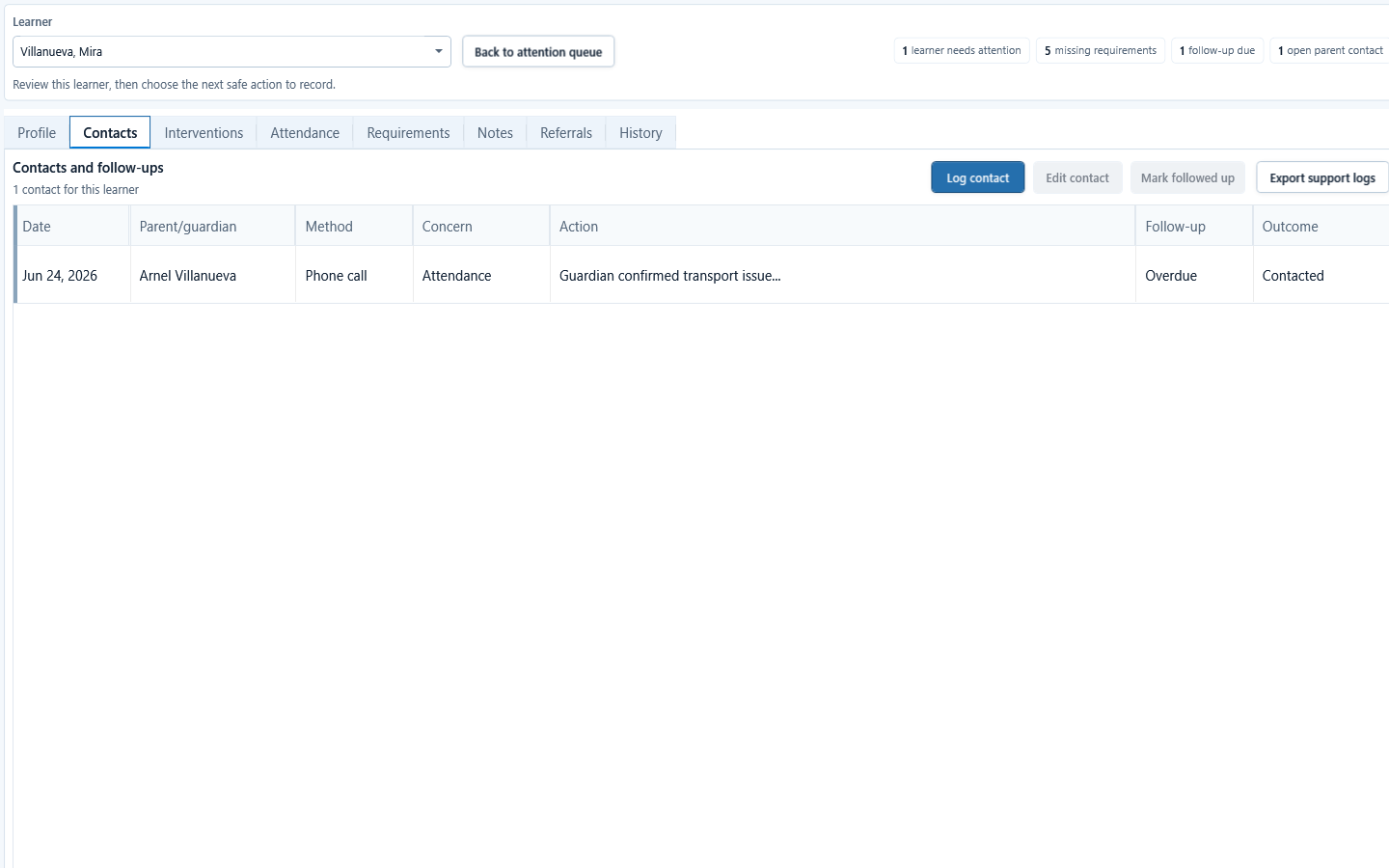
Sample data only. Saved contacts show method, concern, action, outcome, and follow-up without unnecessary detail. Captured July 11, 2026. Step 4
Record a supported contact outcome
Choose Contacts, then Log contact. Enter the supported contact method, concern, date, action taken, outcome, and follow-up date when needed. Choose Save contact, then confirm the new row appears for the same learner.
Keep the entry factual and limited to information needed for teacher follow-up.
 View full size
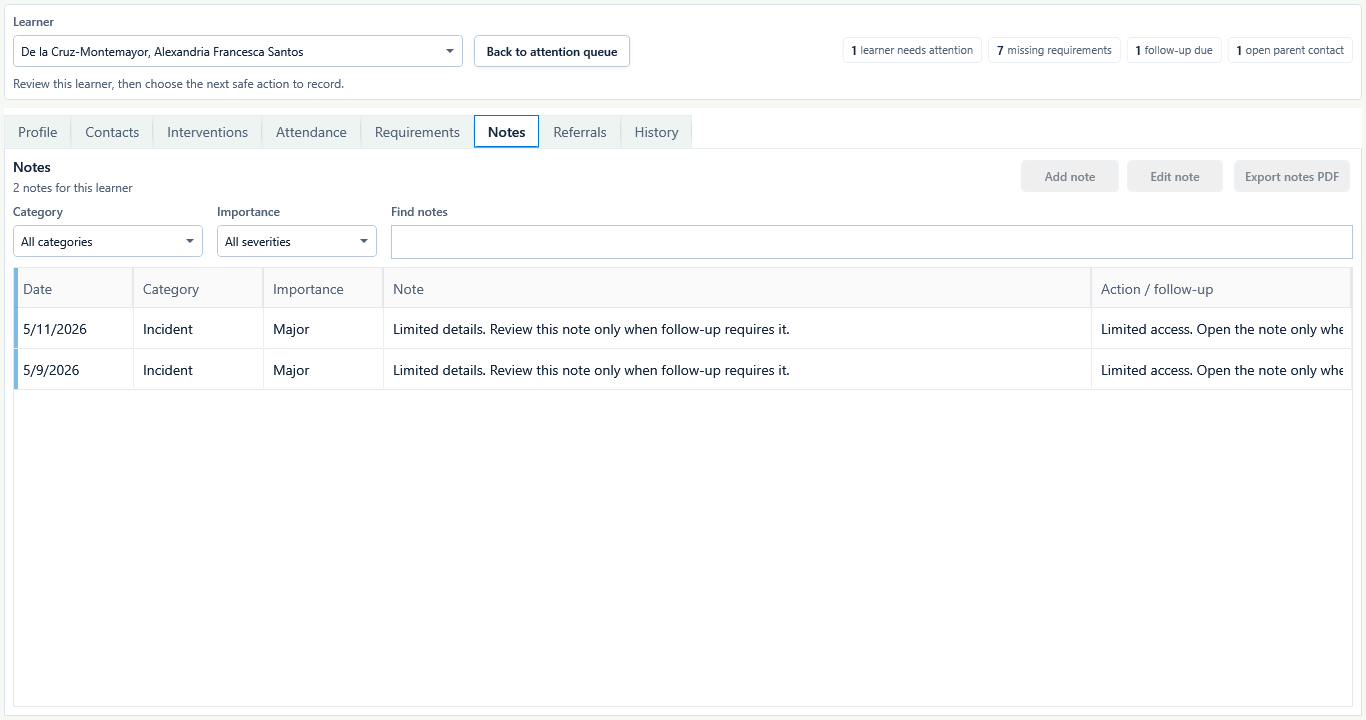
Sample data only. The saved row is the confirmation; use short factual descriptions and a clear teacher action. Captured July 11, 2026. Step 5
Add and confirm a concise local note
Choose Notes, then Add note. Record the date, category, importance, concise observation, action taken, and follow-up only when relevant. Choose Save note, then confirm the new factual row appears for the same learner; use the filters only when the list is long.
Do not record diagnoses, rumors, unrelated family details, or information the teacher does not need for follow-up.
 View full size
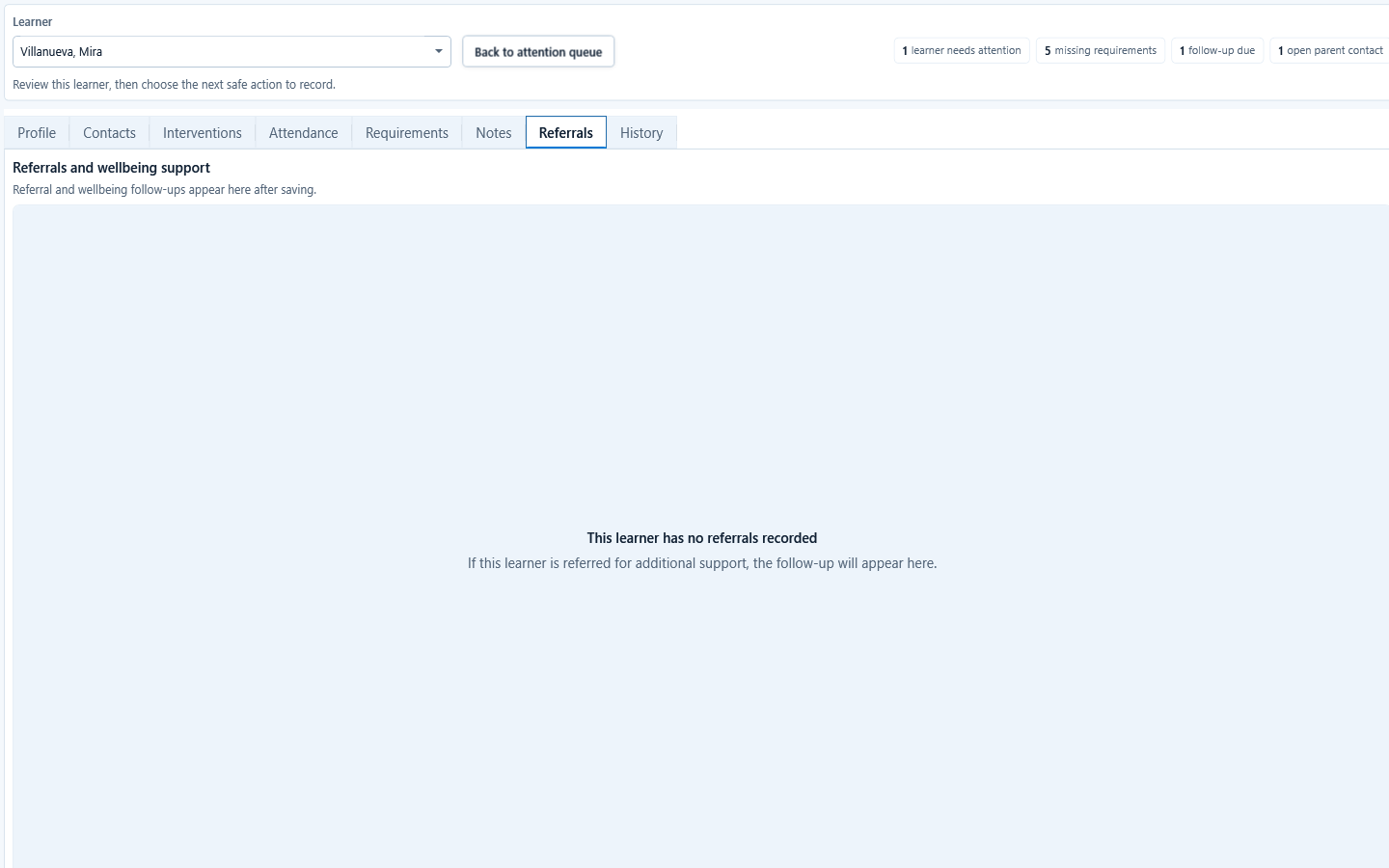
Sample data only. The empty state is an honest stop condition; record only a follow-up the current workspace supports. Captured July 11, 2026. Step 6
Review referral and wellbeing follow-up status
Choose Referrals and confirm the selected learner before relying on the status shown. Review any saved referral or wellbeing follow-up and its local outcome. When the screen says no referral is recorded, return to Contacts, Notes, or Interventions and save the supported teacher follow-up there; this release does not expose Resolve, Snooze, or Dismiss controls in the Learner Support view.
Do not claim that an alert was resolved, snoozed, or dismissed when the current teacher-facing screen does not offer that action.
 View full size
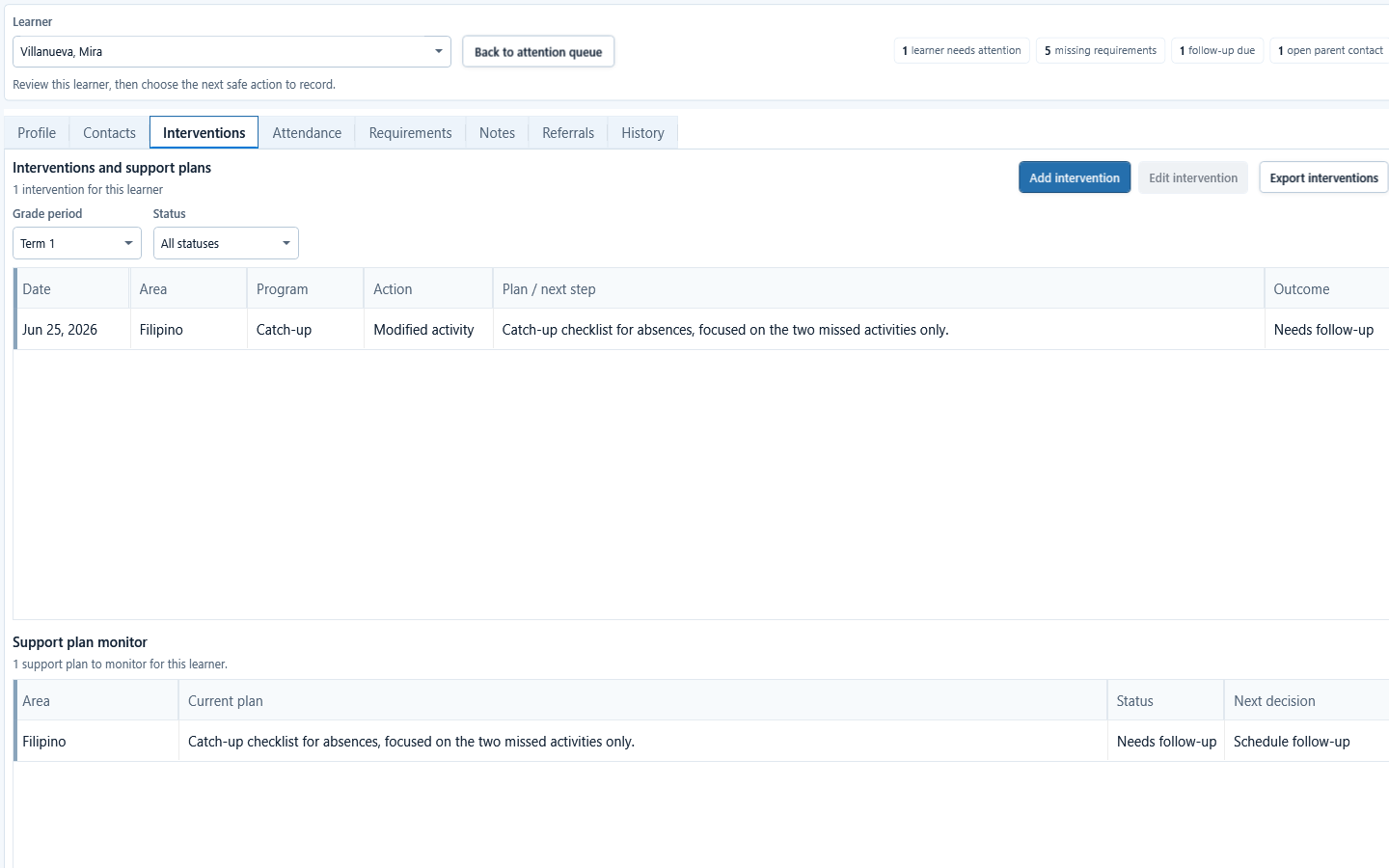
Sample data only. Interventions remain local teacher records and do not make an official decision. Captured July 11, 2026. Step 7
Record an intervention when the workflow supports it
Choose Interventions, then Add intervention. Select the subject and period when required, record the intervention or support program, date, outcome, and concise notes, then choose Save intervention. Confirm the saved row and filter reflect the intended outcome.
 View full size
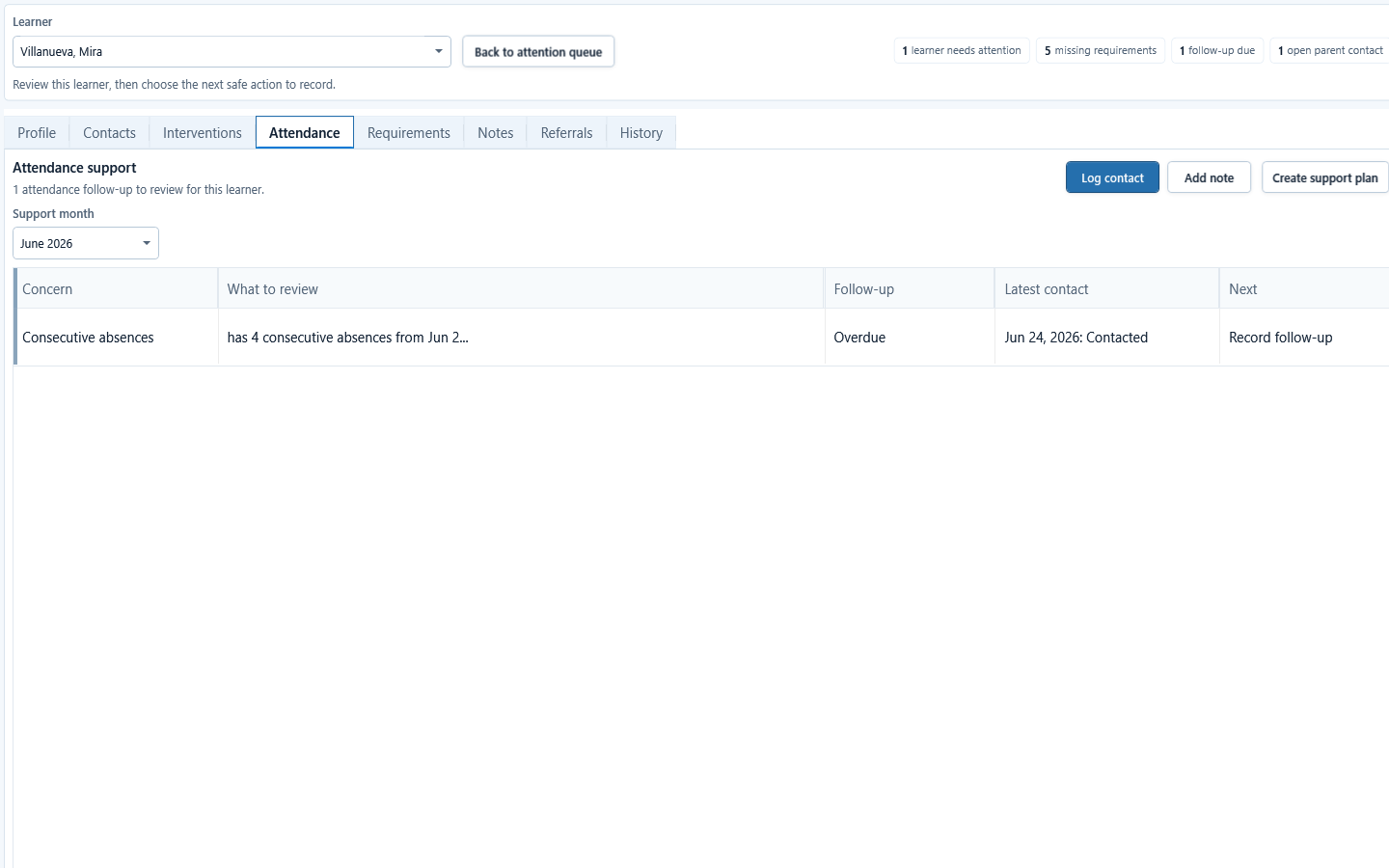
Sample data only. Attendance actions appear only when the selected learner has a concern to follow up. Captured July 11, 2026. Step 8
Review attendance-linked support actions
Choose Attendance. If the learner has a saved attendance concern, select the row and use Log contact, Add note, or Create support plan as appropriate. When no attendance concern exists, those actions stay hidden; do not create one just to add an action.
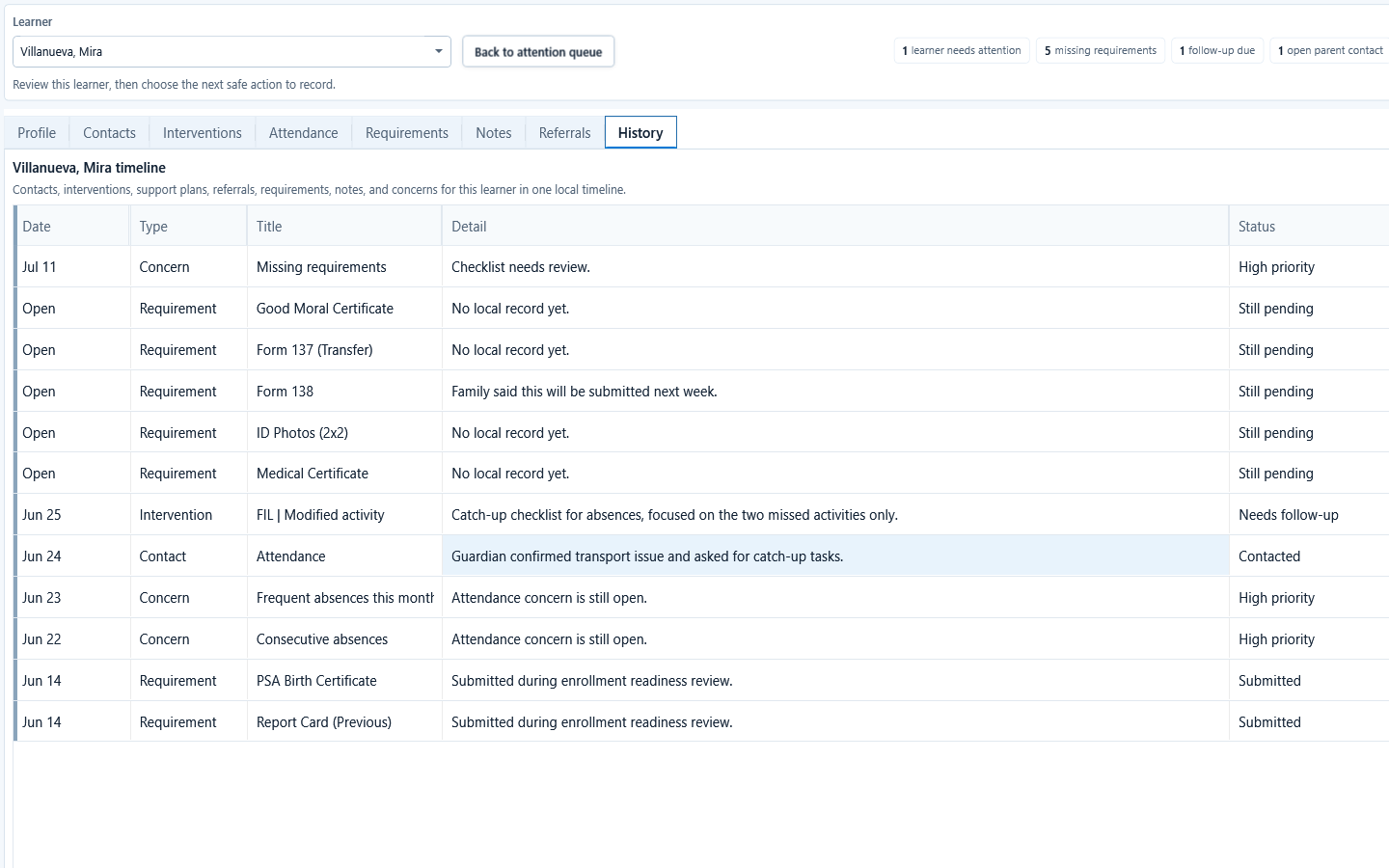 View full size
Sample data only. History is the final check that the local action was saved to the intended learner. Captured July 11, 2026. Step 9
Open History and verify the saved action
Choose History after saving a requirement, contact, note, intervention, or referral follow-up. Confirm the selected learner, date, action type, and summary match what you recorded.
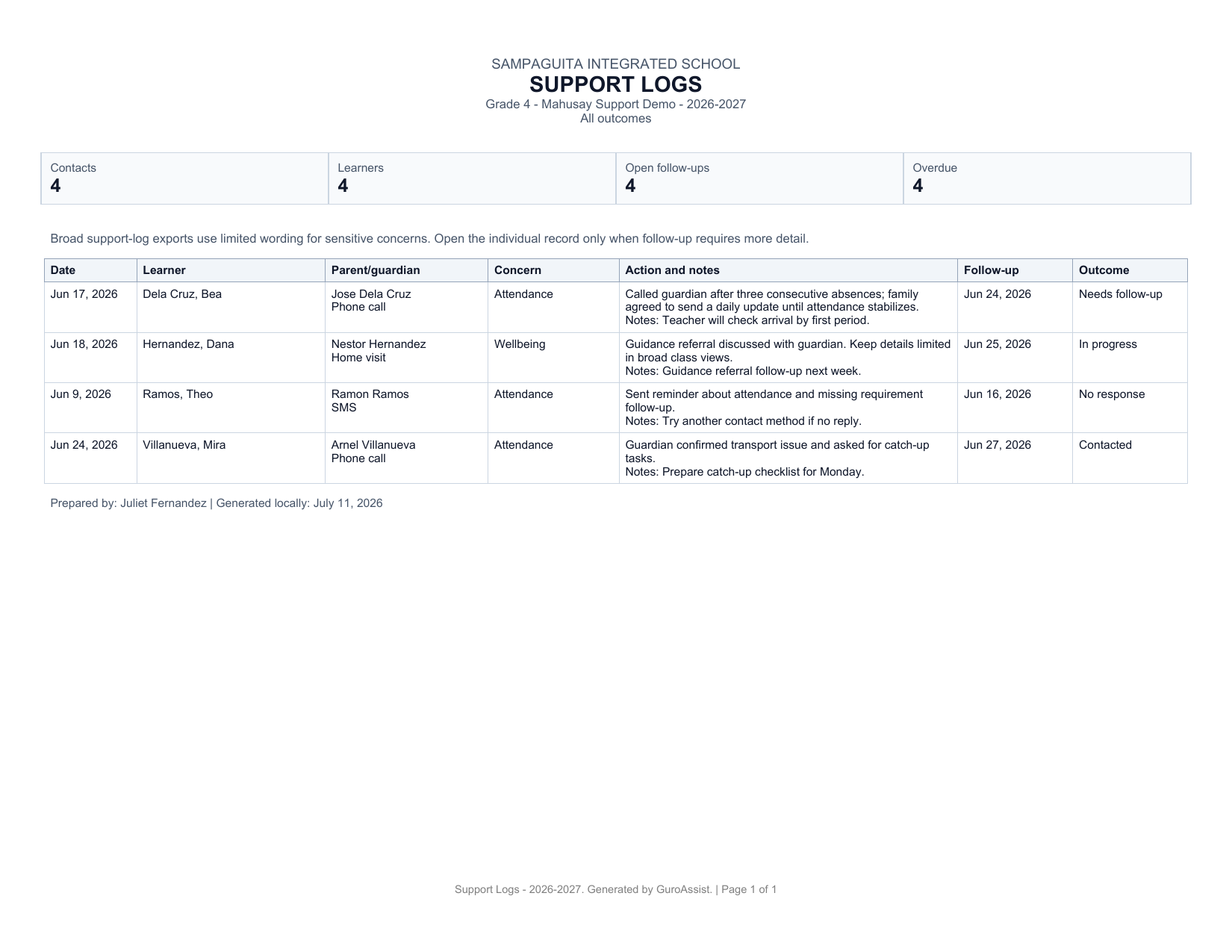 View full size
Sample data only. Inspect the actual file content and page layout before returning to the queue or sharing it. Captured July 11, 2026. Step 10
Open the actual export and review every page
Use Export support logs, Export notes PDF, or Export interventions only when the current tab supports it. Open the generated file and confirm school and class scope, learner rows, dates, labels, local wording, and page count. Remove or withhold unnecessary personal data before sharing, then return to the queue.
A local export is not an official submission, approval, diagnosis, or enrollment decision.


Review
Check these before relying on the work
These checks cover saved, previewed, generated, and teacher-review states.
Correct learner selected
Support notes and requirements should belong to the learner shown on the screen.
Privacy-safe wording
Keep notes limited to teacher follow-up needs and avoid unnecessary sensitive details.
Local history is understandable
Recent notes, requirements, referrals, and follow-ups should be readable without technical labels.
Generated summaries are reviewed
Treat support summaries as local or draft until the teacher opens and reviews the actual file.
Backups protect support notes
Back up the workspace before changing laptops or cleaning old records.
Blocked states and recovery
Fix the blocker before continuing
Use the direct recovery action when GuroAssist is waiting for setup, data, access, policy, or file readiness.
No learner selected
Choose a learner before saving learner-specific support notes.
After recovery: The intended learner is selected and the learner-dependent action is available.
Review roster helpMissing class setup
Learner Support needs class and roster setup before meaningful records can appear.
After recovery: The intended class appears in the workspace header and the task uses that class.
Review roster helpRequired details missing
Some requirement or referral fields may stay blocked until required details are entered.
After recovery: The blocker is no longer shown, and the intended next action is available for teacher review.
Troubleshoot this blockerGenerated file not ready
Support summaries can stay blocked when Paid access, required details, or output readiness is missing.
After recovery: Paid access and any required credits are shown as available for this action.
Open activation help
Safety note
Learner Support should stay local, privacy-safe, and teacher-owned. It should not become an official case, discipline, or reporting system.
Finish
Verify the result
Do not treat a saved screen or generated filename as proof that the work is ready.
You’re done when
The requirement or follow-up record has a clear local status, next action, and history entry without unnecessary personal detail.
Glossary
Expand the terms used in this guide
Use the plain-language meaning here, then follow the exact label in GuroAssist.
- Phil-IRI
- Philippine Informal Reading Inventory; GuroAssist keeps reading work local and review-based.
Guide details
Guide verification
Use these details to confirm that this guide matches the GuroAssist version and school year you are using.
- Verification
- Verified with GuroAssist 1.0.0.0
- Last reviewed
- July 11, 2026
- Screenshots
- Captured July 11, 2026
- Applies to
- 2026–2027
Was this helpful?
Choose an answer or report a guide that needs attention. No class, learner, or free-text data is sent by these buttons.
Related guides