
Step-by-step guide
Use Phil-IRI Toolkit
Phil-IRI Toolkit keeps GST results, selected passages, oral-reading miscues, comprehension notes, and learner-support summaries local. Built-in passages are sample/practice only; official DepEd passages are not bundled.
Teacher goal
How do I record and review a local reading session?
Use this guide when this is the task in front of you. Stop if the selected class, learner, role, school year, file, or output does not match.
In-app path
- Phil-IRI
- Library
- GST
- Oral Reading
- Comprehension
- Learner Profile
- Class Summary
Get ready
Check the starting point
These are the minimum conditions for the workflow to make sense.
Before you start
Estimated time: About 15–30 minutes
- The intended class and learner already available in GuroAssist
- A teacher-reviewed local passage or a clearly labeled sample/practice passage
- The intended subject, phase, date, and GST or oral-reading setup
You should see
Phil-IRI shows the intended class or learner reading record, saved local results, and clear follow-up signals.
Detailed workflows
Choose the Phil-IRI workflow you need
Open the focused guide for GST, oral reading, passage import, or local exports.
Use Phil-IRI GST
How do I enter GST results and choose the next reading step safely?
Open workflow guideRun an oral reading session
How do I record oral reading miscues and notes without exposing learner data?
Open workflow guideImport Phil-IRI passages
How do I add a teacher-provided passage without assuming it is bundled or certified?
Open workflow guideExport local Phil-IRI files
What can I export from Phil-IRI, and what should I check first?
Open workflow guideSteps
Complete the task in order
Review choice points, save or preview behavior, and any stop condition before continuing.
 View full size
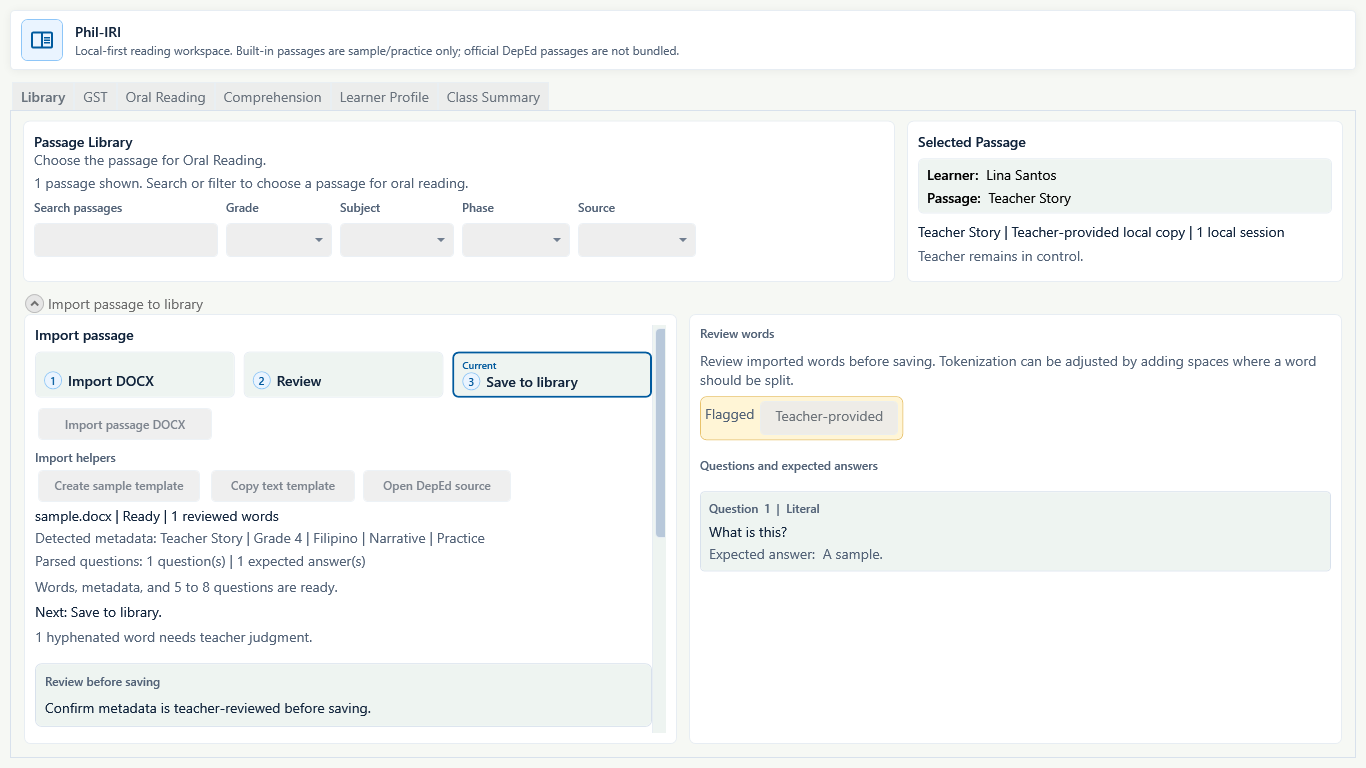
Sample data only. Teacher-provided passages stay under teacher review; GuroAssist does not bundle official DepEd passages. Captured July 11, 2026. Step 1
Open Library and review the passage source
Choose Phil-IRI, then open Library. Review the selected learner and passage. If importing a teacher-provided DOCX, complete Import DOCX, Review, and Save to library only after the metadata, reviewed words, questions, and expected answers are correct.
Expected result: the selected learner and passage are visible, and a teacher-provided import stays in review until Save to library is ready.
 View full size
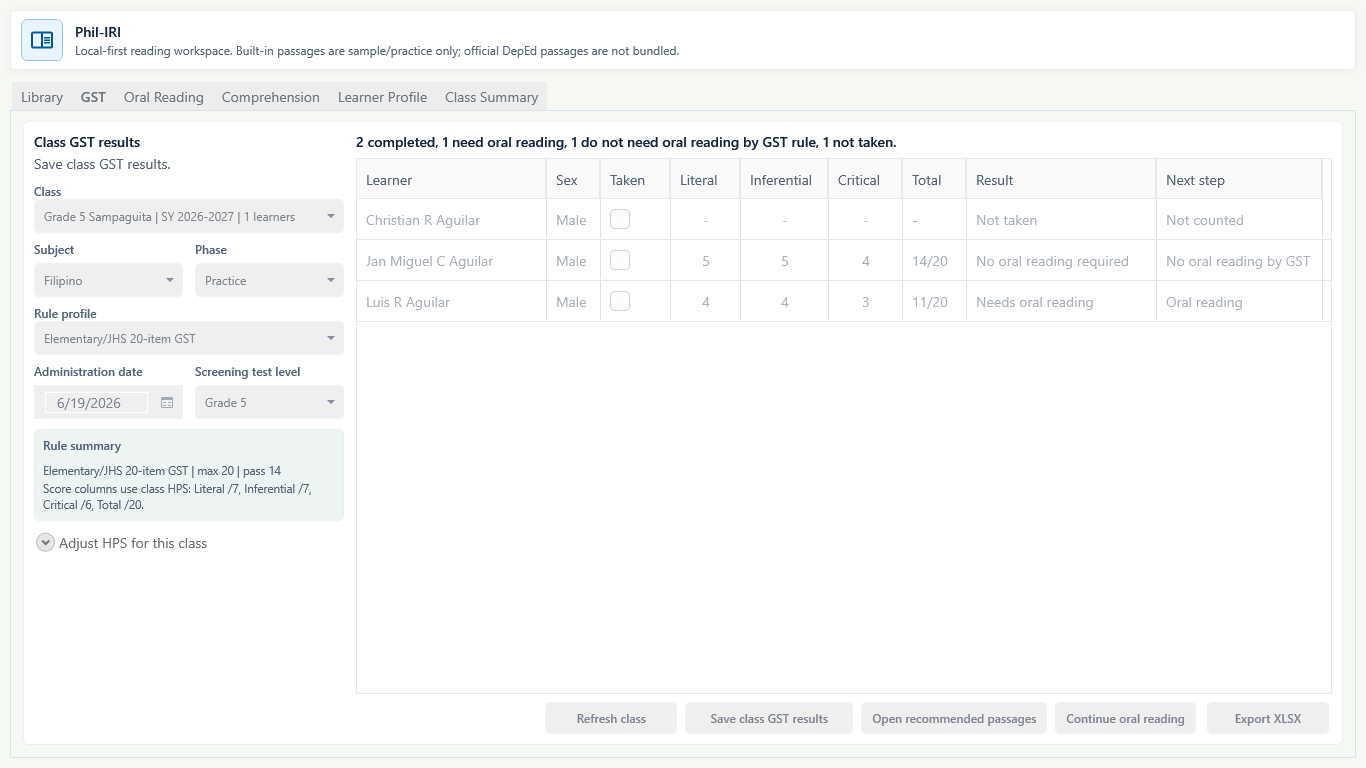
Sample data only. Check the class, rule profile, date, score columns, and selected learner before saving or continuing. Captured July 11, 2026. Step 2
Review GST results and open the next reading step
Open GST. Choose Class, Subject, Phase, Rule profile, Administration date, and Screening test level. Enter Taken and the displayed score columns for each learner, then choose Save class GST results. Select a learner who Needs oral reading and choose Open recommended passages or Continue oral reading.
Expected result: the summary counts completed, needs oral reading, not required by the GST rule, and not taken records; unsaved results are not a completed class record.
 View full size
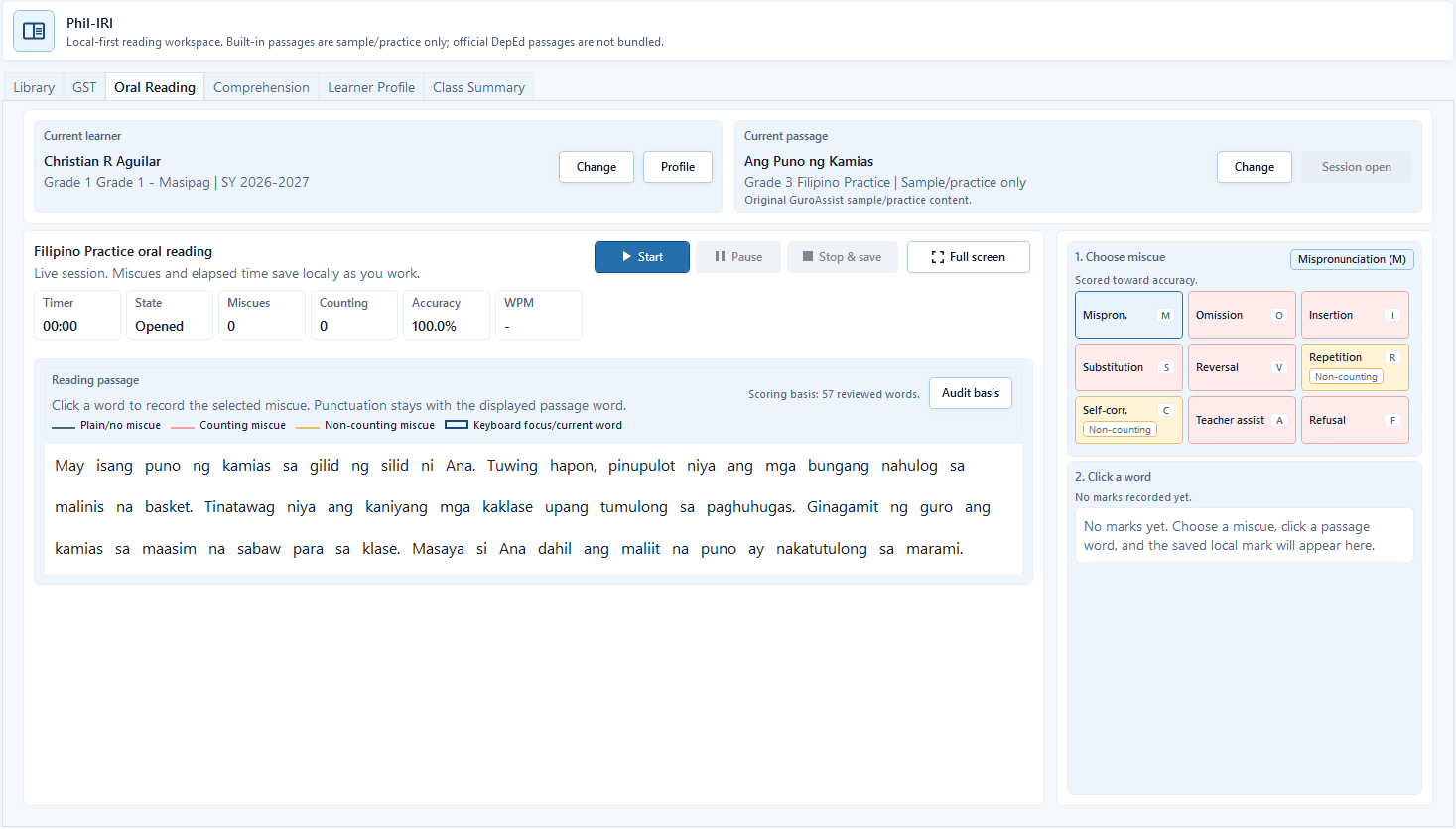
Sample data only. Verify both selection cards before starting or resuming the local timer. Captured July 11, 2026. Step 3
Confirm the learner and passage, then open the session
On Oral Reading, check Current learner and Current passage. Use Change if either selection is wrong. Choose Open session only after both cards match the intended local record; Session open makes the passage and Start control available.
Expected result: Session open, the passage words, timing controls, and miscue choices are visible for the same learner and passage.
 View full size
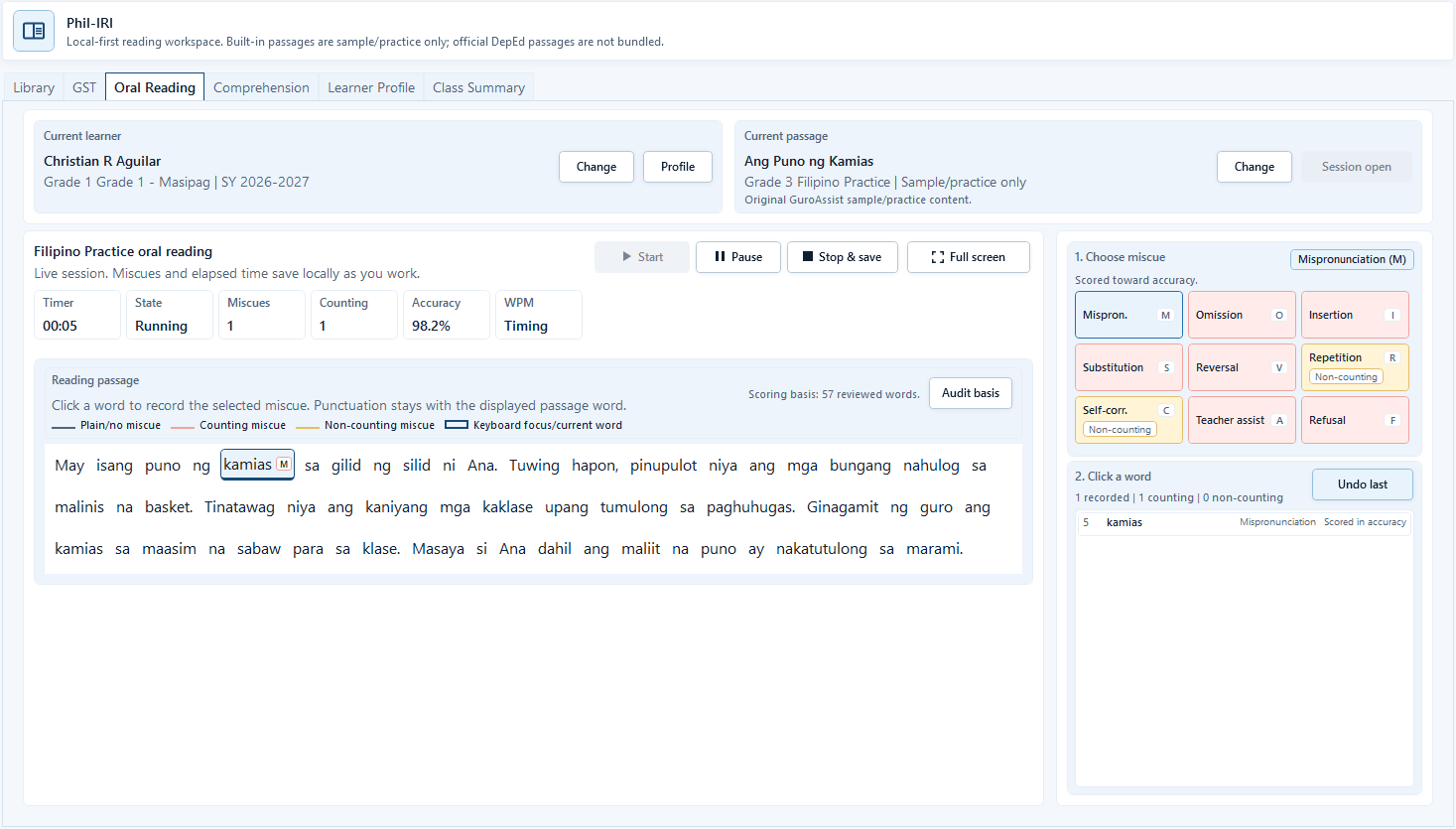
Sample data only. Confirm the selected miscue type and word before the timer is stopped. Captured July 11, 2026. Step 4
Start the timer and record each observed miscue
Choose Start when the learner begins. Select the appropriate miscue type, then click the affected word. Counting and non-counting marks are identified separately. Use Undo last immediately if the latest mark is wrong; use Pause only for an interruption.
Expected result: State says Running, the marked word shows its code, and the local miscue list and accuracy update together.
 View full size
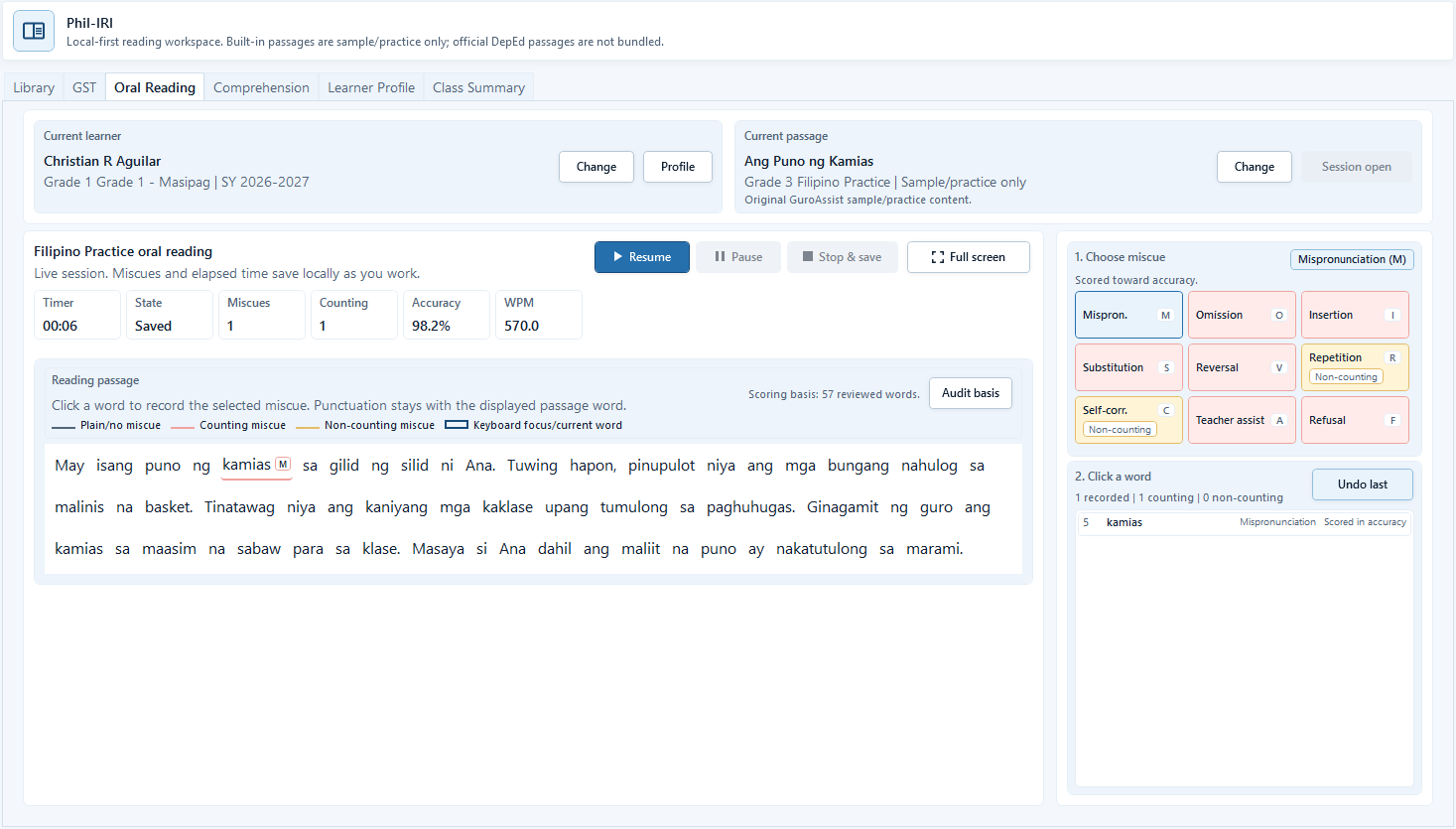
Sample data only. The six-second example produces an implausible WPM and must be reviewed rather than accepted. Captured July 11, 2026. Step 5
Choose Stop & save and review the metrics
Choose Stop & save when timing is finished. Check State, Miscues, Counting, Accuracy, and WPM. The fictional six-second example deliberately produces an implausible WPM; correct the timing or repeat the session instead of relying on that value.
Expected result: State changes to Saved, the local mark remains visible, and the teacher reviews any implausible metric before continuing.
 View full size
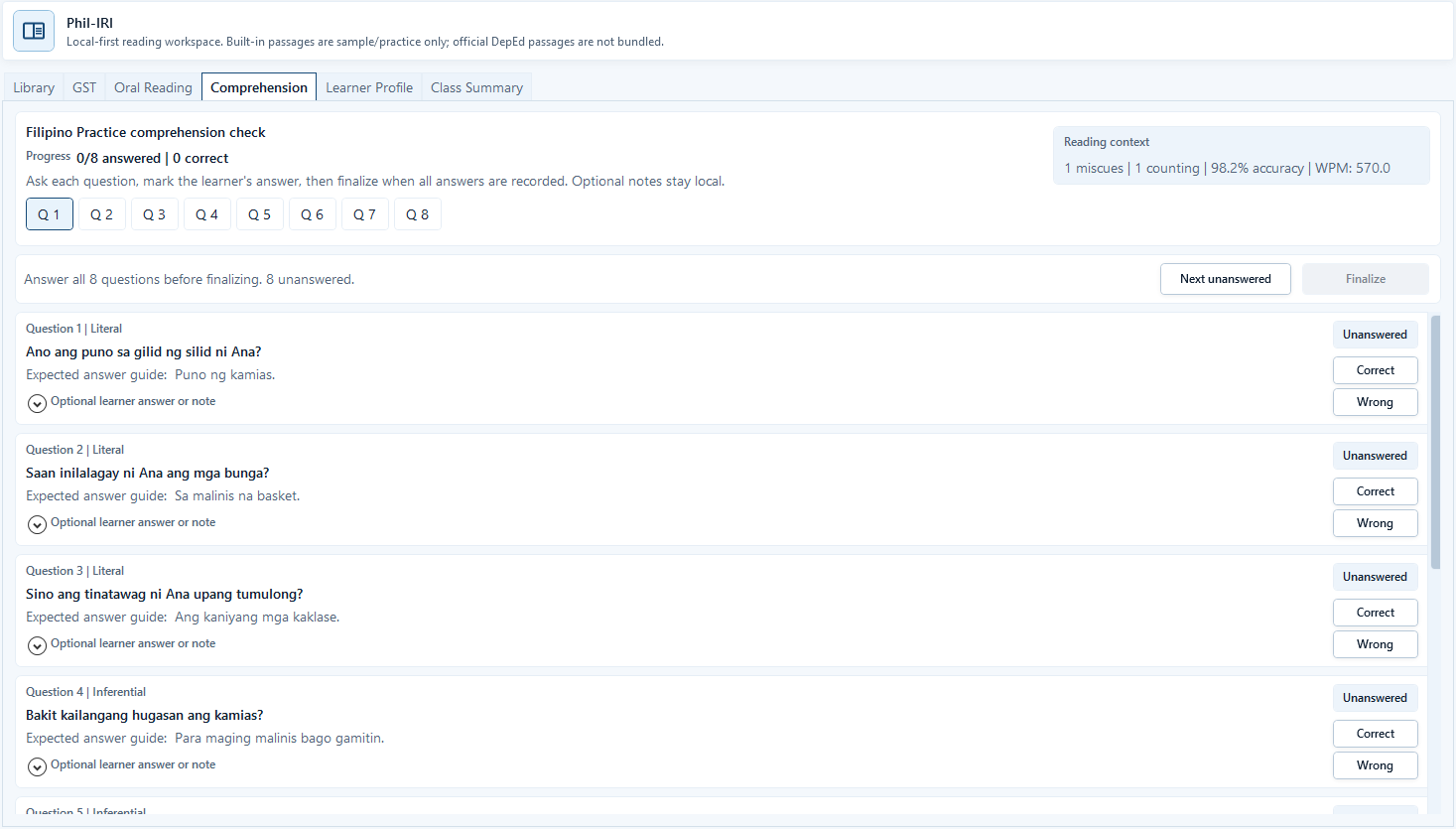
Sample data only. Optional notes stay local, and unanswered questions keep Finalize disabled. Captured July 11, 2026. Step 6
Mark comprehension answers and save optional local notes
Open Comprehension. For each question, expand Optional learner answer or note only when a short local observation is useful, enter the note, then choose Correct or Wrong. Use Next unanswered until all questions are recorded. Do not choose Finalize while the progress line still lists unanswered questions.
Expected result: Progress updates from Unanswered to the saved Correct or Wrong state; the optional note remains local with that answer.
 View full size
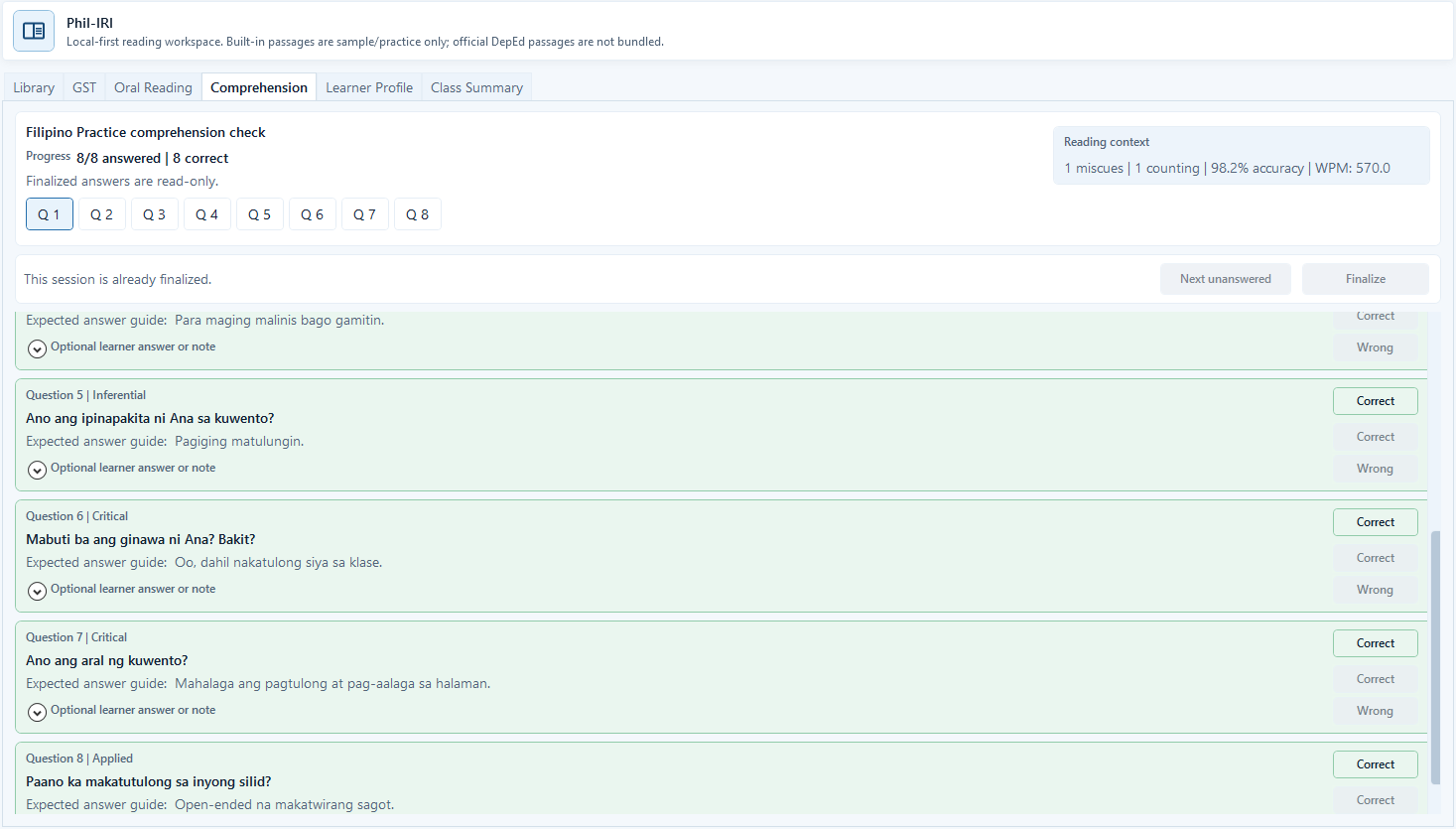
Sample data only. Finalization is a separate required checkpoint before learner and class summaries are relied on. Captured July 11, 2026. Step 7
Finalize only after every question is answered
Continue until the progress line says 8/8 answered and Finalize becomes available. Recheck the learner, passage, oral-reading metrics, and comprehension answers, then choose Finalize once. Finalized answers become read-only; correct source mistakes before finalizing.
Expected result: the screen says This session is already finalized, shows 8/8 answered, and disables answer-changing controls.
 View full size
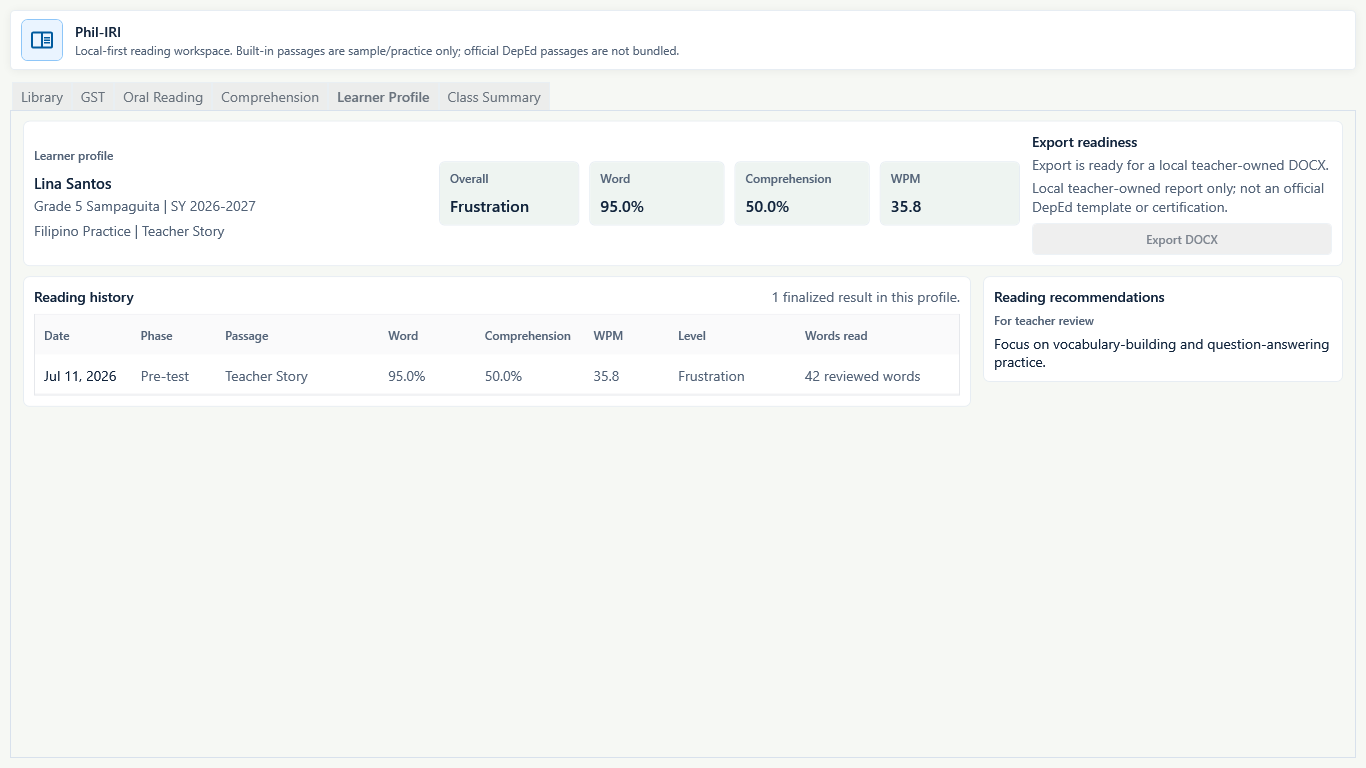
Sample data only. Review the learner identity and every saved reading signal before using the profile for support planning. Captured July 11, 2026. Step 8
Open Learner Profile and review support information
After finalizing, open Learner Profile. Check the saved GST, oral-reading, comprehension, accuracy, WPM review signal, and phase history. Use these local records to plan follow-up; correct the source session if the learner, passage, timer, or score is wrong.
Expected result: the profile includes the finalized reading result for the intended learner without claiming official reporting or automatic placement.
 View full size
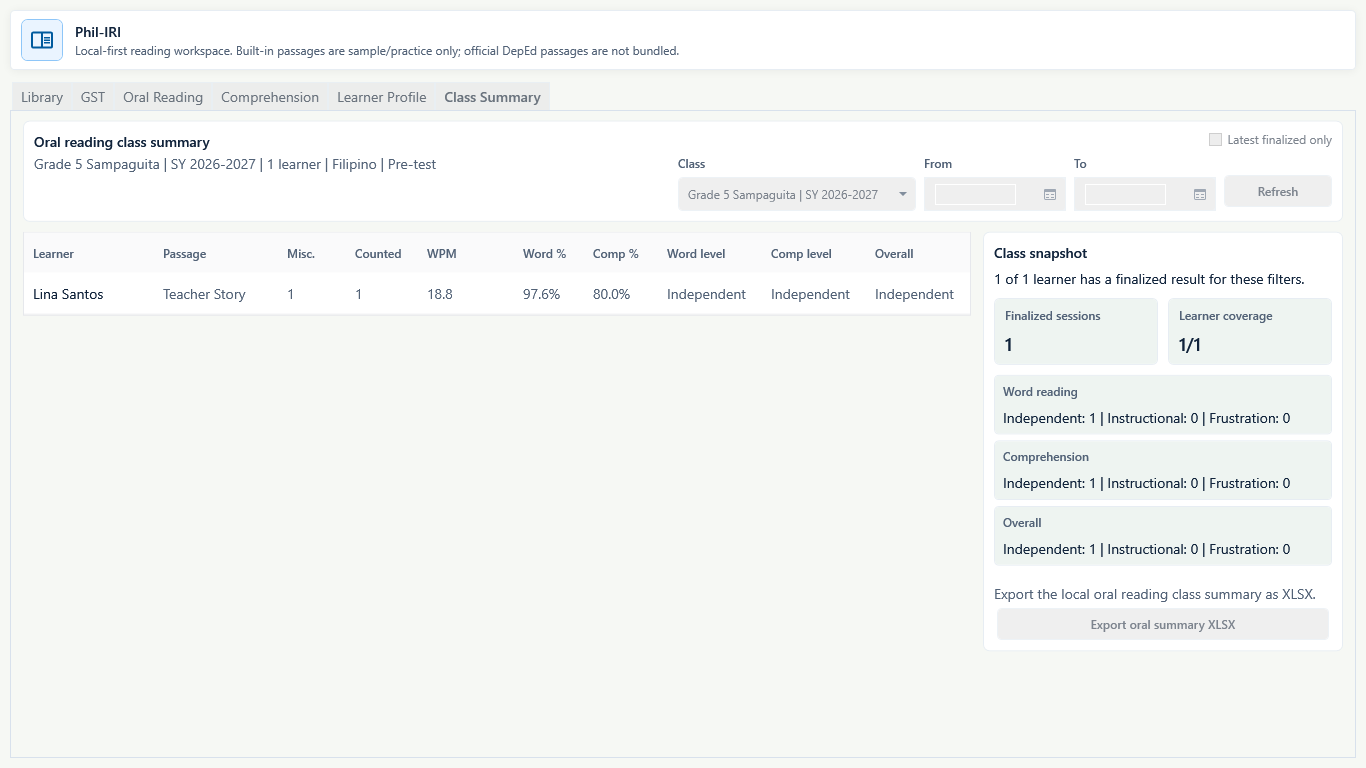
Sample data only. This is a local teacher review summary, not an official DepEd submission or report. Captured July 11, 2026. Step 9
Open Class Summary and check the local results
Open Class Summary after finalization. Choose the intended class and filters, then review finalized results, missing learners, support signals, and export readiness. Keep these local notes distinct from official school reading reports; use export only when every required record is complete and Paid export is available.
Expected result: the class summary counts the finalized local result and still exposes incomplete or missing reading data before export.


Review
Check these before relying on the work
These checks cover saved, previewed, generated, and teacher-review states.
Learner privacy
Keep reading notes local and share only through the teacher's intended process.
Practice sessions are local
Sample practice reading sessions are for teacher review and support.
No automatic official claim
Local notes do not replace official school reading processes.
Back up notes
Back up the workspace before changing laptops or cleaning old records.
Blocked states and recovery
Fix the blocker before continuing
Use the direct recovery action when GuroAssist is waiting for setup, data, access, policy, or file readiness.
No learner selected
Choose the learner before saving learner-specific notes.
After recovery: The intended learner is selected and the learner-dependent action is available.
Review roster helpRequired passage missing
Some tools need the supported passage or activity setup before use.
After recovery: The blocker is no longer shown, and the intended next action is available for teacher review.
Troubleshoot this blockerOptional note is still unsaved
Choose Correct or Wrong for the question after entering the note; do not finalize while the answer remains Unanswered.
After recovery: No unresolved scan or manual-check item remains, and the reviewed result is ready to save.
Troubleshoot this blocker
Safety note
Reading notes should help teacher support decisions while keeping learner data local and carefully handled.
Finish
Verify the result
Do not treat a saved screen or generated filename as proof that the work is ready.
You’re done when
The selected learner has a saved and finalized local reading session, reviewed miscues and comprehension answers, and teacher-checked learner and class summaries that are not presented as official reporting.
Glossary
Expand the terms used in this guide
Use the plain-language meaning here, then follow the exact label in GuroAssist.
- Phil-IRI
- Philippine Informal Reading Inventory; GuroAssist keeps reading work local and review-based.
- GST
- Group Screening Test used to identify the next local reading step.
Guide details
Guide verification
Use these details to confirm that this guide matches the GuroAssist version and school year you are using.
- Verification
- Verified with GuroAssist 1.0.0.0
- Last reviewed
- July 11, 2026
- Screenshots
- Captured July 11, 2026
- Applies to
- 2026–2027
Was this helpful?
Choose an answer or report a guide that needs attention. No class, learner, or free-text data is sent by these buttons.