
Step-by-step guide
Withdraw a learner from a local class
Use Withdraw learner only when the learner should no longer remain active in this local class. GuroAssist does not expose teacher-facing transfer or learner-archive controls, and local withdrawal is not an official enrollment decision.
Teacher goal
How do I withdraw a learner from the local class roster safely?
Use this guide when this is the task in front of you. Stop if the selected class, learner, role, school year, file, or output does not match.
In-app path
- Classes
- Open class workspace
- Roster
- Select learner
- Withdraw learner
Get ready
Check the starting point
These are the minimum conditions for the workflow to make sense.
Before you start
Estimated time: About 3 minutes
- The correct class and learner
- Any unsaved roster edits resolved
- A current workspace backup before a major roster change
You should see
The learner no longer appears as active in the selected local class, while saved attendance, grades, and learner records remain available.
Steps
Complete the task in order
Review choice points, save or preview behavior, and any stop condition before continuing.
 View full size
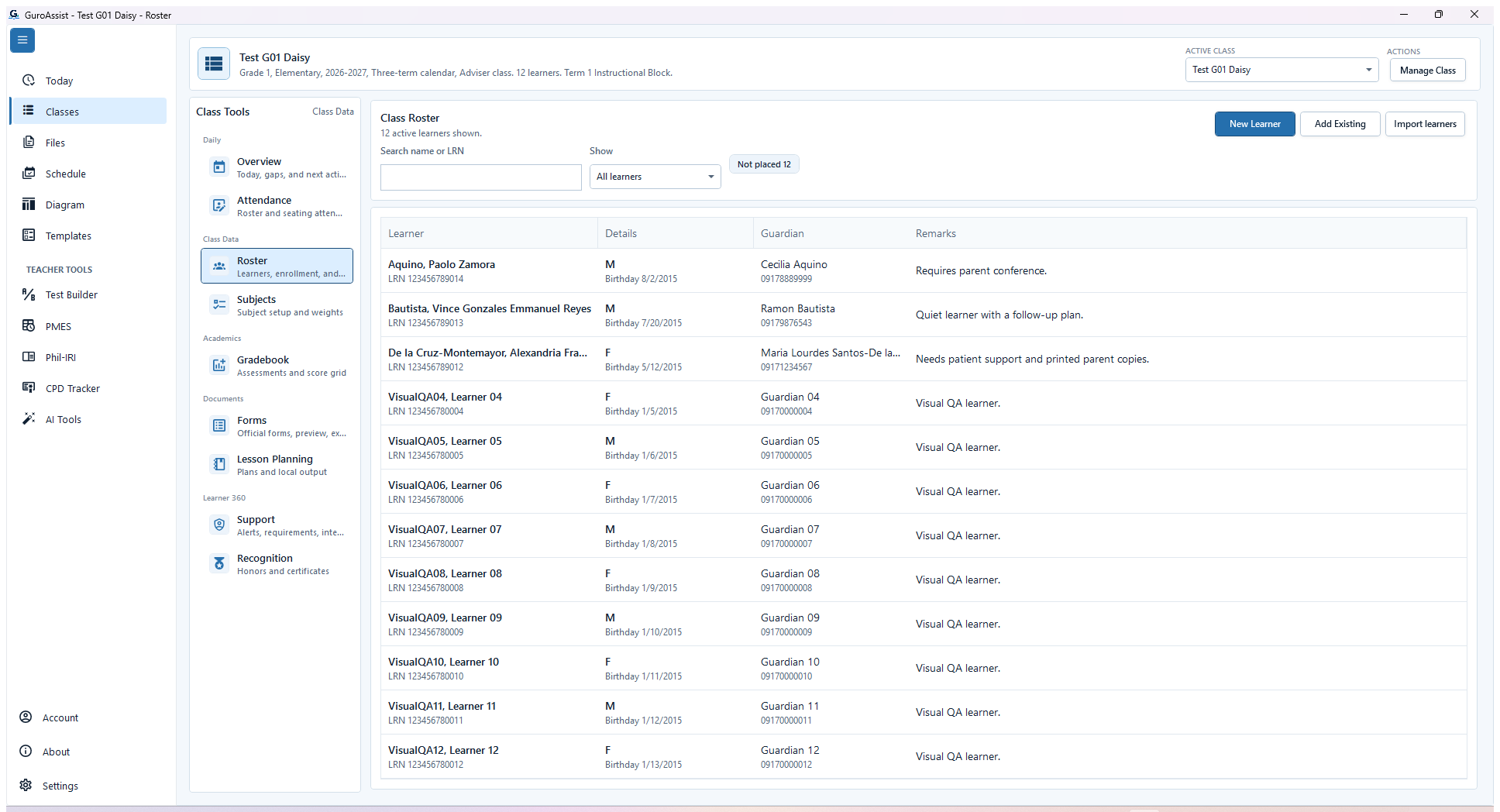
Sample data only. The active-class header and full roster establish the scope before a status change. Captured July 11, 2026. Step 1
Open the intended class roster
Choose Classes, open the intended class workspace, and choose Roster. Confirm the active-class header, search or filter the list, and select the learner only after the class and learner identity match.
Stop if the learner belongs to a different class or the selected class is not the intended local roster.
 View full size
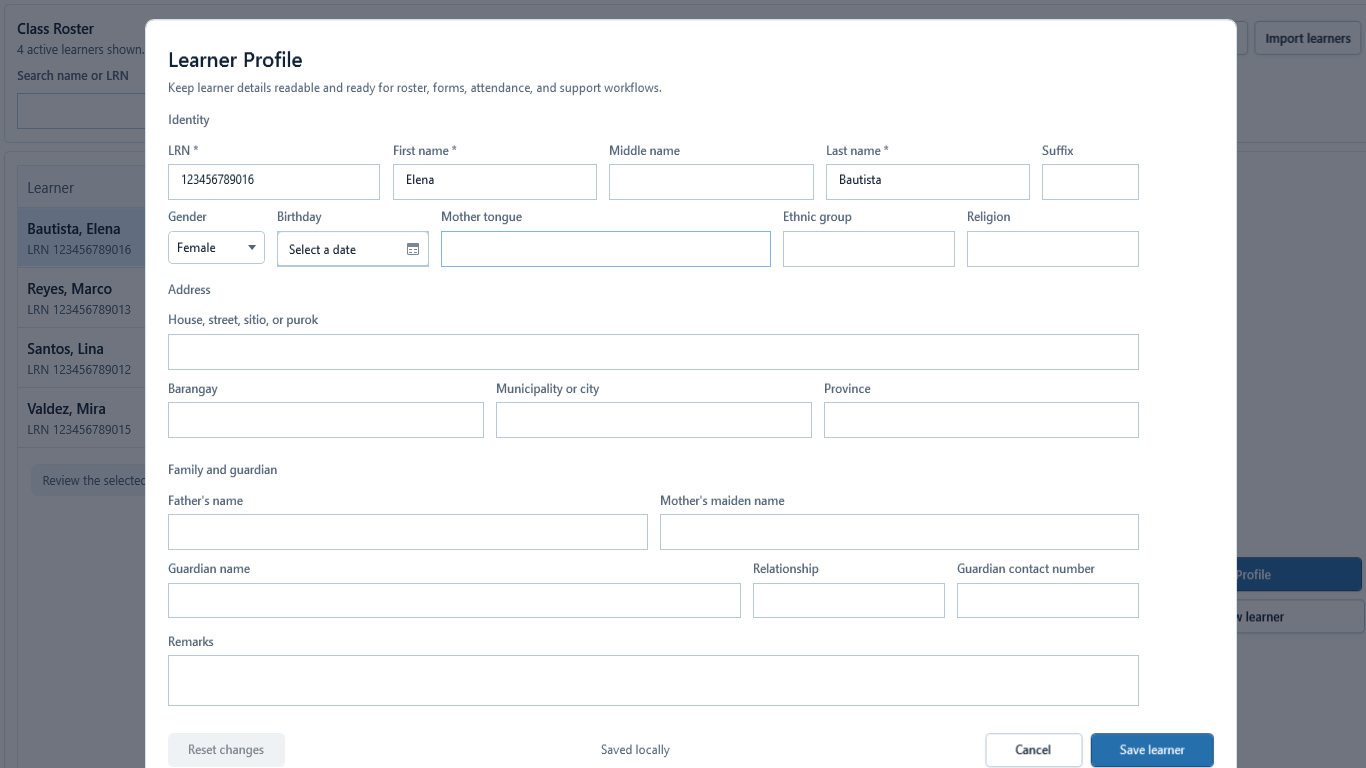
Sample data only. Use the profile to prevent withdrawing the wrong local learner record. Captured July 11, 2026. Step 2
Open Profile and verify the learner
Select the learner, review the Learner Inspector, then choose Open Profile. Check the name, LRN, sex, birthday, guardian, contact, and remarks that are available. Choose Cancel if any identity detail makes you uncertain.
 View full size
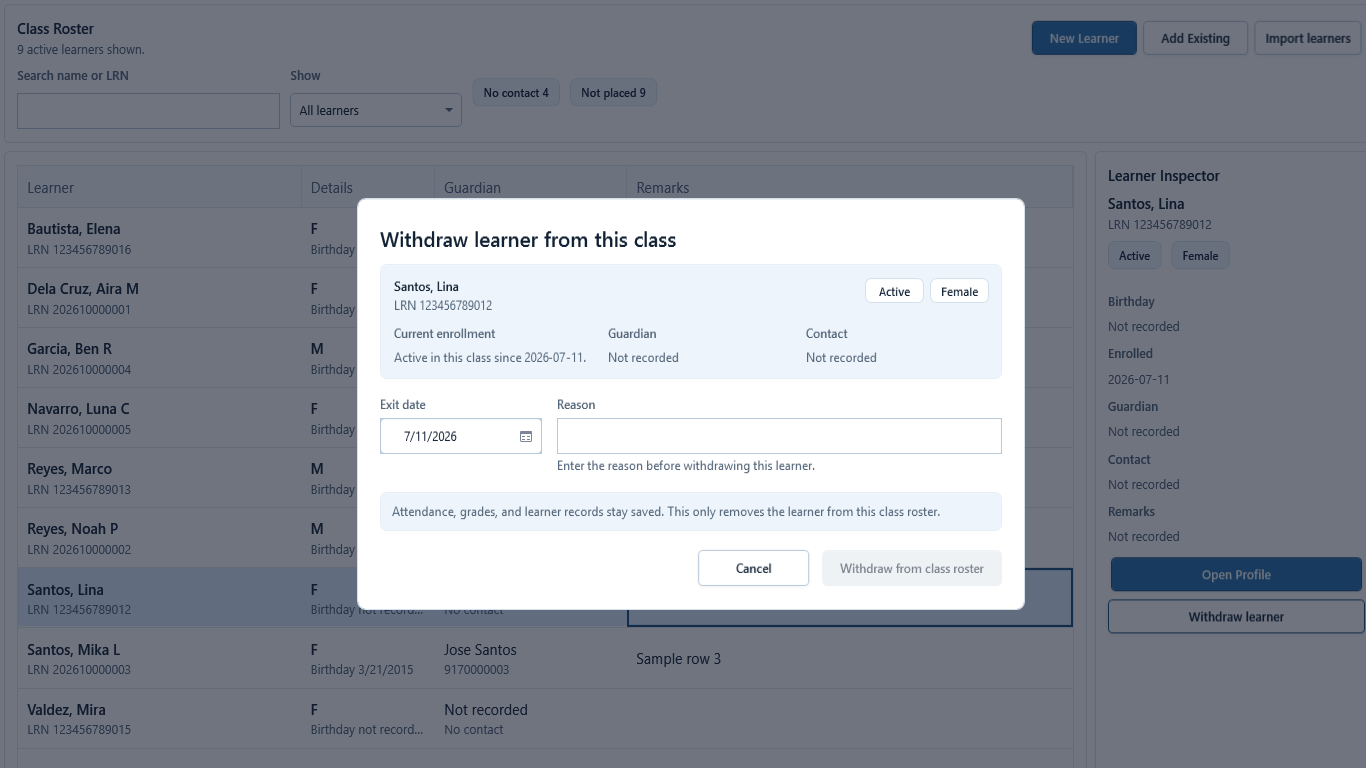
Sample data only. The dialog makes the local scope and retained records explicit before confirmation. Captured July 11, 2026. Step 3
Choose Withdraw learner and review the confirmation
Close Profile, keep the same learner selected, and choose Withdraw learner. Confirm the dialog still shows the intended learner and current enrollment. Review Exit date and enter a concise local Reason; Withdraw from class roster remains disabled until the required reason is valid.
Choose Cancel when the learner, class, date, or reason is wrong. Attendance, grades, and learner records stay saved.
 View full size
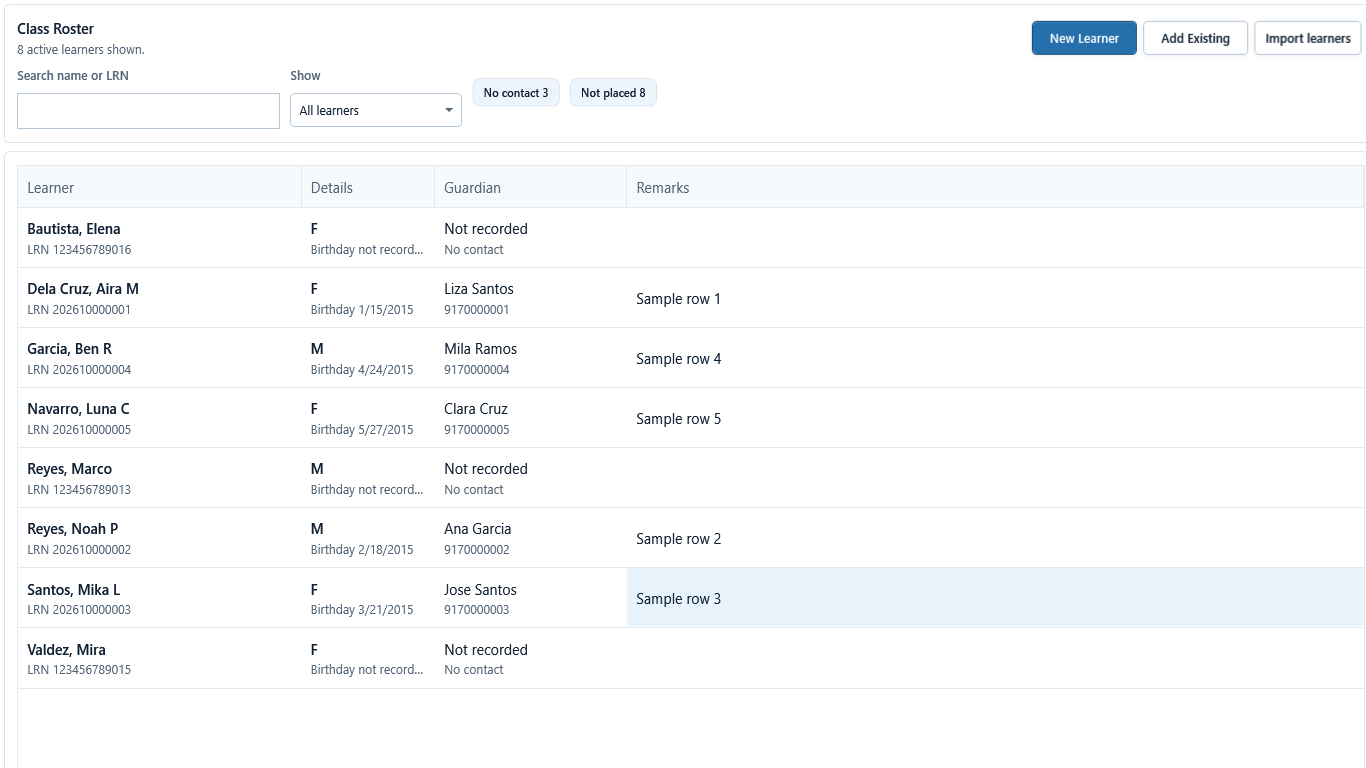
Sample data only. The result is removal from this active local roster, not deletion of saved learner history. Captured July 11, 2026. Step 4
Confirm the learner is no longer active
Choose Withdraw from class roster only after the reason is complete. Return to the roster and confirm the learner no longer appears in the active list. Do not create a duplicate learner or delete prior attendance, grades, or support history to make the list look correct.
 View full size
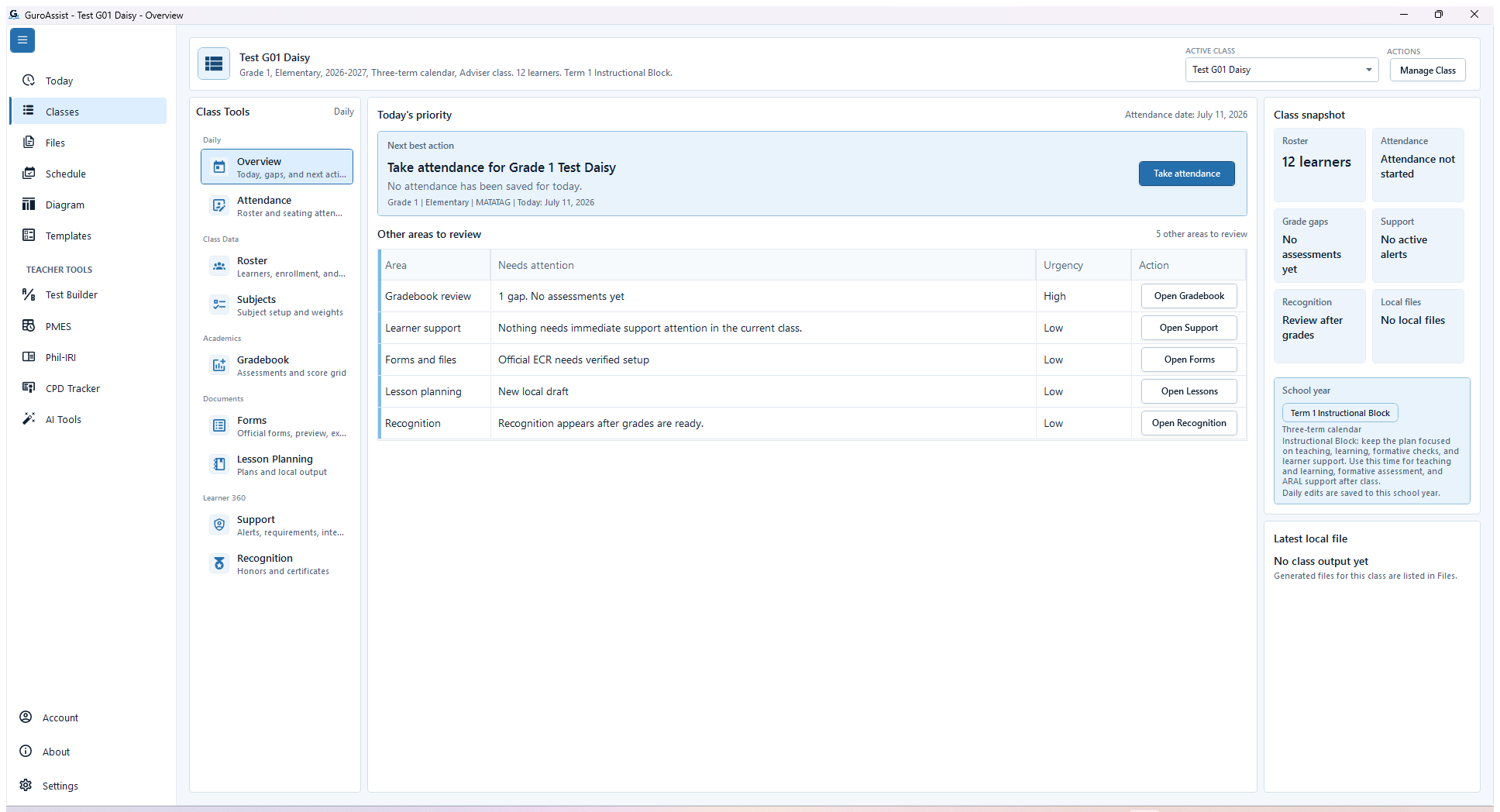
Sample data only. Use Overview to identify downstream work that changed after the local withdrawal. Captured July 11, 2026. Step 5
Review affected class work
Recheck Attendance, Gradebook, Forms, Learner Support, Recognition, Overview, and Files for the selected class. Regenerate or reopen any roster-based output before relying on it, and keep blocked outputs blocked until their readiness checks pass.
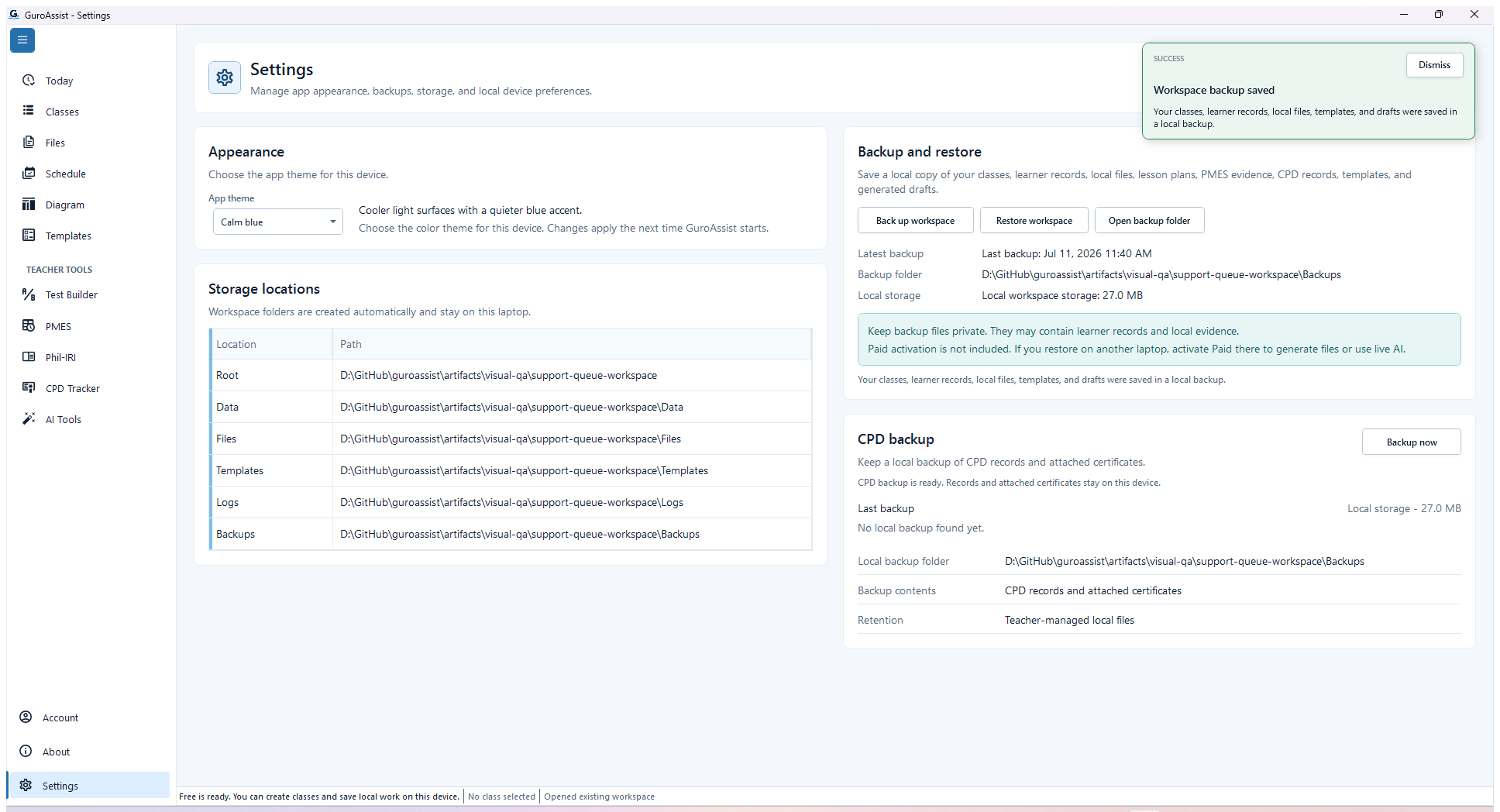 View full size
Sample data only. The saved confirmation is the evidence that a current backup protects the teacher-owned workspace. Captured July 11, 2026. Step 6
Back up after the local change
Open Settings and create a dated workspace backup after the withdrawal and related review. Keep the backup until the roster and affected local files have been checked.
Local withdrawal is not an official enrollment, transfer, archive, or DepEd-system decision.


Review
Check these before relying on the work
These checks cover saved, previewed, generated, and teacher-review states.
Correct learner and class
The status change should apply only to the learner and class the teacher selected.
Withdrawal is local
The change keeps this GuroAssist class roster accurate; it does not decide official enrollment.
History remains readable
Keep prior notes and relevant local history available for teacher review.
Generated files are reviewed again
Files that use the roster should be opened and checked after a learner status change.
Backup is current
Back up before or after large roster cleanup work.
Blocked states and recovery
Fix the blocker before continuing
Use the direct recovery action when GuroAssist is waiting for setup, data, access, policy, or file readiness.
No class selected
Choose the class before changing a learner's local roster status.
After recovery: The intended class appears in the workspace header and the task uses that class.
Open class setup helpNo learner selected
Select the learner record before Withdraw learner unlocks.
After recovery: The intended learner is selected and the learner-dependent action is available.
Open roster helpUnsaved edits remain
Save or discard current roster edits before withdrawing the learner.
After recovery: The intended learner is selected and the learner-dependent action is available.
Review roster stepsOutput readiness changed
Official-looking files can stay blocked until the updated roster, grades, templates, and readiness checks are complete.
After recovery: The required template is selected, readable, and shown as ready for this task.
Review file status labels
Safety note
Withdraw learner is local class record maintenance in GuroAssist. It is not an official enrollment decision, transfer approval, learner archive, or replacement for the school's enrollment process.
Finish
Verify the result
Do not treat a saved screen or generated filename as proof that the work is ready.
You’re done when
The learner is no longer active in the selected local class, and the teacher has rechecked affected class work.
Guide details
Guide verification
Use these details to confirm that this guide matches the GuroAssist version and school year you are using.
- Verification
- Verified with GuroAssist 1.0.0.0
- Last reviewed
- July 11, 2026
- Screenshots
- Captured July 11, 2026
- Applies to
- 2026–2027
Was this helpful?
Choose an answer or report a guide that needs attention. No class, learner, or free-text data is sent by these buttons.
Related guides
Continue only where it helps
Manage the class roster
How do I add, find, import, review, or withdraw a learner without changing the wrong class?
Back up or restore local work
Protect local records before reinstalling, restoring, or moving laptops.
Understand file status labels
Learn what Local, Draft, Final, Official-ready, Review-only, and Blocked mean.