
Detailed workflow guide
Use Test Builder Guided Build
Guided Build helps the teacher choose item types step by step while preserving item order, marking manual-check items clearly, and protecting the answer key.
Teacher goal
How do I build a test while preserving my question-type order and answer safety?
Use this guide when this is the task in front of you. Stop if the selected class, learner, role, school year, file, or output does not match.
In-app path
- Test Builder
- Build Test
- Guided Build
Get ready
Check the starting point
These are the minimum conditions for the workflow to make sense.
Before you start
Estimated time: About 5–10 minutes
- A saved test scope, component, and question-type order
- Reviewed item choices or a safe draft source
- A teacher review of generated content before any file action
You should see
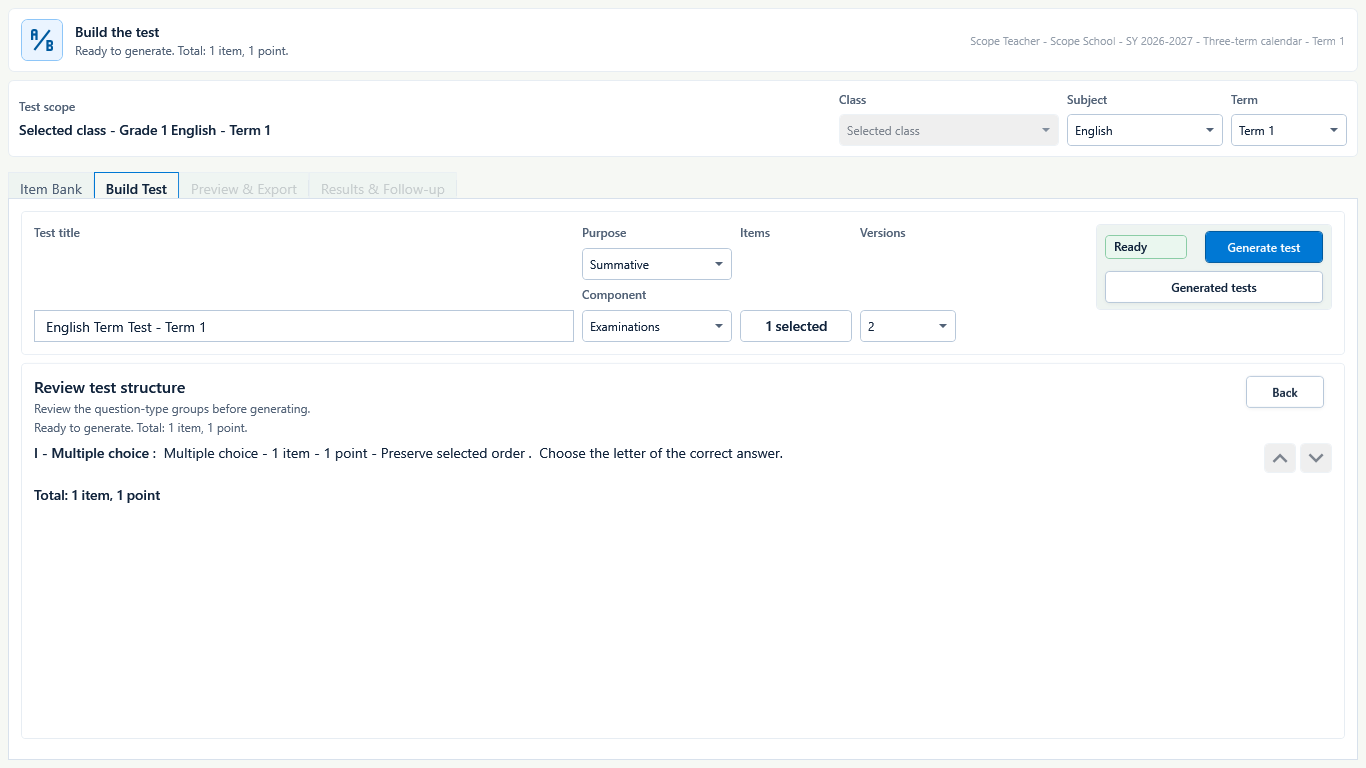
Build Test shows the teacher-selected question-type order, item order, total items, points, and a Ready state before generation.
Steps
Complete the task in order
Review choice points, save or preview behavior, and any stop condition before continuing.
 View full size
Captured July 10, 2026. Step 1
Choose class, subject, and purpose
Start with the class, subject, and term. Choose Formative or Summative; for Summative work, choose the supported component such as Written Works, Performance Tasks, or Examinations, then set the intended item counts.
- 2
Step 2
Set question-type order
Choose item types in the order learners should see them, such as multiple choice, identification, matching type, or essay.
- 3
Step 3
Review each item
Check wording, choices, point values, answer key, and item order before export.
- 4
Step 4
Record the AI-use category
Choose the AI-use category that matches how the assessment was prepared. If AI help is used, never enter learner names, LRNs, contact details, learner work, official documents, or unnecessary personal data.
- 5
Step 5
Mark manual-check items
Enumeration, matching type, and essay or written response items should be treated as manual-check unless a safe automatic path is explicitly available.
- 6
Step 6
Review learner paper and answer key
Open the exported files and confirm there is no answer leakage before classroom use.

Review
Check these before relying on the work
These checks cover saved, previewed, generated, and teacher-review states.
Order is preserved
Question-type order and item order should match the teacher's Guided Build choices.
Manual-check items are clear
Items that need teacher checking should be labeled and not sent to unsupported automatic grading.
Answer key is separate
Learner paper files should not show answer-key content.
Generated files are reviewed
Open the actual DOCX or exported bundle before using it with learners.
No unnecessary learner data
Avoid personal learner data in optional AI prompts.
Blocked states and recovery
Fix the blocker before continuing
Use the direct recovery action when GuroAssist is waiting for setup, data, access, policy, or file readiness.
No build choices
Choose item types and counts before generating.
After recovery: The blocker is no longer shown, and the intended next action is available for teacher review.
Troubleshoot this blockerItems need review
Fix unclear wording, missing answers, or unsupported item details before export.
After recovery: No unresolved scan or manual-check item remains, and the reviewed result is ready to save.
Troubleshoot this blockerOutput generation unavailable
Generated files stay unavailable where Paid access or readiness is missing.
After recovery: Paid access and any required credits are shown as available for this action.
Open activation helpAnswer safety issue
Do not use a learner paper if answers appear where learners can see them.
After recovery: The intended learner is selected and the learner-dependent action is available.
Review roster help
Safety note
Guided Build must preserve teacher-selected question-type order and item order. Teachers should review learner papers and answer keys separately, with no answer leakage, and keep names, LRNs, contact details, learner work, and official documents out of AI prompts.
Finish
Verify the result
Do not treat a saved screen or generated filename as proof that the work is ready.
You’re done when
Build Test shows the teacher-selected question-type order, item order, total items, points, and a Ready state before generation.
Glossary
Expand the terms used in this guide
Use the plain-language meaning here, then follow the exact label in GuroAssist.
- AI
- Artificial intelligence; optional draft help that still requires teacher review.
Guide details
Guide verification
Use these details to confirm that this guide matches the GuroAssist version and school year you are using.
- Verification
- Verified with GuroAssist 1.0.0.0
- Last reviewed
- July 11, 2026
- Screenshots
- Captured July 10, 2026
- Applies to
- 2026–2027
Was this helpful?
Choose an answer or report a guide that needs attention. No class, learner, or free-text data is sent by these buttons.
Related guides