
Detailed workflow guide
Import and review Test Builder answer sheets
Answer-sheet import copies supported scans into the local workspace, detects the generated test, version, learner, and marks, then requires review before anything is applied to the answer grid.
Teacher goal
How do I import scanned answer sheets without turning uncertain marks into saved answers?
Use this guide when this is the task in front of you. Stop if the selected class, learner, role, school year, file, or output does not match.
In-app path
- Test Builder
- Results & Follow-up
- Import answer sheet
Get ready
Check the starting point
These are the minimum conditions for the workflow to make sense.
Before you start
Estimated time: About 10–20 minutes
- A generated answer sheet from the intended test version
- A clear learner/version match
- Time to review every uncertain mark before saving answers
You should see
The scan review shows confidence, unreadable marks, and teacher corrections before reviewed marks enter the local answer grid.
Steps
Complete the task in order
Review choice points, save or preview behavior, and any stop condition before continuing.
- 1
Step 1
Start from the matching result session
Open Results & Follow-up for the generated and exported test, add the expected learners, and confirm their versions. Choose Import answer sheets for automatically checked items, or Import scanned answers for review when the version contains manual-check items.
- 2
Step 2
Choose supported local files
Select PDF, JPG, JPEG, PNG, TIF, or TIFF scans created from the GuroAssist answer-sheet layout. Each file can be up to 25 MB and the batch can be up to 100 MB.
Import is local. GuroAssist copies the selected files into its workspace for review.
- 3
Step 3
Verify the detected test, version, and learner
Stop when the sheet belongs to a different generated test, uses an unknown or missing version, lacks a readable identifier, names an unknown learner, or duplicates a sheet already in the batch.
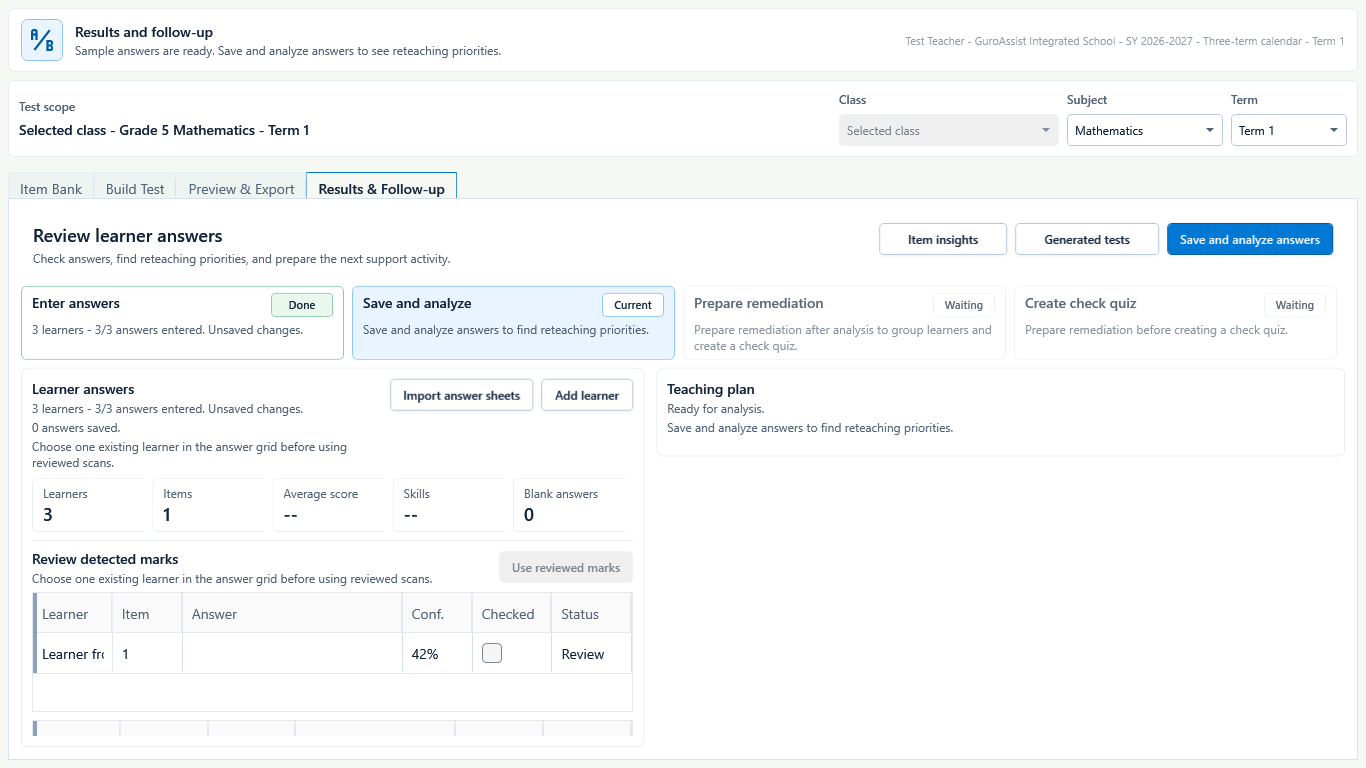 View full size
Low-confidence and manual-check results stay visible until the teacher resolves them. Captured July 10, 2026. Step 4
Review every uncertain mark
Inspect OCR/mark-detection results as a review aid, not unquestioned truth. Preview the detected learner and answer, then correct the row or mark it checked before commit. A confidence below 75 percent, a blank, an ambiguous or multiple mark, an unknown learner, or a manual-check item stays in Review.
- 5
Step 5
Resolve manual-check responses
Compare the source paper or scan where needed and record the teacher's checked result in the review row. The import workflow must not auto-grade written or otherwise manual-check work.
- 6
Step 6
Apply only a fully reviewed batch
Use the reviewed marks only after all sheets match the intended test, learner, and version and every Review row is resolved. Then inspect the answer grid before saving and analyzing.
- 7
Step 7
Cancel, retry, or replace a scan safely
Close the file picker to cancel before any marks are applied. If review fails or a sheet is wrong, keep the result grid unchanged, correct or replace the local source file, and run the import again; a failed review does not make uncertain marks final.
- 8
Step 8
Keep the source paper available
Retain the original learner paper or scan until the answer grid and analysis have been checked. If a result looks wrong, compare it with the source rather than editing to fit the analysis.

Review
Check these before relying on the work
These checks cover saved, previewed, generated, and teacher-review states.
GuroAssist layout is used
The sheet came from the matching generated test and supported printable answer-sheet layout.
Test, learner, and version match
Every imported sheet is tied to the correct local result session.
Confidence is reviewed
Marks below the 75 percent threshold and any ambiguous marks are resolved by the teacher.
Manual work is not auto-graded
Written and manual-check responses have explicit teacher decisions.
Grid matches the source
Applied answers are compared with the paper or scan before analysis.
Blocked states and recovery
Fix the blocker before continuing
Use the direct recovery action when GuroAssist is waiting for setup, data, access, policy, or file readiness.
File type or size is unsupported
Use a supported image or PDF within the per-file and batch limits.
After recovery: The blocker is no longer shown, and the intended next action is available for teacher review.
Review generated-file helpGenerated test does not match
Do not apply a sheet from another test or a non-GuroAssist layout.
After recovery: The blocker is no longer shown, and the intended next action is available for teacher review.
Troubleshoot this blockerLearner or version is unknown
Resolve the identifier and assigned version before applying marks.
After recovery: The intended learner is selected and the learner-dependent action is available.
Review roster helpReview rows remain
The batch stays blocked while any low-confidence, blank, duplicate, ambiguous, or manual-check result is unresolved.
After recovery: The preview shows no unresolved duplicate or matching issue, and only reviewed rows can be saved.
Troubleshoot this blocker
Safety note
Answer-sheet import is review-first, not scan-to-grade. The teacher verifies identity, version, marks, and manual-check work before answers enter the local result session.
Finish
Verify the result
Do not treat a saved screen or generated filename as proof that the work is ready.
You’re done when
The scan review shows confidence, unreadable marks, and teacher corrections before reviewed marks enter the local answer grid.
Guide details
Guide verification
Use these details to confirm that this guide matches the GuroAssist version and school year you are using.
- Verification
- Verified with GuroAssist 1.0.0.0
- Last reviewed
- July 11, 2026
- Screenshots
- Captured July 10, 2026
- Applies to
- 2026–2027
Was this helpful?
Choose an answer or report a guide that needs attention. No class, learner, or free-text data is sent by these buttons.
Related guides
Continue only where it helps
Analyze Test Builder results and prepare follow-up
How do I move from checked learner answers to item insights, remediation, and a short check quiz?
Prepare Test Builder alternate forms and local packets
How do I create multiple versions and packet files without overstating that every form is equivalent?
Use Test Builder
Where do I start when I need to build, export, check, and follow up on a local test?