
Detailed workflow guide
Analyze Test Builder results and prepare follow-up
Results & Follow-up turns reviewed local answers into teacher-readable reteaching priorities. Complete each stage in order: enter answers, save and analyze, prepare remediation, then create a check quiz.
Teacher goal
How do I move from checked learner answers to item insights, remediation, and a short check quiz?
Use this guide when this is the task in front of you. Stop if the selected class, learner, role, school year, file, or output does not match.
In-app path
- Test Builder
- Results & Follow-up
Get ready
Check the starting point
These are the minimum conditions for the workflow to make sense.
Before you start
Estimated time: About 10–20 minutes
- Saved learner answers for the intended test
- A current answer key or checking result
- Time to review item signals before creating a local follow-up
You should see
Results & Follow-up shows saved learner answers, analyzed item and skill signals, and teacher-reviewed remediation priorities.
Steps
Complete the task in order
Review choice points, save or preview behavior, and any stop condition before continuing.
- 1
Step 1
Open an exported generated test
From Generated tests or Results & Follow-up, choose the test that was actually administered. Confirm its class, subject, term, versions, and exported-file status before starting or continuing a result session.
- 2
Step 2
Add the learners whose papers you are checking
Choose Add learner and select existing learners from the class. Confirm each assigned version before entering responses.
A blank answer is not an incorrect answer until the teacher has confirmed the learner left it blank.
- 3
Step 3
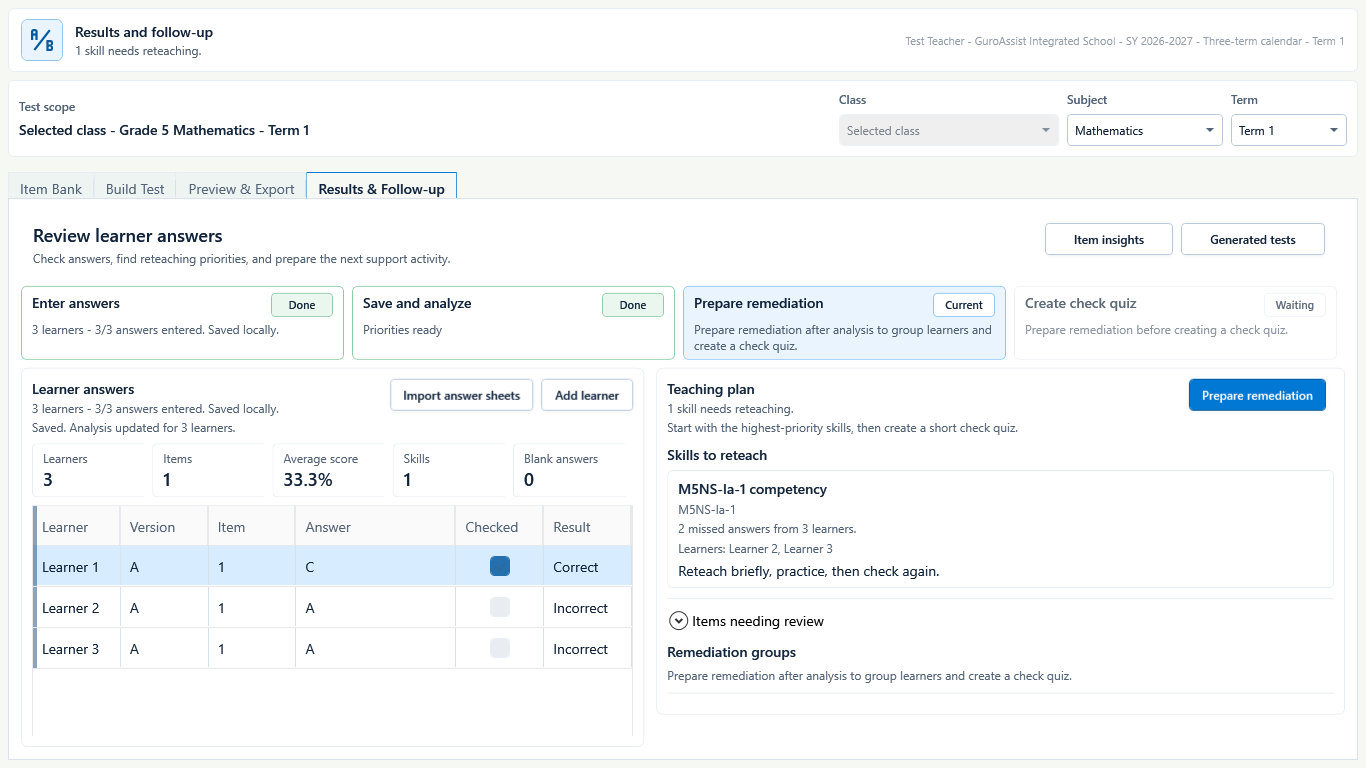
Enter and review answers
Enter the response for each item. For manual-check responses, decide whether the response is correct before analysis. Resolve blanks, invalid or unsupported values, incomplete checking, and any version mismatch instead of guessing.
 View full size
Analysis is a local review aid built from the teacher-checked answer grid. Captured July 10, 2026. Step 4
Save and analyze answers
Choose Save and analyze answers only when the grid is complete and checked. GuroAssist saves the local session and identifies items, skills, and learners that may need review.
 View full size
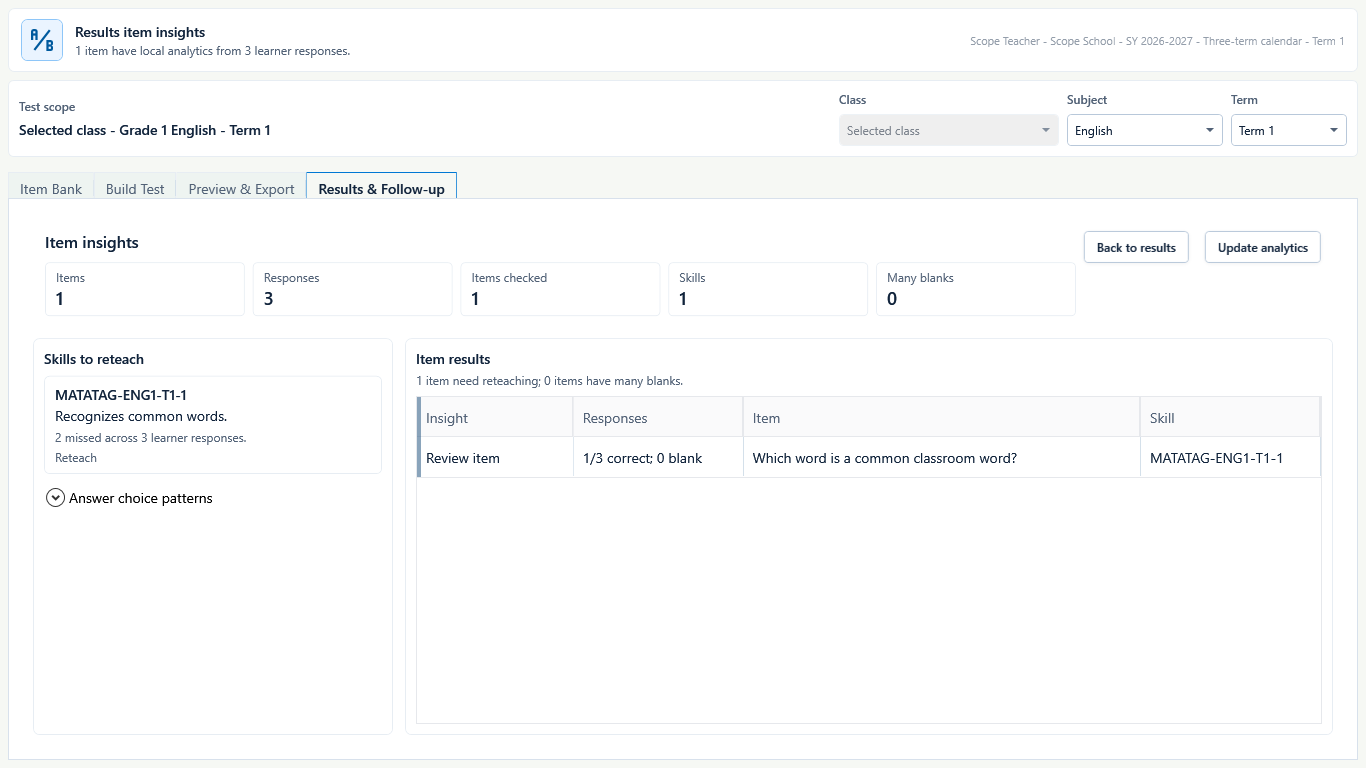
Captured July 10, 2026. Step 5
Inspect item evidence before acting
Open Item insights to review item results, response patterns, answer-choice patterns, blank counts, the item wording, and the linked competency. Where the selected rubric exposes Performance levels, read those levels as teacher-review evidence. Check for a weak or ambiguous item before treating misses as a learner problem.
- 6
Step 6
Export a local review or evidence packet when needed
Open Local packets from the generated test and choose Local review packet for checking and discussion files or Local evidence packet for teacher documentation. Open each exported file and keep it local until you have checked the learner, version, answer, and analysis details.
These packets are teacher-review materials. They are not official submissions, approvals, or automatic learner decisions.
- 7
Step 7
Prepare remediation
Choose Prepare remediation to group learners around the highest-priority skill. Review the suggested group and plan brief reteaching and practice; edit the plan to fit the real class.
- 8
Step 8
Create a short check quiz
After remediation is ready, choose Create check quiz. Review the generated draft in Build Test, adjust items and structure, then preview it before use.
- 9
Step 9
Return to Generated tests when you pause
Use Generated tests to continue the saved result session later, reopen the same version, or re-export a reviewed local packet. Confirm the selected test before entering more answers so a newer draft cannot receive stale results.


Review
Check these before relying on the work
These checks cover saved, previewed, generated, and teacher-review states.
Correct generated test
The result session matches the administered test and each learner's version.
Every answer is resolved
Blank and manual-check responses have been deliberately reviewed before analysis.
Item quality is considered
A low-performing item is checked for ambiguity, answer-key error, or scope mismatch before reteaching decisions.
Remediation is teacher-reviewed
Groups and reteaching notes fit the actual learners and the real class.
Check quiz is previewed
The follow-up quiz is treated as a new draft and reviewed like any other generated test.
Blocked states and recovery
Fix the blocker before continuing
Use the direct recovery action when GuroAssist is waiting for setup, data, access, policy, or file readiness.
Test was not generated and exported
Results require a saved generated test with the administered files and versions known.
After recovery: The blocker is no longer shown, and the intended next action is available for teacher review.
Review generated-file helpNo learners or answers
Add learners and enter or import reviewed answers before Save and analyze can continue.
After recovery: The intended learner is selected and the learner-dependent action is available.
Review roster helpManual-check response is unresolved
Mark the response correct or incorrect after teacher review; do not let the system infer it.
After recovery: No unresolved scan or manual-check item remains, and the reviewed result is ready to save.
Troubleshoot this blockerAnalysis is not current
Save and analyze the latest answer edits before preparing remediation or a check quiz.
After recovery: No unresolved scan or manual-check item remains, and the reviewed result is ready to save.
Troubleshoot this blocker
Safety note
Results, item insights, remediation groups, and check quizzes are local teacher aids. They do not automatically label learners, assign interventions, or replace professional judgment.
Finish
Verify the result
Do not treat a saved screen or generated filename as proof that the work is ready.
You’re done when
Results & Follow-up shows saved learner answers, analyzed item and skill signals, and teacher-reviewed remediation priorities.
Guide details
Guide verification
Use these details to confirm that this guide matches the GuroAssist version and school year you are using.
- Verification
- Verified with GuroAssist 1.0.0.0
- Last reviewed
- July 11, 2026
- Screenshots
- Captured July 10, 2026
- Applies to
- 2026–2027
Was this helpful?
Choose an answer or report a guide that needs attention. No class, learner, or free-text data is sent by these buttons.
Related guides
Continue only where it helps
Use Test Builder
Where do I start when I need to build, export, check, and follow up on a local test?
Import and review Test Builder answer sheets
How do I import scanned answer sheets without turning uncertain marks into saved answers?
Review generated test history
How do I reopen previous generated tests and exported bundles safely?