
Step-by-step guide
Use Schedule
Schedule combines teacher-owned class periods, meetings, deadlines, preparation time, reminders, and protected generated items with quick links into daily class work.
Teacher goal
How do I plan my day, repeat class blocks, resolve conflicts, and open the next class task?
Use this guide when this is the task in front of you. Stop if the selected class, learner, role, school year, file, or output does not match.
In-app path
- Schedule
Get ready
Check the starting point
These are the minimum conditions for the workflow to make sense.
Before you start
Estimated time: About 10–20 minutes
- A local date range and the intended class or subject
- The event, recurrence, or non-teaching block details
- Time to open and review any generated PDF before printing or sharing
You should see
Schedule shows the intended date range and item; a generated PDF opens locally and matches the reviewed schedule.
Steps
Complete the task in order
Review choice points, save or preview behavior, and any stop condition before continuing.
 View full size
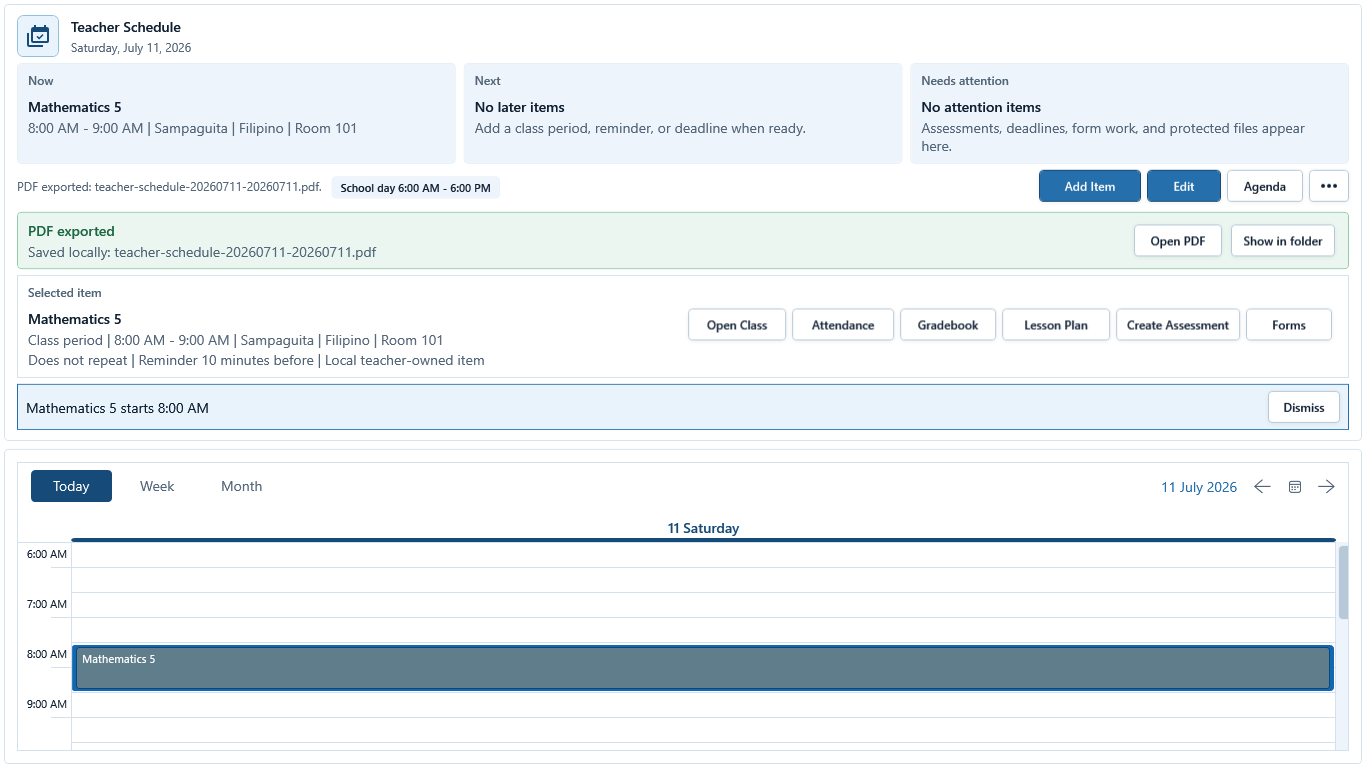
Sample data only. Calendar mode establishes the visible date range and selected item. Captured July 11, 2026. Step 1
Open Schedule and choose Calendar or Agenda
Choose Schedule in the main navigation. Use Calendar for the time grid or Agenda for a list. In Calendar, choose Today, Week, or Month and confirm the displayed date range before adding or editing an item.
 View full size
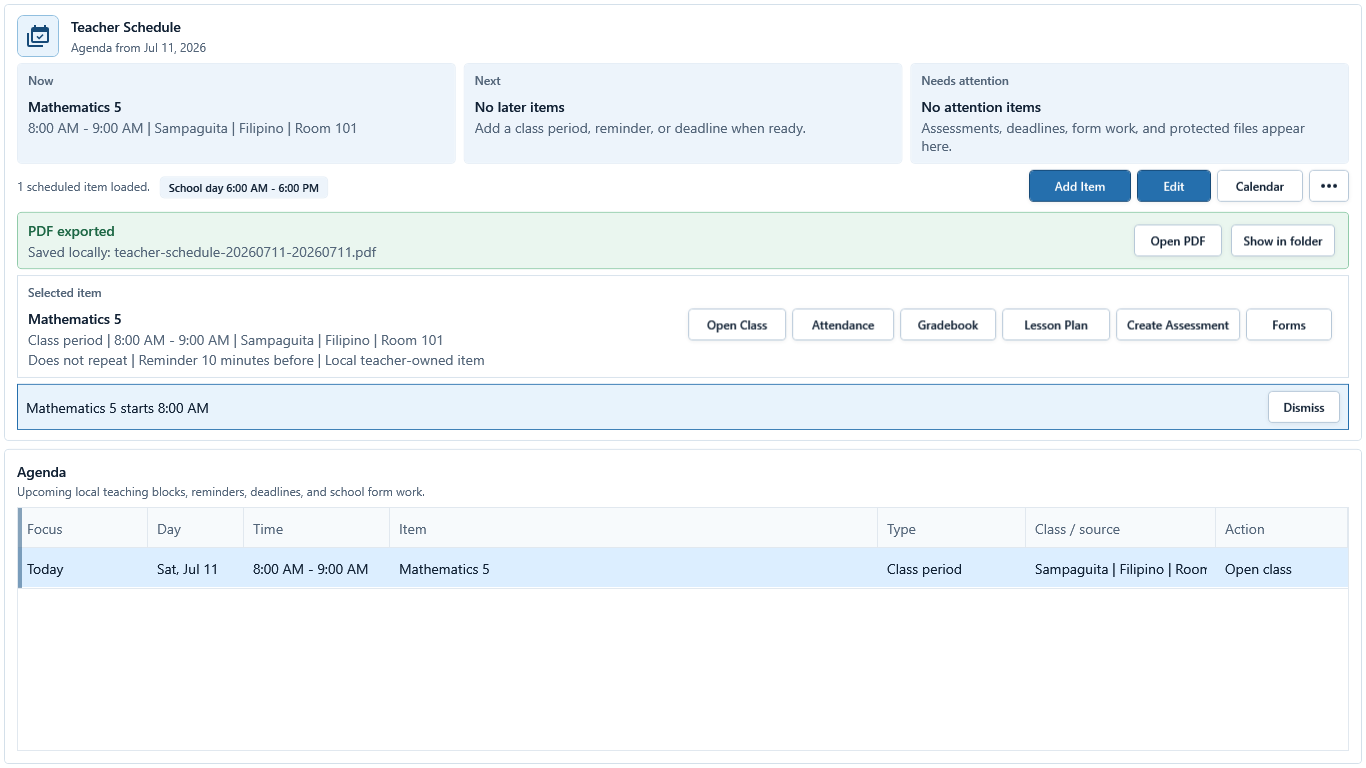
Sample data only. Agenda gives a compact list of the same local schedule items. Captured July 11, 2026. Step 2
Review the Agenda list
Choose Agenda to read upcoming local teaching blocks, reminders, deadlines, school form work, and their Action labels. Choose Calendar to return to the time grid.
 View full size
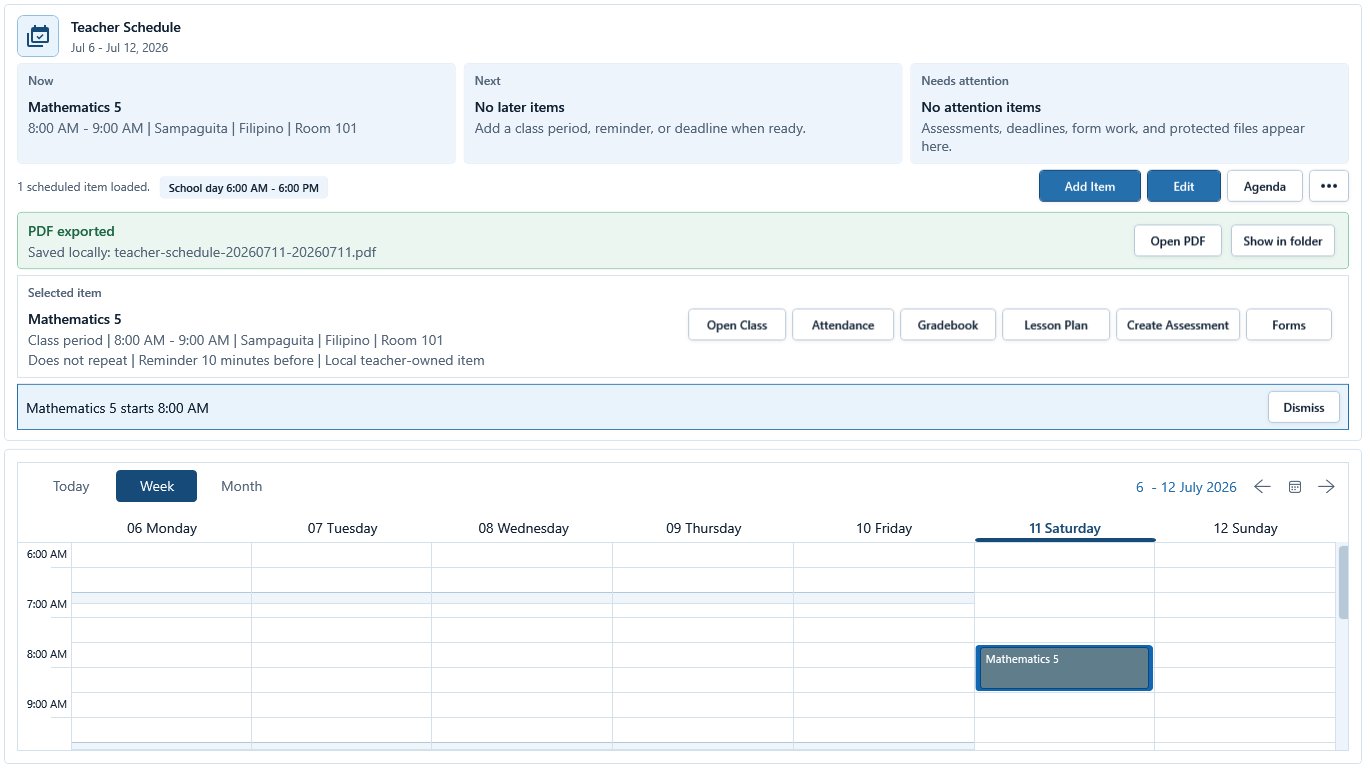
Sample data only. The selected view and date range determine what Export PDF and Print include. Captured July 11, 2026. Step 3
Choose Today, Week, or Month
In Calendar, choose Today for one day, Week for the teaching week, or Month for a broad planning view. Use the arrows or date picker to move the visible range, then return to Today when current work is needed.
 View full size
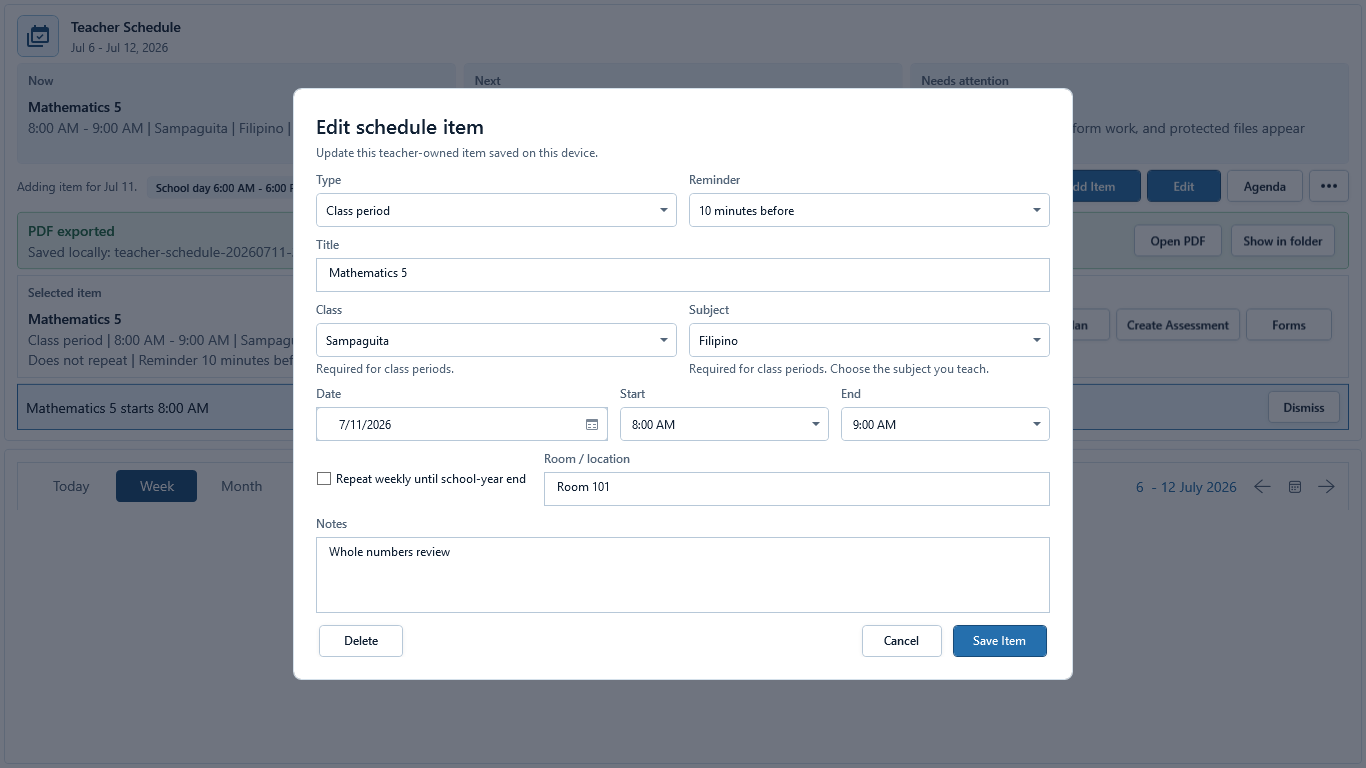
Sample data only. Choose only the supported item type that matches the teacher-owned task, then complete its required fields. Captured July 11, 2026. Step 4
Open Add Item and choose a supported type
Choose Add Item. In the full editor, select Class period, Advisory / homeroom, Preparation time, Meeting, Assessment, Deadline, School form work, Remediation, or Personal reminder. Class-like items require the correct class and, for Class period, a subject marked I teach this subject.
 View full size
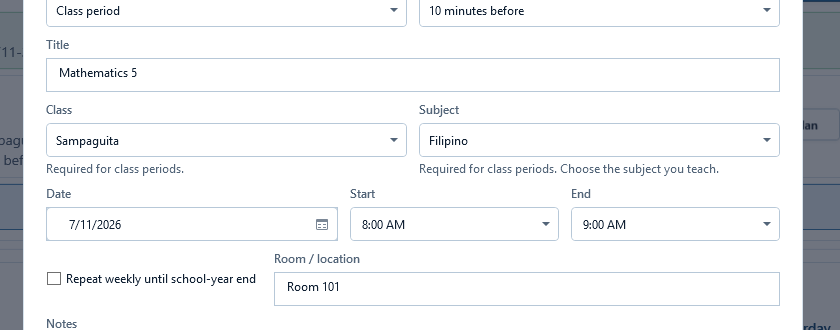
Sample data only. Required class-like details must be valid before Save Item or Save Series is available. Captured July 11, 2026. Step 5
Enter title, class, subject, date, and time
Enter Title, choose Class and Subject when required, then set Date, Start, and End. Save stays blocked until required fields are present and End is after Start. Use a displayed time choice such as 8:00 AM rather than free-form invalid text.
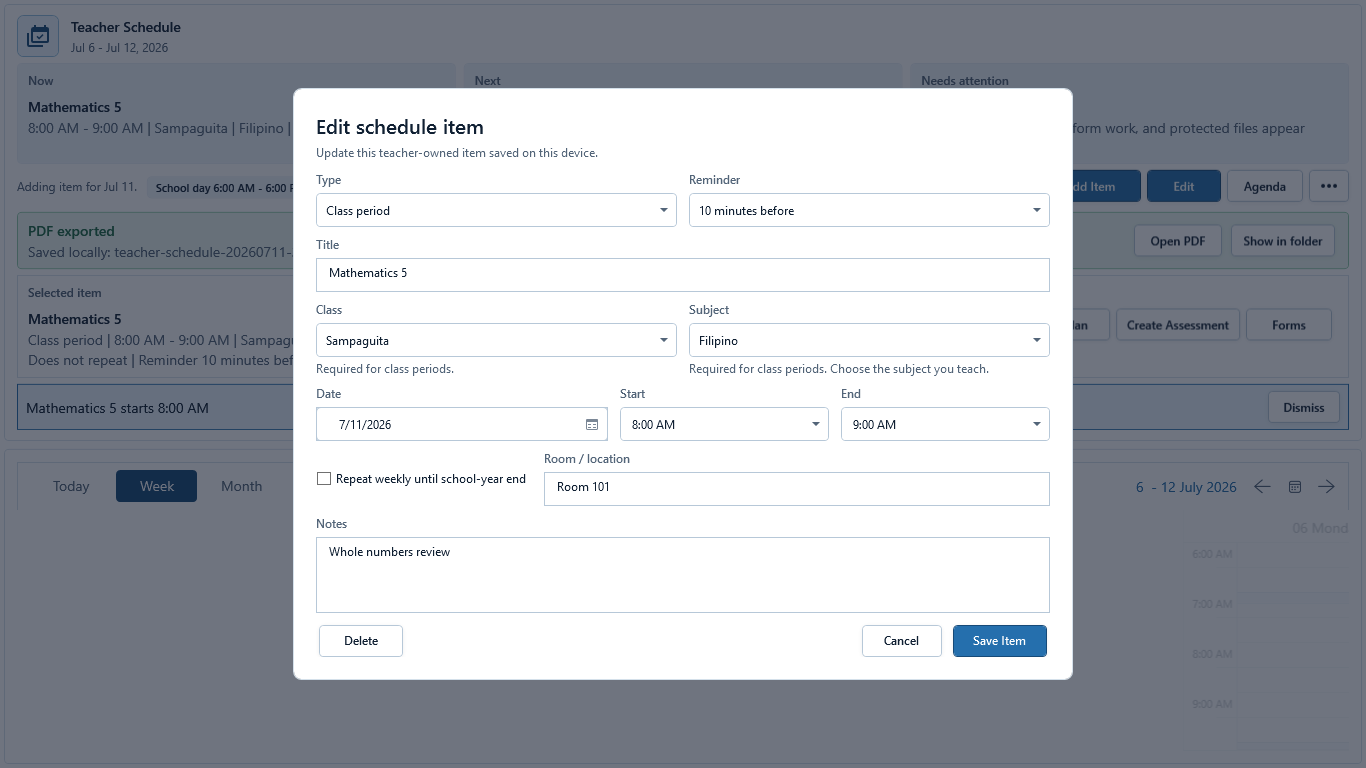 View full size
Sample data only. The ready state shows the whole series decision and its school-year boundary before Save Series. Captured July 11, 2026. Step 6
Review the complete weekly series before saving
Choose a Reminder or No reminder, enter Room / location and concise Notes when useful, and select Repeat weekly until school-year end only for a genuine weekly series. In the pictured ready state, recheck class, subject, date, times, room, recurrence summary, and Save Series before confirming.
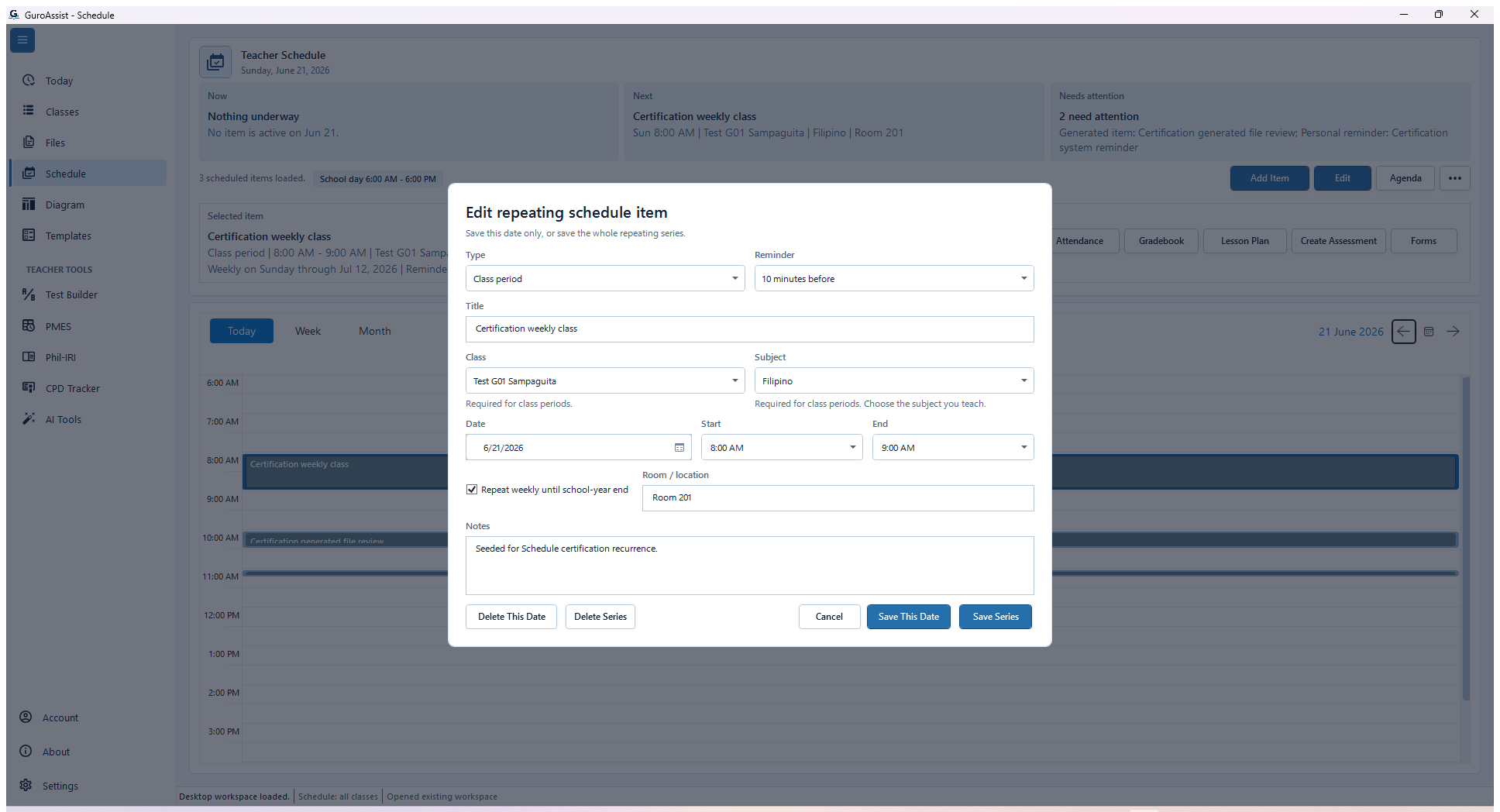 View full size
Sample data only. The exact button label determines whether one occurrence or the whole recurring series changes. Captured July 11, 2026. Step 7
Edit one date or the recurring series
Select a recurring item and choose Edit. Read Edit repeating schedule item, then use Save This Date for only the displayed occurrence or Save Series for the full series. Delete This Date and Delete Series have the same different scopes. Recheck the fields and button label before confirming.
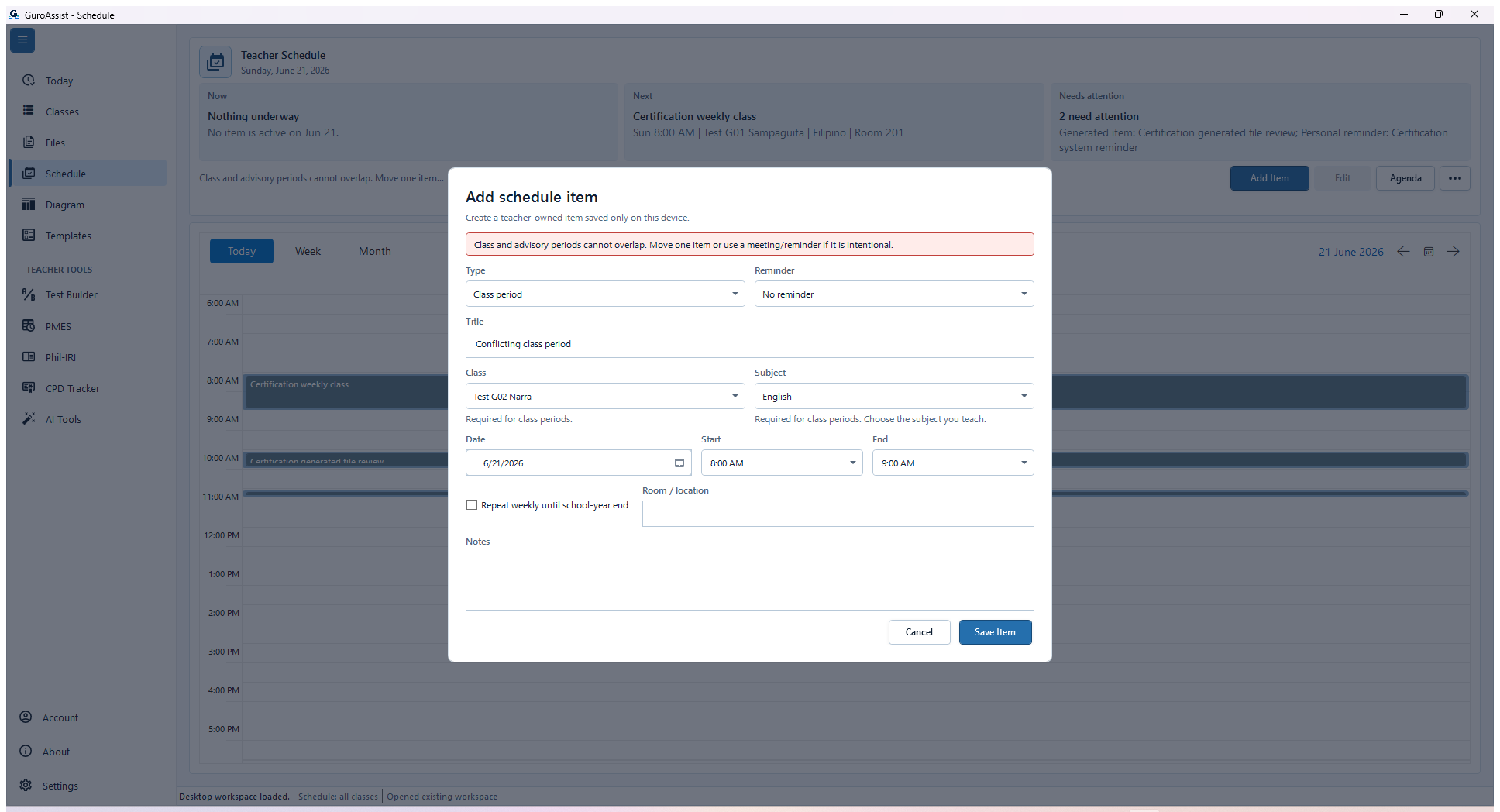 View full size
Sample data only. The conflict must clear before Save Item can be trusted. Captured July 11, 2026. Step 8
Resolve a class-like time conflict
If the editor says a class-like item cannot overlap another class-like item, keep the dialog open and change Date, Start, End, Class, or item Type. Save only after the conflict message clears. A Meeting or Personal reminder may follow different overlap rules, but the item type must remain truthful.
 View full size
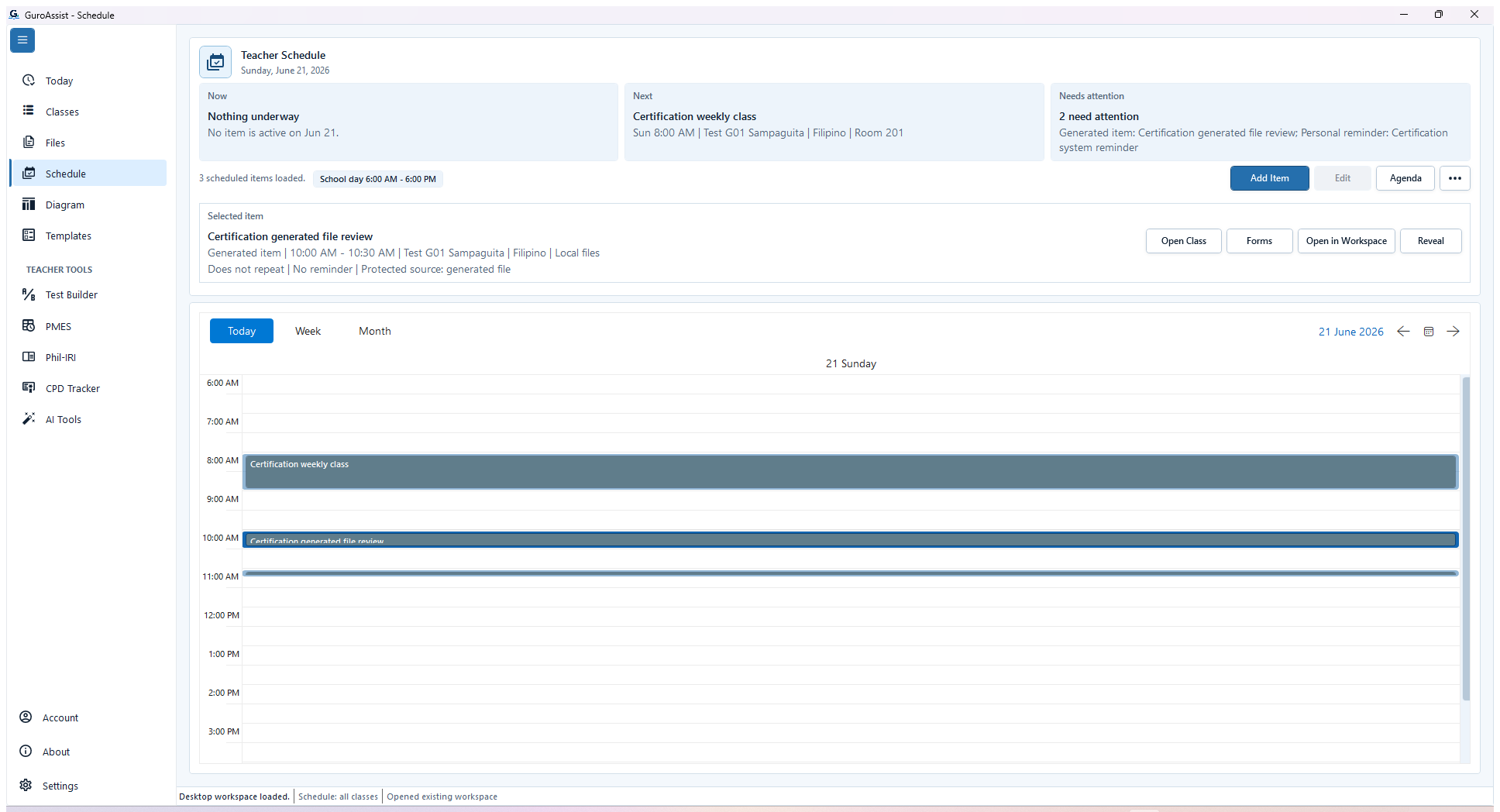
Sample data only. Protected or generated sources expose safe open and reveal actions instead of teacher-owned edit controls. Captured July 11, 2026. Step 9
Use protected or generated item actions safely
Read Selected item details, including type, time, class, source, and Protected source. The pictured generated-file item offers Open Class, Forms, Open in Workspace, and Reveal instead of edit controls. Use only the action that matches the source; teacher-owned items have their own class actions.
 View full size
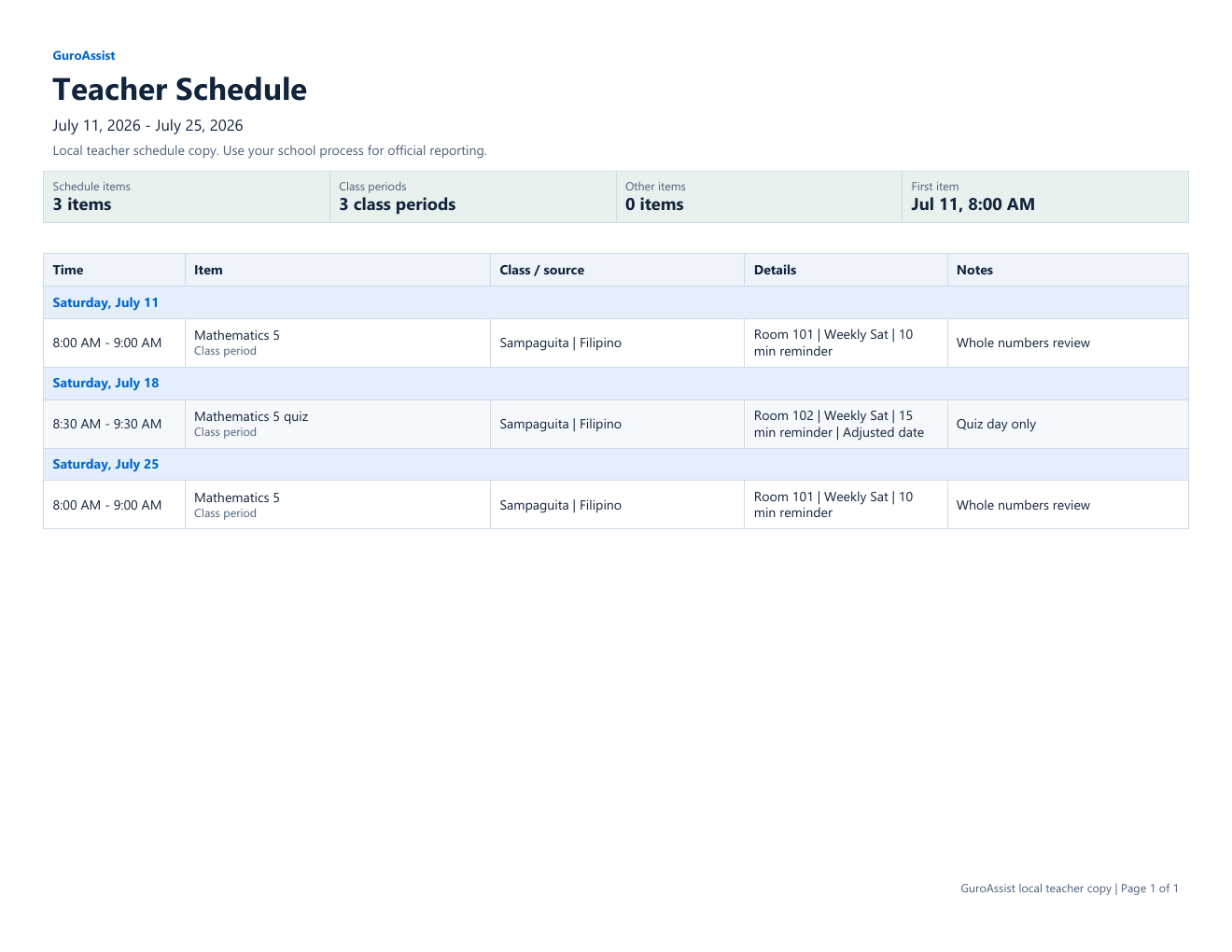
Sample data only. The opened PDF matches the reviewed visible plan and is labeled as a local teacher schedule copy. Captured July 11, 2026. Step 10
Export or print the visible plan and inspect the PDF
Open More actions and choose Export PDF or Print. After export, wait for PDF exported, then choose Open PDF. Check the visible date range, item count, times, class or source, room, recurrence, reminder, notes, local teacher schedule wording, and page layout. Show in folder reveals the saved local file.
The exported schedule is a local teacher copy and does not replace official school reporting.


Review
Check these before relying on the work
These checks cover saved, previewed, generated, and teacher-review states.
Date and view are correct
Today, Week, Month, or Agenda shows the period the teacher intends to plan.
Class-linked details match
Class period, advisory, assessment, and remediation items point to the intended class and subject.
Recurrence scope is understood
Single-occurrence and series edits or deletes affect only the intended dates.
Conflicts are reviewed
Overlapping class-like items are corrected or deliberately understood before saving.
Protected items remain protected
Generated or policy-owned blocks are opened in their source workspace instead of being rewritten as teacher reminders.
Blocked states and recovery
Fix the blocker before continuing
Use the direct recovery action when GuroAssist is waiting for setup, data, access, policy, or file readiness.
Required item details missing
Title, type, date, valid time range, and required class or subject details must be complete.
After recovery: The intended class appears in the workspace header and the task uses that class.
Review class setupTime range is invalid
The end time must be later than the start time.
After recovery: The blocker is no longer shown, and the intended next action is available for teacher review.
Troubleshoot this blockerClass-like items overlap
Review the reported conflict before saving a competing teaching block.
After recovery: The blocker is no longer shown, and the intended next action is available for teacher review.
Review class setupAgenda is empty
No agenda items are saved for the selected range; add a local class period, reminder, deadline, or non-teaching block before expecting rows.
After recovery: The intended class appears in the workspace header and the task uses that class.
Review class setupClass setup is missing
Class-linked quick actions stay limited until a class, learner list, subject, and other required setup are ready.
After recovery: The intended class appears in the workspace header and the task uses that class.
Review roster helpQuick-action setup is incomplete
Attendance, Gradebook, Lesson Plan, Assessment, or Forms may still need class, learner, subject, grade, or template readiness.
After recovery: The intended learner is selected and the learner-dependent action is available.
Review roster help
Safety note
Schedule is a local teacher planning aid. It does not sync to Google Calendar or Outlook, notify other people, publish a school calendar, or create an approval or official-reporting workflow.
Finish
Verify the result
Do not treat a saved screen or generated filename as proof that the work is ready.
You’re done when
Schedule shows the intended date range and item; a generated PDF opens locally and matches the reviewed schedule.
Guide details
Guide verification
Use these details to confirm that this guide matches the GuroAssist version and school year you are using.
- Verification
- Verified with GuroAssist 1.0.0.0
- Last reviewed
- July 11, 2026
- Screenshots
- Captured July 11, 2026
- Applies to
- 2026–2027
Was this helpful?
Choose an answer or report a guide that needs attention. No class, learner, or free-text data is sent by these buttons.
Related guides
Continue only where it helps
Create and manage classes and learners
How do I create the right class before adding learners and daily work?
Use Attendance and Seat Map
How do I mark attendance quickly without losing the date, status, or saved-state checks?
Review Gradebook work
How do I create assessments, enter scores, and know when grades are safe to use?
Prepare lesson plans
Where do daily and weekly plans start?
Use Forms and Files safely
How do I review official-looking outputs?
Find generated files in GuroAssist
How do I find and review generated files after they are created?
Back up or restore local work
Protect local records before reinstalling, restoring, or moving laptops.