
Step-by-step guide
Use Attendance and Seat Map
Use Seat Map or Roster for the selected class and date, review every exception, save local attendance deliberately, and keep learning-continuity notes separate from official reporting.
Teacher goal
How do I mark attendance quickly without losing the date, status, or saved-state checks?
Use this guide when this is the task in front of you. Stop if the selected class, learner, role, school year, file, or output does not match.
In-app path
- Classes
- Open class workspace
- Attendance
Get ready
Check the starting point
These are the minimum conditions for the workflow to make sense.
Before you start
Estimated time: About 10–20 minutes
- A saved class with active learners
- The date and class role needed for Attendance or Insights
- Any room or roster changes reviewed before marking the day
You should see
Attendance shows the intended class and date with saved learner marks; Seat Map shows the current saved placement when used.
Detailed workflows
Choose the Attendance and Seat Map workflow you need
Set up or repair the seating layout before relying on Seat Map for daily attendance.
Steps
Complete the task in order
Review choice points, save or preview behavior, and any stop condition before continuing.
 View full size
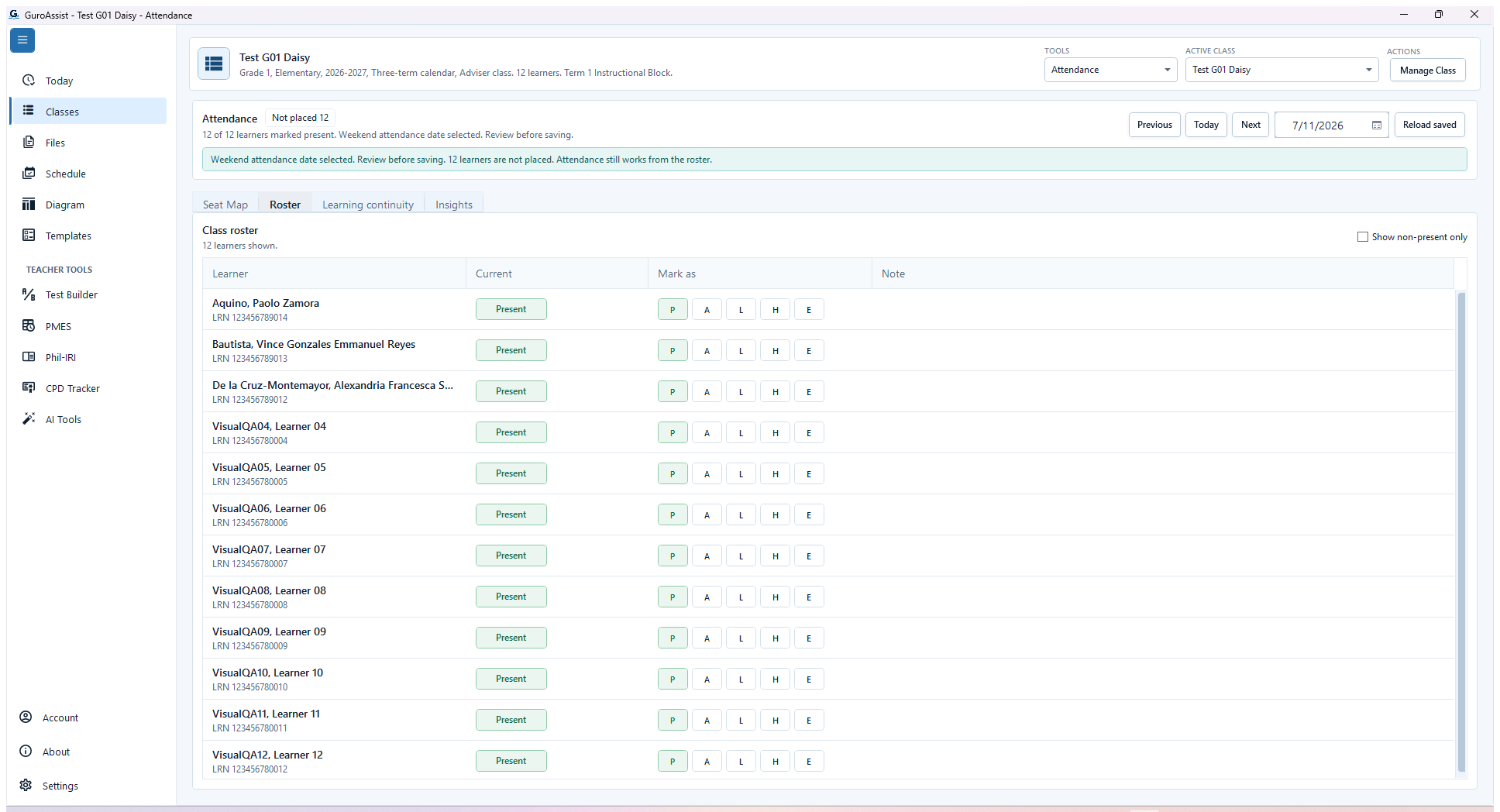
Sample data only. The visible class, date, and complete learner list define which attendance sheet is being edited. Captured July 11, 2026. Step 1
Confirm the class and attendance date
Open the intended class workspace and choose Attendance. Confirm the active class and date. Use Previous, Today, Next, or the date picker to move deliberately; the header summary applies only to the displayed date.
 View full size
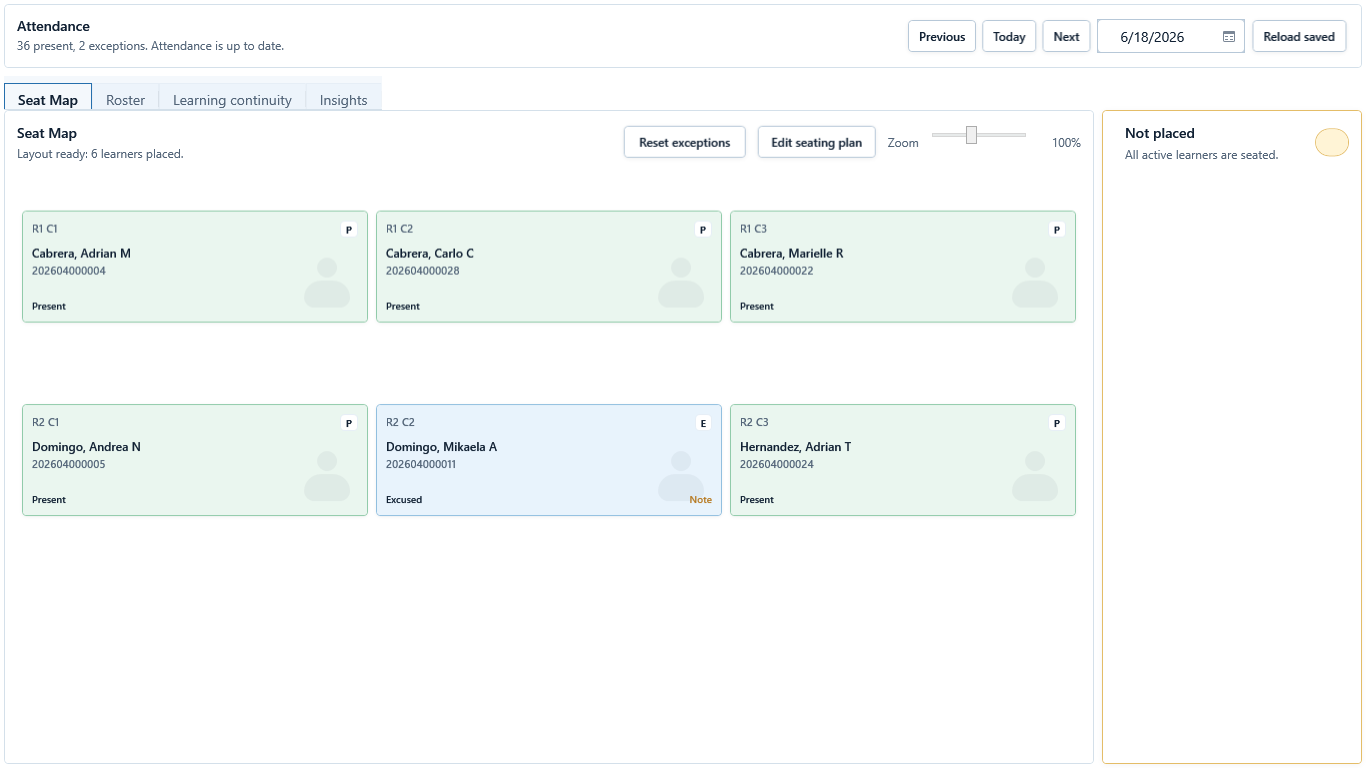
Sample data only. Seat Map and Roster edit the same date; choose the view that includes every learner needed. Captured July 11, 2026. Step 2
Choose Seat Map or Roster
Choose Seat Map for placed learners or Roster for the complete list. If Seat Map shows Not placed, use Roster for attendance until the seating plan is corrected, or choose Edit seating plan from Seat Map.
 View full size
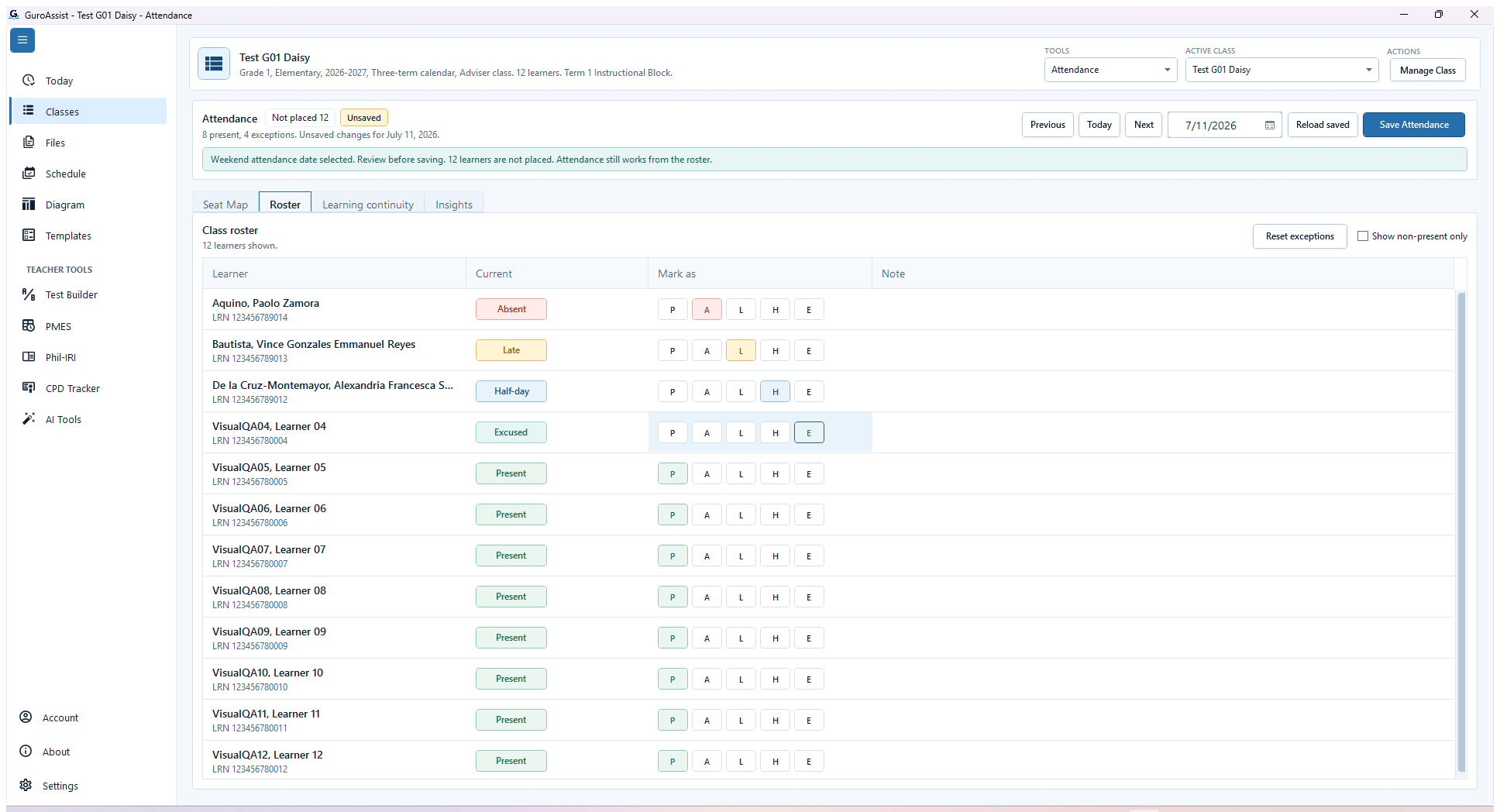
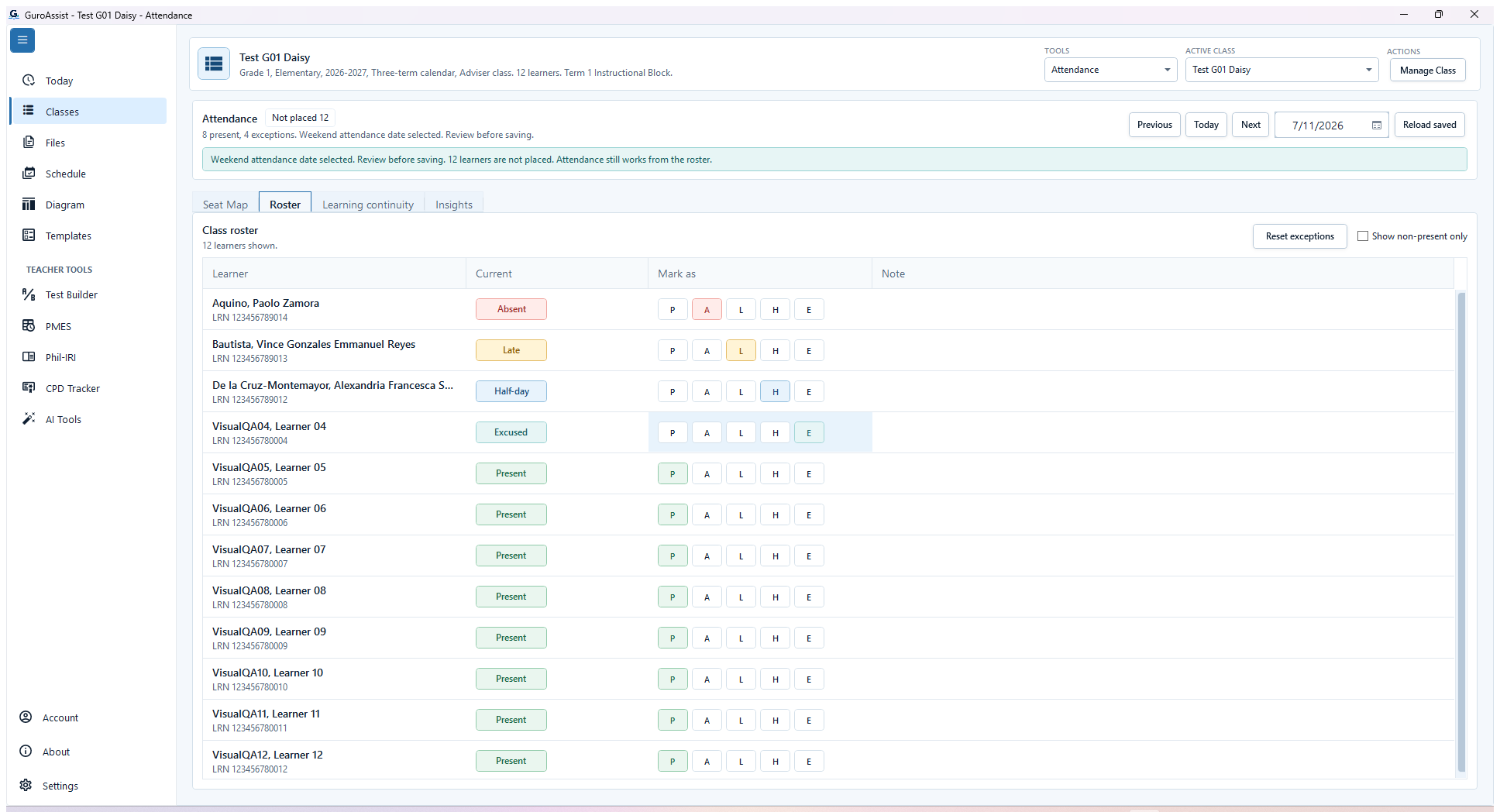
Sample data only. All five statuses are visible; review the unsaved exceptions before choosing Save Attendance. Captured July 11, 2026. Step 3
Mark Present, Absent, Late, Half-day, or Excused
For each learner, choose P for Present, A for Absent, L for Late, H for Half-day, or E for Excused. Add a concise Note for an exception when it helps teacher follow-up. Use Show non-present only to review exceptions, not to hide unmarked learners.
 View full size
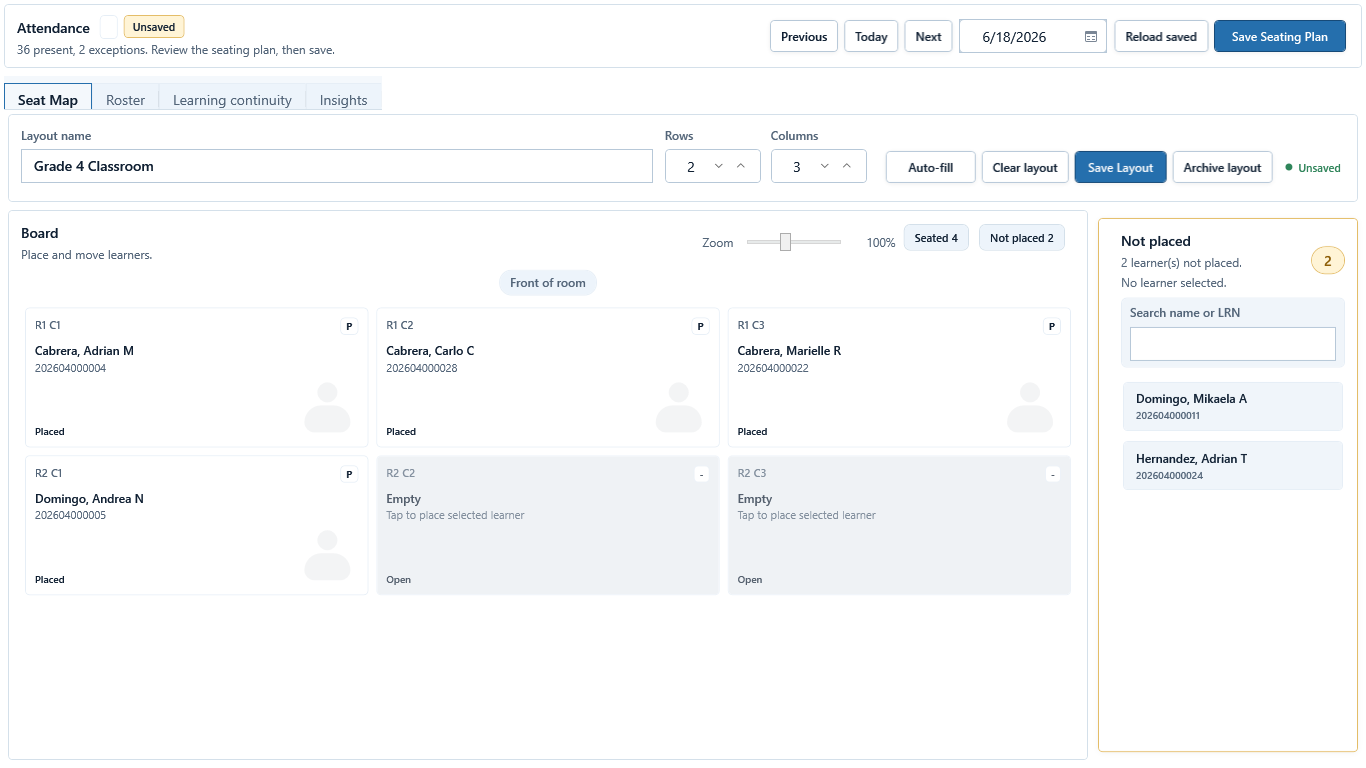
Sample data only. Place every intended learner before relying on Seat Map. Captured July 11, 2026. Step 4
Review Not placed and edit the seating plan
Choose Edit seating plan. Review Layout name, Rows, Columns, placed learners, open seats, and the Not placed list. Select a learner and an open seat, or use Auto-fill when appropriate, then choose Save Layout and Save Seating Plan.
 View full size
Sample data only. The cleared Unsaved state and retained counts are the evidence that this attendance sheet was saved. Captured July 11, 2026. Step 5
Save attendance or reload saved data deliberately
Choose Save Attendance when the attendance draft is complete. Reload saved discards unsaved differences and reloads the last saved attendance or seating state; use it only after deciding that the current changes should be lost. Confirm the Unsaved indicator clears and the summary updates.
Do not use Reload saved as a refresh while you still need unsaved marks.
 View full size
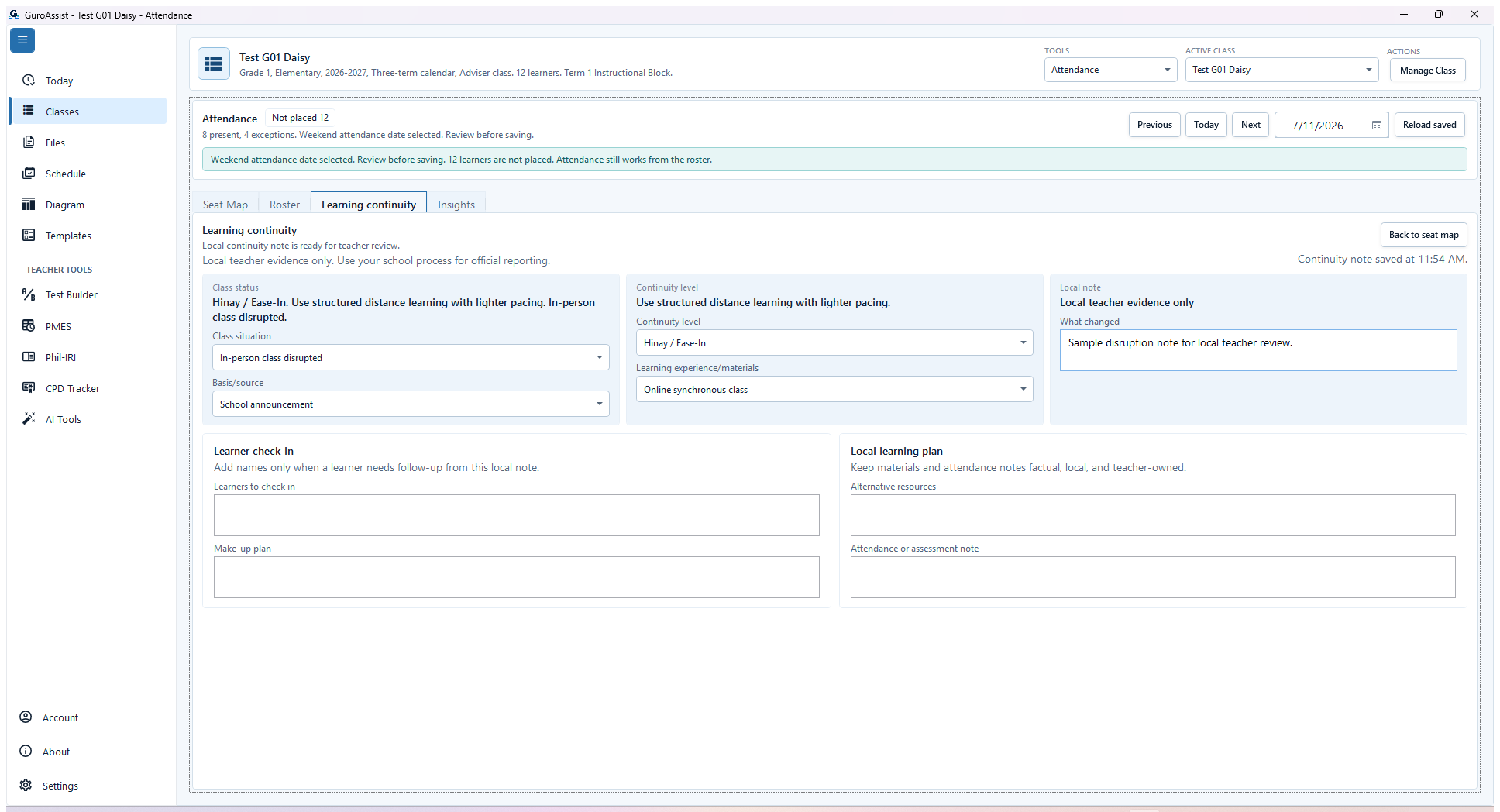
Sample data only. The saved confirmation proves the local continuity note was written for the visible class and date. Captured July 11, 2026. Step 6
Save Learning continuity information when supported
Choose Learning continuity and record the displayed class situation, evidence basis, continuity approach, materials, and factual sample note for the date. Choose Save continuity note and wait for the saved confirmation. This local evidence does not create an approval or division-reporting workflow.
 View full size
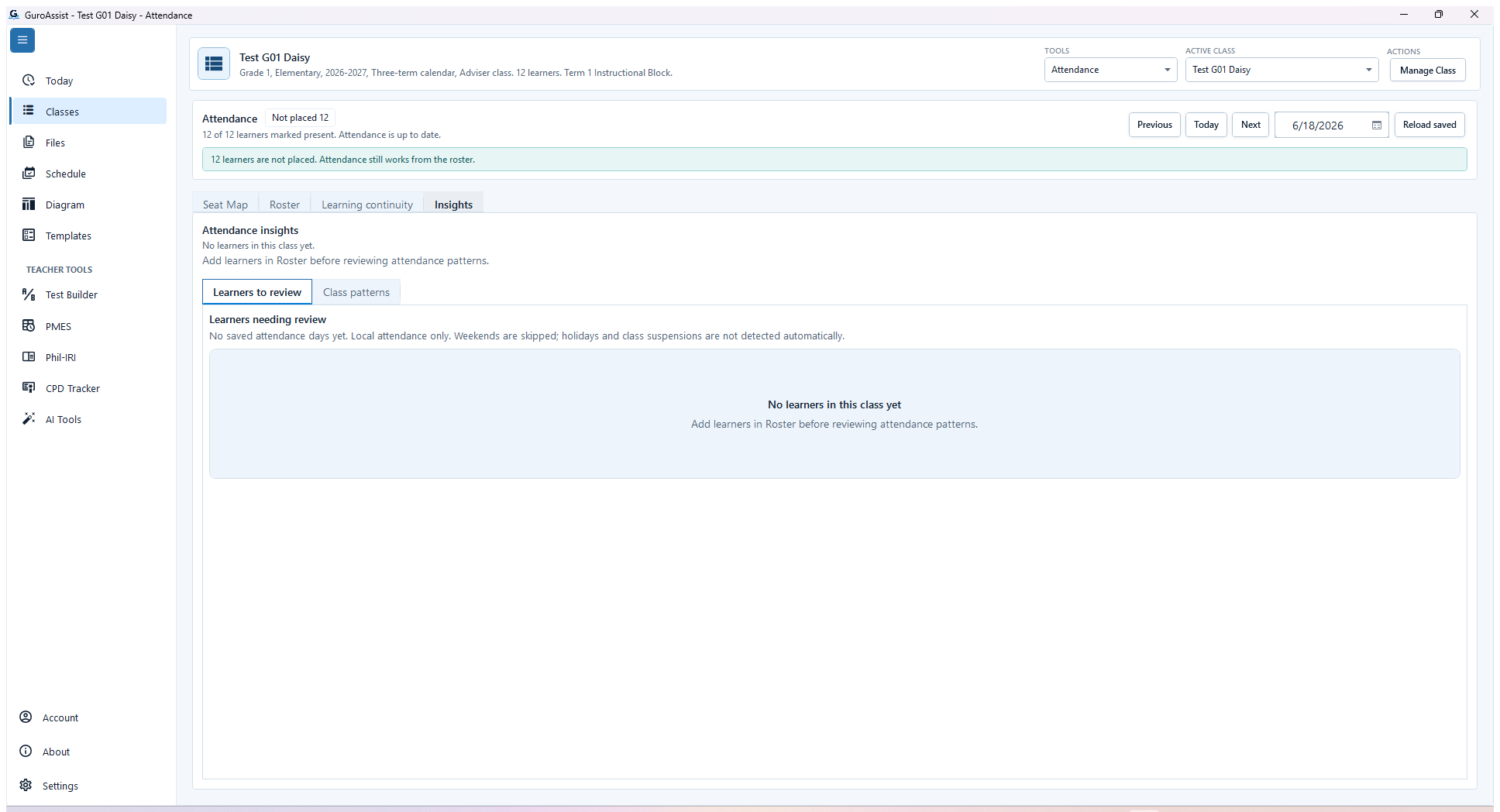
Sample data only. The disagreement is a stop condition; it is not valid evidence of no attendance concern. Captured July 11, 2026. Step 7
Recognize when Insights cannot load the active learner set
Choose Insights only when the current role allows it. If the active-class header shows learners but Insights says no learners are in the class, treat the screen as unavailable: choose Reload saved, leave and reopen Attendance, and confirm the class again. Do not interpret the empty cards as a zero-concern result.
 View full size
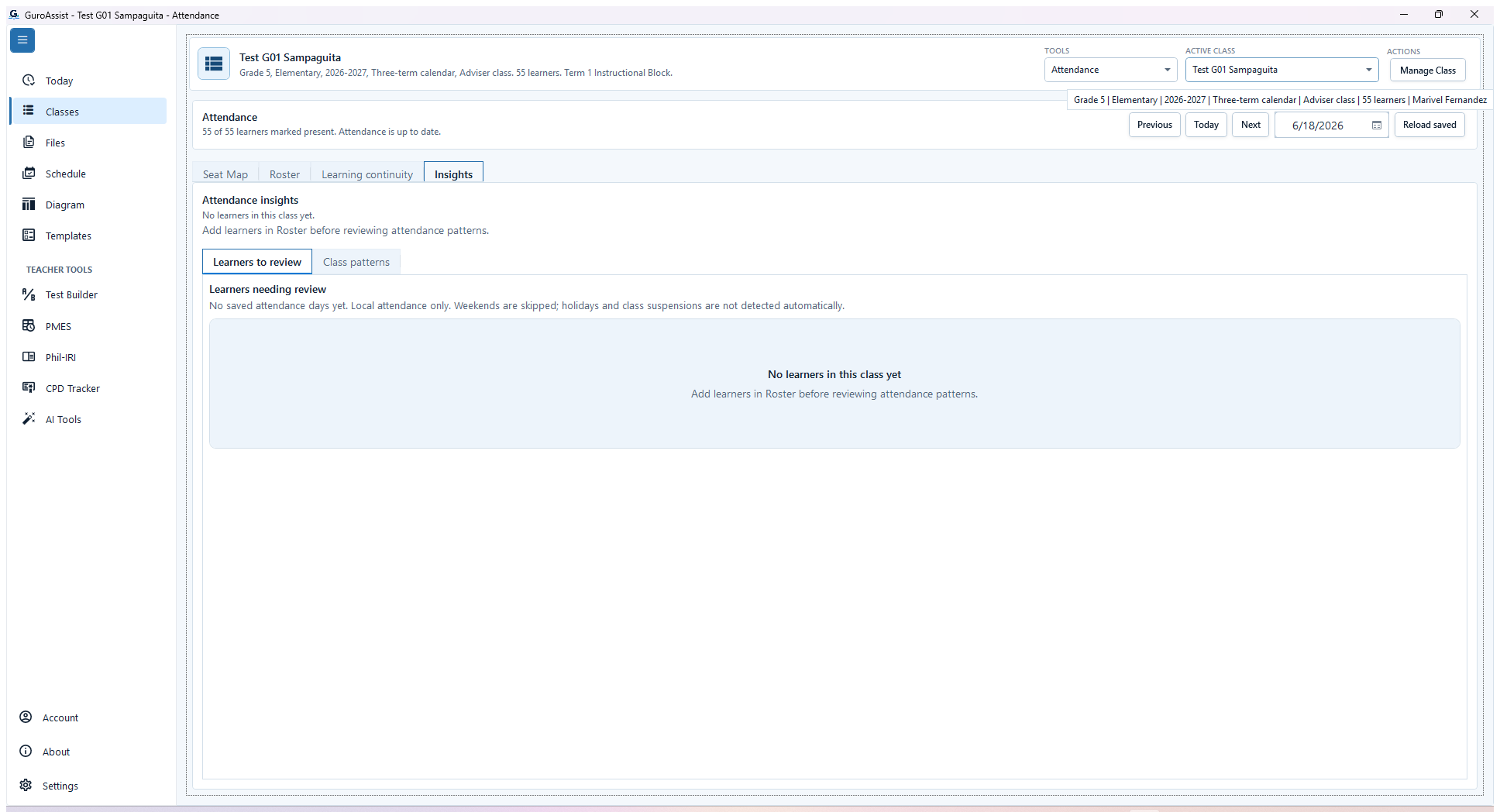
Sample data only. No-data or unavailable data is an honest stop state and must not be treated as zero concern. Captured July 11, 2026. Step 8
Recognize honest no-data and blocked Insights states
When Insights has no usable attendance history or cannot load learner data, read the displayed message and return only after saving legitimate attendance or resolving the named blocker. Subject-teacher and missing-data restrictions must remain in place; do not invent records to populate charts.


Review
Check these before relying on the work
These checks cover saved, previewed, generated, and teacher-review states.
Class and date are visible
The selected class and attendance date match the school day being recorded.
Every exception is intentional
Absent, Late, Half-day, and Excused choices have been reviewed; notes are present where useful.
Seat map matches the room
Placed and Not placed learners reflect the current seating plan before quick marking is trusted.
Saved state is clear
The screen reports Attendance is up to date before the teacher moves on or generates dependent work.
Continuity remains local
Learning-continuity entries are described as local teacher evidence, not official incident reporting.
Blocked states and recovery
Fix the blocker before continuing
Use the direct recovery action when GuroAssist is waiting for setup, data, access, policy, or file readiness.
No class or learners
Choose a class with active learners before attendance and seating actions become meaningful.
After recovery: The intended learner is selected and the learner-dependent action is available.
Review roster helpNo seating layout
Use Create layout or Use roster; do not treat an empty Seat Map as missing attendance data.
After recovery: The blocker is no longer shown, and the intended next action is available for teacher review.
Review roster helpWrong class or date
Stop and switch to the intended class and date before marking or saving attendance.
After recovery: The intended class appears in the workspace header and the task uses that class.
Review class setupUnsaved differences remain
Save the intended state or confirm Reload saved before changing date or leaving the workflow.
After recovery: The blocker is no longer shown, and the intended next action is available for teacher review.
Troubleshoot this blockerSaved data is stale
Reload the saved attendance and verify the date before editing when another change or device session may have updated the record.
After recovery: The blocker is no longer shown, and the intended next action is available for teacher review.
Troubleshoot this blockerDependent form is not ready
Attendance-related Forms remain blocked until the required saved days, class setup, template, and period readiness are complete.
After recovery: The intended class appears in the workspace header and the task uses that class.
Review class setupInsights is adviser-only
Learners to review and Class patterns stay blocked for a subject-teaching class. Use the available local subject workflow, or correct My role in this class only if the teacher is also the adviser.
After recovery: The intended learner is selected and the learner-dependent action is available.
Review class roles
Safety note
Attendance, seating, continuity, and Insights are local teacher tools. They do not submit official attendance or replace the school's reporting process.
Finish
Verify the result
Do not treat a saved screen or generated filename as proof that the work is ready.
You’re done when
Attendance shows the intended class and date with saved learner marks; Seat Map shows the current saved placement when used.
Glossary
Expand the terms used in this guide
Use the plain-language meaning here, then follow the exact label in GuroAssist.
- SF2
- Daily Attendance Report of Learners.
Guide details
Guide verification
Use these details to confirm that this guide matches the GuroAssist version and school year you are using.
- Verification
- Verified with GuroAssist 1.0.0.0
- Last reviewed
- July 11, 2026
- Screenshots
- Captured July 11, 2026
- Applies to
- 2026–2027
Was this helpful?
Choose an answer or report a guide that needs attention. No class, learner, or free-text data is sent by these buttons.
Related guides
Continue only where it helps
Set up a seat layout
How do I set up seats so attendance and class checks are easier?
Create and manage classes and learners
How do I create the right class before adding learners and daily work?
Manage the class roster
How do I add, find, import, review, or withdraw a learner without changing the wrong class?
Use Learner Support
How do I keep learner notes, requirements, referrals, and history useful without oversharing?
Prepare SF2
What should I check before previewing or generating SF2 attendance?
Back up or restore local work
Protect local records before reinstalling, restoring, or moving laptops.
Understand file status labels
Learn what Local, Draft, Final, Official-ready, Review-only, and Blocked mean.