
Detailed workflow guide
Set up a seat layout
Seat layout setup helps the teacher arrange learners in a local classroom map before using quick attendance and learner checks.
Teacher goal
How do I set up seats so attendance and class checks are easier?
Use this guide when this is the task in front of you. Stop if the selected class, learner, role, school year, file, or output does not match.
In-app path
- Classes
- Open class workspace
- Seat Map
- Edit seating plan
Get ready
Check the starting point
These are the minimum conditions for the workflow to make sense.
Before you start
Estimated time: About 5–10 minutes
- A saved class with its active learner list
- The room layout or seat count you intend to use
- Any unsaved attendance or layout changes resolved
You should see
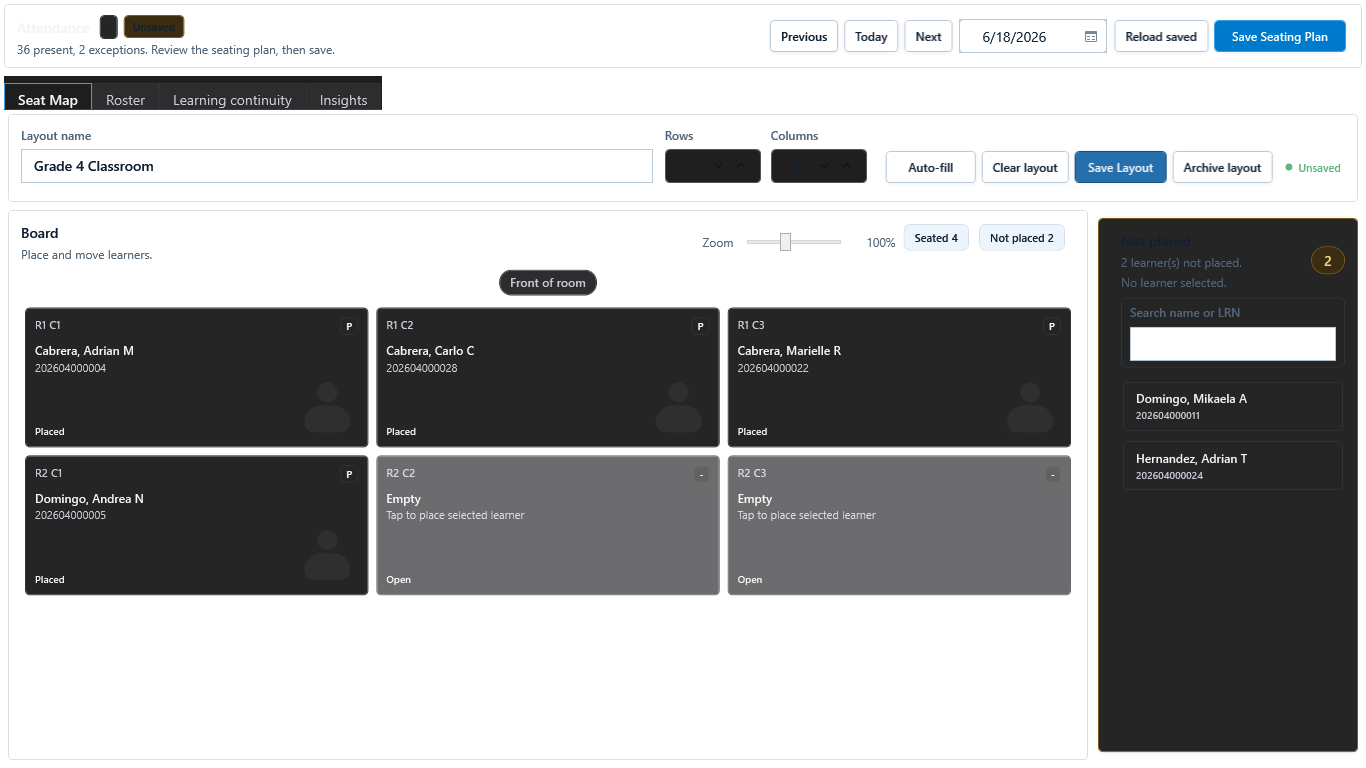
Seat Map shows the saved room layout, placed learners, open seats, and any learners still waiting to be placed.
Steps
Complete the task in order
Review choice points, save or preview behavior, and any stop condition before continuing.
 View full size
Captured July 10, 2026. Step 1
Choose the class
Open the class that needs a seating layout and confirm the roster is current before arranging seats.
- 2
Step 2
Pick or create a layout
Start from the current seating area, then add rows, columns, or open seats that match the real classroom.
- 3
Step 3
Place learners carefully
Drag or choose learners for seats, leaving empty seats where needed so the map stays easy to read.
- 4
Step 4
Review unseated learners and room changes
Keep learners who are not seated yet in a clear unseated list, update the layout after room changes, and review the map before using it for daily attendance.
- 5
Step 5
Save and use for attendance
Save the layout, then open Seat Map or Attendance to use quick learner actions from the saved seats.

Review
Check these before relying on the work
These checks cover saved, previewed, generated, and teacher-review states.
Roster is current
Review learners who were withdrawn or otherwise removed from the current local roster before seats are assigned.
Unseated learners stay visible
Learners without seats should remain easy to find until the teacher intentionally places them.
Empty seats are intentional
Blank seats should mean open spaces, not missing learners.
Room changes are reviewed
After room changes or seating cleanup, review the map before using it for attendance.
Layout matches the room
Rows, groups, or table clusters should be easy for the teacher to scan during class.
Attendance actions are clear
Seat Map should support quick attendance without hiding the full class layout.
Blocked states and recovery
Fix the blocker before continuing
Use the direct recovery action when GuroAssist is waiting for setup, data, access, policy, or file readiness.
No class selected
Choose the class before creating or editing a seat layout.
After recovery: The intended class appears in the workspace header and the task uses that class.
Review class setupRoster is empty
Add learners first so the layout has records to place.
After recovery: The intended learner is selected and the learner-dependent action is available.
Review roster helpUnsaved layout changes
Save or discard current seating changes before switching classes.
After recovery: The blocker is no longer shown, and the intended next action is available for teacher review.
Review class setupLearner status changed
Review seats again after a local withdrawal or other roster cleanup work.
After recovery: The intended learner is selected and the learner-dependent action is available.
Review roster helpRoom changed
Review unseated learners, open seats, and table groups before marking attendance from the map.
After recovery: The intended learner is selected and the learner-dependent action is available.
Review roster help
Safety note
Seat layouts are local classroom helpers. They do not change official enrollment records, and teachers should back up local class data after large seating or roster changes.
Finish
Verify the result
Do not treat a saved screen or generated filename as proof that the work is ready.
You’re done when
Seat Map shows the saved room layout, placed learners, open seats, and any learners still waiting to be placed.
Glossary
Expand the terms used in this guide
Use the plain-language meaning here, then follow the exact label in GuroAssist.
- ECR
- Electronic Class Record; official-looking output remains blocked until the selected class is ready.
Guide details
Guide verification
Use these details to confirm that this guide matches the GuroAssist version and school year you are using.
- Verification
- Verified with GuroAssist 1.0.0.0
- Last reviewed
- July 11, 2026
- Screenshots
- Captured July 10, 2026
- Applies to
- 2026–2027
Was this helpful?
Choose an answer or report a guide that needs attention. No class, learner, or free-text data is sent by these buttons.
Related guides
Continue only where it helps
Use Attendance and Seat Map
How do I mark attendance quickly without losing the date, status, or saved-state checks?
Manage the class roster
How do I add, find, import, review, or withdraw a learner without changing the wrong class?
Back up or restore local work
Protect local records before reinstalling, restoring, or moving laptops.