
Step-by-step guide
Prepare Recognition files
Recognition separates grade-policy checks, local evidence, outside review, approved-list recording, and certificate output so the teacher can see what is draft, waiting, or ready for final use.
Teacher goal
How do I prepare a recognition list and certificates without treating a local draft as approved?
Use this guide when this is the task in front of you. Stop if the selected class, learner, role, school year, file, or output does not match.
In-app path
- Classes
- Open class workspace
- Recognition
Get ready
Check the starting point
These are the minimum conditions for the workflow to make sense.
Before you start
Estimated time: About 10–20 minutes
- The correct class, period, and learner records
- Complete grade or descriptive records as applicable
- The current policy/readiness message and an approved list before a final certificate
You should see
Recognition shows the intended period, review-packet status, outside-review step, approved-list status, and final certificate readiness.
Steps
Complete the task in order
Review choice points, save or preview behavior, and any stop condition before continuing.
 View full size
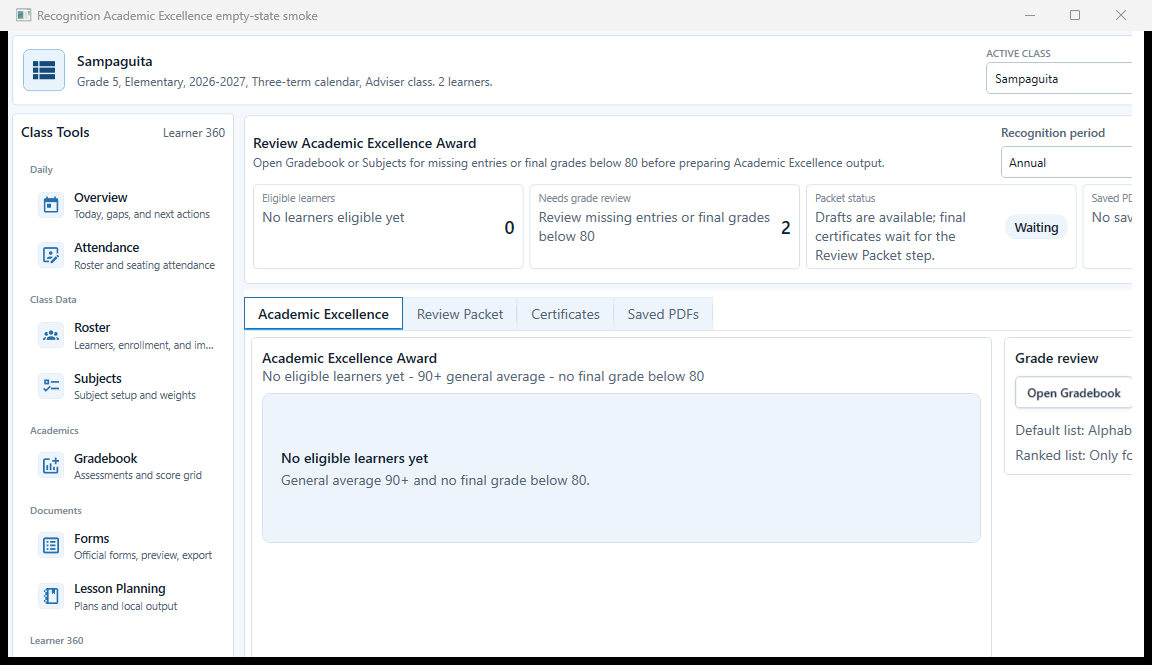
Sample data only. The class header and readiness metrics establish the recognition scope and next correction path. Captured July 12, 2026. Step 1
Open Recognition in the correct class
Choose Classes, open the intended class, then choose Recognition. Confirm the class, grade, school year 2026-2027, recognition period, grade mode, eligible count, grade-review count, packet status, and saved-PDF count before acting.
Expected result: The class header and readiness metrics establish the recognition scope and next correction path.
 View full size
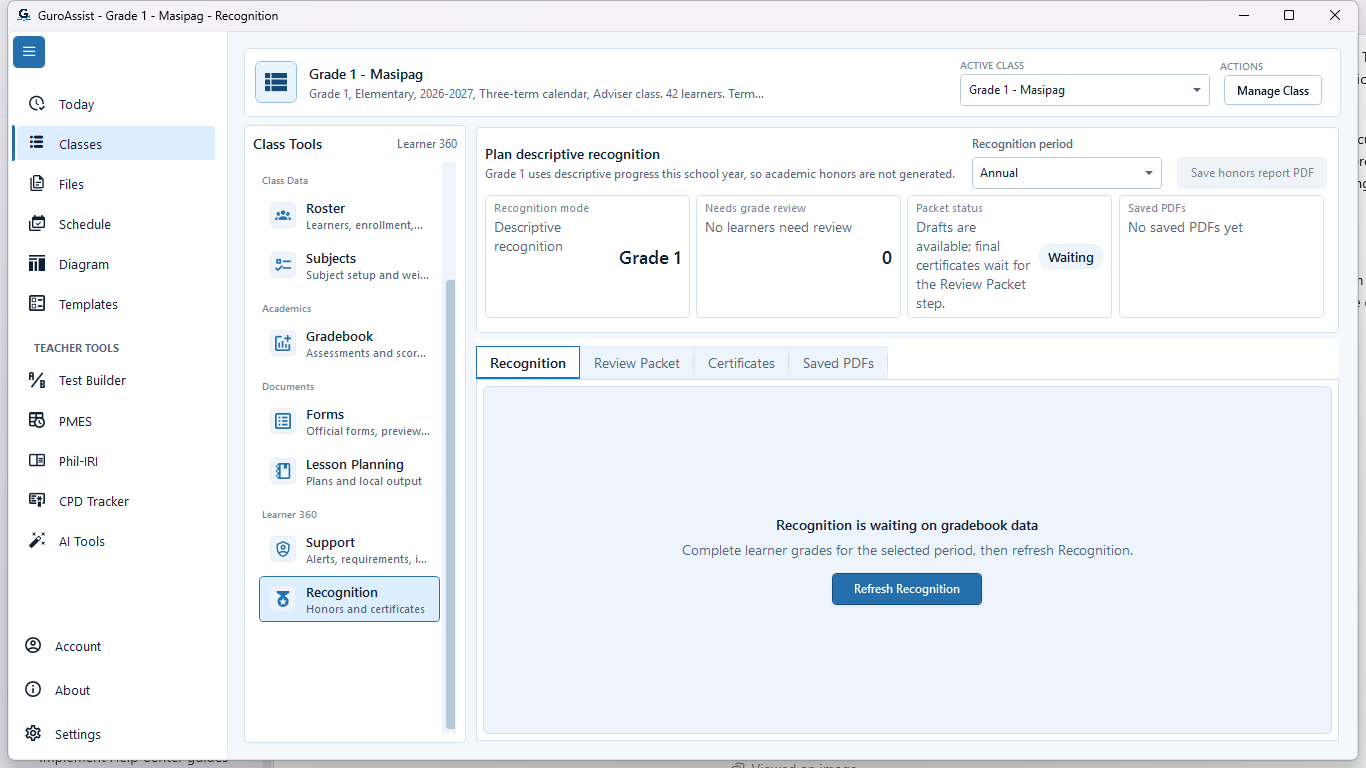
Sample data only. Academic candidates remain blocked until the underlying grade records are complete and supported. Captured July 11, 2026. Step 2
Fix grade blockers in Gradebook before continuing
When Recognition reports missing entries or grades below the required floor, choose the Gradebook correction action, complete and review the intended term there, then return to Recognition and reload. Do not infer academic eligibility from partial grades.
Expected result: Academic candidates remain blocked until the underlying grade records are complete and supported.
 View full size
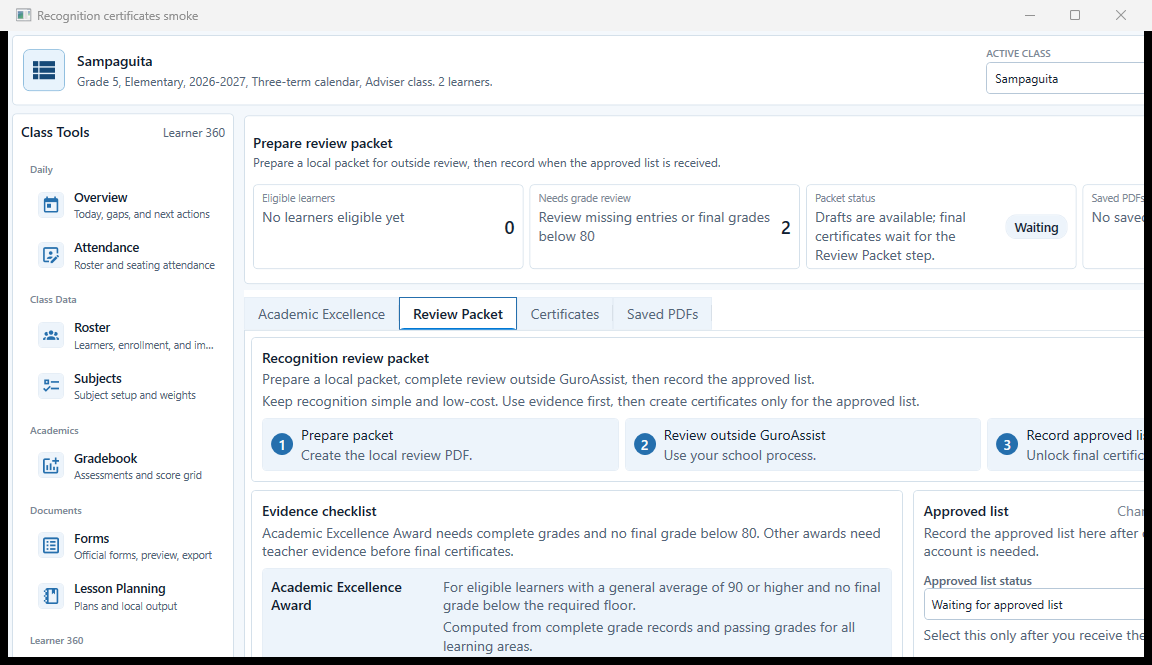
Sample data only. Waiting records that the packet exists but no outside approved list has been received. Captured July 12, 2026. Step 3
Prepare the review packet and keep Waiting honest
Open Review Packet, check the evidence list, then choose Prepare review packet. Review the saved PDF outside GuroAssist. Leave Approved list status at Waiting for approved list until an actual outside response is received.
Expected result: Waiting records that the packet exists but no outside approved list has been received.
 View full size
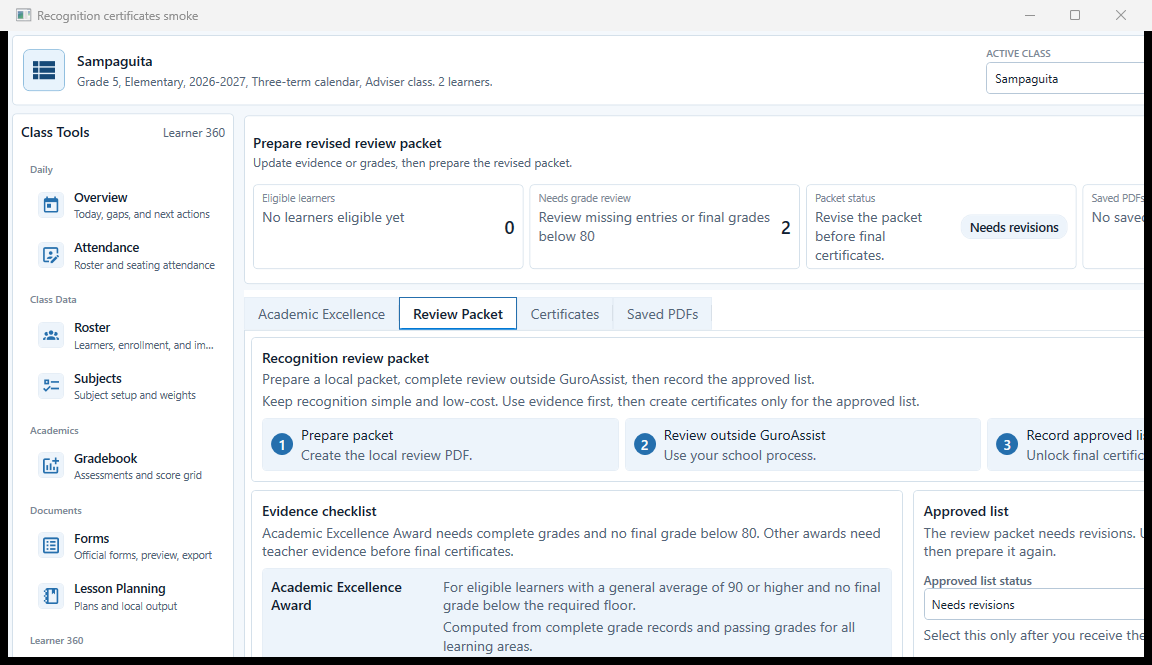
Sample data only. Returned changes are recorded locally without implying that GuroAssist approved or rejected the list. Captured July 12, 2026. Step 4
Record Needs revisions when the packet is returned
If the outside reviewer returns changes, choose Needs revisions, save the local status, correct the named grades or evidence, and prepare a revised packet. Final certificates remain locked while revisions are outstanding.
Expected result: Returned changes are recorded locally without implying that GuroAssist approved or rejected the list.
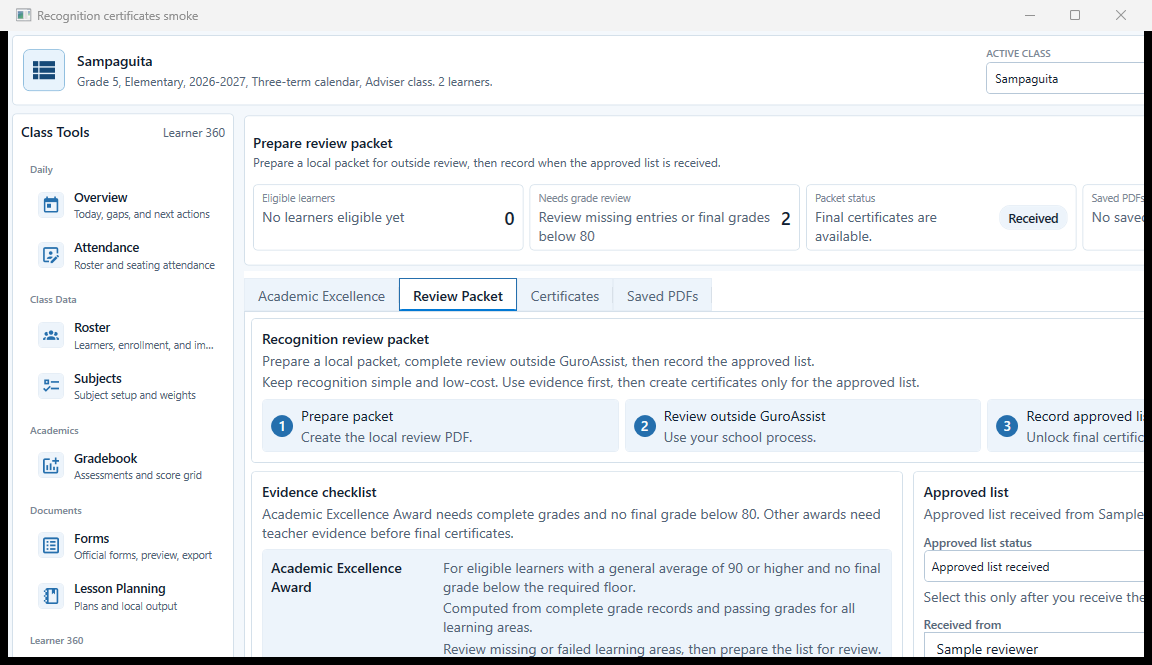 View full size
Sample data only. Receipt details unlock supported final-certificate readiness without claiming in-app approval. Captured July 12, 2026. Step 5
Record Approved list received only after outside review
After receiving the actual approved list outside GuroAssist, choose Approved list received, enter the received date, reviewed-by name, and notes, then save. This records receipt locally; it does not create an approval workflow inside GuroAssist.
Expected result: Receipt details unlock supported final-certificate readiness without claiming in-app approval.
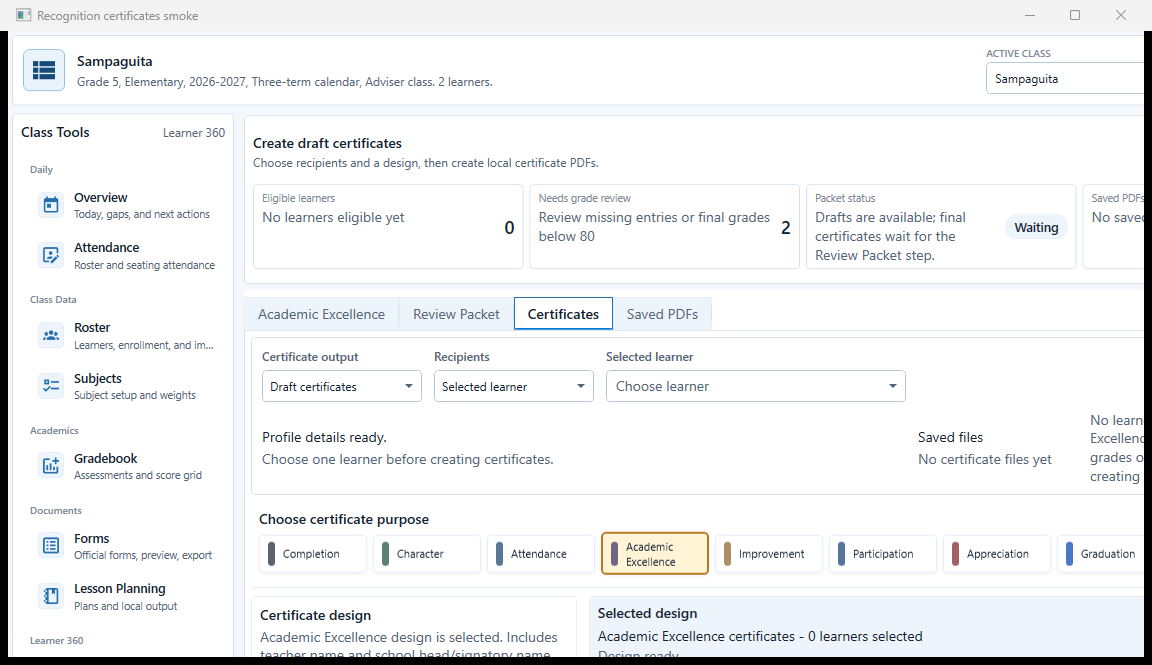 View full size
Sample data only. Certificate generation remains a deliberate recipient, purpose, design, and readiness decision. Captured July 12, 2026. Step 6
Configure certificate purpose, recipient, and design
Open Certificates. Choose Draft or Final certificates, recipient mode and learner, certificate purpose, wording, and design. Read profile, grade, approved-list, and template blockers; create only the supported recipients whose names and basis were verified.
Expected result: Certificate generation remains a deliberate recipient, purpose, design, and readiness decision.
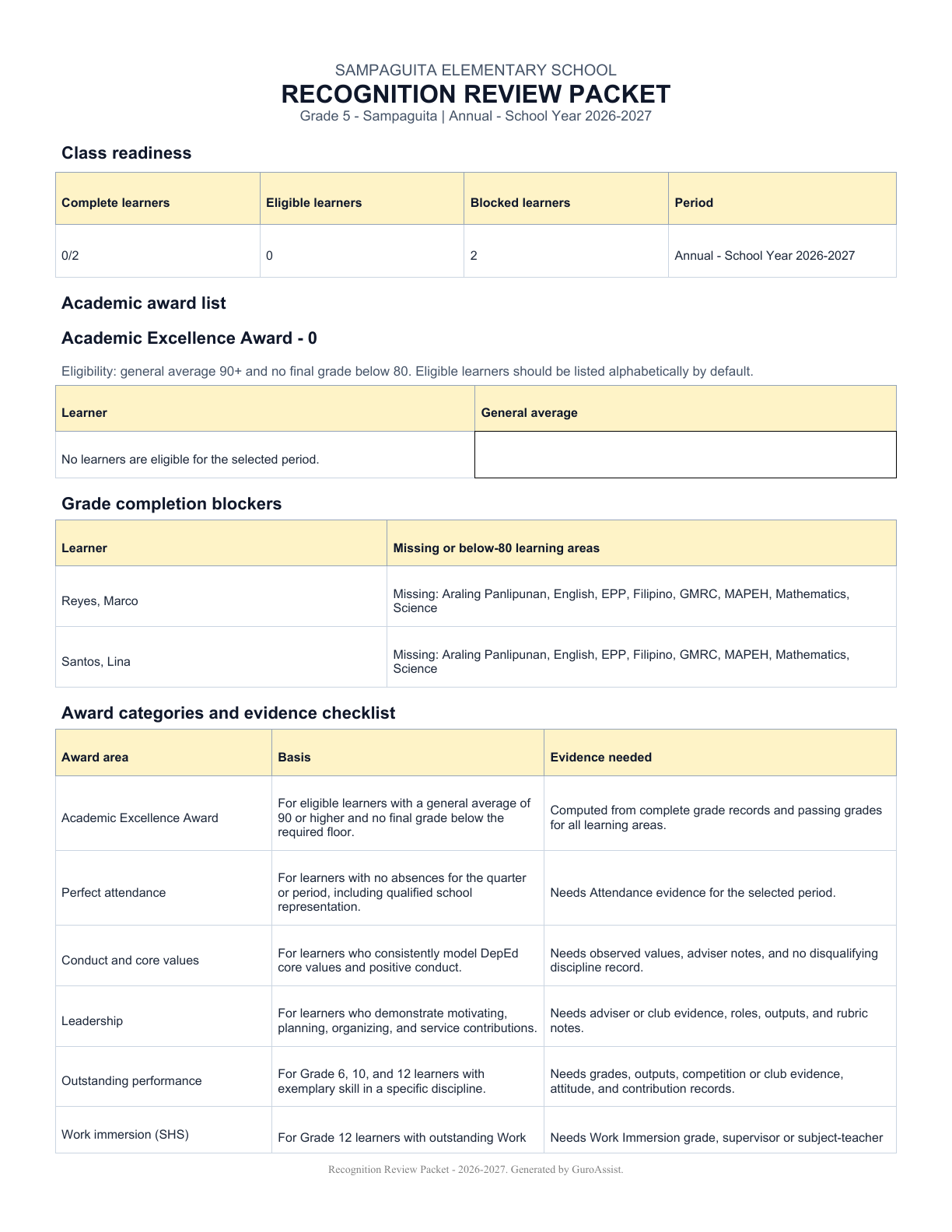 View full size
Sample data only. The actual packet is a teacher-owned review artifact and must be checked page by page. Captured July 12, 2026. Step 7
Open and inspect the actual review-packet PDF
Open the generated review packet and inspect both pages. Verify the fictional class, Annual period, school year 2026-2027, eligible and blocked counts, grade blockers, evidence checklist, outside-review tracker, prepared-by line, and local wording.
Expected result: The actual packet is a teacher-owned review artifact and must be checked page by page.
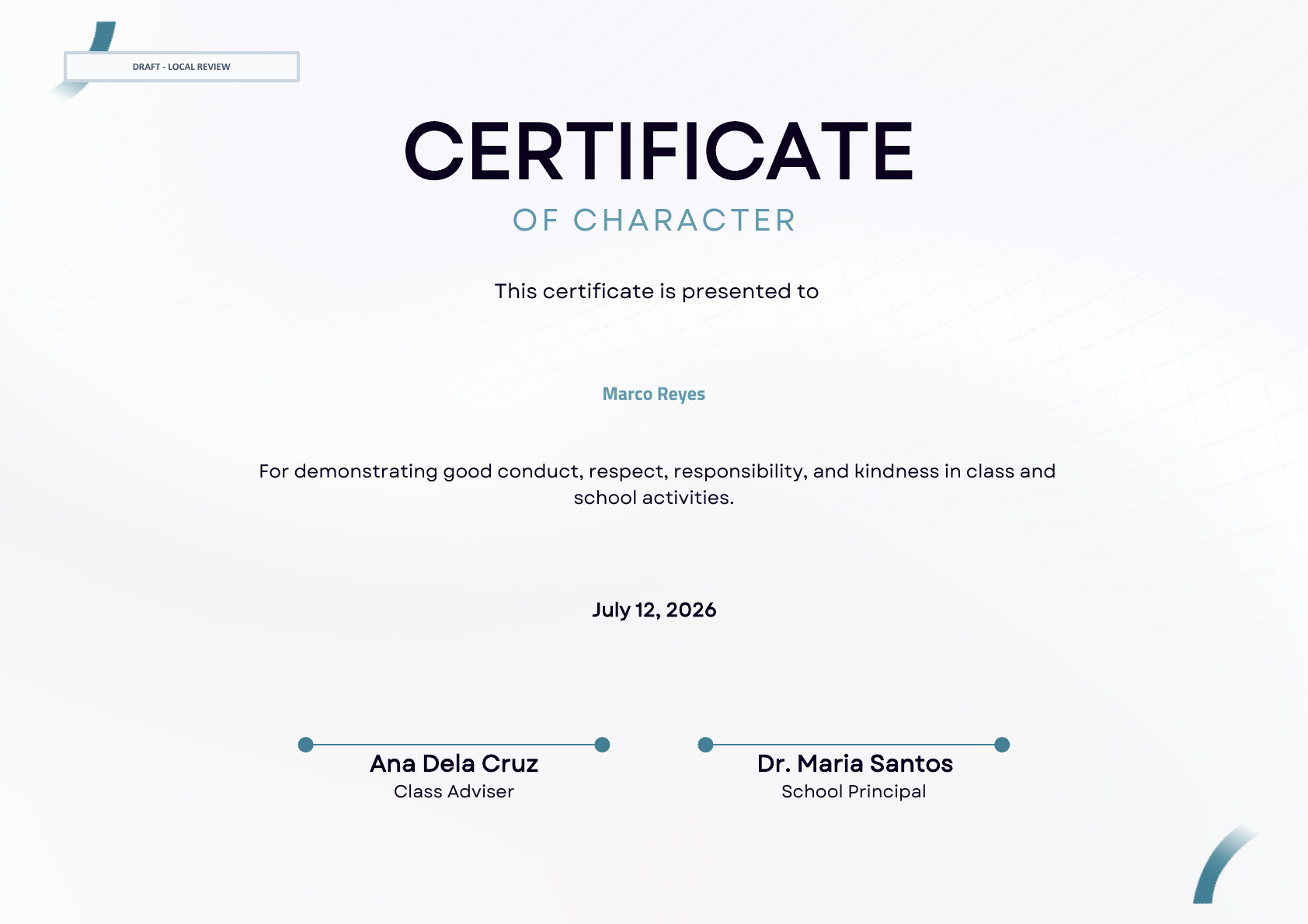 View full size
Sample data only. The visible draft label prevents a local review certificate from being mistaken for final official output. Captured July 12, 2026. Step 8
Open every generated certificate PDF
Open each generated certificate at full size. Verify learner name, certificate purpose and wording, date, teacher and school signatories, alignment, and the visible DRAFT - LOCAL REVIEW label before printing or sharing a draft.
Expected result: The visible draft label prevents a local review certificate from being mistaken for final official output.
 View full size
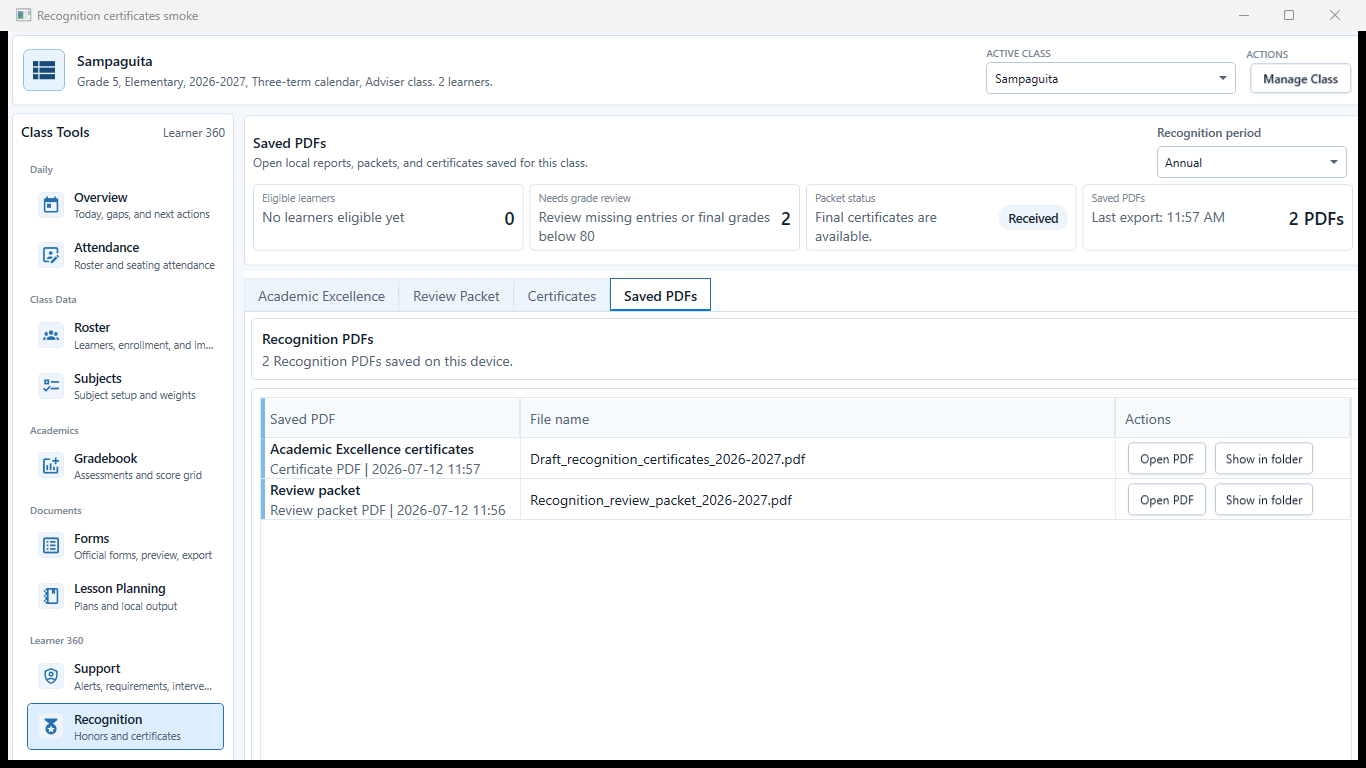
Sample data only. The current two-file history preserves the class, school year, packet, certificate, and local open actions after generation. Captured July 12, 2026. Step 9
Use Saved PDFs to reopen or regenerate
Select the intended file in Saved PDFs and open it or reveal its folder. When identity, policy, grade, or layout is wrong, correct the source and generate a new PDF instead of altering the old status.
Expected result: The current two-file history preserves the class, school year, packet, certificate, and local open actions after generation.


Review
Check these before relying on the work
These checks cover saved, previewed, generated, and teacher-review states.
Grade policy is supported
Grade 1, Grades 2-3 transition, and Grade 4+ behavior match the versioned app policy for the selected school year.
Evidence is complete
Required grades, attendance, or local teacher evidence are present for every proposed recipient.
List order is honest
Alphabetical is the default; ranking appears only when a formal written request requires it.
Approval came from outside GuroAssist
Approved list received, source, and date are recorded only after the real school process is complete.
Actual certificate is inspected
Names, purpose, wording, design, signatory, draft/final label, and every PDF page are checked.
File status
Understand what each output label means
The label describes readiness inside GuroAssist; it does not create outside approval.
- Local
- Saved on this device for teacher use.
- Draft
- Still needs teacher review or editing.
- Final
- The teacher marked the local work final after review.
- Official-ready
- GuroAssist readiness checks passed; this is not DepEd approval or submission.
- Review-only
- Useful for checking, but not an official-ready output.
- Blocked
- Stop and resolve the displayed readiness issue first.
Blocked states and recovery
Fix the blocker before continuing
Use the direct recovery action when GuroAssist is waiting for setup, data, access, policy, or file readiness.
Grade or evidence review is incomplete
Resolve missing grades, grades below the policy floor, attendance evidence, or other purpose-specific evidence.
After recovery: The screen shows a supported school-year or policy readiness message for the selected task.
Troubleshoot this blockerAcademic recognition is unavailable
Grade 1 does not use academic honors; Grades 2-3 wait for the supported transition-policy choice.
After recovery: The screen shows a supported school-year or policy readiness message for the selected task.
Troubleshoot this blockerPolicy is unavailable or needs an update
Stop when the recognition policy is unavailable, the school-year rules need an update, or the grade/year is not supported; do not substitute a remembered rule.
After recovery: The screen shows a supported school-year or policy readiness message for the selected task.
Troubleshoot this blockerLearner details are missing
Recipient selection and certificate output stay blocked until required learner, class, school, and teacher details are complete.
After recovery: The intended class appears in the workspace header and the task uses that class.
Review roster helpApproved list is not received
Final certificates remain locked while the list is Waiting or Returned.
After recovery: The review or approved-list status is visible, and the next certificate step is available only when ready.
Troubleshoot this blockerOutput review is incomplete
Keep the output Local, Draft, Review-only, or Blocked until the actual generated PDF is opened and checked page by page.
After recovery: The blocker is no longer shown, and the intended next action is available for teacher review.
Review generated-file helpProfile, recipient, or policy is incomplete
Required teacher, school, learner, signatory, or versioned school-year details must be ready.
After recovery: The intended learner is selected and the learner-dependent action is available.
Review roster help
Safety note
GuroAssist prepares local evidence and certificate files; it never approves recognition. Final use depends on the teacher's outside school process and an actually received approved list.
Finish
Verify the result
Do not treat a saved screen or generated filename as proof that the work is ready.
You’re done when
Recognition shows the intended period, review-packet status, outside-review step, approved-list status, and final certificate readiness.
Privacy, policy, and official-looking outputs
Keep the work inside its safe boundary
These limits remain in force even when the main task appears complete.
Important boundary
Follow the policy and readiness message shown for the selected class and school year. Do not substitute remembered thresholds, quarter templates, or term rules.
Guide details
Guide verification
Use these details to confirm that this guide matches the GuroAssist version and school year you are using.
- Verification
- Verified with GuroAssist 1.0.0.0
- Last reviewed
- July 11, 2026
- Screenshots
- Captured July 12, 2026
- Applies to
- 2026–2027
Was this helpful?
Choose an answer or report a guide that needs attention. No class, learner, or free-text data is sent by these buttons.
Related guides
Continue only where it helps
Review Gradebook work
How do I create assessments, enter scores, and know when grades are safe to use?
Understand file status labels
Learn what Local, Draft, Final, Official-ready, Review-only, and Blocked mean.
Find generated files in GuroAssist
How do I find and review generated files after they are created?
Create and manage classes and learners
How do I create the right class before adding learners and daily work?
Back up or restore local work
Protect local records before reinstalling, restoring, or moving laptops.
Fix a disabled or blocked action
Check install, activation, disabled actions, generated files, and update issues.