
Step-by-step guide
Use CPD Tracker
CPD Tracker keeps local professional development records, CPDAS status, certificate evidence, renewal preparation, undertaking drafts, and versioned rule reminders separate from class records.
Teacher goal
How do I save a training and review renewal readiness?
Use this guide when this is the task in front of you. Stop if the selected class, learner, role, school year, file, or output does not match.
In-app path
- CPD Tracker
- Dashboard
- Trainings
- Vault
- Renewal
- Undertaking
- Rules
Get ready
Check the starting point
These are the minimum conditions for the workflow to make sense.
Before you start
Estimated time: About 10–20 minutes
- The teacher's current PRC license number and PIC expiration saved in the profile
- A training source record with title, provider, activity type, dates, contact hours, units claimed, and current CPDAS status
- A teacher-controlled local certificate file when evidence is available
You should see
CPD Tracker shows the intended local training, evidence, renewal, undertaking, and rules-preparation state without official-submission claims.
Detailed workflows
Choose the CPD Tracker workflow you need
Go directly to Trainings, Vault, Renewal, Undertaking, or Rules without mixing in class records.
Track CPD trainings
How do I record CPD trainings without mixing them into class records?
Open workflow guideUse CPD Vault
How do I keep CPD certificate evidence findable and safe?
Open workflow guidePrepare CPD renewal
How do I use CPD Tracker for renewal planning without assuming success?
Open workflow guidePrepare a CPD Undertaking draft
How do I draft a CPD Undertaking without treating it as final?
Open workflow guideRead CPD Rules
How should I treat CPD rule reminders inside GuroAssist?
Open workflow guideSteps
Complete the task in order
Review choice points, save or preview behavior, and any stop condition before continuing.
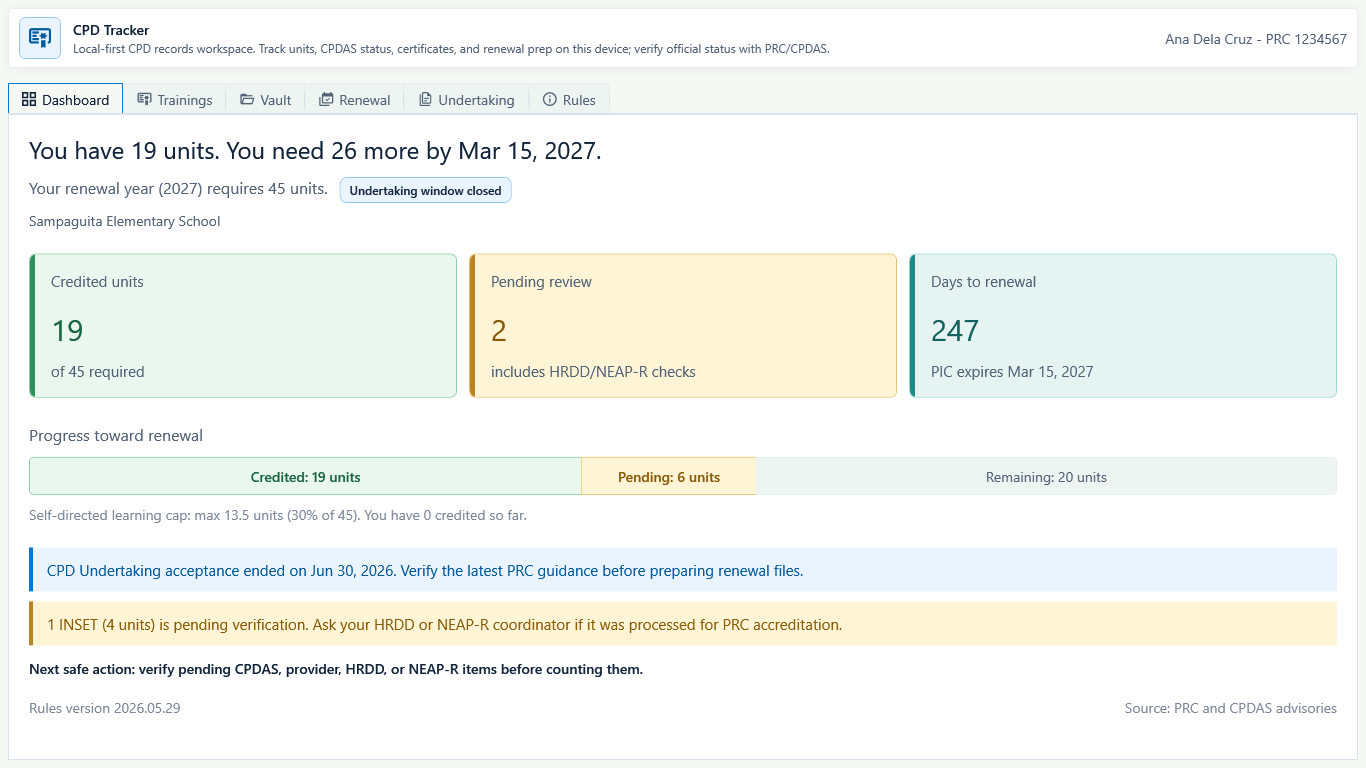 View full size
Sample data only. Dashboard totals are local planning signals; verify official status with PRC or CPDAS. Captured July 11, 2026. Step 1
Open CPD Tracker and read the Dashboard
Choose CPD Tracker in the left navigation. On Dashboard, confirm the teacher name and PRC license number, credited units, pending review, days to renewal, PIC expiration, progress bar, next safe action, rules version, and source note. Pending units are not counted as credited.
Expected result: the dashboard separates Credited, Pending, and Remaining units and tells the teacher what must be verified next.
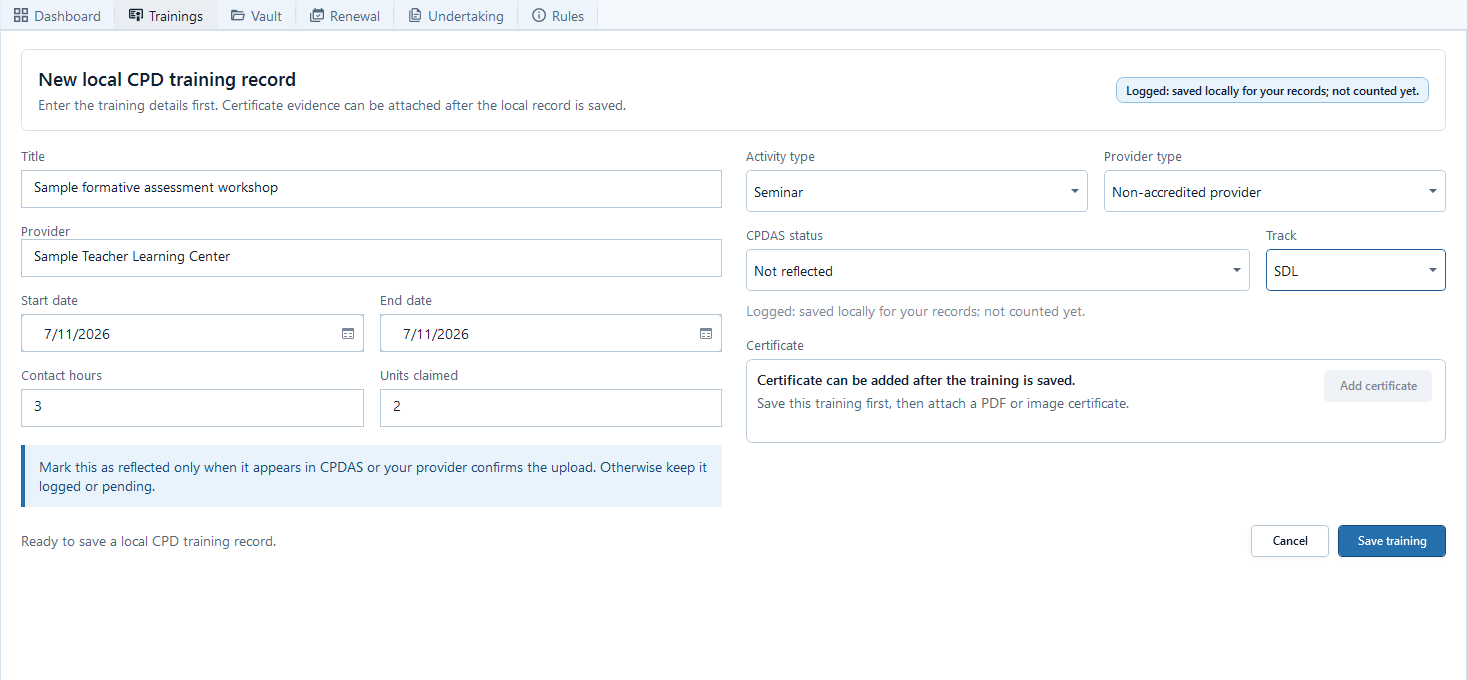 View full size
Sample data only. This same fictional record continues through the saved row and certificate steps. Captured July 11, 2026. Step 2
Open Trainings and choose Add training
Open Trainings, then choose Add training. In this example, enter Sample formative assessment workshop and Sample Teacher Learning Center; choose the activity, provider, CPDAS, and SDL track values shown; set both dates; then enter 3 contact hours and 2 units claimed. For INSET or LAC, also complete its verification status.
Expected result: Save training becomes available only after the required fields are valid; Add certificate remains disabled until the first save.
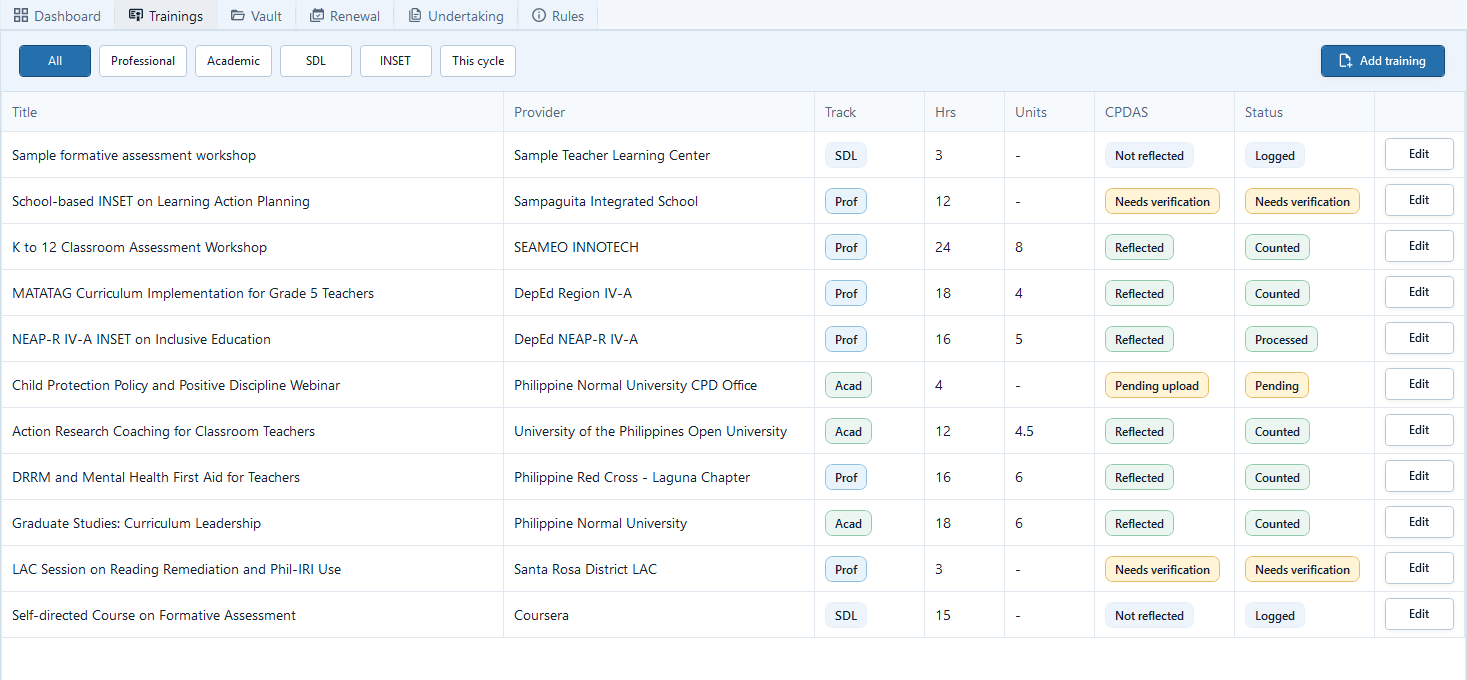 View full size
Sample data only. The first row is the same fictional record entered in the previous step. Captured July 11, 2026. Step 3
Choose Save training and verify the Trainings row
Choose Save training. Return to Trainings and find Sample formative assessment workshop. Check its provider, SDL track, 3 hours, 2 units, Not reflected CPDAS state, and Logged status before applying a filter.
Expected result: the footer count and the new row reflect the saved local record; Pending or Logged remains separate from Credited.
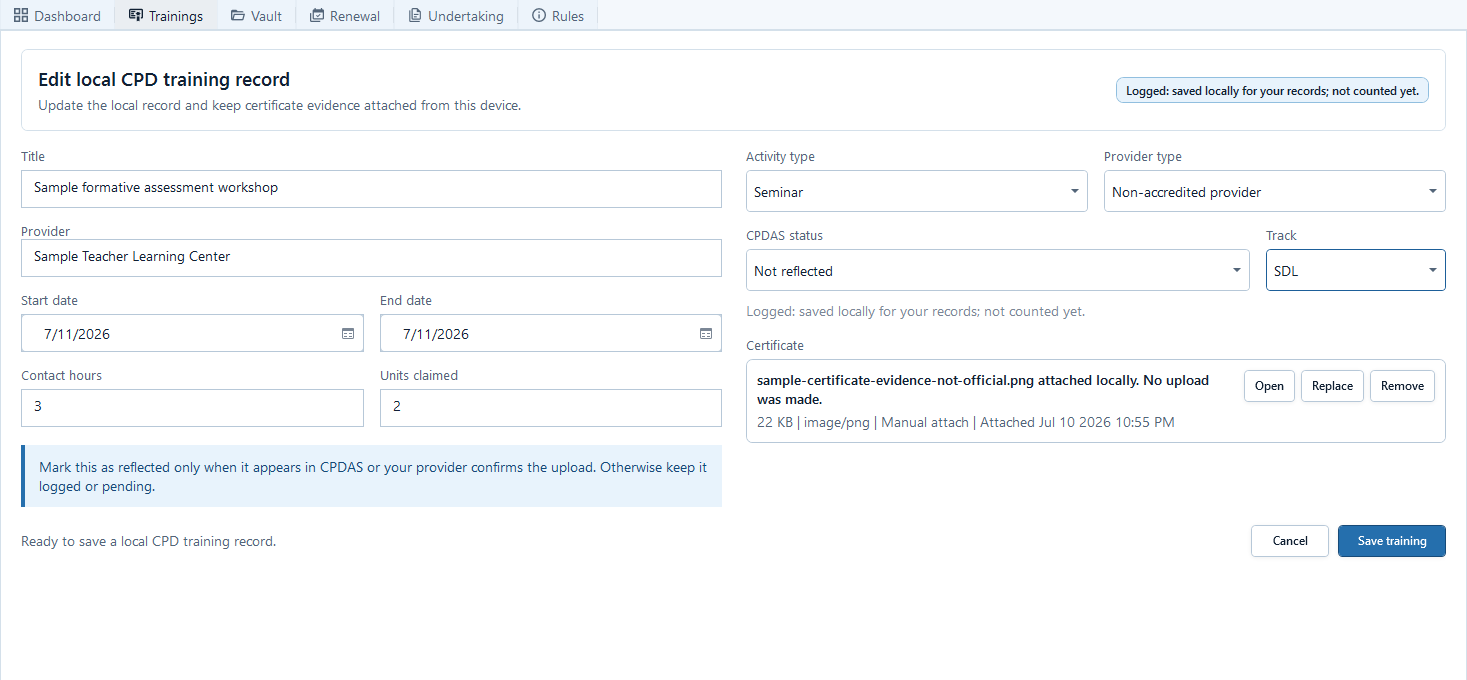 View full size
Sample data only. The same fictional record now has local certificate evidence; open the actual file before relying on it. Captured July 11, 2026. Step 4
Choose Edit and add certificate evidence
Choose Edit on Sample formative assessment workshop. In Certificate, choose Add certificate and select a teacher-controlled PDF or image. After attachment, use Open to inspect it, Replace when it is wrong, or Remove when it should no longer be linked. Choose Save training after any field change.
Expected result: the editor shows the local filename, type, attach method, and date, and says that no upload was made.
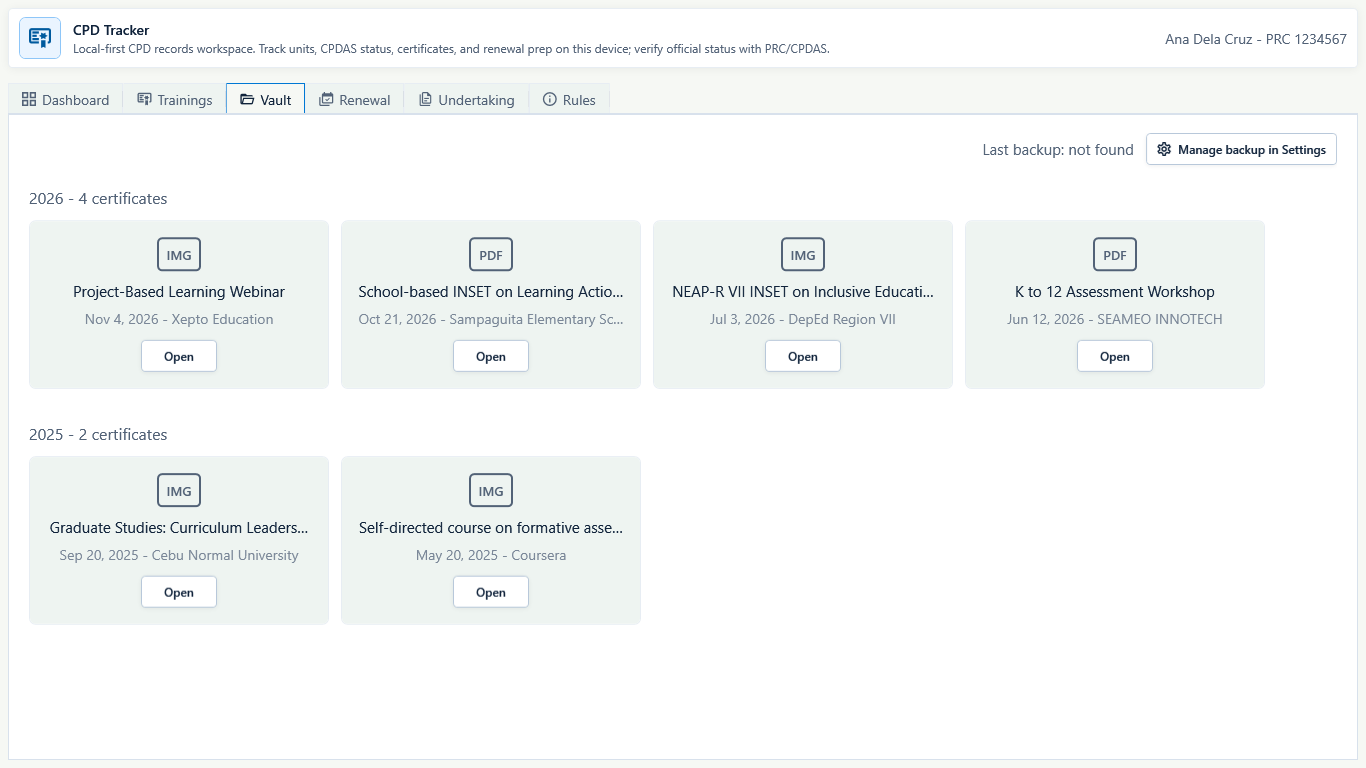 View full size
Sample data only. Open certificate files before relying on them and use Manage backup in Settings before changing laptops. Captured July 11, 2026. Step 5
Open Vault and check every certificate
Open Vault and choose Open on each certificate needed for renewal preparation. If evidence is missing, return to Trainings and edit that record. Read Last backup, then choose Manage backup in Settings when the CPD backup is missing or old; Settings is the full backup location.
Expected result: Vault groups the local certificate evidence by year and makes the Settings backup handoff visible without pretending the files are stored in the cloud.
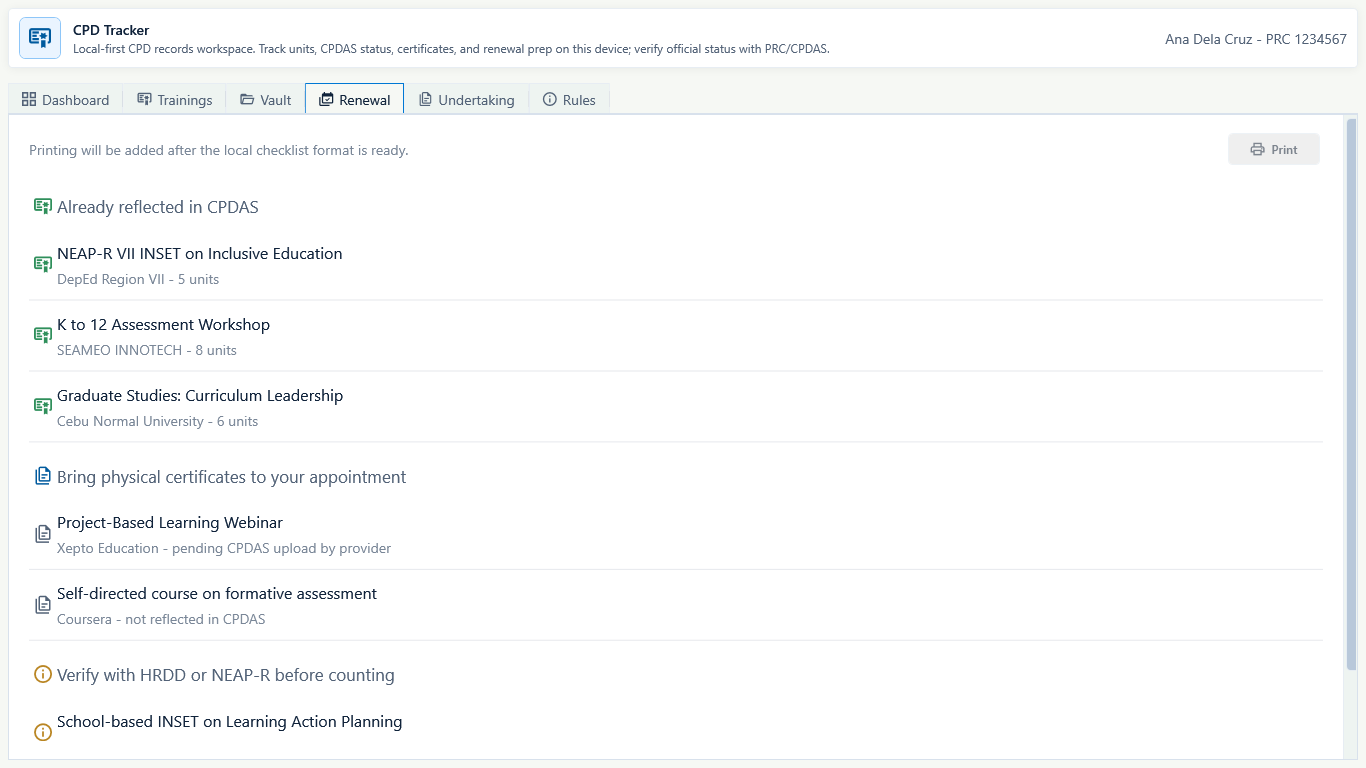 View full size
Sample data only. Renewal is local preparation and does not guarantee PRC acceptance or renewal success. Captured July 11, 2026. Step 6
Open Renewal and separate credited from pending evidence
Open Renewal. Review Already reflected in CPDAS, Bring physical certificates to your appointment, and Verify with HRDD or NEAP-R before counting. Correct any training whose certificate, units, or CPDAS state does not match the teacher's evidence.
Expected result: reflected records, pending provider uploads, not-reflected records, and INSET verification items stay in separate groups.
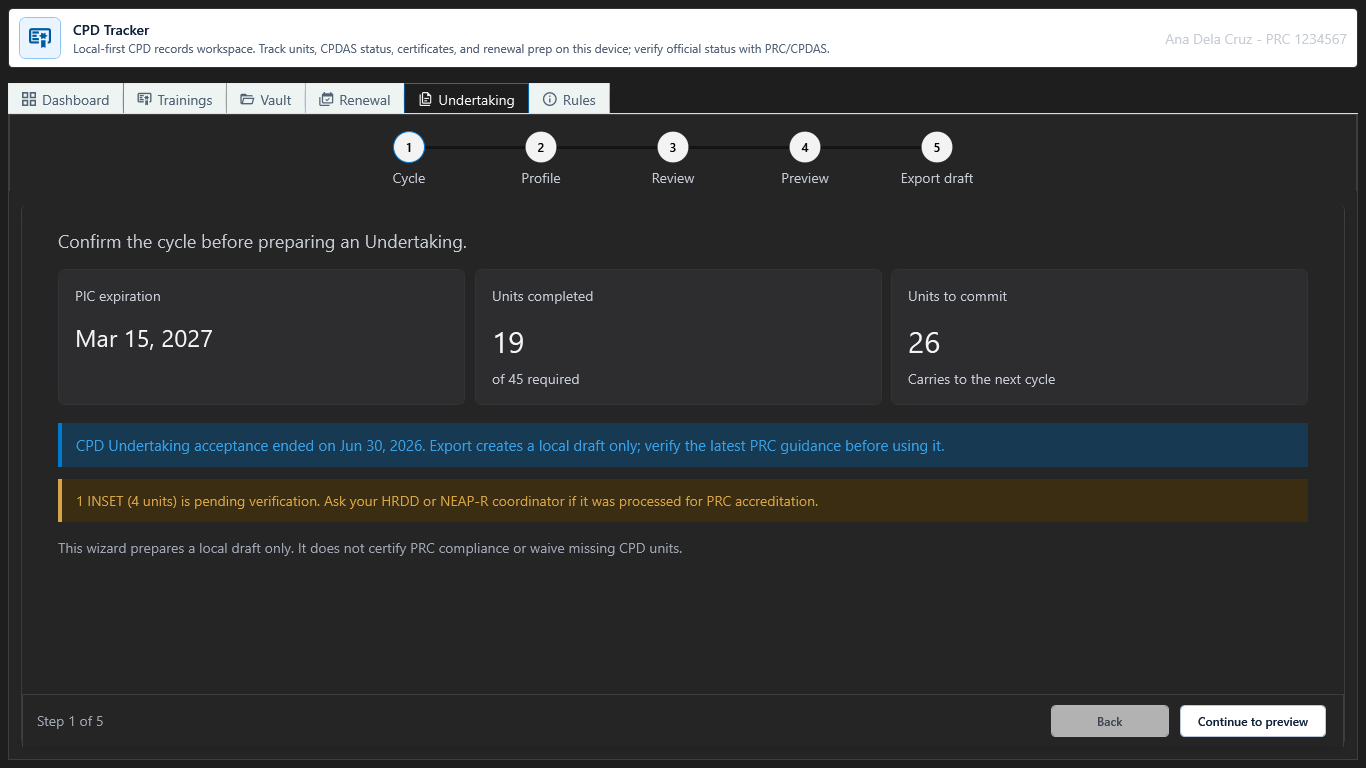 View full size
Sample data only. Verify the dated local advisory against current official PRC guidance before continuing. Captured July 11, 2026. Step 7
Check the Undertaking cycle before entering details
Open Undertaking and start at Cycle. Read Before printing and the visible policy warning. As reviewed on July 11, 2026, the app states that Undertaking acceptance ended on June 30, 2026. Verify the latest official PRC guidance before preparing renewal files; the local reminder is not approval.
Expected result: Cycle shows the current advisory and keeps the teacher on a local-draft workflow without promising acceptance.
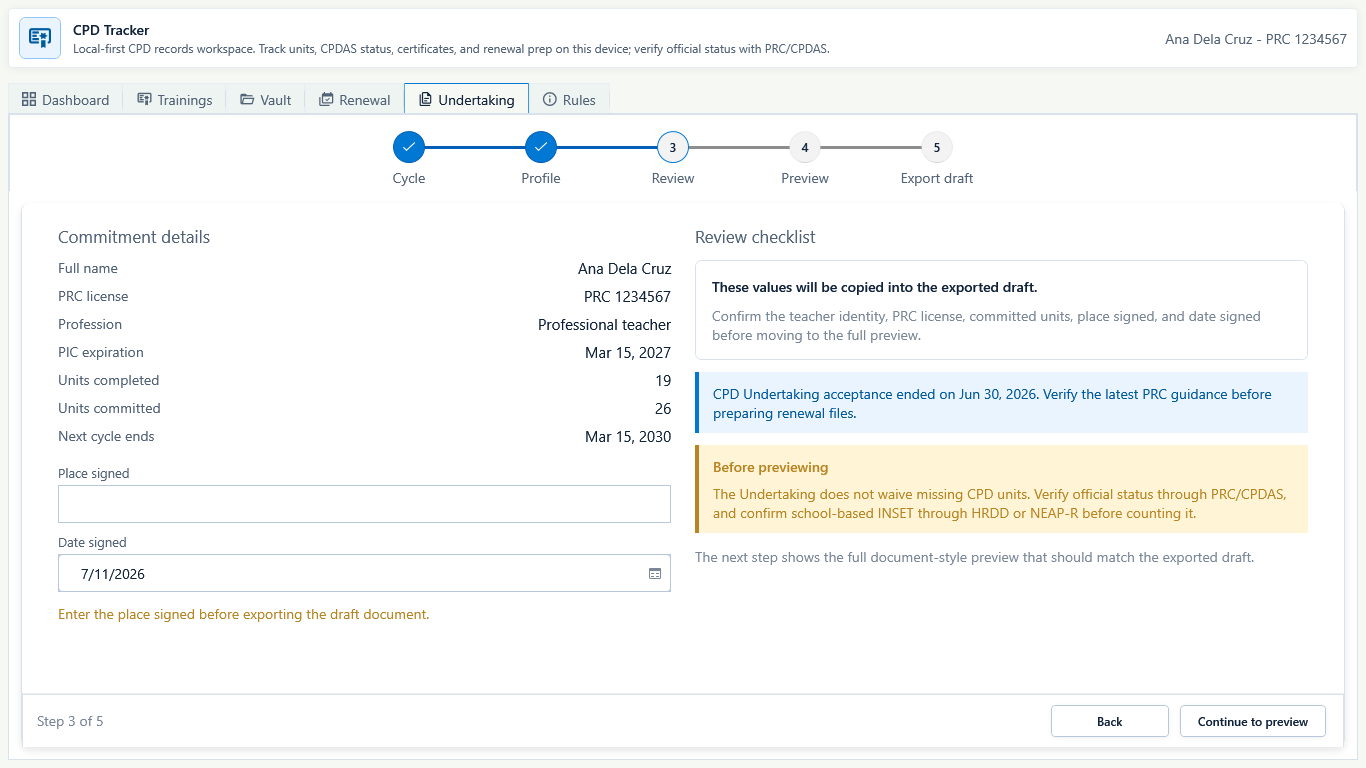 View full size
Sample data only. Place signed and Date signed are required; profile and policy blockers must be resolved before Preview. Captured July 11, 2026. Step 8
Complete Profile and the required Review fields
Confirm the profile has the teacher's PRC license number and PIC expiration. On Review, verify the cycle and unit summary, then enter Place signed and Date signed. A blank place, a missing PRC or PIC value, or a future signing date blocks Preview and Export.
Expected result: the Review step identifies a missing Place signed value and keeps the next step blocked until Place signed and a valid Date signed are present.
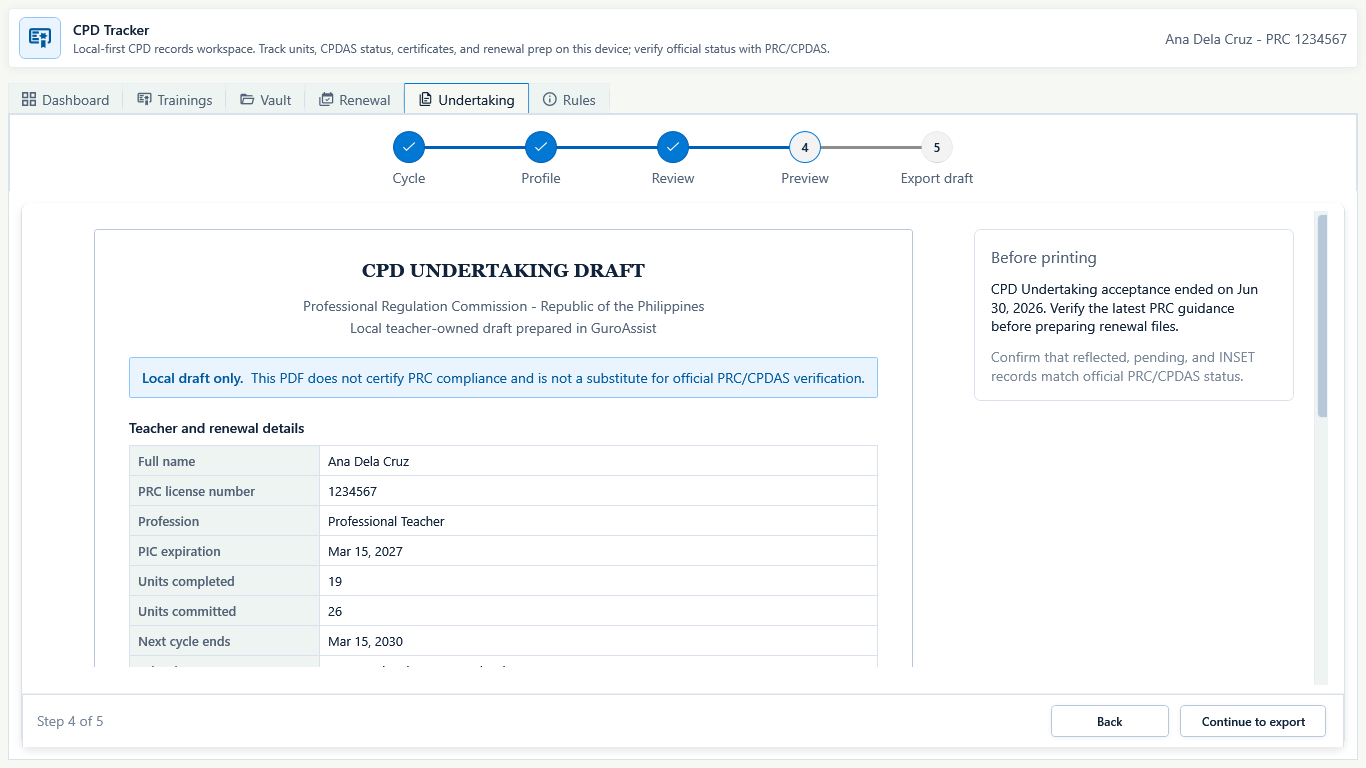 View full size
Sample data only. Compare the complete preview with the teacher's records before any export. Captured July 11, 2026. Step 9
Review the complete Undertaking preview
After the required fields pass, open Preview. Read the teacher details, place and date signed, unit summary, policy advisory, and every draft label. Return to Review when anything is missing or wrong.
Expected result: the preview says CPD UNDERTAKING DRAFT and Local draft only and includes the completed place and date without certifying PRC compliance.
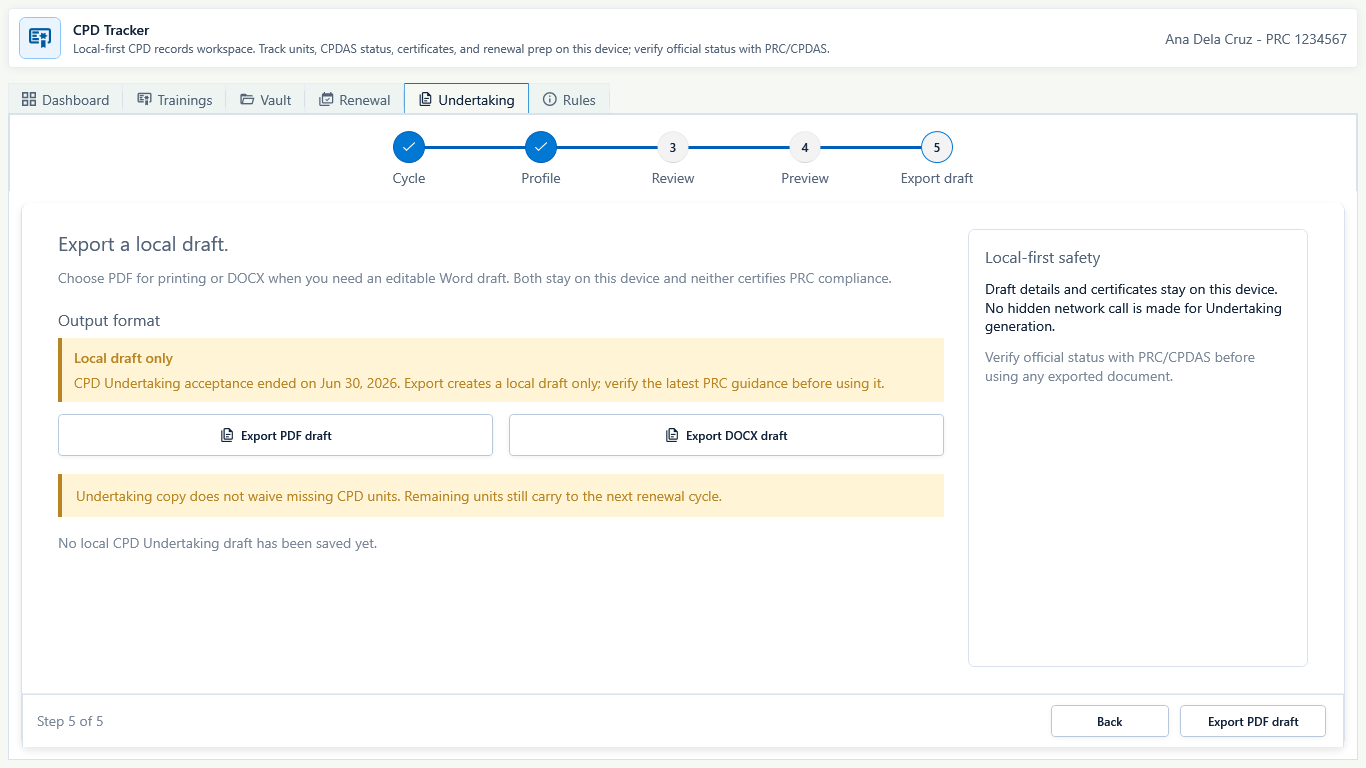 View full size
Sample data only. Open the actual exported draft and stop if the required labels or identity fields are wrong. Captured July 11, 2026. Step 10
Export only the reviewed local draft
Open Export draft only after Preview is correct and current PRC guidance has been checked. Choose the supported PDF or DOCX draft action, then open the actual file and inspect its identity fields, place, date, advisory, page layout, and draft label before printing or sharing.
Expected result: Export keeps the output labeled as a local undertaking draft and never claims acceptance, compliance, or renewal success.
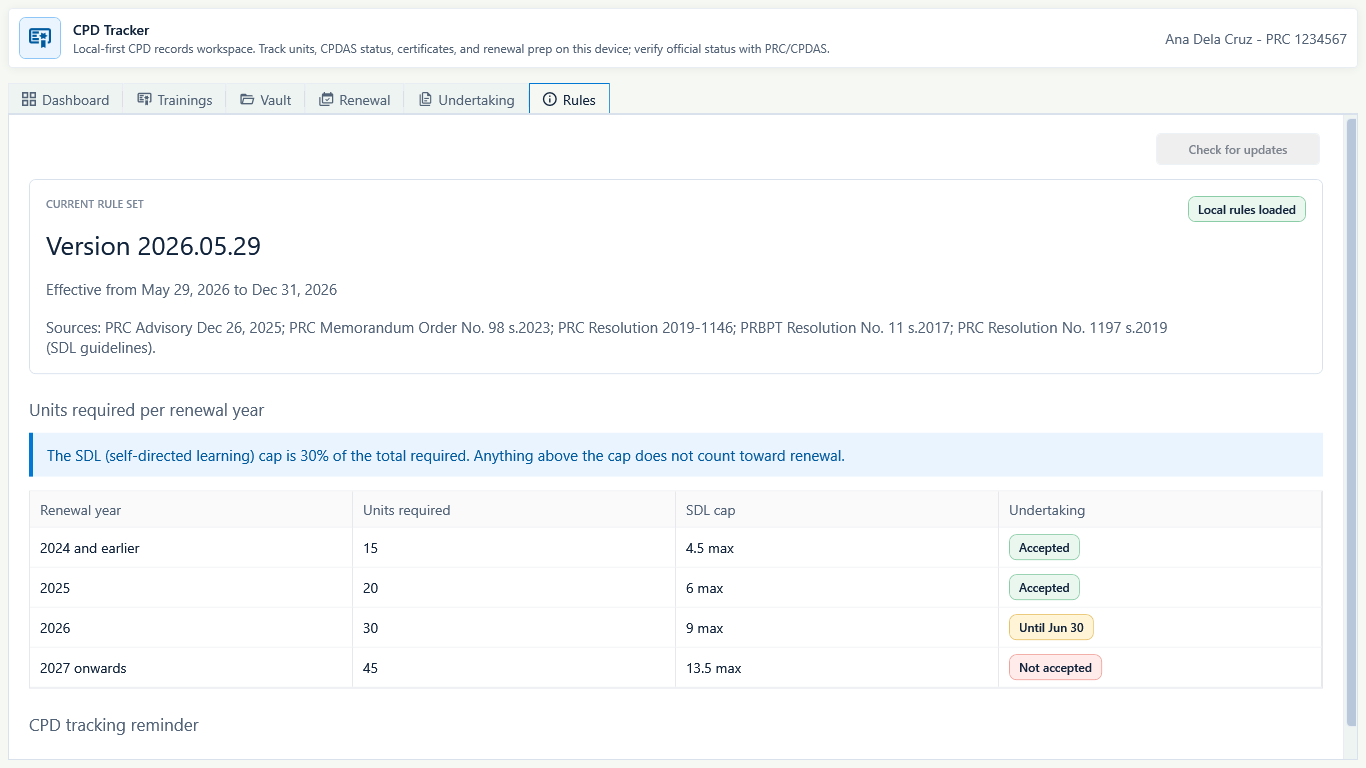 View full size
Sample data only. Use the visible version and date as local guidance, then verify current official requirements before renewal. Captured July 11, 2026. Step 11
Open Rules and confirm the advisory version
Open Rules before relying on unit requirements, the SDL cap, or undertaking availability. As reviewed on July 11, 2026, the app shows Version 2026.05.29, effective May 29 to December 31, 2026, with source notes and a 2027 onwards row. If the review date is stale, Check for updates appears, or an update-needed state is shown, pause and verify current PRC or CPDAS requirements.
Expected result: the local rule version, effective dates, sources, unit table, SDL cap, and undertaking state are visible; these remain planning reminders, not approval.


Review
Check these before relying on the work
These checks cover saved, previewed, generated, and teacher-review states.
Separate from class records
CPD evidence should not be mixed into class and learner files.
Evidence is teacher-owned
Certificates and notes stay local unless the teacher chooses to share them.
Backup belongs in Settings
Use global Settings for backup and restore instead of duplicating full backup controls in CPD Tracker.
No official promise
CPD Tracker should not claim PRC approval or guaranteed renewal success.
Blocked states and recovery
Fix the blocker before continuing
Use the direct recovery action when GuroAssist is waiting for setup, data, access, policy, or file readiness.
Evidence missing
Renewal preparation may show missing evidence until the teacher adds certificate details.
After recovery: The blocker is no longer shown, and the intended next action is available for teacher review.
Troubleshoot this blockerBackup needed before moving
Back up CPD records before changing laptops.
After recovery: The backup or restore summary shows the intended local workspace and a clear success or recovery state.
Open backup and restore helpUndertaking profile incomplete
A missing PRC license number or PIC expiration blocks the Undertaking draft path.
After recovery: Paid access and any required credits are shown as available for this action.
Review generated-file helpSigning details incomplete
Enter Place signed and a non-future Date signed before Preview or Export.
After recovery: The blocker is no longer shown, and the intended next action is available for teacher review.
Troubleshoot this blockerPolicy guidance may have changed
Verify current official PRC guidance whenever the local rule review date or advisory is no longer current.
After recovery: The screen shows a supported school-year or policy readiness message for the selected task.
Troubleshoot this blocker
Safety note
CPD Tracker should help teachers prepare local evidence without making official PRC or approval claims.
Finish
Verify the result
Do not treat a saved screen or generated filename as proof that the work is ready.
You’re done when
The training is saved locally, its certificate and CPDAS status are honestly tracked, renewal gaps are reviewed, and any undertaking output remains a local draft.
Glossary
Expand the terms used in this guide
Use the plain-language meaning here, then follow the exact label in GuroAssist.
- CPD
- Continuing Professional Development; keep these records separate from class and learner data.
Guide details
Guide verification
Use these details to confirm that this guide matches the GuroAssist version and school year you are using.
- Verification
- Verified with GuroAssist 1.0.0.0
- Last reviewed
- July 11, 2026
- Screenshots
- Captured July 11, 2026
- Applies to
- 2026–2027
Was this helpful?
Choose an answer or report a guide that needs attention. No class, learner, or free-text data is sent by these buttons.