
Step-by-step guide
Use the Today command center
Today helps teachers start from the current class day, see what needs attention, and open the next safe local action.
Teacher goal
What should I check first when I open GuroAssist today?
Use this guide when this is the task in front of you. Stop if the selected class, learner, role, school year, file, or output does not match.
In-app path
- Today
Get ready
Check the starting point
These are the minimum conditions for the workflow to make sense.
Before you start
Estimated time: About 5–10 minutes
- A saved class or local task to review
- The current day or term shown by the app
- Time to resolve any blocked item before opening dependent work
You should see
Today shows the active class-day work, the next safe action, and any item that still needs attention.
Steps
Complete the task in order
Review choice points, save or preview behavior, and any stop condition before continuing.
 View full size
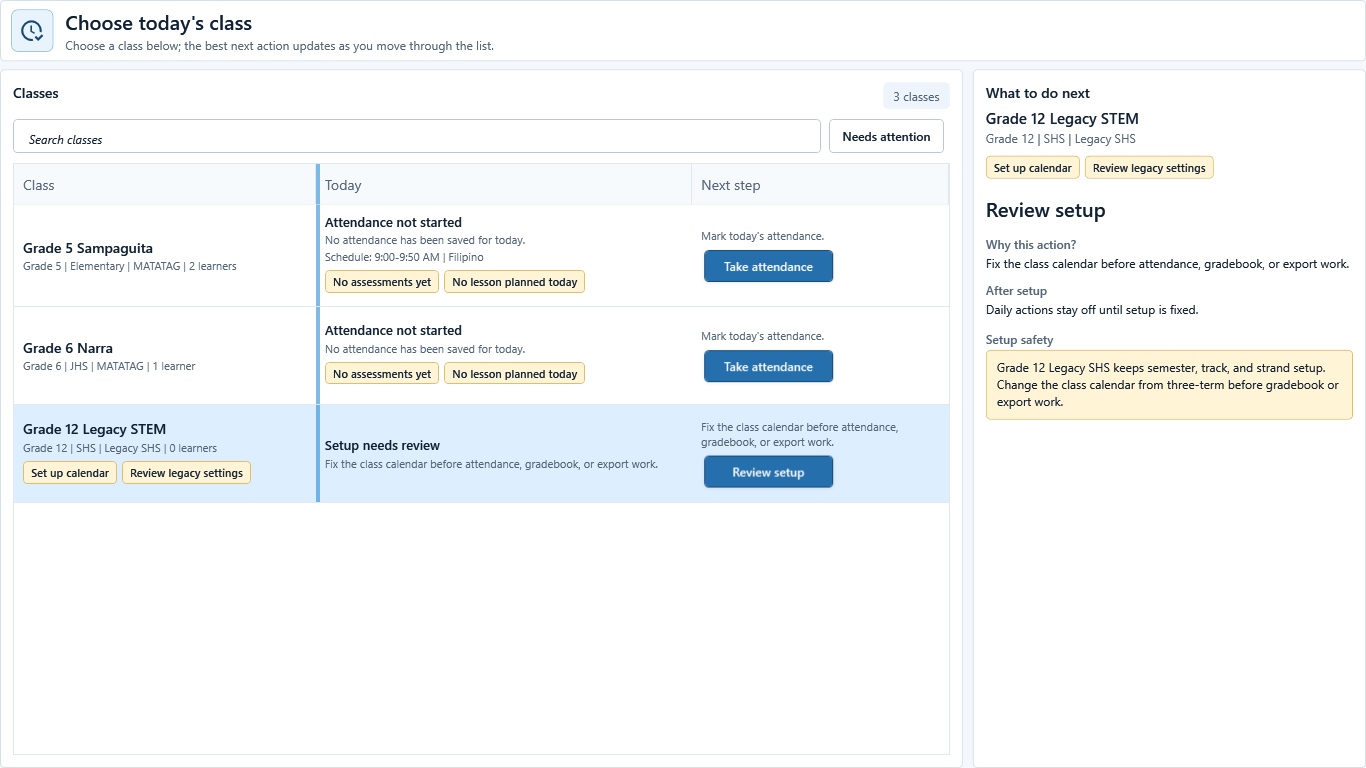
Sample data only. Resolve setup before using class-day actions. Captured July 11, 2026. Step 1
Confirm the laptop date, then open Today
Confirm the laptop date first because Today uses it without printing a separate date heading on this screen. Choose Today. If no class is ready, the screen shows the setup blocker and recovery action instead of pretending class-day work is available.
 View full size
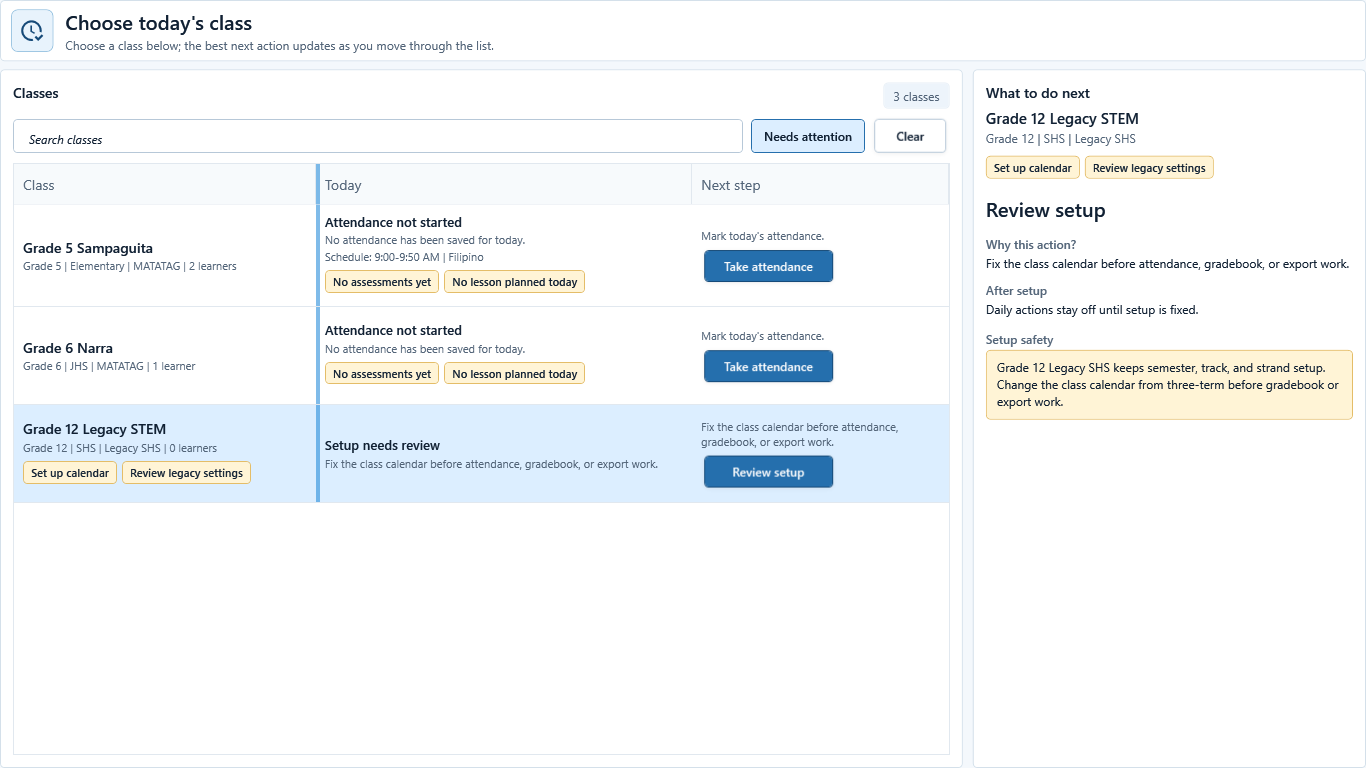
Sample data only. Filtering changes what is shown, not the saved class data. Captured July 11, 2026. Step 2
Choose the class and narrow attention when needed
Select the intended class row. Use Search classes or Needs attention to narrow the list. Confirm the selected row's grade, curriculum, learner count, and Today status before using its action.
 View full size
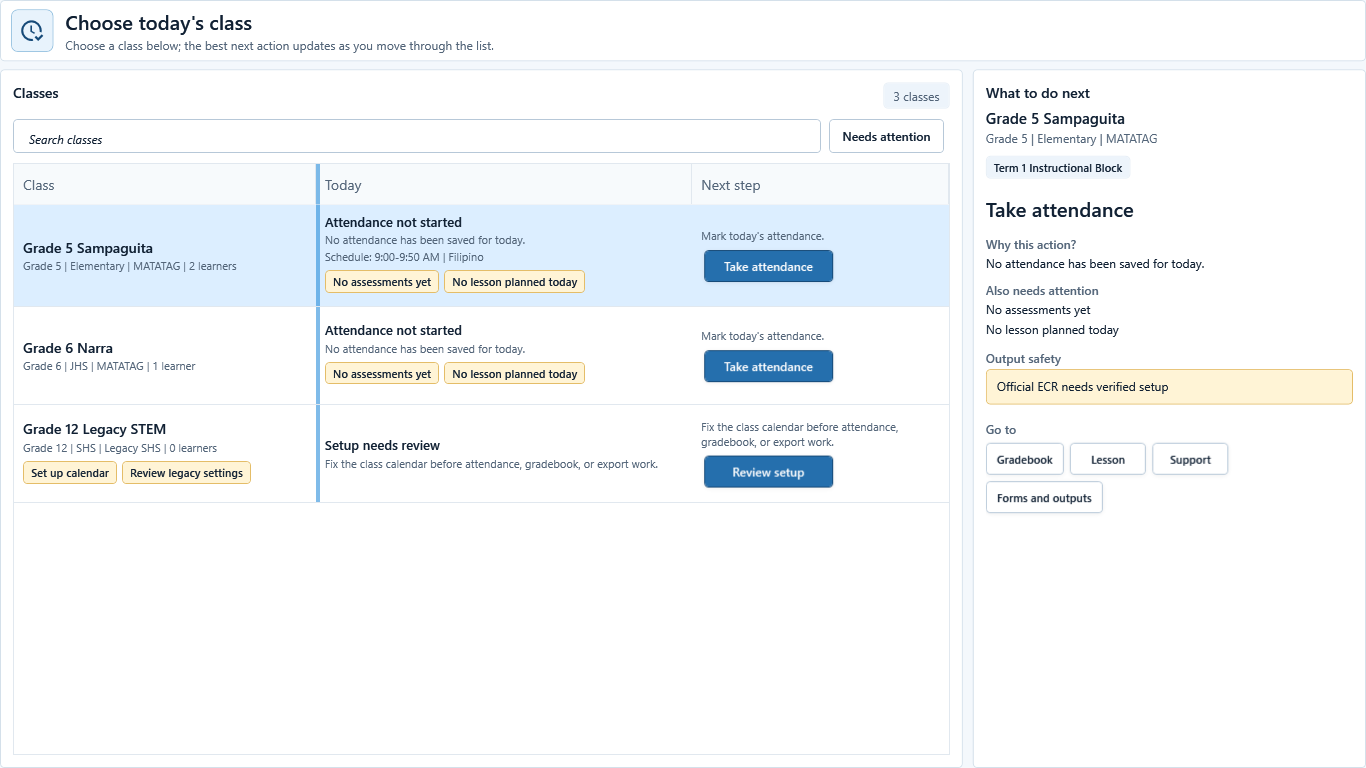
Sample data only. The selected class details explain why the next action is recommended. Captured July 11, 2026. Step 3
Read attendance, schedule, lesson, grade, support, and file signals
Read the selected class Today line and the What to do next panel. Check attendance, scheduled subject and time, assessments or grade gaps, lesson status, support attention, and output safety. A blocked output or missing setup message must be resolved before generation.
 View full size
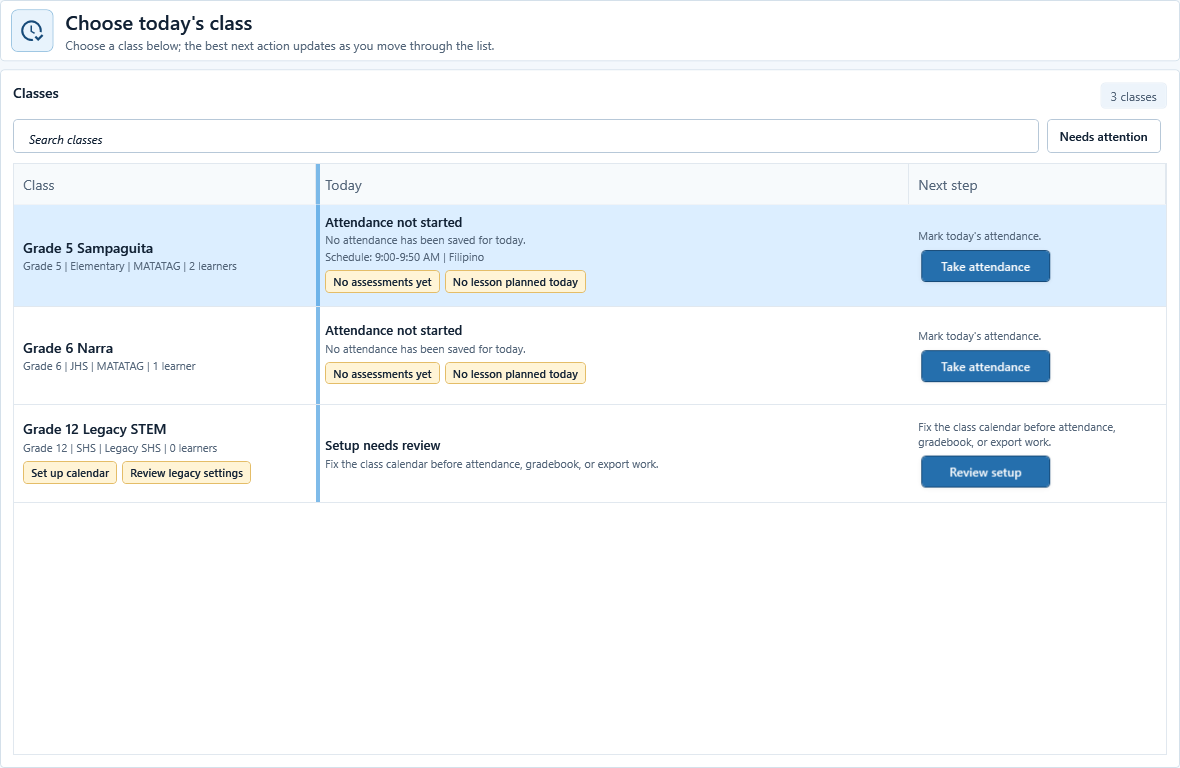
Sample data only. Open the action that matches the stated reason, not an unrelated tool. Captured July 11, 2026. Step 4
Open the safest next action
Choose Take attendance, Review setup, or the representative Go to action for Gradebook, Lesson, Support, or Forms and outputs. The picture identifies the available destination controls. Complete and save the linked task in that destination before returning.
 View full size
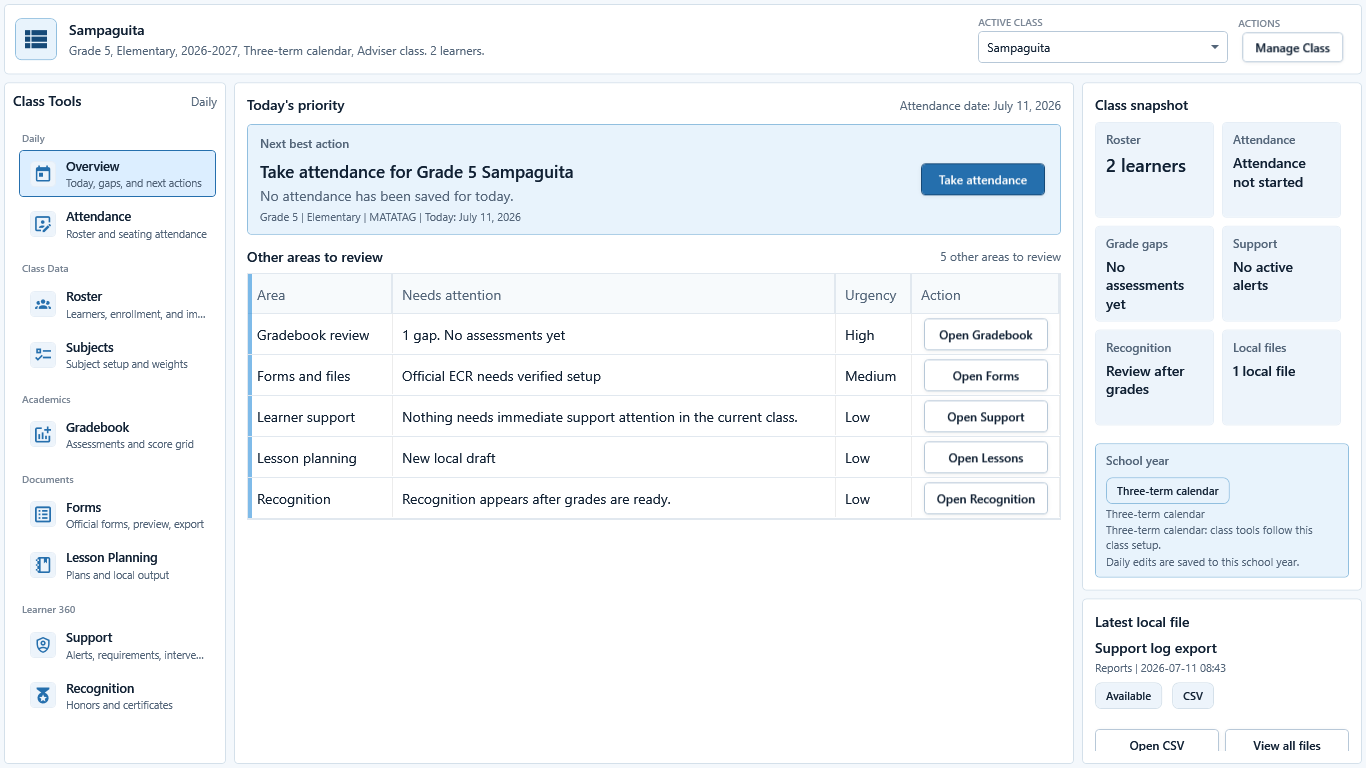
Sample data only. The matching Overview signal is the verification target after a linked task is saved. Captured July 11, 2026. Step 5
Confirm the saved result in class Overview
After saving the destination task, open the same class Overview and read the corresponding attendance, grade, support, recognition, or local-file signal. This picture is the downstream verification screen. If its state did not change, reopen the linked tool and check whether Save completed.


Review
Check these before relying on the work
These checks cover saved, previewed, generated, and teacher-review states.
Date and class match the work
The visible day and class should match the real class period before relying on any signal.
Learner list is ready
Daily actions are more reliable when the roster has the expected learners and required details.
Paid status is understood
Today can point to local work in Free, but generated files and live AI need Paid where supported and credits for live AI.
Output labels stay honest
Treat files as local, draft, final, official-ready, or blocked based on the readiness shown by the app.
Blocked states and recovery
Fix the blocker before continuing
Use the direct recovery action when GuroAssist is waiting for setup, data, access, policy, or file readiness.
No class is ready
Create or choose a class and add learners before using class-day shortcuts.
After recovery: The intended class appears in the workspace header and the task uses that class.
Review roster helpRequired setup is missing
Some shortcuts stay unavailable until class details, learners, subjects, schedule, templates, or grades are complete.
After recovery: The intended class appears in the workspace header and the task uses that class.
Review roster helpGenerated work is not ready
Paid access does not bypass missing templates, incomplete grades, class setup, or school-year readiness.
After recovery: The intended class appears in the workspace header and the task uses that class.
Open activation help
Safety note
Today is a local command center for teacher decisions. It should guide the next safe action without promising that every item is final or official-ready.
Finish
Verify the result
Do not treat a saved screen or generated filename as proof that the work is ready.
You’re done when
Today shows the active class-day work, the next safe action, and any item that still needs attention.
Glossary
Expand the terms used in this guide
Use the plain-language meaning here, then follow the exact label in GuroAssist.
- AI
- Artificial intelligence; optional draft help that still requires teacher review.
Guide details
Guide verification
Use these details to confirm that this guide matches the GuroAssist version and school year you are using.
- Verification
- Verified with GuroAssist 1.0.0.0
- Last reviewed
- July 11, 2026
- Screenshots
- Captured July 11, 2026
- Applies to
- 2026–2027
Was this helpful?
Choose an answer or report a guide that needs attention. No class, learner, or free-text data is sent by these buttons.