
Step-by-step guide
Read the daily class overview
The daily class overview keeps the selected class, priorities, attendance state, learner signals, and local files close together for quick review.
Teacher goal
How do I read the class day at a glance?
Use this guide when this is the task in front of you. Stop if the selected class, learner, role, school year, file, or output does not match.
In-app path
- Classes
- Open class workspace
- Overview
Get ready
Check the starting point
These are the minimum conditions for the workflow to make sense.
Before you start
Estimated time: About 5–10 minutes
- A saved class with its current day or term
- Any saved attendance, schedule, or task records the overview should summarize
- Time to open the linked task before relying on a status signal
You should see
Overview shows the selected class, current day or term, saved readiness signals, and the next local task.
Steps
Complete the task in order
Review choice points, save or preview behavior, and any stop condition before continuing.
 View full size
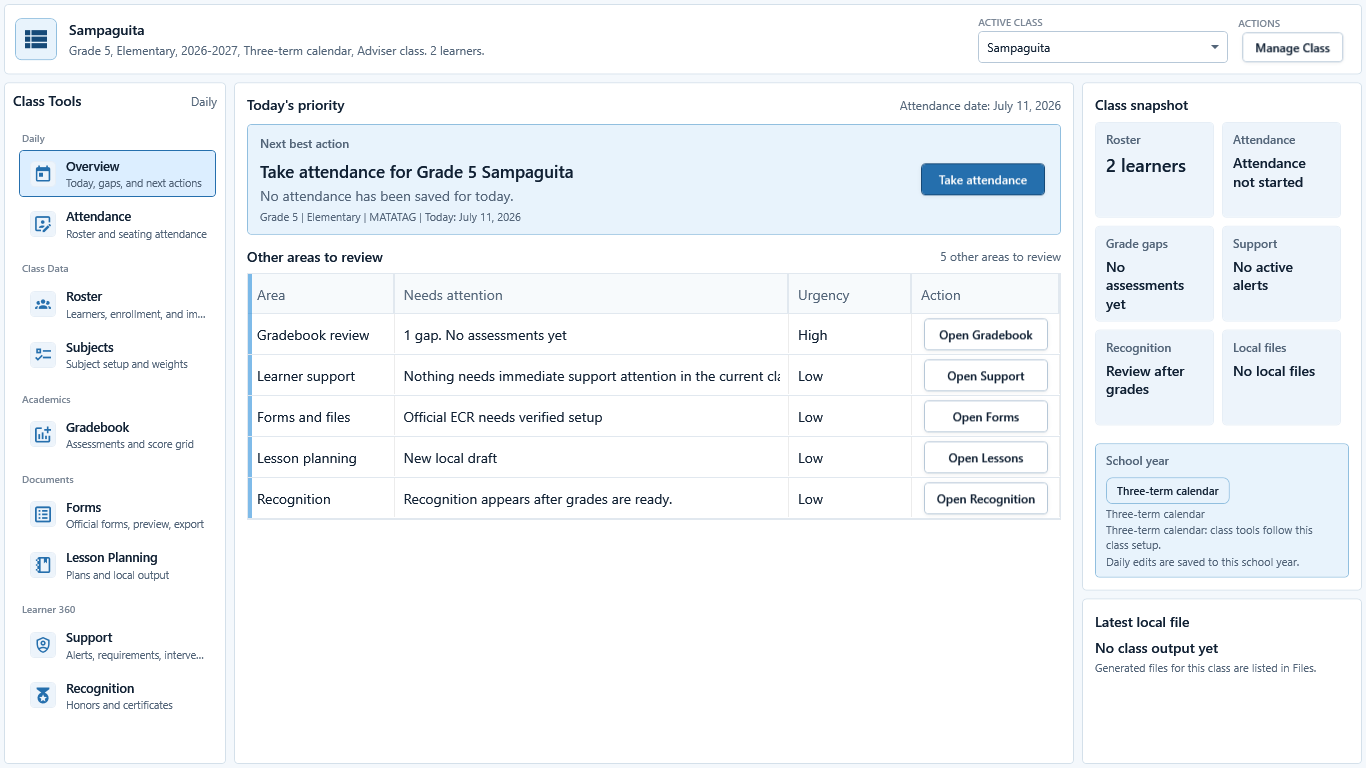
Sample data only. The header and attendance date set the scope for every readiness signal. Captured July 11, 2026. Step 1
Confirm the class, date, and school year
Choose Classes, open the intended class, and choose Overview. Check the active-class header, Attendance date, grade, school year, calendar type, and role before following any action card.
Stop if the class header or date is not the work you intend to update.
 View full size
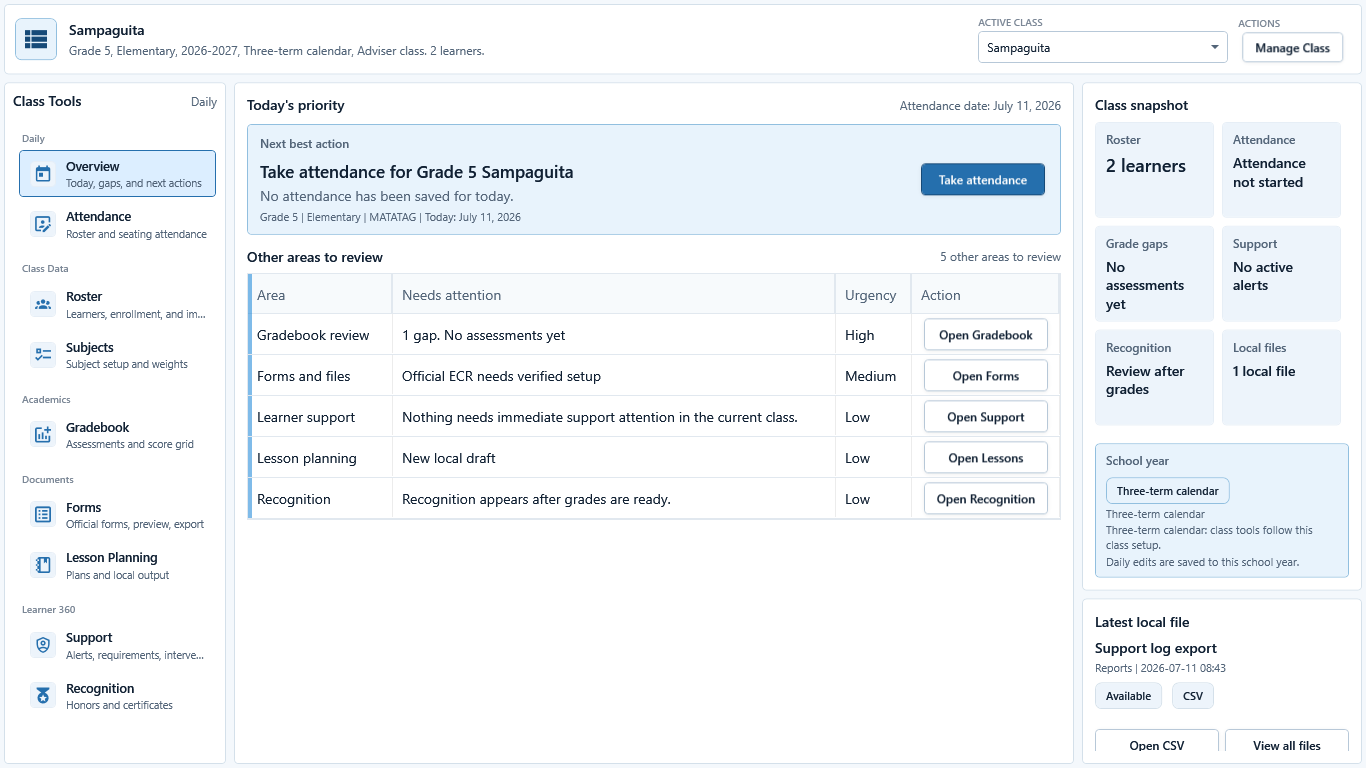
Sample data only. Read the priority and snapshot together before deciding what to open. Captured July 11, 2026. Step 2
Read Today's priority and the class snapshot
Start with Next best action, then read Other areas to review. The class snapshot summarizes roster, attendance, grade gaps, support, recognition, and local files. Schedule and lesson signals appear in the priority or review lines when saved data is available.
 View full size
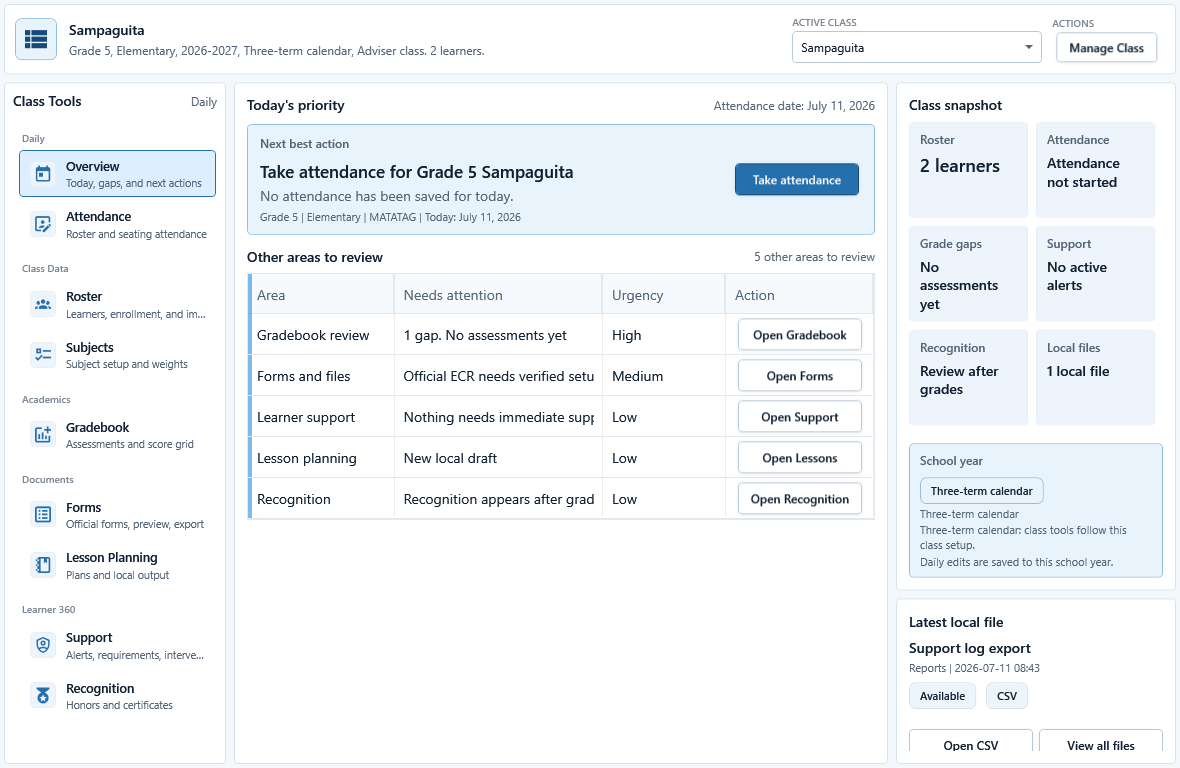
Sample data only. Use the action on the matching row rather than opening an unrelated workspace. Captured July 11, 2026. Step 3
Choose the linked task from Overview
Choose the action beside the relevant row, such as Take attendance, Open Gradebook, Open Forms, Open Support, Open Lessons, or Open Recognition. The picture identifies where those destination buttons appear; complete and save the smallest needed task in the destination screen.
 View full size
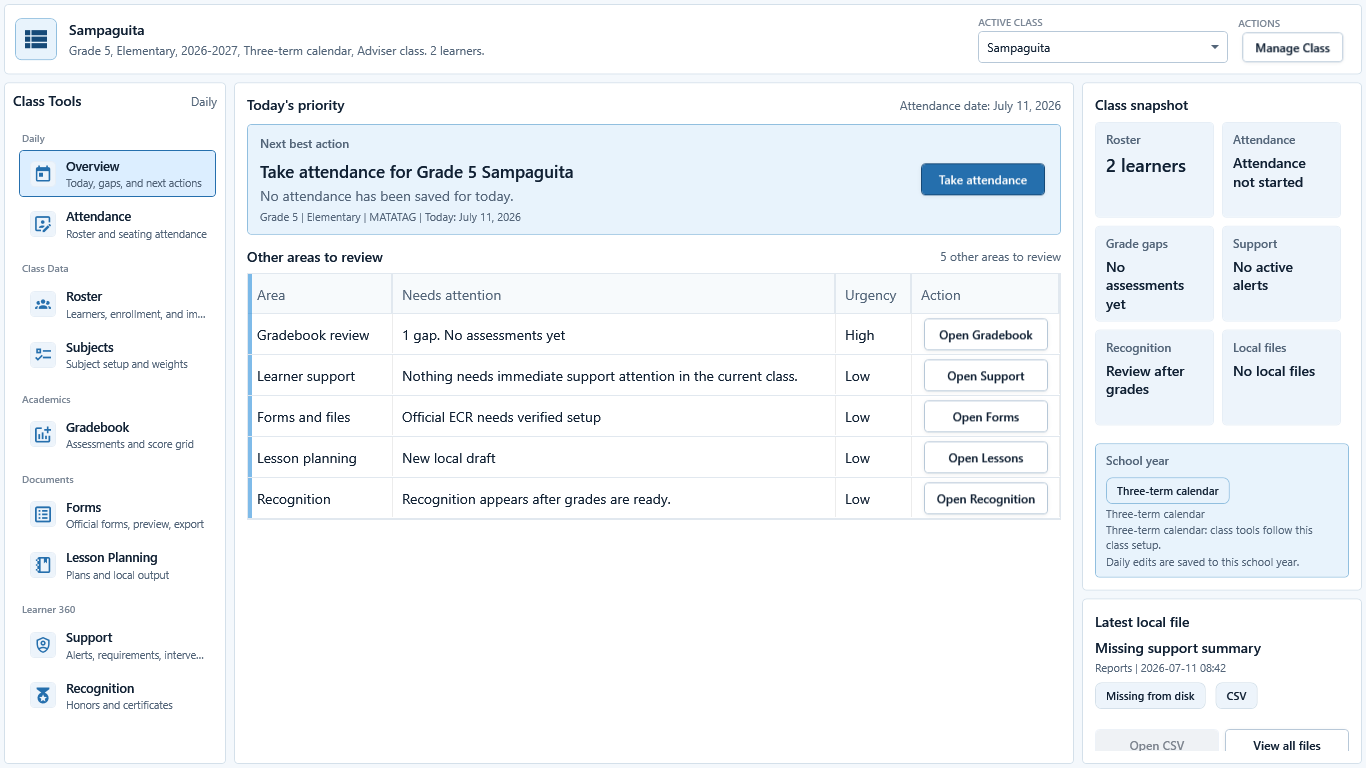
Sample data only. Overview refresh can reveal a saved, missing, local, or blocked result that still needs review. Captured July 11, 2026. Step 4
Return and read the refreshed or blocked state
Return to Overview after saving. Read the priority, snapshot count, readiness text, and latest local file again. The pictured missing-file warning is a blocker discovered after return, not proof of completion. Resolve any local, draft, missing, or blocked result before relying on it.
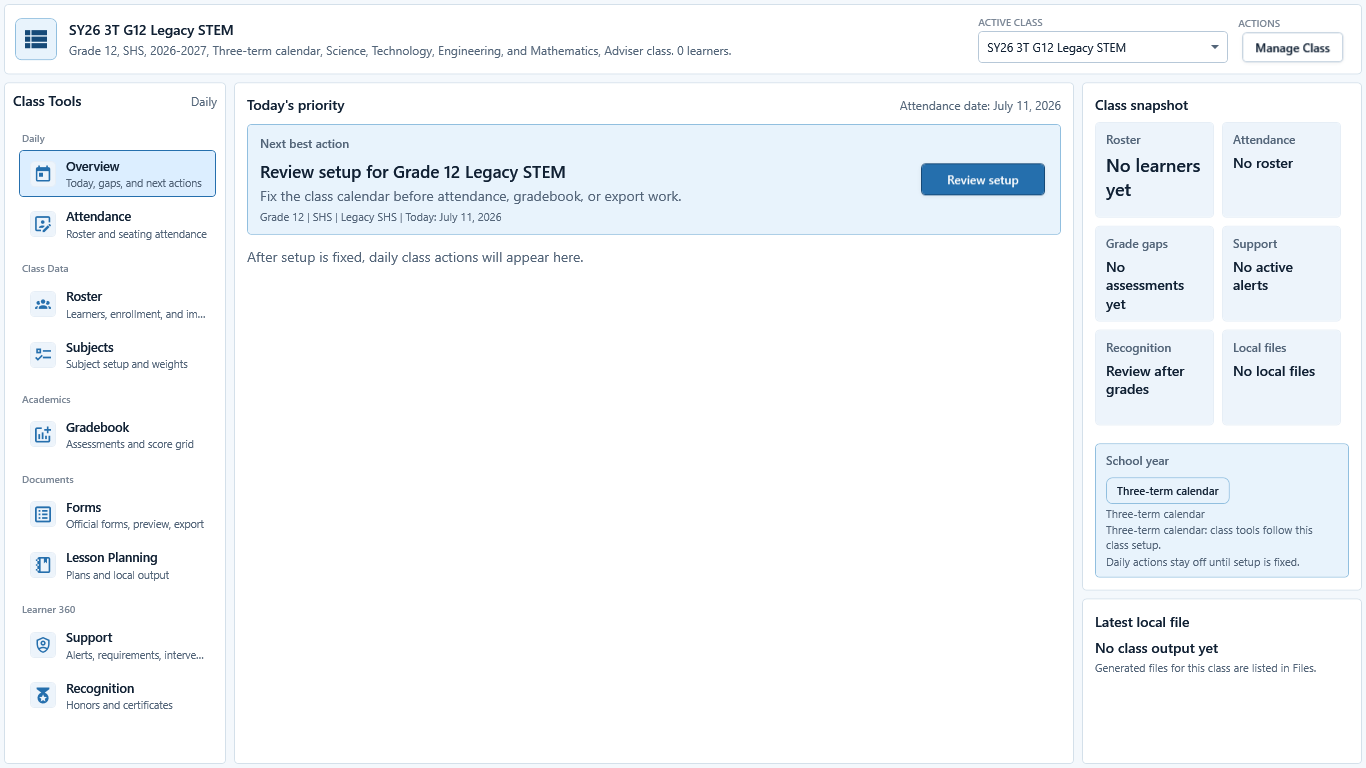 View full size
Sample data only. The blocker names the setup work that must be completed first. Captured July 11, 2026. Step 5
Resolve empty or missing setup
If Overview shows no class data or Setup needs review, use Review setup and correct the class calendar, profile, subjects, roster, or other named prerequisite. Return only after the blocker clears; official-looking output remains blocked while required setup is incomplete.


Review
Check these before relying on the work
These checks cover saved, previewed, generated, and teacher-review states.
Correct class and date
The overview should match the class day the teacher is actually preparing or reviewing.
Roster is complete enough
Attendance, support, forms, and grade signals depend on a reliable learner list.
Signals are review prompts
Grade, support, and file signals help the teacher review work; they should not replace teacher judgment.
Files are opened before use
Local or generated files should be opened and reviewed before printing, sharing, or treating them as final.
Blocked states and recovery
Fix the blocker before continuing
Use the direct recovery action when GuroAssist is waiting for setup, data, access, policy, or file readiness.
No selected class
Choose or create a class before the overview can show meaningful class-day work.
After recovery: The intended class appears in the workspace header and the task uses that class.
Review class setupLearner details are missing
Roster gaps can block attendance, forms, recognition, gradebook, or learner-specific work.
After recovery: The intended learner is selected and the learner-dependent action is available.
Review roster helpOutput readiness is incomplete
Official-looking files stay blocked when required setup, templates, grades, or policy readiness are incomplete.
After recovery: The required template is selected, readable, and shown as ready for this task.
Review generated-file help
Safety note
The overview should make daily work easier to read while keeping decisions local, teacher-owned, and honestly labeled.
Finish
Verify the result
Do not treat a saved screen or generated filename as proof that the work is ready.
You’re done when
Overview shows the selected class, current day or term, saved readiness signals, and the next local task.
Guide details
Guide verification
Use these details to confirm that this guide matches the GuroAssist version and school year you are using.
- Verification
- Verified with GuroAssist 1.0.0.0
- Last reviewed
- July 11, 2026
- Screenshots
- Captured July 11, 2026
- Applies to
- 2026–2027
Was this helpful?
Choose an answer or report a guide that needs attention. No class, learner, or free-text data is sent by these buttons.
Related guides
Continue only where it helps
Use the Today command center
What should I check first when I open GuroAssist today?
Manage the class roster
How do I add, find, import, review, or withdraw a learner without changing the wrong class?
Use Attendance and Seat Map
How do I mark attendance quickly without losing the date, status, or saved-state checks?