
Orientation guide
GuroAssist at a glance
Use this tour to understand the main teacher work areas before setting up a class, generating files, or using live AI.
Teacher goal
Where do I find the main parts of GuroAssist?
Use this guide when this is the task in front of you. Stop if the selected class, learner, role, school year, file, or output does not match.
In-app path
- GuroAssist navigation
Get ready
Check the starting point
These are the minimum conditions for the workflow to make sense.
Before you start
Estimated time: About 10–20 minutes
- A current GuroAssist installation
- A teacher task to use as the orientation example
- The current navigation labels visible in the app
You should see
The teacher can identify the global tools, class workspace tools, account area, and Settings from the current navigation.
Steps
Complete the task in order
Review choice points, save or preview behavior, and any stop condition before continuing.
 View full size
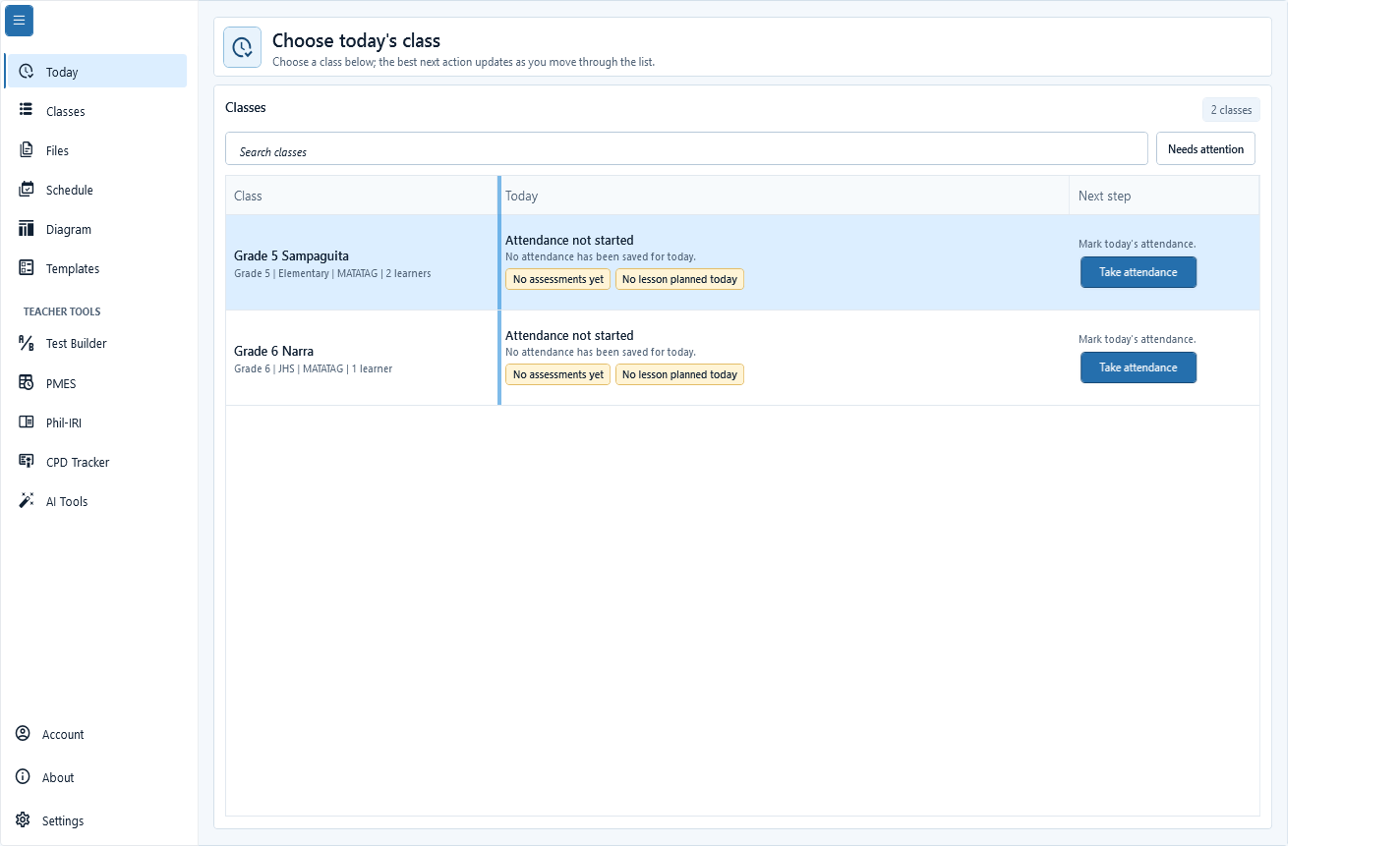
Sample data only. The left rail separates daily work, teacher tools, and device-level settings. Captured July 11, 2026. Step 1
Start from the main navigation
Use the left navigation for Today, Classes, Files, Schedule, Diagram, Templates, Test Builder, PMES, Phil-IRI, CPD Tracker, and AI Tools. Account, About, and Settings stay at the bottom so device and profile work remain separate from class-day tasks.
 View full size
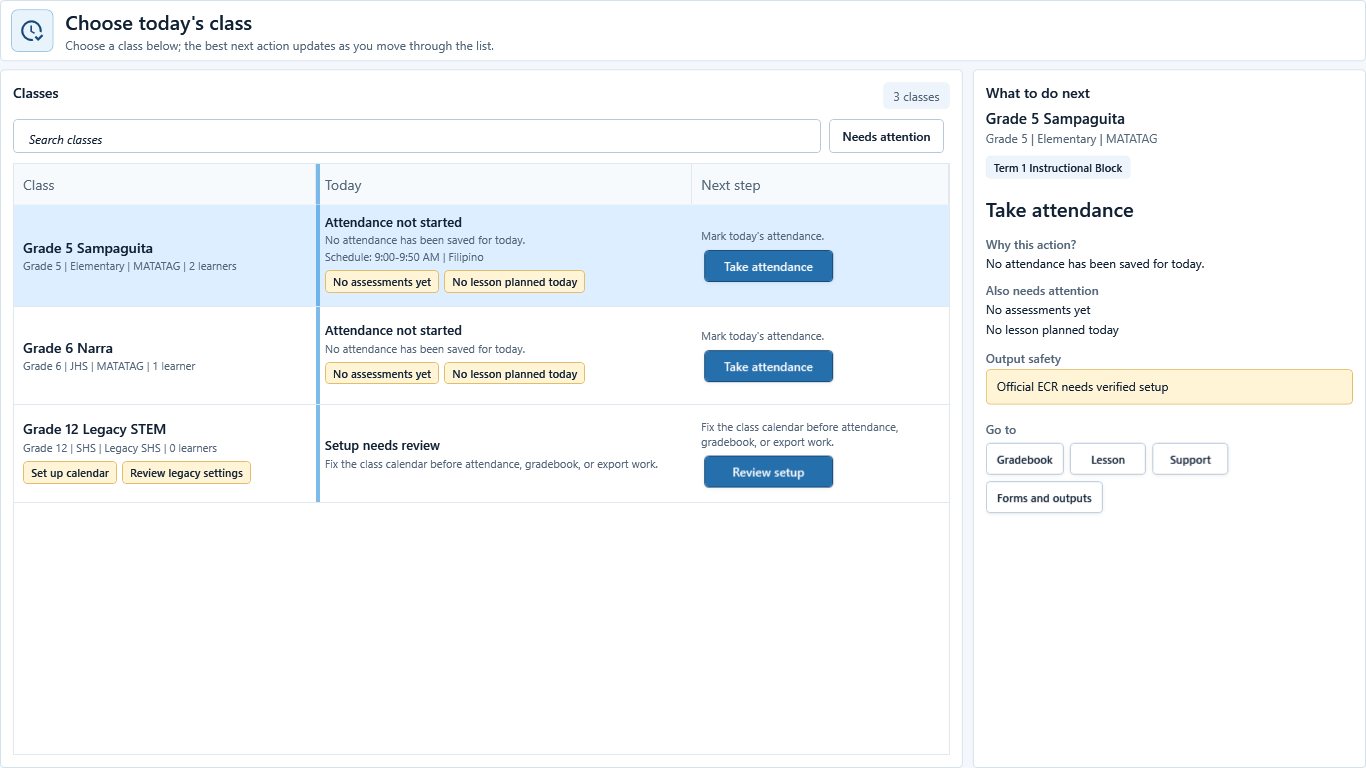
Sample data only. Today is the teacher-wide starting point for current class-day work. Captured July 11, 2026. Step 2
Open Today for the next class-day action
Confirm the laptop date first, because Today uses that date without printing a separate date heading on this screen. Choose Today, then select a class. Read the selected class summary and safest next action before opening a destination tool.
 View full size
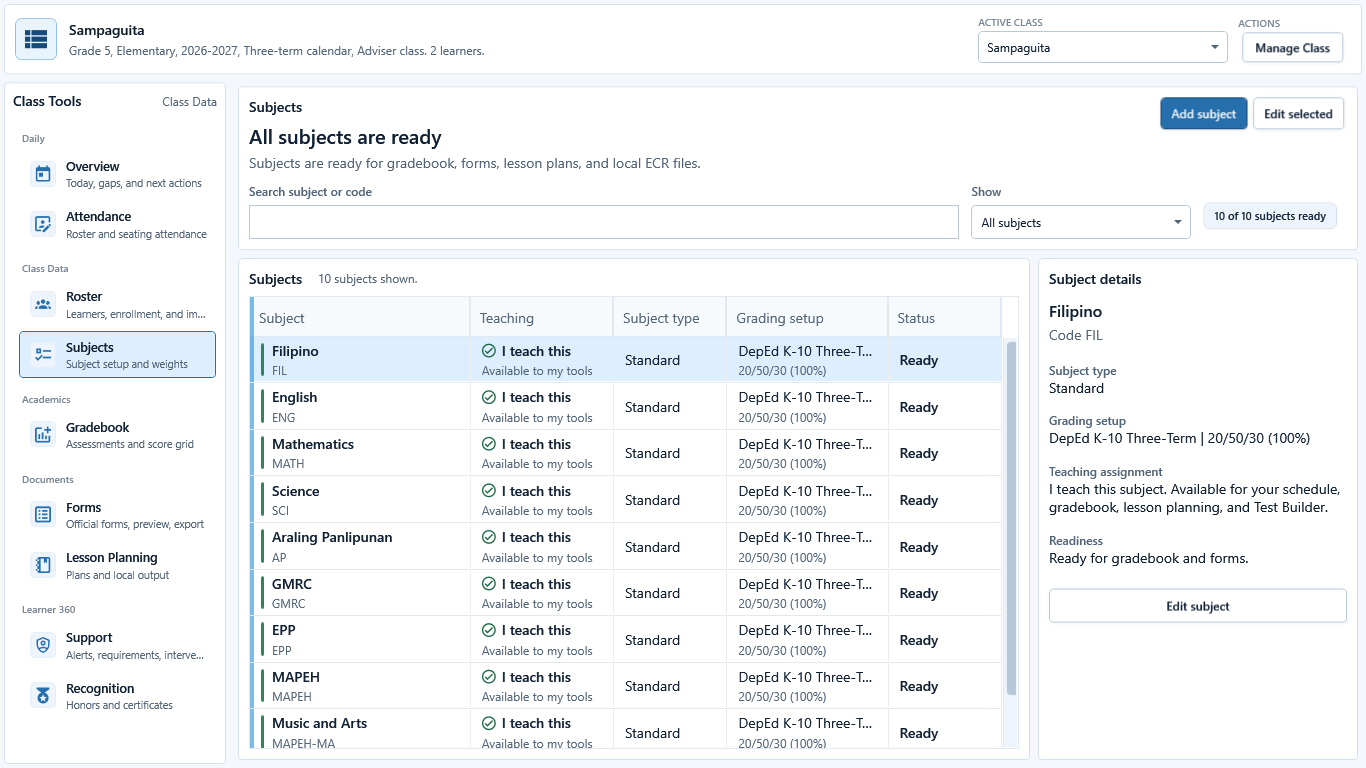
Sample data only. Class tools stay tied to the active class shown in the header. Captured July 11, 2026. Step 3
Open a class workspace for daily and academic tools
Choose Classes, open the intended class, then use Overview, Attendance, Roster, Subjects, Gradebook, Forms, Lesson Planning, Support, and Recognition. Attendance includes Seat Map; Support is the Learner Support workspace.
 View full size
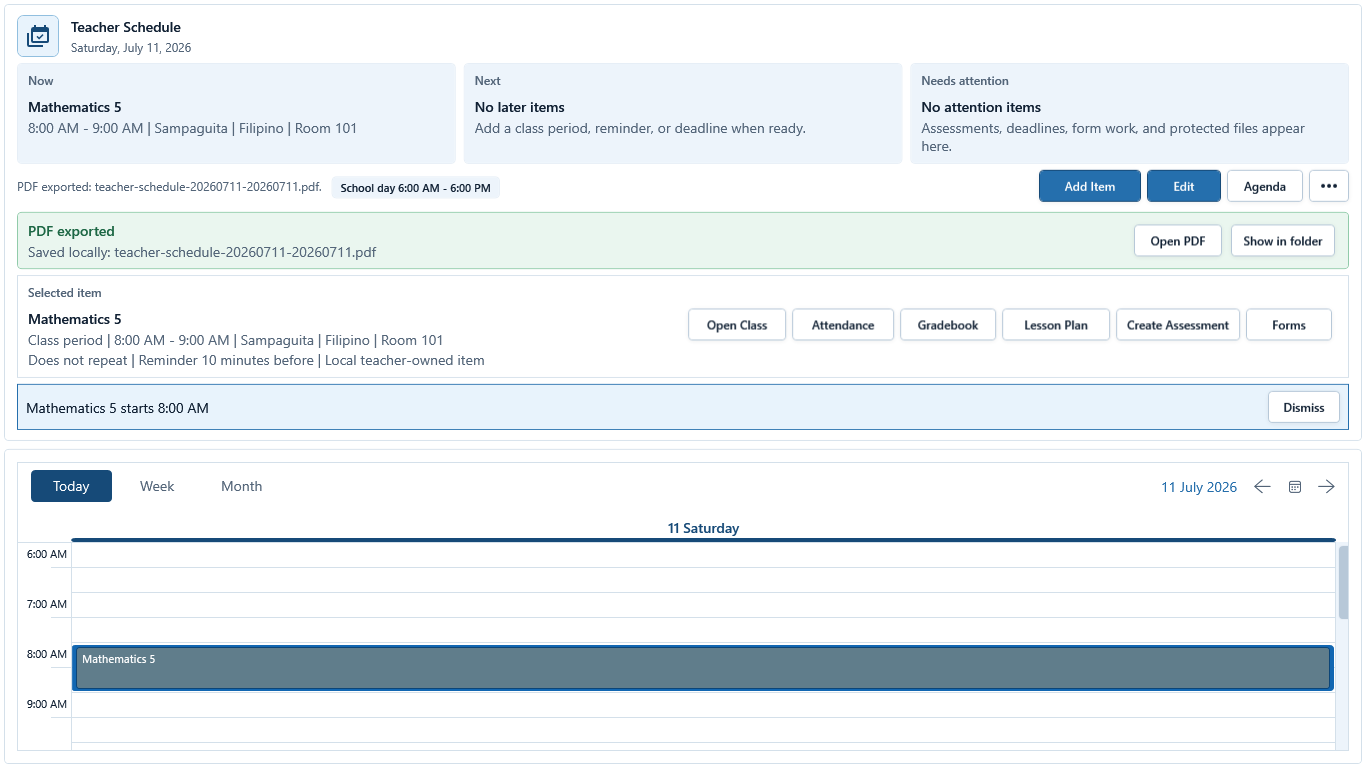
Sample data only. Teacher-wide tools can still open class-specific work when an item is linked to a class. Captured July 11, 2026. Step 4
Use teacher-wide planning and creation tools
Schedule manages calendar and agenda items. Lesson Planning stays inside a class workspace. Test Builder, Templates, Diagram, and Files are teacher-wide entry points; Forms and Recognition remain class-based. Use quick actions only after confirming their selected class or source item.
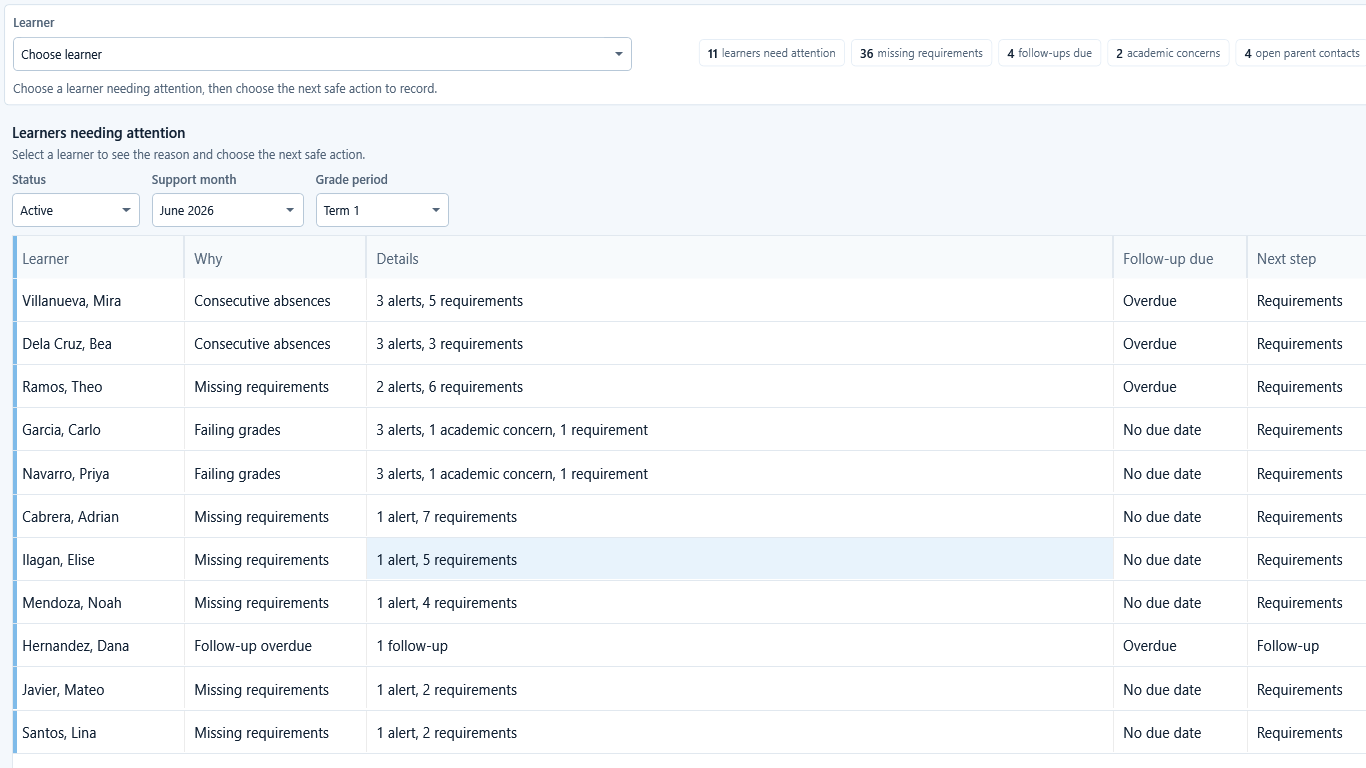 View full size
Sample data only. The visible class and learner are the scope for Learner Support; professional tools are separate workspaces. Captured July 11, 2026. Step 5
Review Learner Support in the selected class
Open Support from a class workspace, confirm the active class and selected learner, then read the attention queue or learner tabs. Leave the class workspace before opening separate PMES, Phil-IRI, CPD Tracker, or AI Tools work.
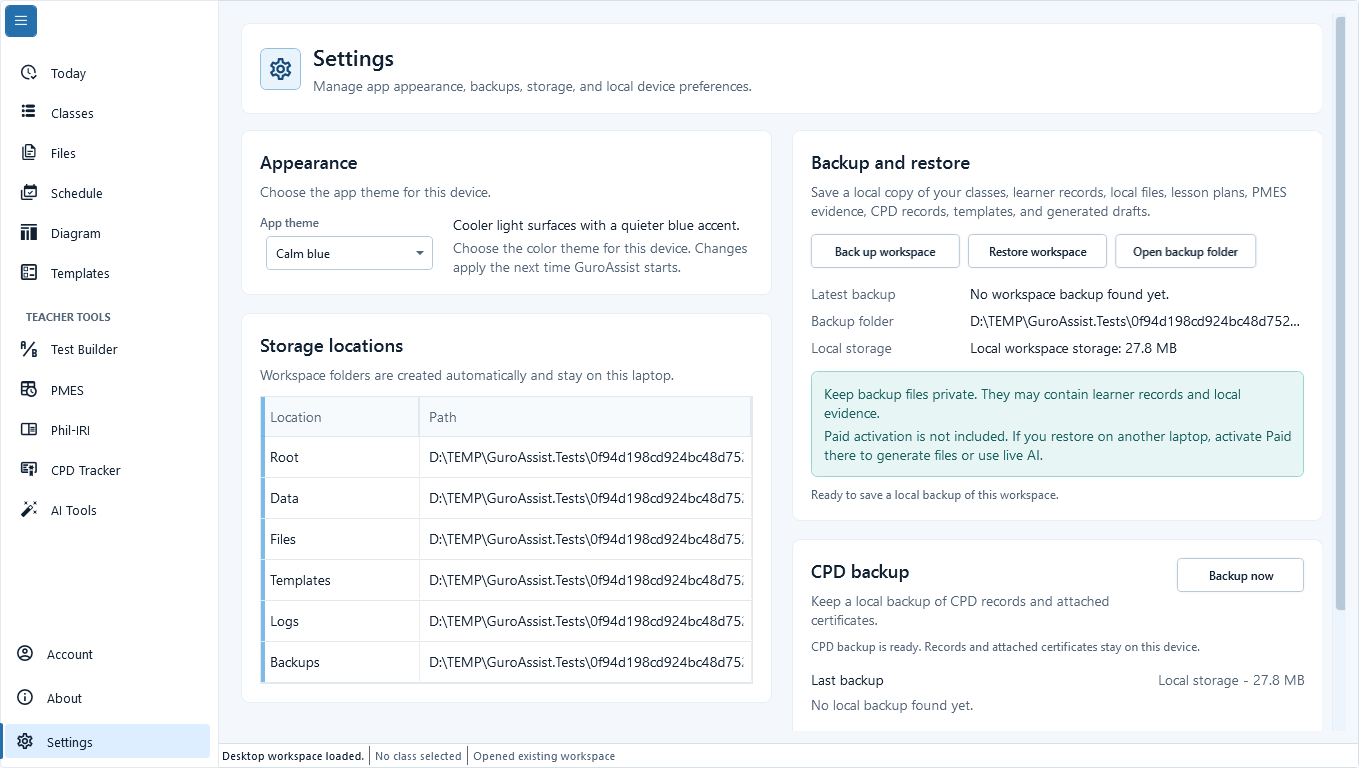 View full size
Sample data only. Device and recovery tasks stay outside the active class workspace. Captured July 11, 2026. Step 6
Use Account, About, and Settings for device-level work
Use Account for the teacher profile and device license, About for version and updates, and Settings for appearance, storage, backup, and restore. These lower-navigation destinations stay outside the active class workspace. Back up before reinstalling or moving devices.
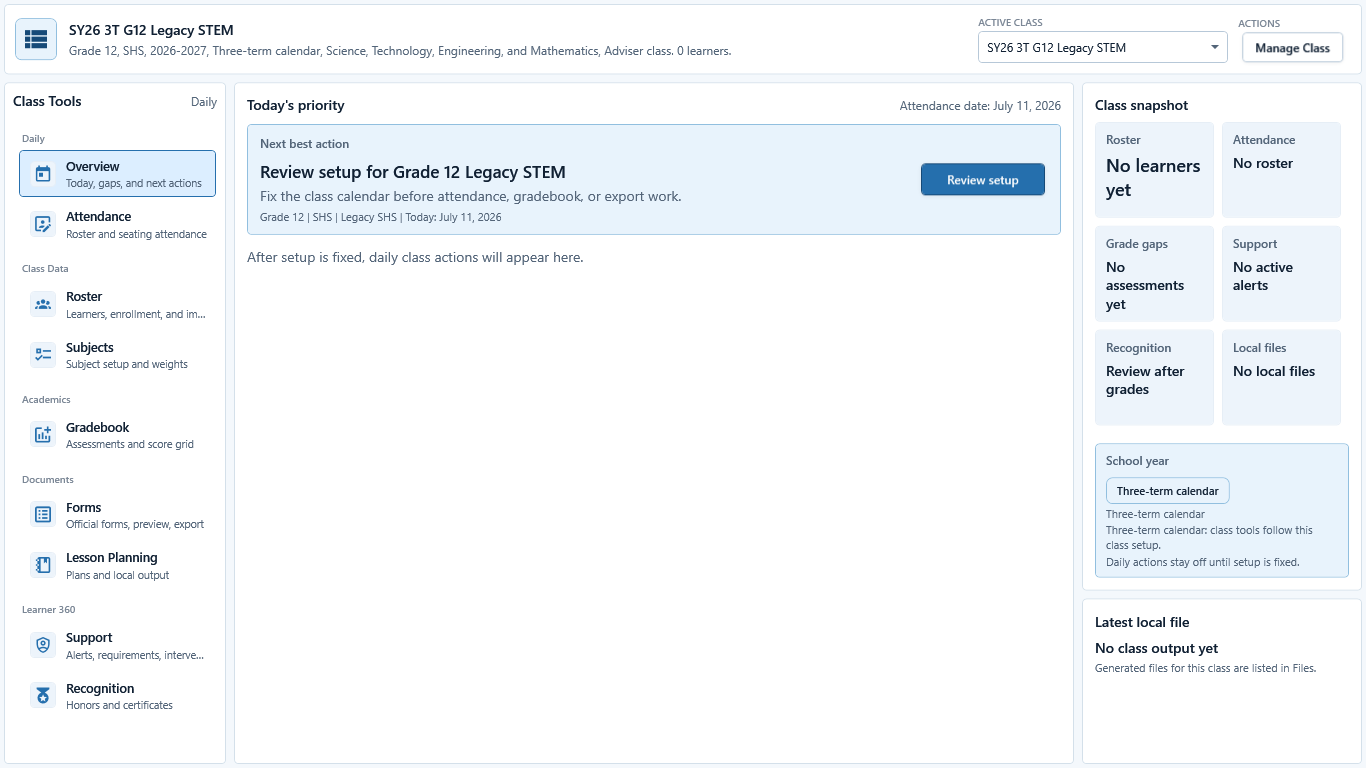 View full size
Sample data only. A blocked message identifies the next safe setup action. Captured July 11, 2026. Step 7
Resolve a blocked setup message before continuing
When a screen says setup needs review, read the stated reason and use its Review setup or direct recovery action. Do not force attendance, grading, forms, or official-looking files past a missing class calendar, teacher profile, subject assignment, learner roster, template, or school-year rule.


Review
Check these before relying on the work
These checks cover saved, previewed, generated, and teacher-review states.
Touring does not require complete setup
A teacher can explore the app, but class-specific work still needs a class and learners.
Local work comes first
Class records, drafts, notes, and generated files belong to the local teacher workspace unless shared by the teacher.
Paid has a clear boundary
Paid unlocks supported generated files and live AI while credits remain; it does not make incomplete work ready.
Official-looking output can be blocked
Templates, policy rules, grades, class setup, and school-year readiness must be complete before official-ready output.
Blocked states and recovery
Fix the blocker before continuing
Use the direct recovery action when GuroAssist is waiting for setup, data, access, policy, or file readiness.
First class not created
Create a class and add learners before expecting class-specific screens to show real rows and actions.
After recovery: The intended learner is selected and the learner-dependent action is available.
Review roster helpPaid-only action selected
Generated files and live AI stay unavailable in Free or when live AI credits are gone.
After recovery: Paid access and any required credits are shown as available for this action.
Open activation helpSchool-year readiness is missing
Unsupported or unknown school-year rules should keep official-looking outputs blocked until the app is ready.
After recovery: The screen shows a supported school-year or policy readiness message for the selected task.
Review generated-file help
Safety note
The app tour is orientation help, not a promise that setup, generated files, or official-ready states are complete.
Finish
Verify the result
Do not treat a saved screen or generated filename as proof that the work is ready.
You’re done when
The teacher can identify the global tools, class workspace tools, account area, and Settings from the current navigation.
Glossary
Expand the terms used in this guide
Use the plain-language meaning here, then follow the exact label in GuroAssist.
- AI
- Artificial intelligence; optional draft help that still requires teacher review.
- PMES
- Performance Management and Evaluation System; GuroAssist supports local teacher preparation, not ratings or approval.
- Phil-IRI
- Philippine Informal Reading Inventory; GuroAssist keeps reading work local and review-based.
- CPD
- Continuing Professional Development; keep these records separate from class and learner data.
Guide details
Guide verification
Use these details to confirm that this guide matches the GuroAssist version and school year you are using.
- Verification
- Verified with GuroAssist 1.0.0.0
- Last reviewed
- July 11, 2026
- Screenshots
- Captured July 11, 2026
- Applies to
- 2026–2027
Was this helpful?
Choose an answer or report a guide that needs attention. No class, learner, or free-text data is sent by these buttons.
Related guides