
Step-by-step guide
Use Settings safely
Settings is the local device workspace for appearance, read-only storage locations, full workspace backup and restore, and a separate local CPD safeguard.
Teacher goal
Where do I manage appearance, read-only storage paths, workspace backup and restore, and the separate CPD backup?
Use this guide for this device’s appearance, storage information, and local safeguards. Stop before restore if the selected backup or summary does not match the workspace you intend to recover.
In-app path
- Settings
Get ready
Check the starting point
These are the minimum conditions for the workflow to make sense.
Before you start
Estimated time: About 25–35 minutes
- The correct local teacher workspace on this device
- A private, teacher-controlled drive for an off-device backup copy
- A current workspace backup before restore, cleanup, reinstall, or laptop changes
- A trusted .guroassist-backup file whose date, teacher, school, and contents can be checked
You should see
Settings shows the selected device theme, six read-only storage paths, honest workspace backup or restore status, and a separate CPD backup status.
Steps
Complete the task in order
Review choice points, save or preview behavior, and any stop condition before continuing.
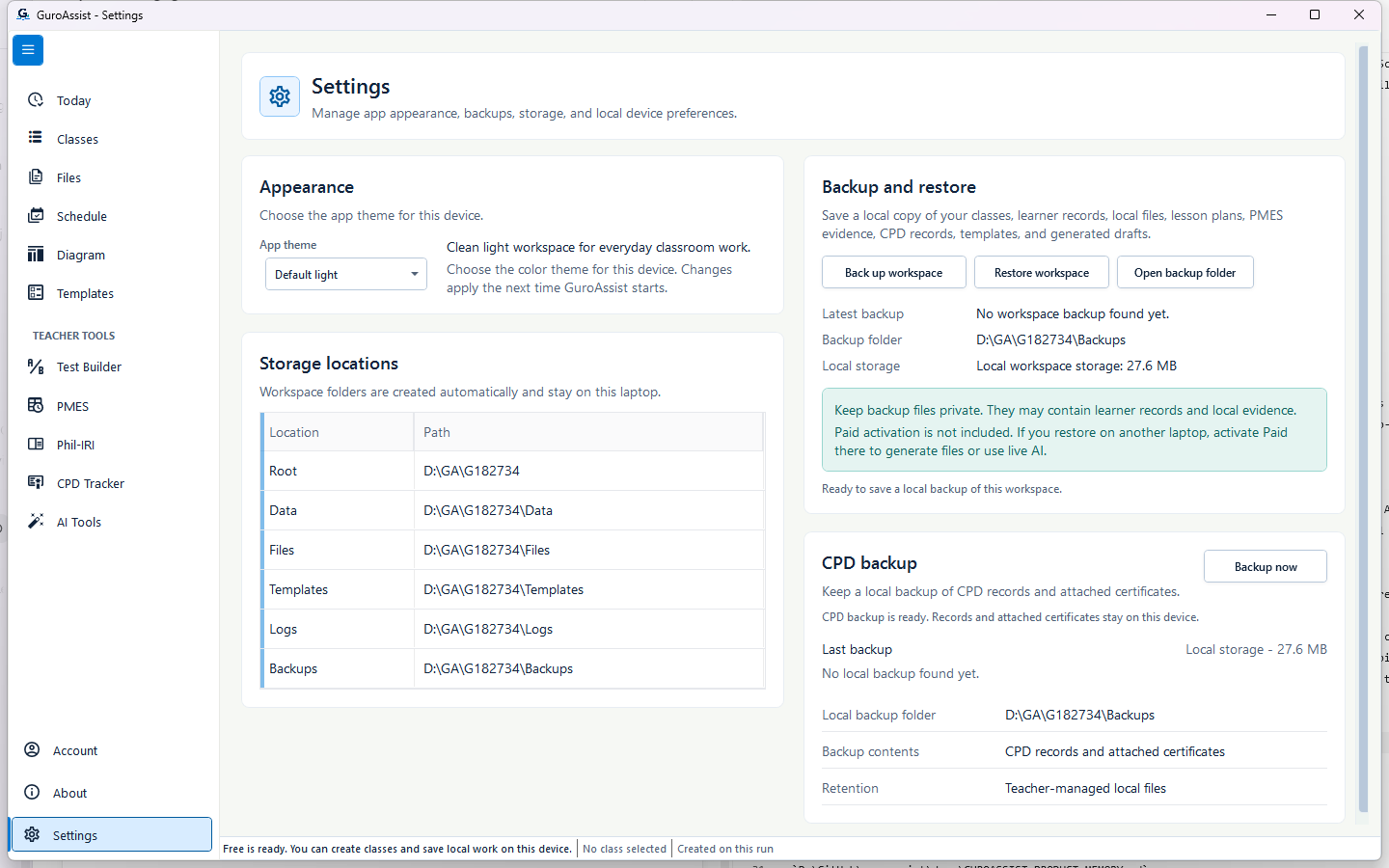 View full size
Sample data only. Use this complete view to locate device appearance, local storage information, full-workspace recovery, and the separate CPD safeguard. Captured July 12, 2026. Step 1
Open and understand Settings
Open Settings from the main navigation. Appearance and the read-only storage list are on the left. Full workspace backup and restore and the separate CPD backup are on the right. Settings has no activation-code control.
Expected result: Settings opens with four clearly labelled areas for this device.
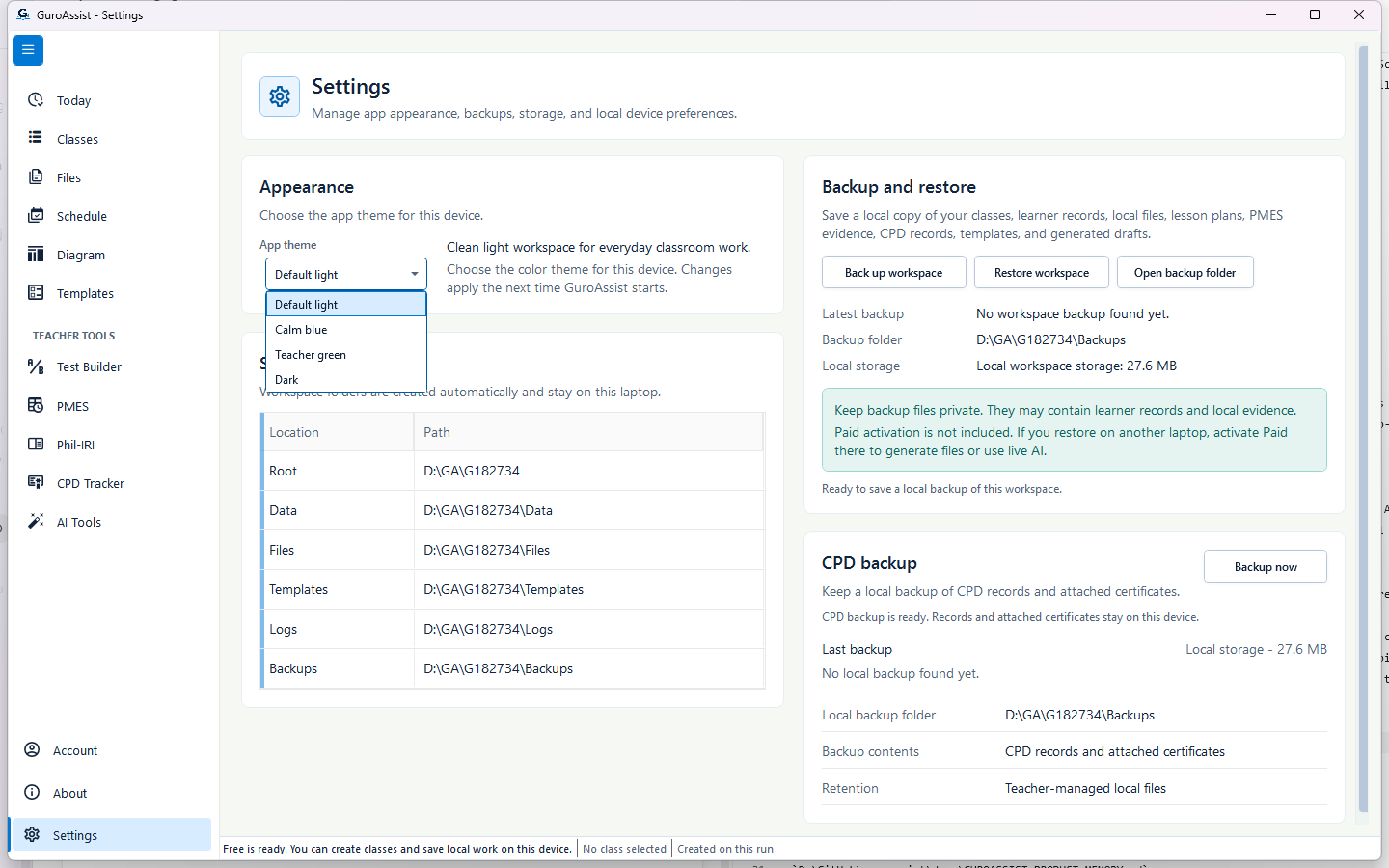 View full size
Sample data only. Choose the option that is most comfortable to read on this laptop. Captured July 12, 2026. Step 2
Choose an app theme
Open App theme and choose Default light, Calm blue, Teacher green, or Dark. The preference belongs to this device and is not included in a workspace backup.
Expected result: All four current theme names appear in the list and the selected name remains in App theme.
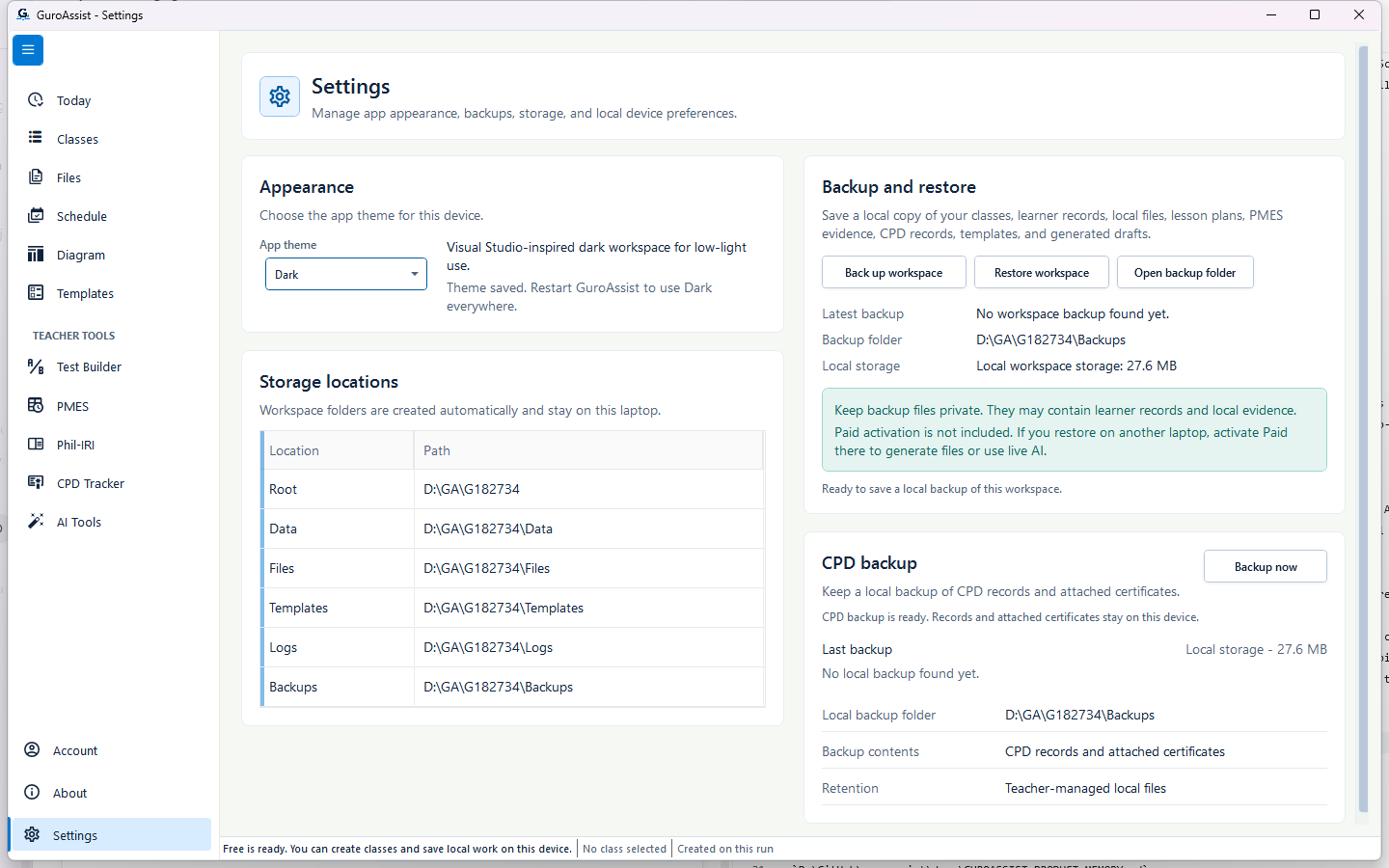 View full size
Sample data only. The saved message is the cue to finish current work and restart when convenient. Captured July 12, 2026. Step 3
Confirm that the theme was saved
Read the message below Appearance. GuroAssist saves the device preference immediately but asks for a restart before the theme is used everywhere.
Expected result: A message such as “Theme saved. Restart GuroAssist to use Dark everywhere.” appears.
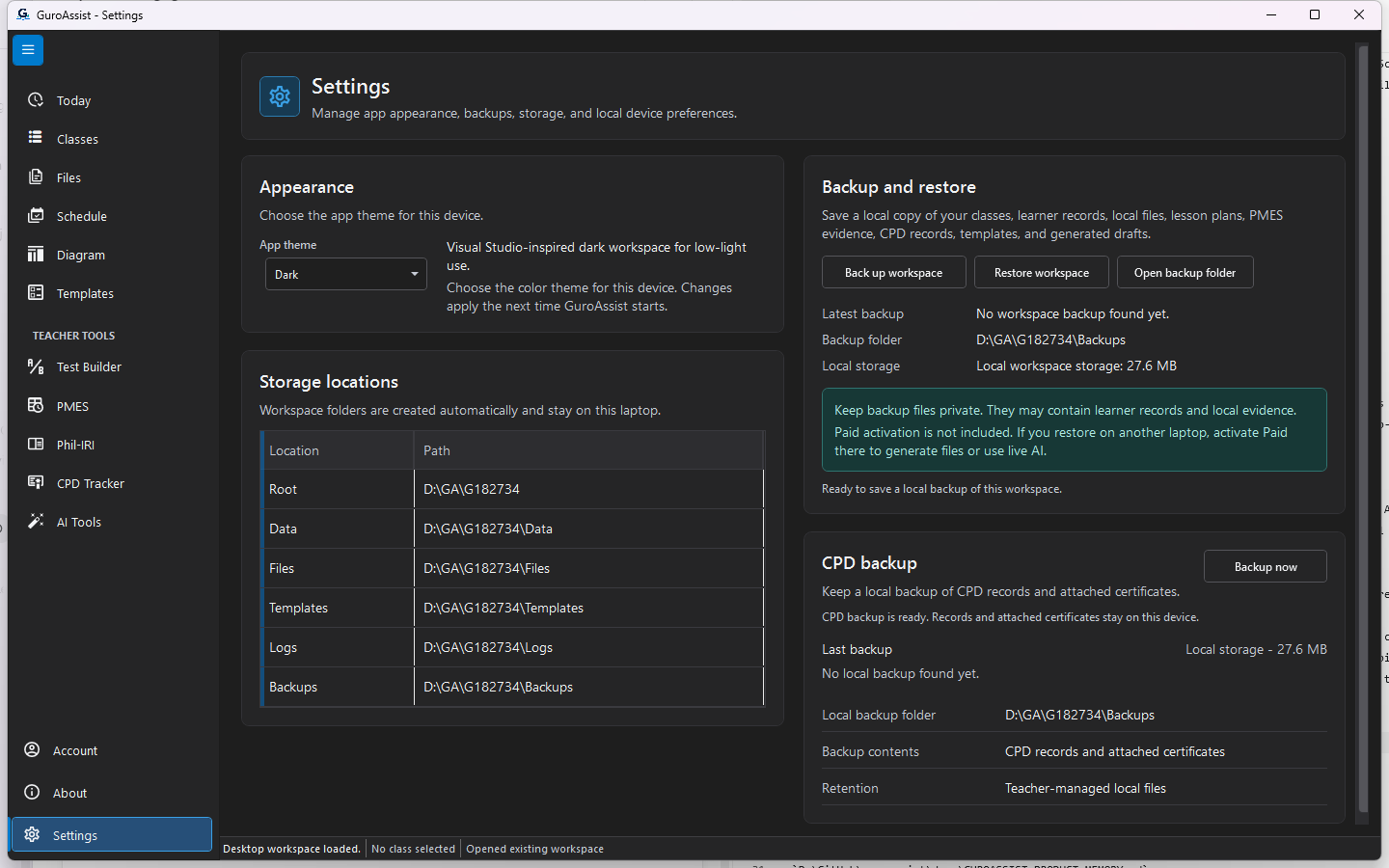 View full size
Sample data only. This fresh app start verifies that the device-only theme took effect. Captured July 12, 2026. Step 4
Restart and verify the device theme
Finish current work, close GuroAssist normally, and reopen it. Return to Settings and check that the selected theme is used throughout the app.
Expected result: GuroAssist reopens in the selected theme while the local teacher workspace remains unchanged.
 View full size
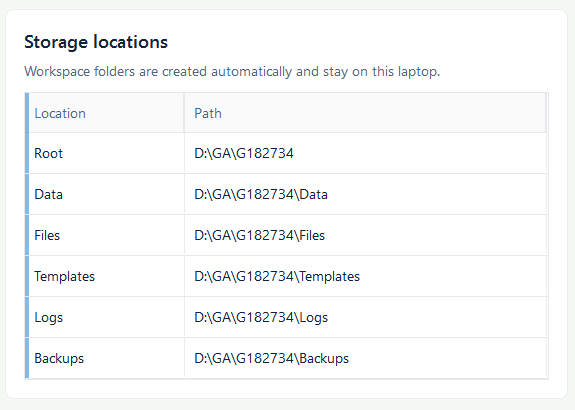
Sample data only. The short disposable path makes every folder distinction readable without exposing a real teacher location. Captured July 12, 2026. Step 5
Read the six storage locations
Read Root, Data, Files, Templates, Logs, and Backups to understand where this laptop keeps local work. The paths are read-only in Settings. Do not move, rename, or delete these folders while GuroAssist is running.
Expected result: All six path endings are readable and no edit or change-location control appears.
 View full size
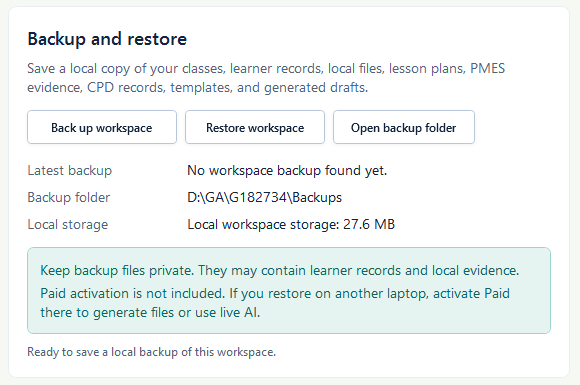
Sample data only. Confirm the local Backups folder and privacy warning before creating a recovery copy. Captured July 12, 2026. Step 6
Prepare a private workspace backup
Before restore, cleanup, Windows reinstall, or a laptop change, check the Backup and restore panel. Keep the result private because it can contain classes, learner records, local files, templates, and drafts. Paid activation is separate.
Expected result: Back up workspace, Restore workspace, and Open backup folder are available and the local Backups path is shown.
 View full size
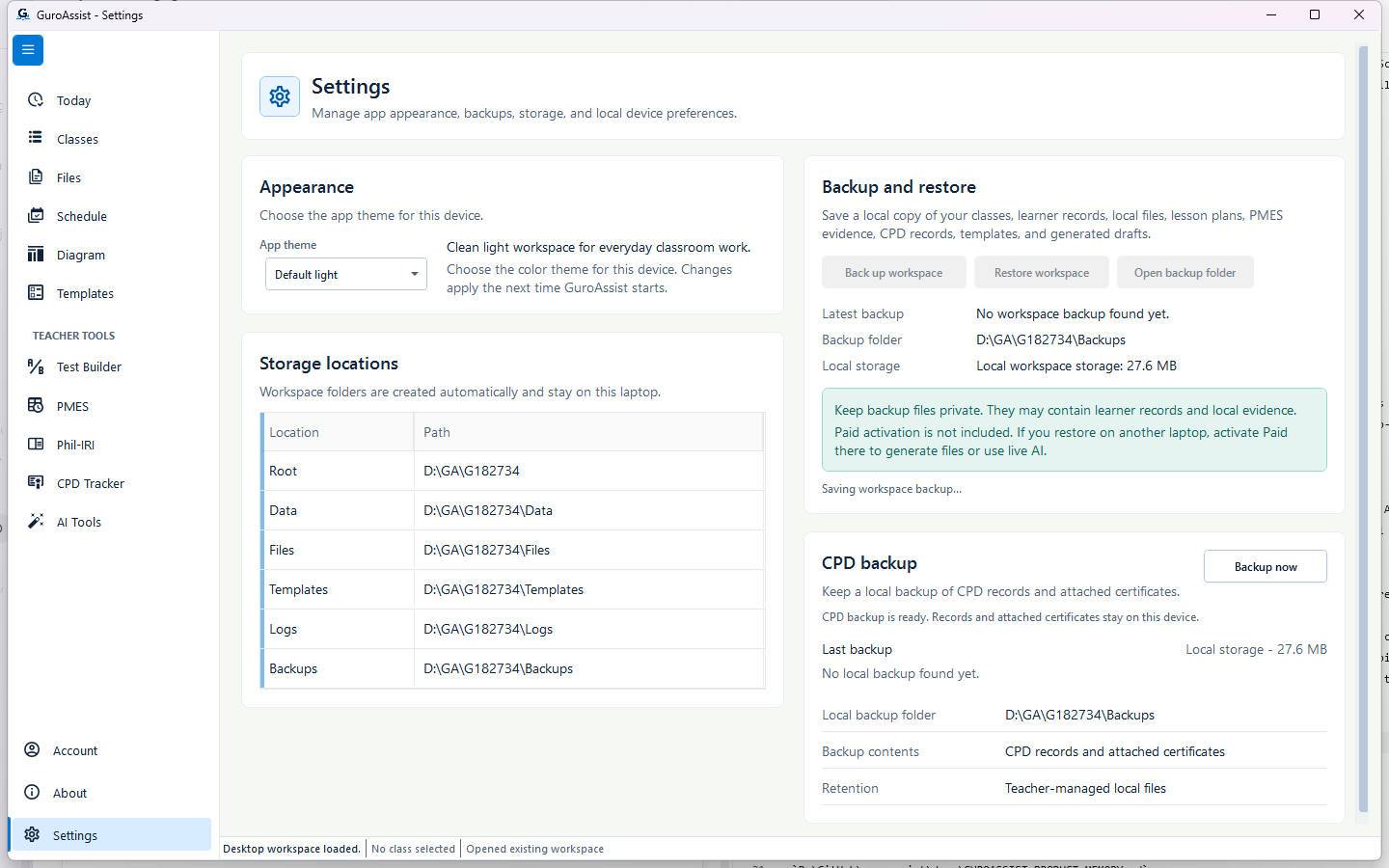
Sample data only. Wait for the progress message to change before closing GuroAssist or starting restore. Captured July 12, 2026. Step 7
Wait while the workspace backup is saved
Select Back up workspace once and wait. While “Saving workspace backup...” is shown, the related recovery actions are unavailable so a second action cannot interrupt the save.
Expected result: The progress message remains until the dated backup has finished saving.
 View full size
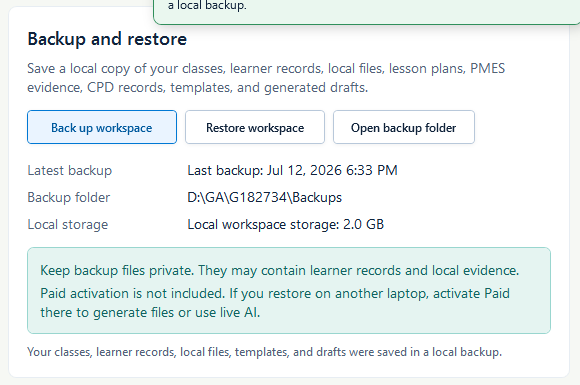
Sample data only. Treat the success message—not the button click—as confirmation that the backup finished. Captured July 12, 2026. Step 8
Confirm workspace backup success
Read the completion message before relying on the backup. GuroAssist saves the dated recovery file in the displayed Backups folder.
Expected result: “Workspace backup saved” confirms that the current classes, learner records, local files, templates, and drafts were saved.
 View full size
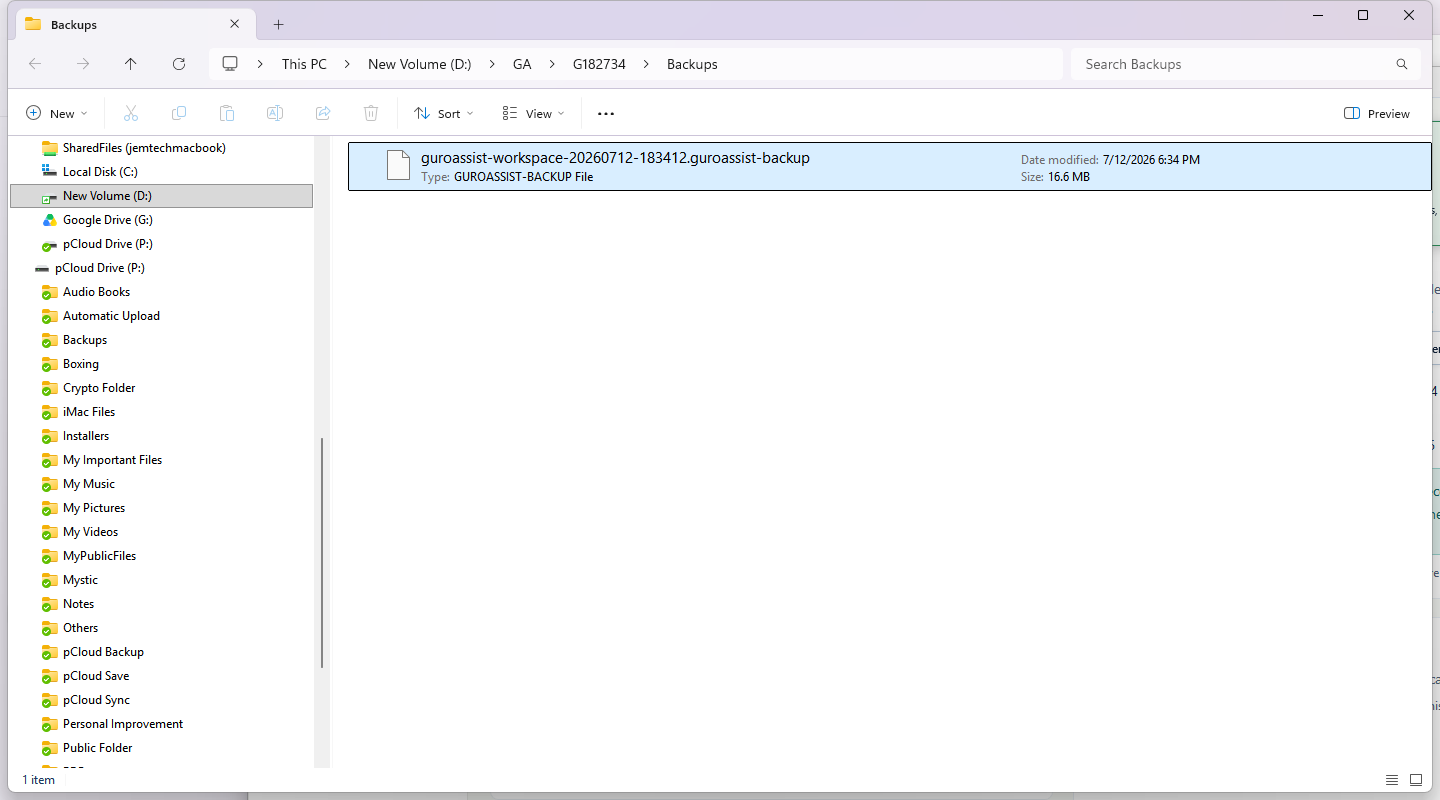
Sample data only. Check the folder, date, and full .guroassist-backup filename before making a private off-device copy. Captured July 12, 2026. Step 9
Find the dated backup file
Select Open backup folder and locate the newest dated .guroassist-backup file. When recovery from laptop loss matters, copy that file with normal Windows file tools to a private teacher-controlled drive. Settings does not ask for another destination.
Expected result: Windows opens the displayed Backups folder and shows the complete dated filename, type, size, and modified time.
 View full size
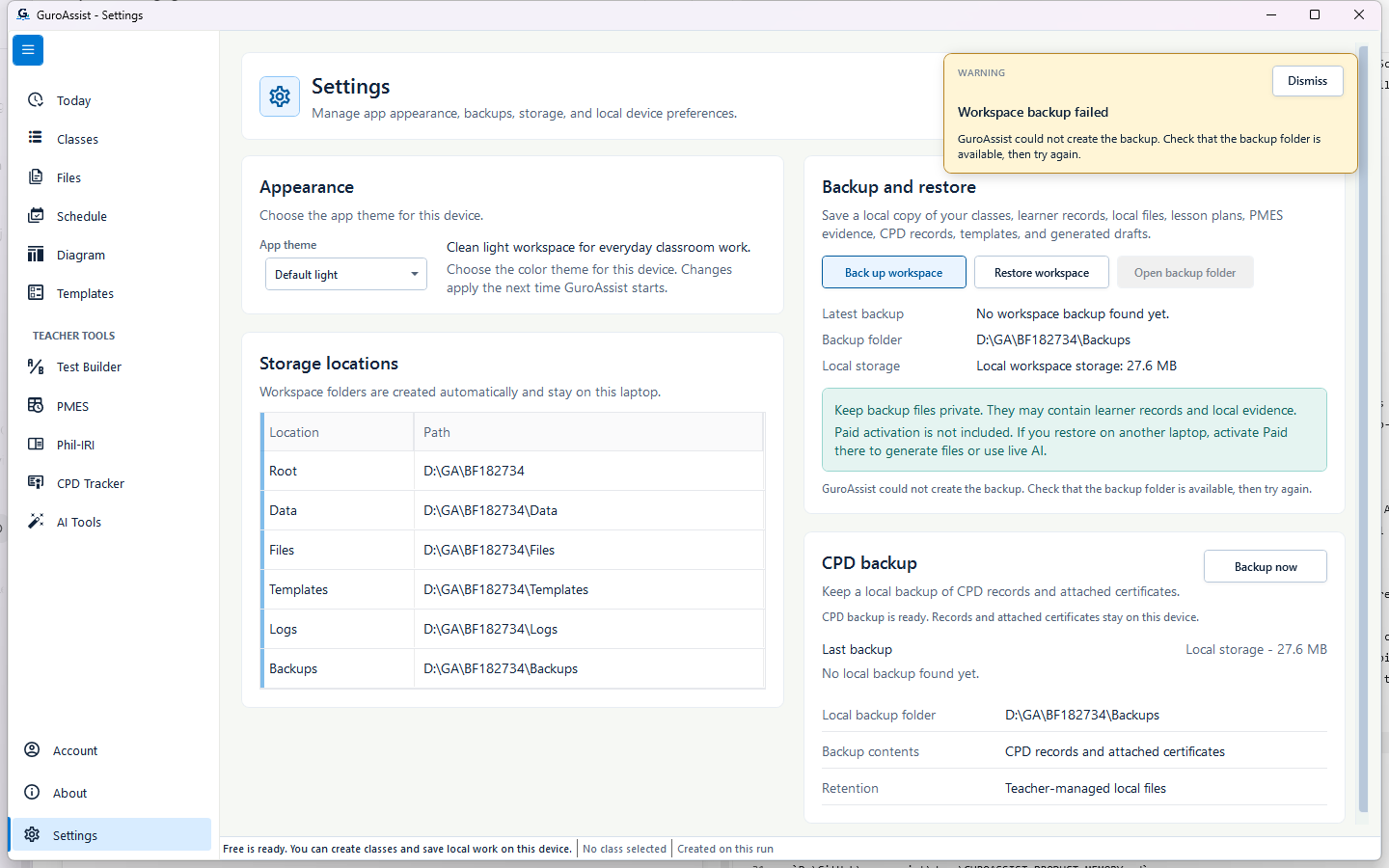
Sample data only. Do not continue with a destructive action until a new backup completes successfully. Captured July 12, 2026. Step 10
Stop when workspace backup fails
If GuroAssist cannot use the Backups location, stop cleanup or restore work. Close files that may be using the folder, confirm the location is available, and retry until a success message appears.
Expected result: “Workspace backup failed” explains that the backup folder must be available; no successful backup is claimed.
 View full size
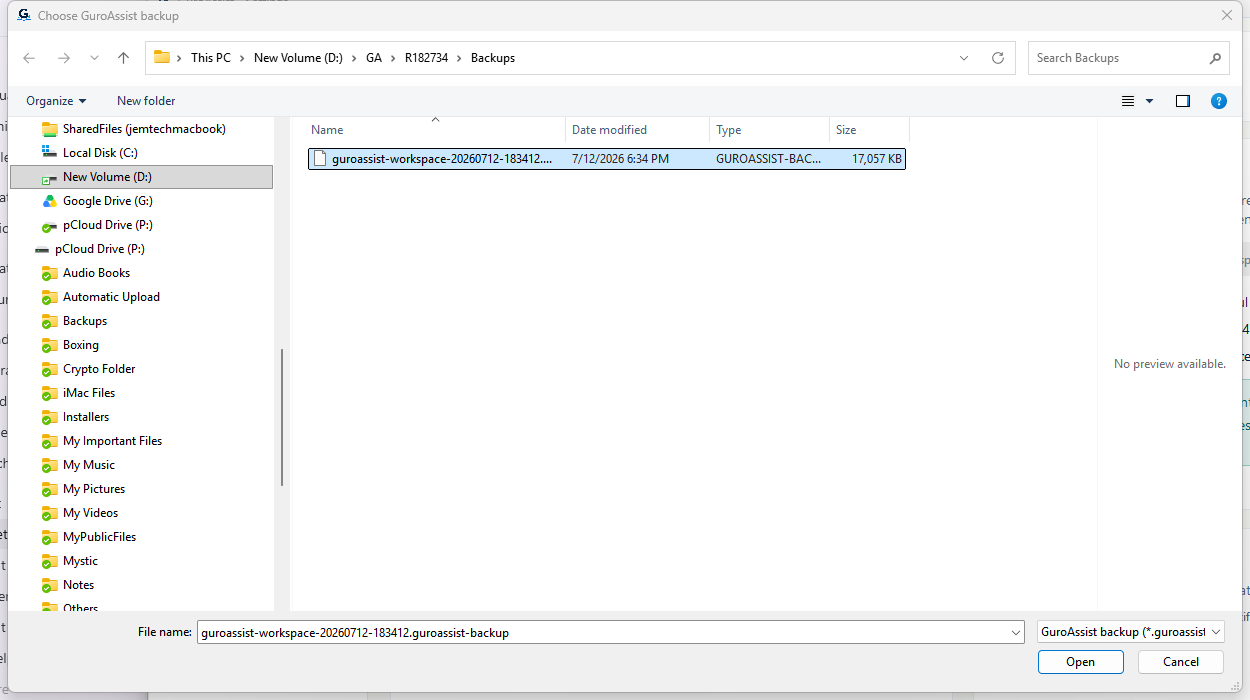
Sample data only. The full path, extension, and safe Cancel choice are readable without cropping the dialog. Captured July 12, 2026. Step 11
Choose or cancel a trusted backup
Select Restore workspace. In “Choose GuroAssist backup,” select only a known .guroassist-backup file whose folder, full filename, and date you recognize. Select Cancel instead when its origin is uncertain.
Expected result: The complete supported filename and Open and Cancel choices are visible; Cancel leaves the current workspace unchanged.
 View full size
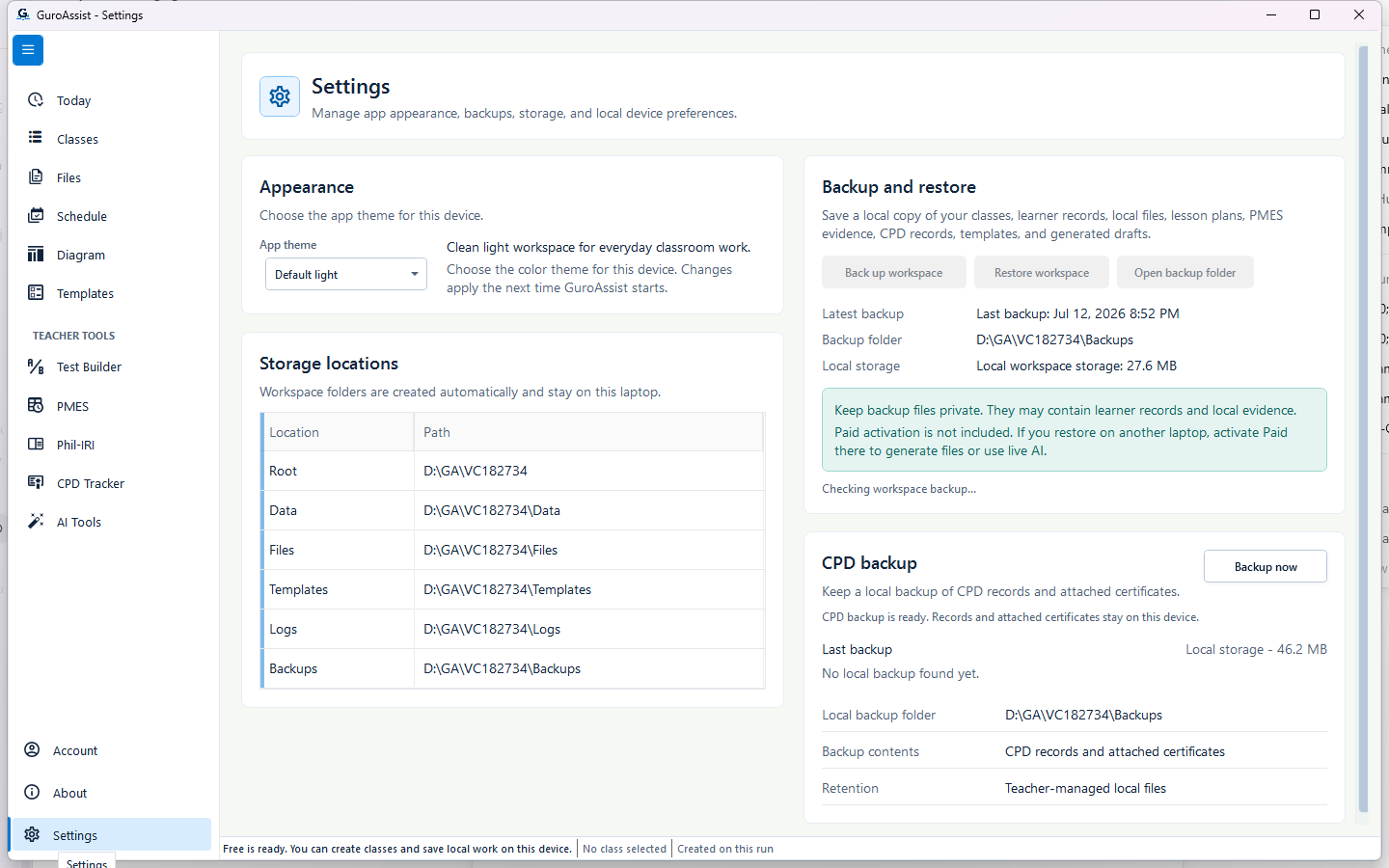
Sample data only. Wait for checking to finish before deciding whether the backup is safe to restore. Captured July 12, 2026. Step 12
Wait while GuroAssist checks the backup
After selecting Open, wait while GuroAssist checks that the file is a supported, complete recovery copy for this app version. Do not close the app during this check.
Expected result: “Checking workspace backup...” appears before either a safe summary or a blocked message.
 View full size
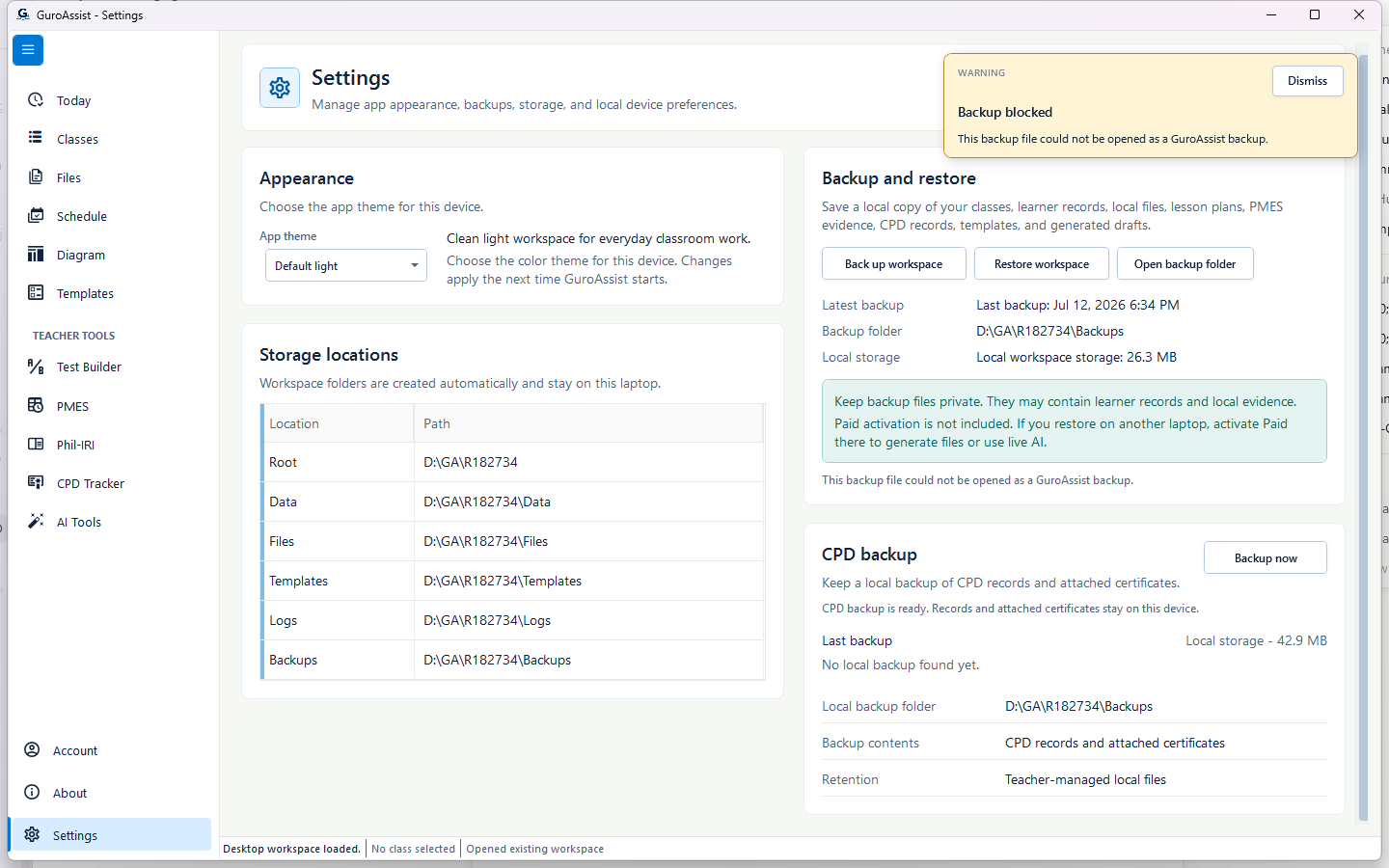
Sample data only. A blocked file never reaches the replacement summary. Captured July 12, 2026. Step 13
Stop when a backup is invalid or corrupted
Do not rename or force open a file that GuroAssist blocks. Return to the picker and choose a known GuroAssist backup, or contact support without sending unnecessary learner information.
Expected result: “Backup blocked” says that the file could not be opened as a GuroAssist backup and the current workspace stays unchanged.
 View full size
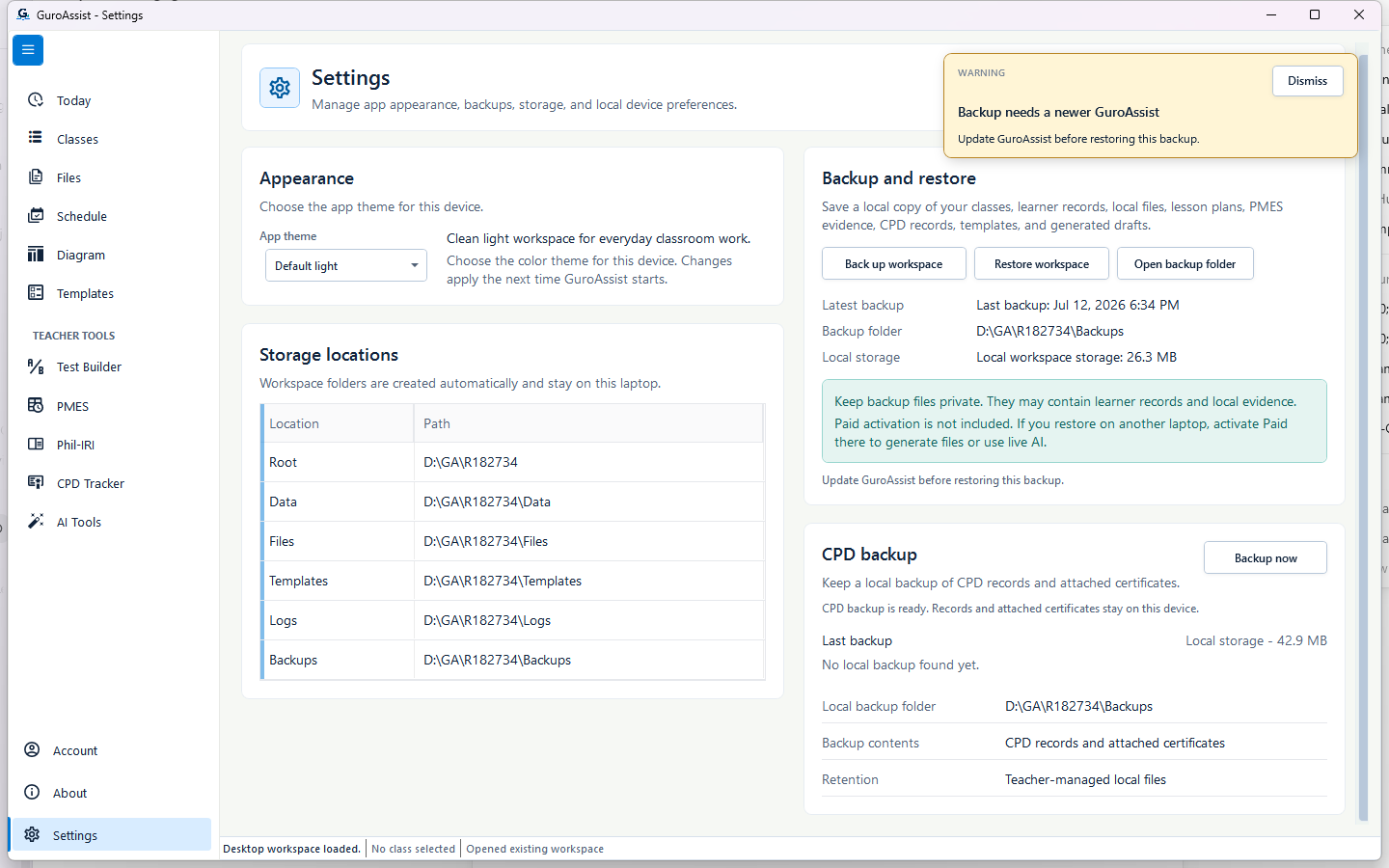
Sample data only. The version block prevents a newer recovery file from being applied by an older app. Captured July 12, 2026. Step 14
Update before using a newer backup
If a backup was created by a newer GuroAssist version, stop. Update through the supported app process, reopen Settings, and check the file again. Do not bypass the version block.
Expected result: “Backup needs a newer GuroAssist” instructs the teacher to update before restore.
 View full size
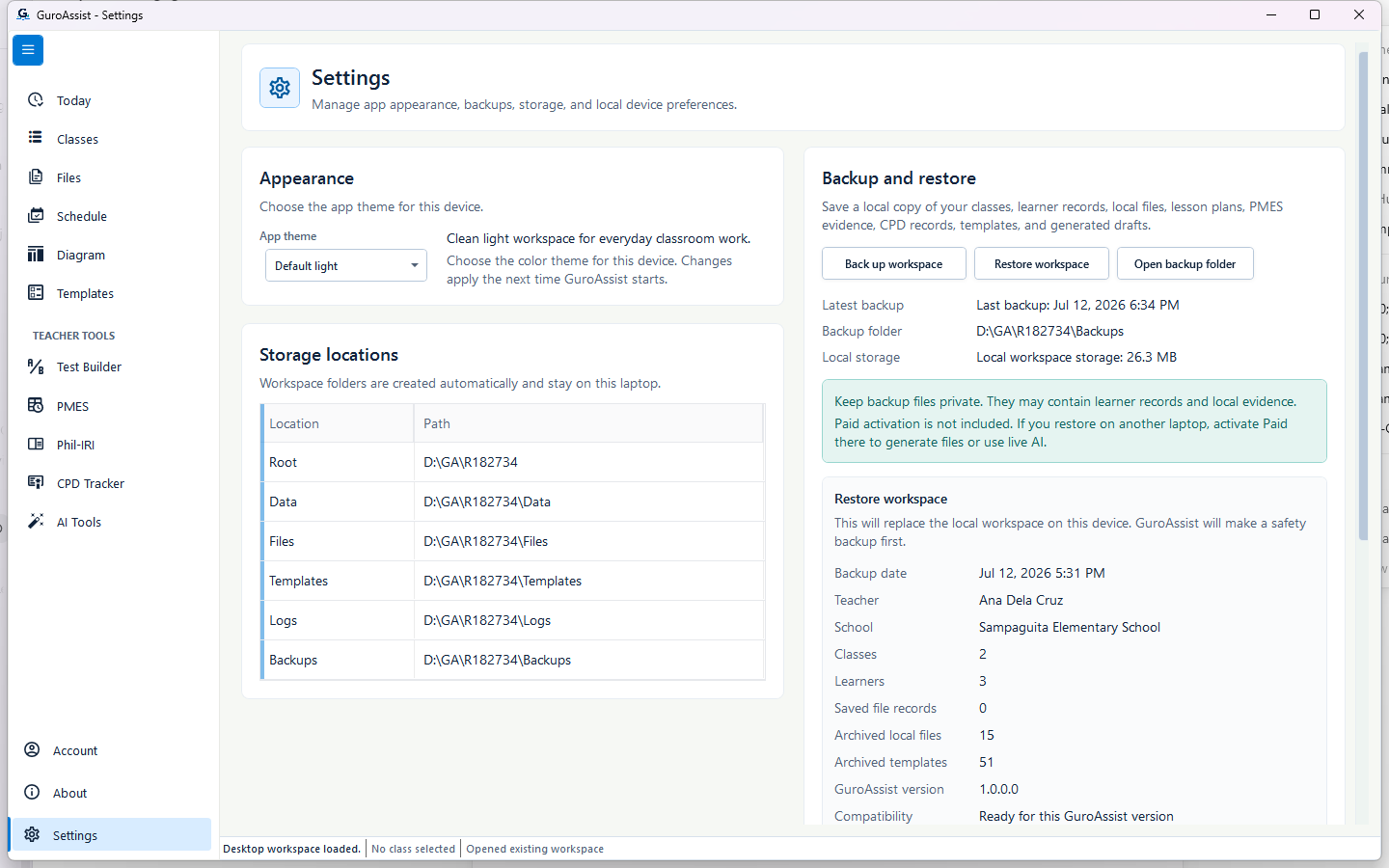
Sample data only. This current-executable summary shows two sample classes, three learners, 15 archived local files, and 51 templates. Captured July 12, 2026. Step 15
Review the complete restore summary
Check Backup date, Teacher, School, Classes, Learners, Saved file records, Archived local files, Archived templates, GuroAssist version, and Compatibility. Continue only when all ten values match the intended recovery point and you understand that the local workspace will be replaced after a safety backup.
Expected result: All ten rows, the replacement warning, Restore this workspace, and Cancel are readable together.
 View full size
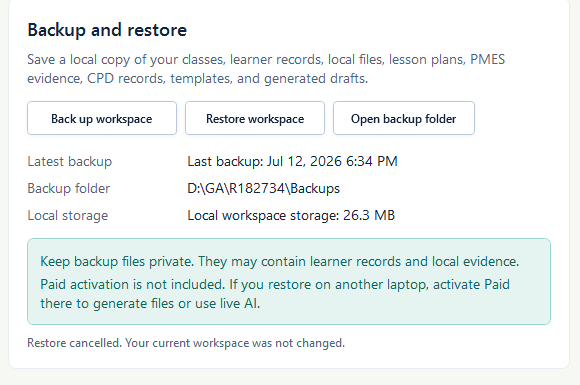
Sample data only. Cancellation is the safe result whenever the complete summary cannot be confidently verified. Captured July 12, 2026. Step 16
Cancel when the summary does not match
Select Cancel when the teacher, school, date, totals, version, or compatibility is unexpected. This closes the restore decision without replacing current work.
Expected result: “Restore cancelled. Your current workspace was not changed.” appears and target-only sample work remains.
 View full size
Sample data only. The disposable target-only file remained in place because replacement never started. Captured July 12, 2026. Step 17
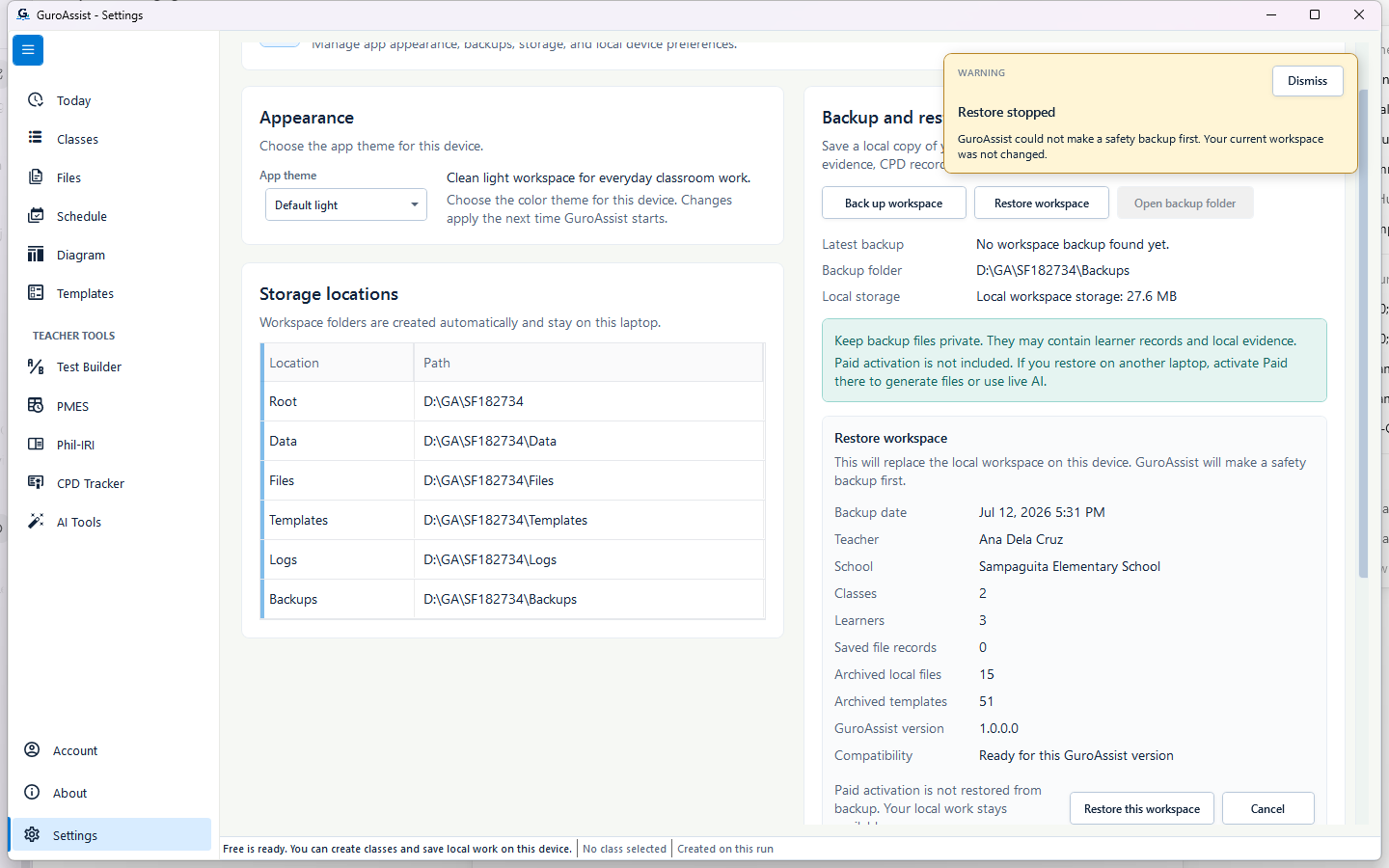
Stop when the safety backup cannot be made
GuroAssist must save the current workspace before replacement begins. If that safeguard cannot be created, free local space or restore access to the Backups folder, then start again from a trusted file.
Expected result: “Restore stopped” confirms that the current workspace was not changed.
 View full size
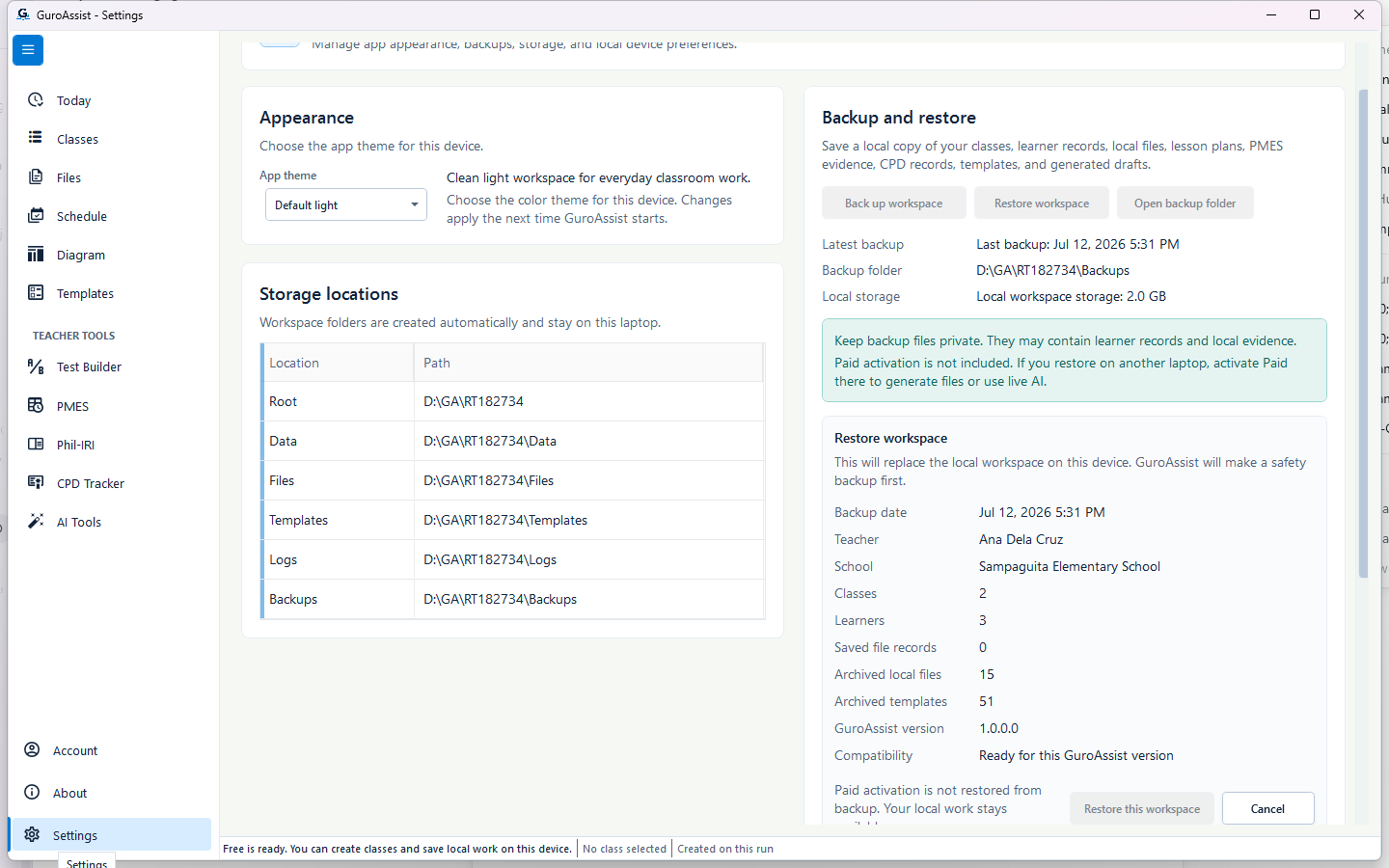
Sample data only. Wait for the final result; do not close GuroAssist during replacement. Captured July 12, 2026. Step 18
Wait while the workspace is restored
After selecting Restore this workspace, leave GuroAssist open while it saves the safety copy and applies the selected recovery point. Recovery actions remain unavailable during this work.
Expected result: “Restoring workspace...” appears until success or a safe failure message is shown.
 View full size
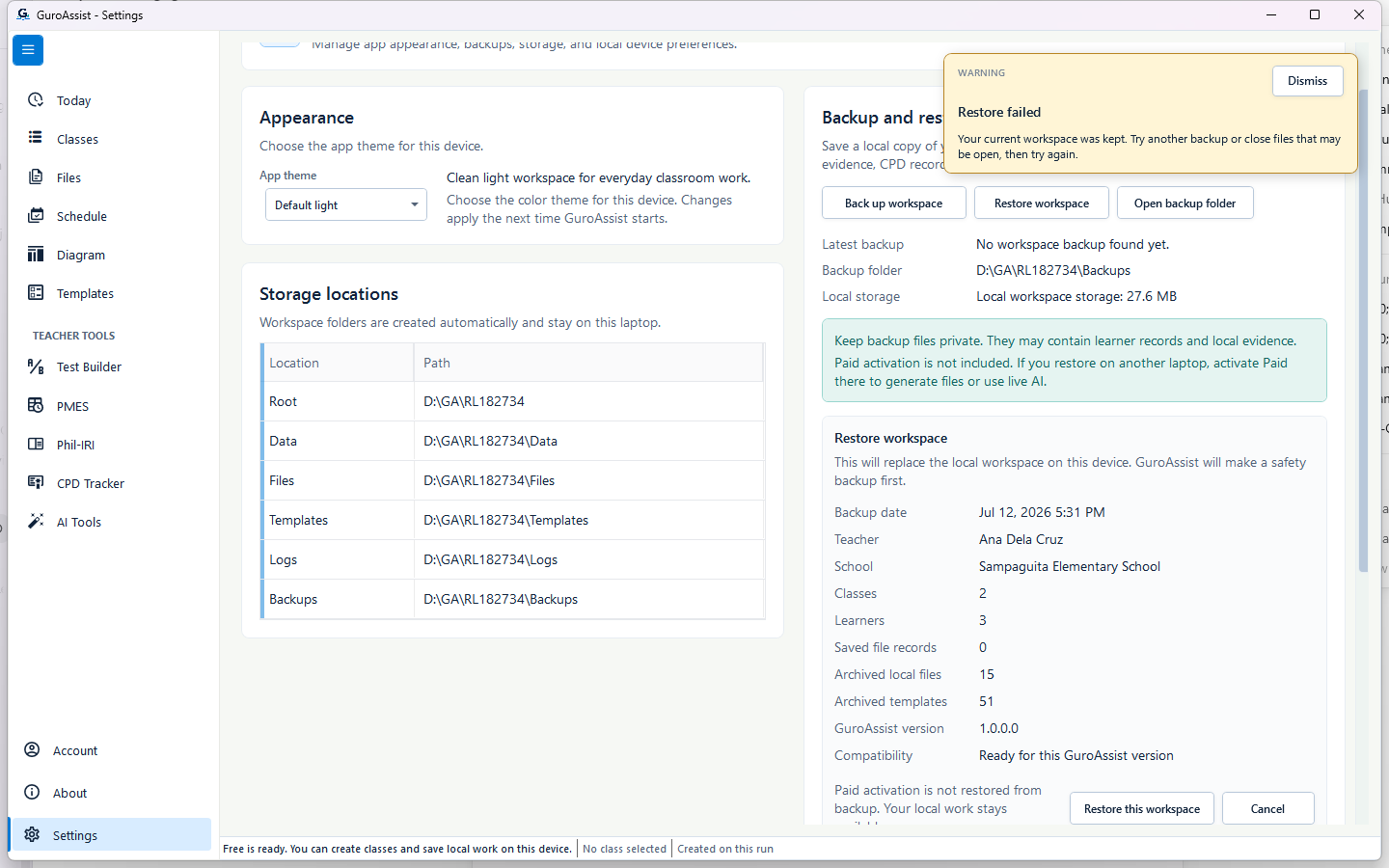
Sample data only. The observed failure used a disposable read lock so safety backup could complete before replacement was rolled back. Captured July 12, 2026. Step 19
Keep current work when replacement fails
If an open or locked local file prevents replacement, close the file and try again or choose another trusted backup. Keep the newly created safety backup private until recovery is resolved.
Expected result: “Restore failed” says that the current workspace was kept; the disposable target-only file and safety backup both remain.
 View full size
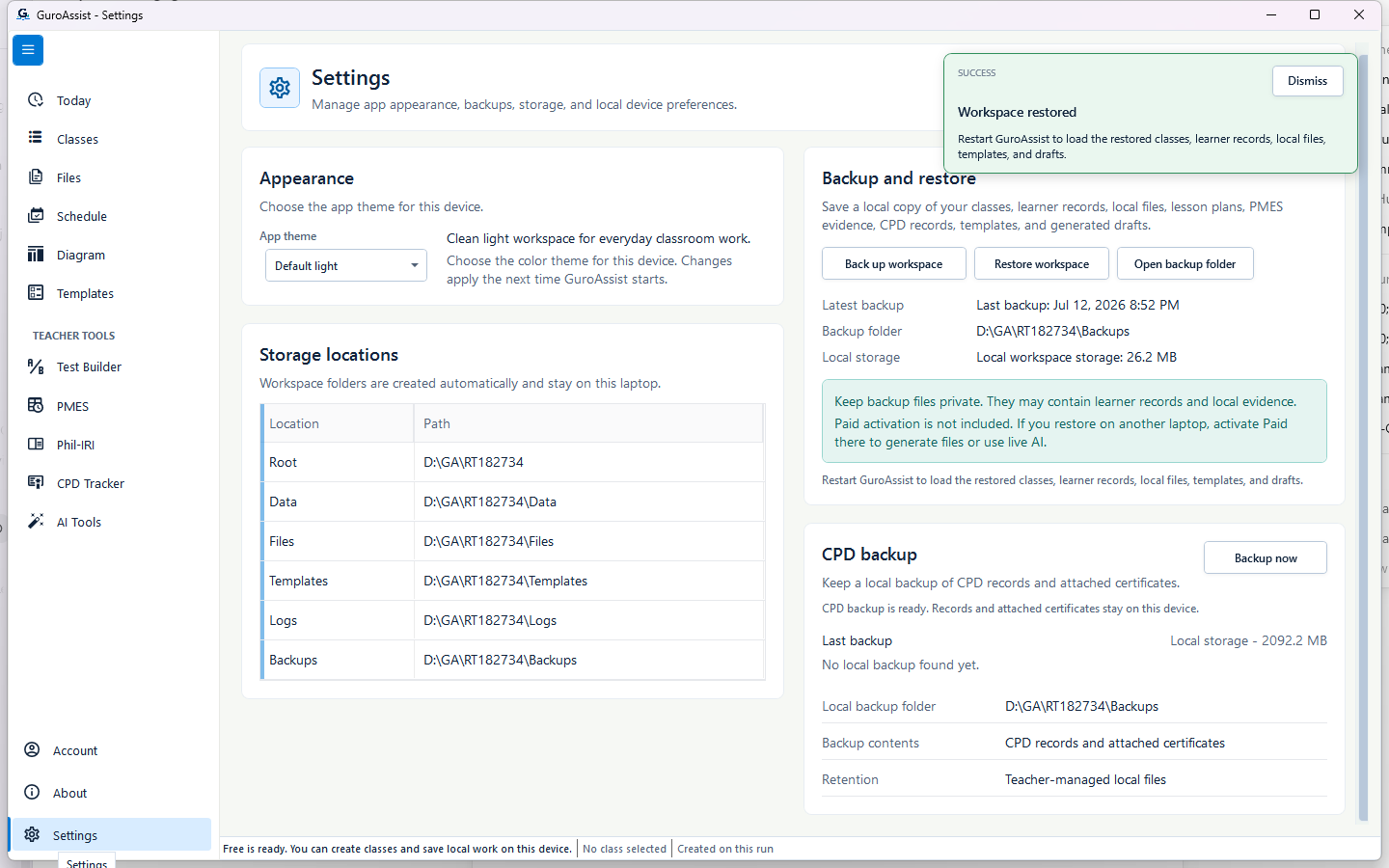
Sample data only. The disposable safety backup existed and target-only work had been removed before this success was accepted. Captured July 12, 2026. Step 20
Read the successful restore result
When replacement finishes, read the success message. GuroAssist requires a restart before the restored classes, learner records, local files, templates, and drafts are loaded into the open session. Paid access must be checked again on this device.
Expected result: “Workspace restored” asks the teacher to restart GuroAssist.
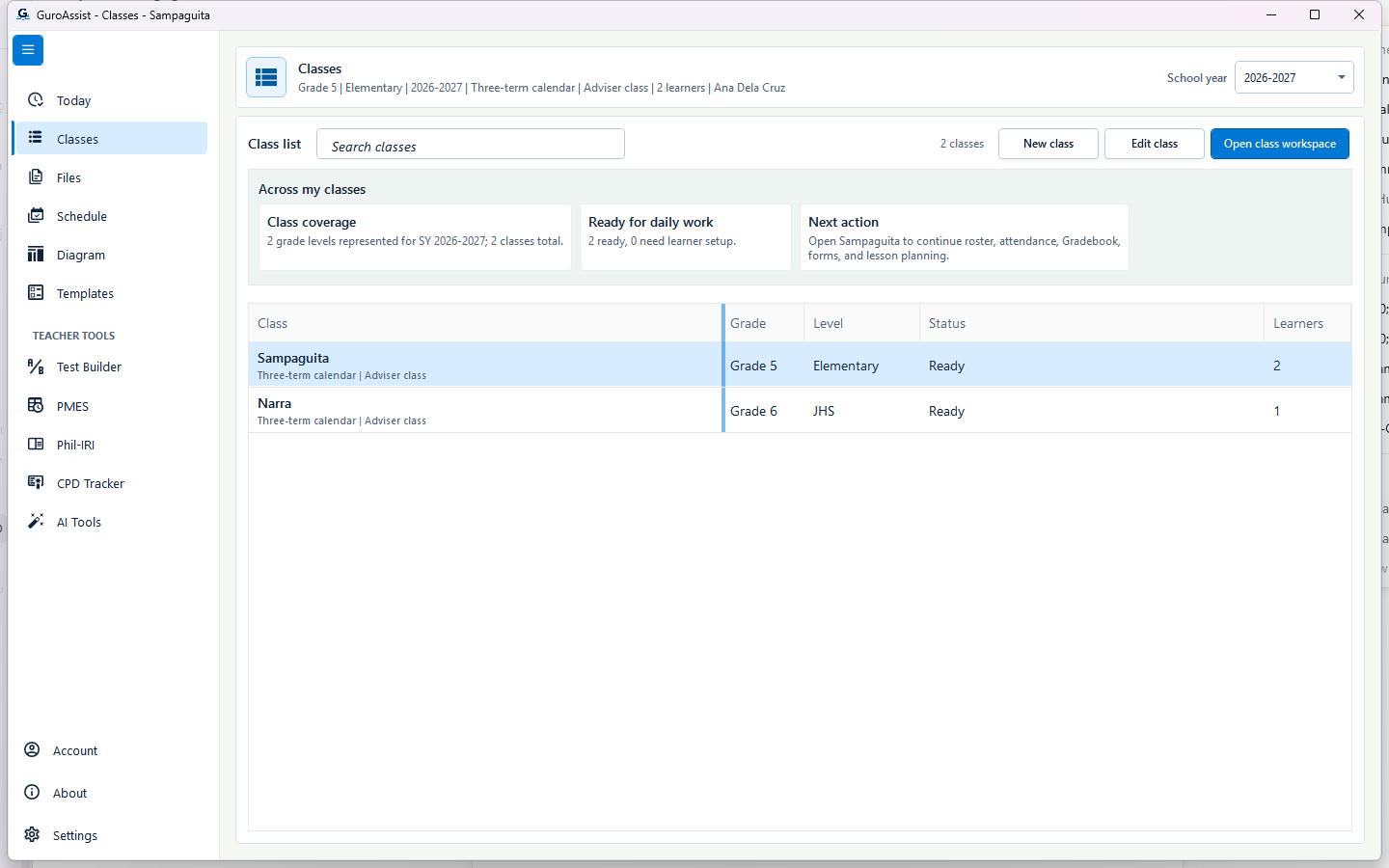 View full size
Sample data only. The visible two-class total and selected-class learner count match the verified three-learner sample recovery point. Captured July 12, 2026. Step 21
Restart and verify classes and learners
Close and reopen GuroAssist, open Classes, and compare the class and learner totals with the restore summary. In this disposable sample, two classes and three learners returned.
Expected result: Classes shows two classes; Sampaguita shows two learners and the other sample class contains the third learner.
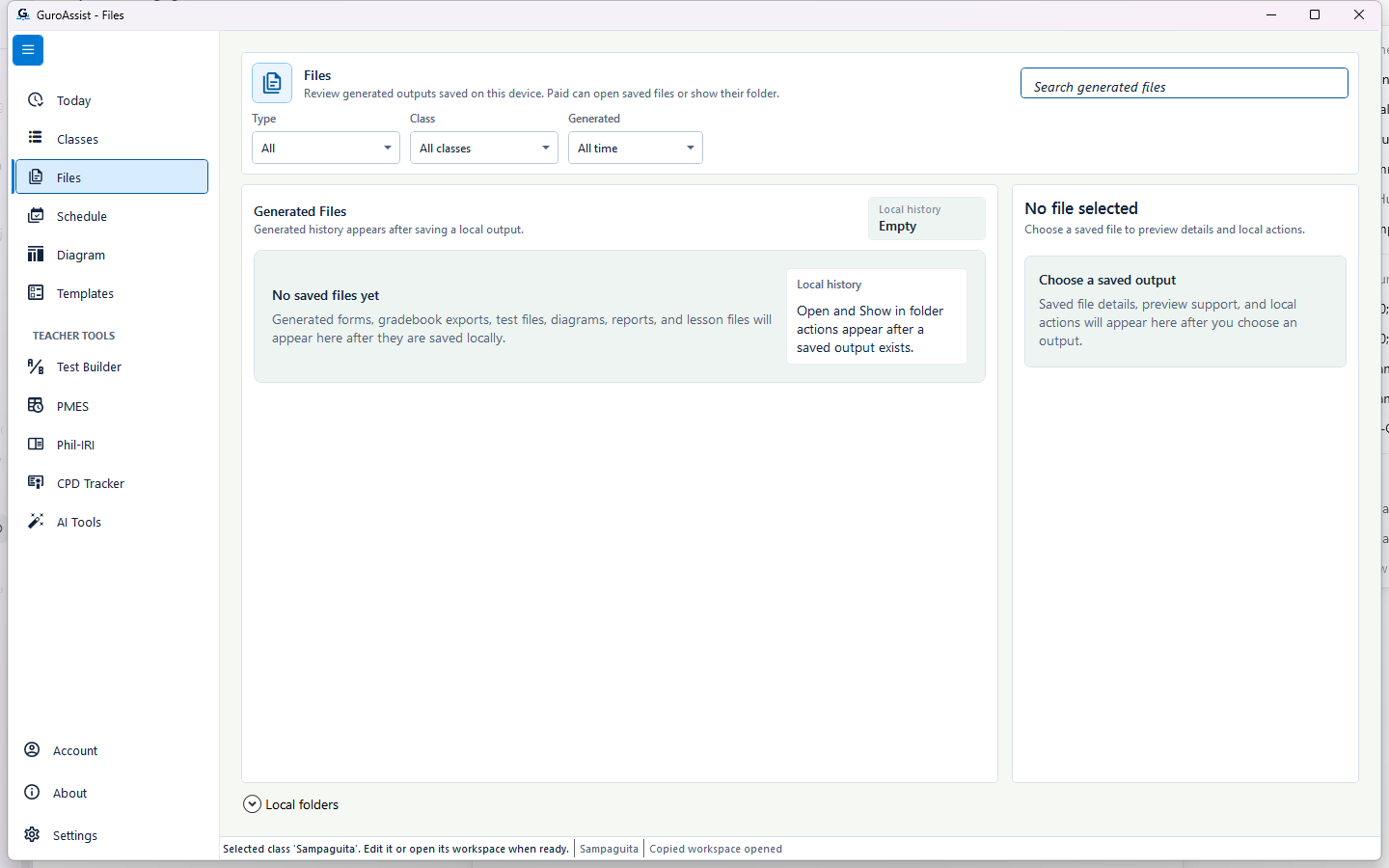 View full size
Sample data only. An empty history is correct for this sample and is not presented as missing restored work. Captured July 12, 2026. Step 22
Verify the Files history result
Open Files and compare it with Saved file records in the restore summary. This sample summary showed 0 saved file records, so an empty generated-history list is the correct result even though 15 local workspace files were safely carried in the recovery copy.
Expected result: Files honestly shows “No saved files yet,” matching the 0 saved file records in the selected summary.
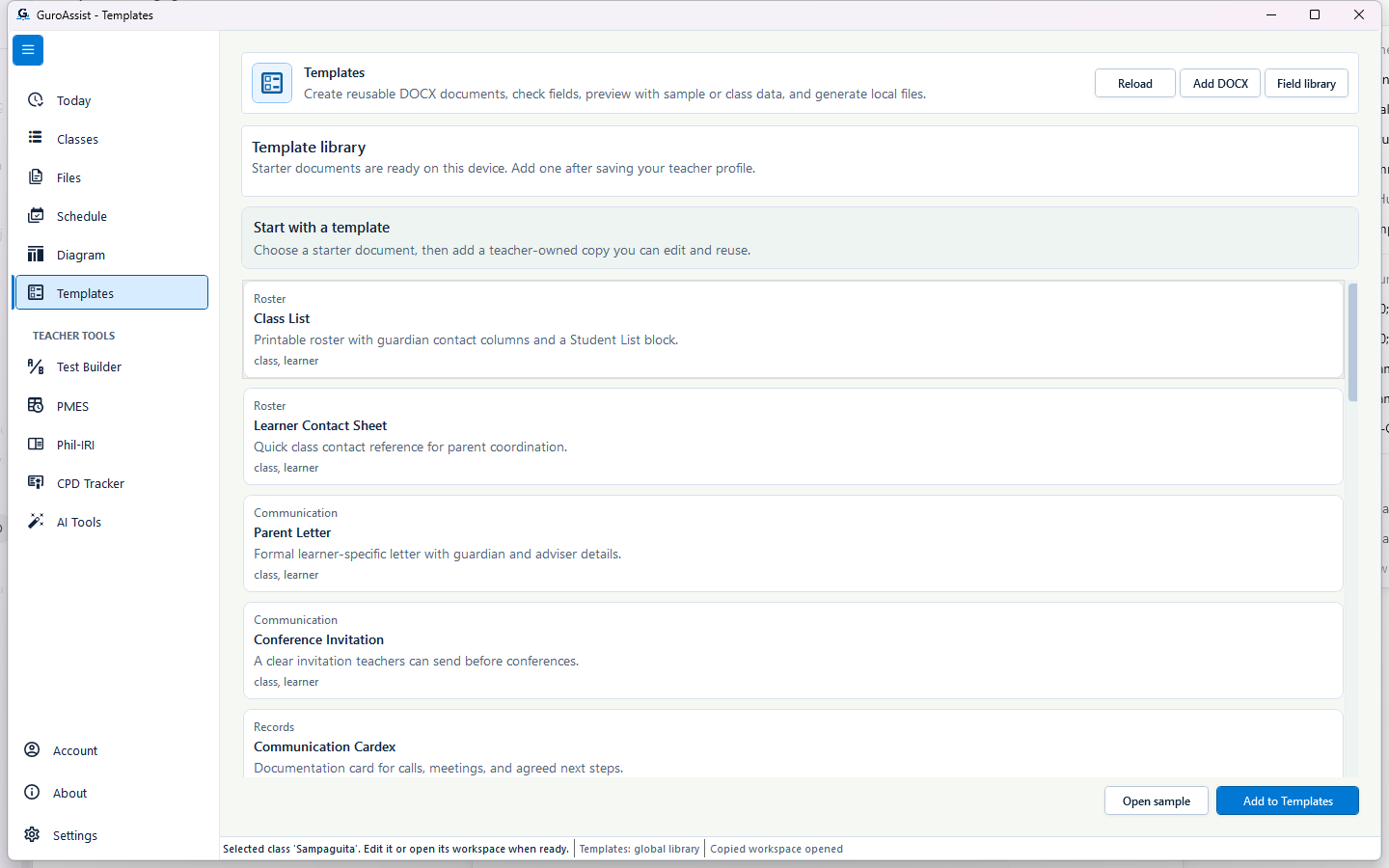 View full size
Sample data only. Use a familiar template or teacher-owned copy as a practical post-restore spot-check. Captured July 12, 2026. Step 23
Verify restored templates
Open Templates and confirm that the template library opens normally. Compare any teacher-owned templates you recognize with the selected recovery point before creating new documents.
Expected result: The restored Templates screen opens with the current reusable document library available.
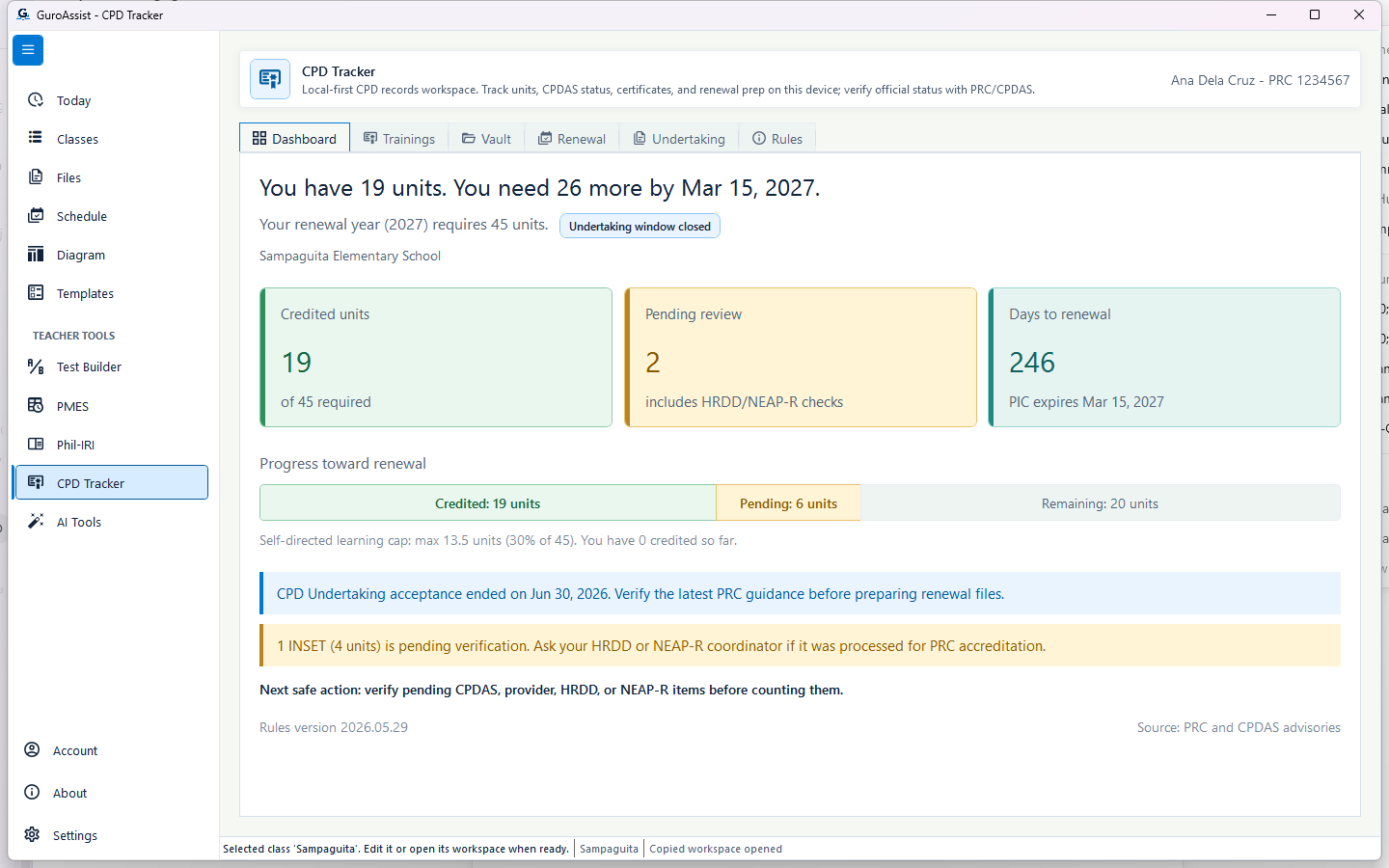 View full size
Sample data only. This separate screen proves representative CPD records returned after the workspace restart. Captured July 12, 2026. Step 24
Verify restored CPD records
Open CPD Tracker and spot-check the teacher name, credited units, pending items, and renewal information. The separate CPD ZIP is not required for this workspace restore because CPD records are already part of the full workspace recovery copy.
Expected result: The sample CPD dashboard returns with Ana Dela Cruz and 19 credited units.
 View full size
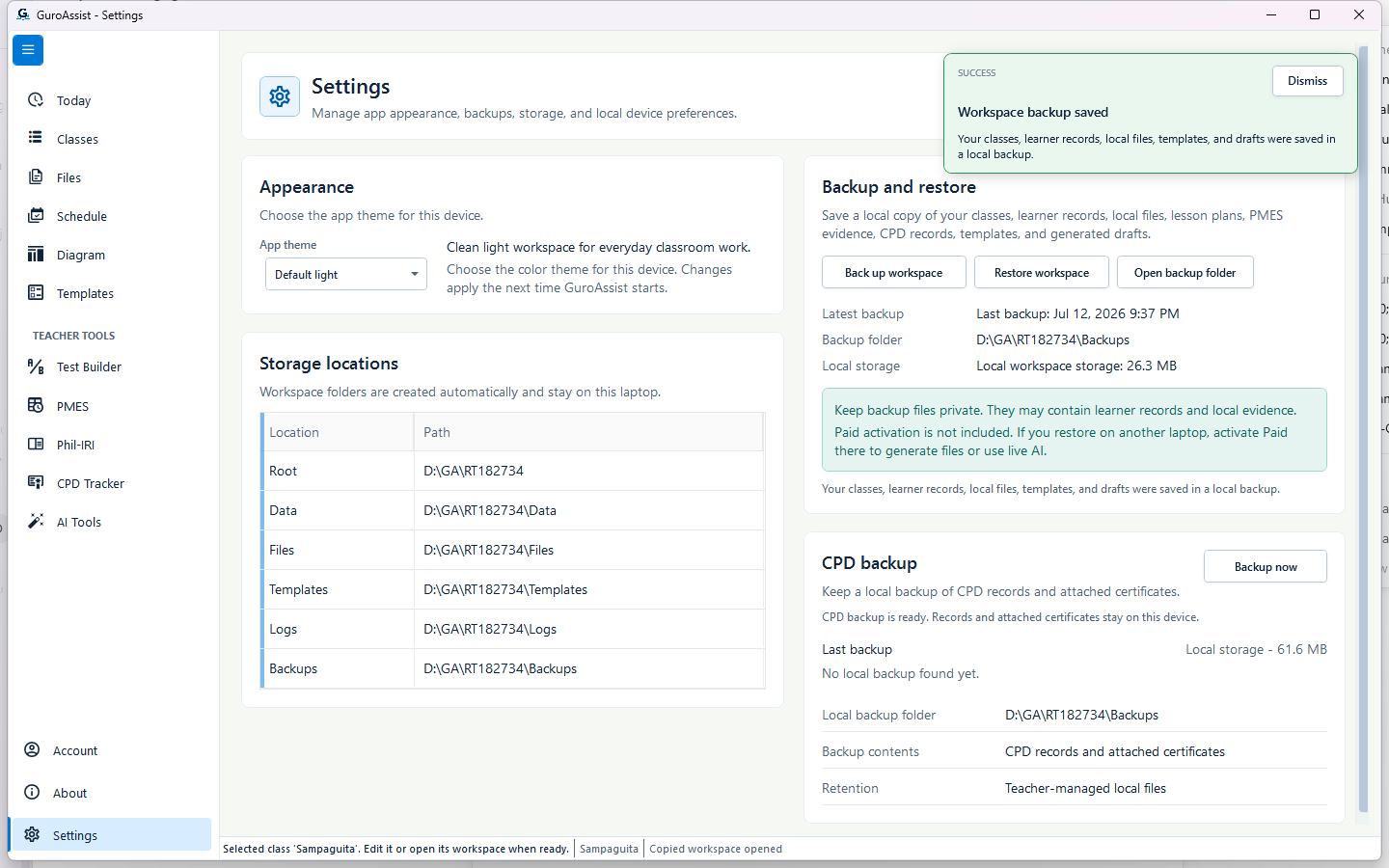
Sample data only. The new 9:37 PM backup closes the recovery workflow with a current recovery point. Captured July 12, 2026. Step 25
Create a fresh post-restore backup
Return to Settings only after the spot-checks match. Select Back up workspace and wait for a new success message so the recovered state has its own current recovery point.
Expected result: A new Last backup time and “Workspace backup saved” appear after post-restore verification.
 View full size
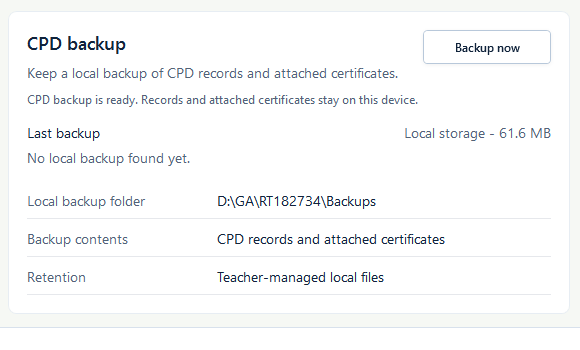
Sample data only. Keep using full workspace backups because this separate ZIP has no teacher-facing restore action. Captured July 12, 2026. Step 26
Understand the separate CPD backup
Use CPD backup as an additional local safeguard for CPD records and attached certificates. It does not replace Back up workspace, and the current app has no teacher-facing CPD restore action.
Expected result: The panel shows its local folder, contents, retention, and Backup now action separately from full recovery.
 View full size
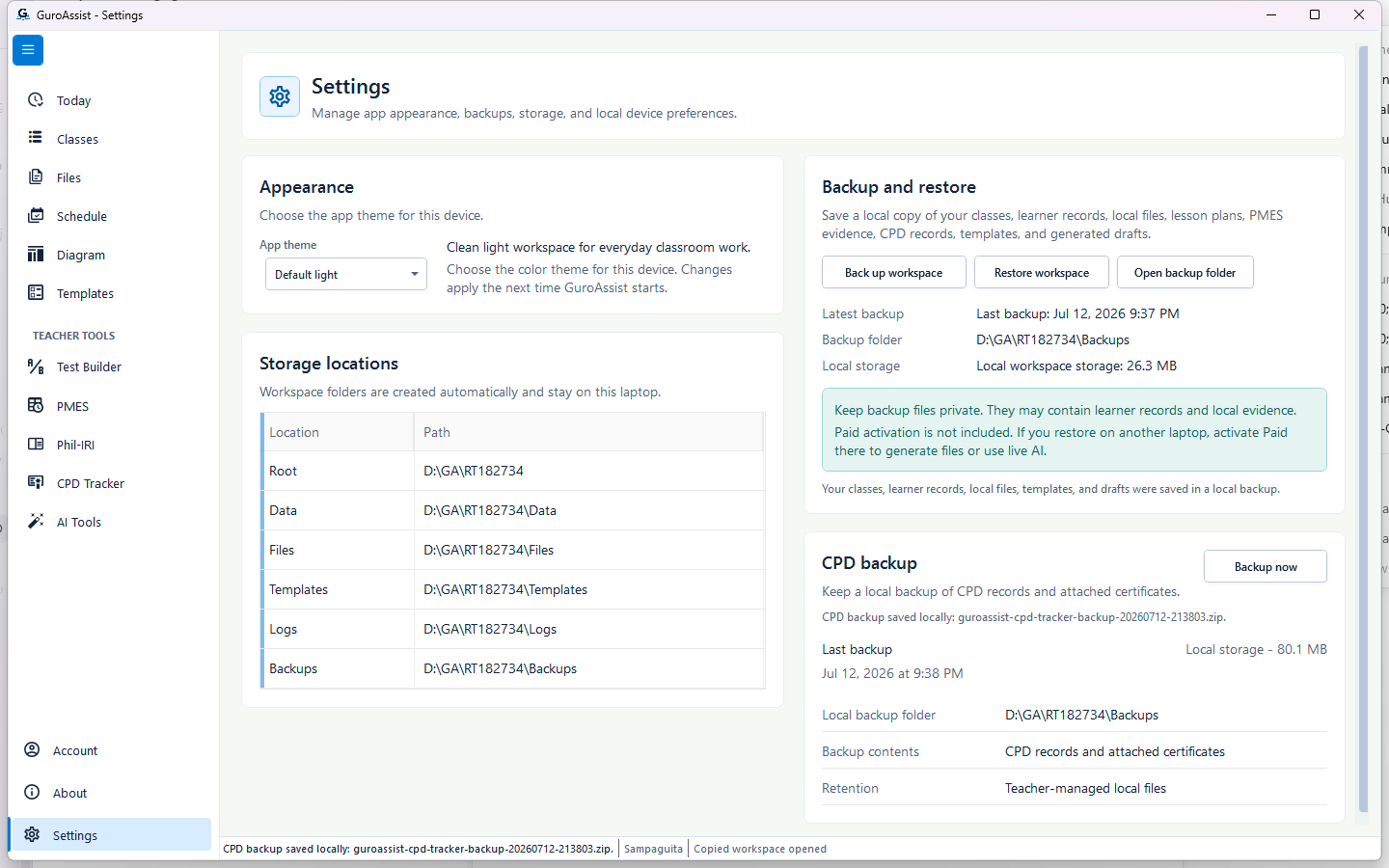
Sample data only. The corresponding inspected sample ZIP contained the CPD snapshot and six certificate files. Captured July 12, 2026. Step 27
Back up CPD records and certificates
Select Backup now and wait for the dated guroassist-cpd-tracker-backup ZIP. Keep it private. The verified sample with CPD work contained the CPD record snapshot and six attached certificate files.
Expected result: The CPD panel reports the complete dated ZIP name and updates Last backup.
 View full size
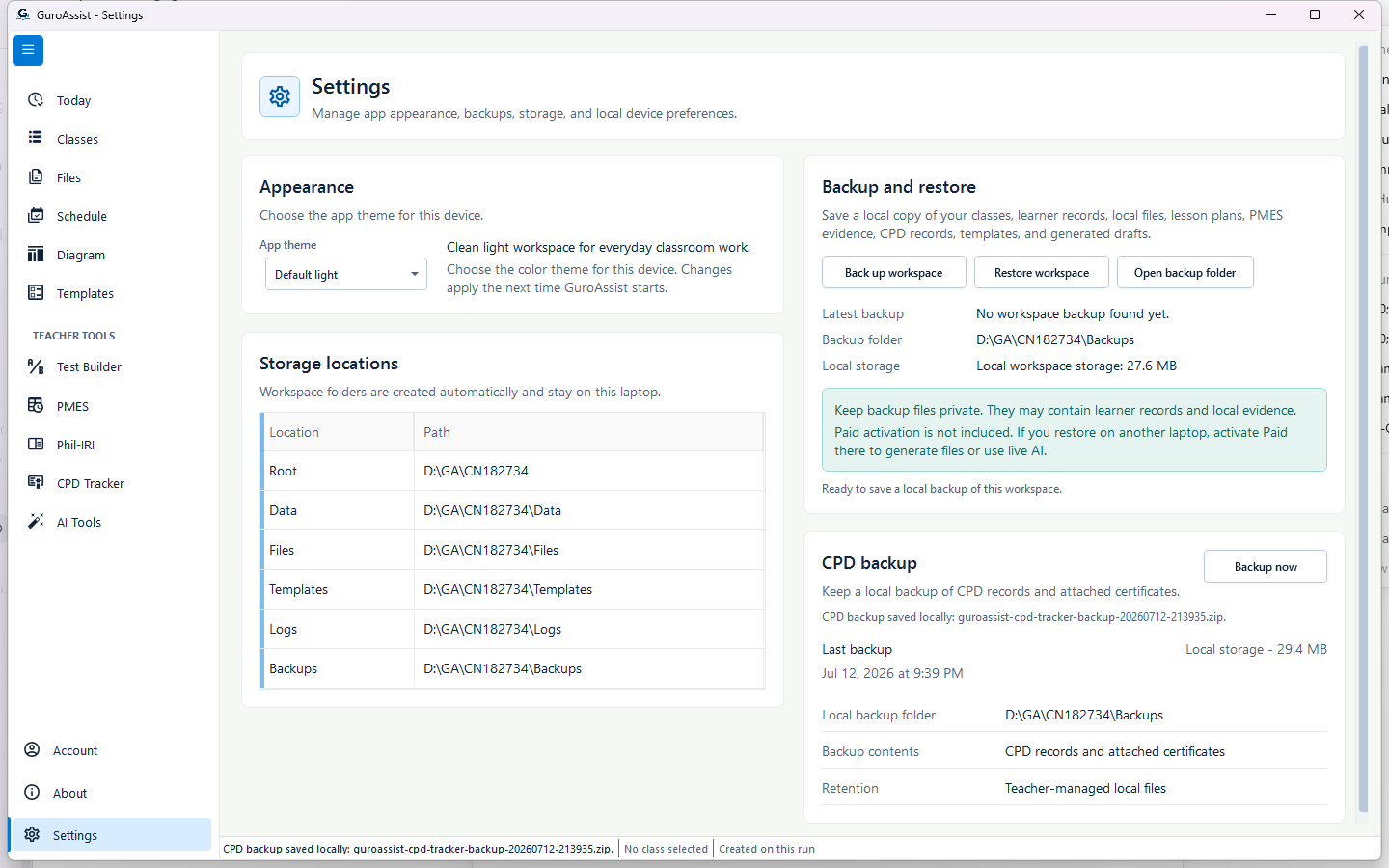
Sample data only. The inspected no-record sample ZIP contained only the current CPD workspace snapshot and no certificate files. Captured July 12, 2026. Step 28
Understand a CPD backup with no records
A new workspace with no CPD entries can still create a small CPD ZIP containing the empty CPD snapshot. This is a successful safeguard of the current state, but it is not evidence that training records or certificate files exist.
Expected result: The panel reports a successful dated CPD ZIP even when the workspace has no CPD records.
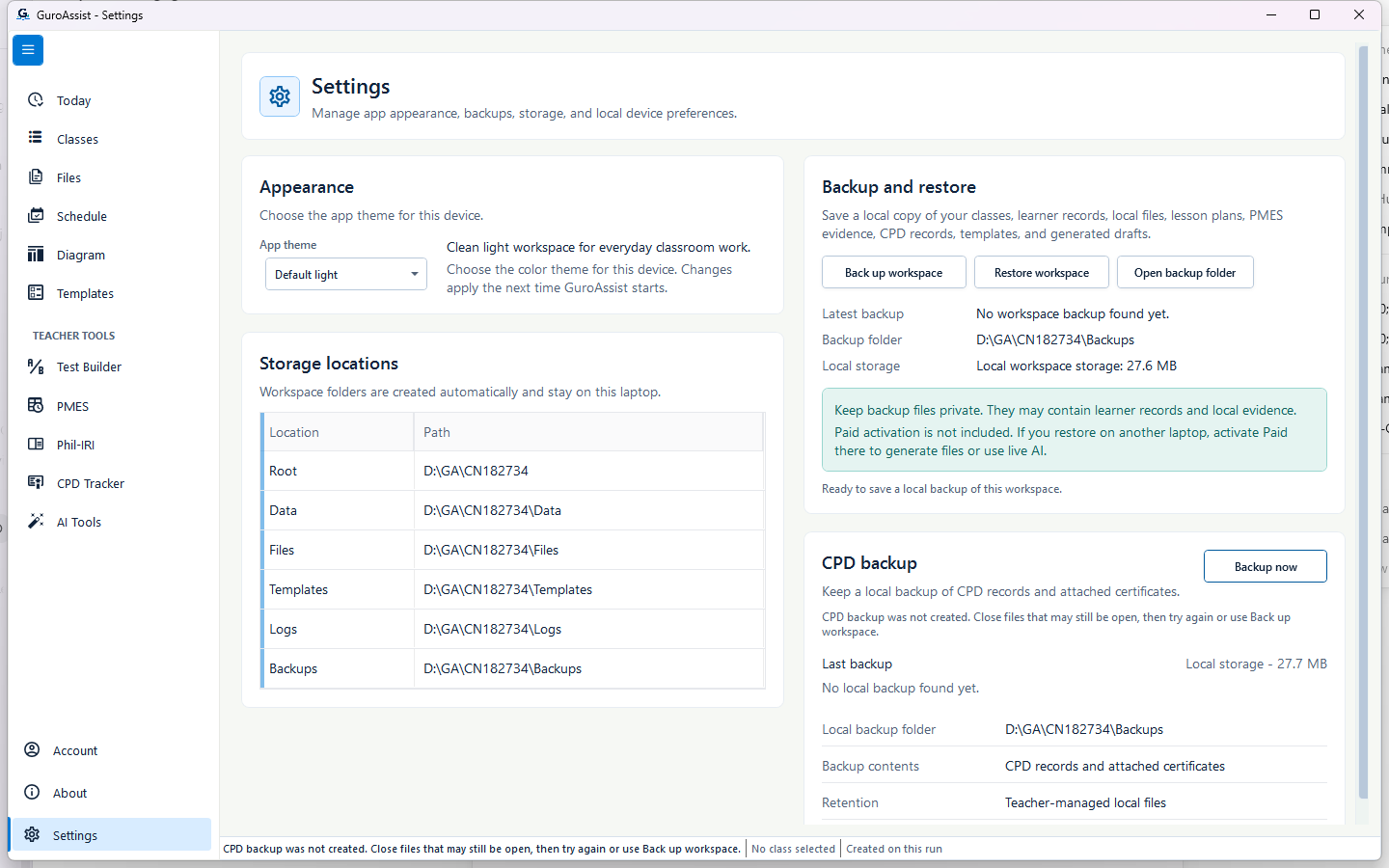 View full size
Sample data only. The message directs the teacher to close open files, retry, or use the full workspace backup. Captured July 12, 2026. Step 29
Stop when the CPD backup fails
If CPD backup cannot use the local folder, close files that may still be open and restore access to the Backups location. Use Back up workspace as the supported full-recovery safeguard while resolving the separate CPD ZIP problem.
Expected result: “CPD backup was not created” appears and no success time or new ZIP is claimed.


Review
Check these before relying on the work
These checks cover saved, previewed, generated, and teacher-review states.
Theme survives a restart
The selected device theme should appear throughout GuroAssist after a normal close and reopen.
All six storage paths are readable
Root, Data, Files, Templates, Logs, and Backups should be visible as read-only local information.
Workspace backup is verified
A recent .guroassist-backup should exist in the local Backups folder and a private off-device copy should be made when recovery from device loss matters.
Restore evidence matches
Backup date, teacher, school, class and learner totals, file totals, version, and compatibility should all match the intended recovery point.
Restored work is checked after restart
Representative classes, learners, local files, templates, and CPD records should agree with the selected backup before new work continues.
CPD backup remains supplementary
The CPD ZIP should stay private and local, while the teacher continues to create full workspace backups for the supported restore workflow.
Blocked states and recovery
Fix the blocker before continuing
Use the direct recovery action when GuroAssist is waiting for setup, data, access, policy, or file readiness.
No current workspace backup exists
Create and locate a full workspace backup before restore, cleanup, Windows reinstall, or laptop migration.
After recovery: The backup or restore summary shows the intended local workspace and a clear success or recovery state.
Open backup and restore helpBackup failed or cannot be found
Stop. Resolve the local storage problem and create a successful backup before taking a destructive action.
After recovery: The backup or restore summary shows the intended local workspace and a clear success or recovery state.
Open backup and restore helpBackup file is unknown, invalid, or corrupted
Do not bypass validation or rename another file type. Choose a trusted GuroAssist backup or contact support without sending private learner records.
After recovery: The intended learner is selected and the learner-dependent action is available.
Open backup and restore helpRestore summary does not match
Cancel restore when the date, teacher, school, counts, file totals, version, or compatibility is unexpected.
After recovery: The backup or restore summary shows the intended local workspace and a clear success or recovery state.
Open backup and restore helpSafety backup cannot be created
The current workspace should remain unchanged. Free local storage or correct access to the Backups folder before retrying.
After recovery: The backup or restore summary shows the intended local workspace and a clear success or recovery state.
Open backup and restore helpRestored work is incomplete after restart
Stop adding new work, keep the original and safety backups private, record the app version and what differs, then contact support.
After recovery: The backup or restore summary shows the intended local workspace and a clear success or recovery state.
Open backup and restore helpOnly a CPD ZIP exists
Do not treat it as the supported full-workspace recovery file. Locate or create a .guroassist-backup for Backup and restore.
After recovery: The backup or restore summary shows the intended local workspace and a clear success or recovery state.
Open backup and restore help
Safety note
Restore replaces the saved workspace records, Files, and Templates on this device; it does not merge newer work. Back up first, cancel on any mismatch, keep recovery files private, and remember that Paid activation is separate from local data recovery.
Finish
Verify the result
Do not treat a saved screen or generated filename as proof that the work is ready.
You’re done when
The teacher can apply a device theme, read local storage paths, create and locate a verified workspace backup, respond safely to progress and blocked states, cancel or complete restore, verify restored work after restart, and use CPD backup without confusing it with full recovery.
Privacy, policy, and official-looking outputs
Keep the work inside its safe boundary
These limits remain in force even when the main task appears complete.
Important boundary
Settings paths are read-only information; the current app does not offer a storage-location editor there.
Important boundary
Workspace backup and restore are local. They do not provide cloud sync, automatic migration, or multi-device merging.
Important boundary
A workspace backup excludes diagnostic logs, other backups, temporary working files, Paid activation, and live-AI sign-in.
Important boundary
Restore replaces the backed-up workspace records, Files, and Templates after first creating a safety backup; it does not merge newer work.
Important boundary
CPD backup is a separate local safeguard with no teacher-facing CPD restore action and does not replace the full workspace backup.
Important boundary
Activation support is available through Activation Help, not through a control in Settings.
Glossary
Expand the terms used in this guide
Use the plain-language meaning here, then follow the exact label in GuroAssist.
- AI
- Artificial intelligence; optional draft help that still requires teacher review.
- CPD
- Continuing Professional Development; keep these records separate from class and learner data.
Guide details
Guide verification
Use these details to confirm that this guide matches the GuroAssist version and school year you are using.
- Verification
- Verified with GuroAssist 1.0.0.0
- Last reviewed
- July 12, 2026
- Screenshots
- Captured July 12, 2026
- Applies to
- All supported local workspaces
Was this helpful?
Choose an answer or report a guide that needs attention. No class, learner, or free-text data is sent by these buttons.
Related guides
Continue only where it helps
Back up or restore local work
Protect local records before reinstalling, restoring, or moving laptops.
Find generated files in GuroAssist
How do I find and review generated files after they are created?
Manage Account and teacher profile
What should I check in Account before generated files use my details?
Activate Paid
Use a one-time code after receipt verification and check Paid access.