
Step-by-step guide
Manage Account and teacher profile
Account keeps the teacher profile, license status, activation contact details, and support details understandable for this device.
Teacher goal
What should I check in Account before generated files use my details?
Use this guide when this is the task in front of you. Stop if the selected class, learner, role, school year, file, or output does not match.
In-app path
- Account
Get ready
Check the starting point
These are the minimum conditions for the workflow to make sense.
Before you start
Estimated time: About 5–10 minutes
- The teacher's own profile details
- The activation email when checking Paid
- No unnecessary learner information
You should see
Account shows the saved teacher profile and the current Free or Paid state without implying that local files moved online.
Steps
Complete the task in order
Review choice points, save or preview behavior, and any stop condition before continuing.
 View full size
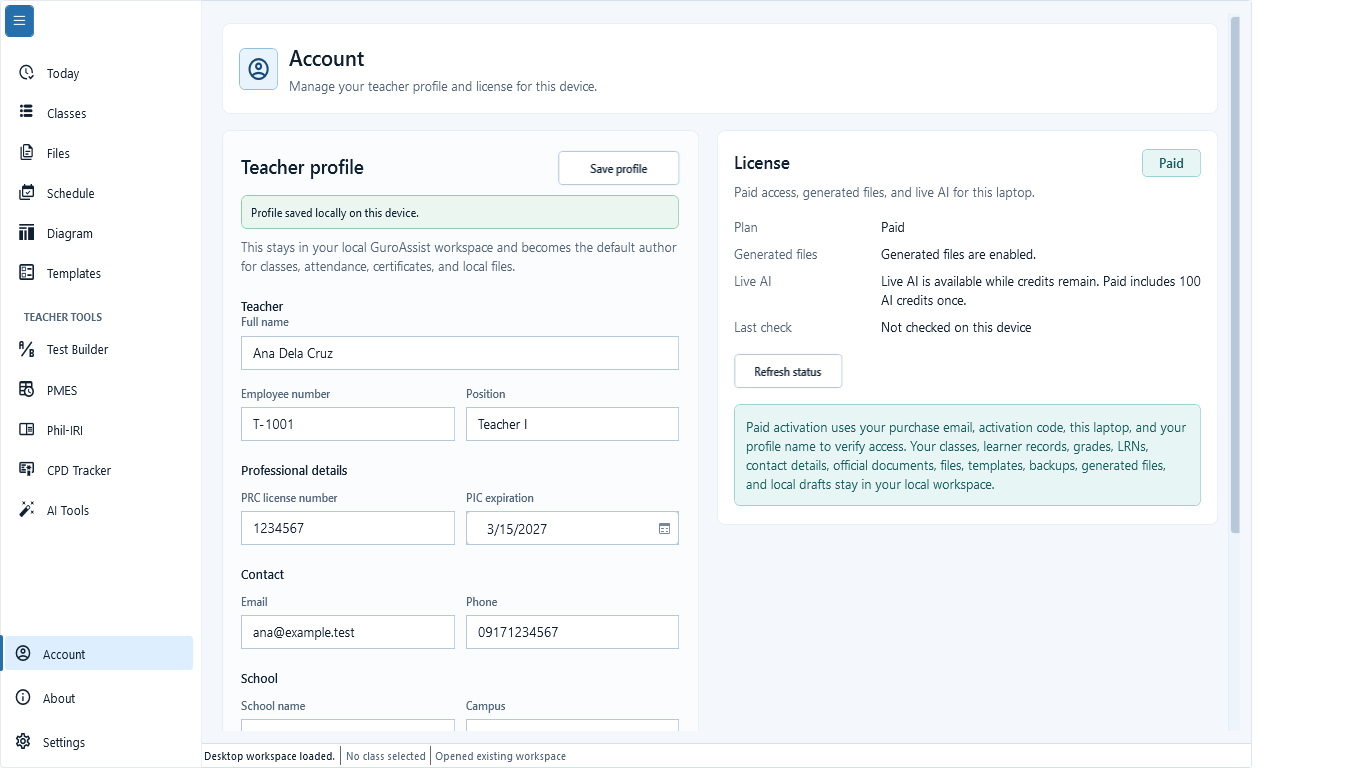
Sample data only. Account keeps teacher profile and device license information together while local records stay on the device. Captured July 11, 2026. Step 1
Open Account and review the saved profile
Choose Account in the lower navigation. Review Teacher, Professional details, Contact, and School fields because the saved profile becomes the default author and school information for classes, attendance, certificates, and local files.
Use fictional or masked information when following this guide. Never send a real license key or unused activation code in a screenshot.
 View full size
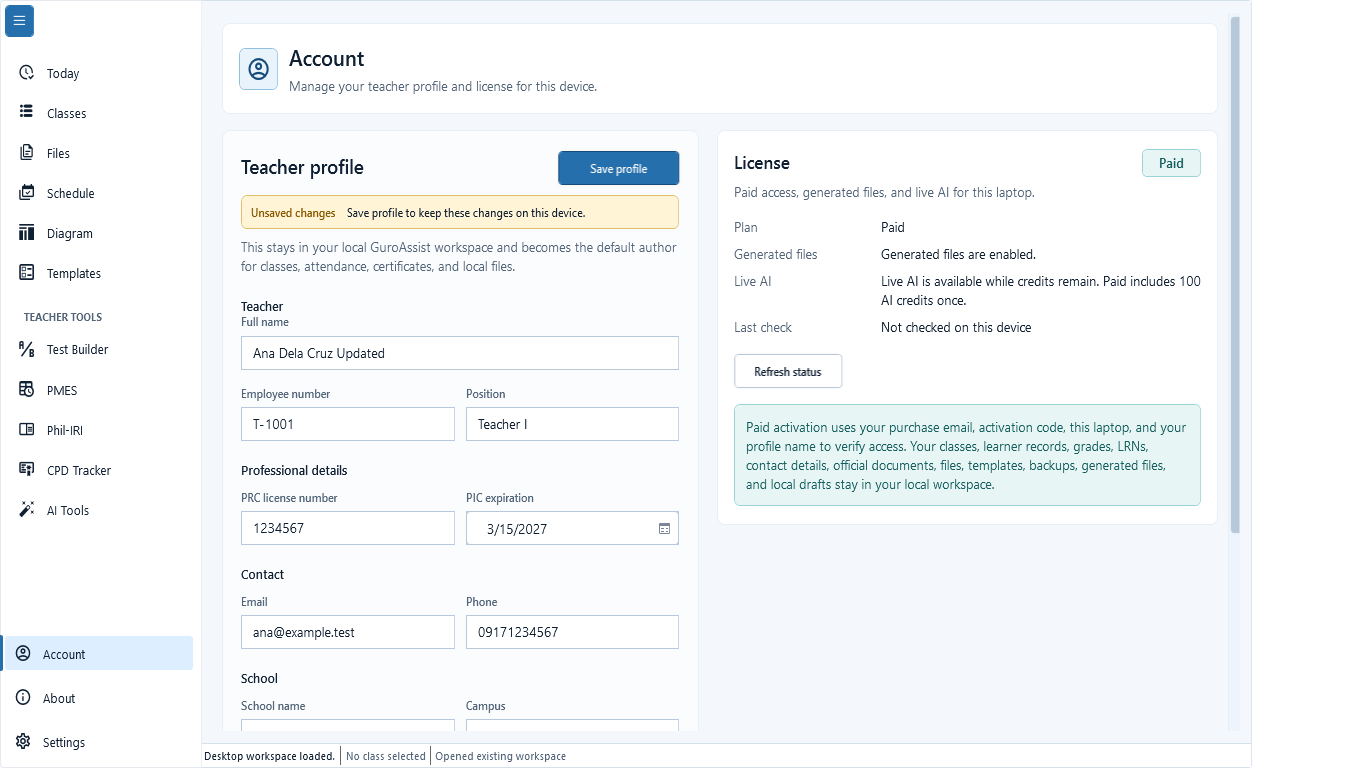
Sample data only. Unsaved changes must be resolved before relying on the profile in generated files. Captured July 11, 2026. Step 2
Edit the profile fields used by local files
Enter or correct Full name, Employee number, Position, PRC license number and expiration only when accurate, Email, Phone, School name, Campus, and the remaining school fields shown below. An Unsaved changes message means the screen has not written the edits yet.
Leave an optional field blank rather than inventing an official value.
 View full size
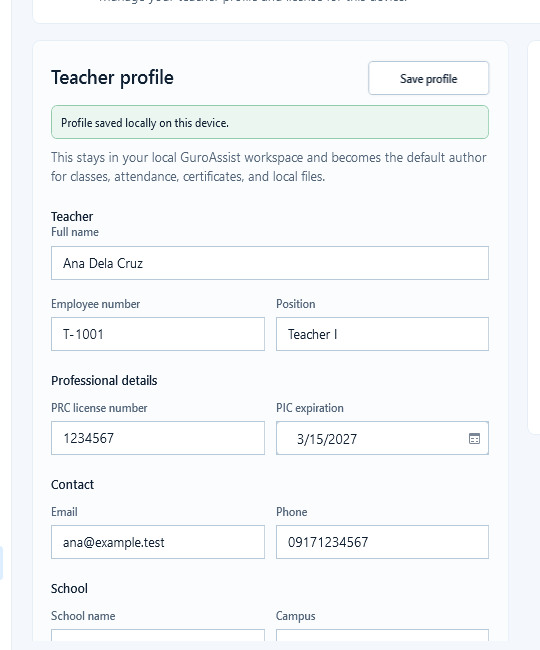
Sample data only. The saved confirmation is the evidence that the local profile was written. Captured July 11, 2026. Step 3
Save the profile and confirm the result
Choose Save profile. Wait for Profile saved locally on this device, then reopen Account or move away and return. Confirm the intended fields remain visible before generating an official-looking file.
If required teacher or school details are incomplete, stop and correct them before generating an official-looking output.
 View full size
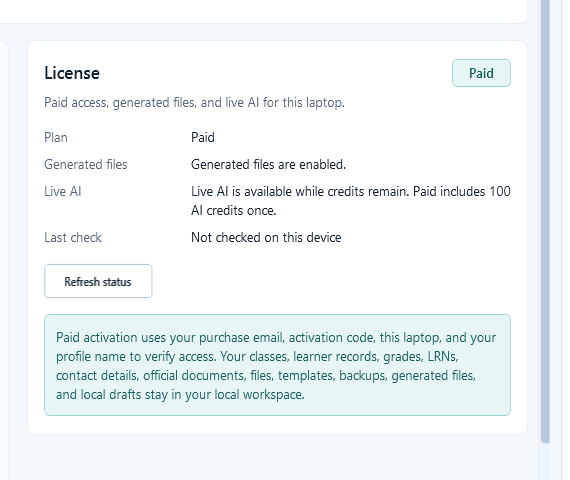
Sample data only. Read the status lines as device-specific access information, not as proof that local records moved online. Captured July 11, 2026. Step 4
Read plan, generated-file, live-AI, and last-check status
In License, read Plan, Generated files, Live AI, and Last check. Choose Refresh status when the device is online and the last check is stale. Paid activation uses the purchase email, activation code, this laptop, and profile name; do not expose those values when asking for help.
 View full size
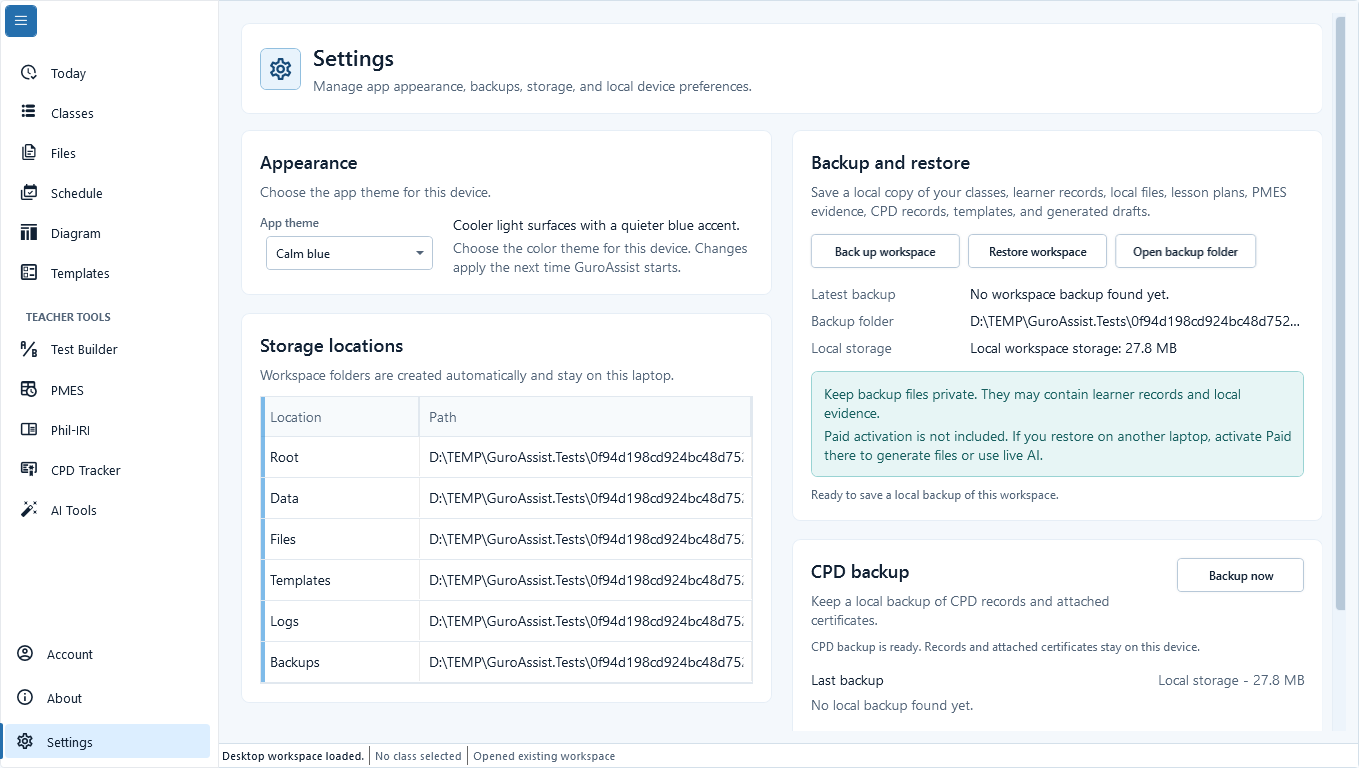
Sample data only. This picture verifies the storage and backup part of a privacy-safe support summary; omit codes and learner information. Captured July 11, 2026. Step 5
Confirm local storage and backup details
Open Settings when the issue concerns files, recovery, or a new device. Confirm the local workspace and backup location, then record only the path details needed for support. Get installed version and architecture separately from About, and Plan and Last check separately from Account.


Review
Check these before relying on the work
These checks cover saved, previewed, generated, and teacher-review states.
Profile fields are current
Teacher details should be reviewed before they appear in generated local files.
License status is clear
Free, Paid, generated files, live AI, credits, and last check should be understood before starting Paid work.
Activation email matches support records
Use the same email used for activation when contacting support.
No cloud sync assumption
Account does not mean class records or learner records are synced to another device.
Support details avoid private learner data
Send what happened first; do not include unnecessary learner details in the first support message.
Blocked states and recovery
Fix the blocker before continuing
Use the direct recovery action when GuroAssist is waiting for setup, data, access, policy, or file readiness.
Required profile details are missing
Some generated files can stay blocked or draft until teacher details are complete.
After recovery: The blocker is no longer shown, and the intended next action is available for teacher review.
Review generated-file helpPaid is not active
Generated files and live AI stay unavailable where Paid is required.
After recovery: Paid access and any required credits are shown as available for this action.
Open activation helpLicense check is stale
Refresh status when Paid access, credits, or activation details do not look right.
After recovery: Paid access and any required credits are shown as available for this action.
Open activation helpMoving laptops needs a backup
Paid access can be checked again, but local files need their own backup before changing devices.
After recovery: Paid access and any required credits are shown as available for this action.
Open activation help
Safety note
Account does not manage other users or promise cloud sync. It helps the teacher manage local profile details, license status, and support information.
Finish
Verify the result
Do not treat a saved screen or generated filename as proof that the work is ready.
You’re done when
The local profile is saved and the license state is understood before profile-dependent files are generated.
Glossary
Expand the terms used in this guide
Use the plain-language meaning here, then follow the exact label in GuroAssist.
- AI
- Artificial intelligence; optional draft help that still requires teacher review.
Guide details
Guide verification
Use these details to confirm that this guide matches the GuroAssist version and school year you are using.
- Verification
- Verified with GuroAssist 1.0.0.0
- Last reviewed
- July 11, 2026
- Screenshots
- Captured July 11, 2026
- Applies to
- 2026–2027
Was this helpful?
Choose an answer or report a guide that needs attention. No class, learner, or free-text data is sent by these buttons.
Related guides