
Step-by-step guide
Check About, version, and updates
About shows installed app details, update status, release notes, and the safe Download page path without uploading class or learner records.
Teacher goal
How do I check the app version and update safely?
Use this guide when this is the task in front of you. Stop if the selected class, learner, role, school year, file, or output does not match.
In-app path
- About
Get ready
Check the starting point
These are the minimum conditions for the workflow to make sense.
Before you start
Estimated time: About 5–10 minutes
- The current app version
- An internet connection only when checking for updates
- A current local backup before a major update
You should see
About shows the installed version and a clear current, update-available, or offline update-check state.
Steps
Complete the task in order
Review choice points, save or preview behavior, and any stop condition before continuing.
 View full size
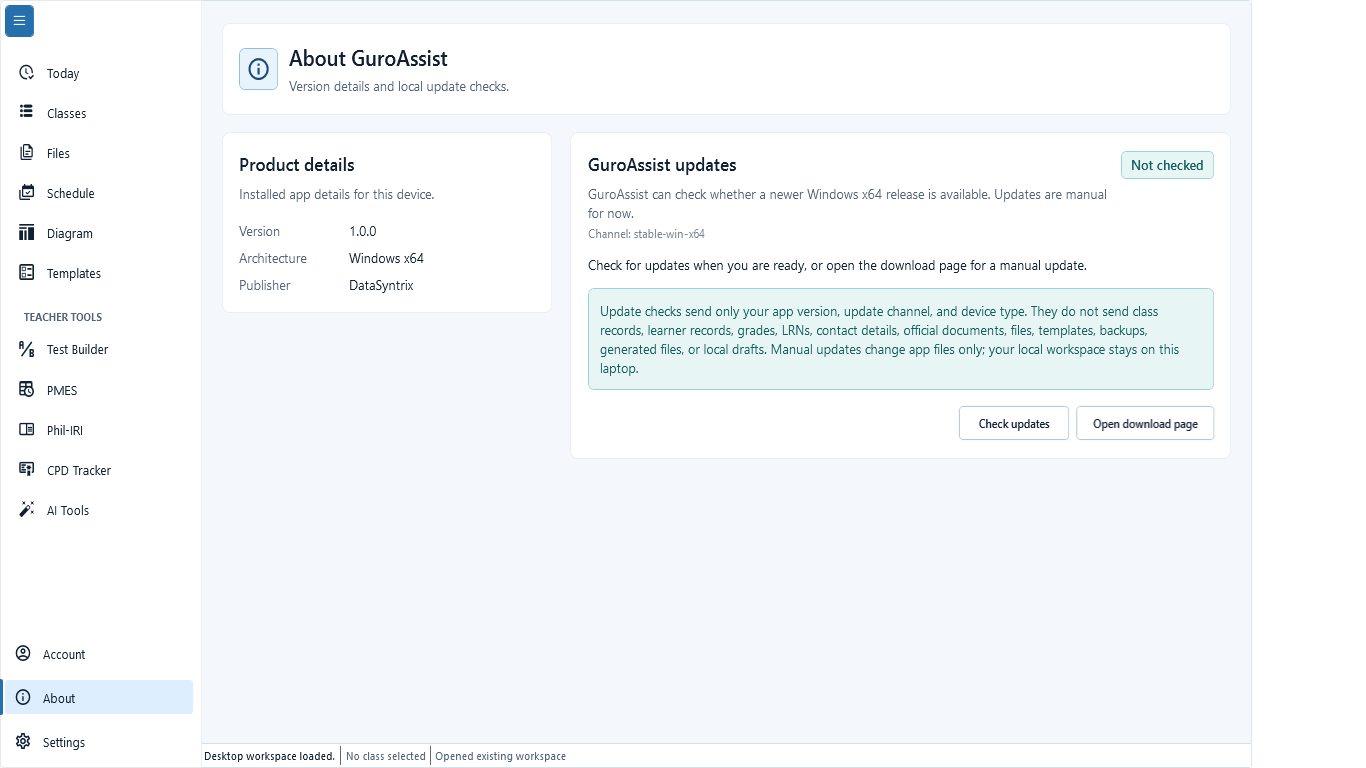
Sample data only. Use this screen as the source for installed version, architecture, publisher, and update status. Captured July 11, 2026. Step 1
Open About GuroAssist
Choose About in the lower navigation. The Product details card shows Version, Architecture, and Publisher. The GuroAssist updates card shows the update channel and whether this device has checked yet.
 View full size
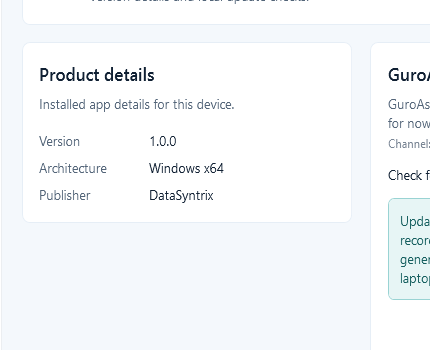
Sample data only. The publisher and architecture must match the verified installer choice. Captured July 11, 2026. Step 2
Verify the installed publisher and architecture
Confirm Publisher is DataSyntrix and read Architecture, such as Windows x64. Stop if the publisher is unexpected or the architecture does not match the installer you plan to use. Do not run an unverified installer.
 View full size
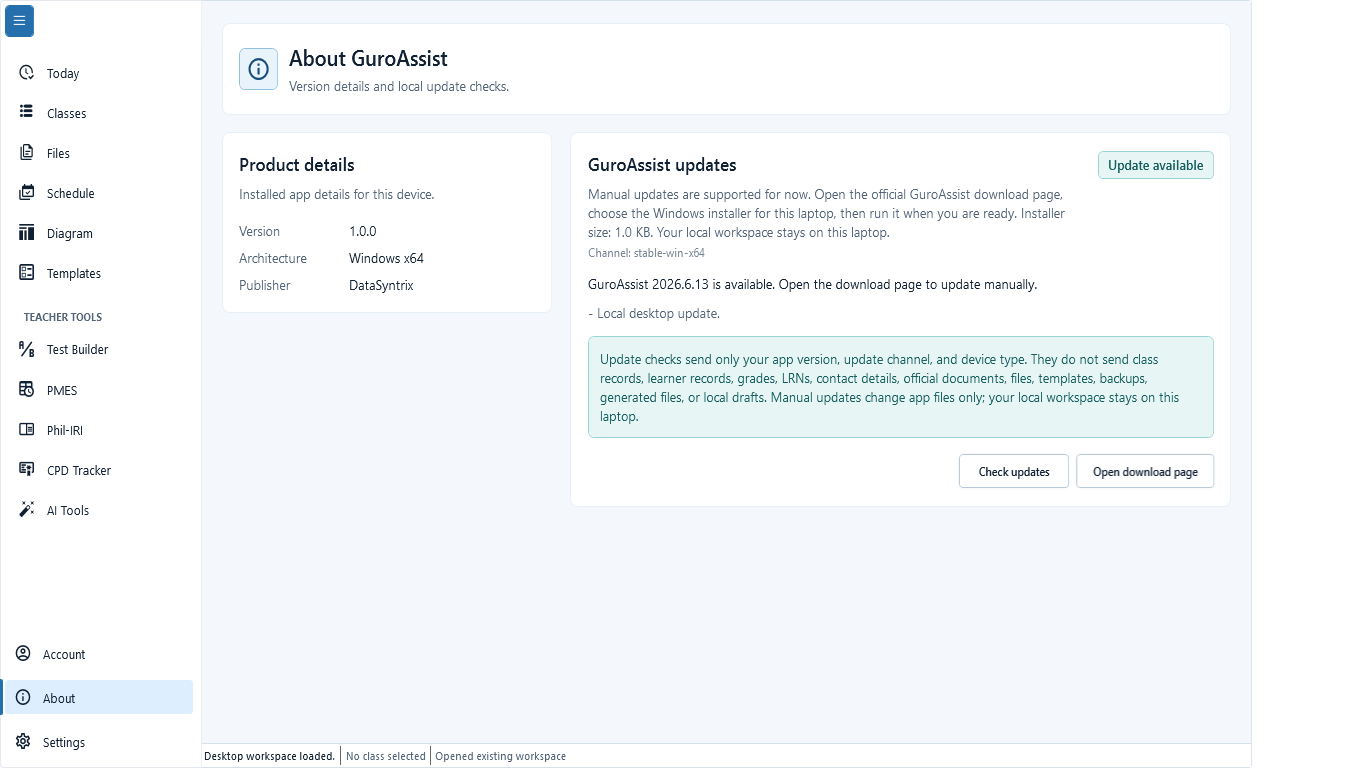
Sample data only. An available update is installed manually from the official Download page. Captured July 11, 2026. Step 3
Check for updates and read the result
Choose Check updates. Up to date means no newer release was reported; Update available shows the release and directs you to the Download page; Offline or a failed check means no decision was made. Retry after restoring the connection instead of assuming the app is current.
 View full size
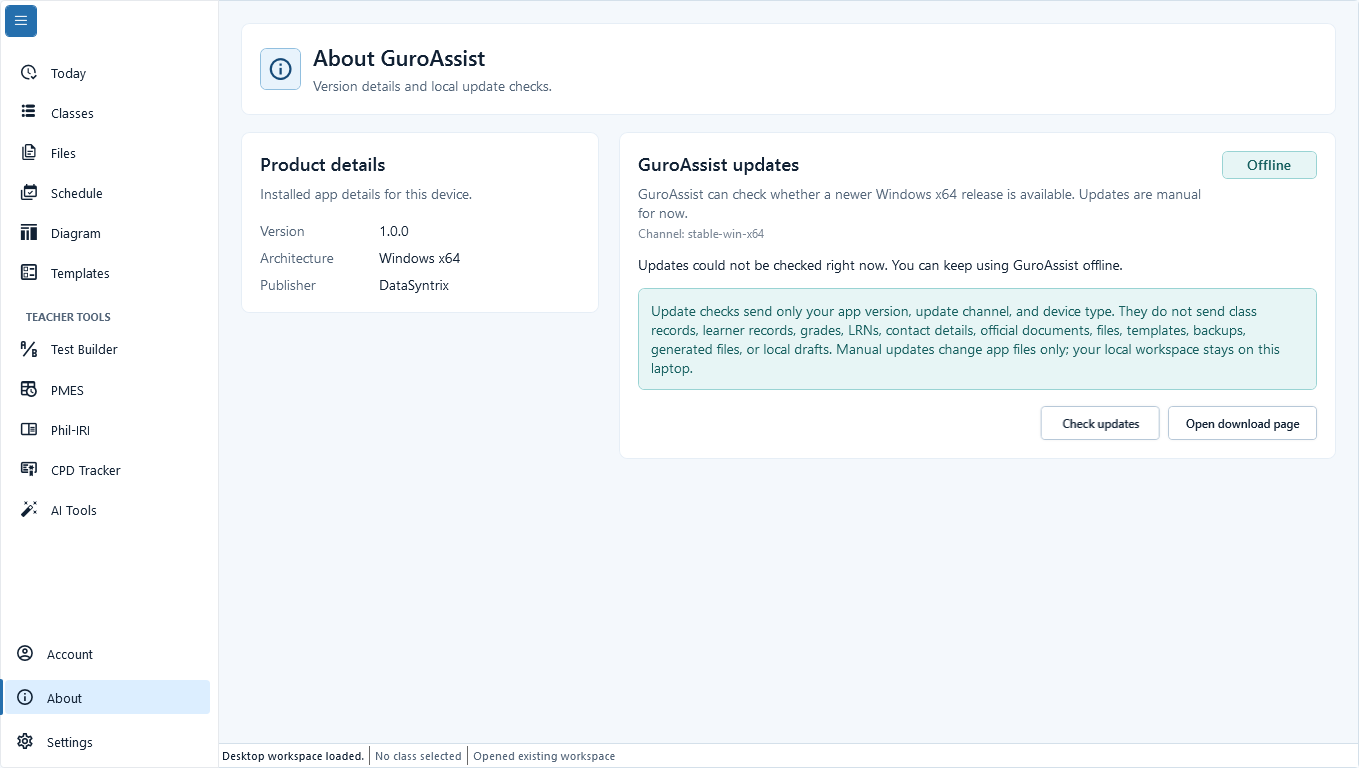
Sample data only. This exact offline state is a blocker, not an up-to-date result. Captured July 11, 2026. Step 4
Recognize an offline check as blocked
If About shows Offline or a failed check, no update decision was made. Restore the connection and choose Check updates again. Use Open download page only for the official GuroAssist page, then choose an installer only when its publisher and architecture are verified.
Do not select an installer from an email attachment, mirror, or unverified page.
 View full size
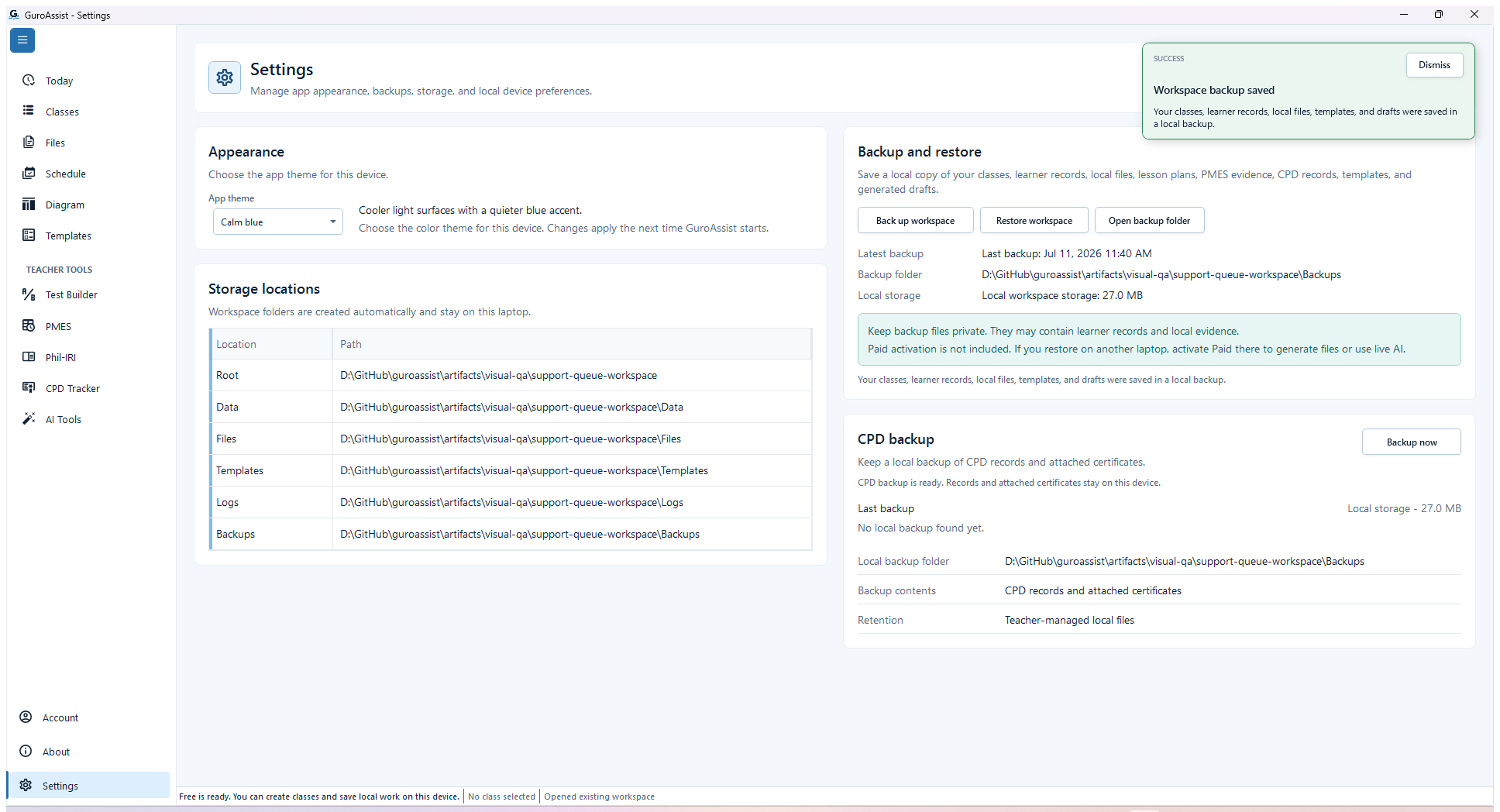
Sample data only. The saved confirmation and updated last-backup time are the evidence to check before changing the installation or device. Captured July 11, 2026. Step 5
Back up before a major update or device change
Before reinstalling, applying a major update, or moving laptops, open Settings and create a current workspace backup. Confirm the backup finishes and note its folder. Keep the existing laptop and backup until the updated or replacement device opens the restored workspace correctly.


Review
Check these before relying on the work
These checks cover saved, previewed, generated, and teacher-review states.
Version is recorded
Keep the app version handy when contacting support.
Publisher is DataSyntrix
Continue installation only when the installer came from GuroAssist and the publisher looks right.
Update data is device-safe
Update checks send only app version, update channel, and device type.
Learner records are not uploaded
Class records, learner records, grades, local files, templates, backups, and drafts stay in the local workspace.
Release notes are reviewed
Read update notes or help before installing during active class work.
Blocked states and recovery
Fix the blocker before continuing
Use the direct recovery action when GuroAssist is waiting for setup, data, access, policy, or file readiness.
Update check unavailable
Use the Download page or try again later when the internet connection is ready.
After recovery: The blocker is no longer shown, and the intended next action is available for teacher review.
Troubleshoot this blockerInstaller is not published
Do not install from an unofficial source while a production installer is unavailable.
After recovery: The blocker is no longer shown, and the intended next action is available for teacher review.
Troubleshoot this blockerPublisher cannot be confirmed
Stop the update if Windows does not show the expected publisher or source.
After recovery: The blocker is no longer shown, and the intended next action is available for teacher review.
Troubleshoot this blockerBackup is not current
Back up the local workspace before major update or reinstall work.
After recovery: The backup or restore summary shows the intended local workspace and a clear success or recovery state.
Open backup and restore help
Safety note
Update checks are local/device-safe: they send only app version, update channel, and device type. They do not upload class records, learner records, grades, local files, templates, backups, generated files, or drafts.
Finish
Verify the result
Do not treat a saved screen or generated filename as proof that the work is ready.
You’re done when
The teacher has recorded the installed version and uses only the official Download page and DataSyntrix publisher for updates.
Guide details
Guide verification
Use these details to confirm that this guide matches the GuroAssist version and school year you are using.
- Verification
- Verified with GuroAssist 1.0.0.0
- Last reviewed
- July 11, 2026
- Screenshots
- Captured July 11, 2026
- Applies to
- 2026–2027
Was this helpful?
Choose an answer or report a guide that needs attention. No class, learner, or free-text data is sent by these buttons.
Related guides
Continue only where it helps
Install GuroAssist on Windows
Download safely, choose the right installer, and verify the official source and checksum.
Use Settings safely
Where do I manage appearance, read-only storage paths, workspace backup and restore, and the separate CPD backup?
Fix a disabled or blocked action
Check install, activation, disabled actions, generated files, and update issues.