
Step-by-step guide
Use PMES Toolkit and Portfolio
PMES helps teachers organize objective notes, local evidence references, readiness gaps, and portfolio review drafts. It does not rate, approve, submit, or replace the school process.
Teacher goal
How do I prepare a local PMES portfolio review draft?
Use this guide when this is the task in front of you. Stop if the selected class, learner, role, school year, file, or output does not match.
In-app path
- PMES
- Home
- Checklist
- Objective Notes
- Evidence Files
- Portfolio Review
Get ready
Check the starting point
These are the minimum conditions for the workflow to make sense.
Before you start
Estimated time: About 15–30 minutes
- The intended PMES cycle shown in the workspace header
- Teacher-owned local evidence files that can be opened
- Short factual notes with no unnecessary learner details
- Paid active before generating DOCX, PDF, or PowerPoint portfolio review files
You should see
PMES shows local teacher preparation, linked evidence, readiness, and review exports without approval or rating claims.
Detailed workflows
Choose the PMES workflow you need
Prepare local eSAT, IPCRF, or COT work, or focus on evidence and portfolio export.
Steps
Complete the task in order
Review choice points, save or preview behavior, and any stop condition before continuing.
 View full size
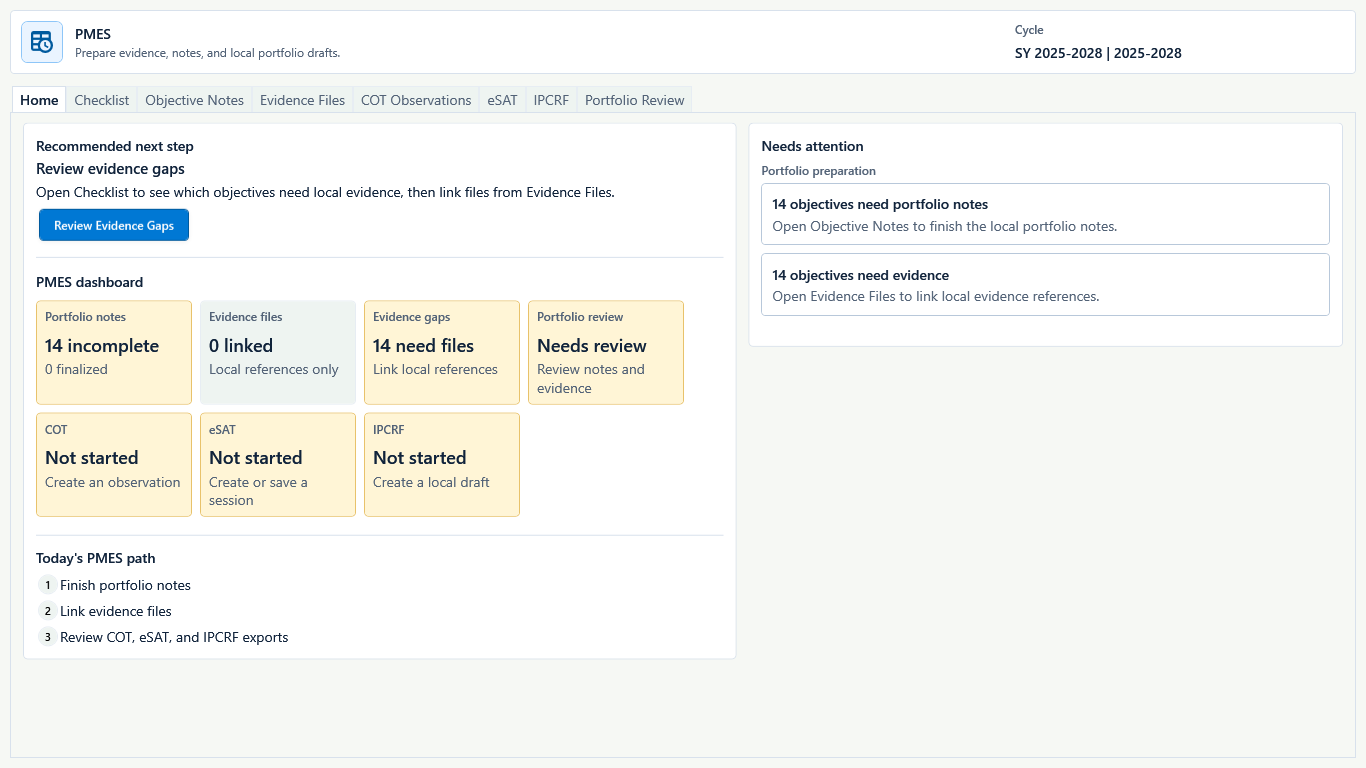
Sample data only. Start with the recommended action and the visible gaps instead of treating the dashboard as a rating. Captured July 11, 2026. Step 1
Open PMES and follow Recommended next step
Choose PMES in the left navigation and start on Home. Read Recommended next step and Needs attention. Choose Review Evidence Gaps when that is the primary action; it opens the area the app has identified instead of skipping readiness work.
Expected result: Home shows portfolio-note, linked-file, evidence-gap, COT, eSAT, and IPCRF states without a rating or approval claim.
 View full size
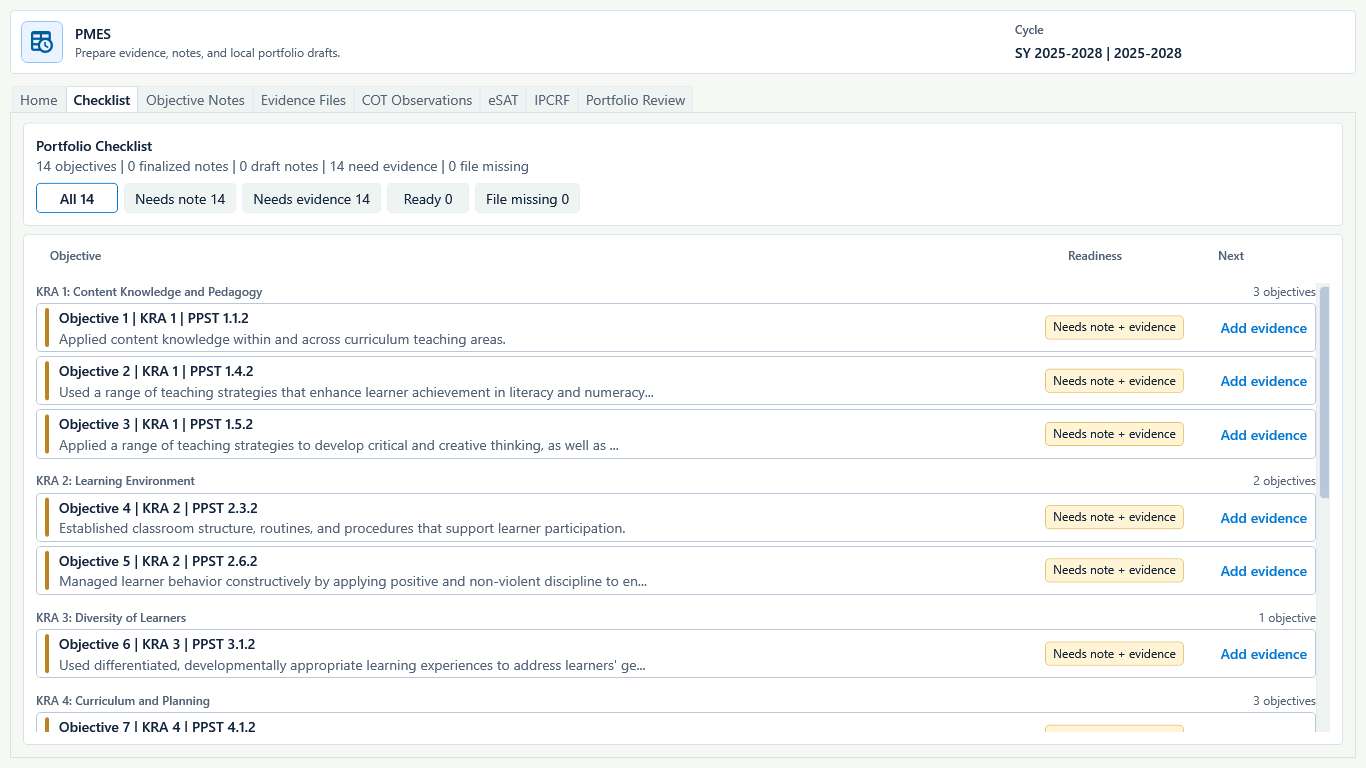
Sample data only. The checklist is a teacher preparation view, not a PMES score or approval screen. Captured July 11, 2026. Step 2
Open Checklist and choose an objective that needs work
Open Checklist. Use All, Needs note, Needs evidence, Ready, or File missing to narrow the list. Read each Readiness label, then choose Add evidence beside the objective that should be completed next.
Expected result: the checklist names the exact missing note, evidence, or file state for each objective.
 View full size
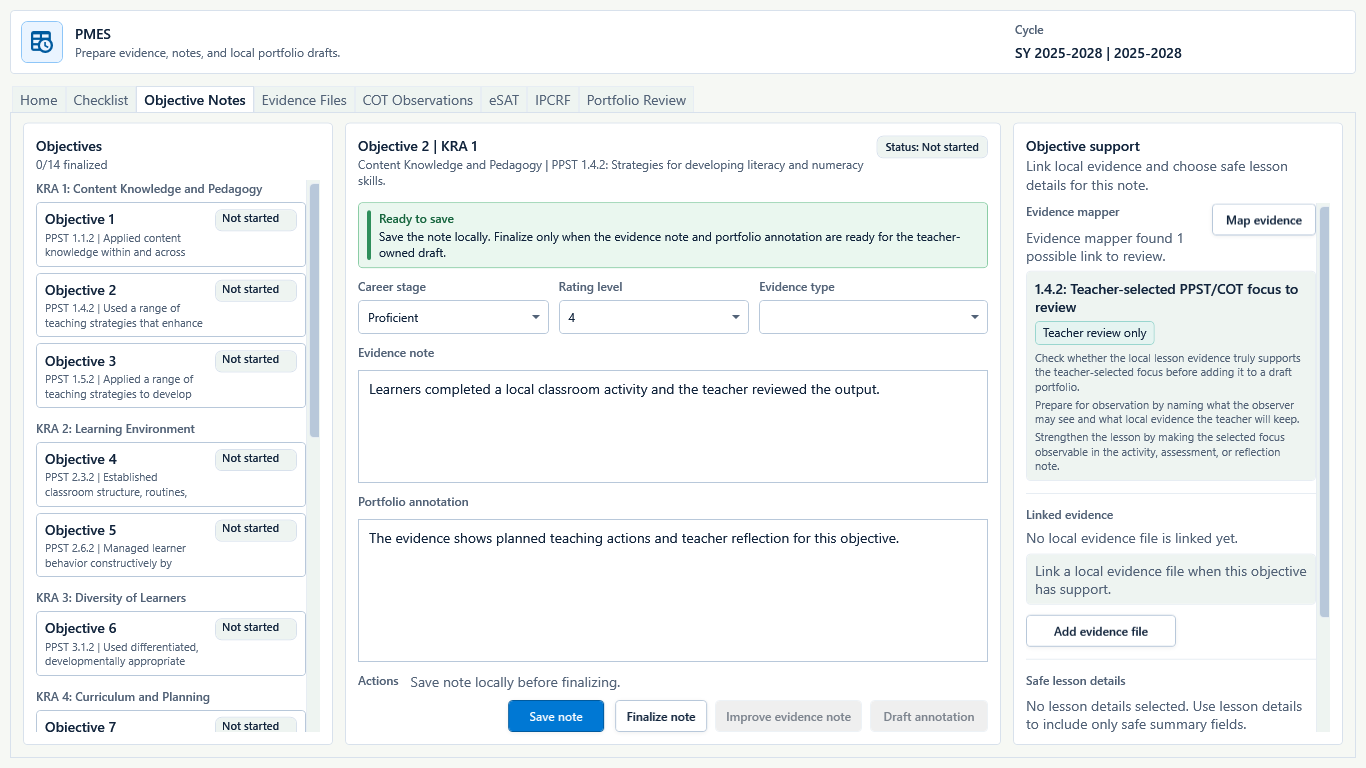
Sample data only. Save the local note before finalizing it, and keep claims limited to what the evidence supports. Captured July 11, 2026. Step 3
Add the Evidence note and Portfolio annotation
Open Objective Notes and choose the intended objective. Select Career stage, Rating level, and Evidence type when required. Enter a short factual Evidence note and Portfolio annotation, then choose Save note. Use Finalize note only when the wording and linked evidence are ready for the teacher-owned draft.
Expected result: the status changes from Not started to a saved or finalized note state; unsaved text is not counted as ready.
 View full size
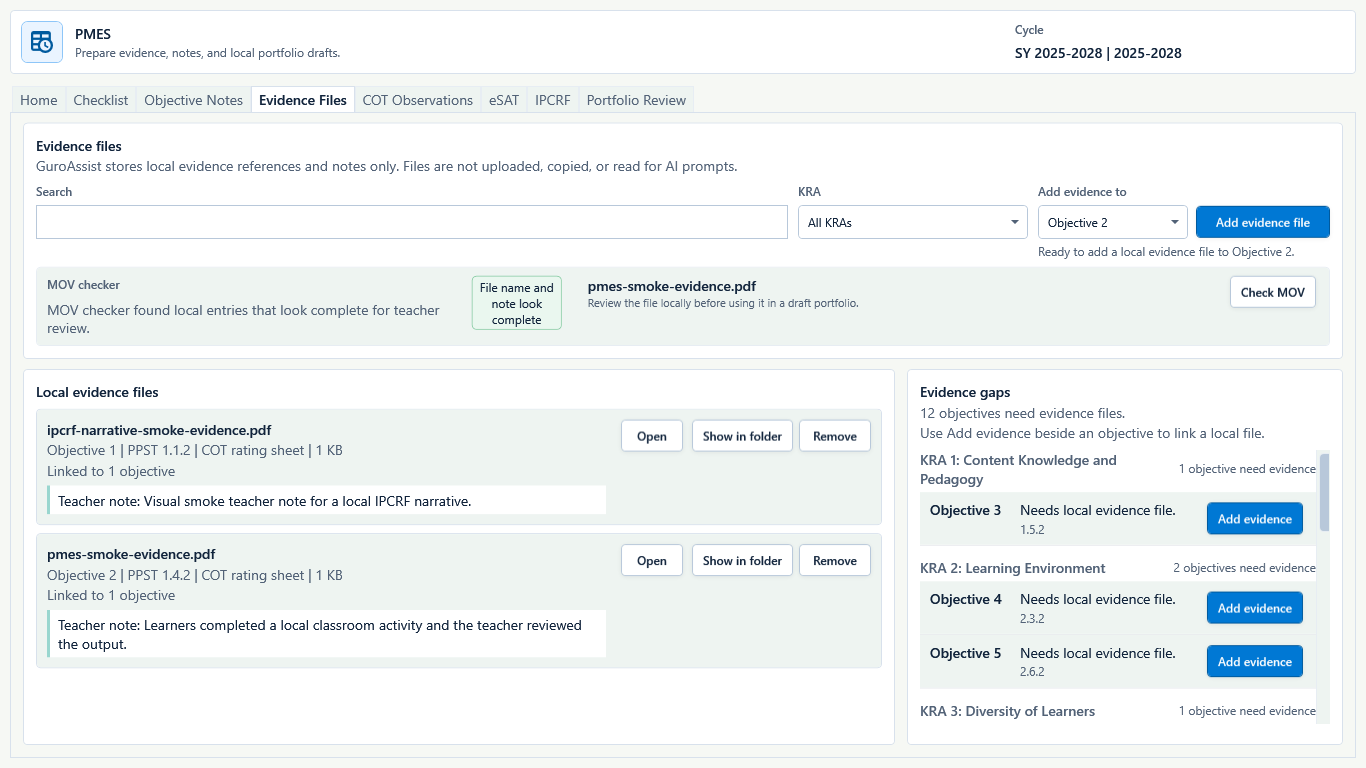
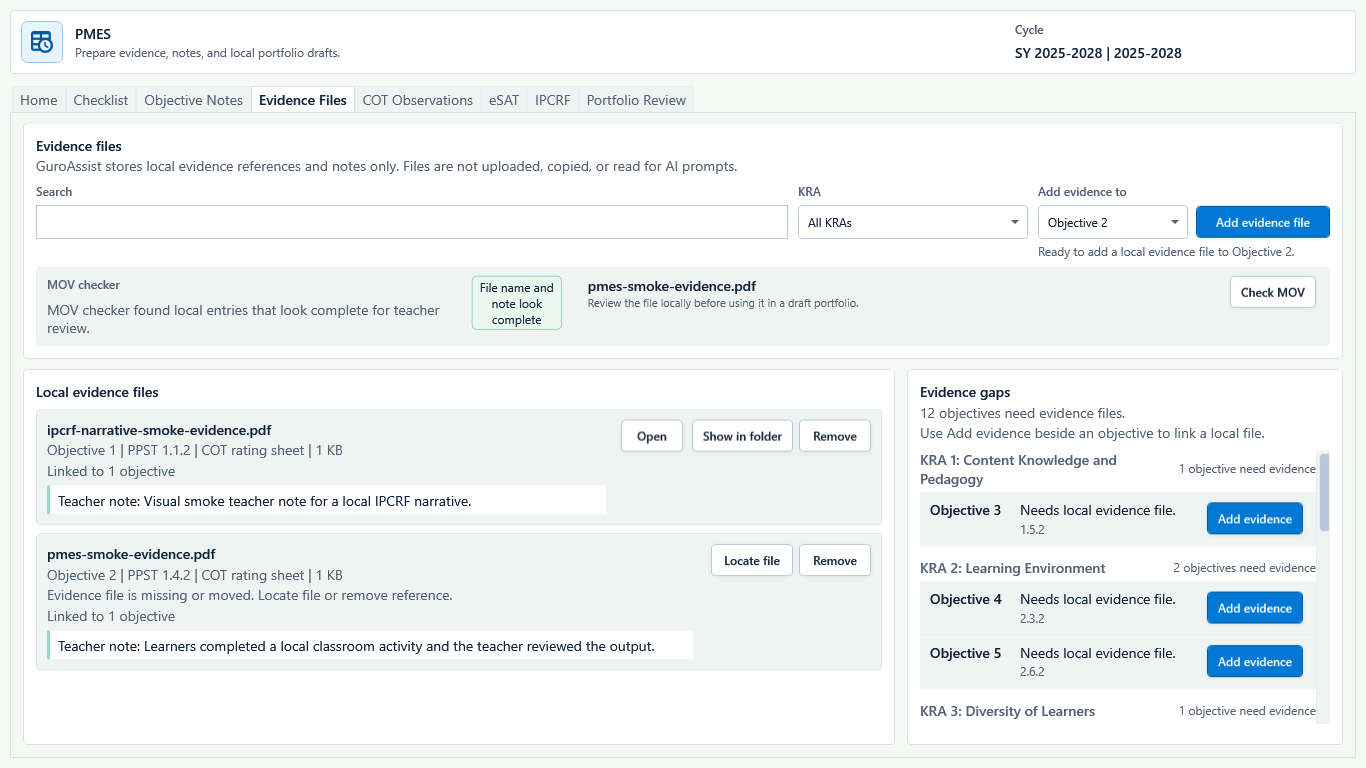
Sample data only. GuroAssist keeps local evidence references and notes; it does not upload, copy, or read the file for AI prompts. Captured July 11, 2026. Step 4
Link a local file from Evidence Files
Open Evidence Files. Choose the KRA and objective under Add evidence to, then choose Add evidence file and select the teacher-owned local file. Add a concise teacher note where prompted. Use Open or Show in folder to confirm the reference points to the intended file.
Expected result: Local evidence files lists the filename, objective, evidence type, size, and teacher note; the file is referenced locally and is not uploaded for AI prompts.
 View full size
Sample data only. A filename alone is not readiness; locate the actual file before relying on it. Captured July 11, 2026. Step 5
Fix missing or moved evidence before review
In Evidence Files, look for Evidence file is missing or moved. Choose Locate file to repair the reference, or Remove only when the evidence should no longer be linked. Continue until every file intended for the draft can be opened.
Expected result: missing-file warnings disappear only after the local reference is repaired or intentionally removed.
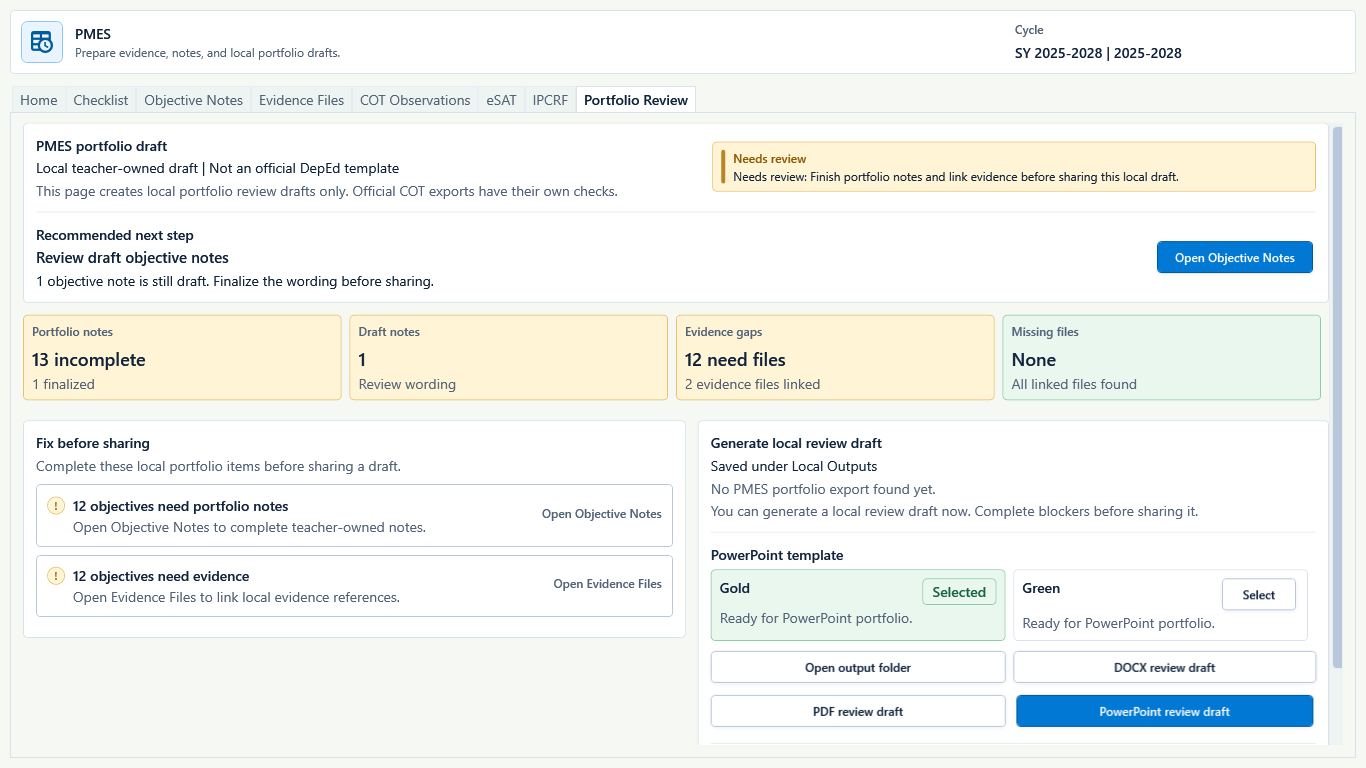 View full size
Sample data only. Generation availability does not mean the portfolio is complete or approved. Captured July 11, 2026. Step 6
Open Portfolio Review and read Fix before sharing
Open Portfolio Review. Read Recommended next step, Portfolio notes, Draft notes, Evidence gaps, Missing files, and every Fix before sharing item. Use Open Objective Notes or Open Evidence Files to correct blockers before sharing, even when a local review draft can still be generated.
Expected result: the screen clearly says Local teacher-owned draft and Not an official DepEd template, with remaining gaps visible.
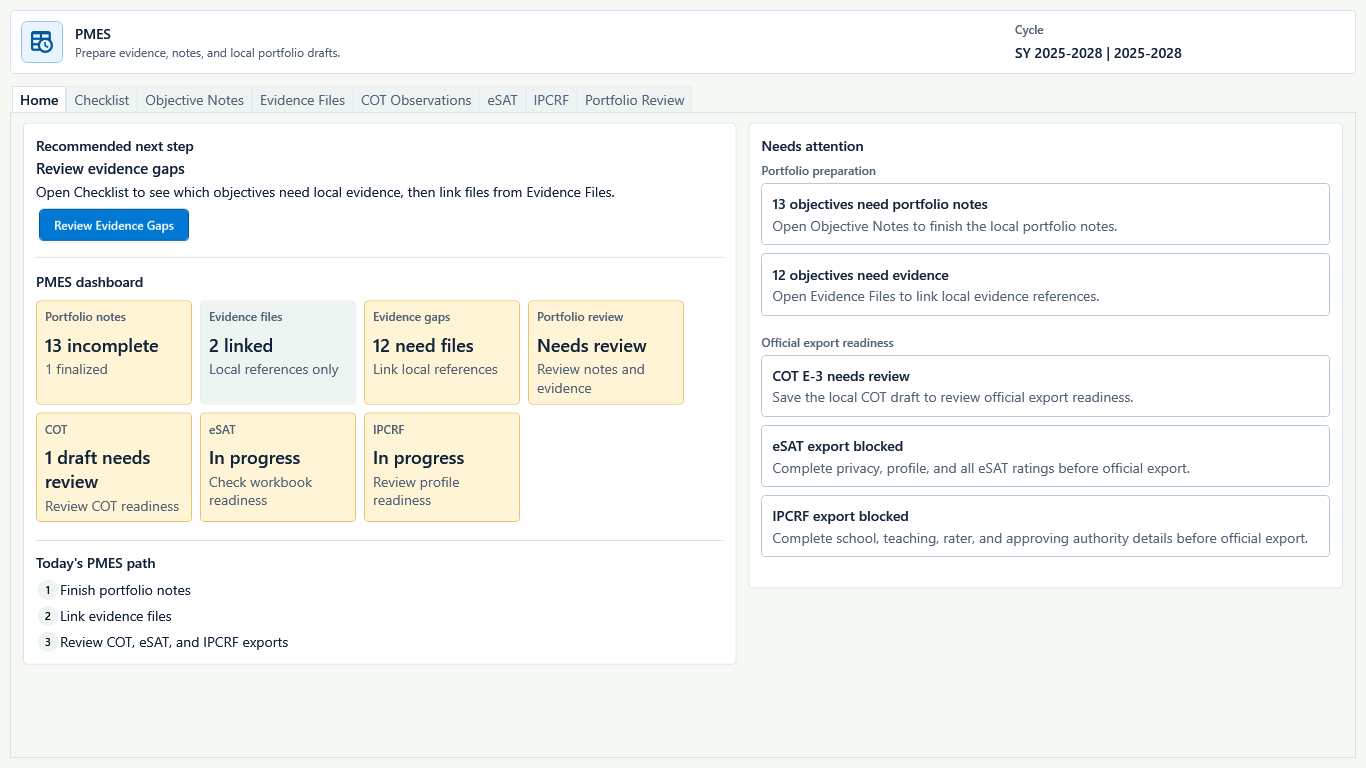 View full size
Sample data only. Confirm Paid separately from readiness; a generated draft does not erase remaining gaps. Captured July 11, 2026. Step 7
Confirm Paid is active before export
Portfolio review files require Paid. Return to Home and confirm the local workspace is available, then activate or refresh Paid before choosing DOCX review draft, PDF review draft, or PowerPoint review draft. Readiness gaps can remain visible even when generation is available.
Expected result: Home keeps local readiness gaps visible; Paid controls file generation but does not turn an incomplete portfolio into approved work.
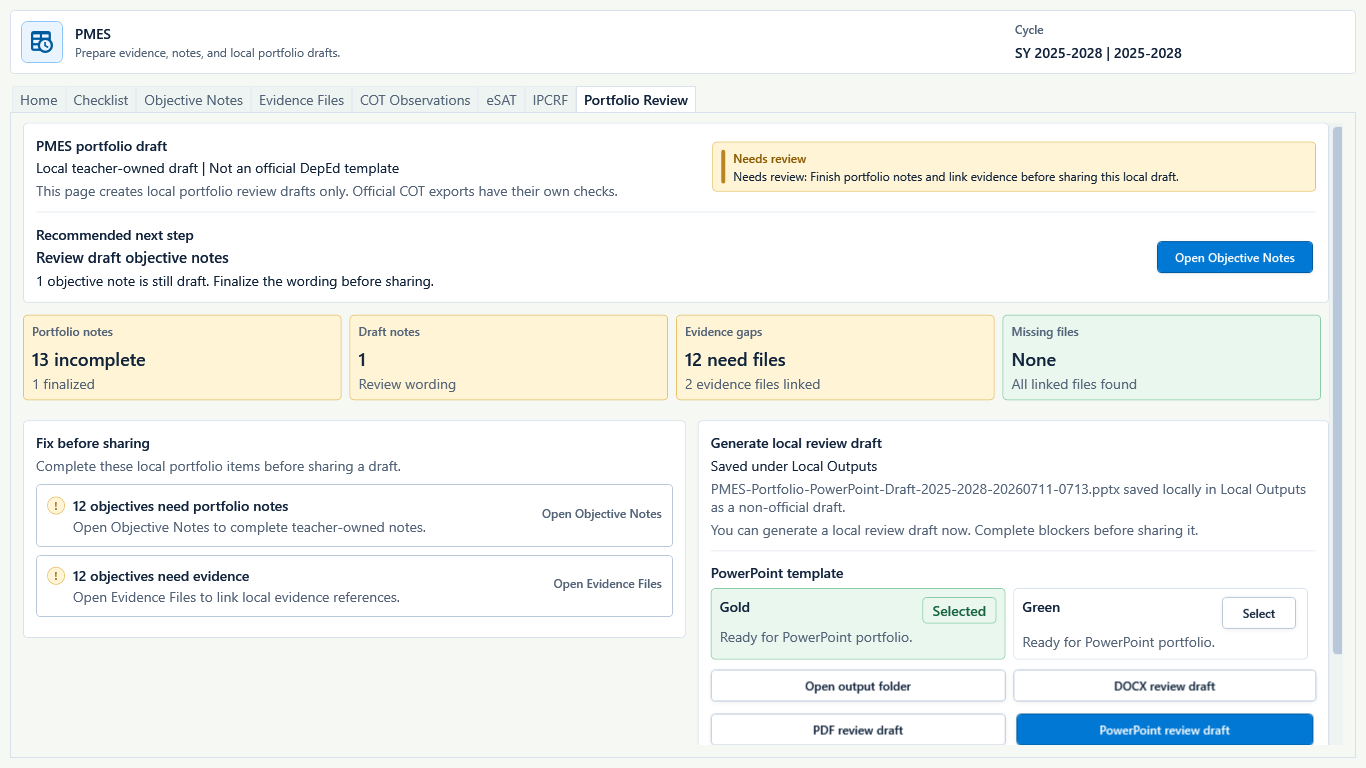 View full size
Sample data only. The exported PowerPoint remains a non-official local review draft while note and evidence gaps remain. Captured July 11, 2026. Step 8
Generate one local review draft
On Portfolio Review, choose DOCX review draft, PDF review draft, or a PowerPoint template such as Gold or Green, then choose the matching review-draft button once. These actions create local review files only; they do not submit PMES work or produce a rating.
Expected result: the generated filename appears under Saved under Local Outputs and is labeled as a non-official draft.
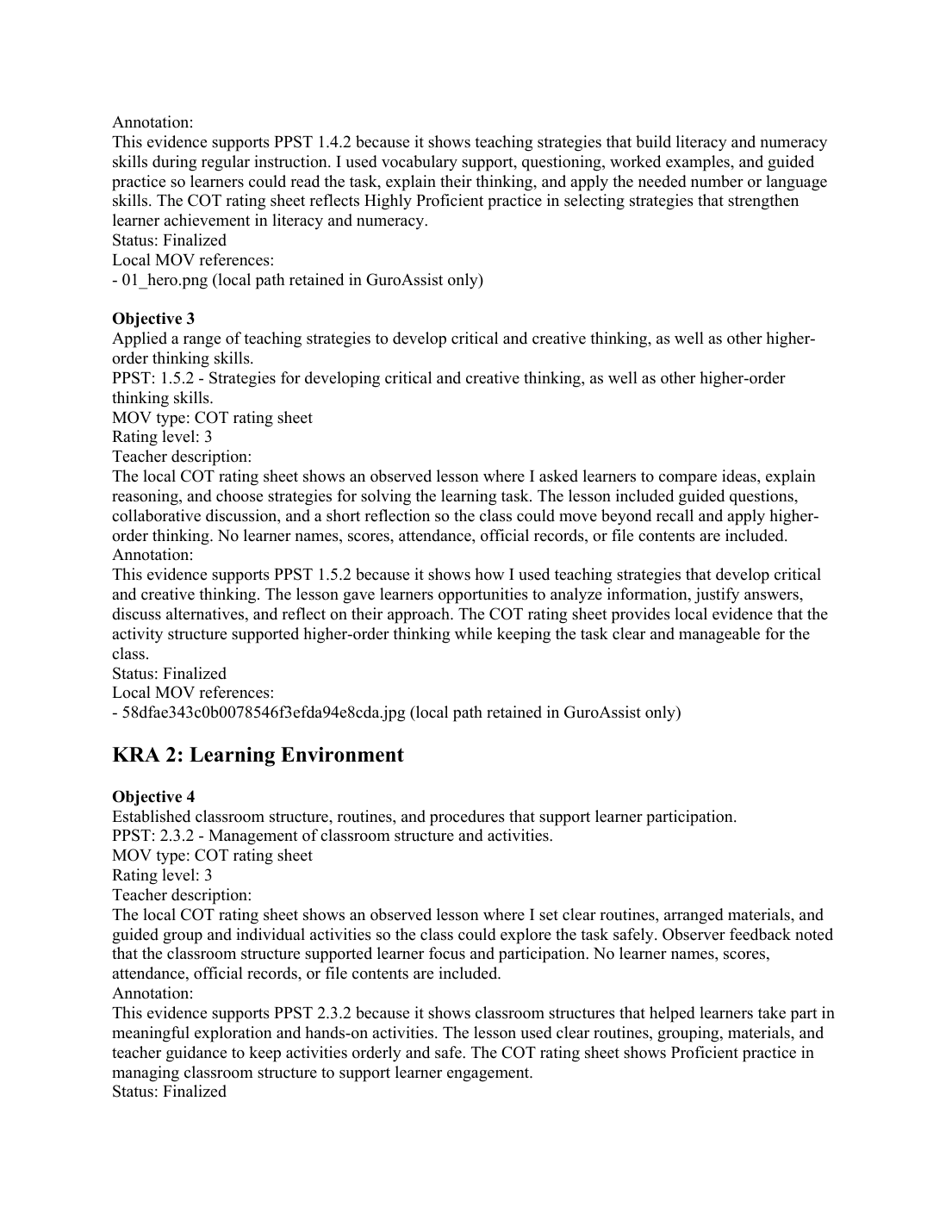 View full size
Sample data only. This is a rendered page from the actual generated PDF; inspect every page of the teacher's own file before sharing. Captured July 11, 2026. Step 9
Open the generated file before sharing
Choose Open output folder and open the actual generated file. Check every title, objective, note, evidence reference, blank field, page or slide, and draft label. The rendered example is page 2 of the generated PDF, not a dashboard proxy. Return to Objective Notes or Evidence Files and regenerate after corrections.
Expected result: the actual file opens with readable objective content and local draft wording; any content or layout defect is corrected before sharing.


Review
Check these before relying on the work
These checks cover saved, previewed, generated, and teacher-review states.
Draft stays draft
Portfolio output should remain draft until reviewed by the teacher.
No rating workflow
Do not treat PMES Toolkit as a teacher-rating or approval system.
Evidence stays local
Evidence files stay in the local workspace unless the teacher shares them.
Generated files need Paid
Portfolio exports require Paid where supported.
Blocked states and recovery
Fix the blocker before continuing
Use the direct recovery action when GuroAssist is waiting for setup, data, access, policy, or file readiness.
Evidence missing
Readiness checks may block drafts when required evidence or notes are missing.
After recovery: The blocker is no longer shown, and the intended next action is available for teacher review.
Troubleshoot this blockerOutput not reviewed
Open generated portfolio files before using them outside the app.
After recovery: The blocker is no longer shown, and the intended next action is available for teacher review.
Review generated-file help
Safety note
PMES Toolkit should support teacher preparation without becoming an approval dashboard or official submission tool.
Finish
Verify the result
Do not treat a saved screen or generated filename as proof that the work is ready.
You’re done when
The teacher has generated, opened, and visually reviewed an actual local PMES portfolio draft whose remaining note, evidence, and file gaps are honestly shown.
Glossary
Expand the terms used in this guide
Use the plain-language meaning here, then follow the exact label in GuroAssist.
- AI
- Artificial intelligence; optional draft help that still requires teacher review.
- PMES
- Performance Management and Evaluation System; GuroAssist supports local teacher preparation, not ratings or approval.
- eSAT
- Electronic Self-Assessment Tool used as part of local PMES preparation.
- IPCRF
- Individual Performance Commitment and Review Form; review the actual exported workbook before use.
- COT
- Classroom Observation Tool; notes and evidence remain teacher-owned preparation records.
Guide details
Guide verification
Use these details to confirm that this guide matches the GuroAssist version and school year you are using.
- Verification
- Verified with GuroAssist 1.0.0.0
- Last reviewed
- July 11, 2026
- Screenshots
- Captured July 11, 2026
- Applies to
- 2026–2027
Was this helpful?
Choose an answer or report a guide that needs attention. No class, learner, or free-text data is sent by these buttons.