
Detailed workflow guide
Generate ECR batch files
ECR batch generation should be a local, long-running output task that stays blocked until every included workbook passes readiness checks.
Teacher goal
How do I generate ECR files for multiple subjects or classes without losing review control?
Use this guide when this is the task in front of you. Stop if the selected class, learner, role, school year, file, or output does not match.
In-app path
- Classes
- Open class workspace
- Forms
- ECR batch
Get ready
Check the starting point
These are the minimum conditions for the workflow to make sense.
Before you start
Estimated time: About 5–10 minutes
- The intended classes, subjects, periods, and teacher role
- Complete grades and a ready template for every included item
- Paid access when batch generation requires it
You should see
Every included workbook is ready, and the generated ZIP or workbook group opens with the intended class and subjects.
Steps
Complete the task in order
Review choice points, save or preview behavior, and any stop condition before continuing.
- 1
Step 1
Choose the batch scope
Select the class, term, subject group, or all-ECR option that should be included in the batch.
- 2
Step 2
Review every included workbook
Check template readiness, grade completeness, learner data, and supported policy readiness for each item.
- 3
Step 3
Start local generation
Run the batch only when the readiness list is clear. Keep the app open while the local files are created.
- 4
Step 4
Use cancel or retry when offered
If GuroAssist offers cancel or retry, use those controls instead of closing the app during the batch.
 View full size
Captured July 10, 2026. Step 5
Open the output bundle
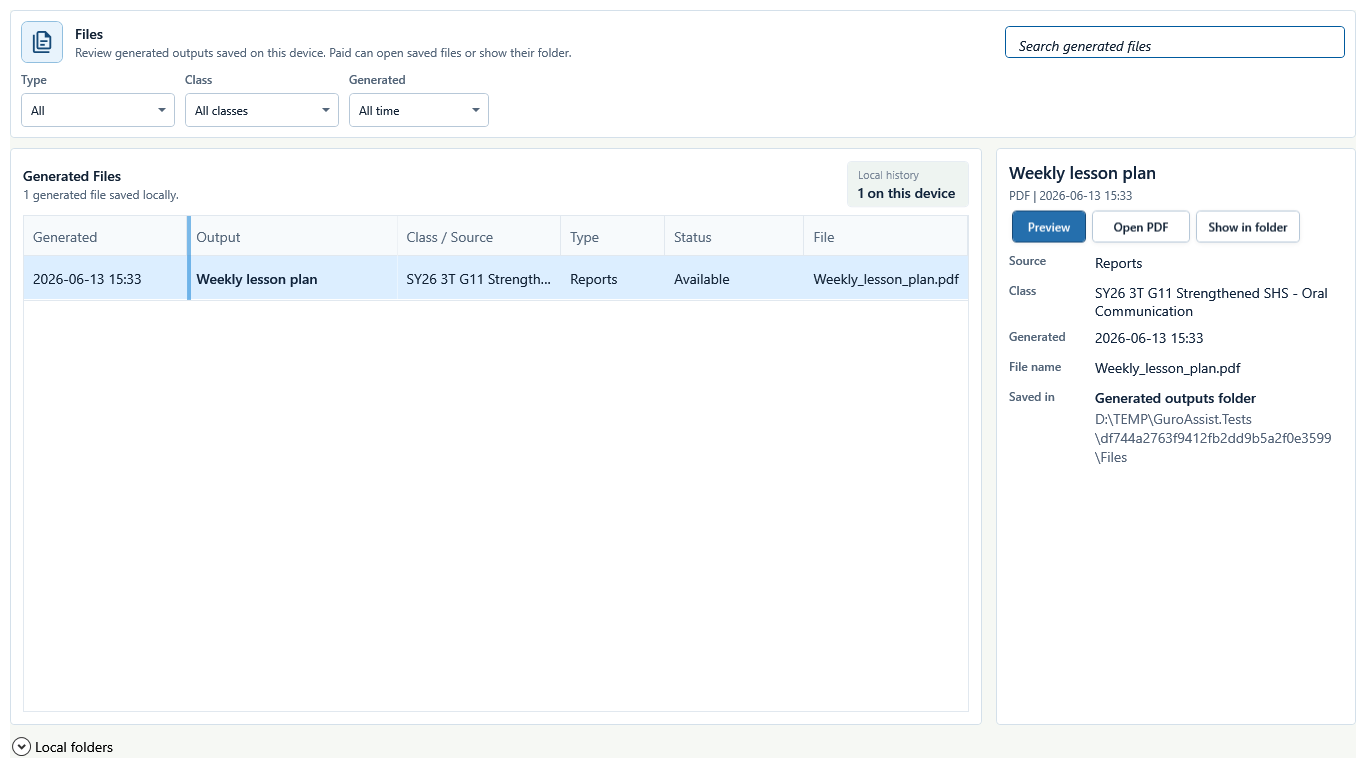
Find the generated ZIP or workbook group in Files, open the actual files, and review them before use.

Review
Check these before relying on the work
These checks cover saved, previewed, generated, and teacher-review states.
Every item is ready
One blocked workbook should keep the batch from being treated as ready.
Templates are available
All required local ECR templates must exist and match the selected class setup.
Grades are complete
Missing grades, invalid values, or unsupported term rules should block the batch.
Generated bundle is reviewed
Open the actual ZIP contents or workbook files before use.
File status
Understand what each output label means
The label describes readiness inside GuroAssist; it does not create outside approval.
- Local
- Saved on this device for teacher use.
- Draft
- Still needs teacher review or editing.
- Final
- The teacher marked the local work final after review.
- Official-ready
- GuroAssist readiness checks passed; this is not DepEd approval or submission.
- Review-only
- Useful for checking, but not an official-ready output.
- Blocked
- Stop and resolve the displayed readiness issue first.
Blocked states and recovery
Fix the blocker before continuing
Use the direct recovery action when GuroAssist is waiting for setup, data, access, policy, or file readiness.
A workbook is blocked
Fix the listed class, learner, grade, template, or policy issue before rerunning.
After recovery: The intended learner is selected and the learner-dependent action is available.
Review roster helpGeneration was interrupted
Use retry if available, then review generated history for partial or blocked outputs.
After recovery: The blocker is no longer shown, and the intended next action is available for teacher review.
Review generated-file helpOutput folder unavailable
Reconnect the local drive or choose a safe local output location.
After recovery: The blocker is no longer shown, and the intended next action is available for teacher review.
Review generated-file helpPaid access required
Generated files stay unavailable where Paid access is required.
After recovery: Paid access and any required credits are shown as available for this action.
Open activation help
Safety note
ECR batch generation is local and can take time. It must fail closed when any included class setup, learner data, grade readiness, template, or supported policy state is incomplete, and teachers should open the actual output bundle before use.
Finish
Verify the result
Do not treat a saved screen or generated filename as proof that the work is ready.
You’re done when
Every included workbook is ready, and the generated ZIP or workbook group opens with the intended class and subjects.
Privacy, policy, and official-looking outputs
Keep the work inside its safe boundary
These limits remain in force even when the main task appears complete.
Important boundary
Follow the policy and readiness message shown for the selected class and school year. Do not substitute remembered thresholds, quarter templates, or term rules.
Important boundary
Official-ready means GuroAssist readiness checks passed; it is not DepEd approval or submission.
Important boundary
For a three-term class, use Period grade sheet or another local summary when a quarter-only template is unavailable; the fallback remains local or review-only.
Glossary
Expand the terms used in this guide
Use the plain-language meaning here, then follow the exact label in GuroAssist.
- ECR
- Electronic Class Record; official-looking output remains blocked until the selected class is ready.
Guide details
Guide verification
Use these details to confirm that this guide matches the GuroAssist version and school year you are using.
- Verification
- Verified with GuroAssist 1.0.0.0
- Last reviewed
- July 11, 2026
- Screenshots
- Captured July 10, 2026
- Applies to
- 2026–2027
Was this helpful?
Choose an answer or report a guide that needs attention. No class, learner, or free-text data is sent by these buttons.
Related guides