
Step-by-step guide
Open generated files in desktop apps
The verified GuroAssist version has no standalone Editors workspace. Use Files to open the local output in the compatible desktop app installed on the device; Paid does not add an Editors navigation item.
Teacher goal
How do I review or edit a generated file?
Use this guide when this is the task in front of you. Stop if the selected class, learner, role, school year, file, or output does not match.
In-app path
- Files
- Open or Show in folder
- Compatible desktop app
Get ready
Check the starting point
These are the minimum conditions for the workflow to make sense.
Before you start
Estimated time: About 5–10 minutes
- Use the app that normally opens the generated local file
- Keep the original generated file unchanged when a review copy is needed
You should see
The Help Center explains that the verified version has no standalone Editors workspace and directs the teacher to a compatible desktop app for current files.
Steps
Complete the task in order
Review choice points, save or preview behavior, and any stop condition before continuing.
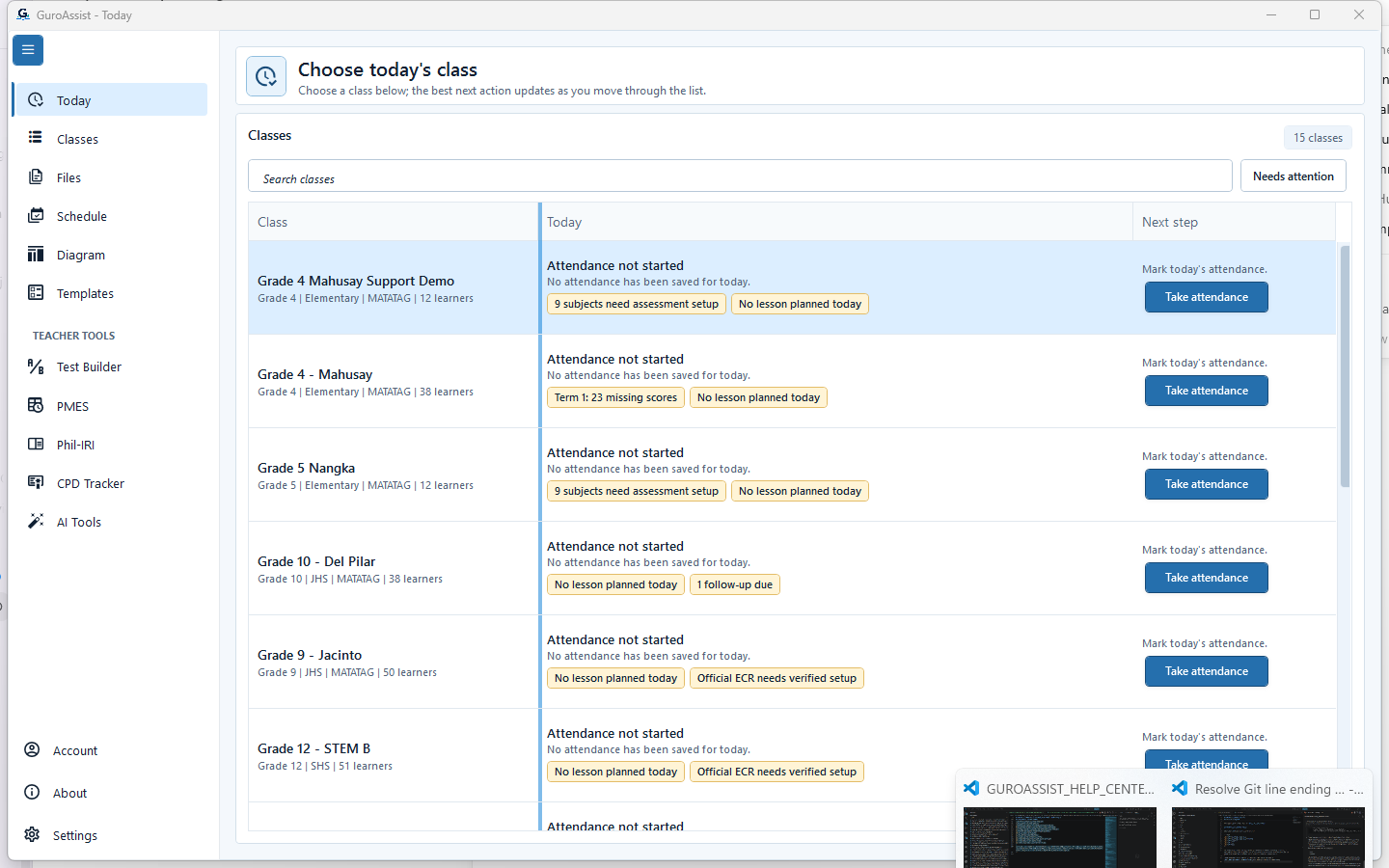 View full size
Sample data only. The verified navigation is the source of truth: Editors is not currently exposed. Captured July 11, 2026. Step 1
Check the current navigation before looking for Editors
Review the main navigation in the installed app. In the currently verified build, there is no standalone Editors workspace, so do not expect an Editors navigation item.
Expected result: The verified navigation is the source of truth: Editors is not currently exposed.
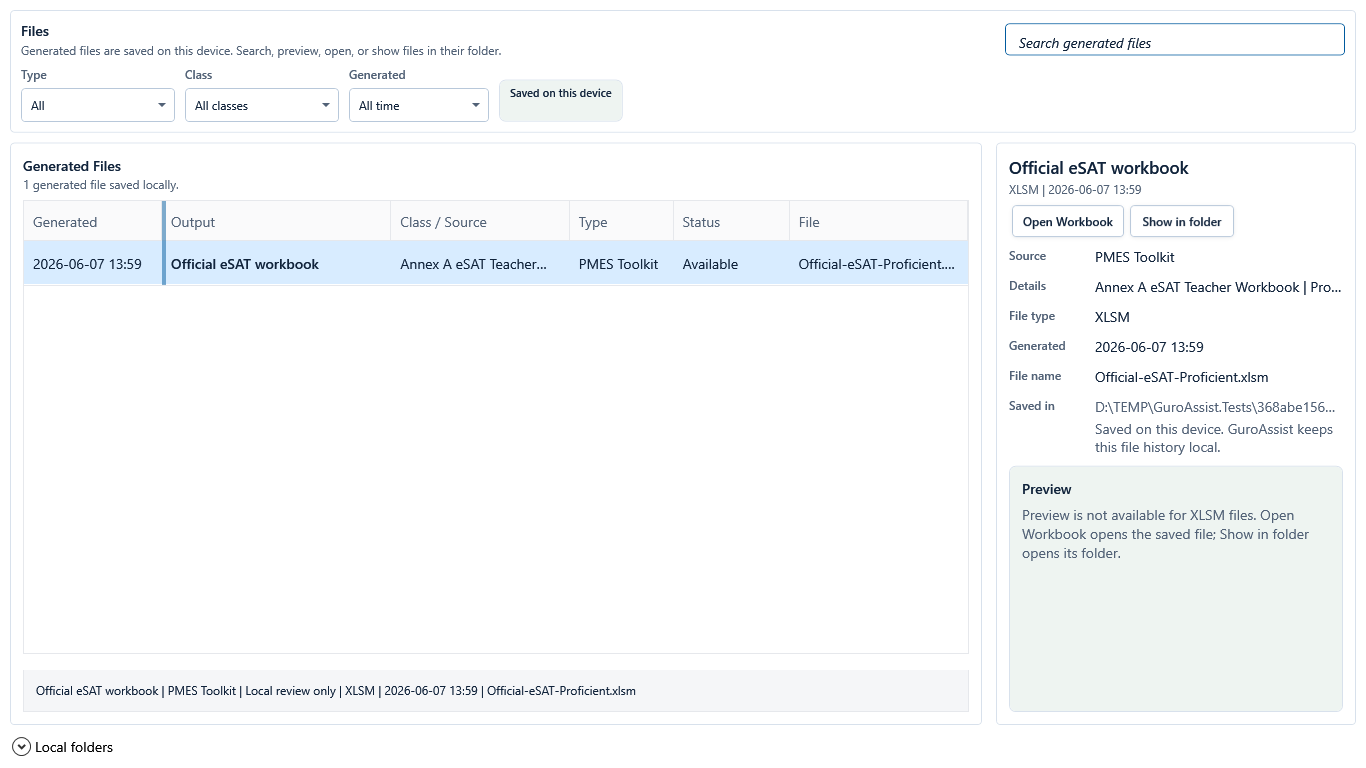 View full size
Sample data only. Files, not a standalone Editors workspace, hands generated output to its associated desktop app. Captured June 14, 2026. Step 2
Generate the file from its source tool
Create a lesson document, test packet, form, spreadsheet, slide deck, diagram, or other supported file from the teacher workflow that owns it. Resolve that tool's readiness blockers first.
Expected result: Files, not a standalone Editors workspace, hands generated output to its associated desktop app.
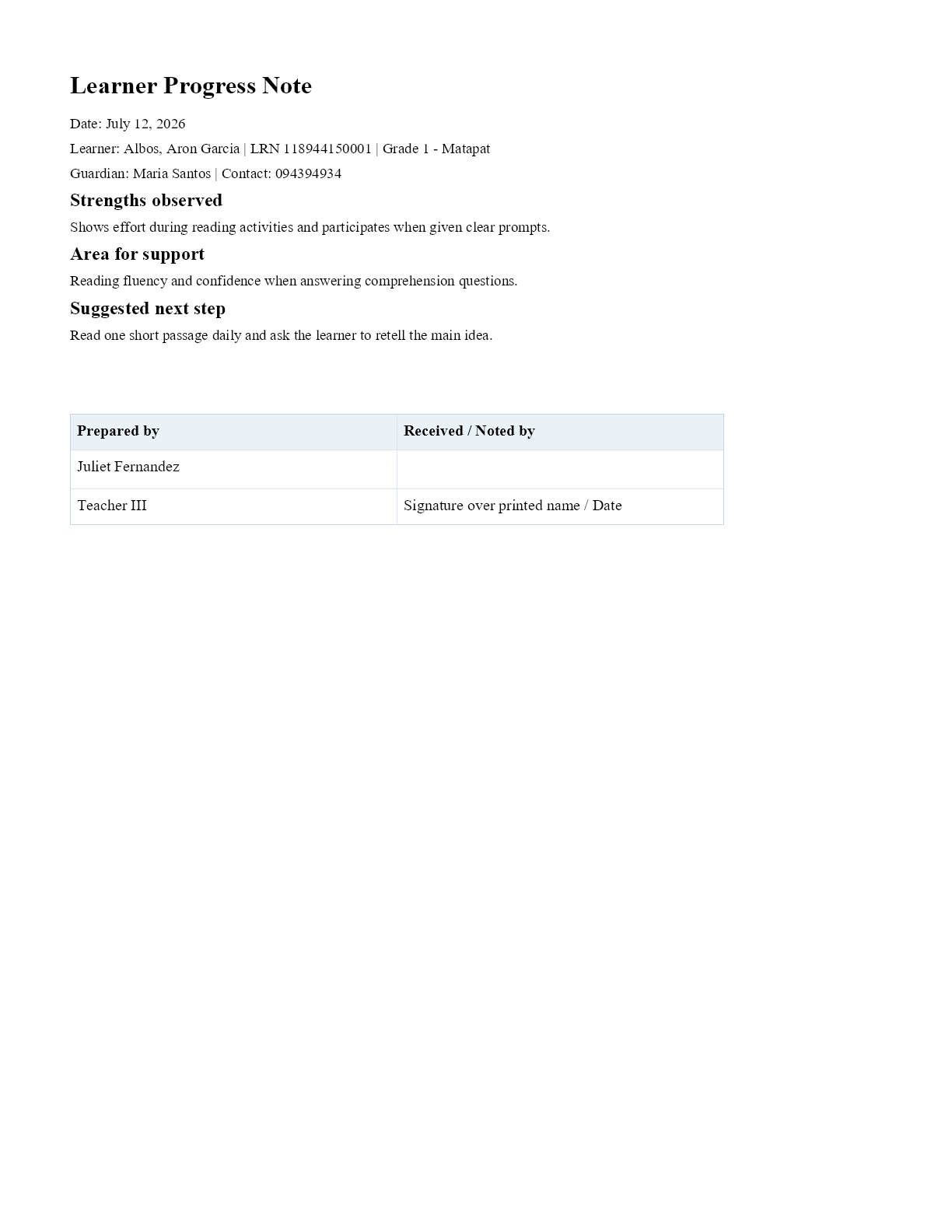 View full size
Sample data only. The document content is edited in a compatible installed desktop app, outside GuroAssist. Captured July 12, 2026. Step 3
Open the generated file in the installed desktop app
Select the output in Files and choose Open file. Edit DOCX, XLSX, or PPTX files in the compatible desktop app installed on the device; GuroAssist does not provide a standalone editor for those formats in this build.
Expected result: The document content is edited in a compatible installed desktop app, outside GuroAssist.
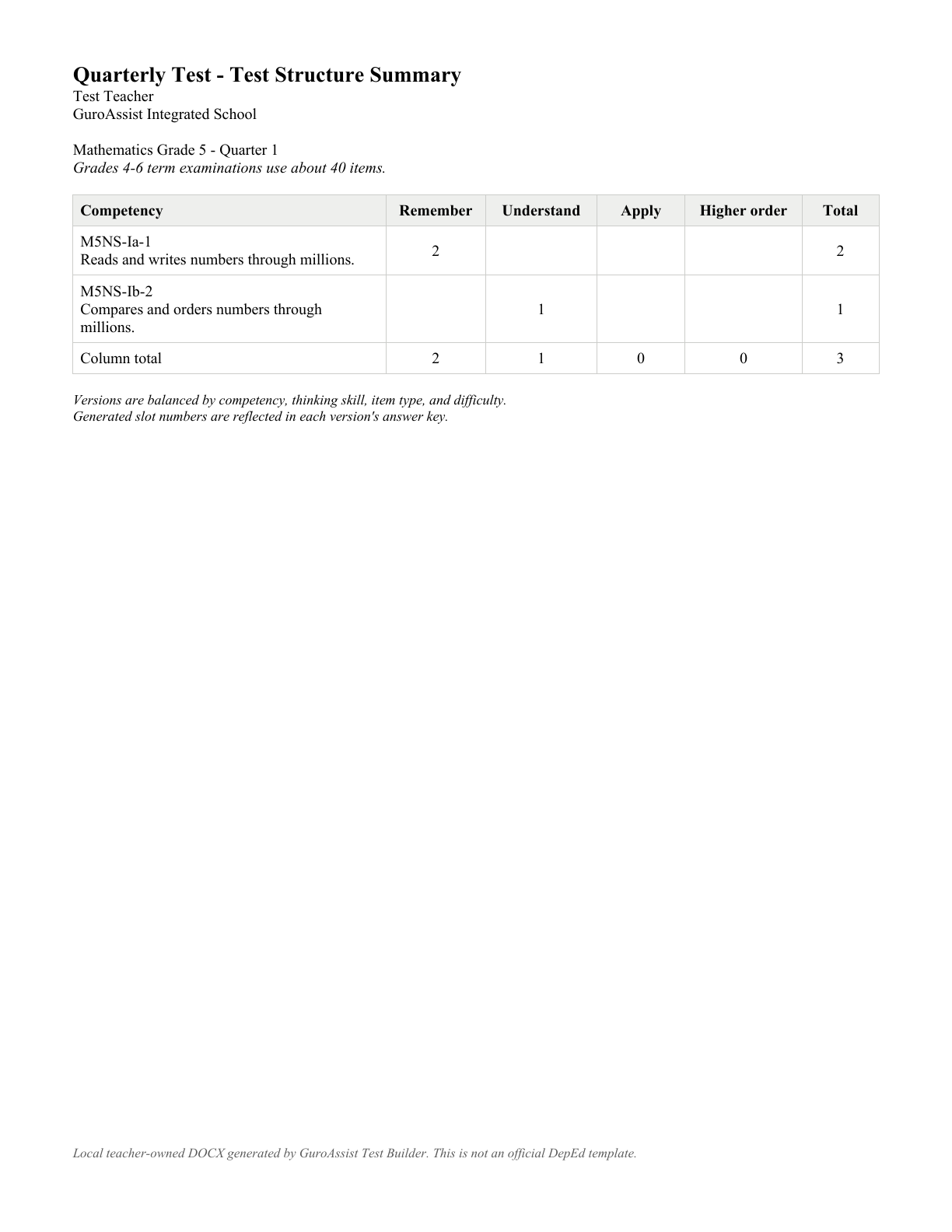 View full size
Sample data only. Keep generated evidence and teacher-reviewed copies distinguishable by filename and location. Captured July 12, 2026. Step 4
Save a reviewed copy without overwriting source evidence
Use a clear filename for the teacher-reviewed copy and keep draft, generated, and final versions distinguishable. Return to the source tool when the underlying class data or generated content is wrong.
Expected result: Keep generated evidence and teacher-reviewed copies distinguishable by filename and location.
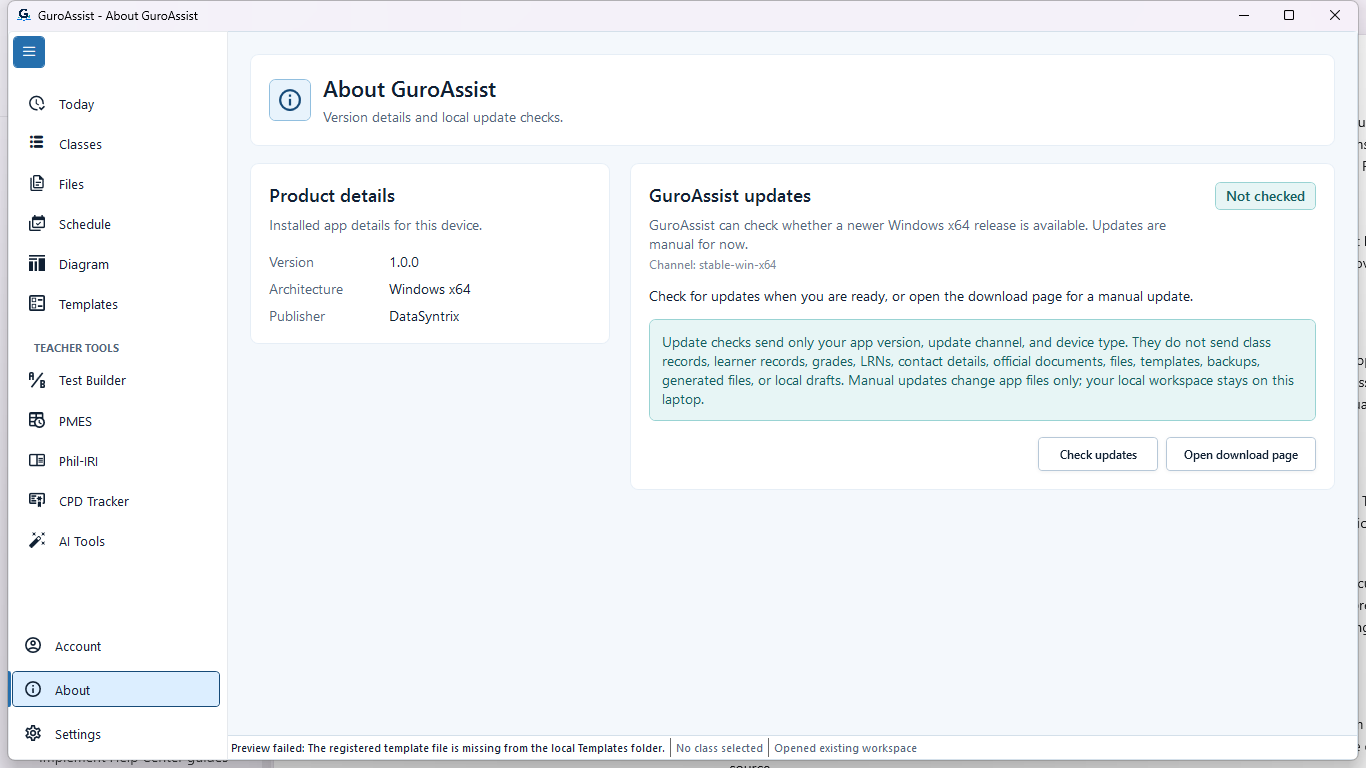 View full size
Sample data only. Installed version, not plan tier, is the reliable reference for available navigation. Captured July 11, 2026. Step 5
Do not treat Paid access as an Editors feature flag
Paid access can enable supported generation and live-AI features, but it does not add a standalone Editors workspace in the verified build. Check About and the release notes for the installed product state instead of assuming a separate editor exists.
Expected result: Installed version, not plan tier, is the reliable reference for available navigation.


Review
Check these before relying on the work
These checks cover saved, previewed, generated, and teacher-review states.
Current state is understood
The verified version has no standalone Editors workspace or Paid-only Editors navigation item.
Actual file is reviewed
Open the generated file in its normal local app before using, printing, or sharing it.
Original stays available
Keep the generated original when creating an edited copy in another app.
Blocked states and recovery
Fix the blocker before continuing
Use the direct recovery action when GuroAssist is waiting for setup, data, access, policy, or file readiness.
No standalone Editors workspace
This is the expected verified state. Use Files and a compatible desktop app; Paid activation does not add an Editors navigation item.
After recovery: Paid access and any required credits are shown as available for this action.
Find the generated fileFile will not open
Check that a compatible local app is installed, then use Show in folder and try the file directly.
After recovery: The blocker is no longer shown, and the intended next action is available for teacher review.
Troubleshoot the fileFile is missing
Return to Files or restore from a known backup before regenerating or editing anything.
After recovery: The backup or restore summary shows the intended local workspace and a clear success or recovery state.
Open backup help
Safety note
The verified version has no standalone Editors workspace. Paid does not add one. Editing a local copy in another app does not make an output official or approved.
Finish
Verify the result
Do not treat a saved screen or generated filename as proof that the work is ready.
You’re done when
The teacher reviews the actual local file in a compatible desktop app, keeps the original available, and does not expect a separate GuroAssist Editors workspace.
Glossary
Expand the terms used in this guide
Use the plain-language meaning here, then follow the exact label in GuroAssist.
- AI
- Artificial intelligence; optional draft help that still requires teacher review.
- eSAT
- Electronic Self-Assessment Tool used as part of local PMES preparation.
Guide details
Guide verification
Use these details to confirm that this guide matches the GuroAssist version and school year you are using.
- Verification
- Verified with GuroAssist 1.0.0.0
- Last reviewed
- July 11, 2026
- Screenshots
- Captured July 11, 2026
- Applies to
- 2026–2027
Was this helpful?
Choose an answer or report a guide that needs attention. No class, learner, or free-text data is sent by these buttons.
Related guides