
Step-by-step guide
Use Templates
Templates prepare reusable documents, but real-data previews and generated files need the right class, learner, and details first.
Teacher goal
Why does a template need class or learner choices?
Use this guide when this is the task in front of you. Stop if the selected class, learner, role, school year, file, or output does not match.
In-app path
- Templates
Get ready
Check the starting point
These are the minimum conditions for the workflow to make sense.
Before you start
Estimated time: About 10–20 minutes
- A saved template or a clear document purpose
- The fields required by the chosen template
- The class or learner only when using real-data preview or generation
You should see
Templates shows the selected document, field requirements, sample preview, and real-data actions only when the required choices are ready.
Detailed workflows
Choose the Templates workflow you need
Create or edit a reusable template, then use the separate real-data preview and generation workflow.
Steps
Complete the task in order
Review choice points, save or preview behavior, and any stop condition before continuing.
 View full size
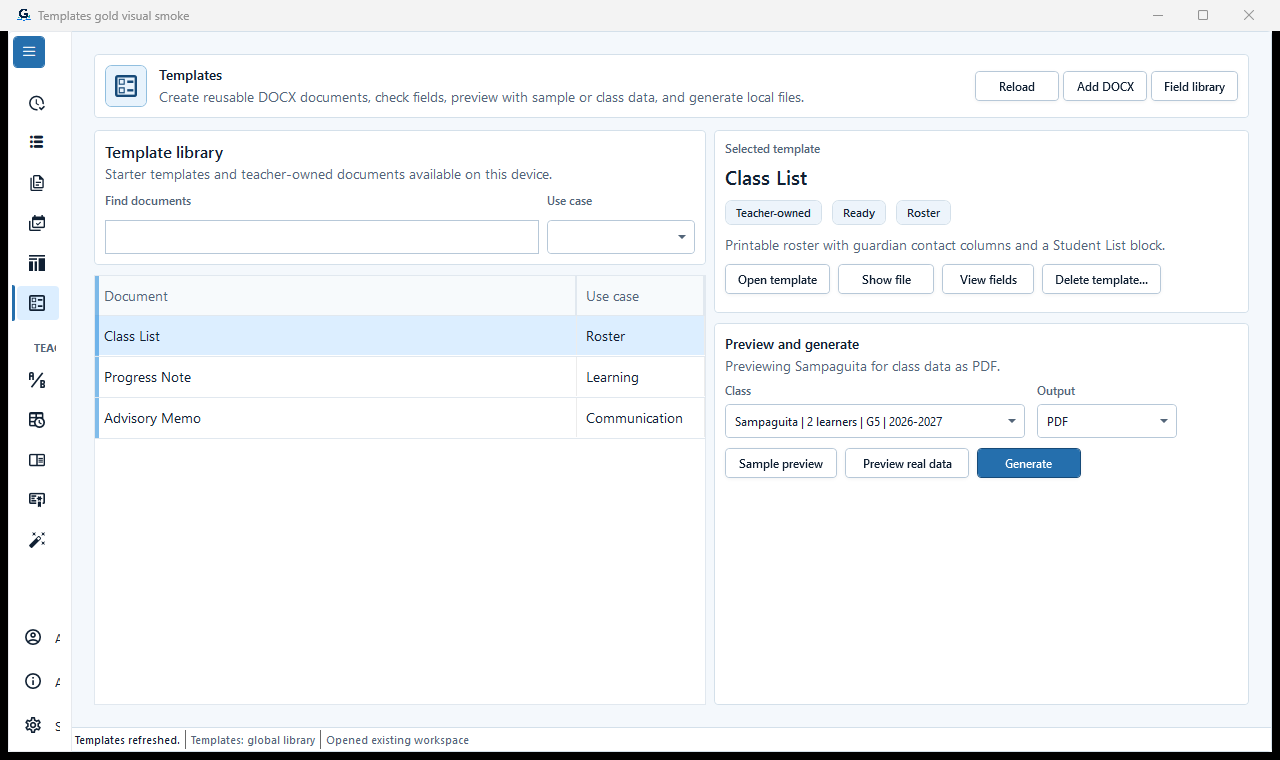
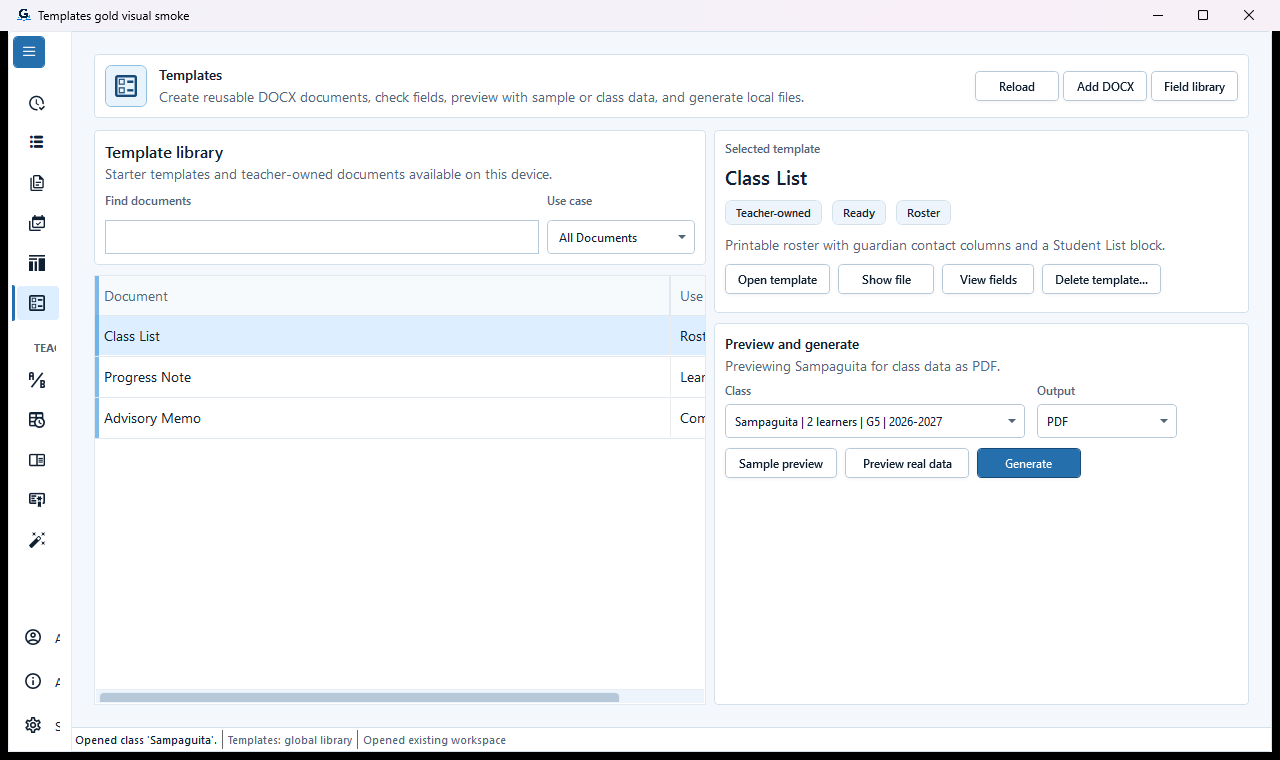
Sample data only. The selected template card identifies its purpose and current readiness. Captured July 12, 2026. Step 1
Open Templates and choose the intended template
Choose Templates and select the exact document template needed by the workflow. Read its purpose, registration status, class requirement, fields, and available preview actions before changing anything.
Expected result: The selected template card identifies its purpose and current readiness.
 View full size
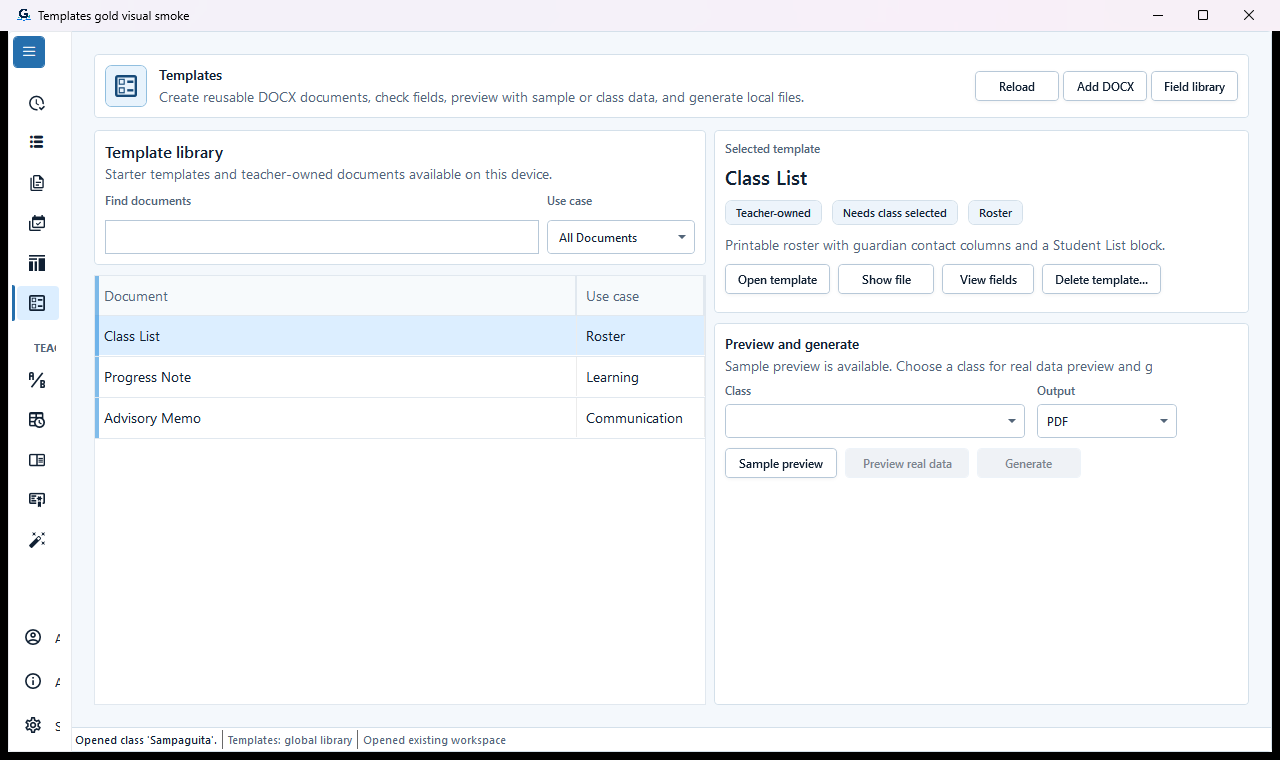
Sample data only. The class selector is a real-data prerequisite, while sample preview remains separate. Captured July 12, 2026. Step 2
Choose the required class context
For a class-based template, choose the intended class before Preview real data or Generate. When Choose a class is shown, those actions stay unavailable; sample preview can still be used only for a layout check.
Expected result: The class selector is a real-data prerequisite, while sample preview remains separate.
 View full size
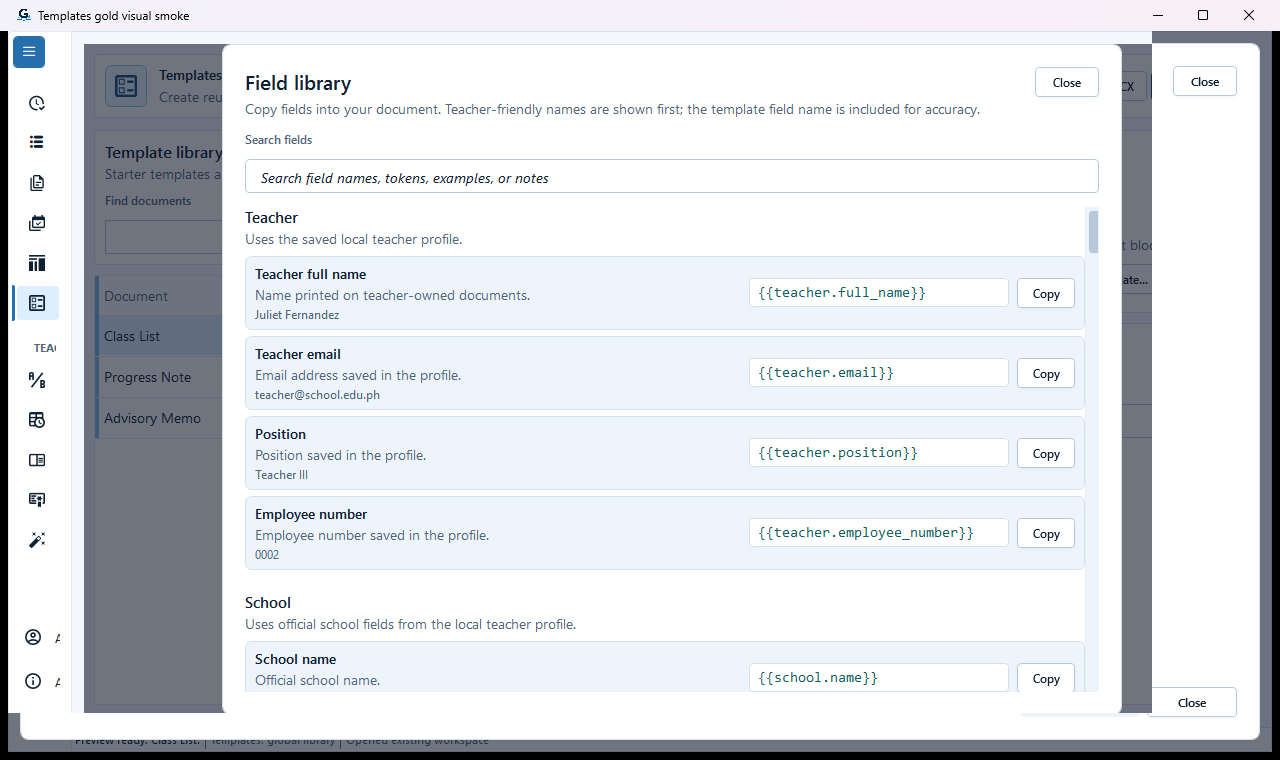
Sample data only. Field mappings determine what the preview and generated file can fill. Captured July 12, 2026. Step 3
Review the field library and mappings
Open the field list and verify that every required teacher, school, class, learner, date, grade, or attendance field maps to the intended source. Leave unsupported official fields blank rather than inventing values.
Expected result: Field mappings determine what the preview and generated file can fill.
 View full size
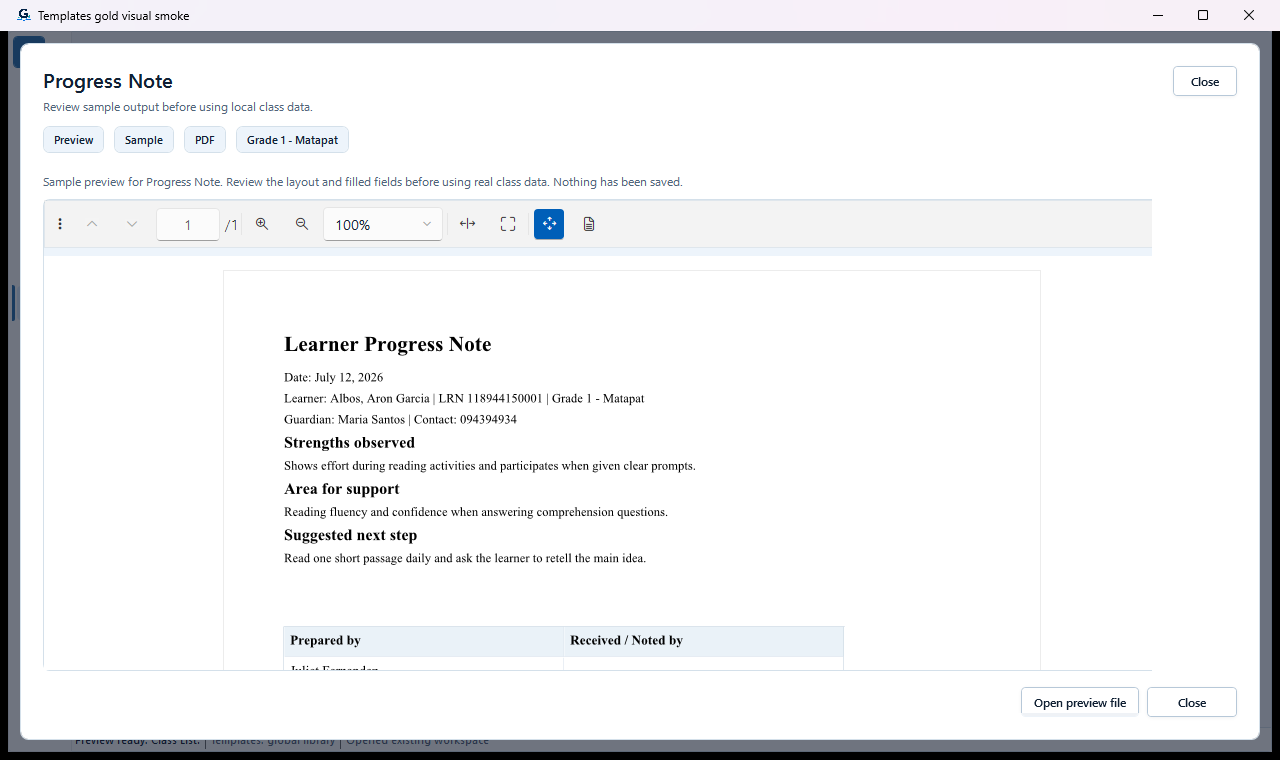
Sample data only. Sample preview checks placement and readability, not official readiness. Captured July 12, 2026. Step 4
Use sample preview only to check layout
Choose Preview with sample data when available to inspect layout without exposing real learner information. Treat sample preview as a layout check only; it does not prove that real class data is complete or correct.
Expected result: Sample preview checks placement and readability, not official readiness.
 View full size
Sample data only. Real-data preview remains unavailable until the required class context is selected. Captured July 12, 2026. Step 5
Preview with real class data before generating
Select the intended class and choose the real-data preview. Check learner order, teacher and school details, dates, class identity, and every populated field. Stop when the class, template, policy year, or source data is incomplete.
Expected result: Real-data preview remains unavailable until the required class context is selected.
 View full size
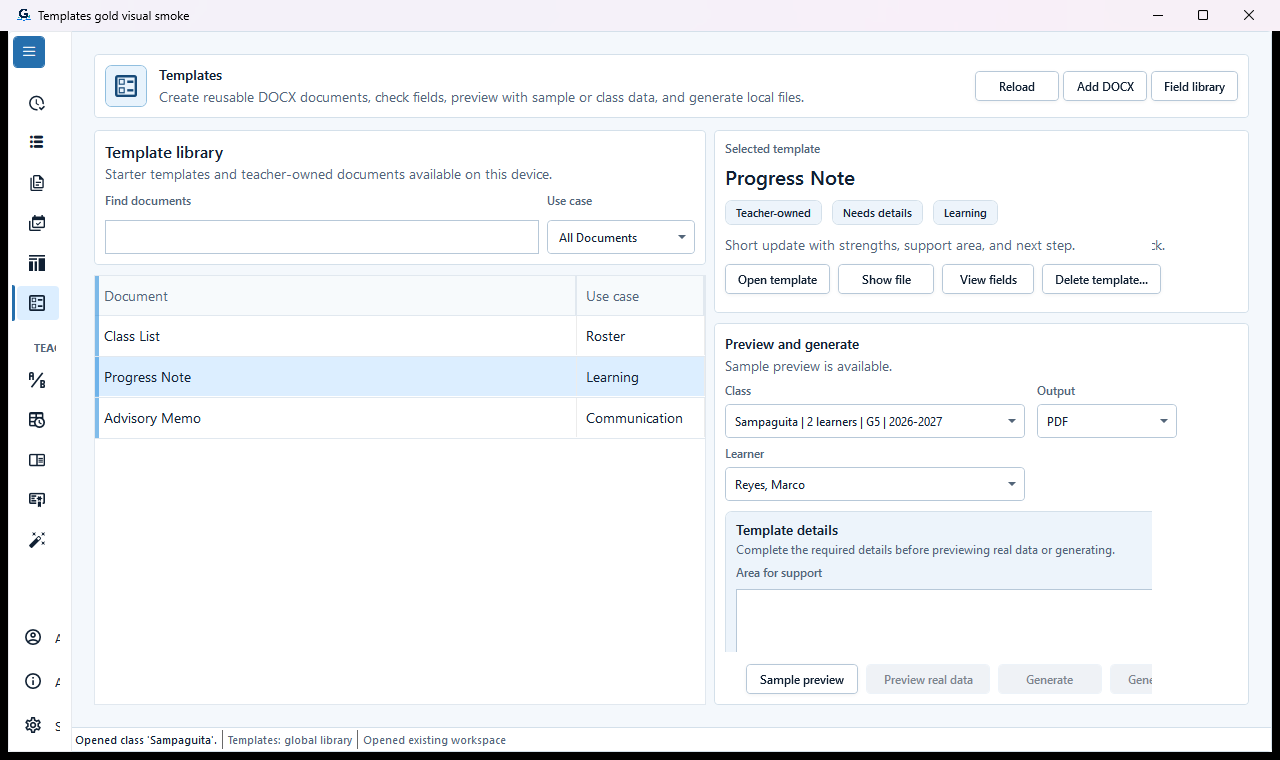
Sample data only. Required learner-specific wording must be completed before real-data preview or generation. Captured July 12, 2026. Step 6
Complete learner-specific template details
For a learner template, choose the learner and fill every required Template details field. A Needs details badge keeps Preview real data and Generate unavailable until the teacher-provided wording is complete.
Expected result: Required learner-specific wording must be completed before real-data preview or generation.
 View full size
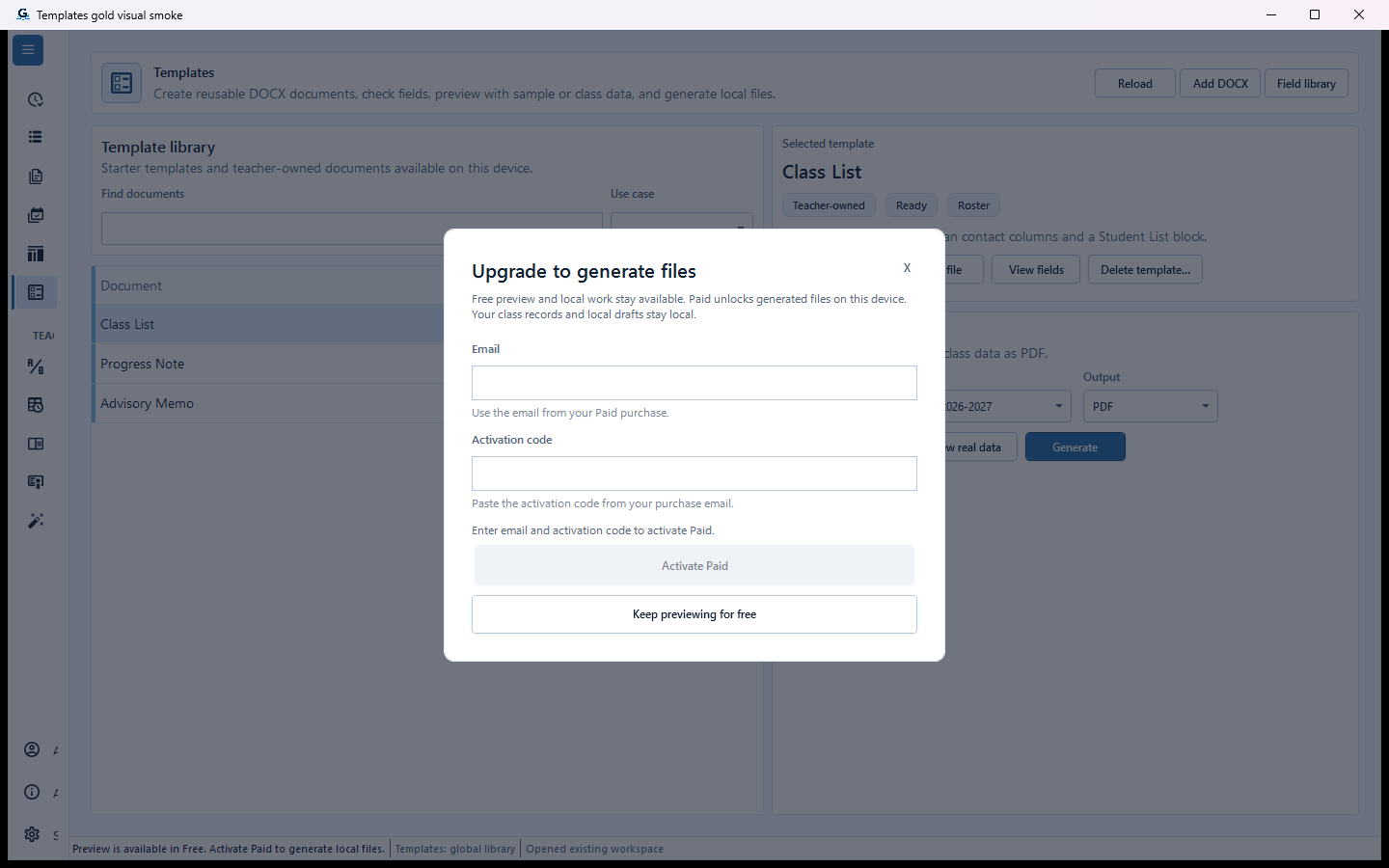
Sample data only. Plan access is checked after template context and real-data readiness, not instead of them. Captured July 12, 2026. Step 7
Generate only after preview and plan checks pass
Choose Generate only after the real-data preview passes. On a Free device, stop at the Paid-required boundary; on a valid Paid device, generate the local file and wait for the saved-output result before opening it.
Expected result: Plan access is checked after template context and real-data readiness, not instead of them.
 View full size
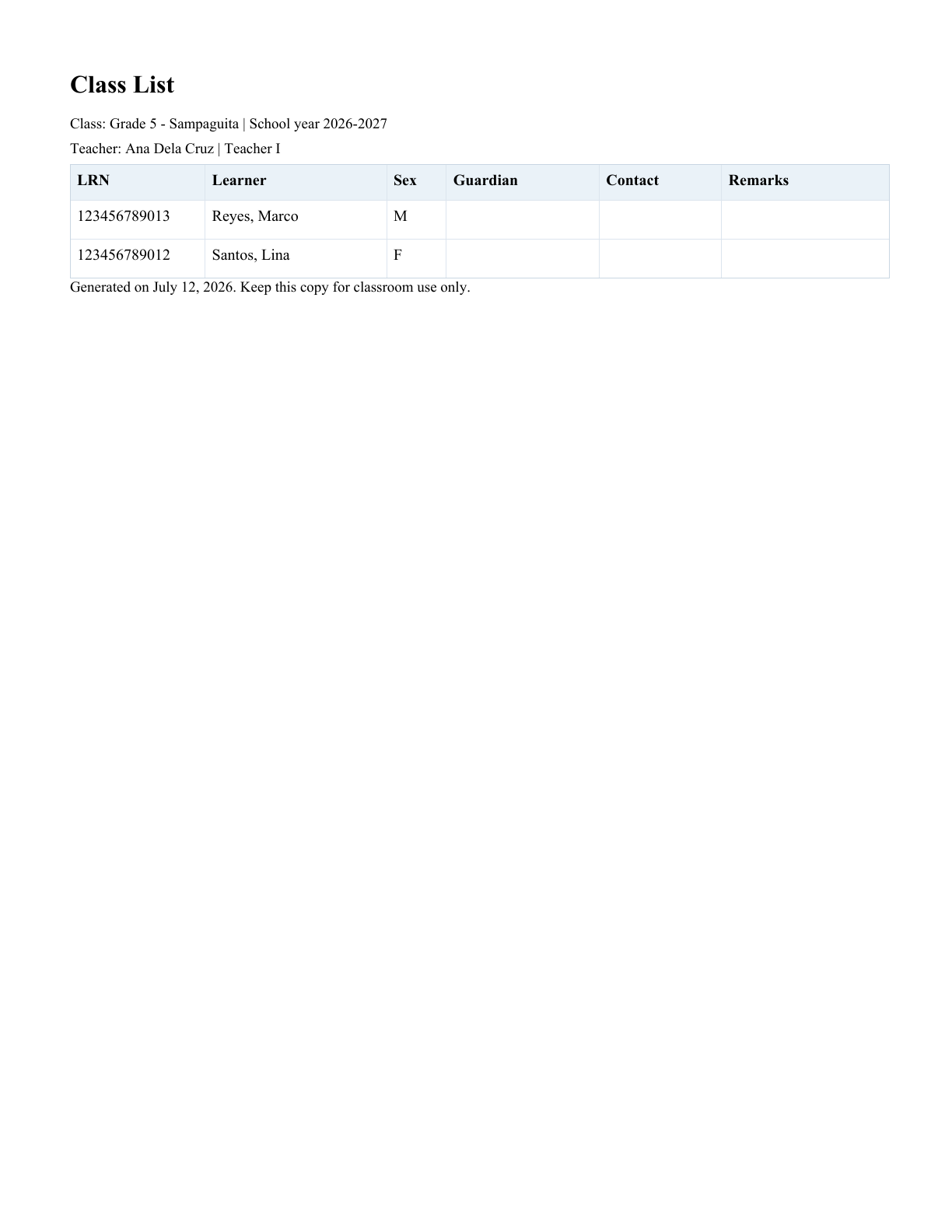
Sample data only. The opened local output is the evidence for the final template content and layout check. Captured July 12, 2026. Step 8
Open the actual file and correct the source when needed
Open the PDF, DOCX, or XLSX and inspect every page or sheet. When data or layout is wrong, correct the template mapping or source records and generate again rather than editing an official-looking result into an unsupported state.
Expected result: The opened local output is the evidence for the final template content and layout check.


Review
Check these before relying on the work
These checks cover saved, previewed, generated, and teacher-review states.
Template details are complete
Do not remove required input fields just to make generation faster.
Sample preview is safe
Sample preview can work without local class or learner data.
Real-data preview needs choices
Real-data actions should stay disabled until class, learner, and required details are selected.
Generated-file export needs Paid
Free keeps local preview and editing available where shown; supported generated-file export requires Paid.
Blocked states and recovery
Fix the blocker before continuing
Use the direct recovery action when GuroAssist is waiting for setup, data, access, policy, or file readiness.
Missing class or learner
Choose the needed class or learner before real-data preview or generation.
After recovery: The intended class appears in the workspace header and the task uses that class.
Review roster helpTemplate not ready
If template readiness is incomplete, official-looking output should stay blocked.
After recovery: The required template is selected, readable, and shown as ready for this task.
Review generated-file help
Safety note
Templates should make documents easier to prepare, not bypass required class, learner, or readiness checks.
Finish
Verify the result
Do not treat a saved screen or generated filename as proof that the work is ready.
You’re done when
Templates shows the selected document, field requirements, sample preview, and real-data actions only when the required choices are ready.
Guide details
Guide verification
Use these details to confirm that this guide matches the GuroAssist version and school year you are using.
- Verification
- Verified with GuroAssist 1.0.0.0
- Last reviewed
- July 11, 2026
- Screenshots
- Captured July 12, 2026
- Applies to
- 2026–2027
Was this helpful?
Choose an answer or report a guide that needs attention. No class, learner, or free-text data is sent by these buttons.