
Detailed workflow guide
Create and edit templates
Template creation and editing helps teachers prepare reusable DOCX files with clear required fields, sample preview, and local ownership.
Teacher goal
How do I make reusable DOCX templates without exposing technical fields?
Use this guide when this is the task in front of you. Stop if the selected class, learner, role, school year, file, or output does not match.
In-app path
- Templates
- New template or selected template
Get ready
Check the starting point
These are the minimum conditions for the workflow to make sense.
Before you start
Estimated time: About 5–10 minutes
- A teacher-owned DOCX purpose and working file
- The fields the template genuinely needs
- A local folder for the saved editable template
You should see
Templates lists the saved teacher-owned DOCX with its name, use case, fields, and local file actions.
Steps
Complete the task in order
Review choice points, save or preview behavior, and any stop condition before continuing.
 View full size
Captured July 10, 2026. Step 1
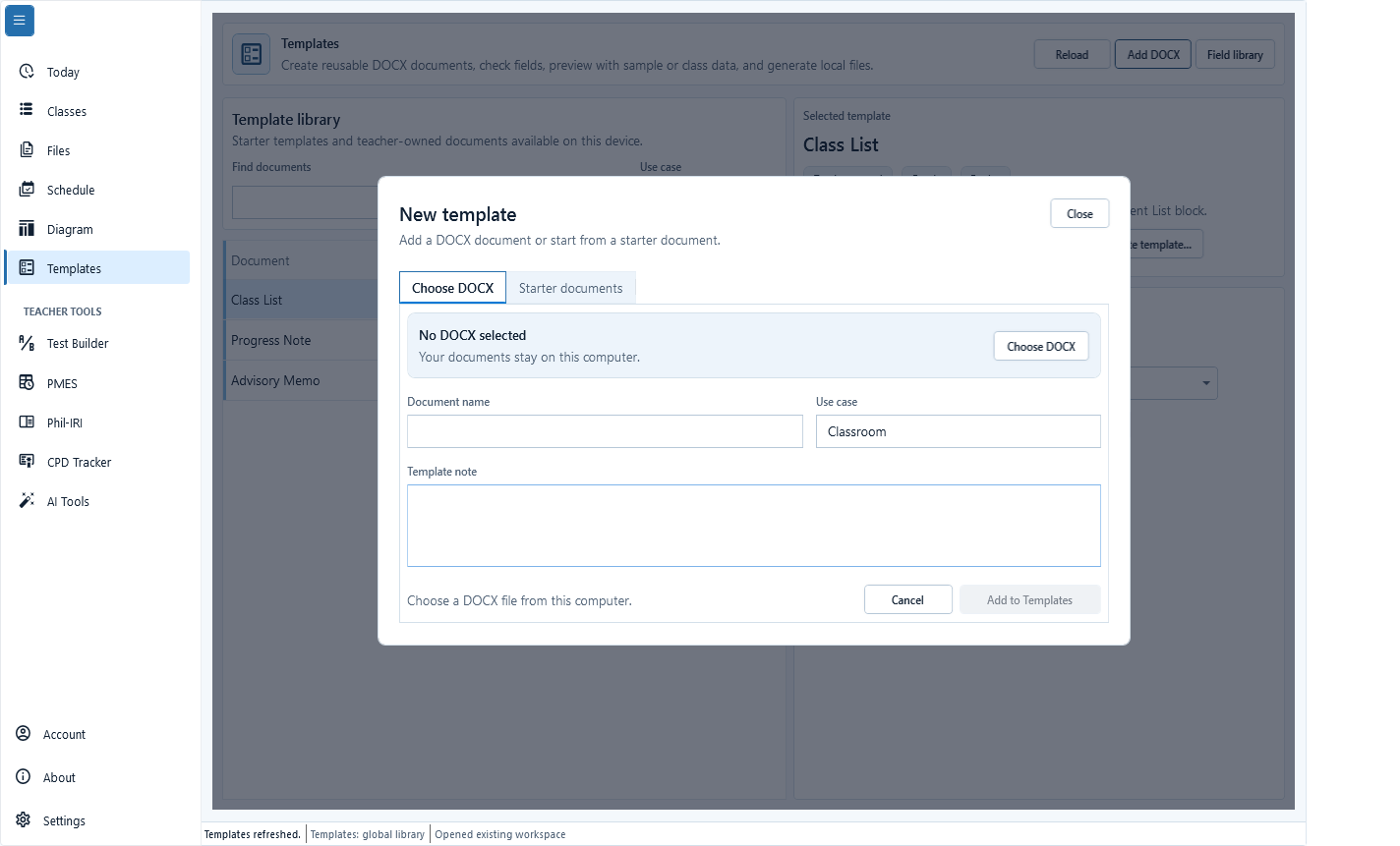
Start from Templates
Open Templates and choose an existing sample, a copied template, or a new local DOCX template when the app supports it.
- 2
Step 2
Name the teacher-facing purpose
Use a clear template name and description so the teacher knows when to use it.
 View full size
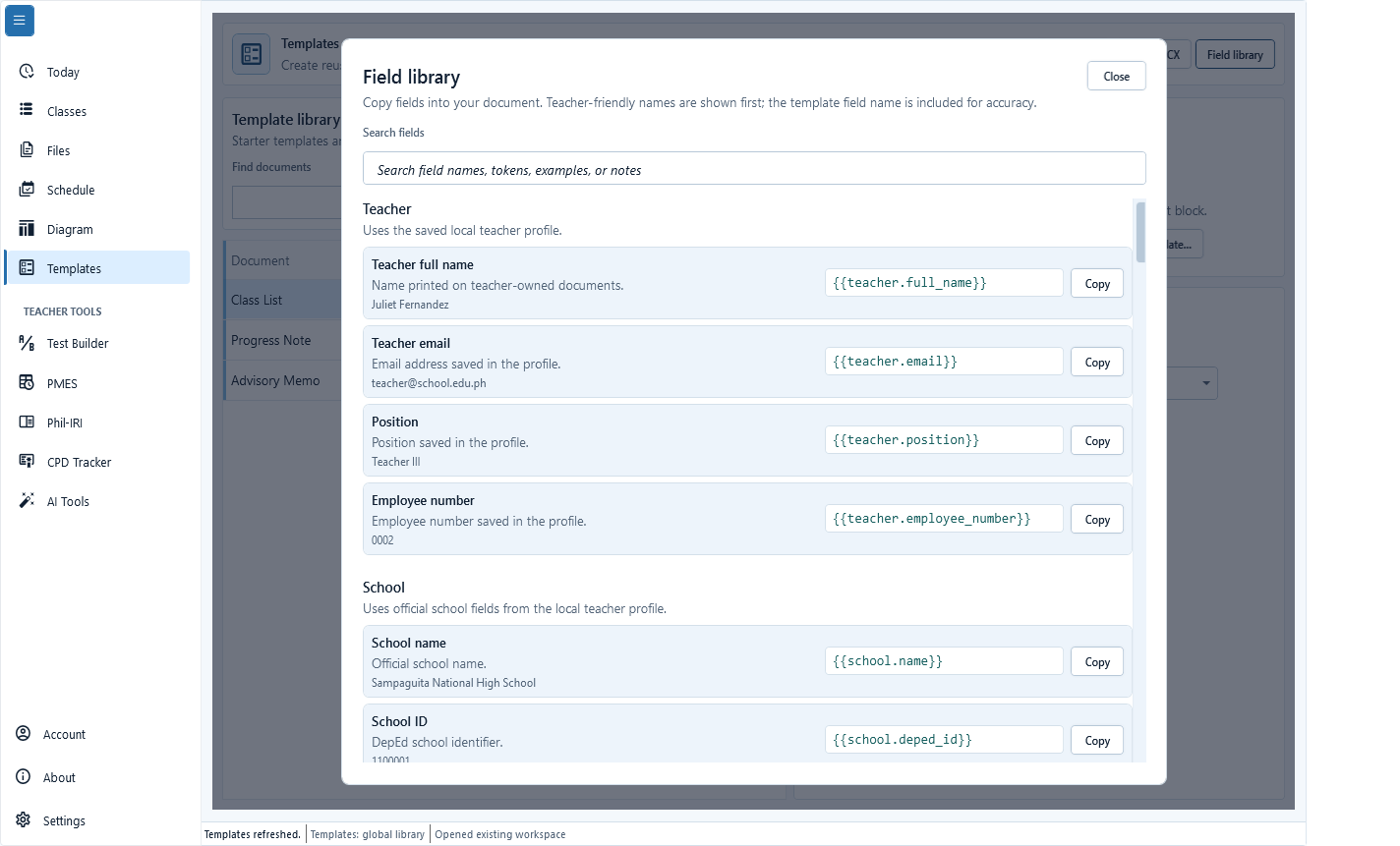
Teacher-friendly names come first; the exact template field remains visible for accurate DOCX editing. Captured July 10, 2026. Step 3
Add required fields carefully
Use the field library to find teacher, school, class, learner, date, subject, or other details. Copy only the fields the document needs and keep the teacher-facing purpose clear.
 View full size
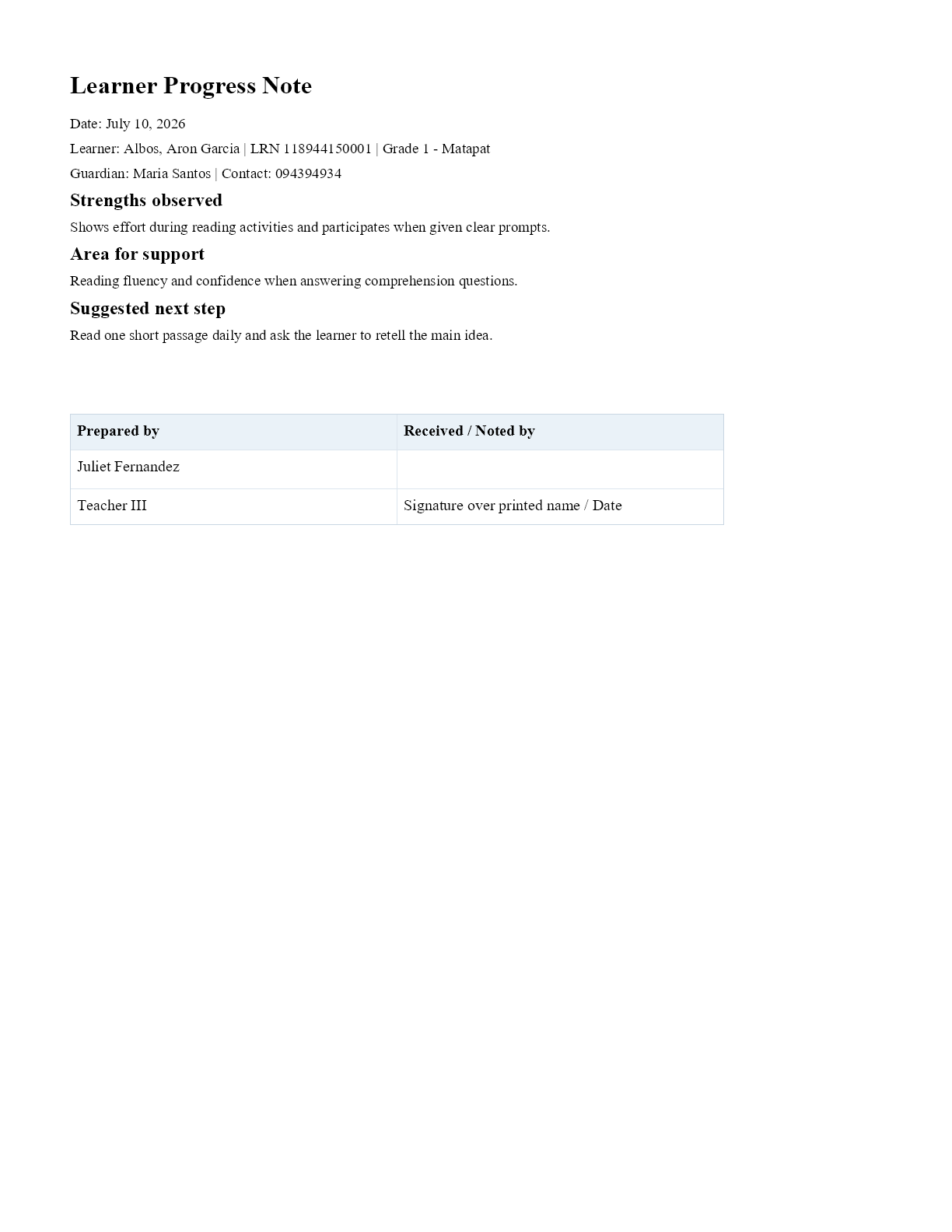
Inspect the rendered page itself, not only the preview-ready label, before using real class or learner data. Captured July 10, 2026. Step 4
Preview with sample data
Use sample preview to check layout before real class or learner data is involved.
- 5
Step 5
Save and back up
Save the reusable template locally and include it in workspace backups before major edits.


Review
Check these before relying on the work
These checks cover saved, previewed, generated, and teacher-review states.
DOCX opens correctly
The template should open and preview without broken layout or missing required fields.
Required fields are understandable
Field prompts should use teacher-readable labels, not technical names.
Sample preview works
Sample preview should work before real data preview or generation.
Backup exists
Back up templates before replacing or heavily editing reusable files.
Blocked states and recovery
Fix the blocker before continuing
Use the direct recovery action when GuroAssist is waiting for setup, data, access, policy, or file readiness.
Unsupported file type
Use a supported local DOCX template.
After recovery: The required template is selected, readable, and shown as ready for this task.
Review generated-file helpRequired fields missing
Add the details the template needs before real data preview or generation.
After recovery: The required template is selected, readable, and shown as ready for this task.
Review generated-file helpTemplate cannot be read
Open or restore the local DOCX before editing again.
After recovery: The required template is selected, readable, and shown as ready for this task.
Open backup and restore helpUnsaved changes remain
Save or discard edits before switching templates.
After recovery: The required template is selected, readable, and shown as ready for this task.
Review generated-file help
Safety note
Reusable DOCX templates are local teacher-owned files. Template guides should explain required fields in teacher language and avoid exposing technical field names.
Finish
Verify the result
Do not treat a saved screen or generated filename as proof that the work is ready.
You’re done when
Templates lists the saved teacher-owned DOCX with its name, use case, fields, and local file actions.
Guide details
Guide verification
Use these details to confirm that this guide matches the GuroAssist version and school year you are using.
- Verification
- Verified with GuroAssist 1.0.0.0
- Last reviewed
- July 11, 2026
- Screenshots
- Captured July 10, 2026
- Applies to
- 2026–2027
Was this helpful?
Choose an answer or report a guide that needs attention. No class, learner, or free-text data is sent by these buttons.
Related guides