
Step-by-step guide
Prepare Lesson Slides
Lesson Slides helps teachers prepare local slide decks, but generated PowerPoint files must be opened and reviewed before classroom use.
Teacher goal
How do I review generated PowerPoint files before using them in class?
Use this guide when this is the task in front of you. Stop if the selected class, learner, role, school year, file, or output does not match.
In-app path
- Classes
- Open class workspace
- Lesson Planning
- Slides
Get ready
Check the starting point
These are the minimum conditions for the workflow to make sense.
Before you start
Estimated time: About 5–10 minutes
- A saved lesson with its subject and learning goal
- A selected slide theme or the default lesson theme
- Time to open and review the actual PowerPoint file
You should see
Lesson Planning shows the intended saved lesson, Slides theme, readiness or blocker, and the local PowerPoint actions available for that lesson.
Steps
Complete the task in order
Review choice points, save or preview behavior, and any stop condition before continuing.
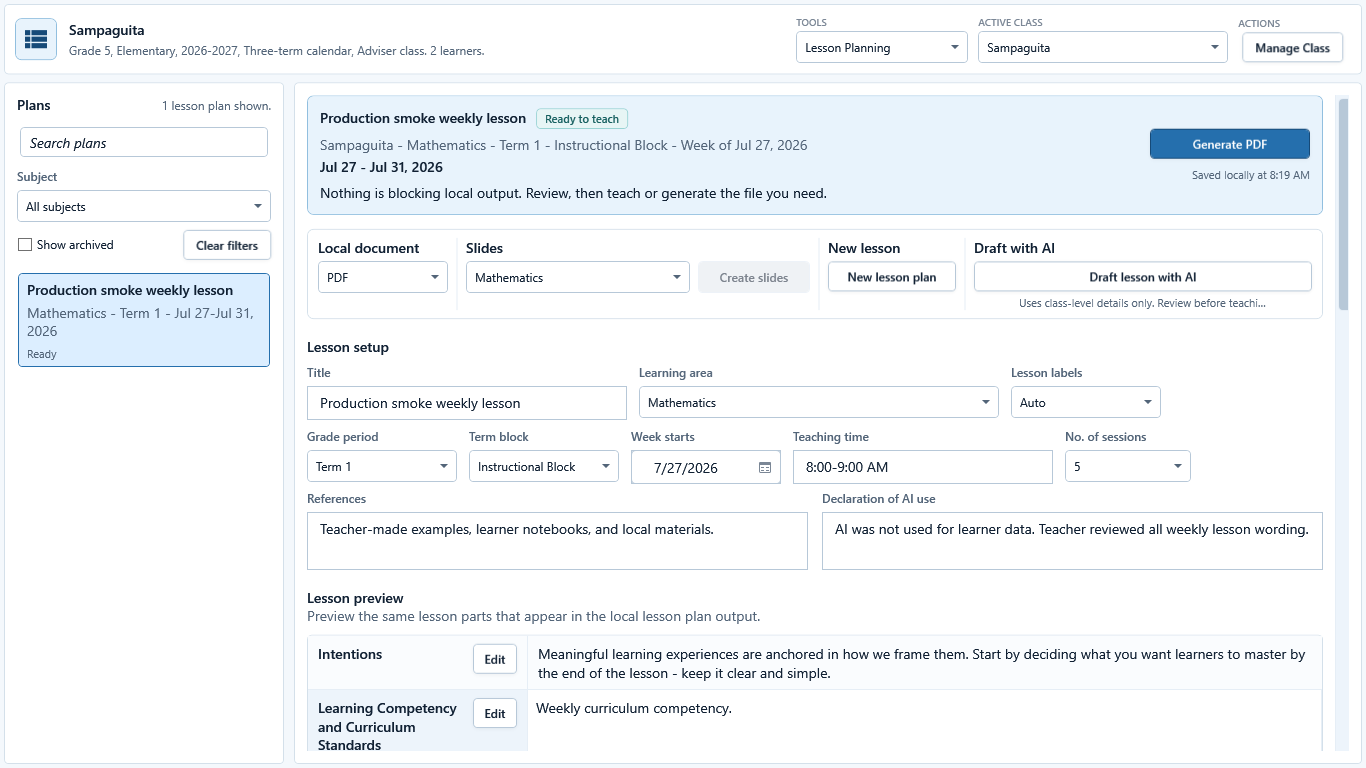 View full size
Sample data only. The selected plan is the source for the slide deck. Captured July 12, 2026. Step 1
Open the reviewed lesson plan
Choose Lesson Planning, select the intended class and subject, then open the saved plan. Confirm the plan title, date or week, grade, subject, and content before using the Slides action.
Expected result: The selected plan is the source for the slide deck.
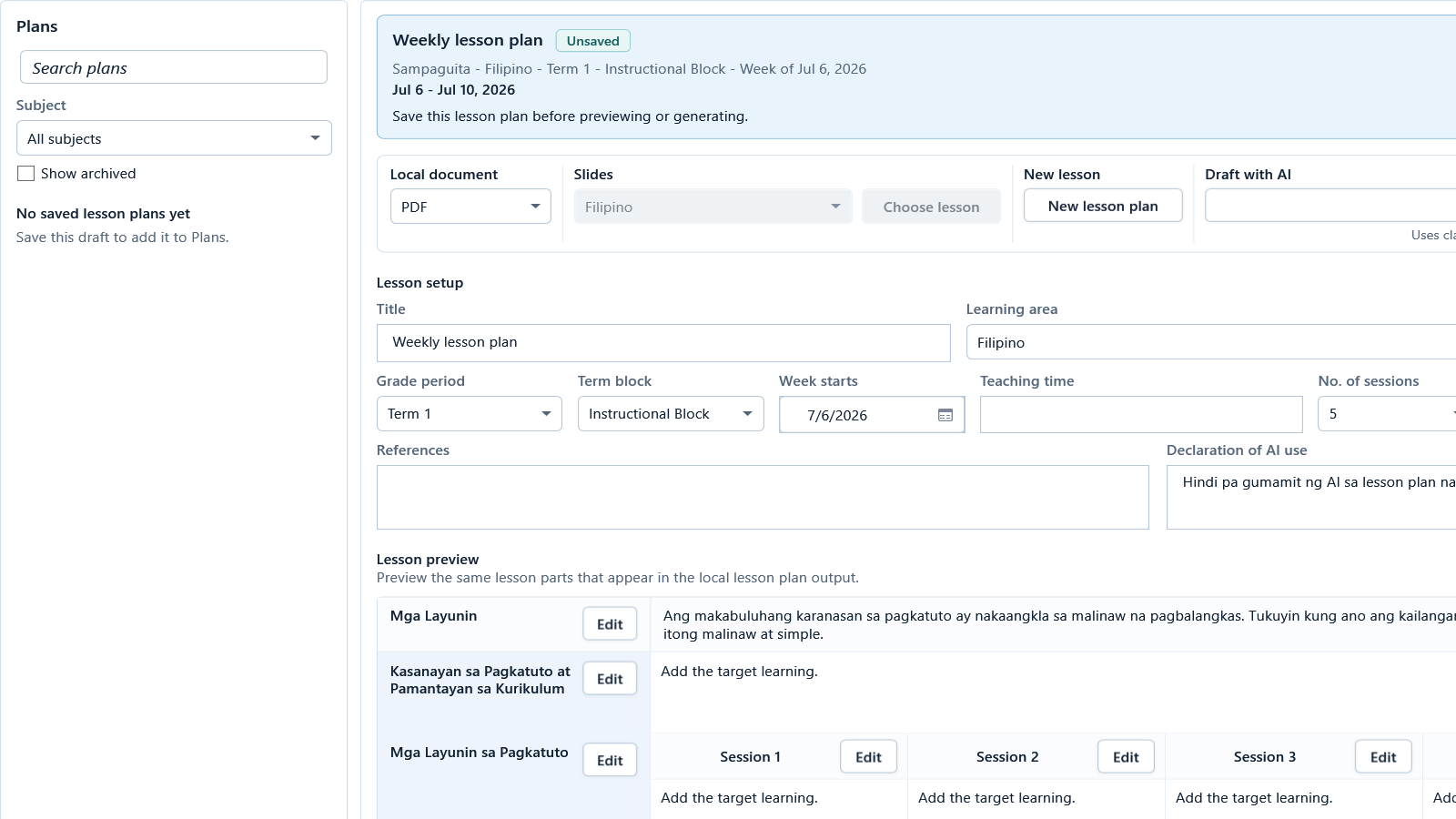 View full size
Sample data only. The source plan must be saved before later content-readiness checks can enable Slides. Captured July 12, 2026. Step 2
Save the plan and resolve every Slides blocker
If the plan is Unsaved, save it first. If Slides then says Complete lesson content or the plan status is Needs attention, choose Finish missing items and complete the named lesson content. Saving a draft and Paid access do not bypass readiness checks.
Expected result: The source plan must be saved before later content-readiness checks can enable Slides.
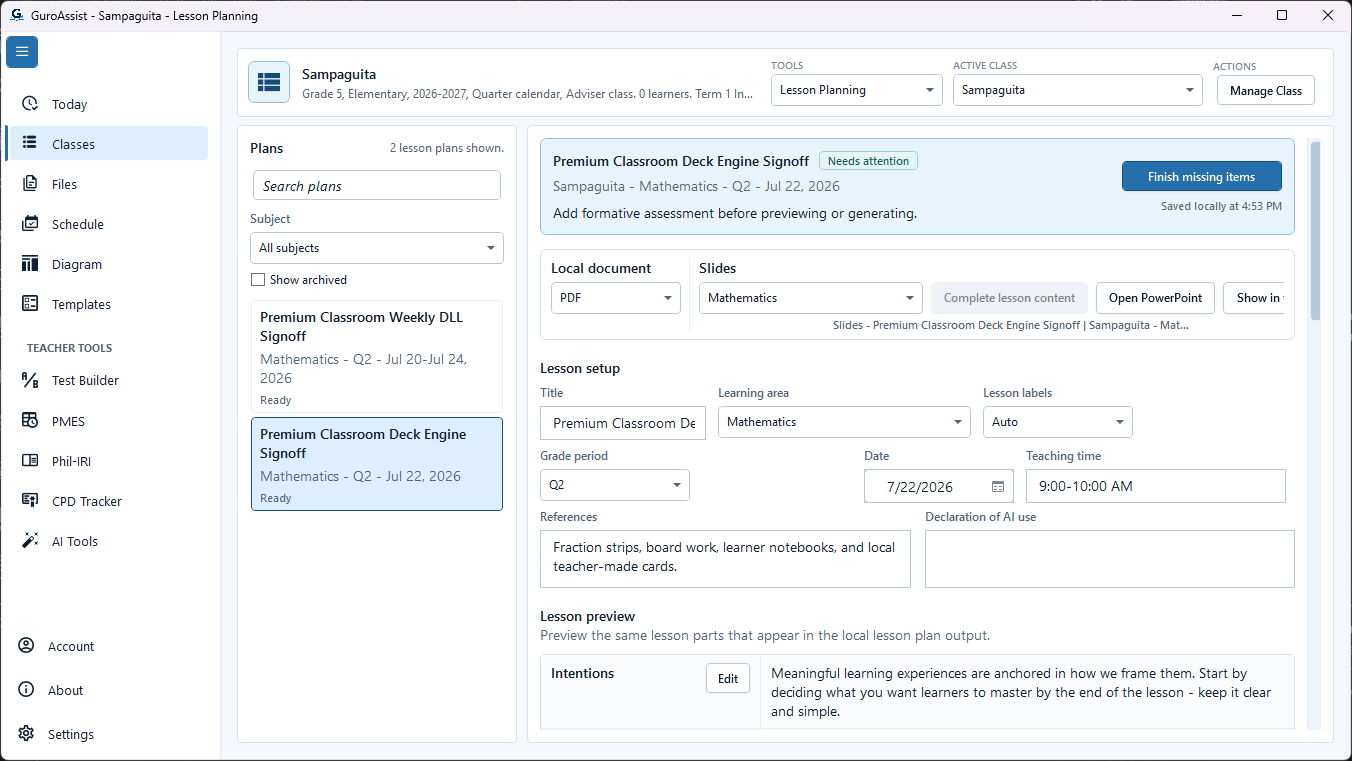 View full size
Sample data only. The Slides action is available only from a sufficiently complete plan. Captured May 17, 2026. Step 3
Generate the slide deck from the ready plan
When the plan is ready, choose Slides and follow the confirmation shown by GuroAssist. Keep the source plan open until the local file is created, and do not describe the deck as final before reviewing it.
Expected result: The Slides action is available only from a sufficiently complete plan.
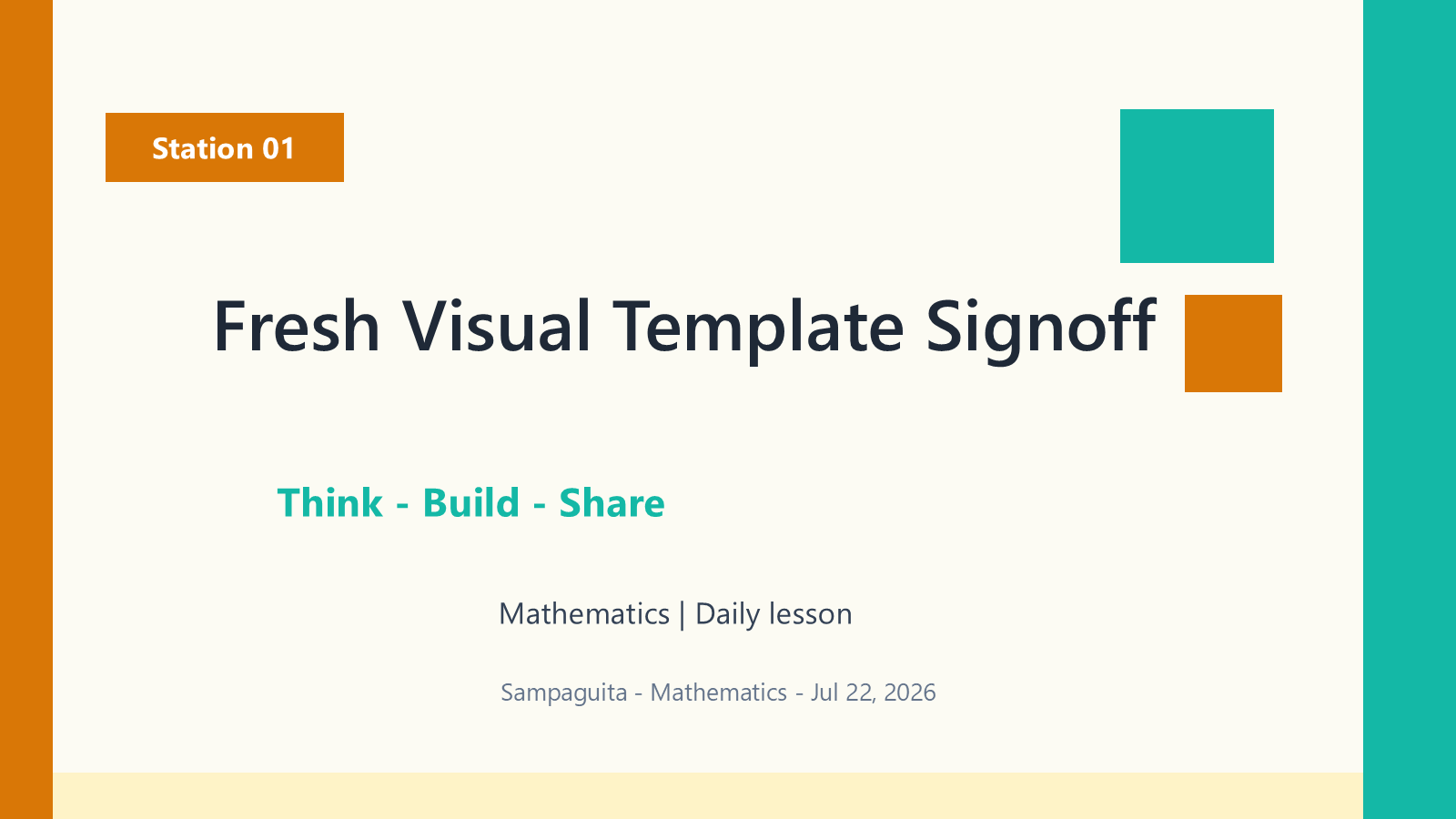 View full size
Sample data only. The opened title slide should match the reviewed source plan. Captured May 17, 2026. Step 4
Open the PPTX in the installed presentation editor
Open the generated PPTX from Files or its saved location. GuroAssist creates the local deck; editing and presenting happen in the presentation app installed on the device.
Expected result: The opened title slide should match the reviewed source plan.
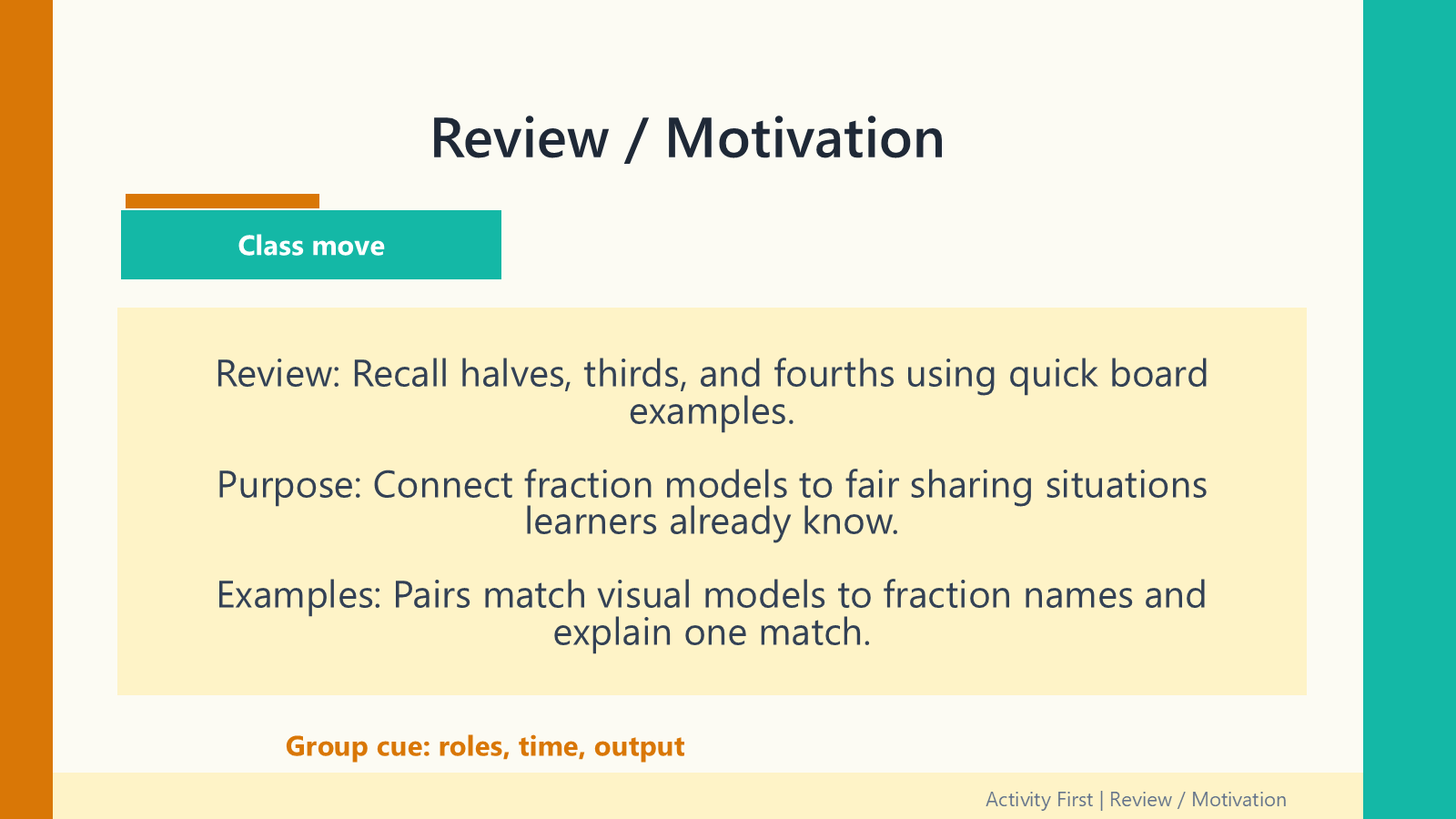 View full size
Sample data only. The full-size rendered slide is readable, unclipped, and safe for teacher review. Captured May 17, 2026. Step 5
Inspect every slide for content and layout
Review every slide at full size. Check titles, dates, grade and class labels, objectives, learning flow, assessment, references, and speaker-facing notes. Look especially for clipped text, blank required content, awkward page density, or answer leakage.
Expected result: The full-size rendered slide is readable, unclipped, and safe for teacher review.
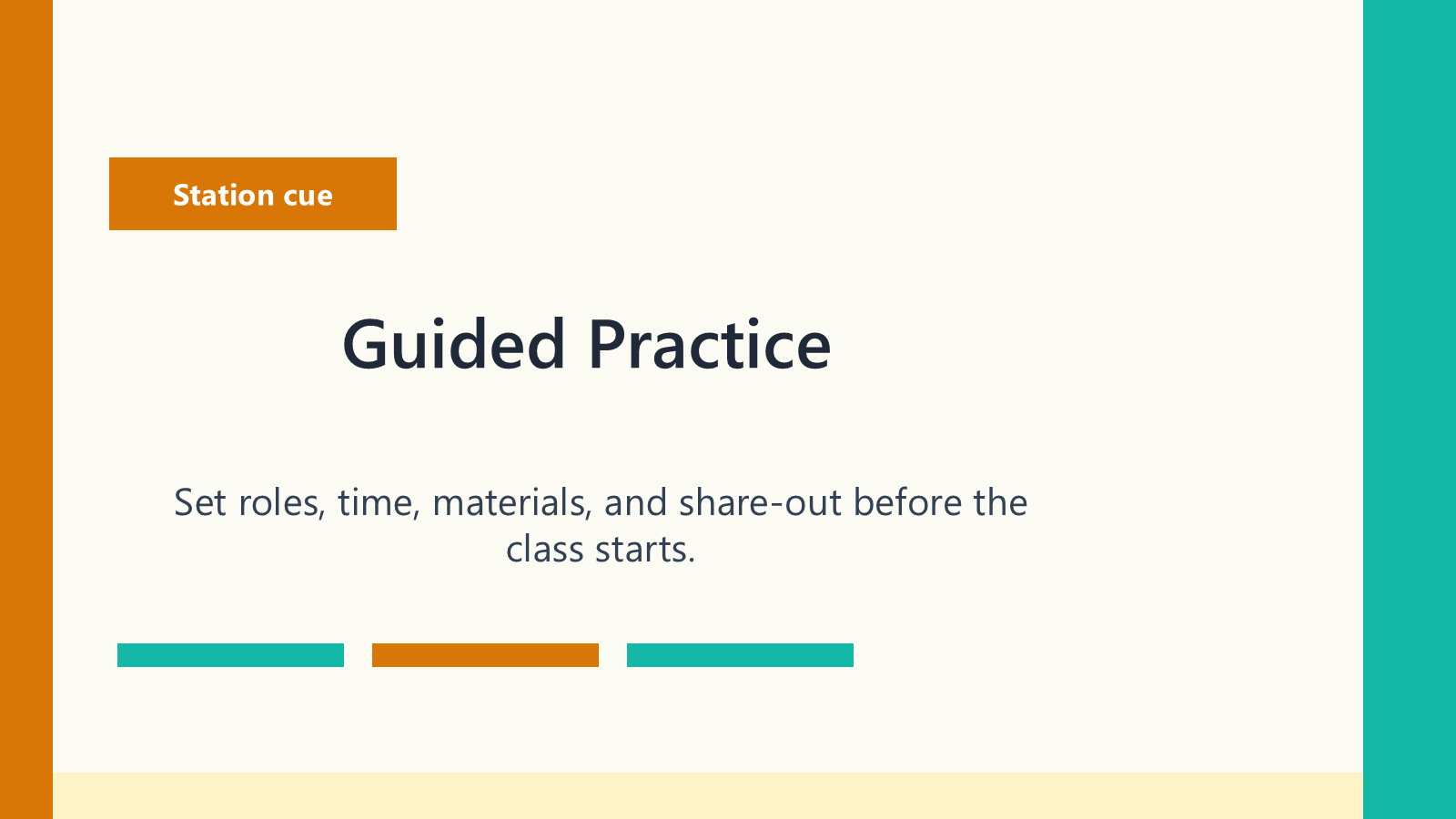 View full size
Sample data only. Reopen the teacher-reviewed copy and spot-check a later slide before presenting it. Captured May 17, 2026. Step 6
Edit the PPTX and save a teacher-reviewed copy
Correct layout or wording in the presentation editor, add only reviewed classroom material, and save a separate teacher-reviewed copy. Reopen that copy and present from it only after the full-deck check passes.
Expected result: Reopen the teacher-reviewed copy and spot-check a later slide before presenting it.


Review
Check these before relying on the work
These checks cover saved, previewed, generated, and teacher-review states.
Saved lesson is correct
The selected Daily or Weekly lesson should match the intended class, learning area, date or week, and teaching purpose.
PowerPoint file is opened
Do not rely on the app card alone. Open the generated PPTX and inspect the actual slides.
Learner-facing text is safe
Review wording before showing slides in class and remove unnecessary personal learner data.
Output label is honest
Keep generated slides local or draft until reviewed; use final only after the teacher has checked the file.
Readiness is clear
Build Slides should remain unavailable while the saved lesson content or local presentation builder is not ready.
Blocked states and recovery
Fix the blocker before continuing
Use the direct recovery action when GuroAssist is waiting for setup, data, access, policy, or file readiness.
No saved lesson selected
Choose the intended saved Daily or Weekly lesson in Lesson Planning before building slides.
After recovery: The blocker is no longer shown, and the intended next action is available for teacher review.
Troubleshoot this blockerLesson details are incomplete
Complete required topic, activity, resource, or slide details before preview or generate actions unlock.
After recovery: The blocker is no longer shown, and the intended next action is available for teacher review.
Troubleshoot this blockerLocal presentation builder unavailable
Follow the displayed update or support guidance when the local PowerPoint builder is not ready.
After recovery: The blocker is no longer shown, and the intended next action is available for teacher review.
Troubleshoot this blockerFile not reviewed
Treat the slide deck as draft until the teacher opens and checks the actual PPTX file.
After recovery: The blocker is no longer shown, and the intended next action is available for teacher review.
Review generated-file help
Safety note
Generated PowerPoint files are local teaching materials. They must be opened, reviewed, and corrected by the teacher before classroom use.
Finish
Verify the result
Do not treat a saved screen or generated filename as proof that the work is ready.
You’re done when
Lesson Planning shows the intended saved lesson, Slides theme, readiness or blocker, and the local PowerPoint actions available for that lesson.
Glossary
Expand the terms used in this guide
Use the plain-language meaning here, then follow the exact label in GuroAssist.
- AI
- Artificial intelligence; optional draft help that still requires teacher review.
Guide details
Guide verification
Use these details to confirm that this guide matches the GuroAssist version and school year you are using.
- Verification
- Verified with GuroAssist 1.0.0.0
- Last reviewed
- July 11, 2026
- Screenshots
- Captured July 12, 2026
- Applies to
- 2026–2027
Was this helpful?
Choose an answer or report a guide that needs attention. No class, learner, or free-text data is sent by these buttons.