
Step-by-step guide
Use AI Tools safely
Browse AI Tools for free, then follow one privacy-safe Objectives example through Paid access, credit review, generation, teacher review, and local download. Every live result remains a teacher-reviewed draft.
Teacher goal
How do I create and review a privacy-safe AI draft?
Use this guide when this is the task in front of you. Stop if the selected class, learner, role, school year, file, or output does not match.
In-app path
- AI Tools
Get ready
Check the starting point
These are the minimum conditions for the workflow to make sense.
Before you start
Estimated time: About 5–15 minutes
- Free access to browse the gallery, demos, and samples where shown
- Paid plus enough credits for the selected live-generation tool
- Teaching details with no names, LRNs, contact details, learner work, official documents, or unnecessary personal data
You should see
AI Tools shows Free browsing or Paid-plus-credits generation accurately, and any live output remains a teacher-reviewed draft.
Detailed workflows
Choose the AI Tools workflow you need
Browse the current tool groups, then use the individual guide before any live generation.
Steps
Complete the task in order
Review choice points, save or preview behavior, and any stop condition before continuing.
 View full size
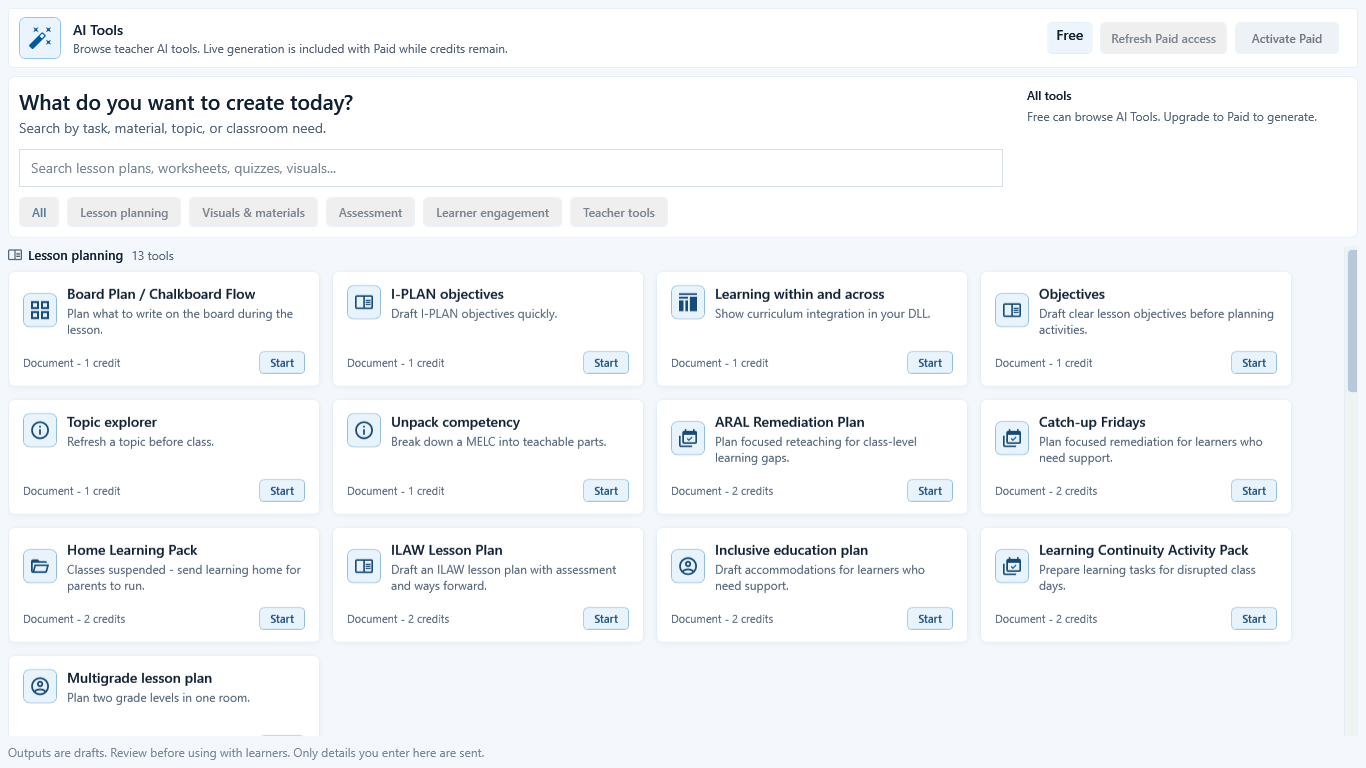
Sample data only. Free can browse the gallery and inspect tools without sending teaching details to the live AI service. Captured July 11, 2026. Step 1
Browse the gallery while Free is active
Choose AI Tools. Use Search or a category to find Objectives. Free can browse tool cards and read their purpose, output type, and credit cost, but it cannot run live generation.
Expected result: the header says Free, the gallery remains available, and Activate Paid is separate from every Start action.
 View full size
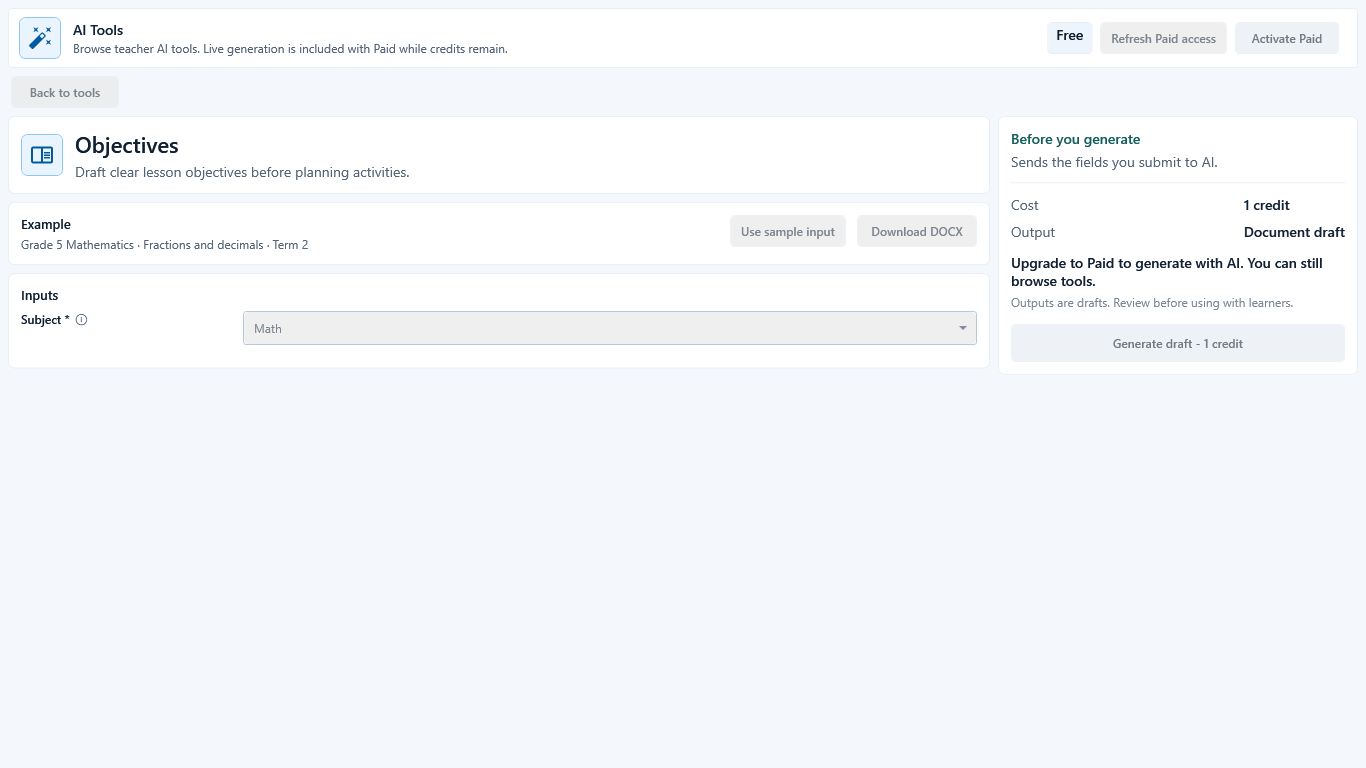
Sample data only. A valid Objectives field does not enable live generation until Paid is active. Captured July 11, 2026. Step 2
Open Objectives and confirm the Free boundary
Choose Start on Objectives. Read Before you generate, Cost, and Output. A completed Subject field does not bypass the account boundary: the form still says Upgrade to Paid and keeps Generate draft disabled.
Expected result: Objectives is visible with a one-credit cost, but no live request can start while the header says Free.
 View full size
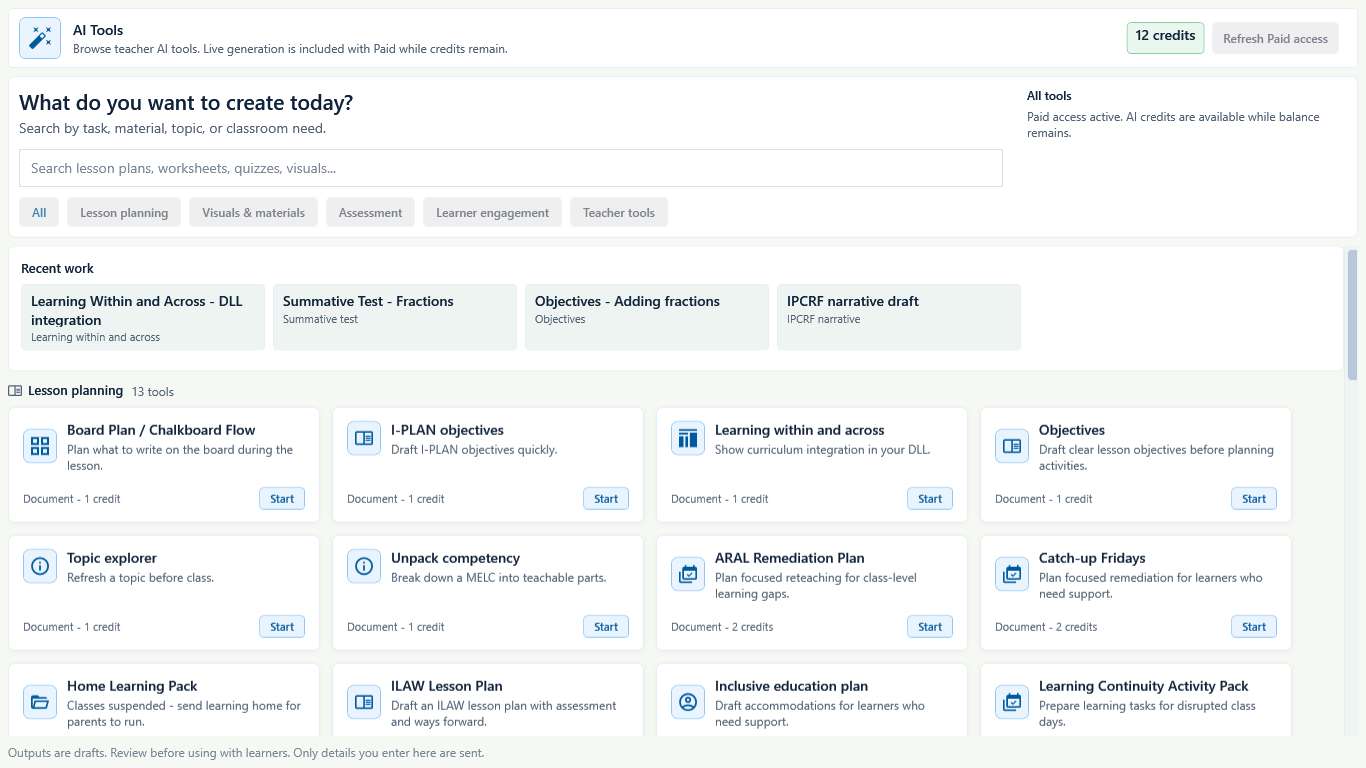
Sample data only. Verify the Paid balance in the header before reopening Objectives. Captured July 11, 2026. Step 3
Return after activation and verify Paid access
Complete activation only through the normal account flow, return to AI Tools, and choose Refresh Paid access. Check that a credit balance replaces Free before choosing Objectives again. Do not submit teaching details until that account state is visible.
Expected result: the gallery shows a credit balance and Objectives remains a one-credit document tool.
 View full size
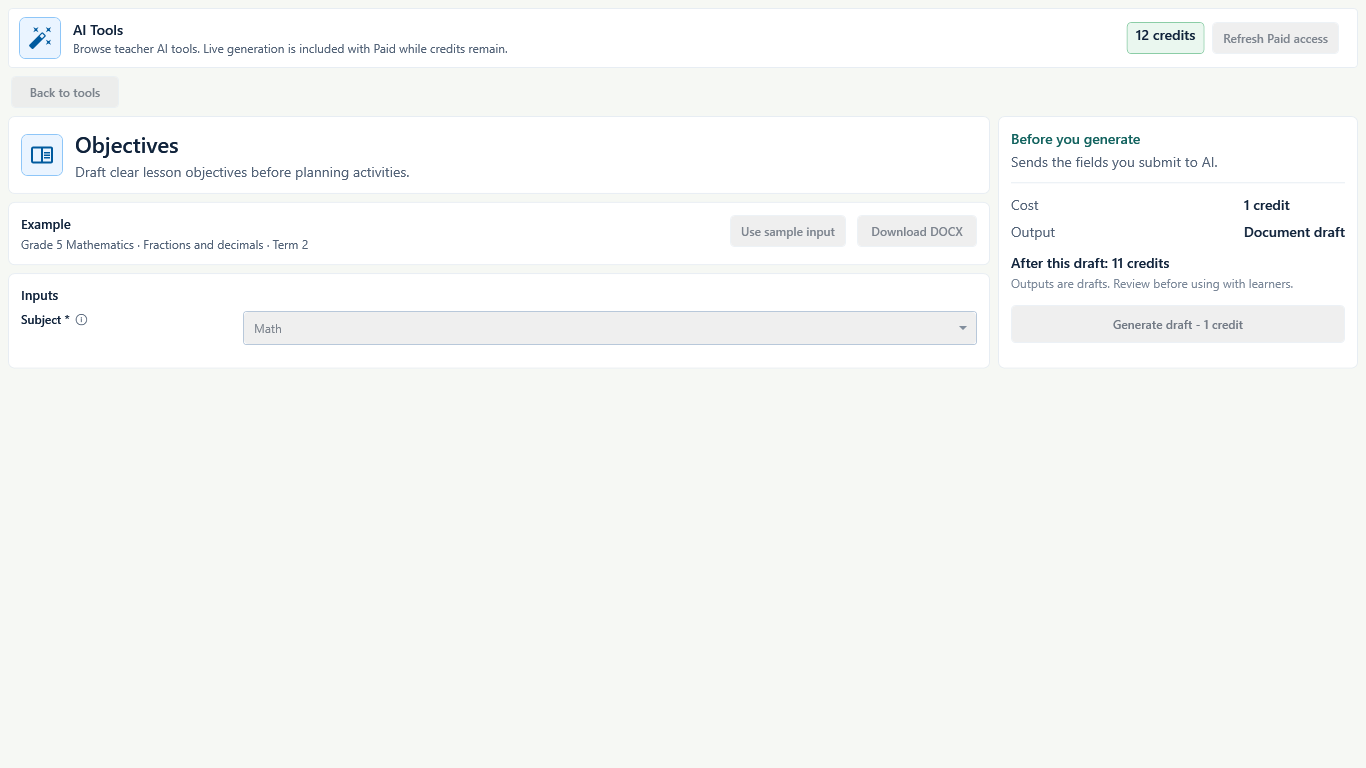
Sample data only. This is the same Objectives example used in the remaining main-path screenshots. Captured July 11, 2026. Step 4
Complete only the privacy-safe Objectives field
Open Objectives and choose a general Subject such as Math. Do not enter names, LRNs, contact details, learner work, official documents, or unnecessary personal data. Read the one-credit Cost and the After this draft balance before continuing.
Expected result: the Paid Objectives form shows Math, a one-credit cost, and enough credits for the request.
 View full size
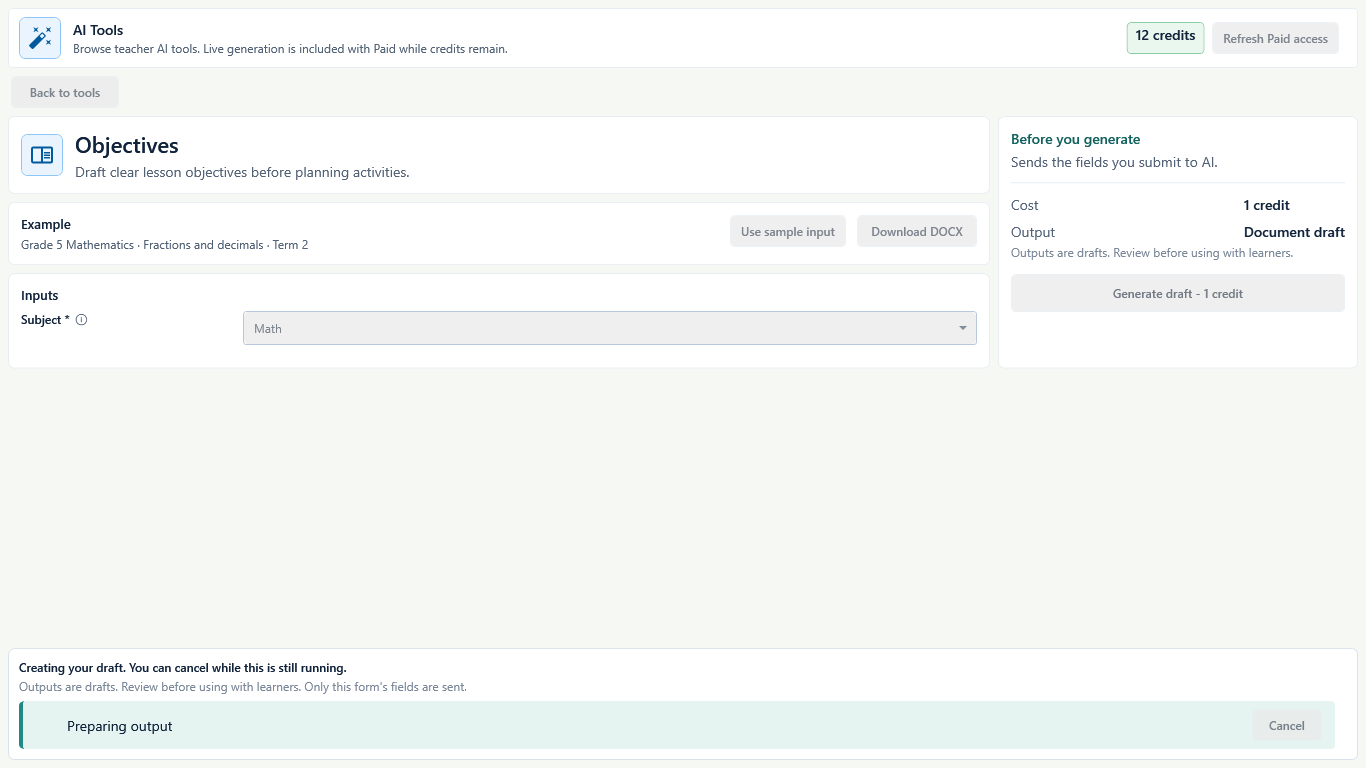
Sample data only. The preparing state is not a usable or saved draft. Captured July 11, 2026. Step 5
Choose Generate draft and wait
Choose Generate draft once. Keep the window open while Preparing output is shown. Use Cancel only when the request should stop; do not claim a result or a saved file until the completed draft appears.
Expected result: Objectives shows Preparing output and Cancel while the request is still running.
 View full size
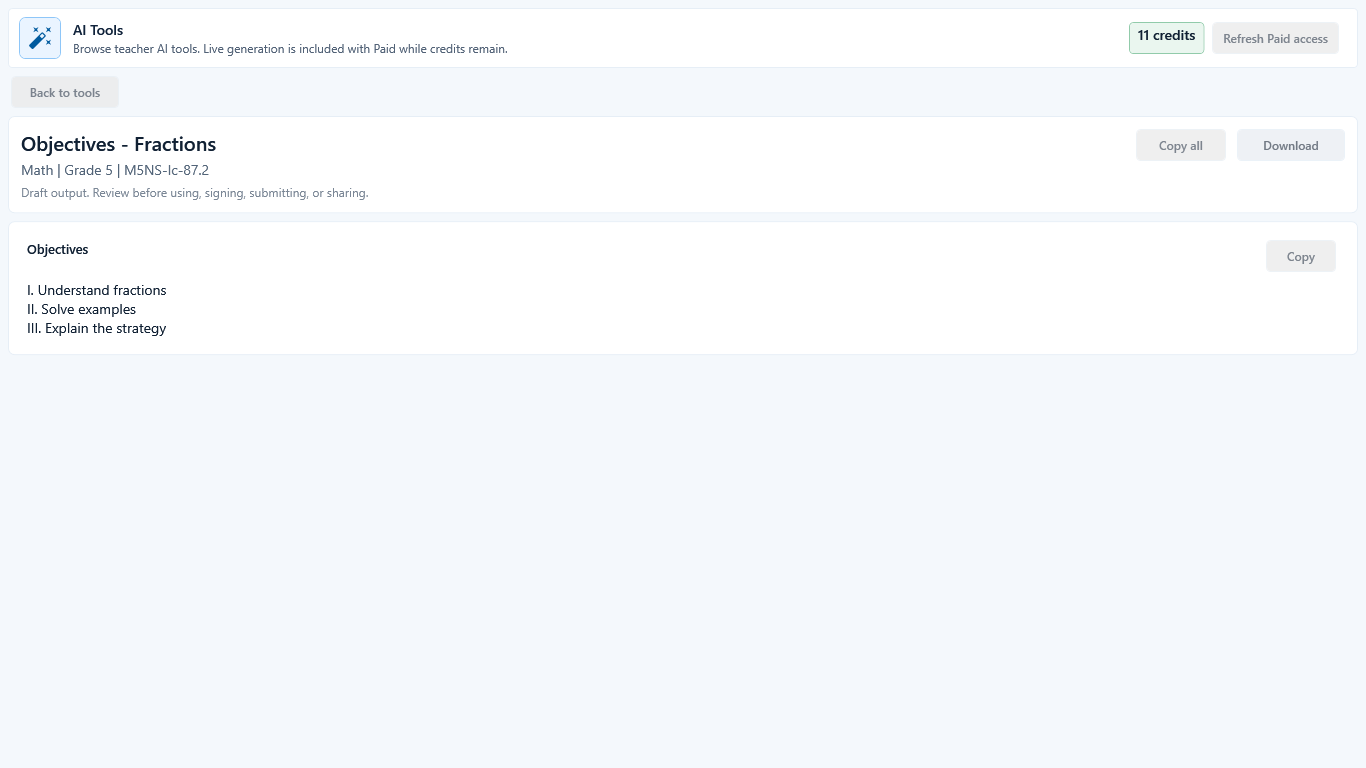
Sample data only. Review the Objectives wording and learning fit before keeping any part of the draft. Captured July 11, 2026. Step 6
Review and edit the completed Objectives draft
Read every generated objective. Check accuracy, tone, learning fit, privacy, and classroom safety. Copy only the wording worth keeping, edit it in the teacher's normal document, or discard the result.
Expected result: the result is labeled Draft output and remains under teacher review before use, signing, submitting, or sharing.
 View full size
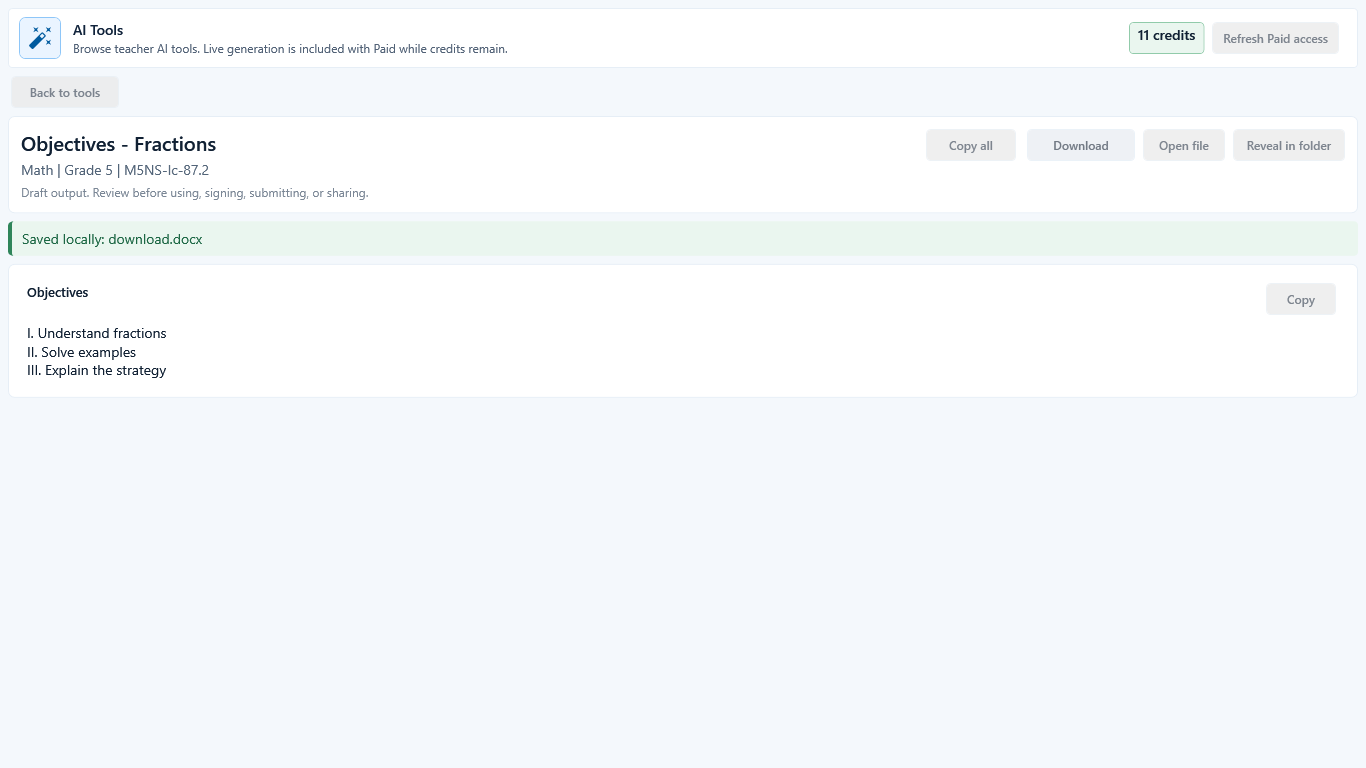
Sample data only. The saved Objectives file remains a teacher-owned local draft. Captured July 11, 2026. Step 7
Download only after teacher review
Choose Download only if the reviewed draft should be kept. After Saved locally appears, choose Open file to inspect the actual document or Reveal in folder to locate it. The downloaded file remains a local draft, not official-ready output.
Expected result: a local filename and Open file or Reveal in folder actions appear, and the teacher opens the file before relying on it.
 View full size
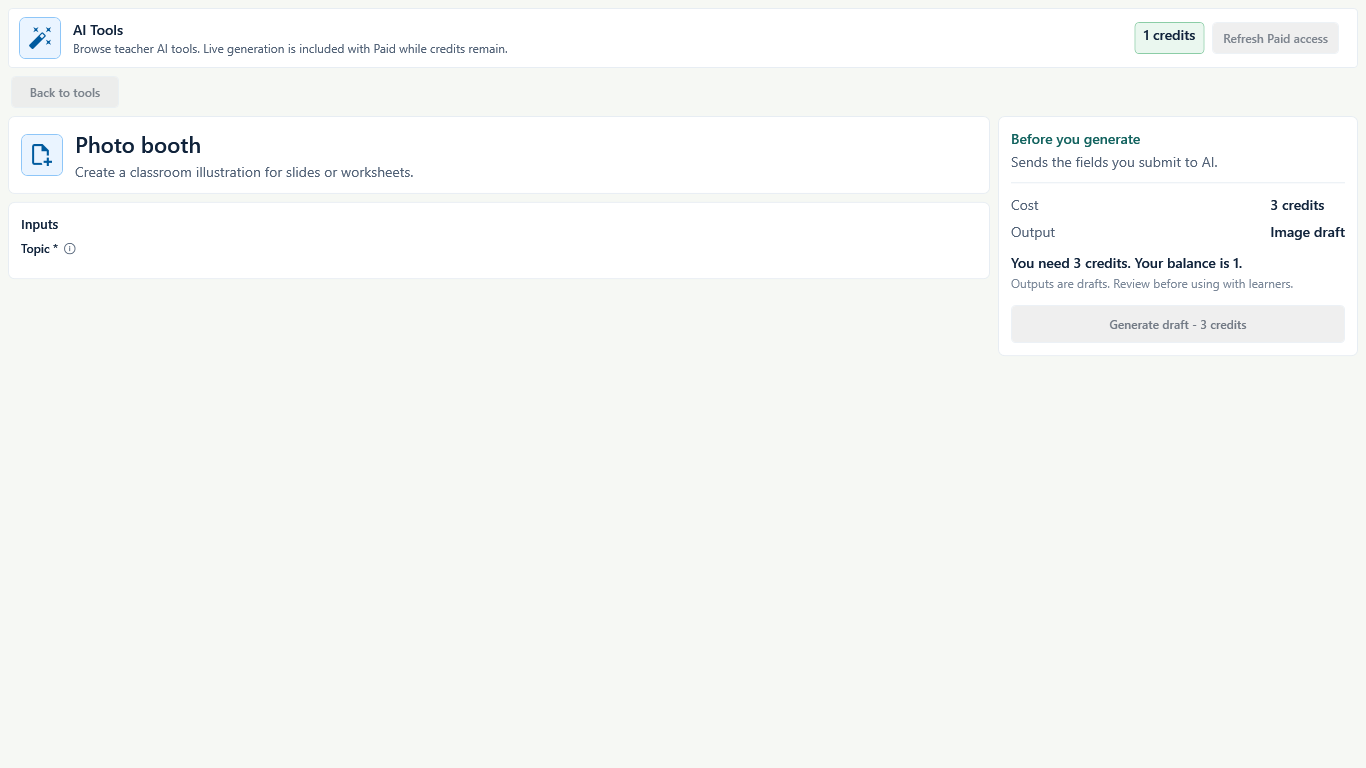
Sample data only. This separate branch demonstrates the credit gate; it is not the Objectives main path. Captured July 11, 2026. Step 8
Stop when another tool costs more credits than remain
For a separate insufficient-credit example, Photo booth costs three credits while the fictional balance is one. Generate draft stays disabled. Return to the gallery or refresh Paid access; repeated clicks cannot start a request that the balance does not cover.
Expected result: the exact credit shortfall stays visible and no generation request starts.
 View full size
Sample data only. This is separate from Free access and from an insufficient-credit state. Captured July 11, 2026. Step 9
Keep local work when the live service is unavailable
If the gallery says Connect to GuroAssist AI to load tools, do not claim a completed result and do not keep submitting. Keep local work on the device, choose Refresh Paid access only after connectivity or service access is restored, and then recheck the gallery state.
Expected result: the unavailable state names the connection problem, shows no loaded tools, and makes no credit-spend or completed-output claim.


Review
Check these before relying on the work
These checks cover saved, previewed, generated, and teacher-review states.
Free browsing remains available
Free can browse the gallery, demos, and samples where the current app shows them; it does not enable live generation.
No unnecessary personal data
Do not put names, LRNs, contact details, learner work, official documents, or unnecessary personal data into live AI prompts.
Teacher decides
AI output should support teacher judgment, not replace it.
Credits can run out
If credits are gone, live AI actions should stop until access is refreshed.
Blocked states and recovery
Fix the blocker before continuing
Use the direct recovery action when GuroAssist is waiting for setup, data, access, policy, or file readiness.
Paid not active
Browse demos and samples where available, or activate Paid before live generation.
After recovery: Paid access and any required credits are shown as available for this action.
Open activation helpNo credits available
Live AI requires available credits; saved local work remains available.
After recovery: Paid access and any required credits are shown as available for this action.
Review Paid accessLive generation cannot be reached
No completed draft exists when the service, access check, or connection cannot finish. Keep local work and retry after the screen shows live generation is available.
After recovery: The blocker is no longer shown, and the intended next action is available for teacher review.
Troubleshoot this blocker
Safety note
AI should feel optional, careful, and teacher-owned. It should never imply automatic compliance or official endorsement.
Finish
Verify the result
Do not treat a saved screen or generated filename as proof that the work is ready.
You’re done when
The teacher has reviewed, corrected, and either kept or discarded a privacy-safe AI draft before using it with a class.
Privacy, policy, and official-looking outputs
Keep the work inside its safe boundary
These limits remain in force even when the main task appears complete.
Important boundary
Never put names, LRNs, contact details, learner work, official documents, or unnecessary personal data into live AI prompts.
Glossary
Expand the terms used in this guide
Use the plain-language meaning here, then follow the exact label in GuroAssist.
- AI
- Artificial intelligence; optional draft help that still requires teacher review.
Guide details
Guide verification
Use these details to confirm that this guide matches the GuroAssist version and school year you are using.
- Verification
- Verified with GuroAssist 1.0.0.0
- Last reviewed
- July 11, 2026
- Screenshots
- Captured July 11, 2026
- Applies to
- 2026–2027
Was this helpful?
Choose an answer or report a guide that needs attention. No class, learner, or free-text data is sent by these buttons.