
Detailed workflow guide
Choose individual AI Tools
Individual AI Tools are optional drafting helpers. Live generation is Paid-gated, uses credits, and should be used only with classroom-safe prompts that the teacher reviews before any class use.
Teacher goal
Which AI Tool should I use, and when should I stop?
Use this guide when this is the task in front of you. Stop if the selected class, learner, role, school year, file, or output does not match.
In-app path
- AI Tools
- Choose a tool
Get ready
Check the starting point
These are the minimum conditions for the workflow to make sense.
Before you start
Estimated time: About 5–15 minutes
- Free for gallery, demos, and samples where shown
- Paid plus available credits for live generation
- A prompt with no learner-identifying or official-document content
You should see
The completed AI output is labeled as a draft, contains no unnecessary personal data, and remains ready for teacher review or discard.
Steps
Complete the task in order
Review choice points, save or preview behavior, and any stop condition before continuing.
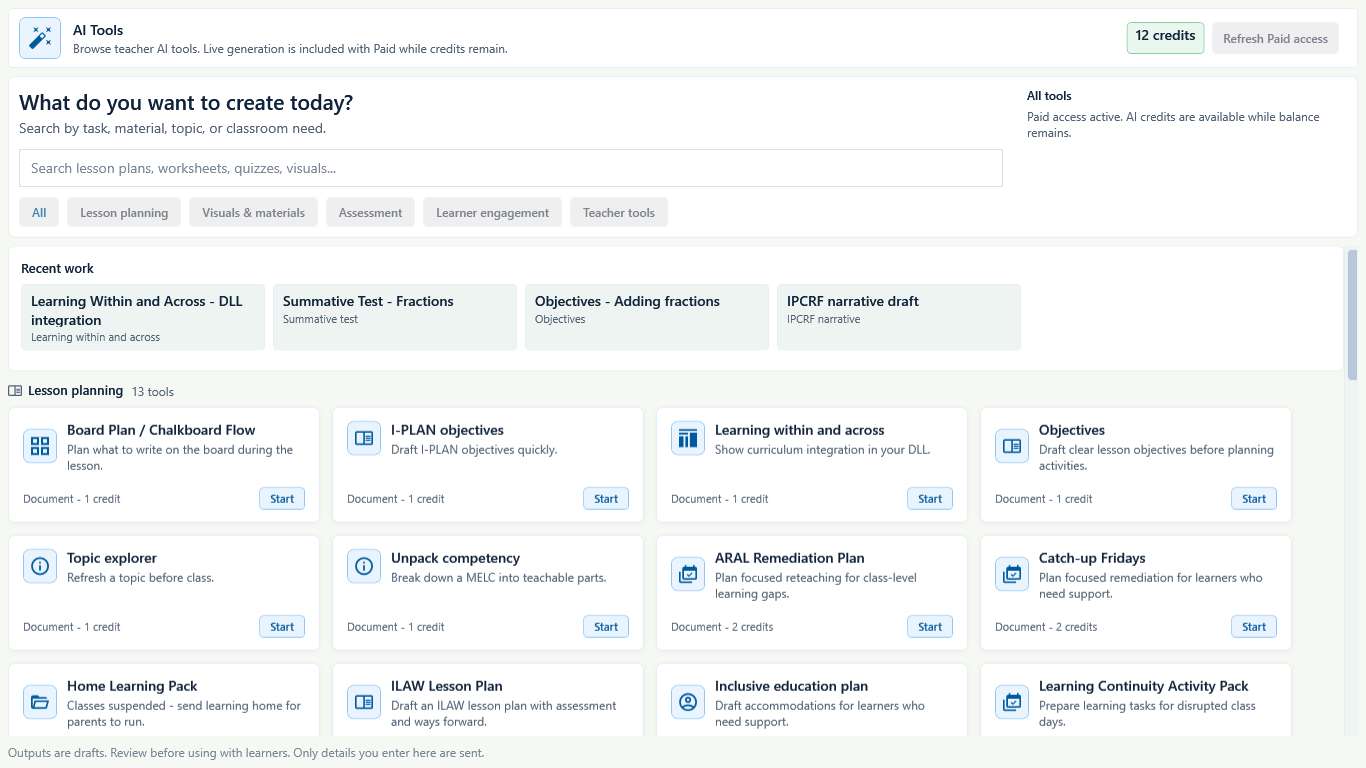 View full size
Captured July 11, 2026. Step 1
Use lesson planning tools for planning drafts
Choose ILAW Lesson Plan for a full lesson draft, ARAL Remediation Plan for reteaching after class-level gaps, Learning Continuity Activity Pack for disrupted class days, or Board Plan / Chalkboard Flow for what to write during the lesson.
These tools prepare teacher drafts. They do not make lesson decisions final, and they should be edited for the real class before use.
- 2
Step 2
Use assessment tools for review-ready materials
Choose Formative Check for a quick check with an answer key, Rubric Builder for a performance task rubric, Differentiated Worksheet Pack for easy, standard, and challenge versions, or Assessment Item Improver to review teacher-written items.
- 3
Step 3
Use teacher tools for careful wording
Choose Grade 1 Descriptive Progress Comments, Parent Update Note, or Report Card Narrative Helper when the teacher needs respectful draft wording that still requires review and editing.
- 4
Step 4
Use visuals and materials tools for support text
Choose Vocabulary And Anchor Chart Pack when the teacher needs vocabulary support and an anchor chart layout to adapt for the class.
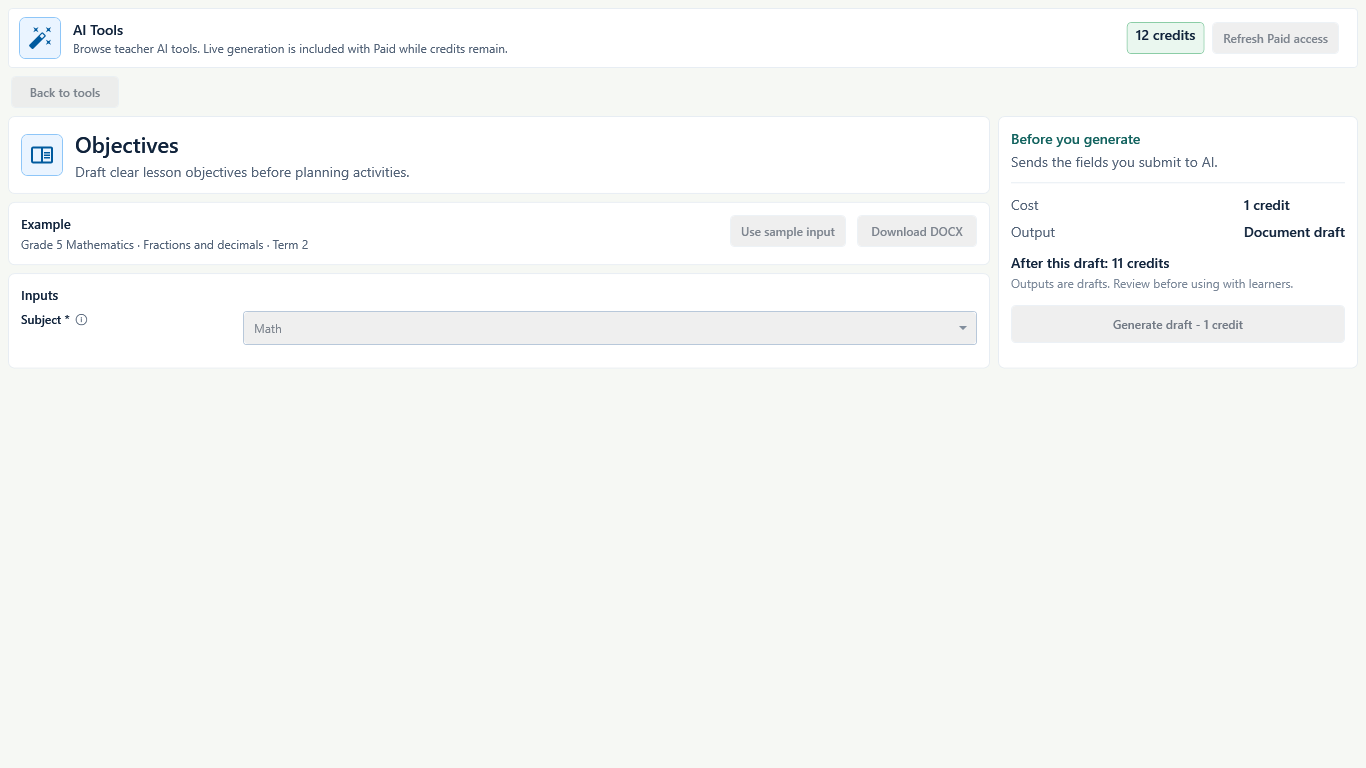 View full size
Captured July 11, 2026. Step 5
Distinguish sample behavior from live generation
Free can browse the tool gallery and review demos or samples where the app shows them. Live generation is the Paid action that also requires available credits. Only the fields submitted in that tool form are sent to the external AI service, and the returned output remains a draft for teacher review.
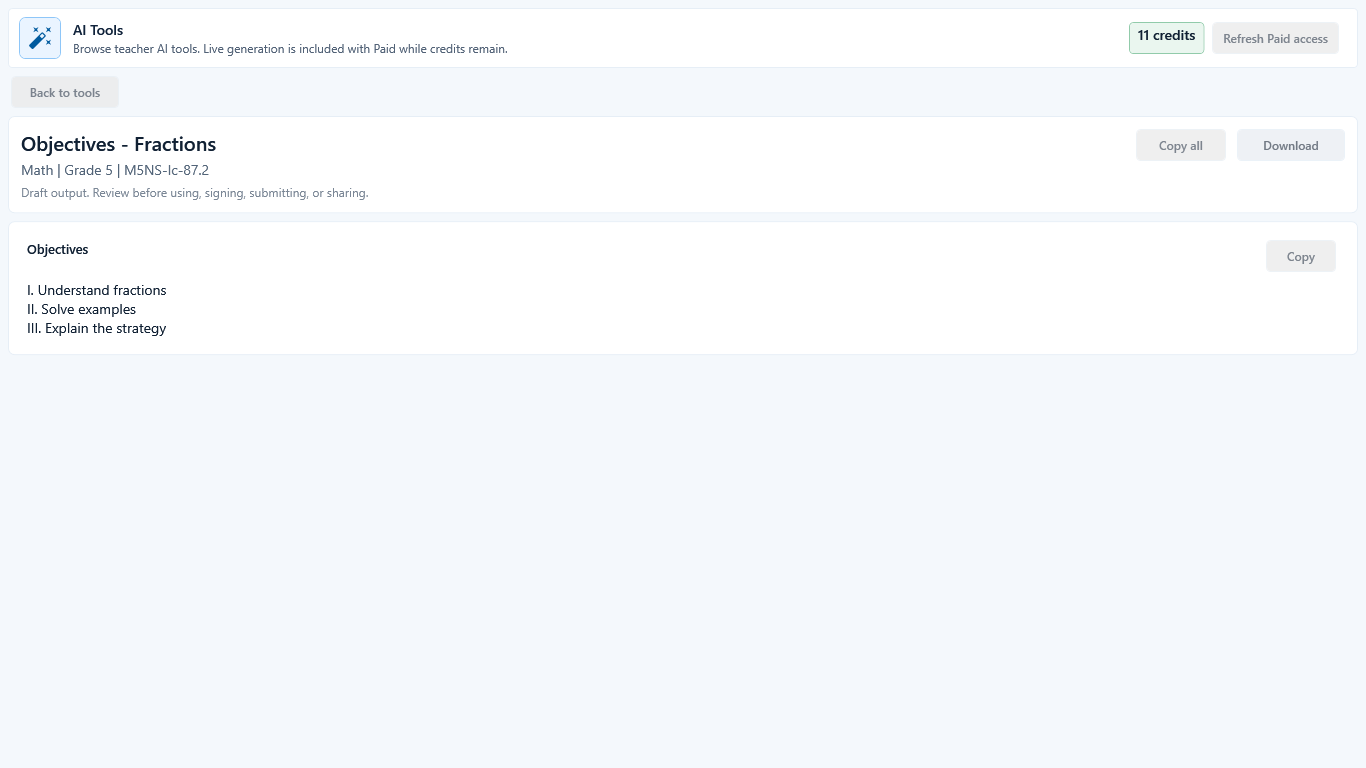 View full size
Captured July 11, 2026. Step 6
Review every AI output before use
Open the generated draft, check wording, learning fit, privacy, and classroom use, then edit or discard anything that is not right for the class.


Review
Check these before relying on the work
These checks cover saved, previewed, generated, and teacher-review states.
Paid and credits are ready
Live AI works only after Paid activation and while credits remain.
Prompt is classroom-safe
Do not enter names, LRNs, contact details, learner work, official documents, or unnecessary personal data in a live AI prompt.
Tool matches the task
Choose the narrow tool that fits the work instead of asking one tool to solve unrelated classroom needs.
Teacher review is planned
AI output should be read, edited, and judged by the teacher before being used, shared, printed, or saved as final.
Blocked states and recovery
Fix the blocker before continuing
Use the direct recovery action when GuroAssist is waiting for setup, data, access, policy, or file readiness.
Paid is not active
Free can still browse the gallery, demos, and samples where shown, but live AI generation needs Paid.
After recovery: Paid access and any required credits are shown as available for this action.
Open activation helpCredits are gone
Live AI pauses when credits run out. The gallery, samples, saved drafts, and local files remain available.
After recovery: Paid access and any required credits are shown as available for this action.
Review Paid accessPrompt includes too much personal data
Remove names, LRNs, contact details, learner work, official documents, and unnecessary personal data before live generation.
After recovery: The intended learner is selected and the learner-dependent action is available.
Review AI safetyDraft was not reviewed
Do not use AI output in class until the teacher opens and checks the actual draft.
After recovery: The blocker is no longer shown, and the intended next action is available for teacher review.
Review draft labels
Safety note
Individual AI Tools are optional teacher drafting helpers. Live AI is Paid-gated, uses credits, and outputs are drafts for teacher review; they are not official, policy-correct, or automatically safe.
Finish
Verify the result
Do not treat a saved screen or generated filename as proof that the work is ready.
You’re done when
The teacher has reviewed, corrected, and accepted or discarded the AI draft before class use.
Privacy, policy, and official-looking outputs
Keep the work inside its safe boundary
These limits remain in force even when the main task appears complete.
Important boundary
Never put names, LRNs, contact details, learner work, official documents, or unnecessary personal data into live AI prompts.
Glossary
Expand the terms used in this guide
Use the plain-language meaning here, then follow the exact label in GuroAssist.
- AI
- Artificial intelligence; optional draft help that still requires teacher review.
Guide details
Guide verification
Use these details to confirm that this guide matches the GuroAssist version and school year you are using.
- Verification
- Verified with GuroAssist 1.0.0.0
- Last reviewed
- July 11, 2026
- Screenshots
- Captured July 11, 2026
- Applies to
- 2026–2027
Was this helpful?
Choose an answer or report a guide that needs attention. No class, learner, or free-text data is sent by these buttons.
Related guides